

Cost summary
- 05 Aug 2026
- 4 Minutes to read
- Print
- DarkLight
- Download PDF
Cost summary
- Updated on 05 Aug 2026
- 4 Minutes to read
- Print
- DarkLight
- Download PDF
Article summary
Did you find this summary helpful?
Thank you for your feedback!
Overview
Cost summary is a report type in Cost Analyzer that delivers weekly or monthly updates comparing cost data from the last two weeks or last two months. It highlights spending trends, fluctuations, and anomalies, and supports drill-down into costs at the subscription and resource type level. Reports are generated as PDF files and are available for download from Generation history.
Business value
Cost summary gives teams a recurring, automated view of cost movement without manual analysis, helping them spot spending anomalies early and track trends at both the group and resource-type level.
Prerequisites
Required permissions
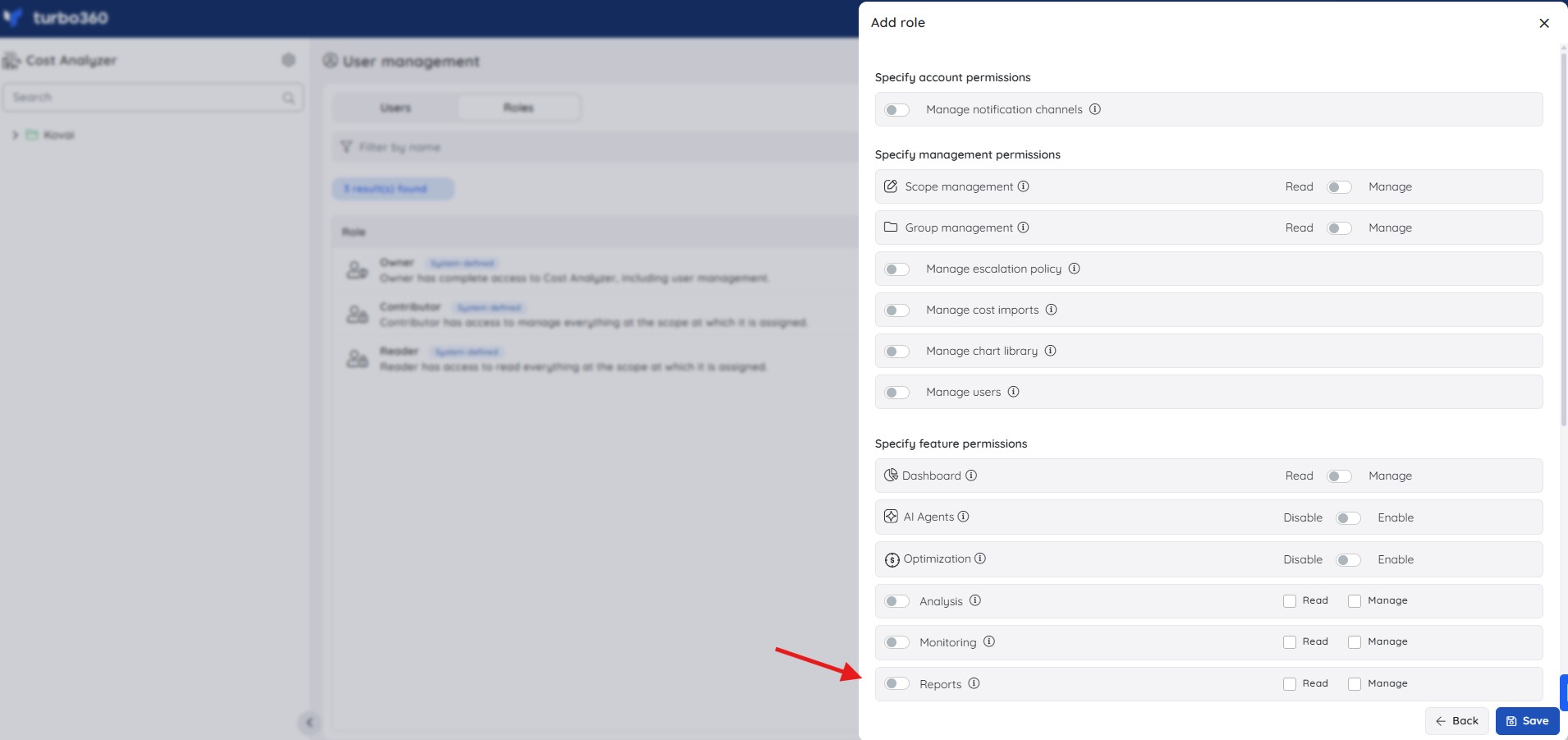
Access to Cost Analyzer reports is controlled by the Reports permission:
| Role | Permission level | Access |
|---|---|---|
| Account owner, Owner, Contributor | — | Full access to Reports |
| Custom role | Reports: Read | View all reports |
| Custom role | Reports: Manage | Edit report configuration and generate reports |
When assigning a custom role, grant Read or Manage on Reports under Specify feature permissions.
How it works
- Cost summary reports can be scheduled at Weekly or Monthly intervals, or both — weekly reports are delivered every Wednesday, monthly reports on the 3rd of each month.
- If both frequencies are selected and their scheduled times fall on the same day, the monthly report is prioritized.
- Reports can include a Spend per group breakdown when child groups are part of the configuration.
- The subscription-level and resource type-level cost breakdown tables each display the top 5 entries.
- Generation history displays each triggered report alongside the amount of cost saved when comparing the last two months.
- Generate Now triggers a monthly Cost summary report on demand — it does not generate the weekly variant.
- When triggered from the root cost management group, the report includes only the direct child groups — nested groups within those children are not included.
Steps
Use the following steps to configure and enable a Cost summary report for a cost management group. Navigate into the relevant cost management group and open Reports to get started.
Configure and schedule a report
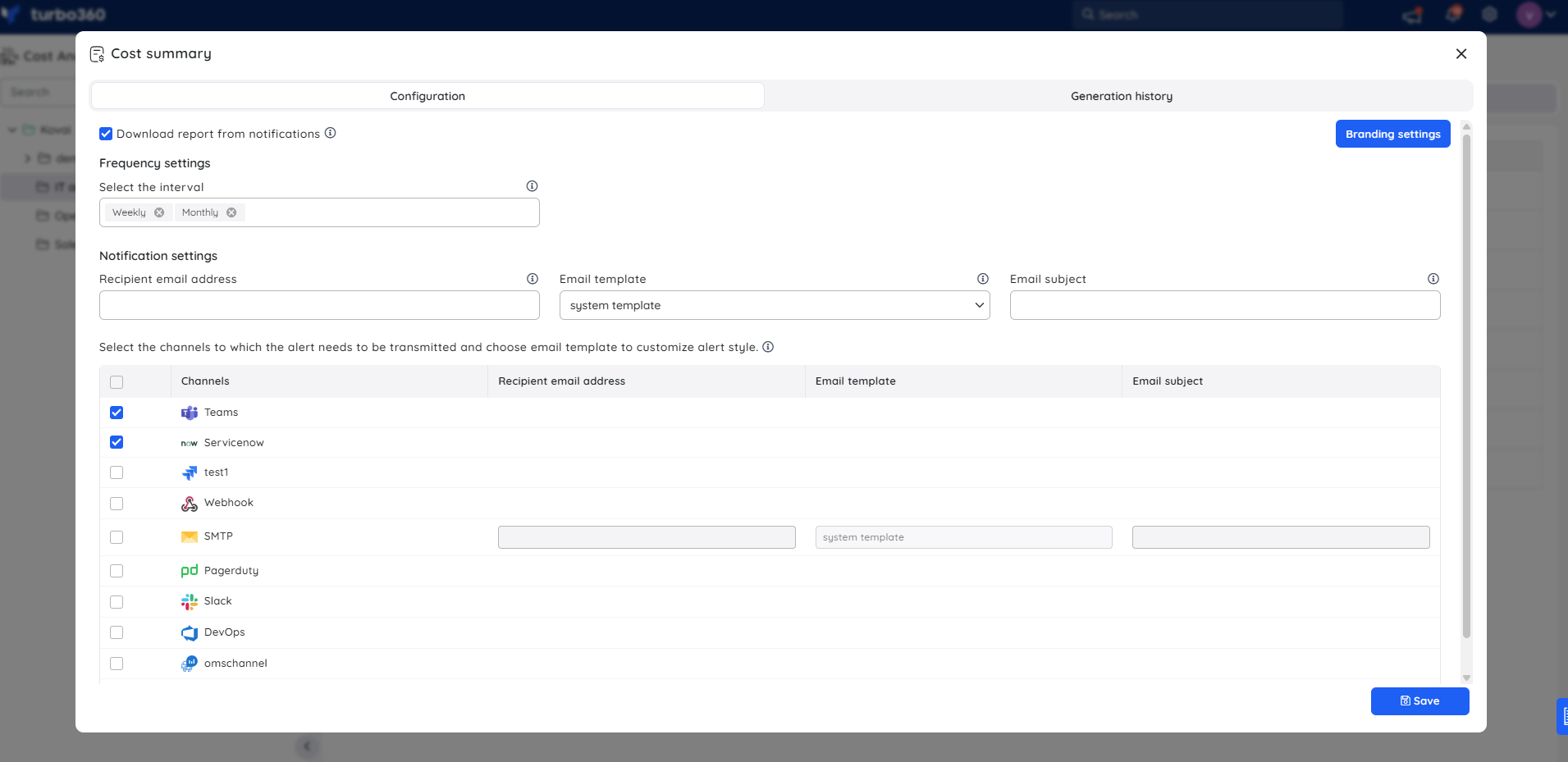
Configuring a Cost summary report sets the delivery frequency, notification channel, and optional child group breakdown.
- Click the Edit icon next to the Cost summary report type.
- Specify the report frequency — you can select one interval or both.
- Check Download report from notifications to allow the report to be downloaded directly from alerts.
- Check Include child groups to include a spend breakdown by child group in the generated report.
- Choose the desired notification services to receive alerts.
- Click Save.
- Enable the Cost summary report type toggle.
Generate a report on demand
Generating on demand produces a monthly Cost summary report immediately, without waiting for the next scheduled cycle.
- Open the Actions menu next to the Cost summary report type.
- Select Generate Now.
.png)
The Cost summary toggle must be enabled in the Reports section, and at least one notification channel must be selected, for Generate Now to work.
Configuration
Branding settings
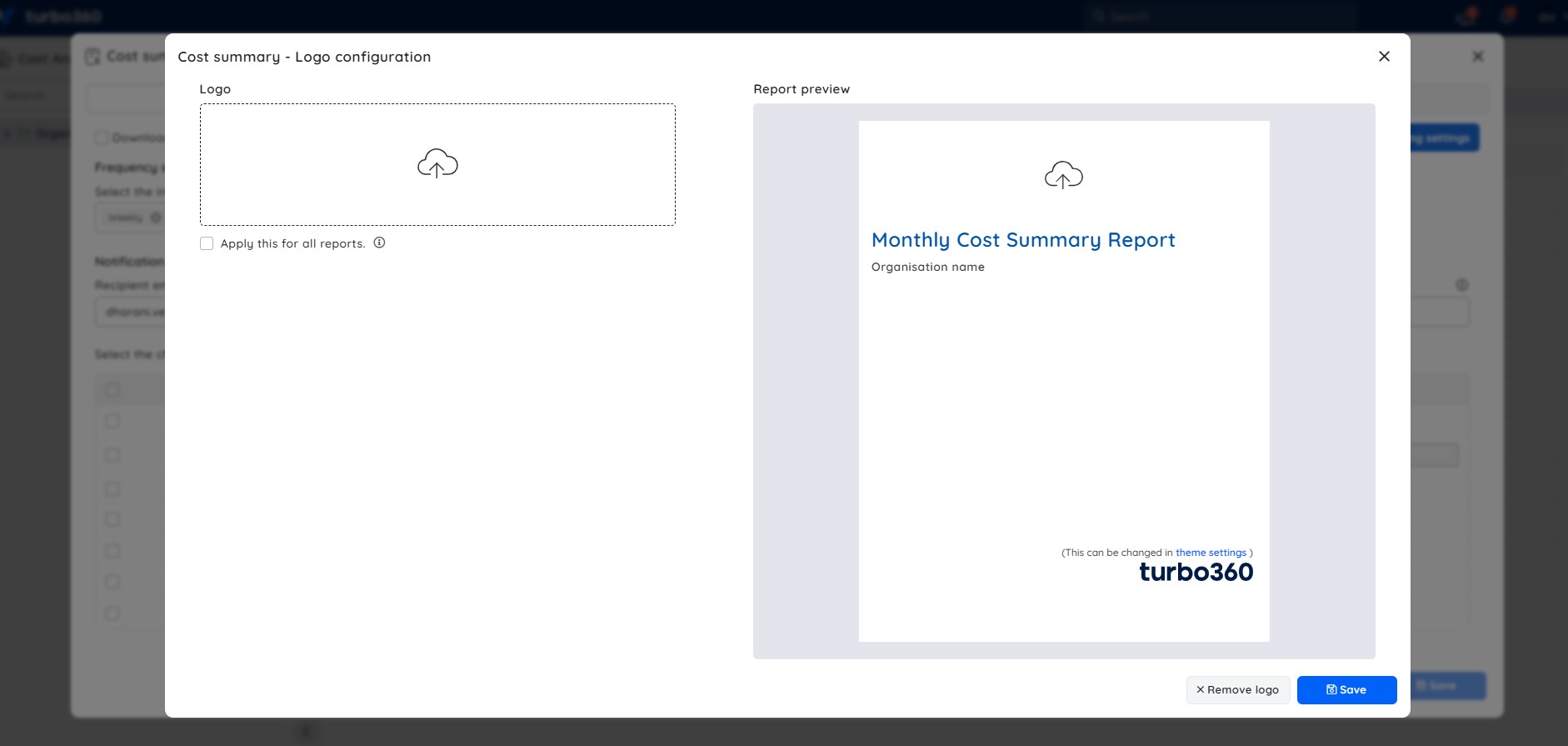
Cost summary supports branding customization through the report configuration's Branding settings.
- The uploaded logo appears at the top of the report. The footer logo is derived from the application logo, customizable through Theme settings.
- Selecting Apply this for all reports and saving applies the uploaded logo to all report types that support branding — Cost summary, Potential cost savings, and Executive cost summary.
.jpg)
Generation history
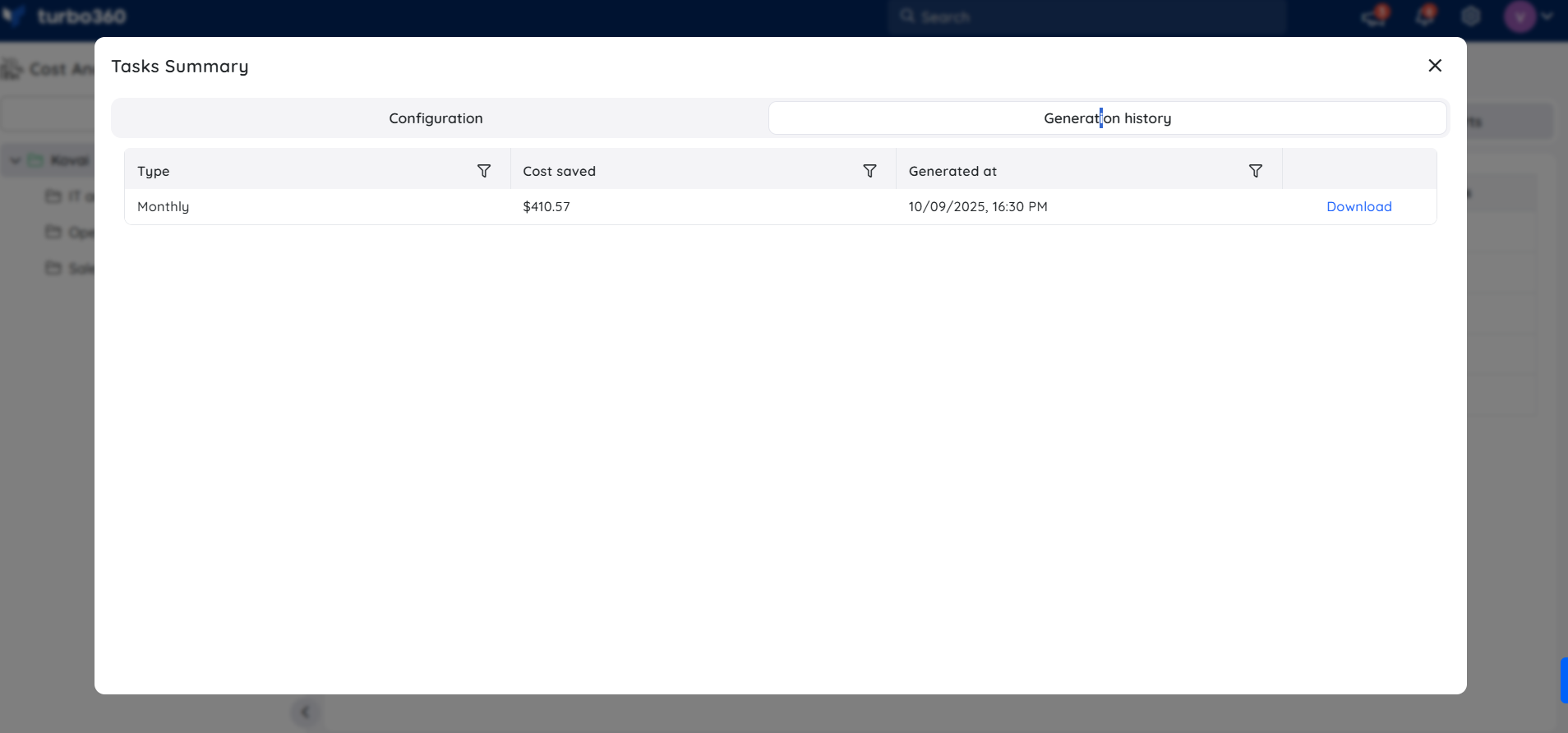
All triggered Cost summary reports for the relevant cost management group appear in Generation history. Each record shows the amount of cost saved when comparing the last two months, with a download option next to each entry.
Example scenario
A Cost Analyzer administrator manages the root-level cost management group and wants weekly visibility into cost movement across all subscriptions. They configure a Cost summary report with Weekly frequency and Download report from notifications enabled, then select email as the notification channel. Every Wednesday, the team receives a comparison of costs from the last two weeks, including a Spend per group breakdown, and can identify any unexpected increases before the monthly review.
Limitations
Branding customization is limited to PDF reports, which includes Cost summary along with Potential cost savings and Executive cost summary reports.
Troubleshooting
Generate Now does nothing when clicked
Cause: The Cost summary report type toggle is disabled.
Fix: Enable the Cost summary toggle in the Reports section.Report cannot be downloaded from the notification alert
Cause: Download report from notifications was not checked during configuration.
Fix: Edit the configuration, enable Download report from notifications, and save.Spend per group section is missing from the generated report
Cause: Include child groups was not enabled in the report configuration.
Fix: Enable Include child groups and save; the section appears starting with the next generated report.Weekly and monthly reports are both scheduled for the same day, but only one is received
Cause: Expected behavior — the monthly report is prioritized when both schedules coincide.
Fix: Not an error. Adjust the schedule if independent delivery of both is required.
Related articles
Was this article helpful?