

Create Turbo360 account
- 05 Aug 2026
- 3 Minutes to read
- Print
- DarkLight
- Download PDF
Create Turbo360 account
- Updated on 05 Aug 2026
- 3 Minutes to read
- Print
- DarkLight
- Download PDF
Article summary
Did you find this summary helpful?
Thank you for your feedback!
Overview
This article walks you through creating a new Turbo360 account. It covers the sign-up process, email verification, and first login. Once your account is created, see Initial setup to configure your organization and connect your Azure subscription.
Business value
Creating your account correctly — including verifying your email and setting up credentials — ensures uninterrupted access to all Turbo360 modules from day one.
Prerequisites
- A valid business email address
How it works
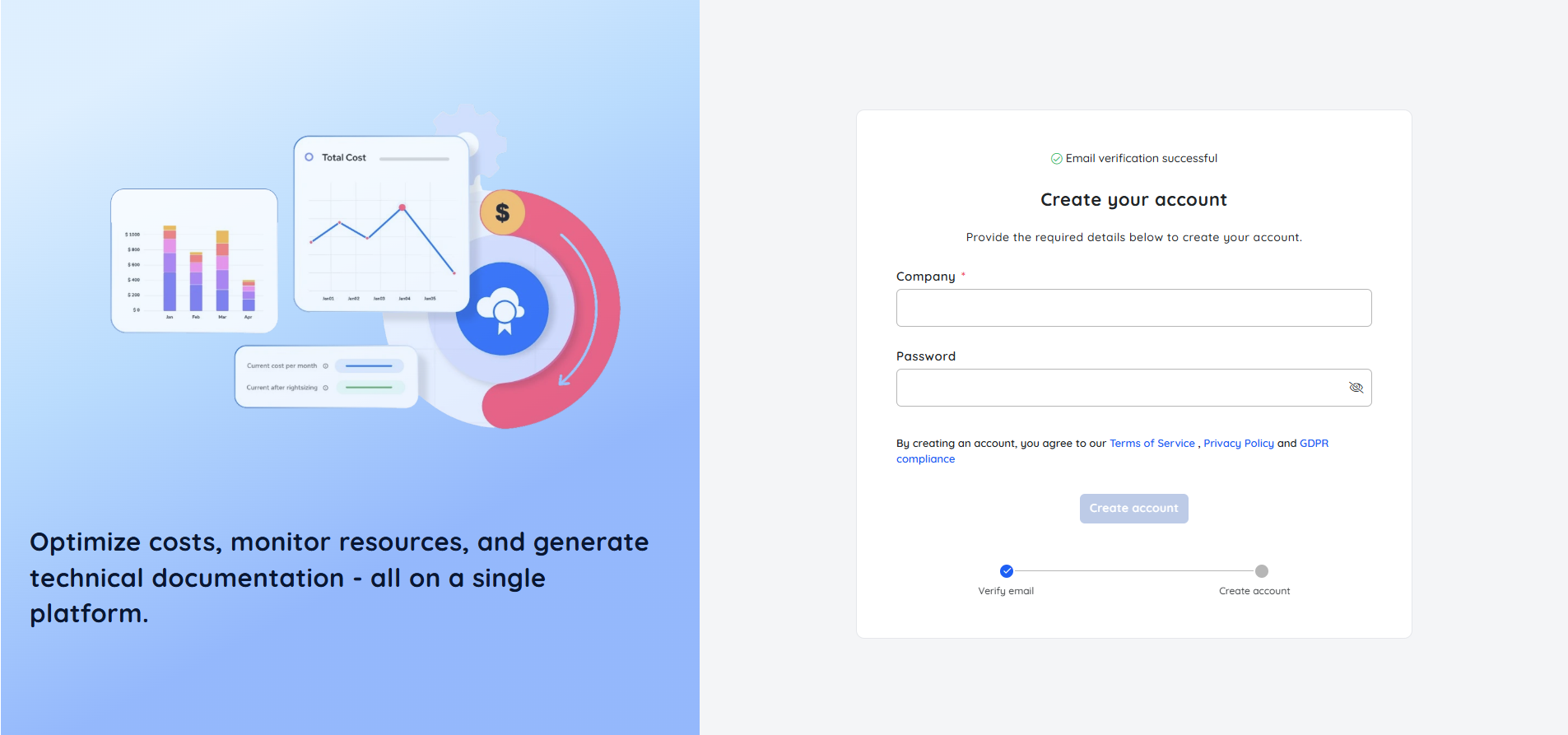
Turbo360 accounts are created through the sign-up page. After you submit your details, the Turbo360 team sends an activation email to the address you provided. The activation link directs you to a page where you can configure your password and create your Turbo360 account.
Steps
- Navigate to the Turbo360 signup page: https://turbo360.com/signup
- Provide your First Name, Last Name, Work Email Address, and Telephone Number.
- Click Try for Free to submit your registration request.
.png)
- The submitted email address will be reviewed and validated by the Turbo360 team. Once validated, an activation link will be sent to your email address.
- Open the activation link and create your Turbo360 account by providing the required details, including Company name and Password.
- After signing in for the first time, you will be guided through the onboarding process.
Permission behavior
With a verified account: You can sign in to Turbo360 and access modules based on your assigned role within an organization.
Without a verified account: Sign-in is blocked until email verification is complete.
Example scenario
A cloud architect at a financial services company signs up for Turbo360 using their work email. They submit the form, receive an activation email the next business day after Turbo360 validates the address, click the link, set their password and company name, and complete sign-in. They are then guided through the onboarding wizard to connect their Azure subscription.
Limitations
- Only business email addresses are accepted. Personal email addresses are reviewed and rejected by the Turbo360 team.
- The registered email address cannot be changed after account creation.
- Activation links expire after a set period. If yours expires, use the resend option on the sign-in page.
- Trial access is limited to 14 days with restricted module features.
Troubleshooting
Activation email not received.
Cause: The email may have been filtered as spam, or the address was entered incorrectly.
Fix: Check your spam or junk folder. If not found, return to the sign-up page and request a new activation email using the correct address.Activation link is expired.
Cause: Activation links expire after a certain period.
Fix: Return to the Turbo360 sign-in page and click Forgot password? > Didn't receive activation link to resend the activation email.Password does not meet requirements during sign-up.
Cause: The password does not satisfy the minimum complexity rules.
Fix: Use a password with a minimum of six characters.Sign-up form shows an error on submission.
Cause: The email address may already be registered.
Fix: Try signing in instead. If you have forgotten your password, use the password reset option on the sign-in page.Cannot proceed past sign-up after verification.
Cause: Browser cache may be holding a stale session state.
Fix: Clear your browser cache and cookies, then sign in again.
FAQs
Can I use a personal email address to create a Turbo360 account?
No. Your email address will be reviewed internally by the Turbo360 team. You will receive the sign-up link only if it is genuine and is a work email address.Can I change my email address after account creation?
No. You cannot change the registered email address.Is there a free trial available?
Yes. You will initially receive a 14-day trial with access to all Turbo360 modules, subject to certain limitations.
Related articles
Was this article helpful?