

Creating an index for tags
- 05 Aug 2026
- 4 Minutes to read
- Print
- DarkLight
- Download PDF
Creating an index for tags
- Updated on 05 Aug 2026
- 4 Minutes to read
- Print
- DarkLight
- Download PDF
Article summary
Did you find this summary helpful?
Thank you for your feedback!
Overview
If you use tags to model your cost data in Cost Analyzer, you can create an index on the tags you use most. Indexing improves the performance of queries that filter or group by those tags.
Business value
Creating indexes for the tags you actively use in Cost Analyzer reduces query response times, especially in environments with large volumes of cost data. This keeps analysis views, filters, and reports responsive as your data grows.
Prerequisites
- You are using tags to model cost data within Cost Analyzer.
- You have identified the specific tags you want to index (only index tags you actively use for cost management — indexing unrelated tags adds unnecessary overhead).
Required permissions
| Role | Permission level | Access |
|---|---|---|
| Account owner, Owner | — | Full access to tag index creation |
How it works
- You indicate to Turbo360 which tags you use, and an index is created for those tags to optimize query performance.
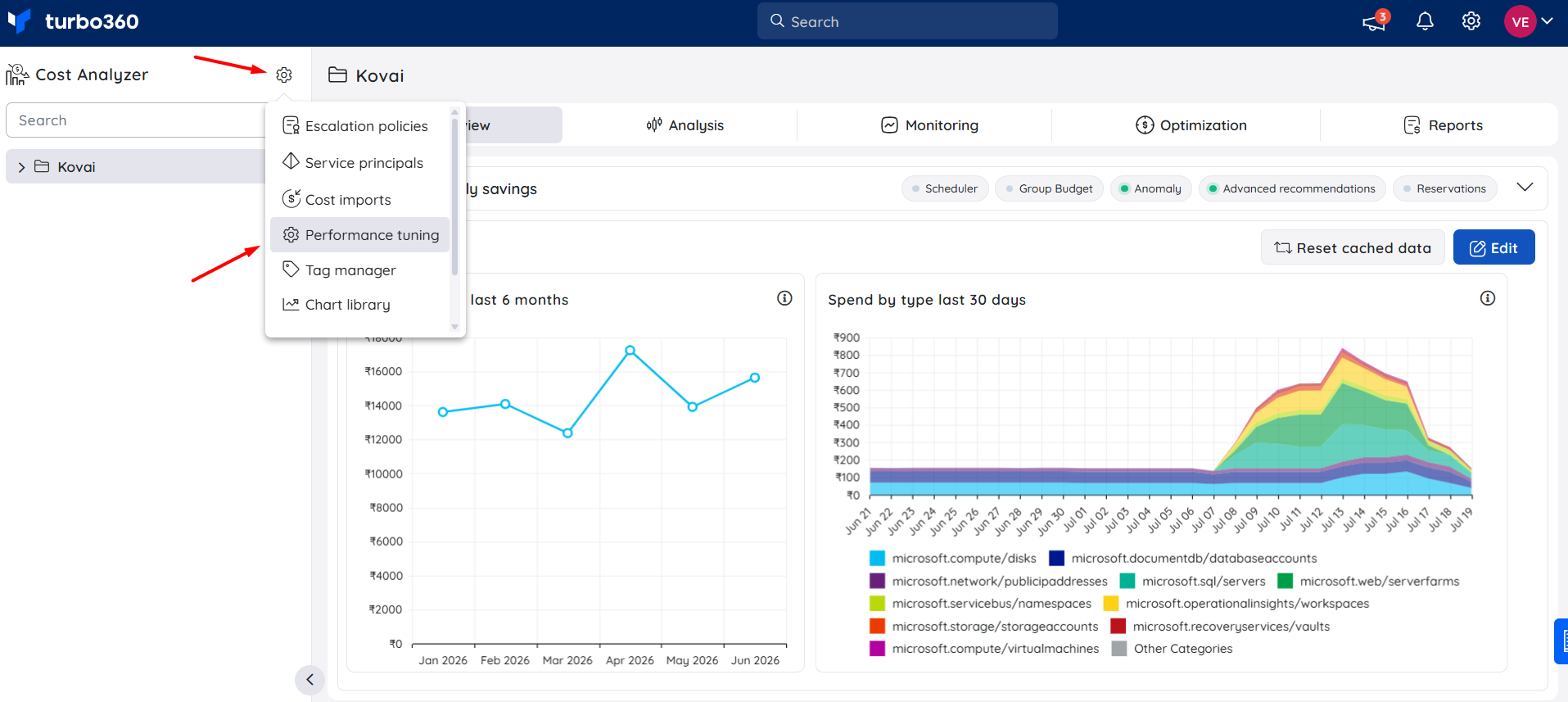
- Performance tuning is accessed from the settings (gear) icon next to Cost Analyzer at the top of the tree view, alongside other module-level settings such as Escalation policies, Service principals, Cost imports, Tag manager, and Chart library.
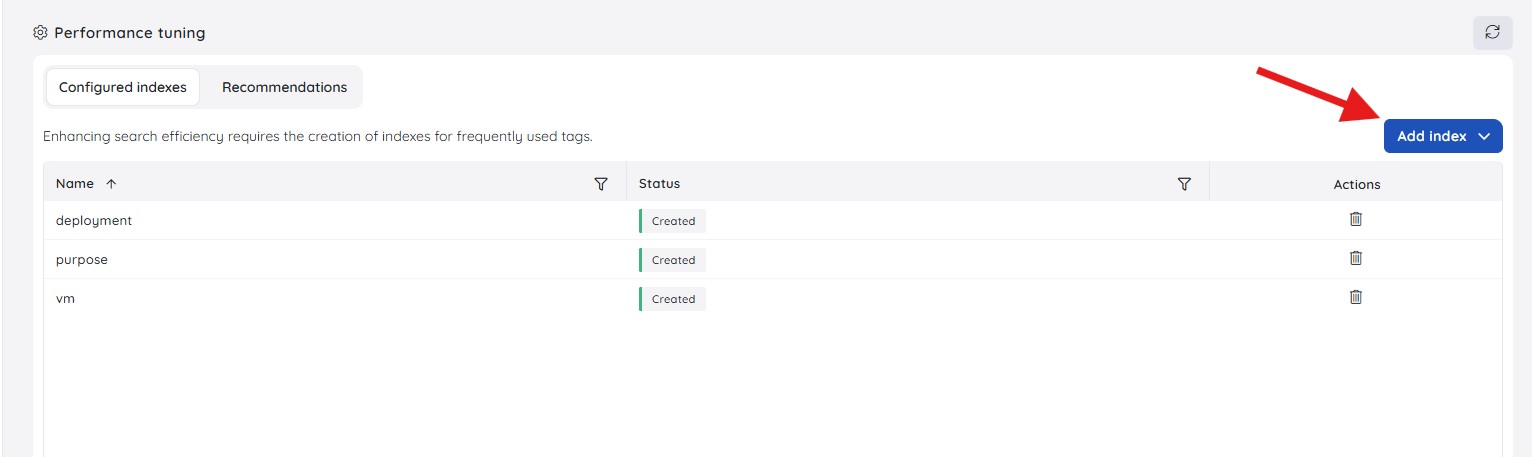
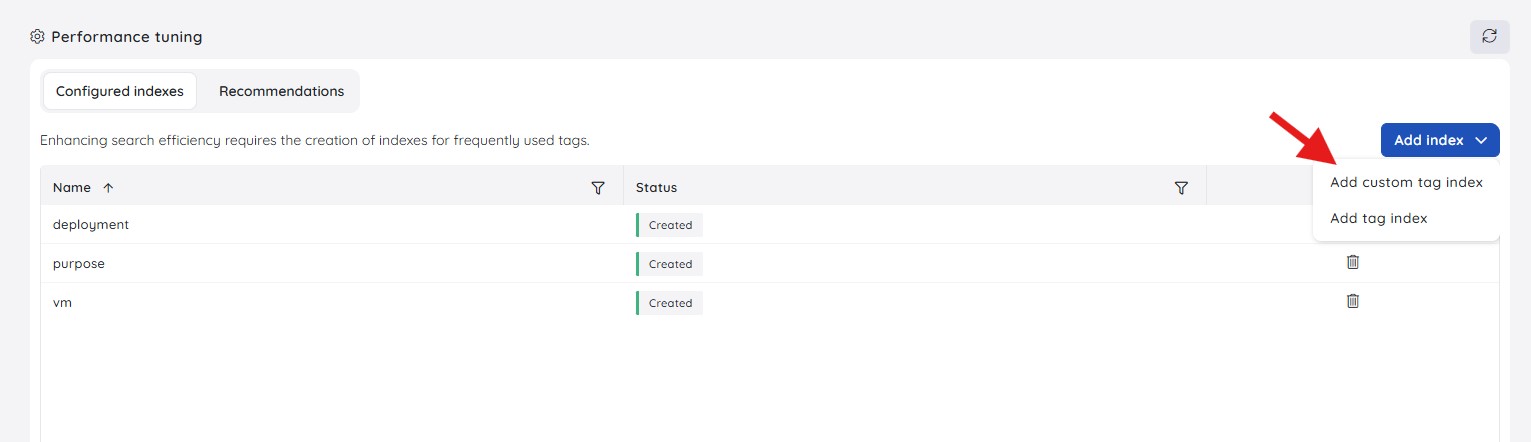
- You can add an index in one of two ways from the Add index dropdown:
- Add tag index — select from a list of existing tags already present in your cost data.
- Add custom tag index — enter a tag key directly, without selecting from a pre-populated list.
- On a private hosting deployment, index creation is initiated by Azure Functions and executed directly against your database. Because this is a database-intensive operation, consider the following before starting:
- If you're running a large initial cost import, wait for it to finish before creating the index — index creation is resource-intensive and competes with the import.
- If your private hosting database holds a large volume of data, consider temporarily scaling up the database before creating the index, then scaling it back down once the index creation completes. This is one of the benefits of SQL Azure — scaling up and down is straightforward.
- On the SaaS hosting platform, index creation is handled entirely by the platform. It may take a little time to complete, since auto-scaling and index creation are managed behind the scenes rather than by you directly.
Steps
Use the following steps to create and manage tag indexes. Click the settings (gear) icon next to Cost Analyzer at the top of the tree view, select Performance tuning, then open the Configured indexes tab to get started.
Add a tag index
Adding a tag index from the existing tag list creates an index without needing to know the exact tag key in advance.
On the Configured indexes tab, click Add index, then select Add tag index.
Select the tag you want to create an index for from the list of available tags. You'll potentially see tags used for purposes unrelated to cost management — only select tags you actively use in Cost Analyzer.
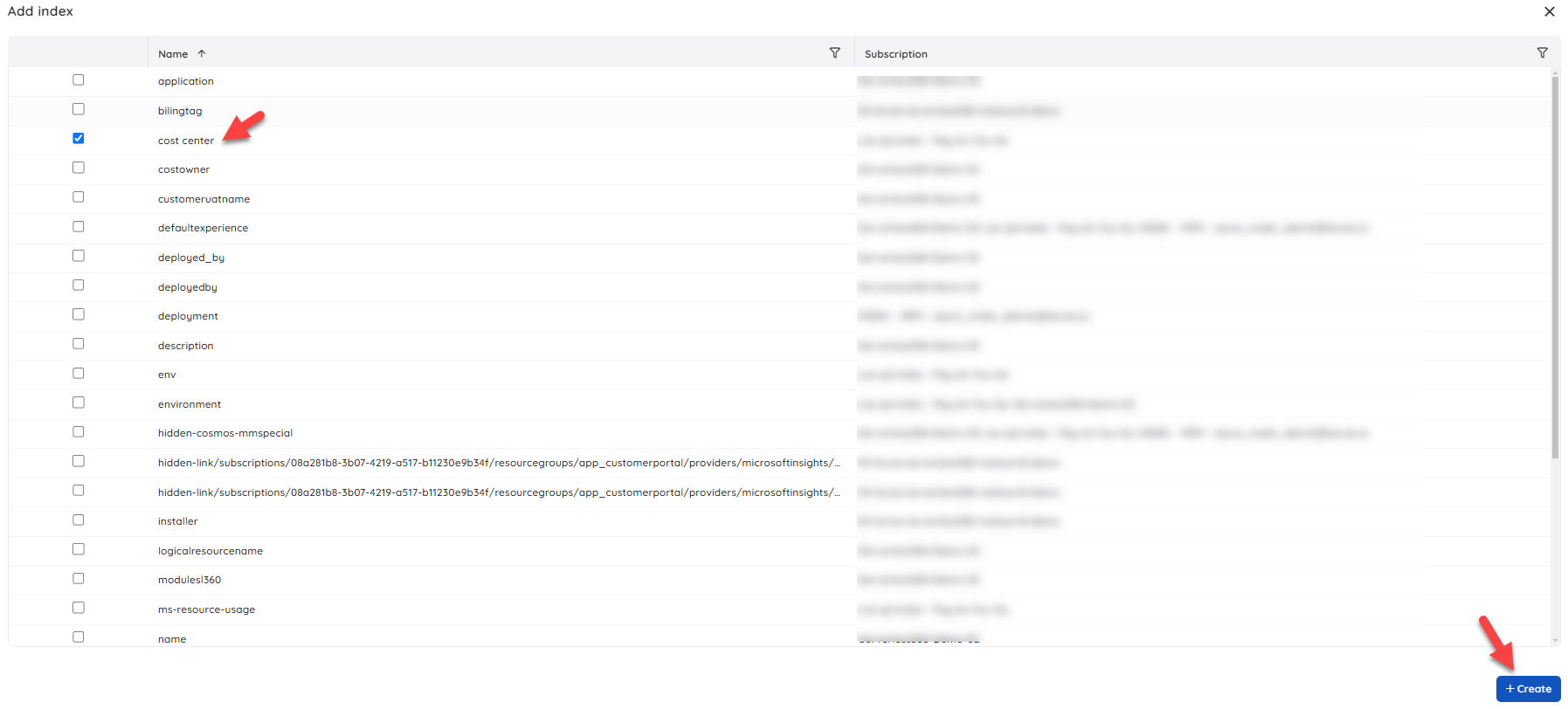
Click Create.
Turbo360 confirms that index creation has started. The index takes some time to build; its status shows as Created in the Configured indexes list once ready.
Add a custom tag index
Adding a custom tag index lets you create an index for a tag key directly, without picking from the existing tag list.
On the Configured indexes tab, click Add index, then select Add custom tag index.
In the Create custom tag index dialog, enter the Tag key you want to index.
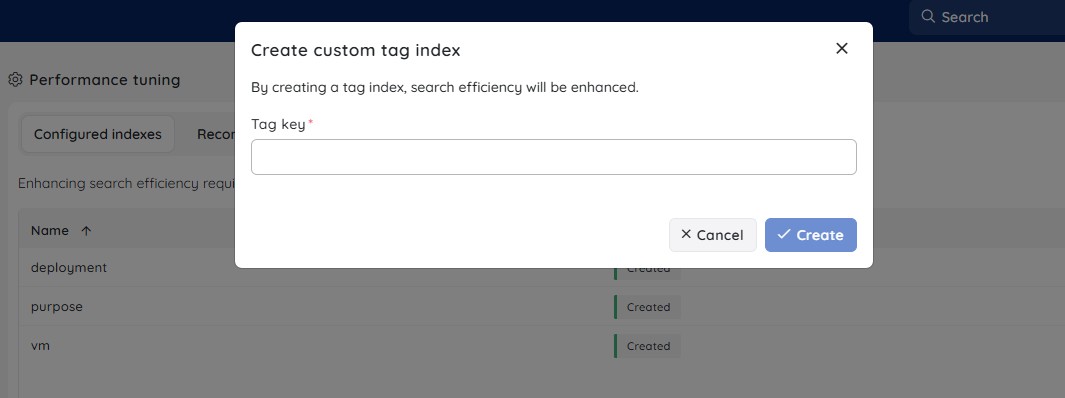
Click Create.
Turbo360 confirms that index creation has started. The index appears in the Configured indexes list with a status of Created once the index finishes building.
Manage configured indexes
Managing your configured indexes lets you review index status and remove indexes you no longer need to keep query performance aligned with your active cost tagging.
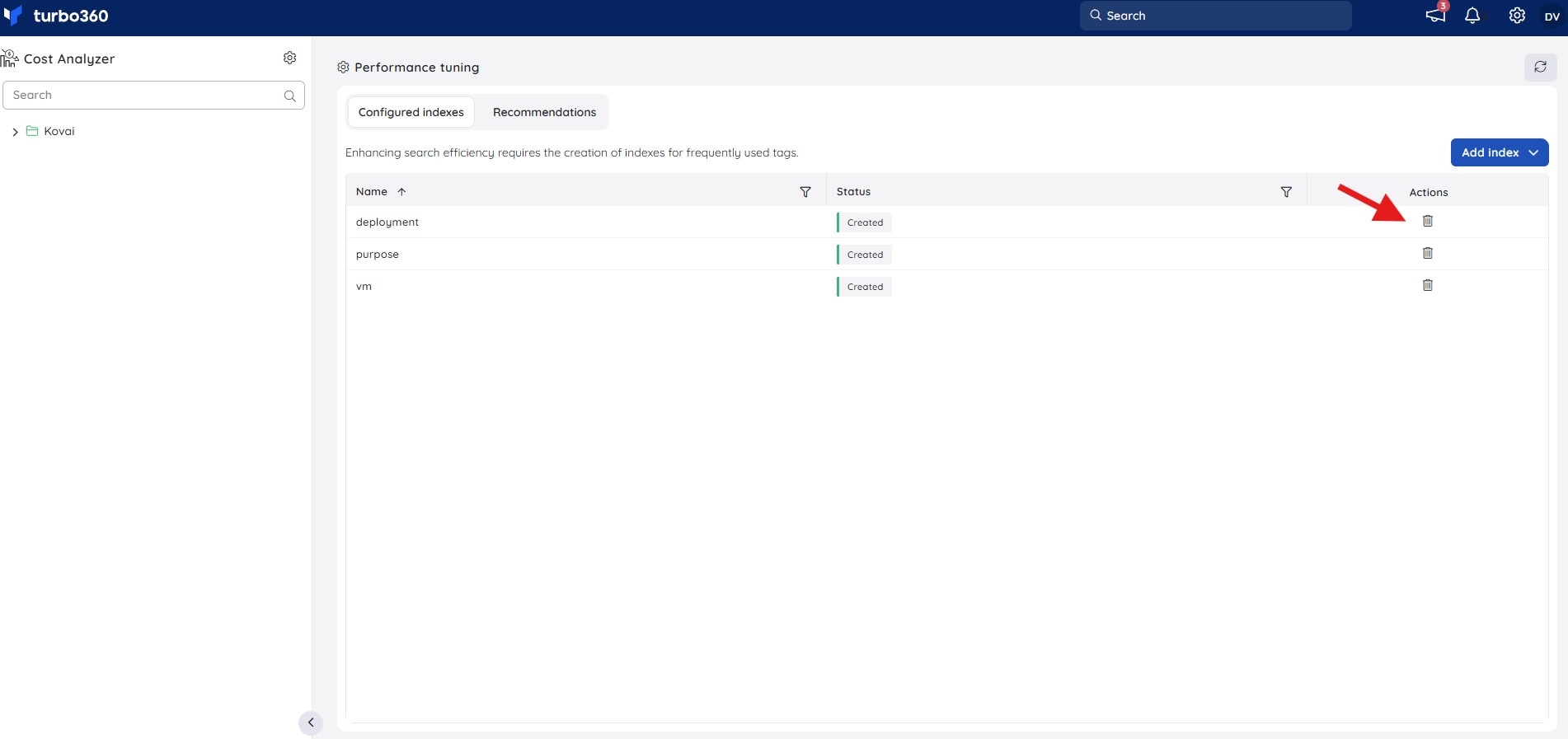
Click the settings (gear) icon next to Cost Analyzer, select Performance tuning, then select the Configured indexes tab.
Review the Name and Status columns to confirm which indexes exist and whether they've finished building.
To remove an index you no longer need, click the delete (trash) icon next to it in the Actions column.
Example scenario
An Account owner managing a large Azure cost dataset tagged by CostCenter and Environment notices that Cost Analyzer views filtered by these tags are slow to load. They open Performance tuning from the Cost Analyzer settings menu, use Add custom tag index to index CostCenter directly by key, and use Add tag index to select Environment from the existing tag list. Both indexes show a status of Created once they finish building.
Limitations
- Only Account owner and Owner roles can create a tag index.
- Index creation is a database-intensive operation; on private hosting, running it during a large cost import can slow both processes.
Troubleshooting
Performance tuning option is greyed out in the settings menu.
Cause: You are not signed in with an Account owner or Owner role.
Fix: Sign in with an Account owner or Owner account, or ask someone with one of those roles to create the index.Index creation is taking a long time on private hosting.
Cause: A large initial cost import may be running concurrently, or the database is under-scaled for the volume of data.
Fix: Wait for any in-progress cost import to finish, or temporarily scale up your private hosting database before initiating index creation.A tag does not appear in the Add tag index list.
Cause: The tag has not yet been ingested into Cost Analyzer — it must exist in your imported cost data before it appears in the list.
Fix: Verify that cost data containing the tag has been successfully imported. If the tag is new, wait for the next cost import to complete. Alternatively, use Add custom tag index to create the index by entering the tag key directly.
Related articles
Was this article helpful?