

Data Factory Integration Runtime Node
- 05 Aug 2026
- 1 Minute to read
- Print
- DarkLight
- Download PDF
Data Factory Integration Runtime Node
- Updated on 05 Aug 2026
- 1 Minute to read
- Print
- DarkLight
- Download PDF
Article summary
Did you find this summary helpful?
Thank you for your feedback!
Overview
An Integration Runtime Node is a linked service created for an on-premises data store, specifying a self-hosted integration runtime instance the service connects through. Each node uses DPAPI to encrypt and store its credentials locally.
Business value
Monitoring node status directly in Turbo360 helps you catch self-hosted integration runtime availability issues before they affect data movement.
How it works
- A node represents a single instance of a self-hosted integration runtime installation.
- Each node encrypts and stores its credentials locally using DPAPI.
Permissions
Access to Data Factory Integration Runtime Node data in Turbo360 is controlled through role-based access control (RBAC). When adding a role, enable the Data Factory Integration Runtime Node resource type and assign:
| Permission | Grants |
|---|---|
| Read | View node status and the monitoring configuration. |
[NEEDS VERIFICATION: whether a Manage permission level applies to Data Factory Integration Runtime Node, since no lifecycle actions are documented for this resource]
Monitoring
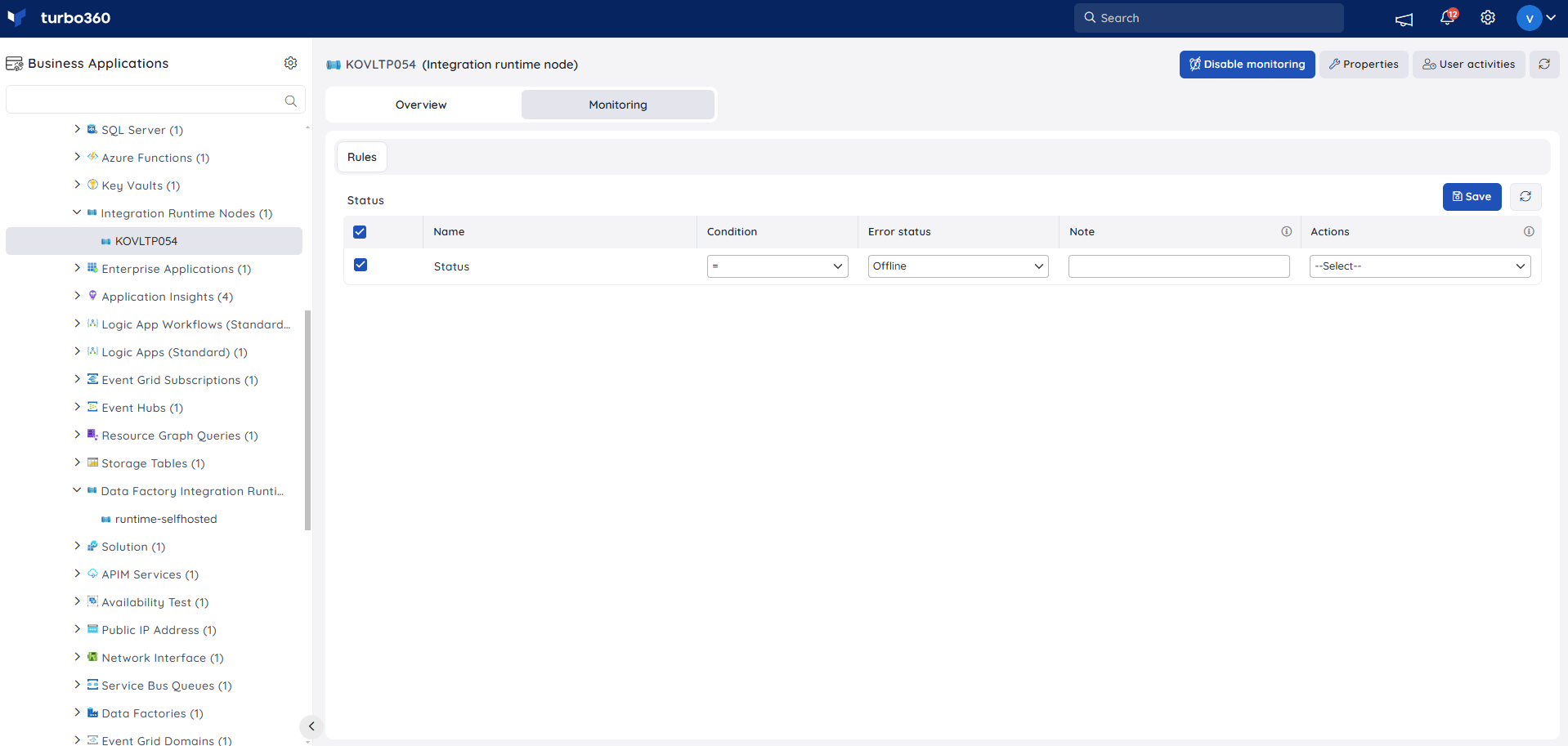
Data Factory Integration Runtime Node supports status monitoring, configured from Data Factory Integration Runtime Node > Monitoring.
Monitoring rules are saved per resource, and the monitoring state is reflected after every monitoring cycle.
Status monitoring
Tracks the node's status against a configured threshold. Use this when you need to be alerted if a self-hosted node goes offline.
- Configure the threshold value for status.
- Click Save.
Troubleshooting
Node status doesn't update after restarting the on-premises gateway.
Cause: Turbo360 reflects node status as of the last sync cycle.
Fix: Wait for the next sync cycle, or refresh the resource page.Monitoring rule doesn't trigger when the node goes offline.
Cause: The monitoring state updates only after a full monitoring cycle completes.
Fix: Wait for the next monitoring cycle, or verify the configured threshold value.Node doesn't appear under Data Factory Integration Runtime Node at all.
Cause: The node hasn't been registered against the self-hosted integration runtime in Azure.
Fix: Register the node in Azure, then wait for the next sync cycle.
Related articles
Was this article helpful?