

Data Factory Pipeline
- 05 Aug 2026
- 6 Minutes to read
- Print
- DarkLight
- Download PDF
Data Factory Pipeline
- Updated on 05 Aug 2026
- 6 Minutes to read
- Print
- DarkLight
- Download PDF
Article summary
Did you find this summary helpful?
Thank you for your feedback!
Overview
A pipeline is a logical grouping of activities that work together to complete a task — for example, ingesting and cleaning log data before running a mapping data flow. Turbo360 lets you trigger, monitor, and recover Data Factory Pipeline runs without switching to the Azure portal.
Business value
Triggering, rerunning, and triaging failed pipeline runs directly from Turbo360 reduces the time it takes to recover from a failed orchestration and avoids manual portal lookups during incident response.
How it works
- Pipeline runs and their individual activity runs are tracked, with parameters captured at trigger time.
- Runs can be filtered by status, marked as favorites, or flagged under Action Required for fast triage.
- The Essentials card surfaces the count of connected integration runtimes and any triggers associated with the pipeline.
Permissions
Access to Data Factory Pipeline actions in Turbo360 is controlled through role-based access control (RBAC). When adding a role, enable the Data Factory Pipeline resource type and assign one or more of the following permission levels:
| Permission | Grants |
|---|---|
| Read | View pipeline runs, parameters, connected triggers, and the resource dashboard. |
| Manage | Run, cancel, and ignore pipeline runs, in addition to all Read capabilities. |
| Reprocess | Rerun failed pipeline runs using their original parameters. |
Operations
Turbo360 provides pipeline-level lifecycle actions so you can trigger and recover pipeline runs directly, without switching to the Azure portal during incident response.
Run pipeline
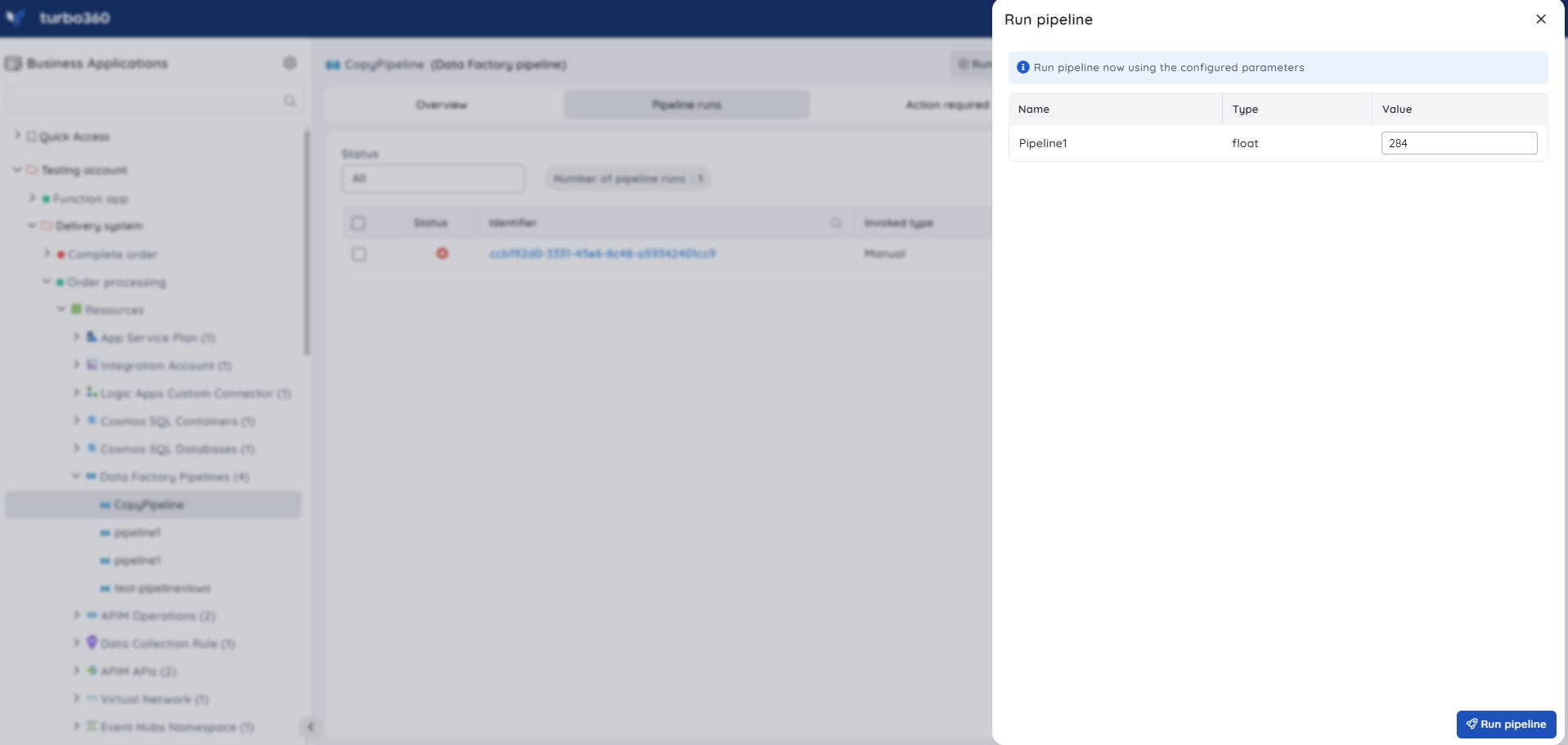
- Run pipeline — triggers the pipeline using parameter values you provide. Use this when you need to manually kick off a pipeline outside its normal schedule.
- Open the Data Factory Pipeline resource.
- Click Run pipeline at the top of the section and provide the required parameter values.
Pipeline runs
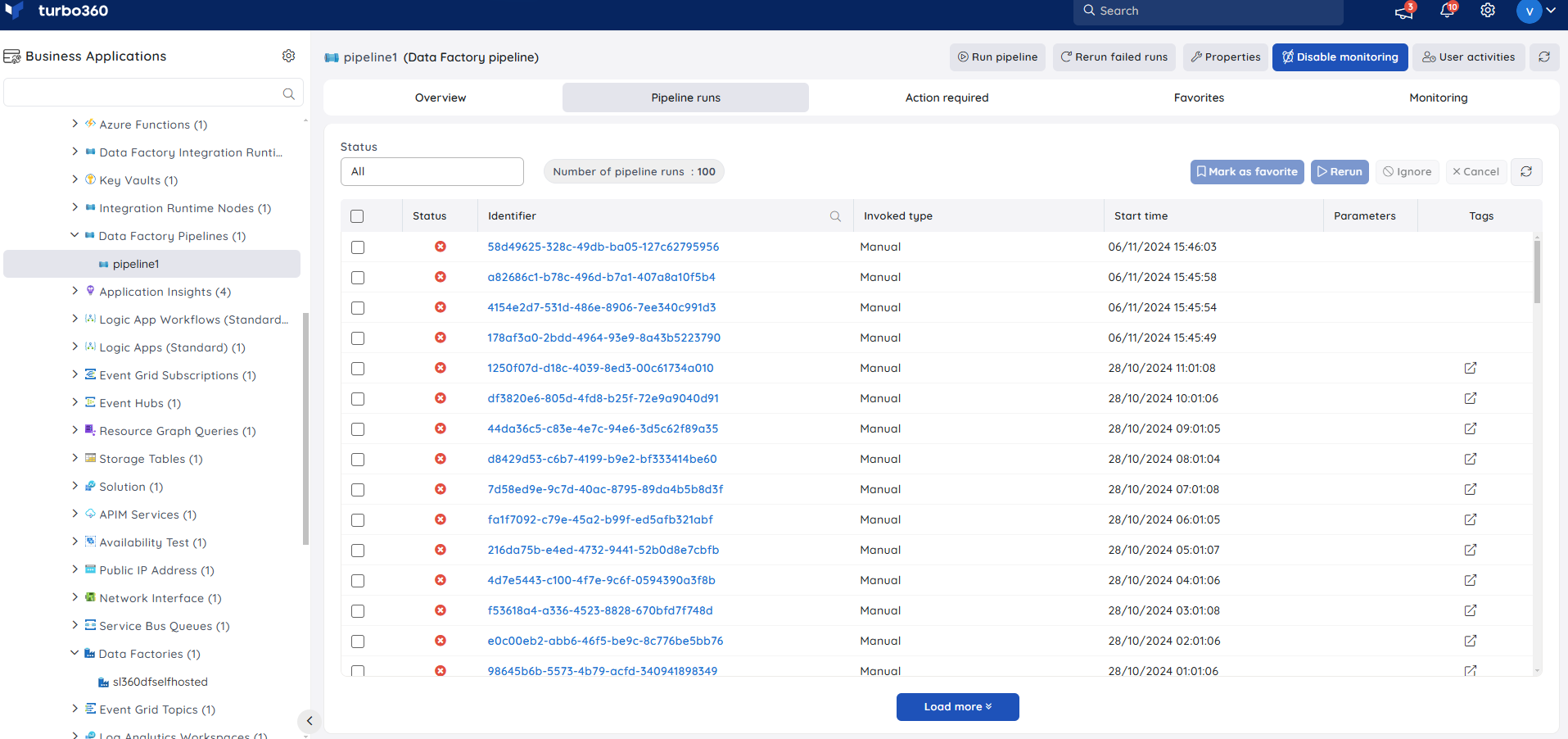
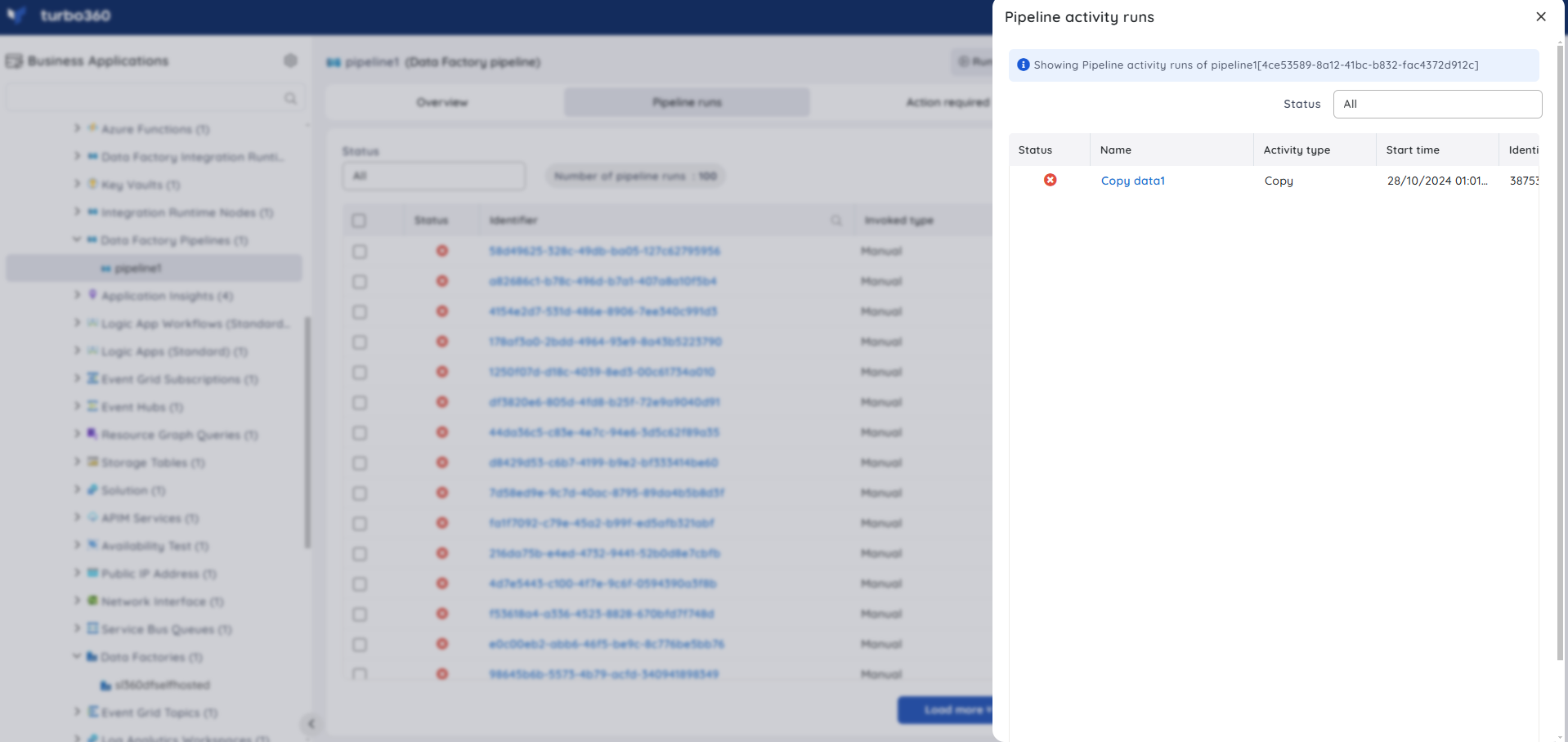
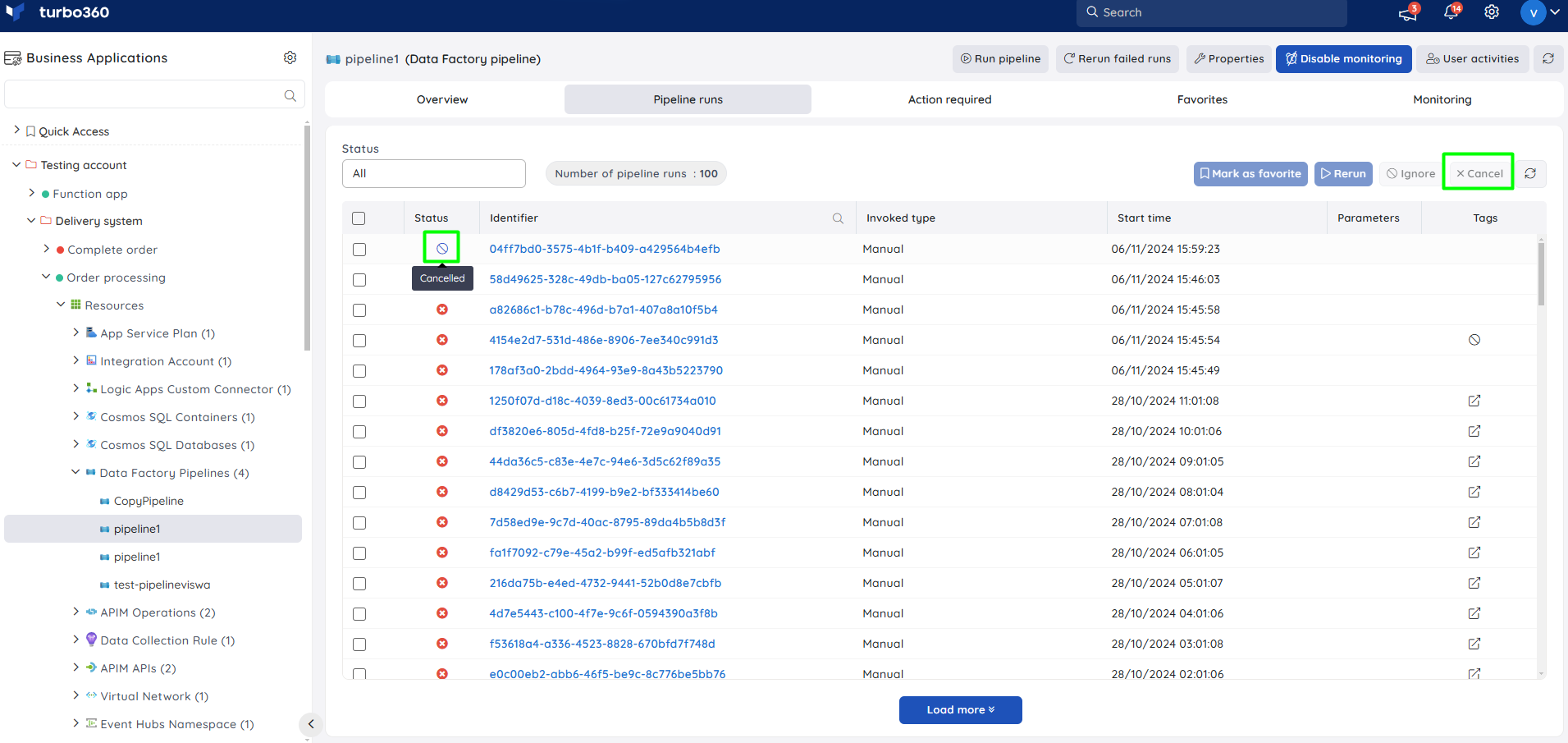
Switch to the Pipeline runs tab for detailed insights into every triggered run, and click a run to see the status of each activity within it.
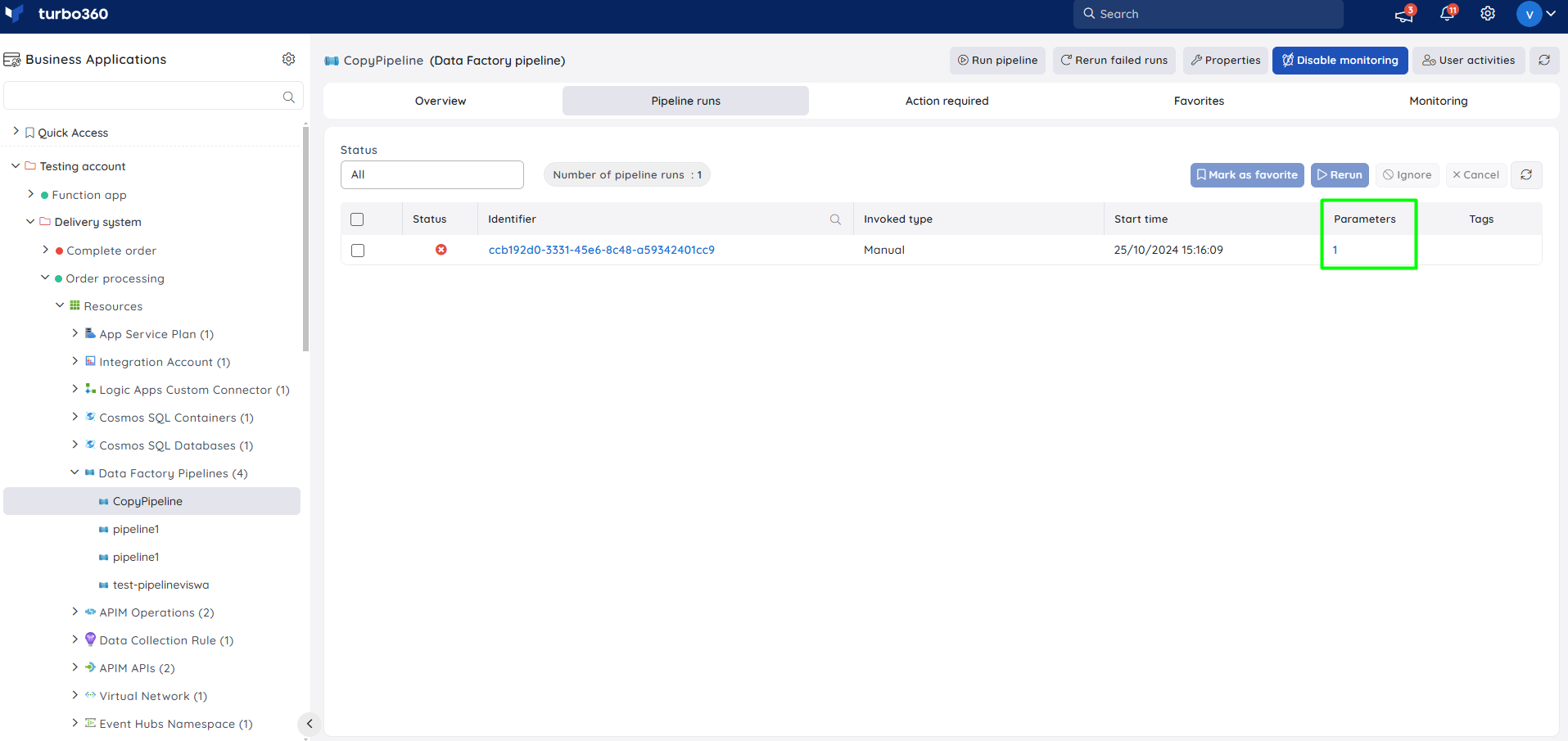
Parameters set when triggering a run appear in the Parameters column for that run.
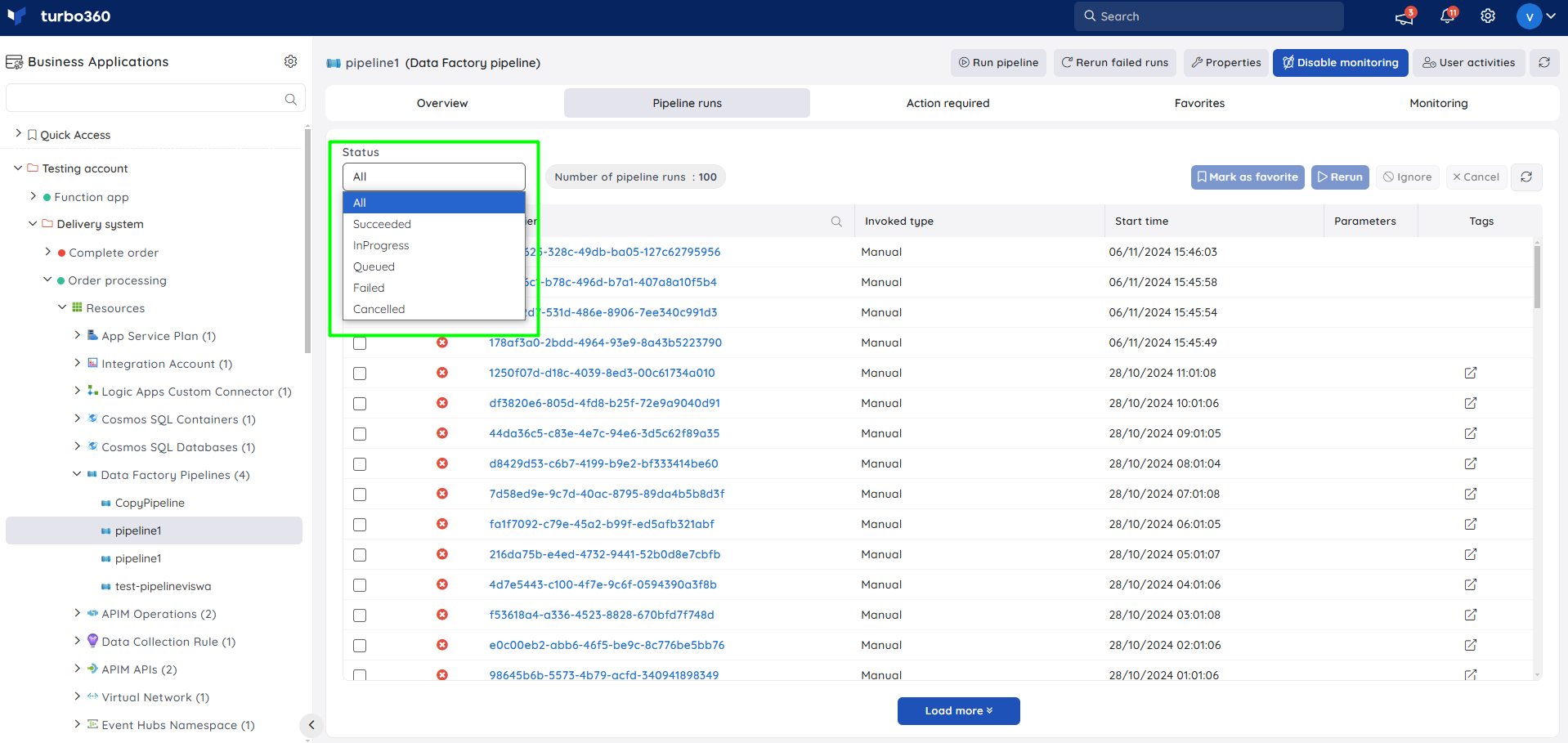
Runs can be filtered by status: Succeeded, In Progress, Queued, Failed, or Cancelled.
Rerun failed pipeline runs
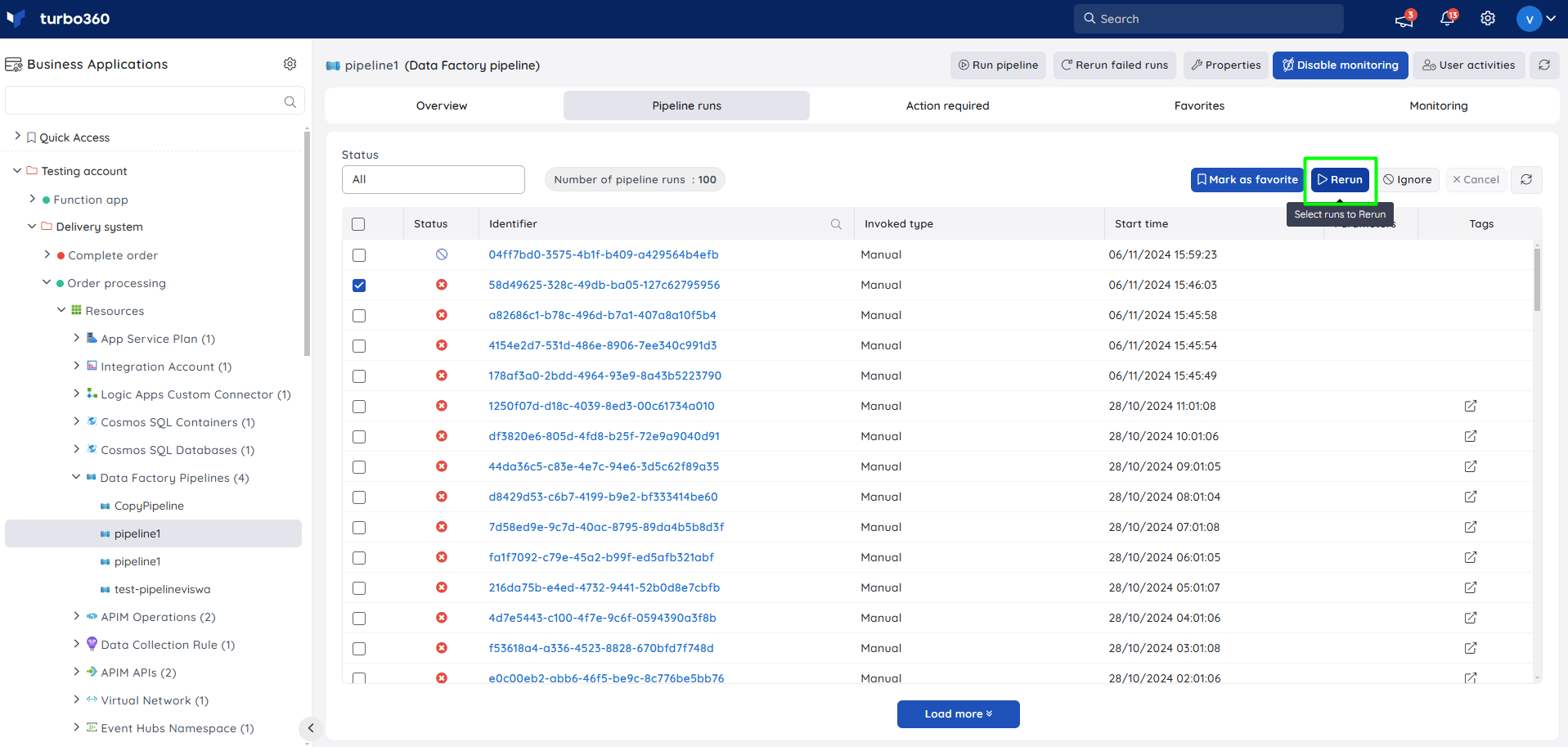
- Rerun — reruns a failed pipeline run using its original configured parameters. Use this when an activity failed and you want to recover without re-entering parameter values.
A pipeline run can fail because one of its activities failed — a common occurrence in business orchestration. Turbo360 lets you view the run history, inspect the failed activity, and rerun it.
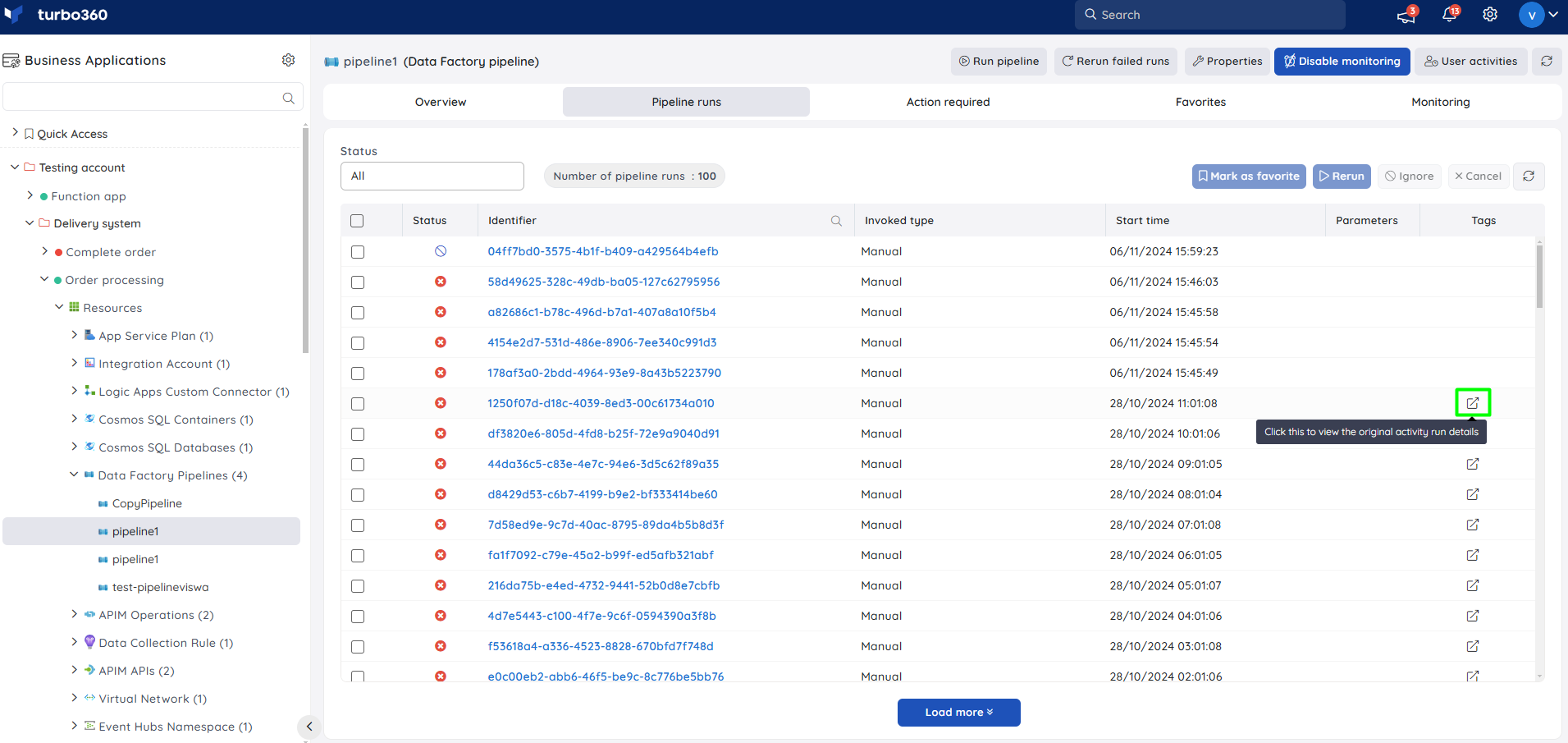
Once a rerun completes, the child run is tagged so you can trace back to the original run, and the parent run is tagged with the history of all its child runs. Regardless of how many times a run is rerun, only one run acts as the original for its child runs.
Bulk operations
- Bulk rerun — reruns multiple failed pipeline runs at once. Use this when several runs fail at the same time, such as after a shared dependency outage, so you can recover them together instead of one at a time.
Ignore pipeline run
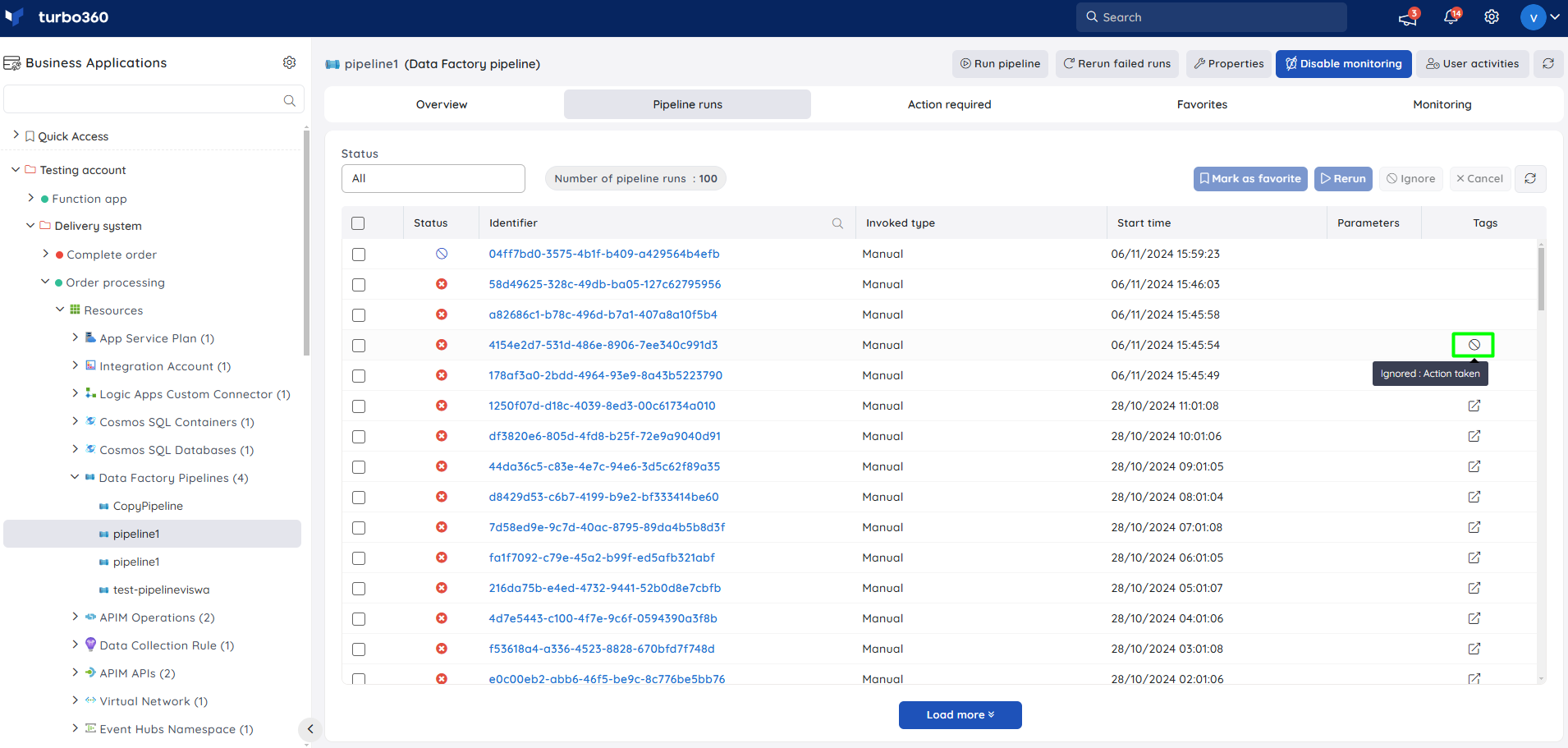
- Ignore — tags a run as ignored, along with a description. Use this when a failed run is expected or already resolved and shouldn't appear as actionable. The ignore tag is visible only in Turbo360 and has no effect on the actual run.
Cancel pipeline run
- Cancel — stops an ongoing pipeline run. Use this when a run is no longer needed or is consuming resources unnecessarily.
- Select the run from the Pipeline Runs tab.
- Click Cancel.
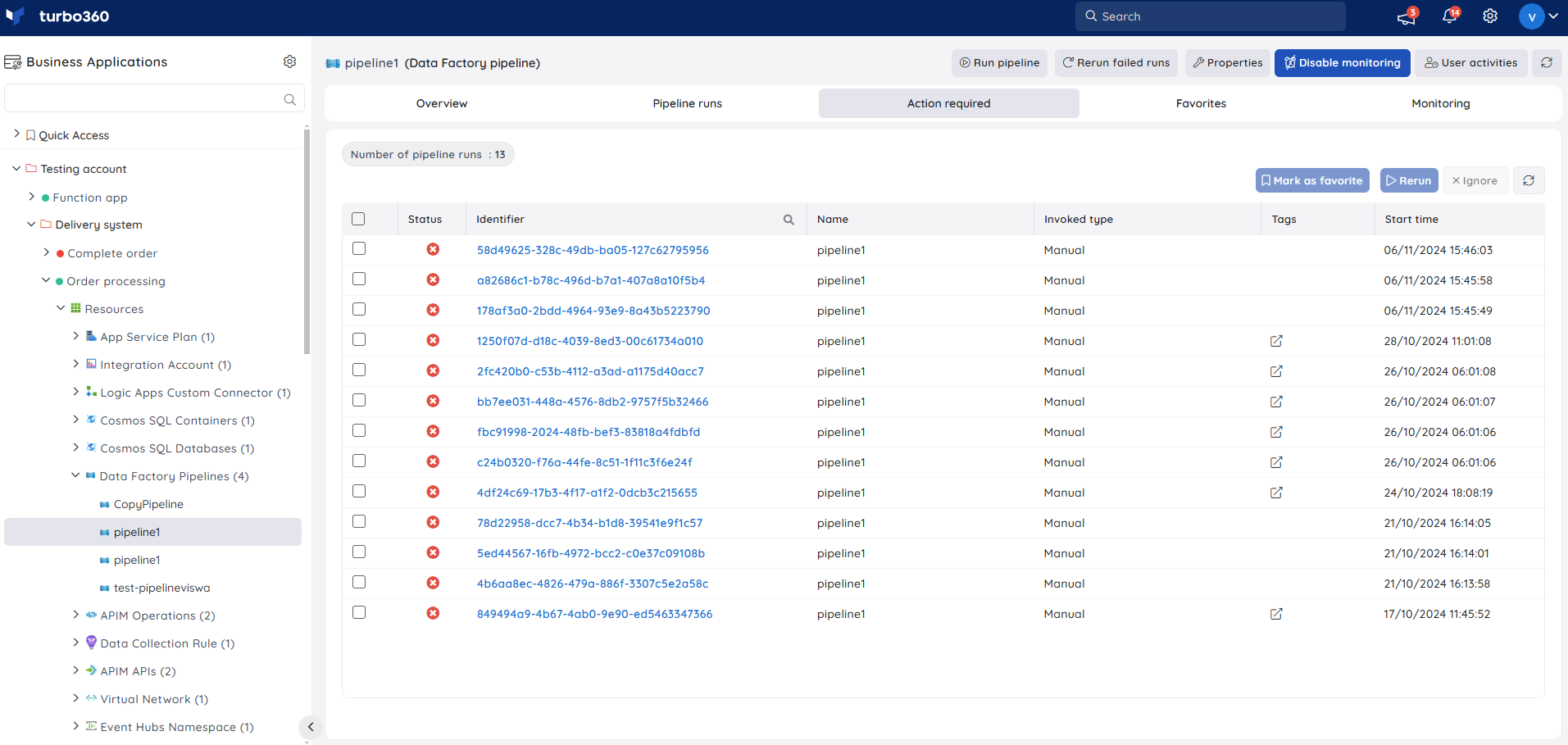
Action required
Action required surfaces failed pipeline runs so you can rerun or ignore them without searching through the full run history. Use this when you want a focused, failure-only view after an incident.
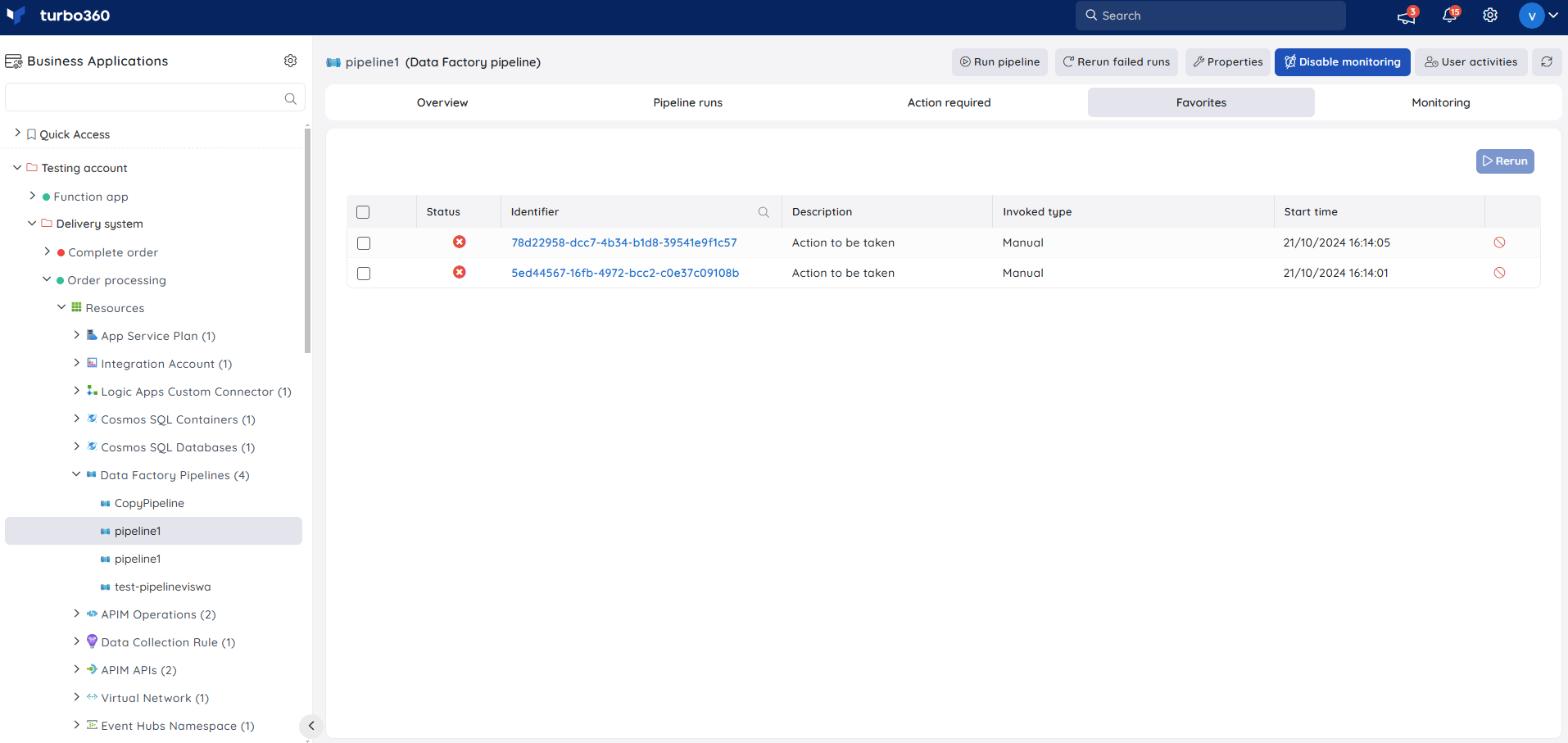
Favorites
- Favorite — marks a frequently used run with an optional description, from either the Pipeline runs or Action Required tabs. Use this when you regularly rerun the same pipeline run during recurring maintenance. Favorited runs can still be rerun, ignored, or removed from favorites.
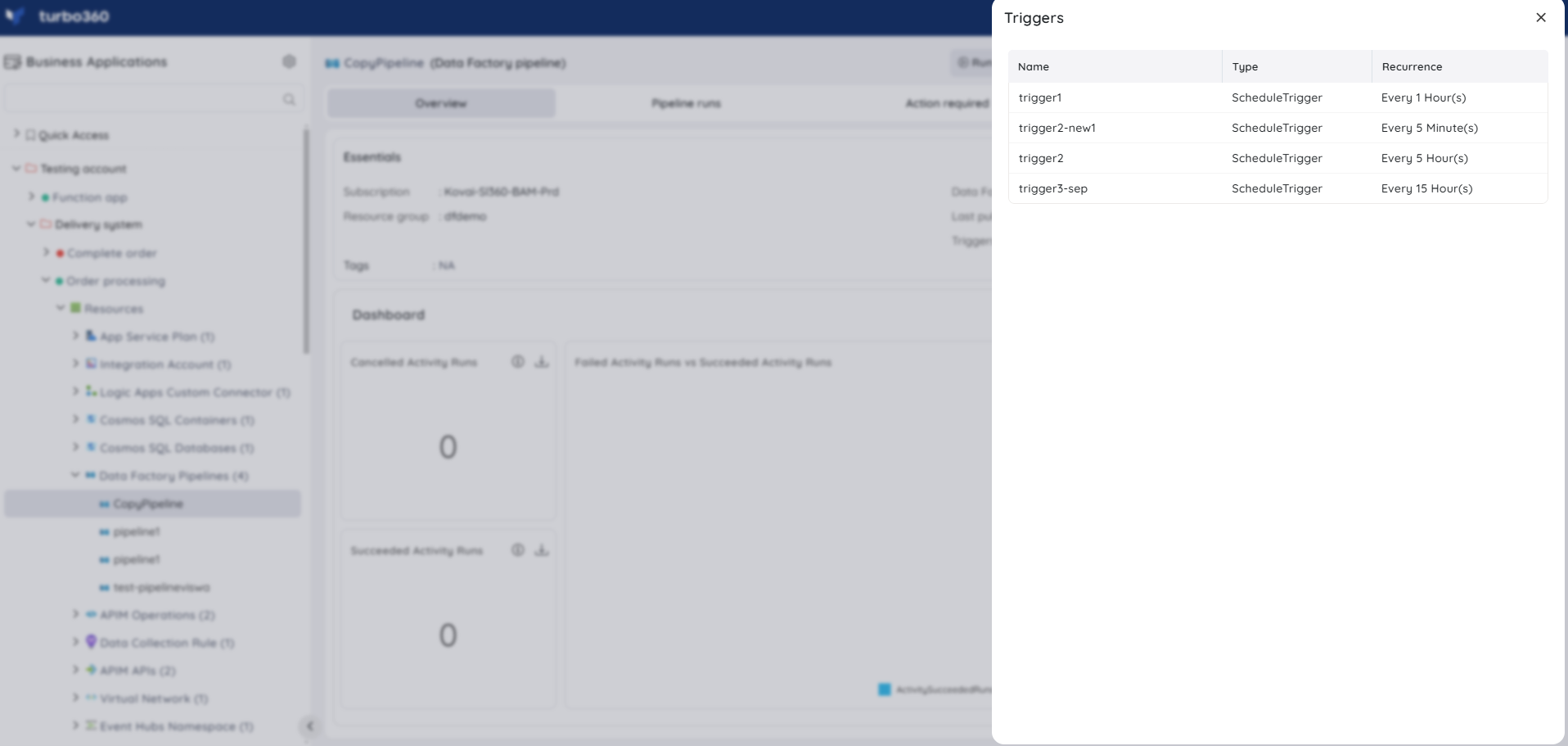
Connected resources
The Essentials card shows the count of connected integration runtimes and the triggers associated with the pipeline, including recurrence data for scheduled triggers.
Rerun failed runs with inline and automated tasks
- Inline task — quickly reruns failed pipeline runs from the currently explored pipeline within a specified number of hours (minimum 1 hour). Use this when you need an immediate, one-off recovery rerun.
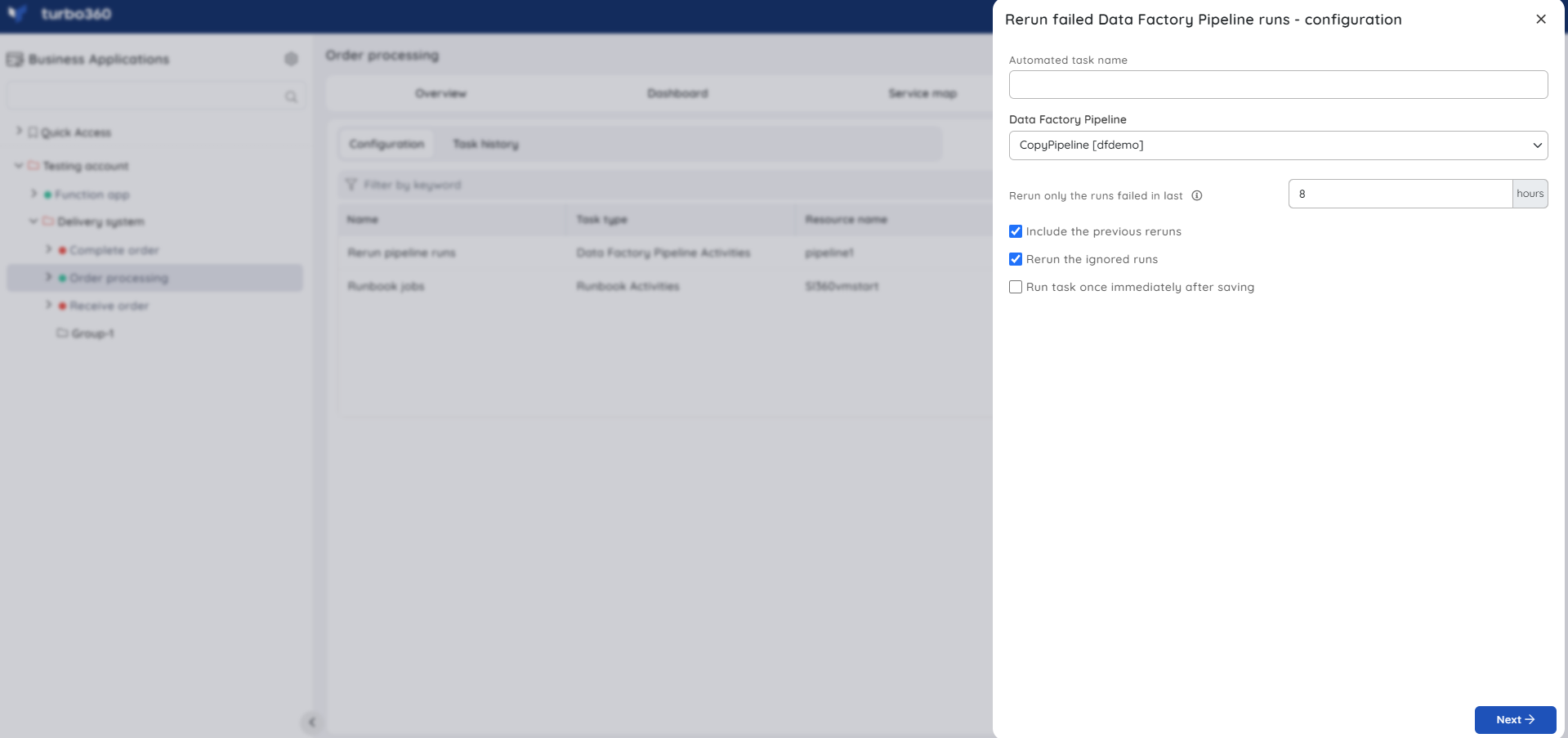
- Automated task — schedules failed pipeline runs to be rerun at a specific time, with options to include previous reruns and rerun ignored runs. Use this when you want recurring or scheduled recovery instead of a one-off rerun.
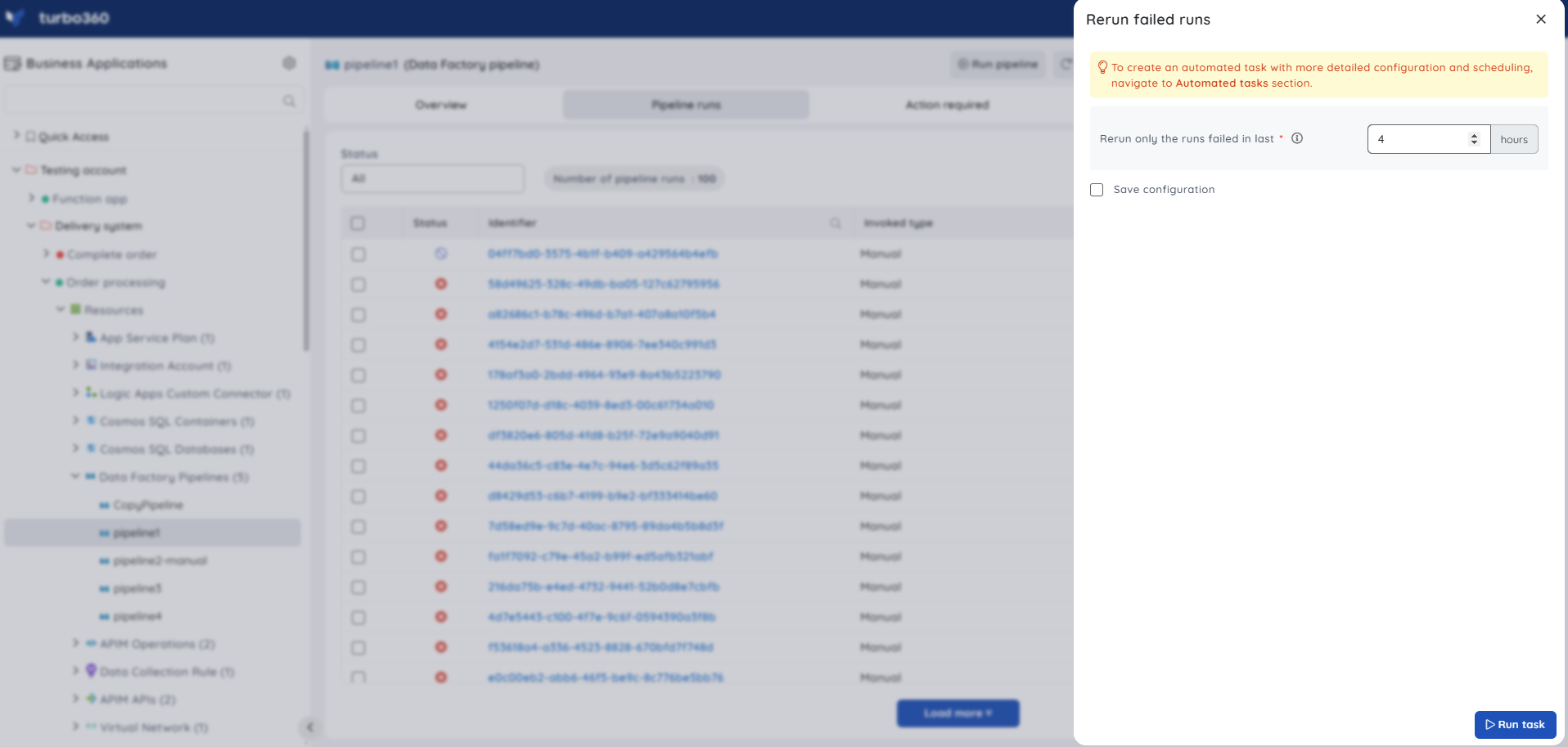
Task status can be viewed from the Automated tasks section, on the Task history tab.
Use the inline task to create a task that runs immediately. Navigate to Automated tasks in Turbo360 to create a task with a more detailed configuration, schedule it for a specific time, or run it on a recurring basis.
Resource dashboard
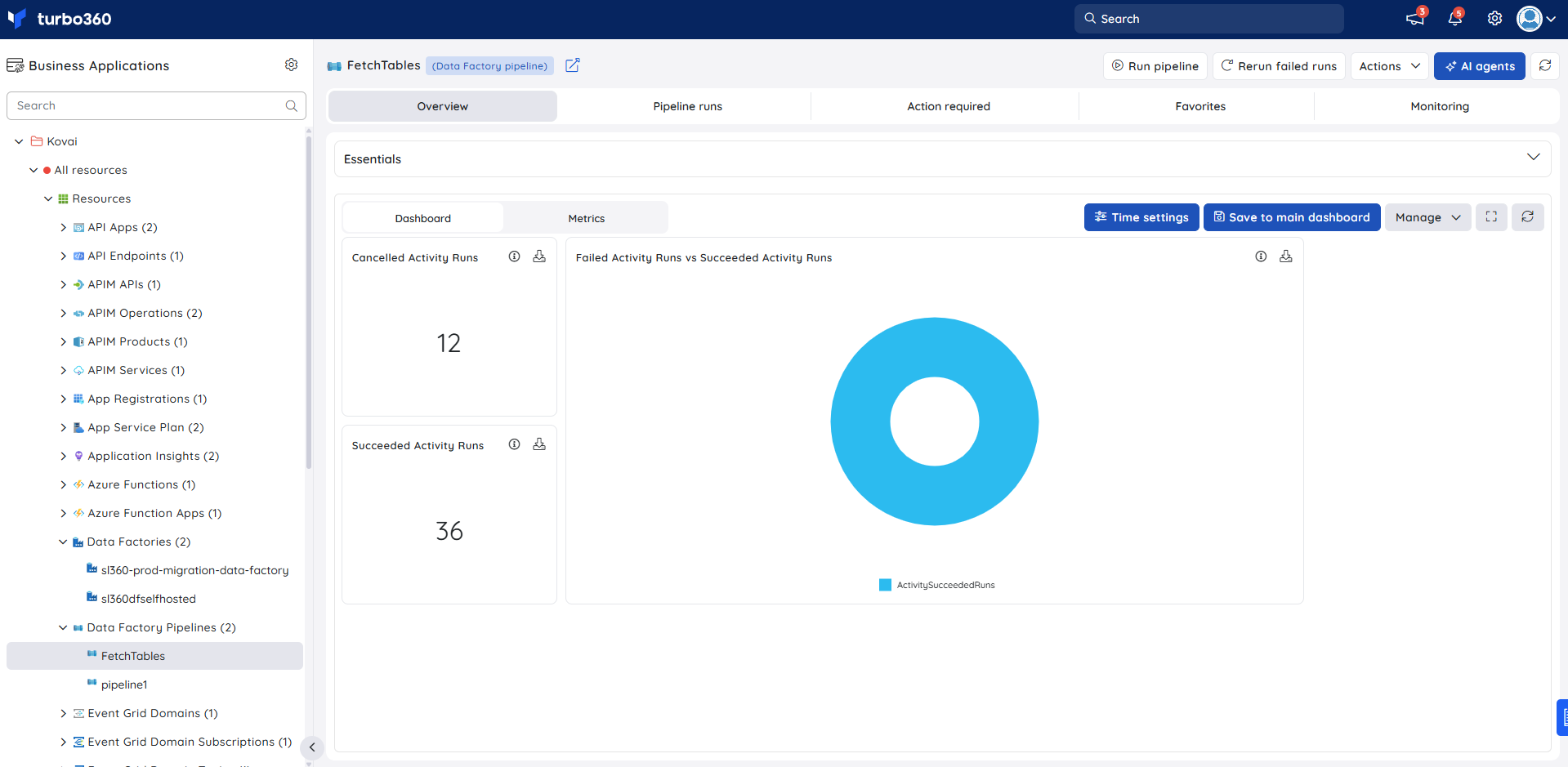
The Data Factory Pipeline dashboard surfaces activity run outcomes at a glance, helping you spot failure trends without opening individual runs.
| Widget | What it shows |
|---|---|
| Cancelled Activity Runs | Count of activity runs that were cancelled. |
| Failed Activity Runs vs Succeeded Activity Runs | Comparison of failed and succeeded activity run volume. |
| Succeeded Activity Runs | Count of activity runs that completed successfully. |
You can add, remove, or reconfigure widgets to focus on the metrics most relevant to your support scenario.
Metrics
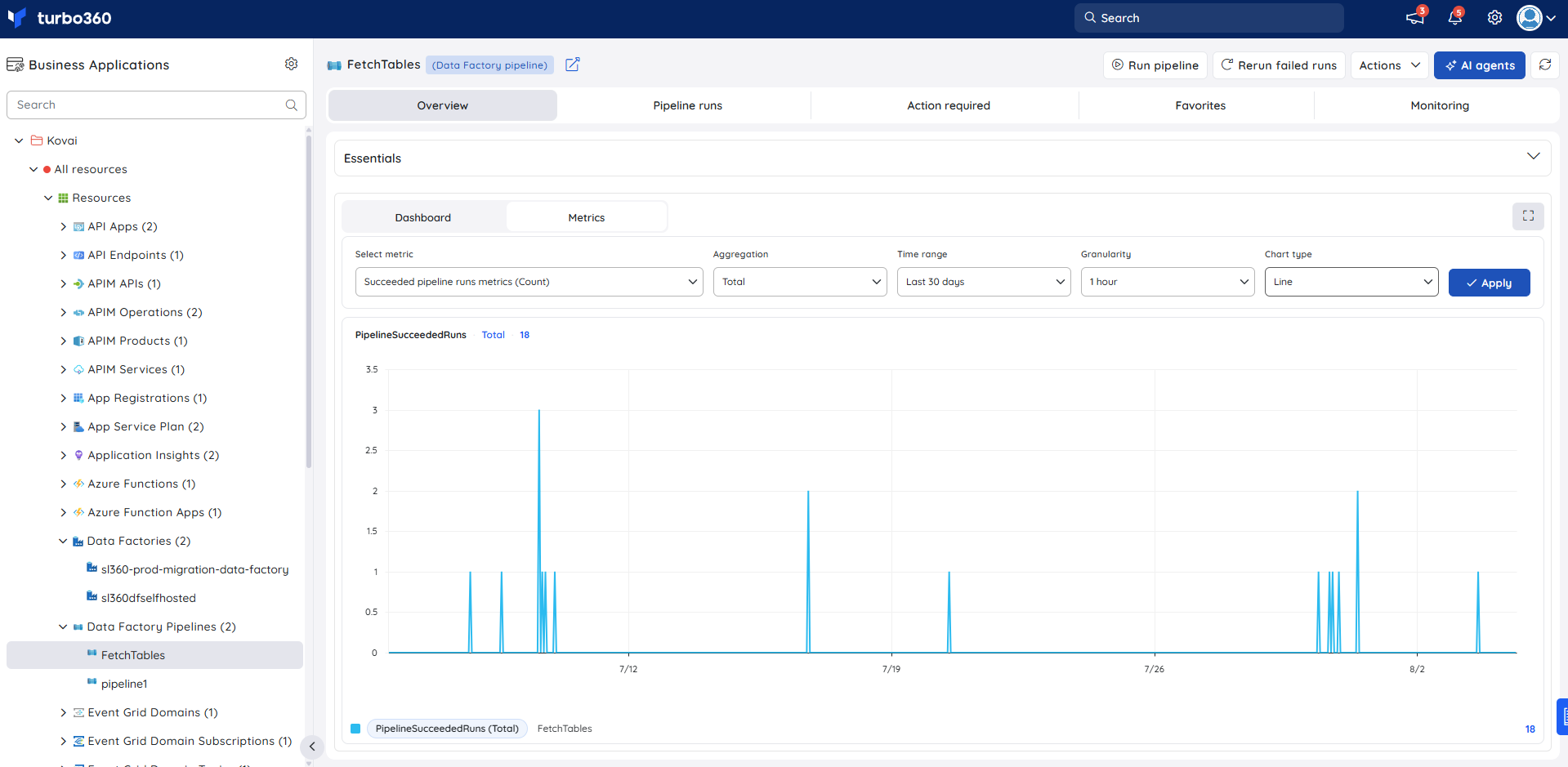
The Metrics tab lets you chart any Azure metric for your Data Factory Pipeline directly in Turbo360, without switching to the Azure portal. Use it to track failed and succeeded activity run counts, pipeline elapsed time trends, and run duration patterns — particularly useful for identifying which pipelines are degrading over time or which activities are consistently causing failures.
Use the following controls to build your chart:
| Control | Description |
|---|---|
| Select metric | Choose the Azure metric to visualize (e.g. Failed Activity Runs, Succeeded Activity Runs, Cancelled Activity Runs, Pipeline Elapsed Time, Activity Run Consumption). |
| Aggregation | Set the aggregation method: Average, Min, Max, Total, or Count. |
| Time range | Set the time window for the data (e.g. Last 24 hours, Last 7 days). |
| Granularity | Set the data point resolution (e.g. 1 minute, 1 hour). |
| Chart type | Choose the visualization type: Line or Bar. |
Click Apply to render the chart.
Monitoring
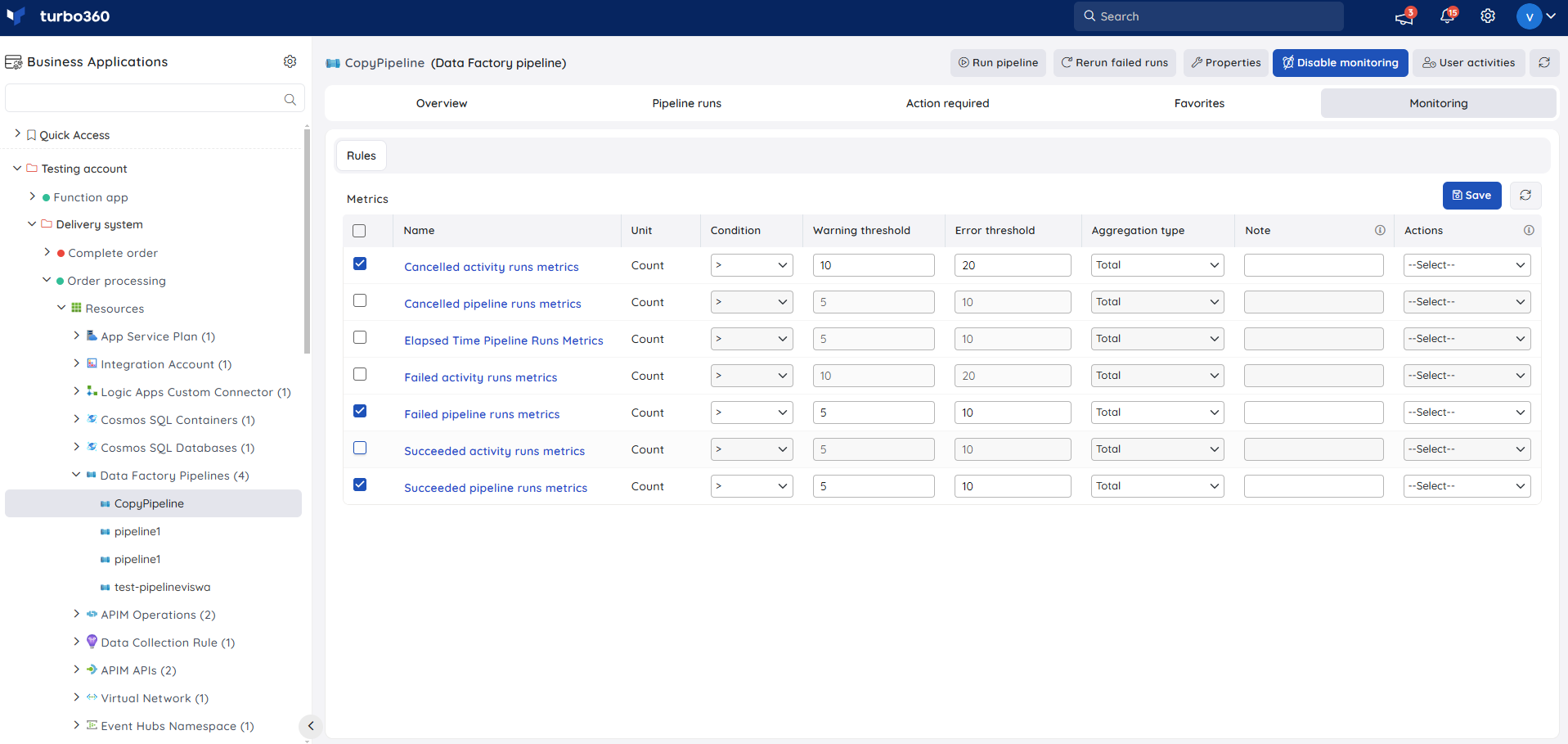
Data Factory Pipeline supports metric monitoring rules, configured from Data Factory Pipeline > Monitoring.
Monitoring rules are saved per resource, and the monitoring state is reflected after every monitoring cycle.
Metric monitoring
Tracks specific pipeline metrics against a configured threshold. Use this when you want to be alerted as soon as activity failures or other metrics cross an operational limit.
- Select the monitoring metrics and configure the threshold values. Any metric name can be used; the rule is violated once the configured threshold is met.
- Click Save.
Troubleshooting
Rerun option is unavailable for a failed run.
Cause: The signed-in role has only Read permission, or lacks the Reprocess permission required to rerun runs.
Fix: Request Manage or Reprocess permission for Data Factory Pipeline from your administrator.Bulk rerun doesn't include a run that should have failed together with others.
Cause: The run may already be tagged as ignored, or it belongs to a different pipeline.
Fix: Confirm the run's ignore status and pipeline before retrying the bulk rerun.Inline task rerun doesn't pick up a recently failed run.
Cause: Inline task reruns only failed runs within the specified hour window (minimum 1 hour).
Fix: Increase the hour window to include the run's failure time.Automated task doesn't rerun previously ignored runs.
Cause: Rerunning ignored runs requires the Rerun the ignored runs option to be enabled on the automated task.
Fix: Edit the automated task and enable Rerun the ignored runs.Connected triggers or integration runtime count doesn't match the Azure portal.
Cause: Turbo360 reflects linked resources as of the last sync cycle.
Fix: Wait for the next sync cycle, or refresh the resource page.
Related articles
Was this article helpful?