

Enterprise Application
- 05 Aug 2026
- 2 Minutes to read
- Print
- DarkLight
- Download PDF
Enterprise Application
- Updated on 05 Aug 2026
- 2 Minutes to read
- Print
- DarkLight
- Download PDF
Article summary
Did you find this summary helpful?
Thank you for your feedback!
Overview
Enterprise Application is where you manage access to applications registered via App registrations. In Azure, an enterprise application is any application integrated with Azure Active Directory (Azure AD) for authentication and access management, including both custom and third-party apps. Enterprise applications support single sign-on (SSO), centralized access management, and security controls.
Business value
Tracking certificate and client secret expiry for Enterprise Applications from Turbo360 prevents unplanned authentication outages by giving teams advance notice to renew credentials before they expire.
How it works
- Azure AD's Enterprise Applications interface lets administrators manage user access, configure permissions, and oversee application usage and security, ensuring compliance with organizational policies.
- Once an Enterprise Application is associated with a Business Application, its client secret and certificate expiry can be monitored directly from Turbo360.
Prerequisites
Required permissions
The following steps must be performed in Microsoft Azure to grant the permission required for monitoring with Turbo360:
- Navigate to the corresponding Enterprise application in your Azure Active Directory.
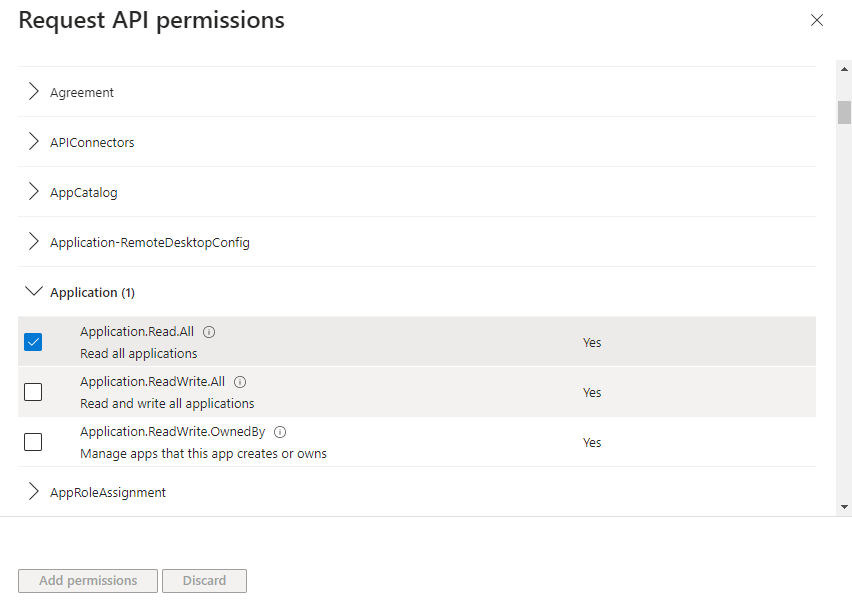
- Click API permissions -> Add a permission to add a permission to the Enterprise application.
- Select Microsoft Graph from the Commonly used Microsoft APIs.
- Choose Application permissions from the two types of listed permissions.
- Select Application -> Application.Read.All and add the permission.
Permissions
Access to Enterprise Application actions is controlled through RBAC when adding a role to a Business Application.
| Permission | Description |
|---|---|
| Read | View Enterprise Application details and monitoring configuration. |
| Manage | Configure certificate and secret expiry alerts. |
Resource dashboard
[MISSING INFORMATION: resource dashboard widgets for Enterprise Application]
Metrics
The Metrics tab surfaces authentication and usage data for the Enterprise Application, giving you visibility into sign-in patterns and application access trends. Use the Metrics tab to correlate authentication failure spikes with upcoming certificate or secret expiry events, and to confirm whether renewed credentials have restored healthy sign-in rates.
Monitoring
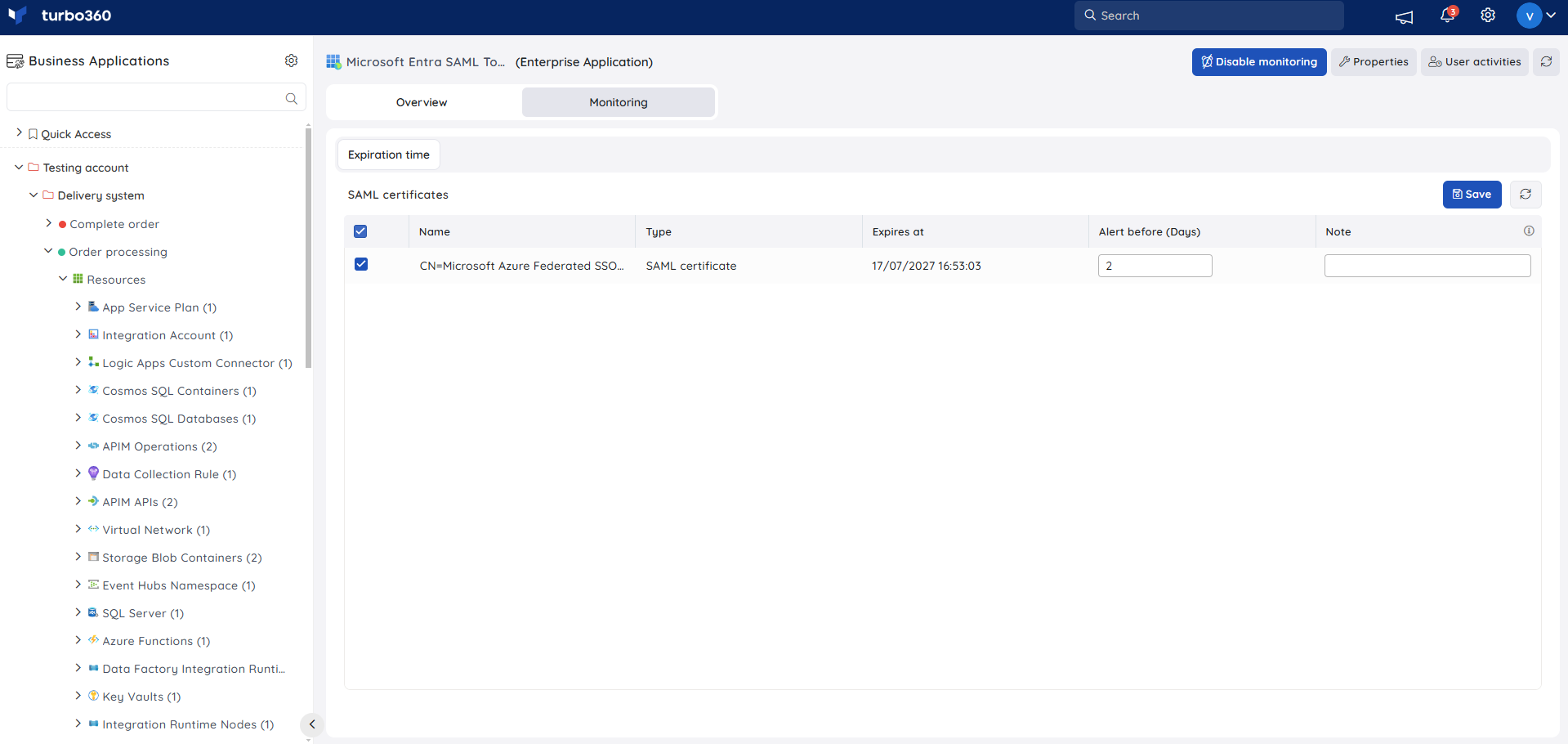
Enterprise Application supports certificate and secret expiry monitoring, configured under Enterprise application -> Monitoring.
Monitoring rules are saved per resource, and the monitoring state is reflected after every monitoring cycle.
Certificate and secret expiry monitoring
Tracks the expiration of client secrets and certificates for the Enterprise Application and delivers notifications prior to the expiration date. Use this when credentials need to be renewed before they cause an authentication outage.
- Navigate to Enterprise application -> Monitoring to configure the expiry alert for client secrets and certificates.
- Specify the number of days before which the expiry alert has to be received.
- Click Save.
Troubleshooting
- Expiry alert is not received
Cause: The configured alert window has not yet been reached, or the rule was saved without a valid days-before value.
Fix: Confirm the configured number of days against the certificate or secret's actual expiry date, and adjust if needed. - API permission setup fails in Azure AD
Cause: The signed-in account lacks admin consent rights for Microsoft Graph application permissions.
Fix: Have a Global Administrator or Application Administrator grant admin consent for Application.Read.All. - Monitoring rule does not reflect the latest certificate state
Cause: The displayed state reflects the last completed monitoring cycle, not real time.
Fix: Allow the next monitoring cycle to complete before re-checking the state.
Related articles
Was this article helpful?