

Event Grid
- 05 Aug 2026
- 6 Minutes to read
- Print
- DarkLight
- Download PDF
Event Grid
- Updated on 05 Aug 2026
- 6 Minutes to read
- Print
- DarkLight
- Download PDF
Article summary
Did you find this summary helpful?
Thank you for your feedback!
Overview
Event Grid is a fully managed event service that lets you manage events across many different Azure services and applications. Made for performance and scale, it simplifies building event-driven applications and serverless architectures. Turbo360 manages two Event Grid resources: Event Grid Subscription, which informs Event Grid which events on a topic to be notified about, and Event Grid Topic, which provides the endpoint to which event publishers send events.
Business value
Managing Event Grid Subscriptions and Topics from Turbo360 gives you a single place to recover dead-lettered events and verify event delivery, reducing the time to detect and resolve event-driven integration failures.
How it works
- Once an Event Grid Subscription or Topic is associated with a Business Application, its dead-letter events, test traffic, and monitoring become directly manageable from Turbo360.
- Event Grid Subscriptions can be configured with custom Event Grid Topics; Azure also provides system topics that only Event Grid Subscriptions can subscribe to.
- It is possible to create multiple Event Grid Subscriptions for the same Event Grid Topic, so all destinations receive events published to that topic.
Associate the Event Grid Topic to the same Business Application as its Subscriptions to process dead-lettered events end to end.
Permissions
Access to Event Grid actions is controlled through RBAC when adding a role to a Business Application.
| Permission | Description | Applies to |
|---|---|---|
| Read | View resource details, events, and monitoring rules. | Event Grid Subscription, Event Grid Topic |
| Manage | Configure inline tasks, automated tasks, and monitoring rules. | Event Grid Subscription, Event Grid Topic |
| Reprocess | Resubmit dead-lettered events to the Event Grid Topic. | Event Grid Subscription |
| Repair & Reprocess | Modify dead-lettered event properties and resubmit them. | Event Grid Subscription |
| Purge | Delete dead-lettered events from the configured dead-letter destination. | Event Grid Subscription |
Operations
Turbo360 lets you recover dead-lettered events and send test traffic directly from Event Grid resources, without switching to the Azure portal.
Dead-letter event recovery (Event Grid Subscription)
If an Event Grid Subscription fails to receive events, a Dead-Lettering mechanism captures the failed events in a Storage Blob Container — unlike Service Bus Dead-Lettering, which uses its own dead-letter queue. For example, if the destination of a Subscription is a Service Bus Queue and the Queue is accidentally deleted, an Azure Function listening on that Queue would never receive the events; they would instead land in the configured Blob Container.
Turbo360 provides a UI to access these failed events from the configured Blob Container, helping you rectify the problem and keep track of failures.
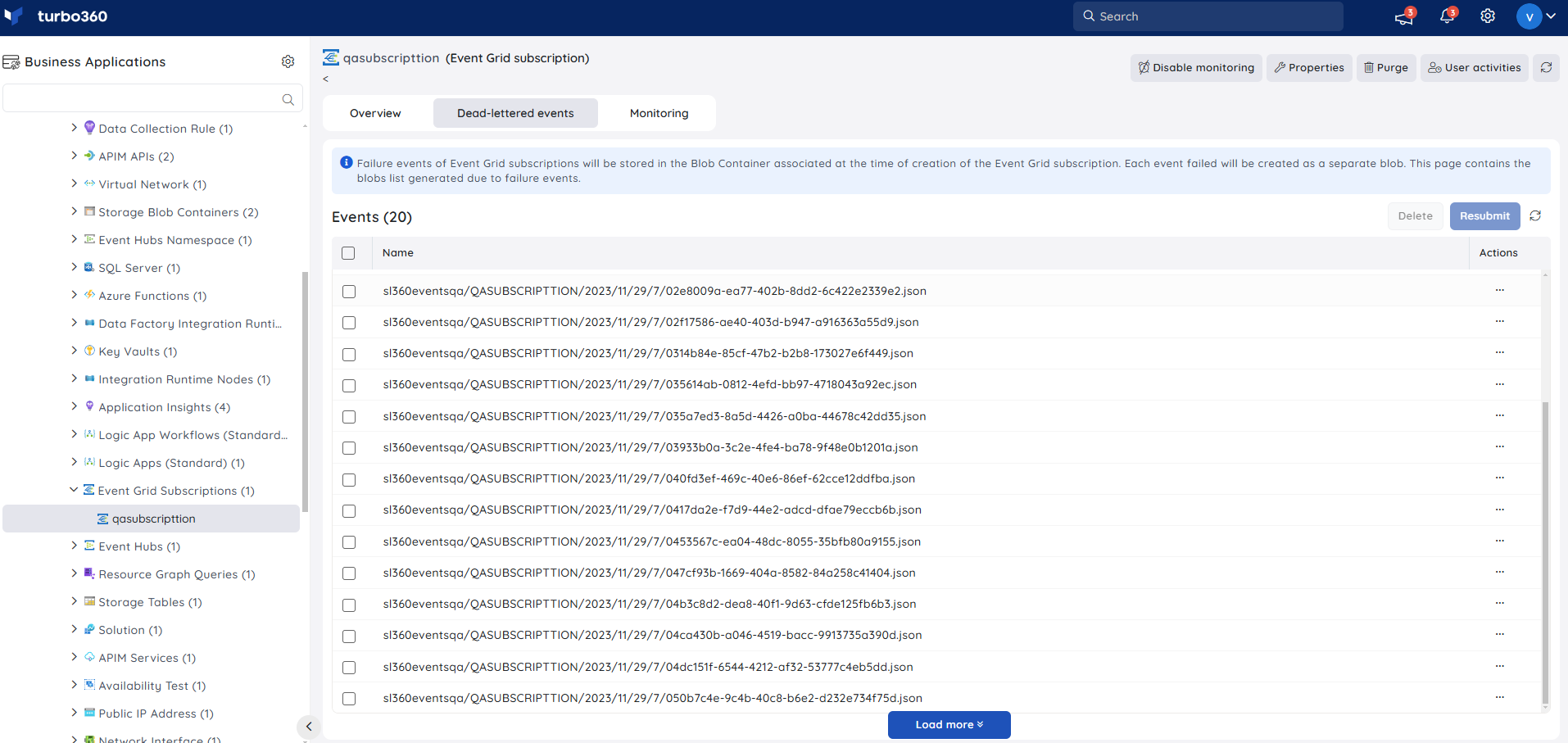
You can view the event content with basic properties along with the dead-letter reason.
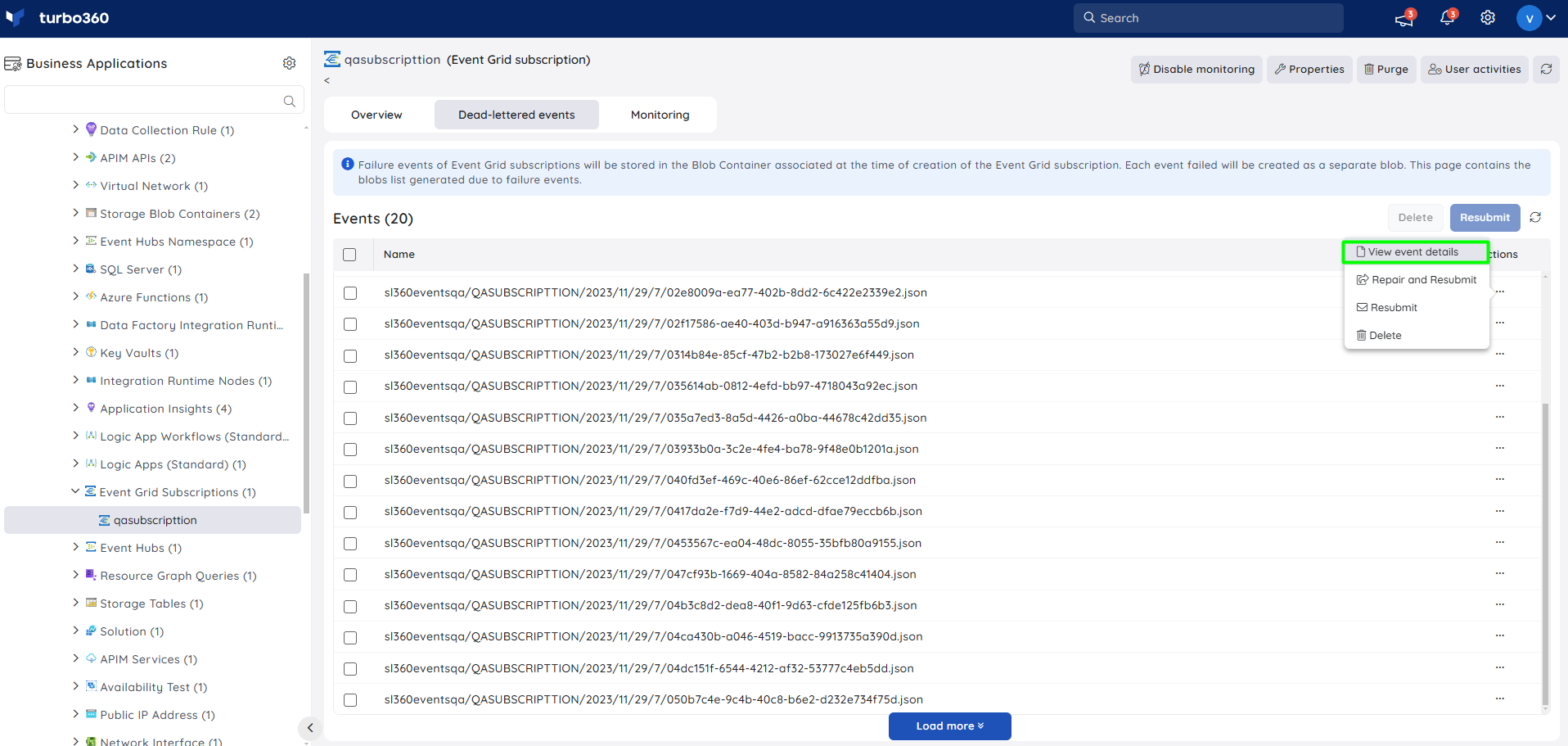
The Storage Blob Container acting as the dead-letter destination of the Event Grid Subscription must be associated with the same Business Application to access and process the dead-lettered events.
Dead-letter event processing is only possible if both conditions are met:
- The Event Grid Subscription is configured with a custom Event Grid Topic.
- The Storage Account Container configured as the dead-letter destination has public anonymous access to either the container or its blobs.
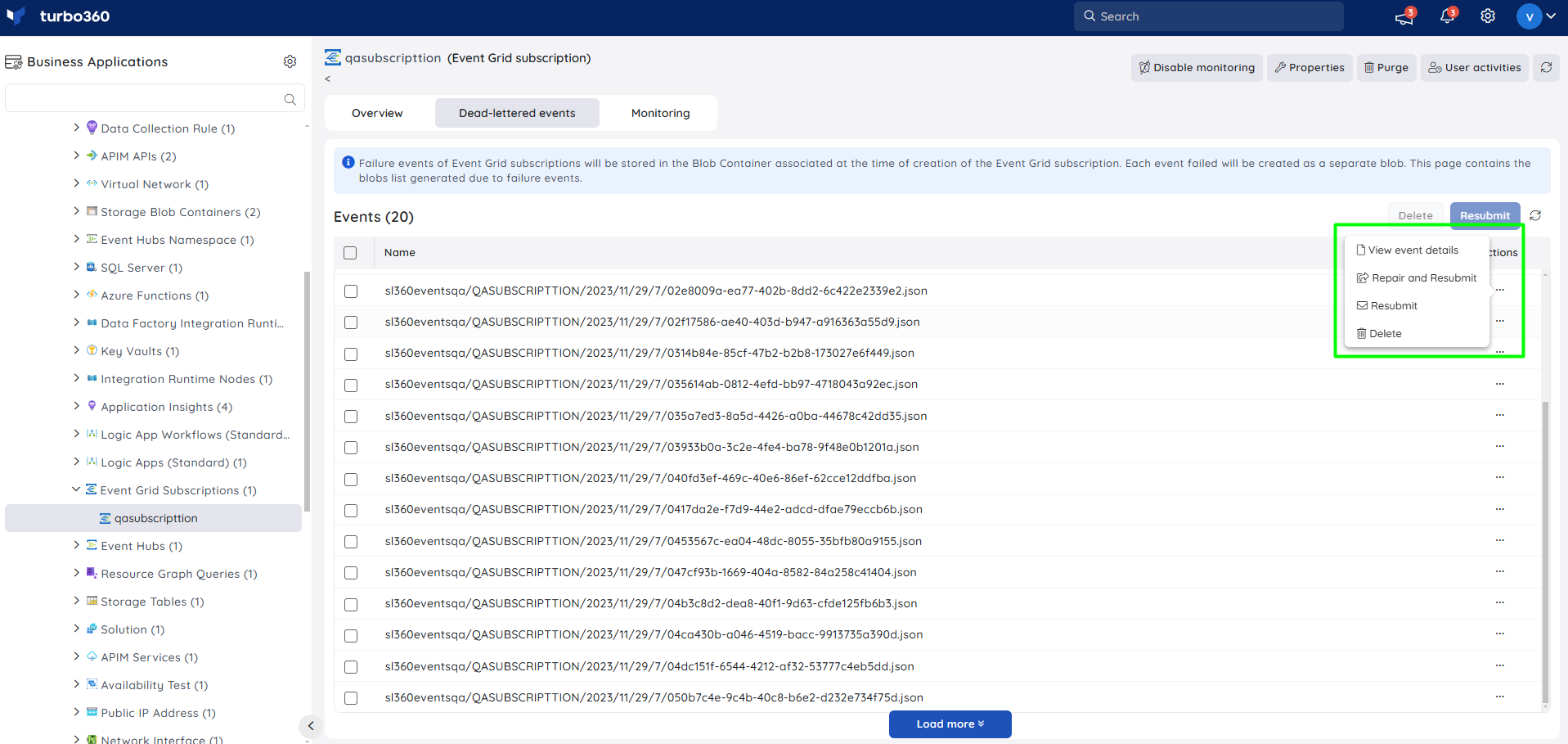
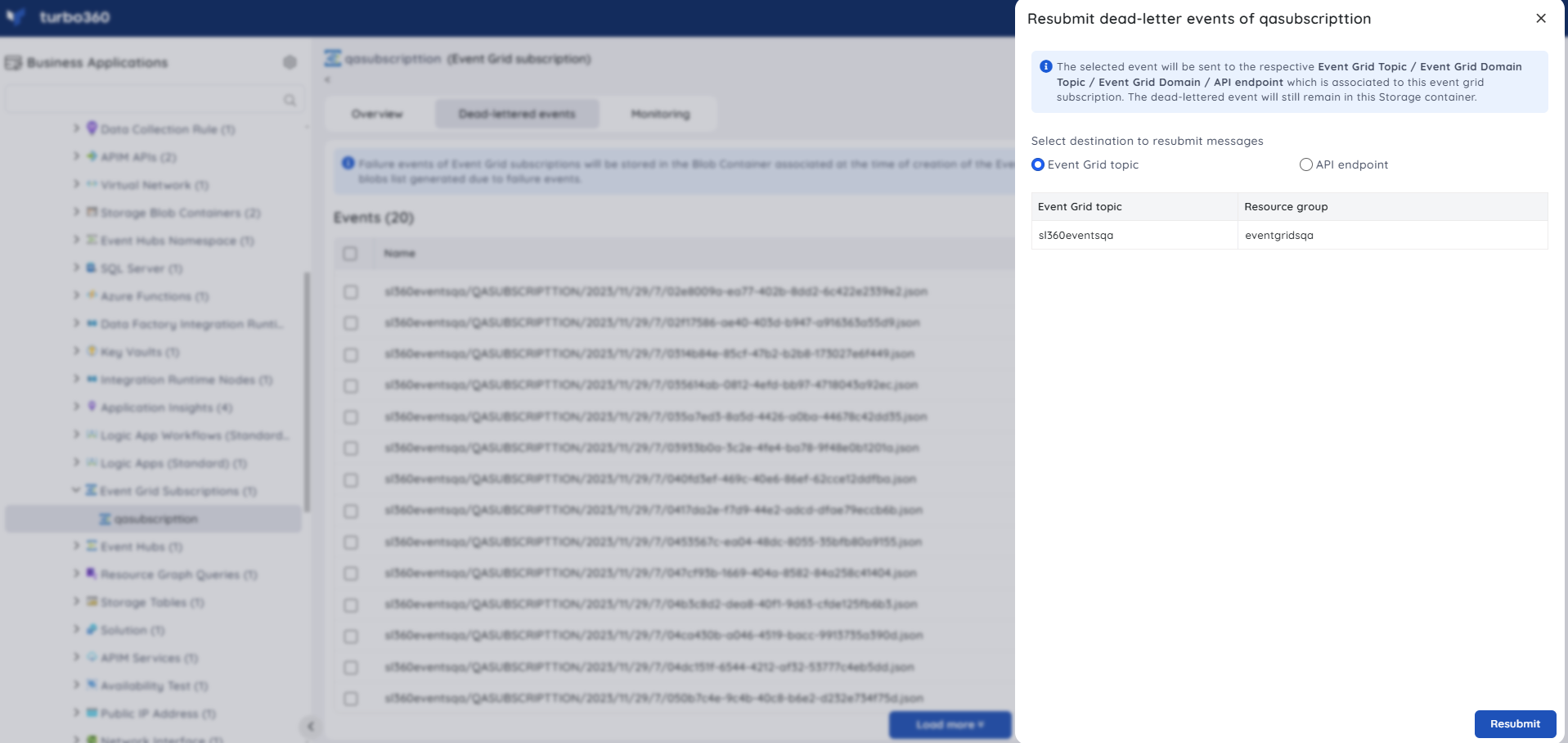
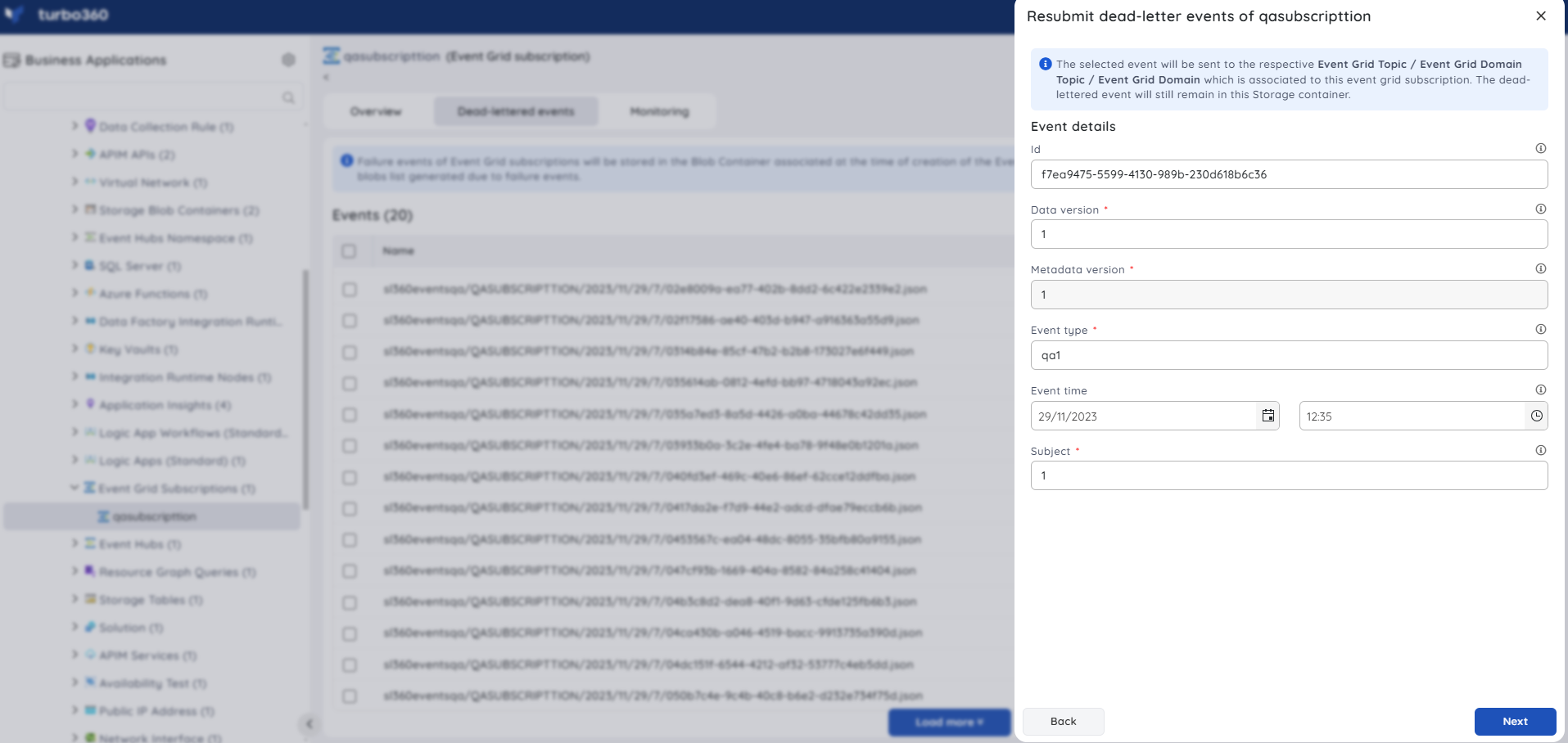
- Resubmit — resubmit a dead-lettered event (single or bulk) back to the Event Grid Topic, preserving all properties (Id, Subject, Event Type, Event Time, Data Version, Metadata Version, Event Data). Use this when the endpoint that was down is now available and the event can be replayed as-is.
- Repair and resubmit — modify properties such as Event time or Subject before resubmitting. Use this when the dead-lettered event's properties need correction before replay.
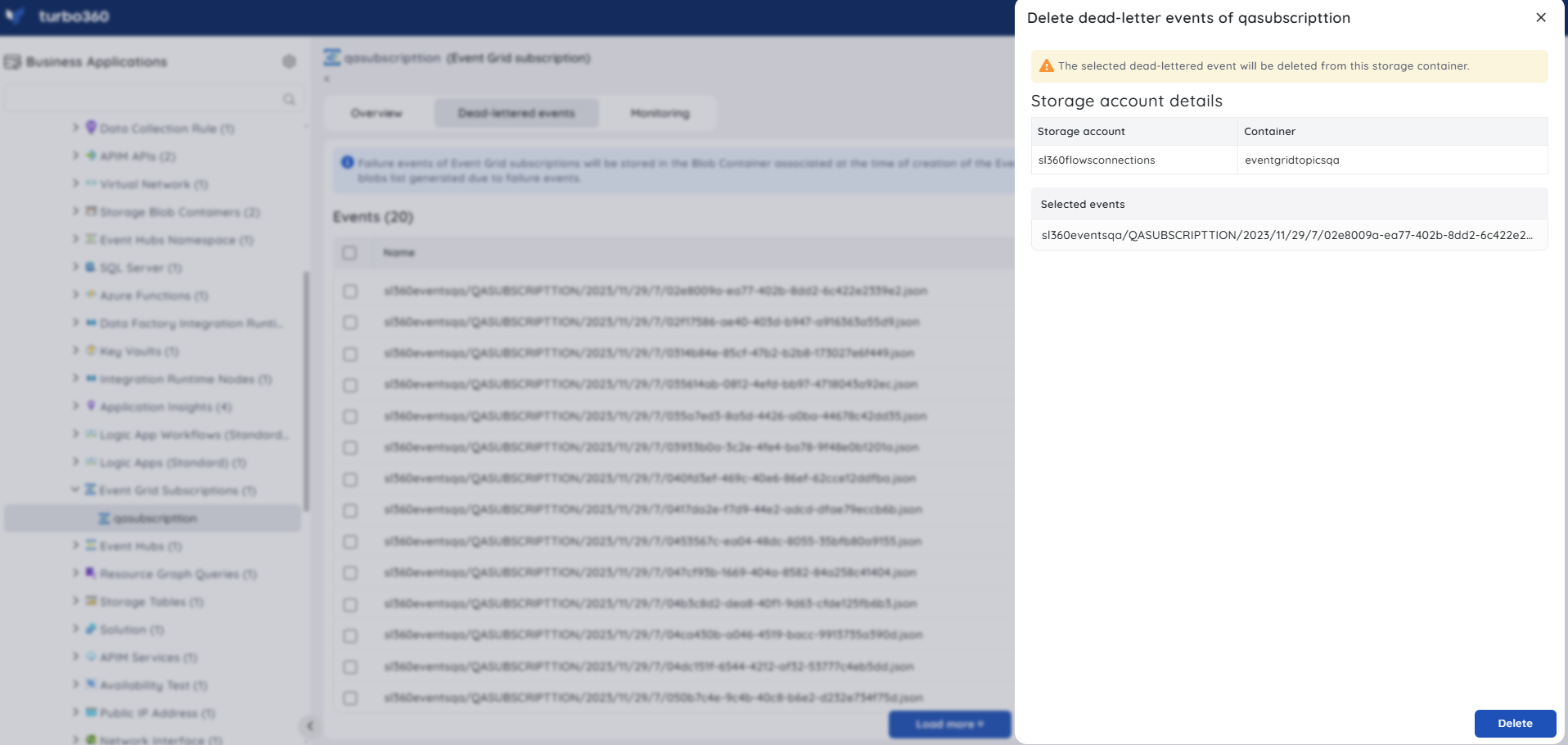
- Purge — delete a dead-lettered event (single or bulk) from the configured dead-letter destination. Use this once events have been processed manually and no longer need to be retained.
Bulk operations (Event Grid Subscription)
- Inline task to purge events — quickly purge all events, or a specific set within a chosen time period, directly from the Event Grid Subscription section. Use this when you need to clear a backlog of dead-lettered events from a particular window without configuring a recurring schedule.
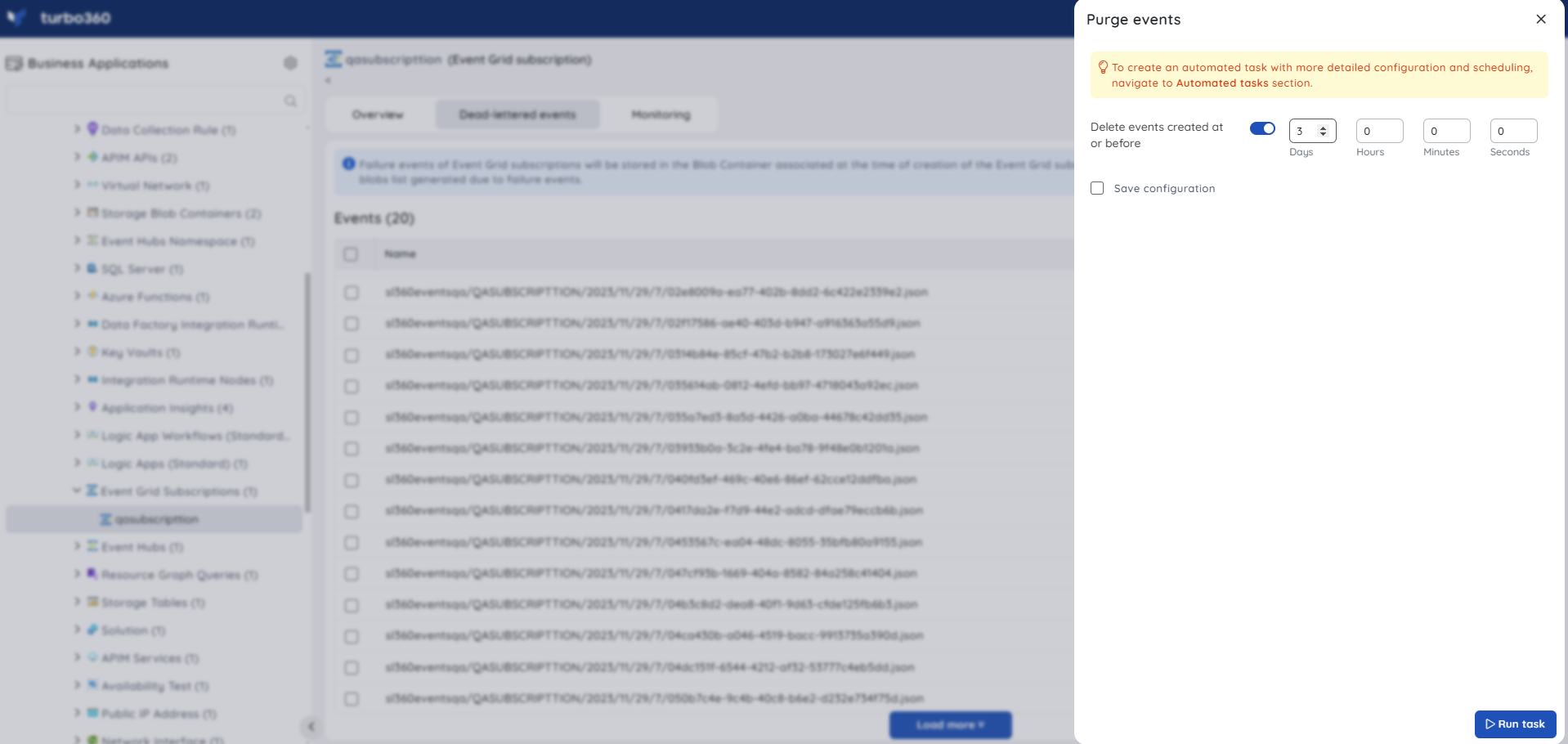
Task status can be viewed under Automated Tasks -> Task history.
Note:
- This feature quickly creates a task that runs immediately.
- Use the Automated Tasks section for more detailed configuration, scheduling, or recurring automation.
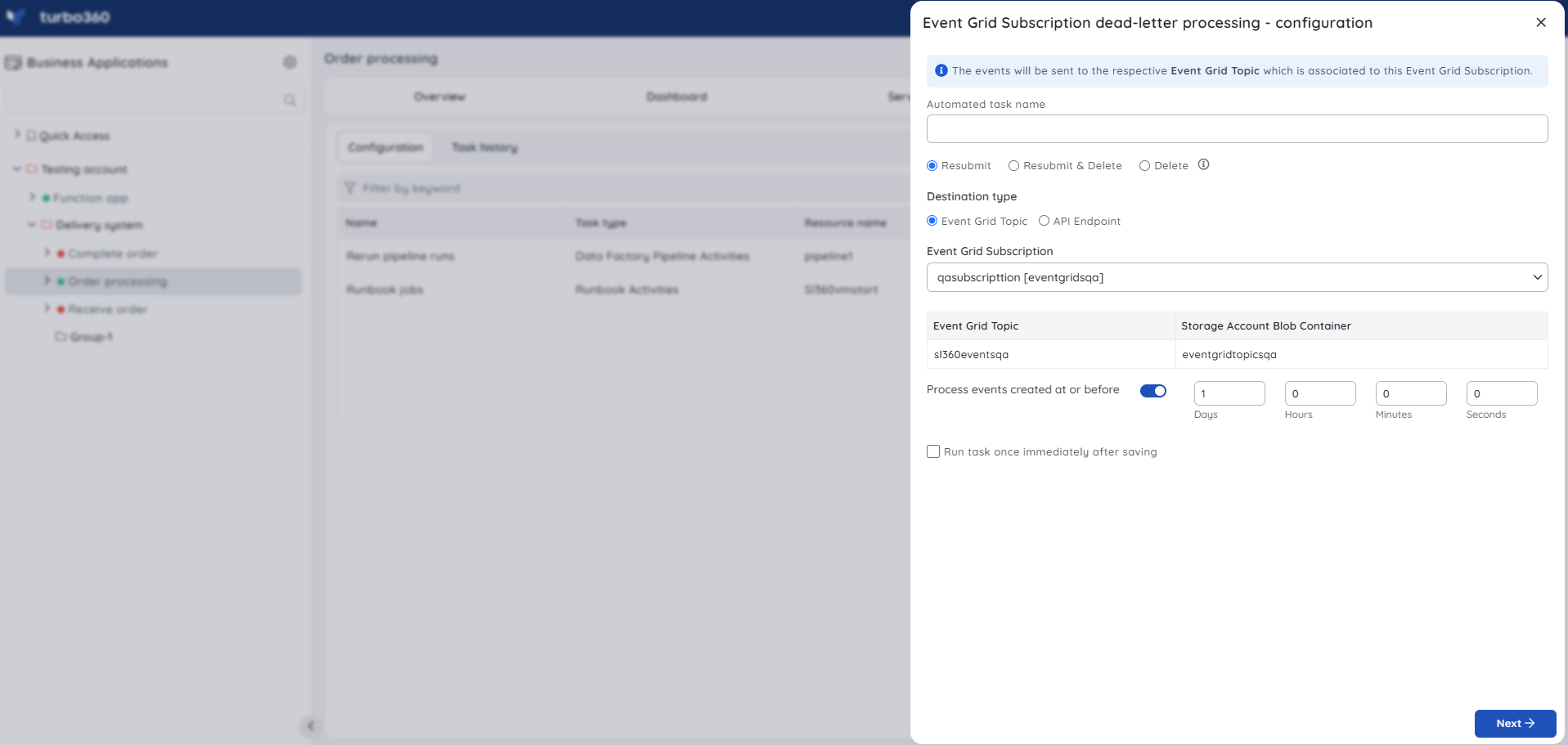
The Event Grid Subscription dead-letter processing automated task schedules dead-letter event processing to run at specified intervals.
Sending test events (Event Grid Topic)
- Inline task to send events — quickly send events to an Event Grid Topic by providing Event Data count, Event Type, Subject, Data Version, and an optional configuration name to save it. Use this when you need to verify that all Subscriptions on a Topic correctly receive published events.
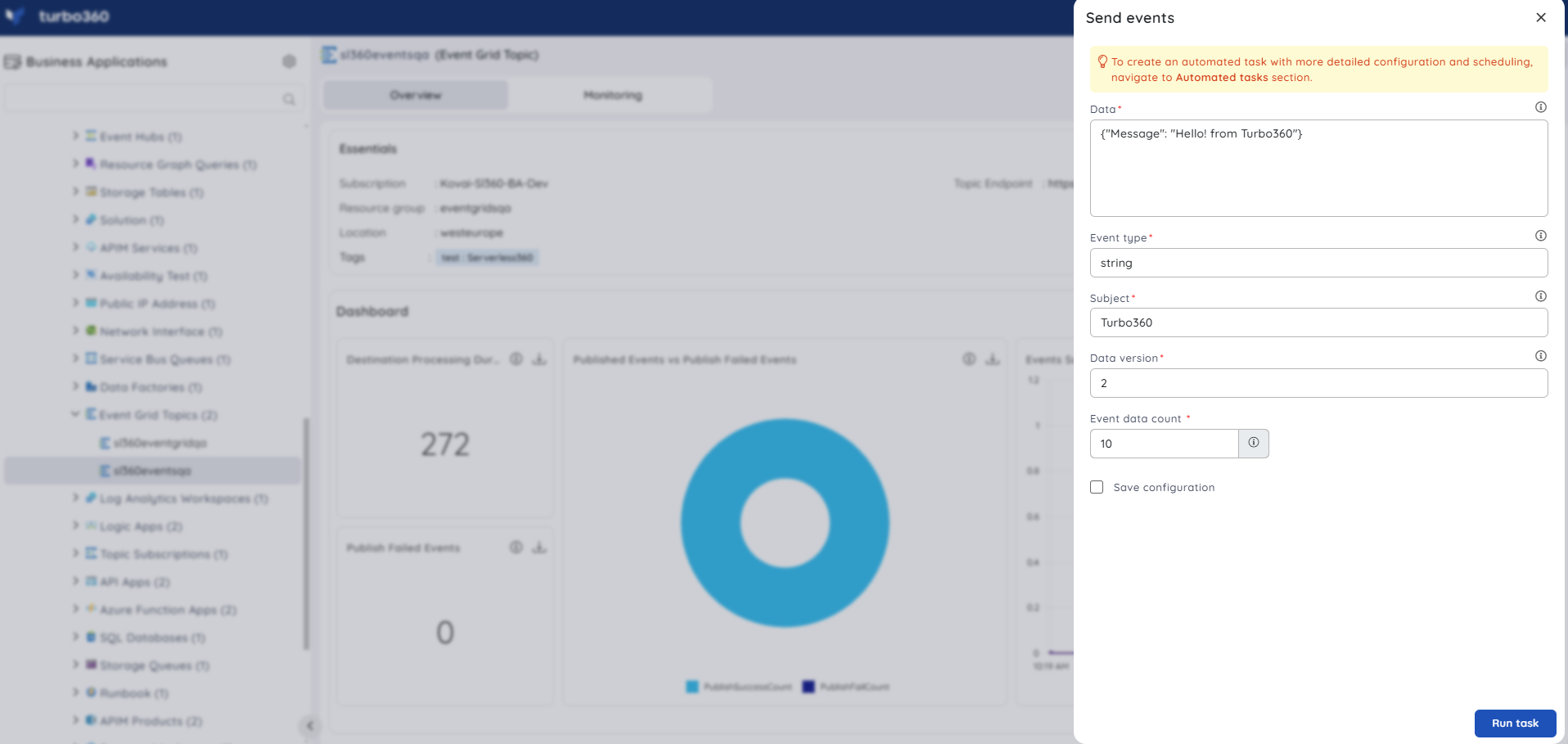
Task status can be viewed under Automated Tasks -> Task history.
Note:
- This feature quickly creates a task that runs immediately.
- Use the Automated tasks section for more detailed configuration, scheduling, or recurring automation.
The Automated task feature is also useful when multiple Event Grid Subscriptions exist for a single Topic and you need to verify all of them received the published events.
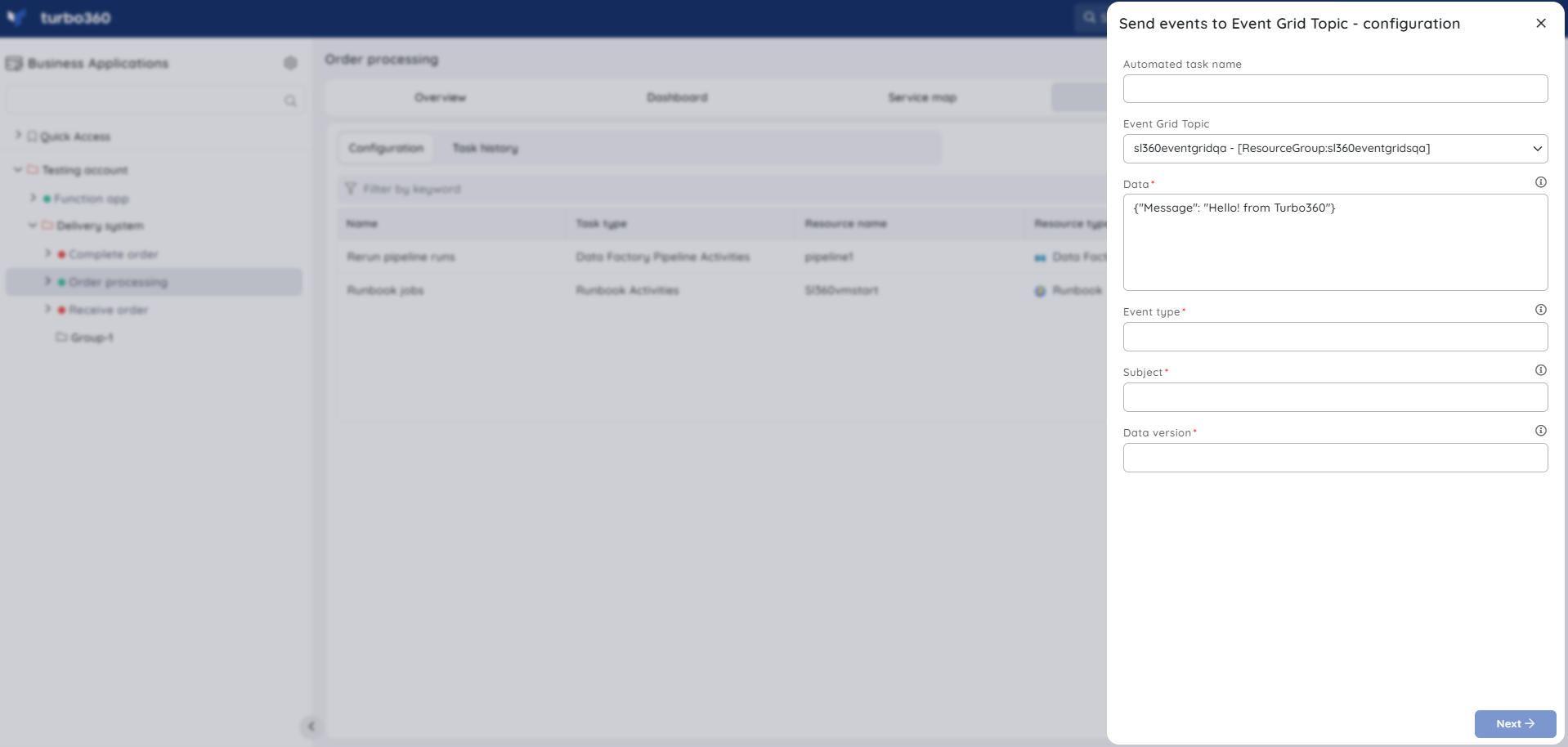
Resource dashboard
Event Grid Subscription
The Event Grid Subscription dashboard surfaces delivery and dead-letter signals so you can spot failed deliveries without leaving Turbo360.
| Widget | What it shows |
|---|---|
| Destination Processing Duration | How long the destination takes to process delivered events. |
| Dropped Events vs Matched Events | Compares events matched by the subscription filter against events dropped. |
| Events Summary | At-a-glance summary of subscription event activity. |
| Dead Lettered Events | Count of events that failed delivery and were dead-lettered. |
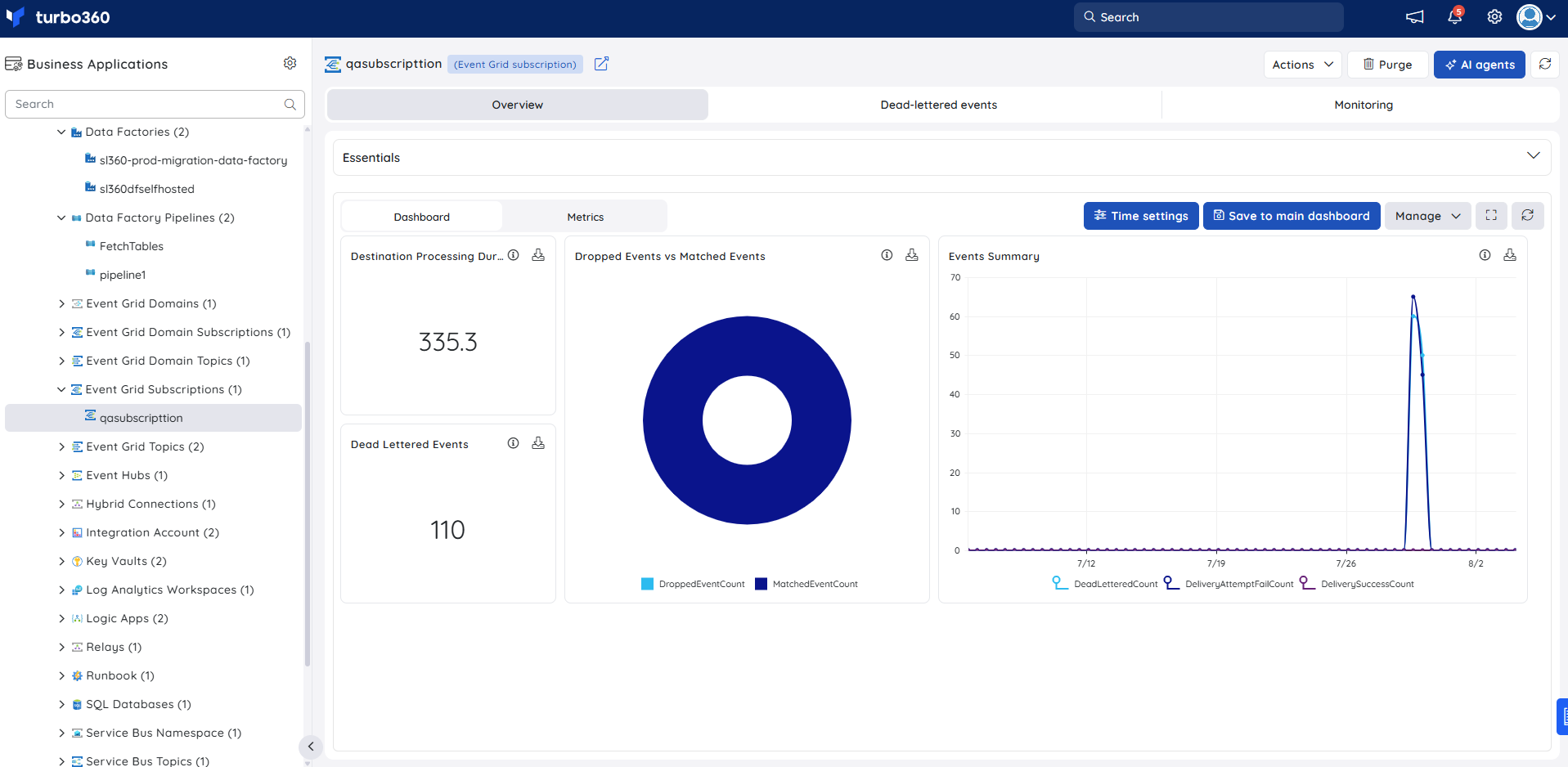
Metrics
The Metrics tab surfaces subscription-level delivery and filtering data for Event Grid Subscription, giving you visibility into how effectively events are being routed and where delivery failures are accumulating. Use the Metrics tab to track dead-lettered event trends over time and confirm that delivery rates recover after an endpoint restoration.
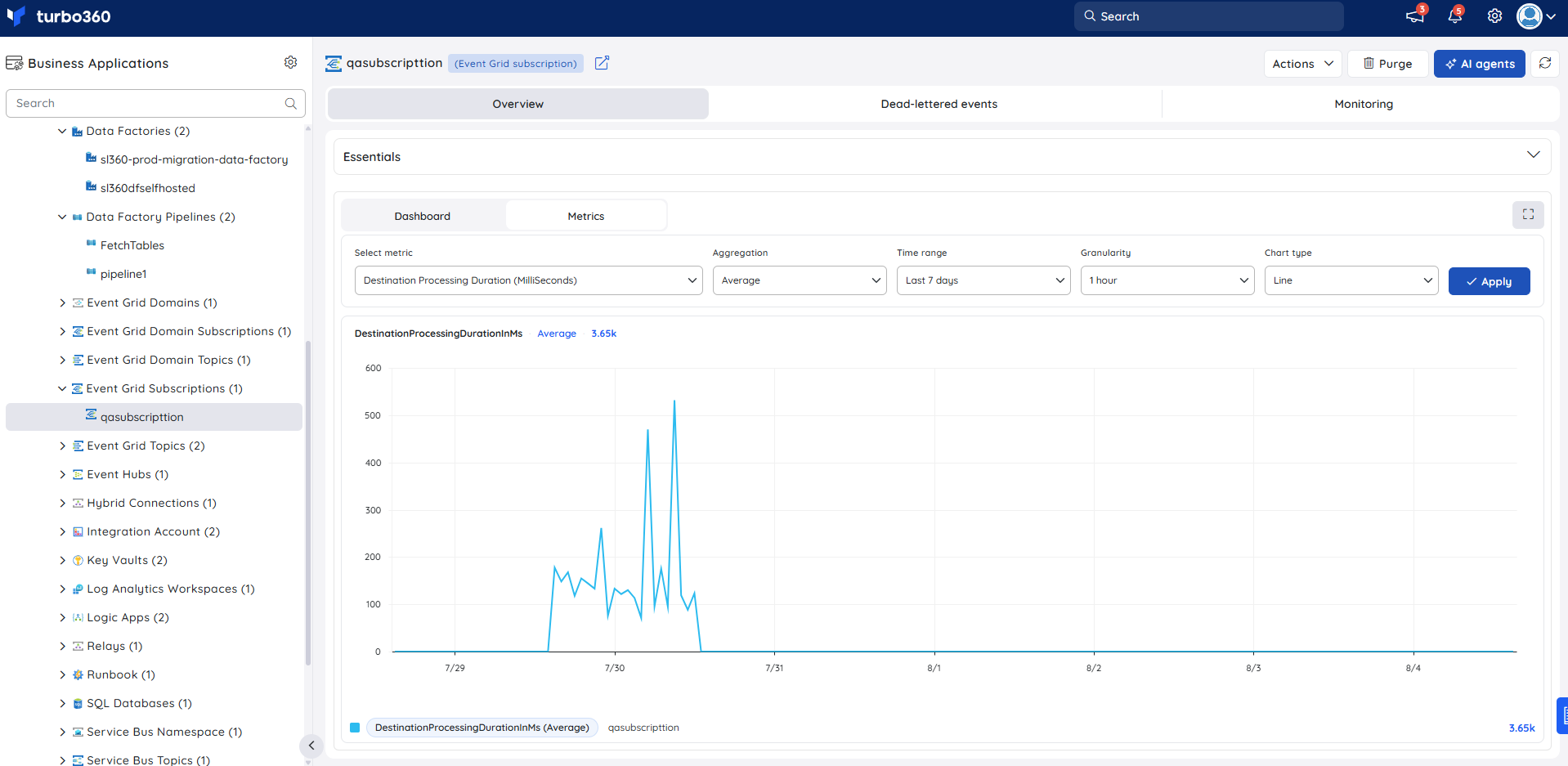
Event Grid Topic
The Event Grid Topic dashboard surfaces publish success and failure signals so you can spot upstream publishing issues without leaving Turbo360.
| Widget | What it shows |
|---|---|
| Destination Processing Duration | How long downstream destinations take to process published events. |
| Published Events vs Publish Failed Events | Compares successfully published events against publish failures. |
| Events Summary | At-a-glance summary of topic event activity. |
| Publish Failed Events | Count of events that failed to publish to the topic. |
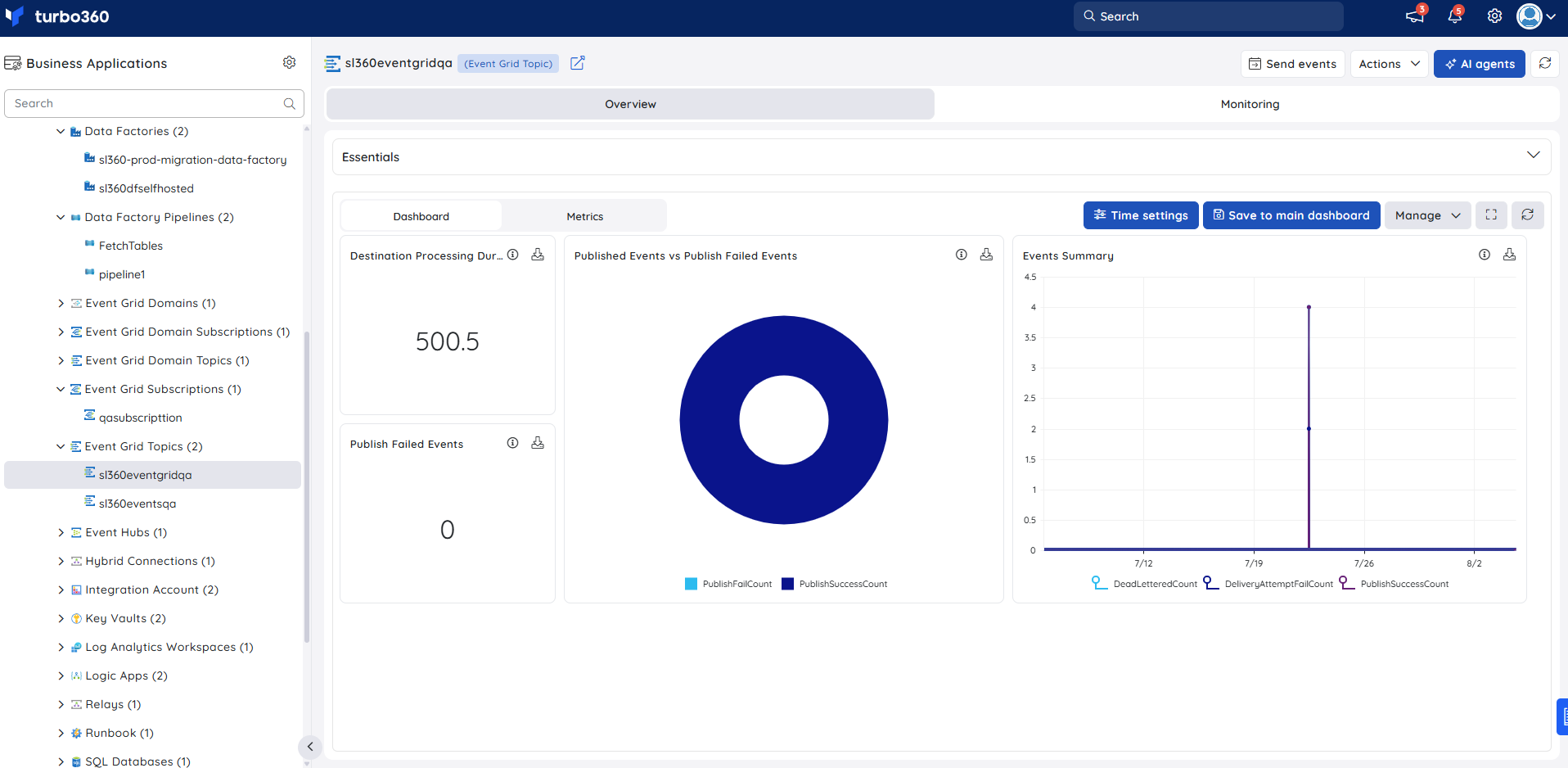
Metrics
The Metrics tab surfaces publish success and failure data for Event Grid Topic, giving you visibility into upstream event flow and publishing reliability. Use the Metrics tab to identify periods of elevated publish failures and correlate them with changes to the topic's event schema or publishing client configuration.
You can add, remove, or reconfigure widgets on either dashboard to focus on the metrics most relevant to your support scenario.
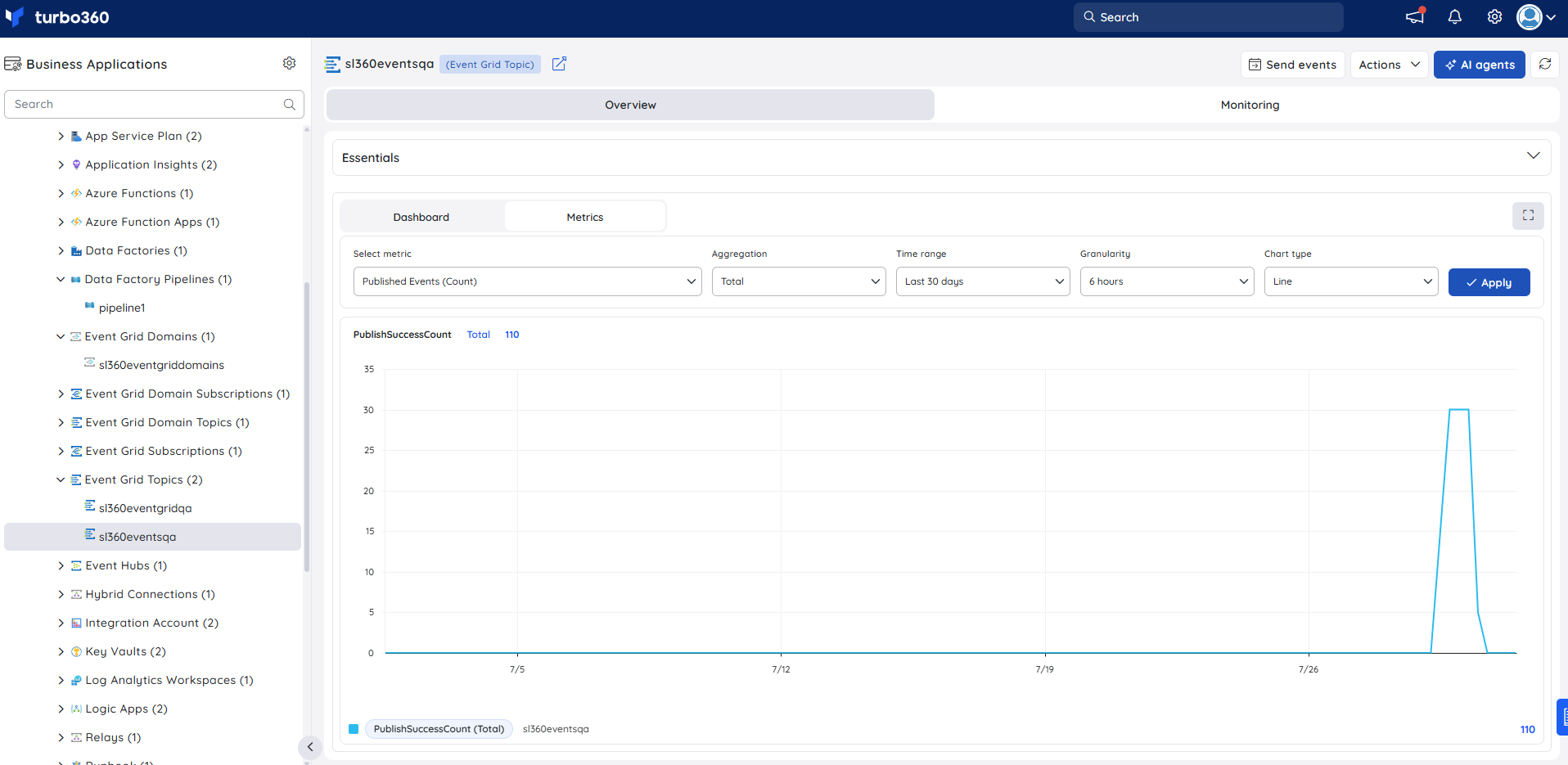
Monitoring
Monitoring rules are saved per resource, and the monitoring state is reflected after every monitoring cycle.
Event Grid Subscription
Tracks subscription-level metrics against a configured threshold. Use this when you need to be alerted if dropped or dead-lettered event counts exceed expected bounds.
- Navigate to Event Grid Subscription -> Monitoring.
- Select the necessary monitoring metrics and configure the threshold values.
- Click Save.
The threshold values can be provided with any metric name; the rule is violated when the configured threshold is met.
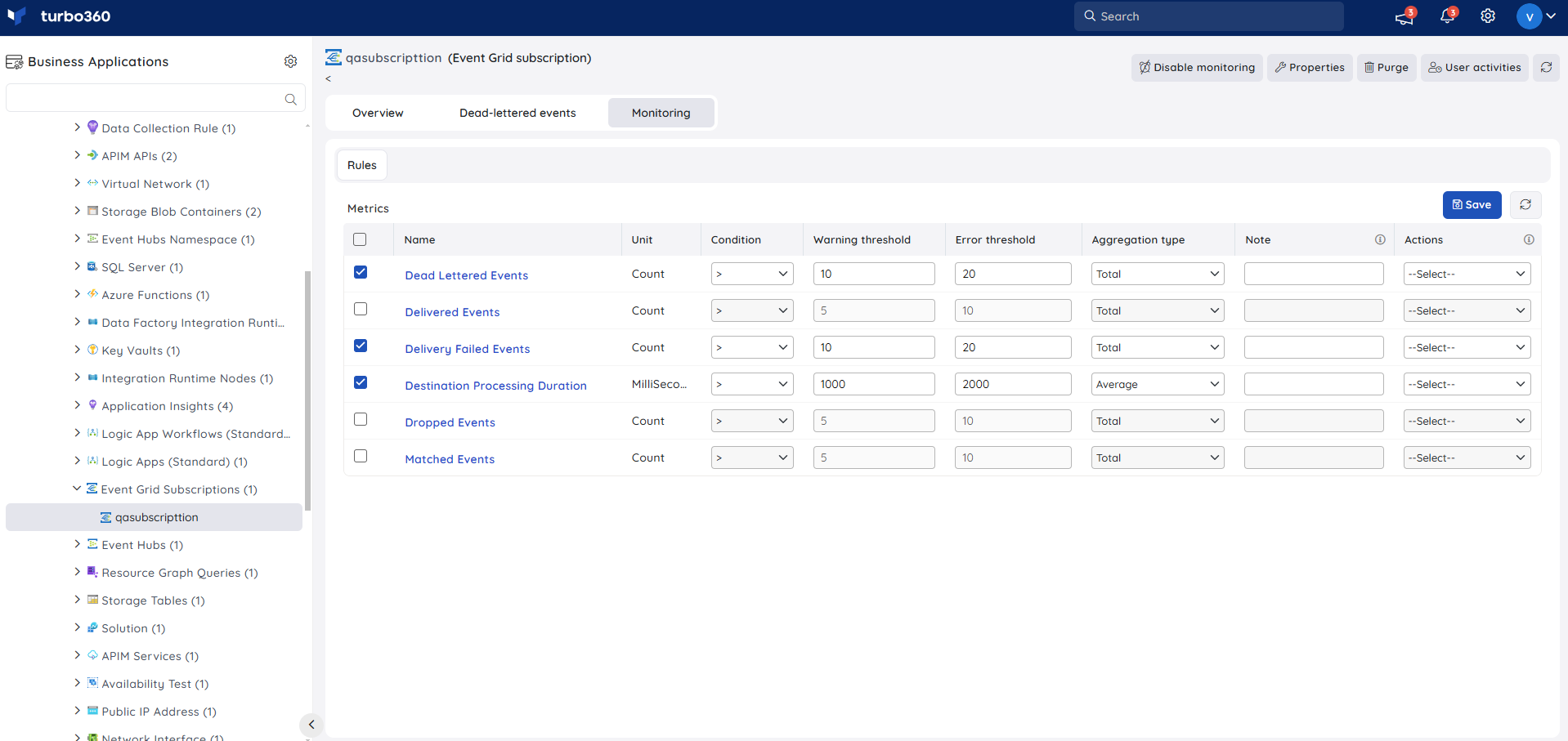
Event Grid Topic
Tracks topic-level metrics against a configured threshold. Use this when you need to be alerted if publish failures exceed expected bounds.
- Navigate to Event Grid Topic -> Monitoring to configure the monitoring rules for Event Grid Topics.
- Select the necessary monitoring metrics and configure the threshold values.
- Click Save.
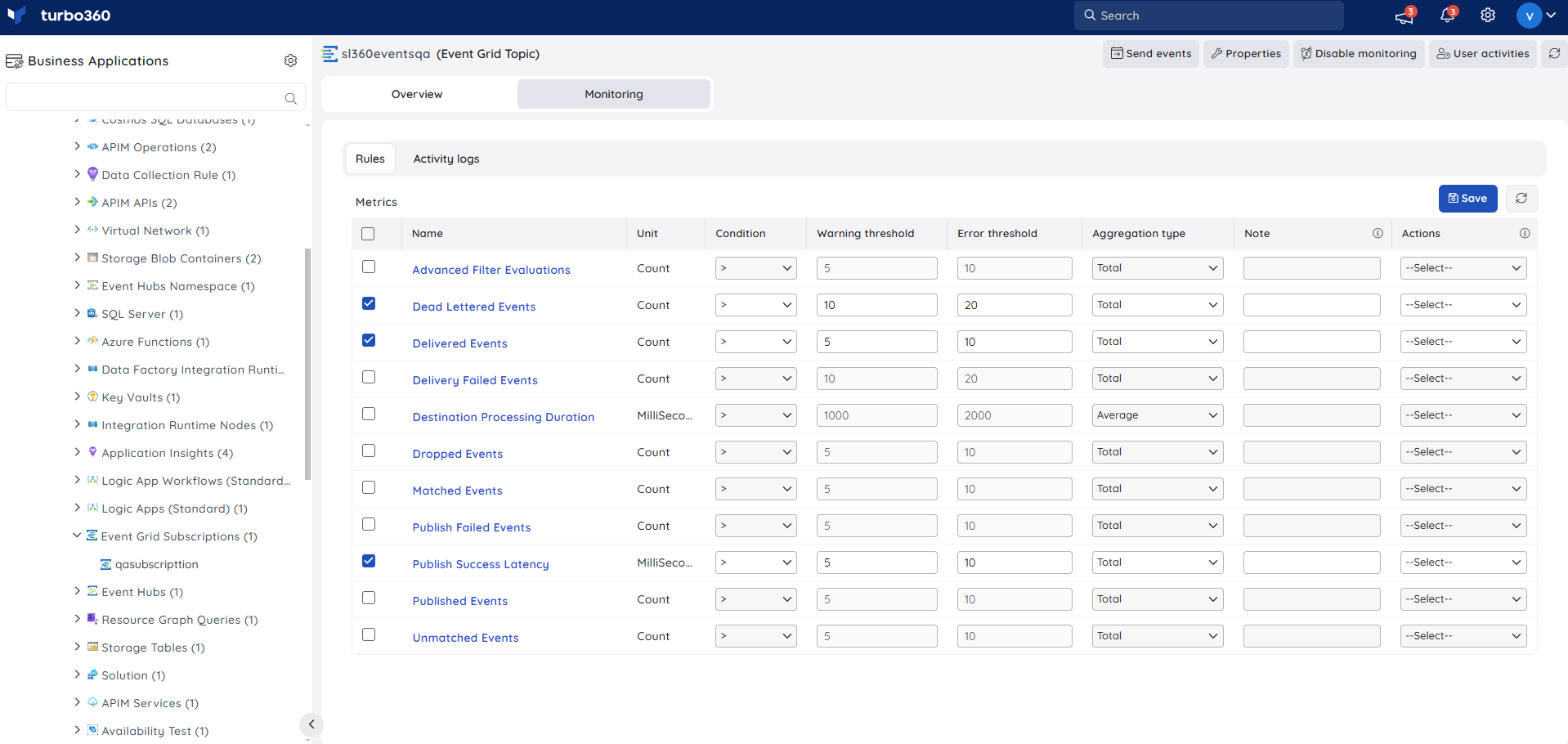
Troubleshooting
- Dead-lettered events are not accessible from Turbo360
Cause: The Storage Blob Container configured as the dead-letter destination is not associated with the same Business Application as the Subscription.
Fix: Associate the Blob Container with the same Business Application as the Event Grid Subscription. - Resubmit or Repair & Reprocess options are unavailable
Cause: The Event Grid Subscription is not configured with a custom Event Grid Topic, or the dead-letter Storage Account Container lacks public anonymous access.
Fix: Confirm both conditions are met before attempting dead-letter recovery. - Not all Subscriptions receive events sent to a Topic
Cause: A filter on one or more Subscriptions is excluding the published event.
Fix: Review each Subscription's event filter and adjust as needed. - Inline task to send or purge events does not appear in Task history
Cause: The task was not saved to Automated Tasks before running.
Fix: Re-run the inline task with Save configuration enabled to track it under Task history.
Related articles
Was this article helpful?