

Group budget monitoring
- 09 Aug 2026
- 8 Minutes to read
- Print
- DarkLight
- Download PDF
Group budget monitoring
- Updated on 09 Aug 2026
- 8 Minutes to read
- Print
- DarkLight
- Download PDF
Article summary
Did you find this summary helpful?
Thank you for your feedback!
Overview
Group budget sets a spending threshold for a cost management group in Cost Analyzer and alerts you when actual or amortized costs approach or exceed it. Configure the budget value, interval, and cost metric on the group, then layer on percentage thresholds or monthly risk prediction for earlier warnings.
Business value
Group budget catches cost overruns before the billing cycle closes, instead of after. Percentage thresholds and risk prediction surface overspend trends days or weeks ahead of the limit.
Prerequisites
An existing cost management group in Cost Analyzer is required. Group budget can be enabled either on an existing cost management group or while creating a new cost management group.
Required permissions
Account Owner, Owner, and Contributor roles, along with any custom role that has Manage permission enabled for Monitoring, can access and configure group budget — including setting up, editing, and managing alerts.
Users with Read permission for Monitoring can only view the existing alerts and budget configuration, without the ability to modify them.
.png)
How it works
- A budget threshold is set at the cost group level. Alerts trigger when costs vary from it.
- The most recent values for the configured interval are compared against the budget and any percentage thresholds, with an alert on either breach.
- Tree view monitoring status reflects budget state: Red (100% threshold reached), Green (below budget and thresholds), Grey (monitoring disabled).
- Percentage thresholds notify you as spend approaches the limit, ahead of the default 100% alert.
- For monthly budgets, risk prediction calculates an average daily cost from the configured window of recent days, projects a 30-day total from that average, and fires an alert when the projected total exceeds the budget — reporting the estimated day the budget will be hit at the current spending rate. Risk prediction alerts fire only while the actual spend for the current month is still within the budget; once the budget is exceeded, risk prediction stops alerting for that month. Risk prediction runs independently of threshold and standard budget alerts.
- Alerts are recorded as incidents: open for 100%-threshold breaches (shown as an error state in the tree view), closed for other percentage breaches.
Steps
Use the following steps to configure a group budget, set percentage threshold alerts, manage alert configuration, enable or disable monitoring, and set up budget risk prediction. Navigate to the desired cost management group → Monitoring to get started.
Configure a group budget
Setting up a group budget enables cost threshold monitoring on the group and activates the alerting pipeline for all subsequent threshold and risk prediction configurations.
- Click Configure in the Group budget widget.
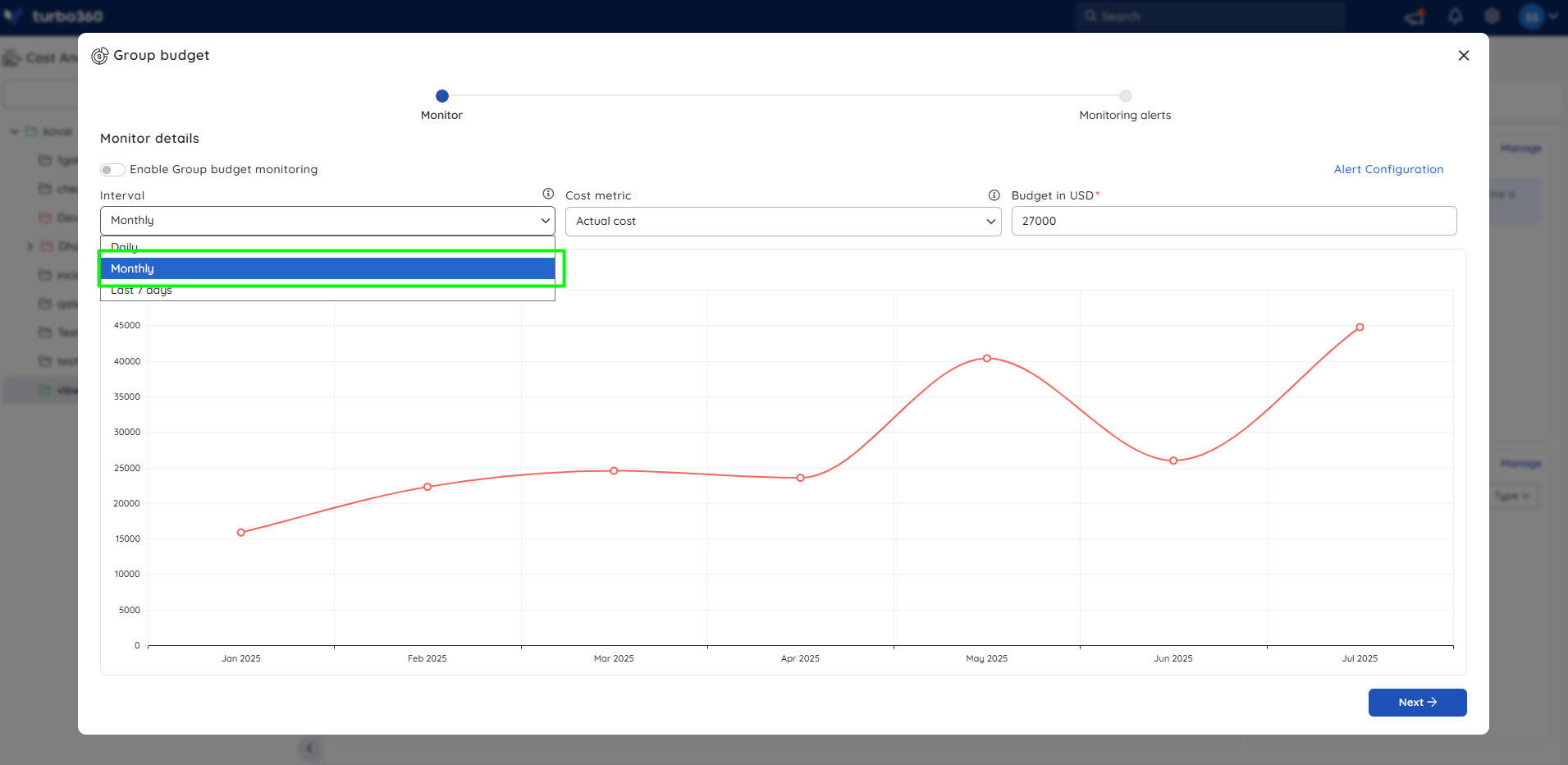
- Enable the monitoring toggle, select the interval, choose the cost metric, and set the budget value.
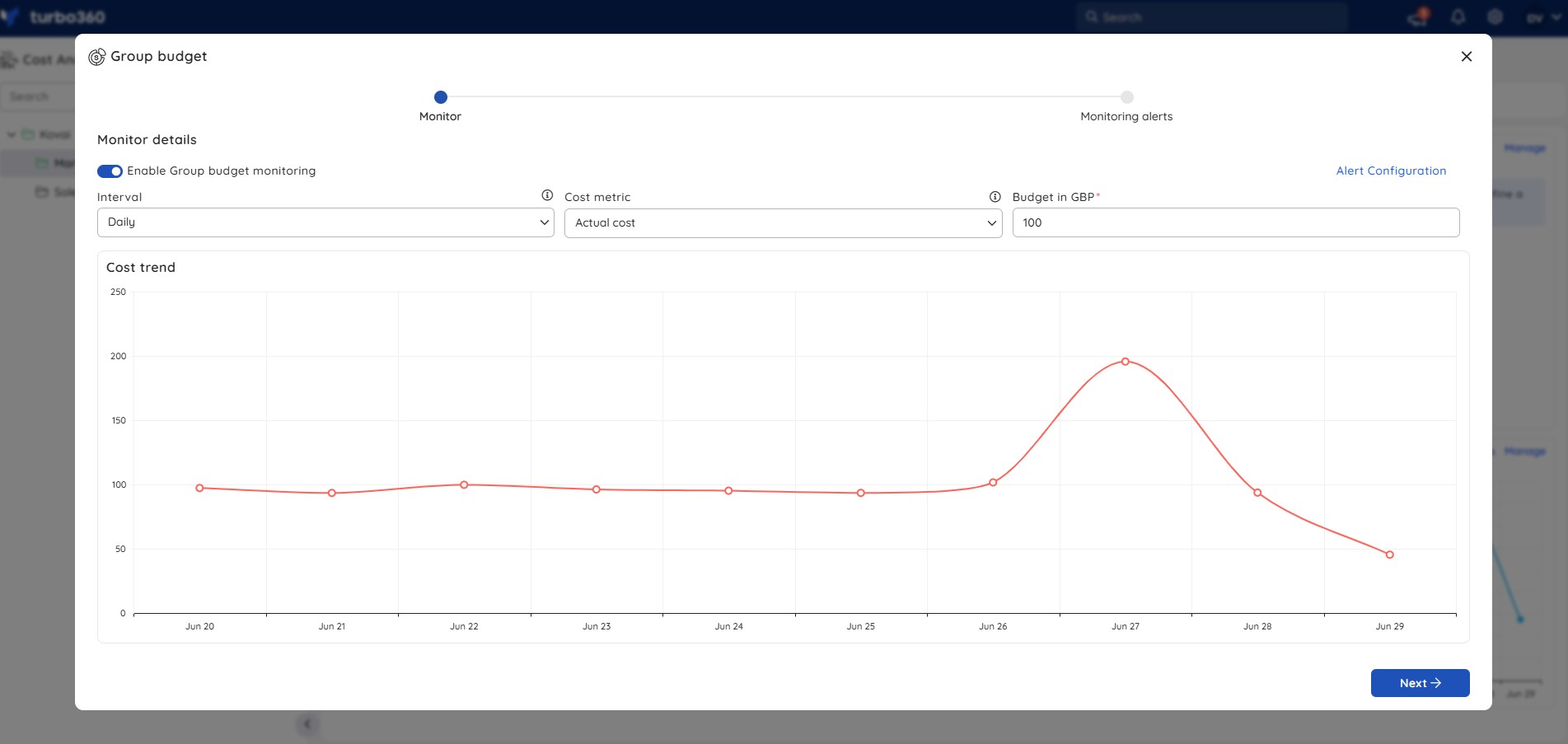
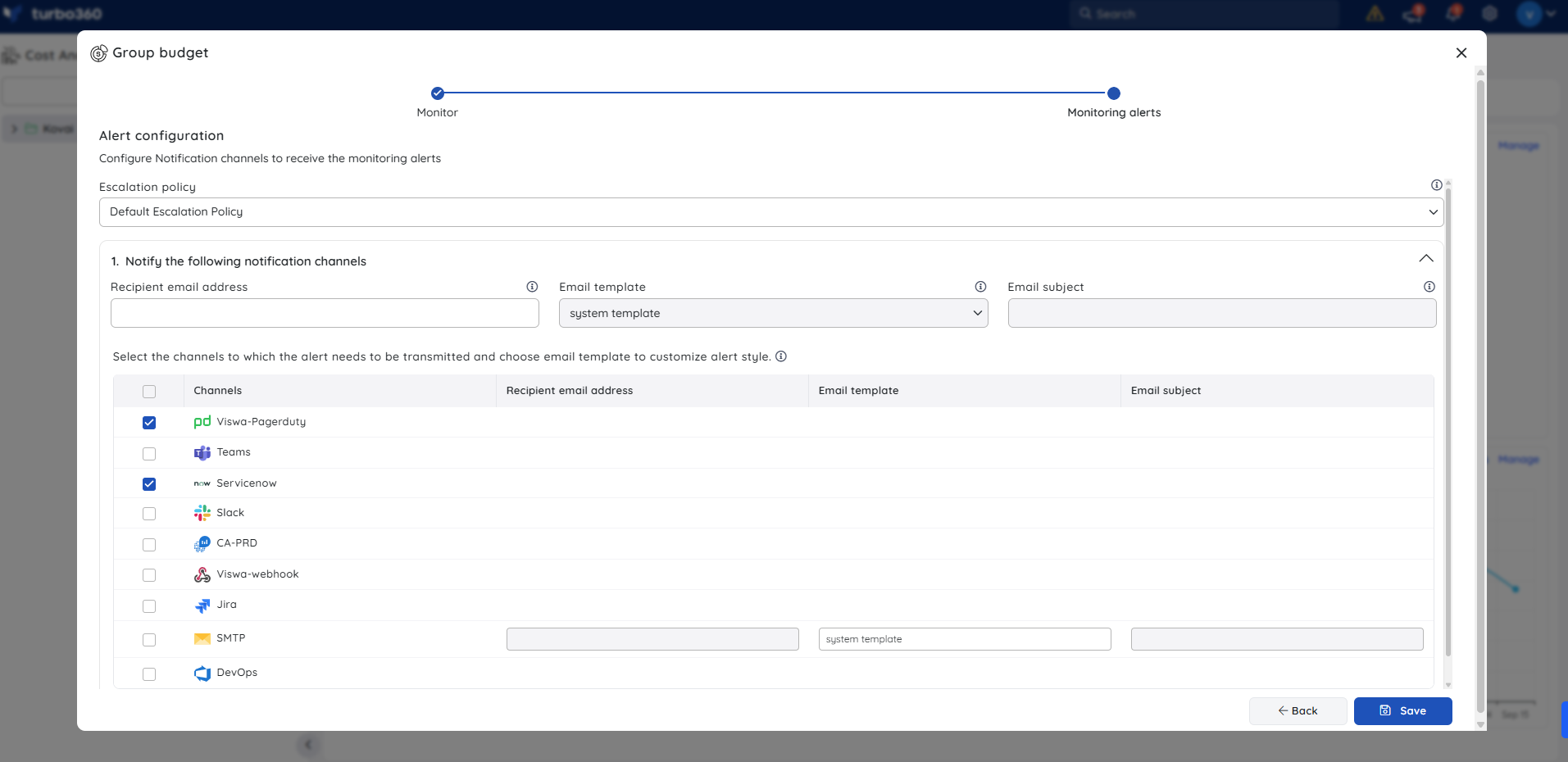
Click Next, set the escalation policy and notification channels, then click Save.
Trends plot against the budget threshold, shown as a red dotted line.
.jpg)
The most recent values for the configured interval are compared to the budget and percentage thresholds, with alerts on either breach.
Configure percentage threshold alerts
Percentage thresholds let you receive alerts before the full budget is reached, so you can act on overspend trends earlier in the billing cycle.
Set a budget value in the group budget configuration.
Open Alert Configuration.
Under Alert conditions, enter one or more percentage thresholds to alert at.
Click Apply.
Click Next → Save.
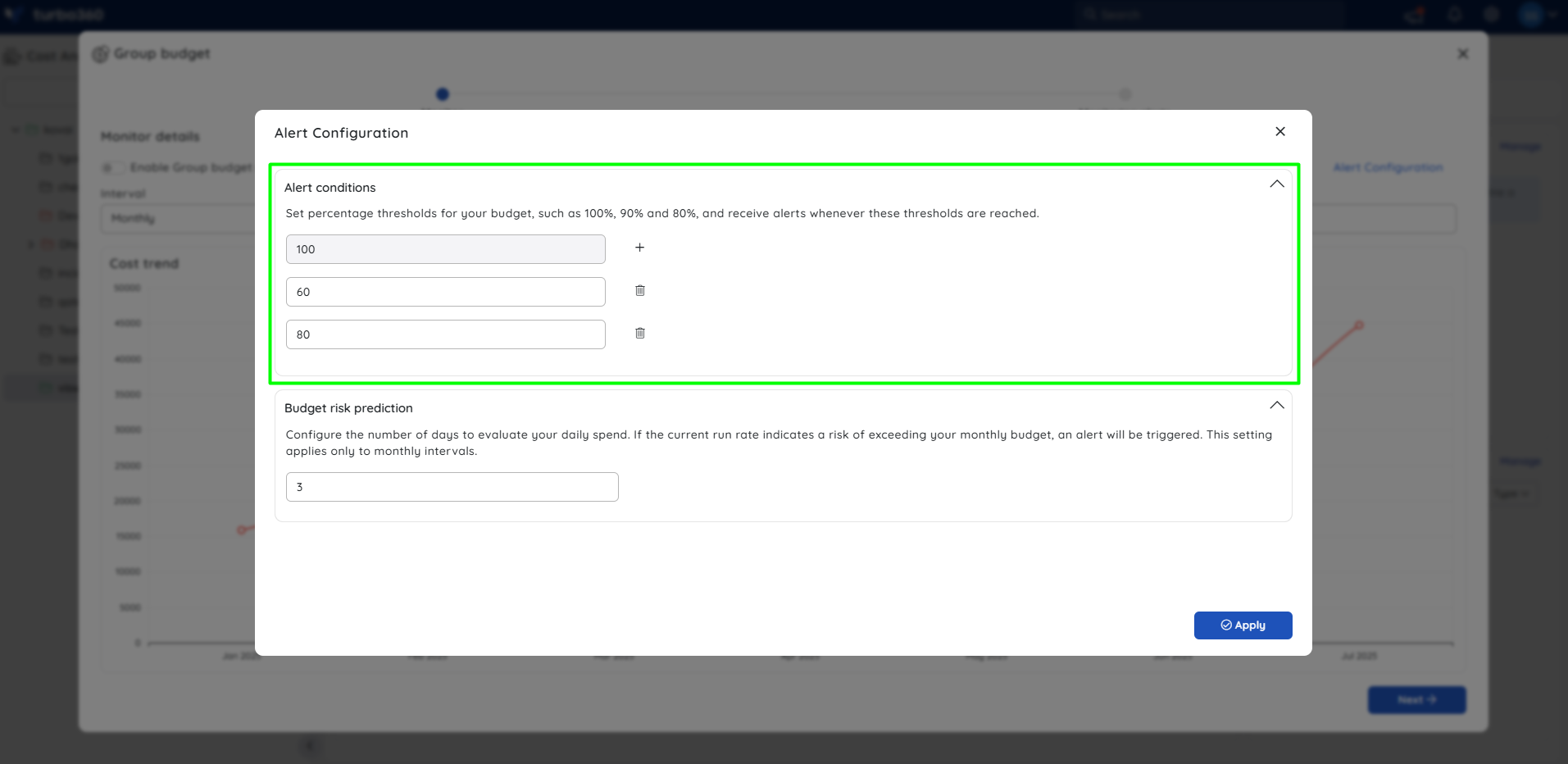
A default threshold of 100 applies if no percentage thresholds are set.
Enable or disable group budget monitoring
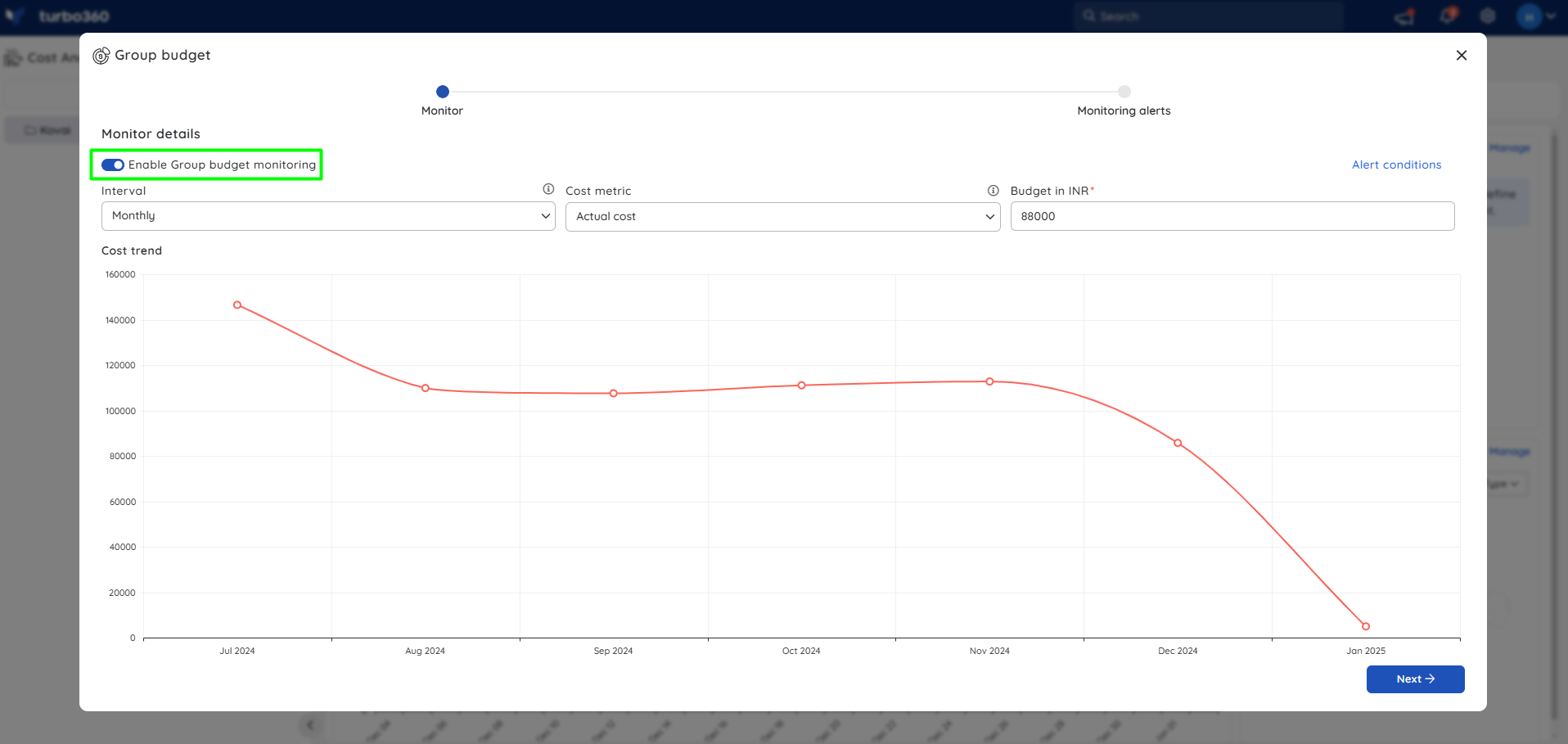
Use the Toggle on / Toggle off button in the group budget wizard.
Explain with AI
Explain with AI generates a Budget Insights report for the group, summarizing the current budget configuration, spend trend, threshold health, and improvement recommendations in a single view.
| Permission | Requirement |
|---|---|
| AI Agents | Must be enabled |
| Monitoring | Read or higher |
- Navigate to the desired cost management group → Monitoring.
- Click the (✦) Explain with AI icon in the Group budget widget header.
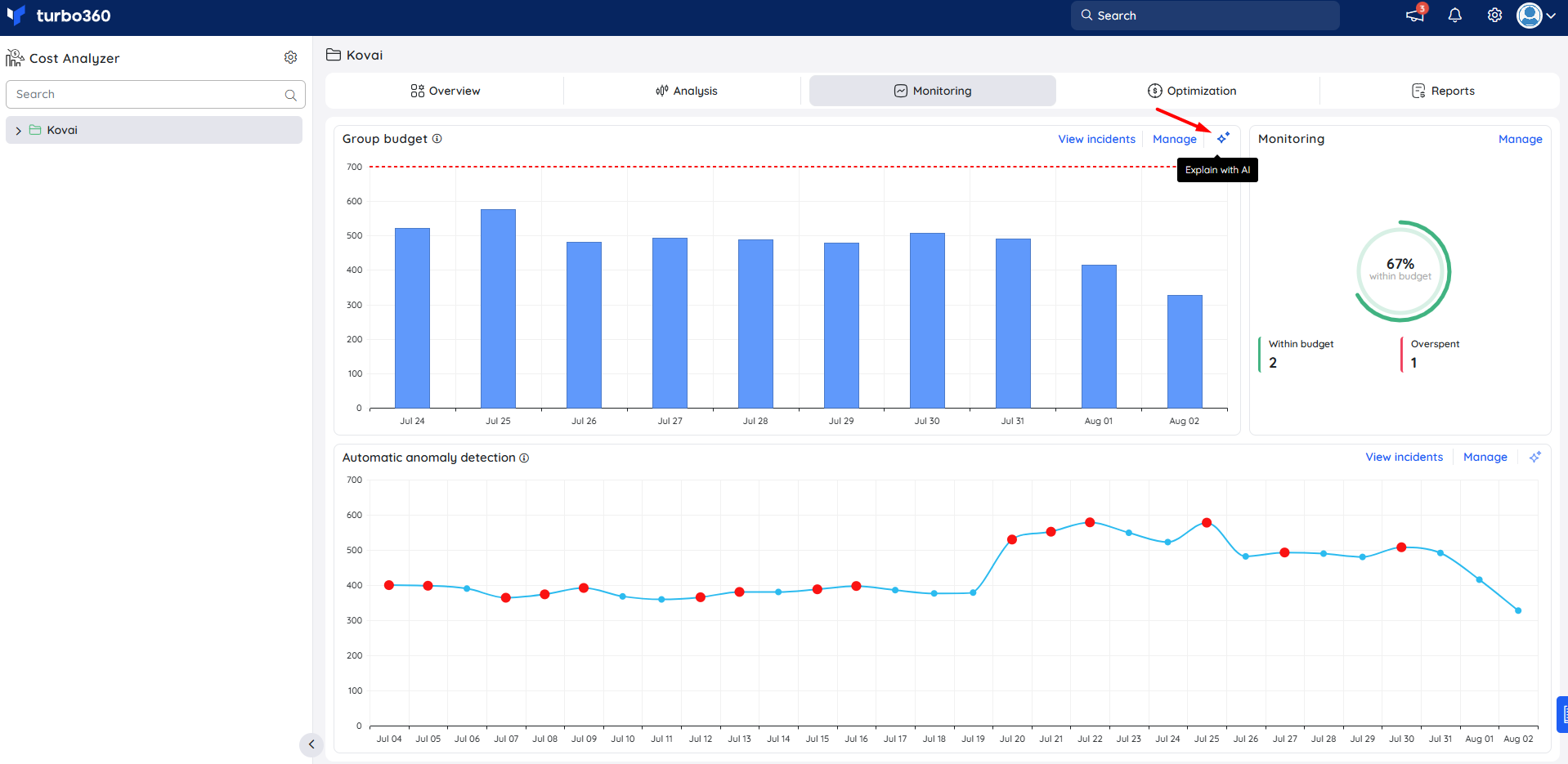
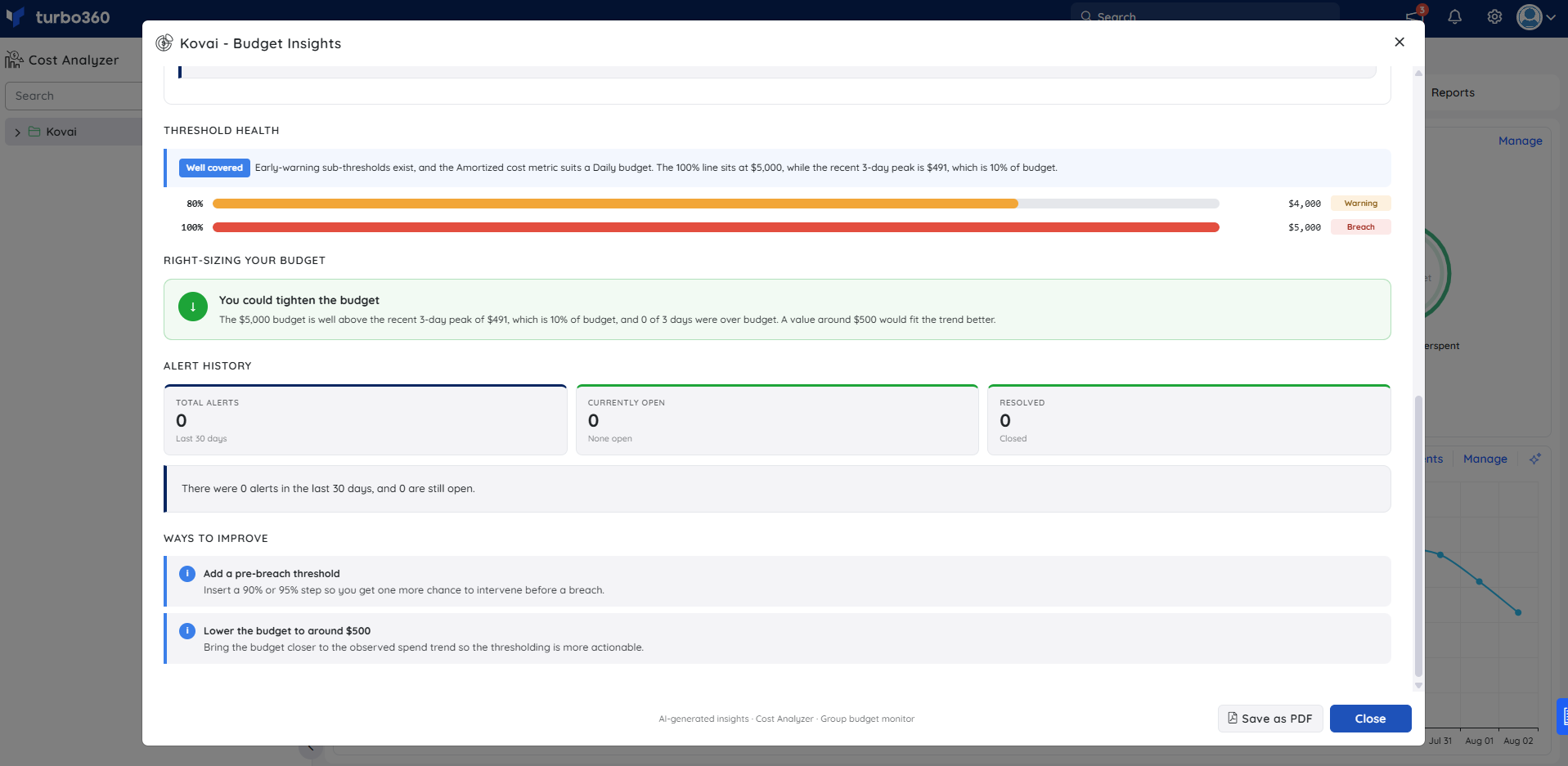
The Budget Insights report opens and includes:
- Configuration — a summary of the active monitoring settings: interval, cost metric, budget value, thresholds, escalation policy, and notification channels.
- How this budget works — a plain-language explanation of how the budget and thresholds interact for the current configuration.
- Spend trend & budget fit — a spend vs budget chart for the recent period, with the budget shown as a reference line.
- Threshold health — a visual indicator of how current spend sits relative to each configured threshold.
- Right-sizing your budget — recommendations to tighten or adjust the budget value based on recent spend patterns.
- Alert history — total, currently open, and resolved alerts for the last 30 days.
- Ways to improve — actionable suggestions such as adding a pre-breach threshold or aligning the budget more closely with current spend.
Budget risk prediction
Budget risk prediction projects whether your current spending rate will exceed the monthly budget and estimates the day the budget will be hit.
The prediction is calculated from the average daily cost over your configured window of recent days. If that average, when extended to 30 days, exceeds the budget, a risk alert fires. The alert includes the estimated day the budget will be hit at the current rate.
Risk prediction alerts fire only while the actual spend for the current month is still within the budget. Once actual spend exceeds the budget, risk prediction stops alerting for that month — the standard budget alert takes over at that point.
The window size controls the sensitivity of the prediction: a shorter window reacts quickly to recent cost spikes, while a longer window smooths out anomalies and reflects a more stable trend. Risk prediction operates independently — it fires its own alert regardless of whether a threshold or standard budget alert has triggered.
Budget risk prediction is only available when the interval is set to Monthly. It does not apply to Daily or Last 7 days intervals.
Set the interval to Monthly and configure a budget value.
Open Alert Configuration under the group budget settings.
Set the number of days used to calculate the prediction from the current spending rate.
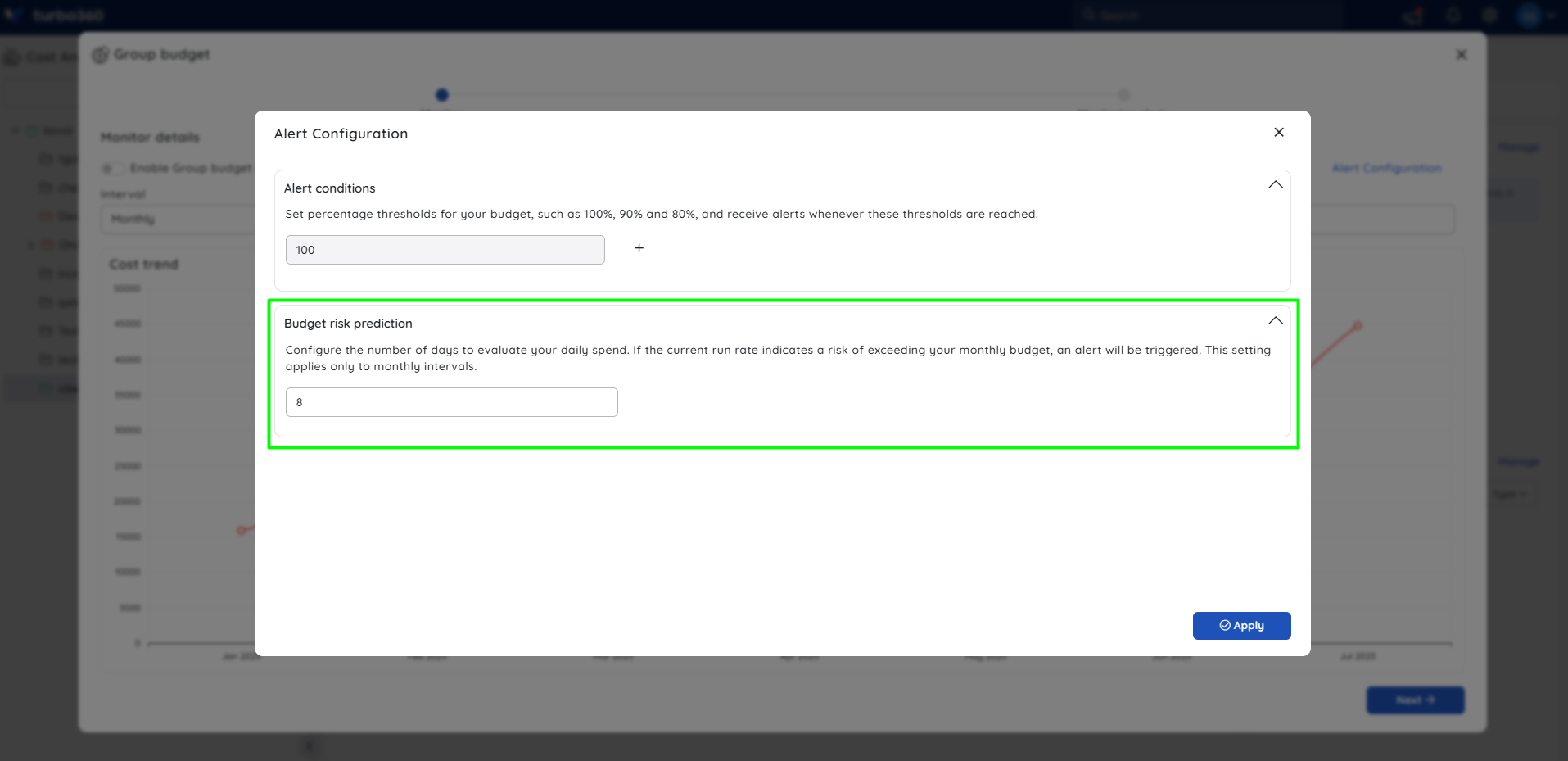
Click Apply.
Click Next → Save.
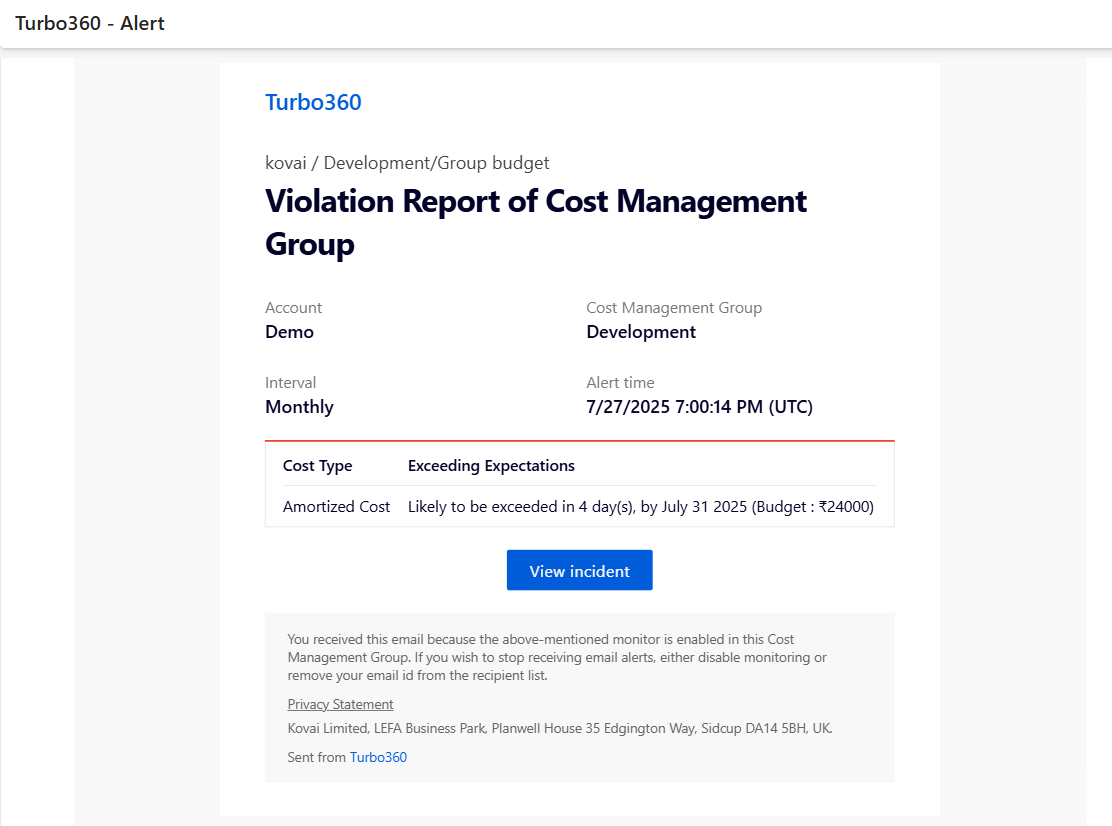
Sample risk prediction alert email
Configuration
| Option | Type | Default | Required | Description |
|---|---|---|---|---|
| Interval | Selection (Daily / Monthly/Last 7 days) | Monthly | Yes | Monitoring period for evaluating cost against the budget. |
| Cost metric | Selection (Actual / Amortized) | Actual | Yes | For daily monitoring, use amortized cost — actual cost shows reservation purchases as a one-day spike instead of spreading them across the reservation period. Either metric works for monthly monitoring. |
| Budget value | Numeric | Yes | Spending threshold that triggers an alert. | |
| Percentage thresholds | One or more percentages | 100% | No | Earlier sub-thresholds before the full budget is reached. Recommended for monthly monitoring. |
| Risk prediction window (days) | Numeric | 3 | No | Number of recent days used to calculate the average daily cost for projecting a 30-day total. A shorter window is more sensitive to recent spikes; a longer window reflects a more stable trend. Monthly interval only. |
Example scenario
A FinOps team sets a Monthly group budget of 10,000 dollars on its "Production" cost group, using amortized cost to avoid reservation-purchase skew. Percentage thresholds at 50% and 80% give early warnings, and a 14-day risk prediction window flags any spend trend projected to exceed $10,000 before month-end.
Limitations
- Risk prediction alerts trigger only at a Monthly interval.
- Risk prediction alerts fire only while actual spend for the current month is within the budget. Once the budget is exceeded, risk prediction stops alerting for that month.
- Risk prediction has its own alert, separate from threshold and standard budget alerts — the two cannot be combined.
- Risk prediction does not run if there is no spending data within the configured window.
Troubleshooting
Unexpected cost spike on a single day for a daily budget
Cause: Cost metric is set to actual cost, and a reservation purchase posted in full that day.
Fix: Switch to amortized cost to spread reservation costs across the period.Risk prediction alerts aren't triggering
Cause: Interval is set to Daily or Last 7 days, or there is no spending data within the configured window.
Fix: Set the interval to Monthly and ensure there is cost data for the number of days configured in the prediction window.Risk prediction stopped alerting mid-month
Cause: Actual spend has exceeded the budget for the current month. Risk prediction alerts are suppressed once the budget is breached — the standard budget alert applies from that point.
Fix: No action required. Risk prediction resumes at the start of the next month when actual spend resets below the budget.No warning before the budget is fully exceeded
Cause: No percentage thresholds configured; only the default 100% alert fires.
Fix: Add thresholds (e.g. 50%, 80%) under Alert Conditions.Threshold or risk prediction changes don't seem to save
Cause: Apply only stages the change.
Fix: Click Next → Save to persist it, or use Apply and exit without a full save.
FAQs
- When can group budget be configured?
Group budget can be enabled either on an existing cost management group or while creating a new one. - Who can configure, edit, or only view group budget?
Account Owner, Owner, Contributor, and any custom role with Monitoring Manage permission can configure and edit it. Users with Read permission can only view existing alerts and configuration. - Which interval supports risk prediction?
Risk prediction works only with the Monthly interval and triggers an independent alert, separate from threshold or standard budget alerts. - What if no percentage thresholds are set?
A default threshold of 100% applies, so no early warning is given before the budget is fully exceeded.
Related articles
Was this article helpful?