

Initial setup
- 05 Aug 2026
- 5 Minutes to read
- Print
- DarkLight
- Download PDF
Initial setup
- Updated on 05 Aug 2026
- 5 Minutes to read
- Print
- DarkLight
- Download PDF
Article summary
Did you find this summary helpful?
Thank you for your feedback!
Overview
Initial setup walks you through the Turbo360 onboarding wizard. The wizard launches automatically in two situations: when a new account signs up and logs in for the first time, and when a new account is created from the Manage Accounts section in a SaaS environment.
During onboarding, you validate your service principal, select Azure subscriptions, configure each module, set up notification channels, and complete your account.
Business value
Completing the guided setup configures all four Turbo360 modules against your Azure subscriptions in a single session, eliminating the need for manual per-module setup and reducing time to first insight.
Prerequisites
Before you begin, ensure the following are in place:
- A valid Turbo360 account
- An Azure service principal with the required permissions
- Access to one or more Azure subscriptions you want to monitor
Required permissions
| Permission | Details |
|---|---|
| Turbo360 role | Account owner (to complete the onboarding wizard) |
| Azure role | Reader on the target subscriptions; Billing Reader additionally required for Cost Analyzer |
Dependencies
- Azure service principal
- Azure subscription access
How it works
The Turbo360 onboarding wizard runs in five sequential steps: subscription selection, module selection, per-module setup, notification channel configuration, and finishing setup. Each step builds on the previous one. The subscriptions you select in step 1 determine what resources and resource groups are available throughout the remaining steps.
The wizard launches automatically — no navigation is required to reach it.
Steps
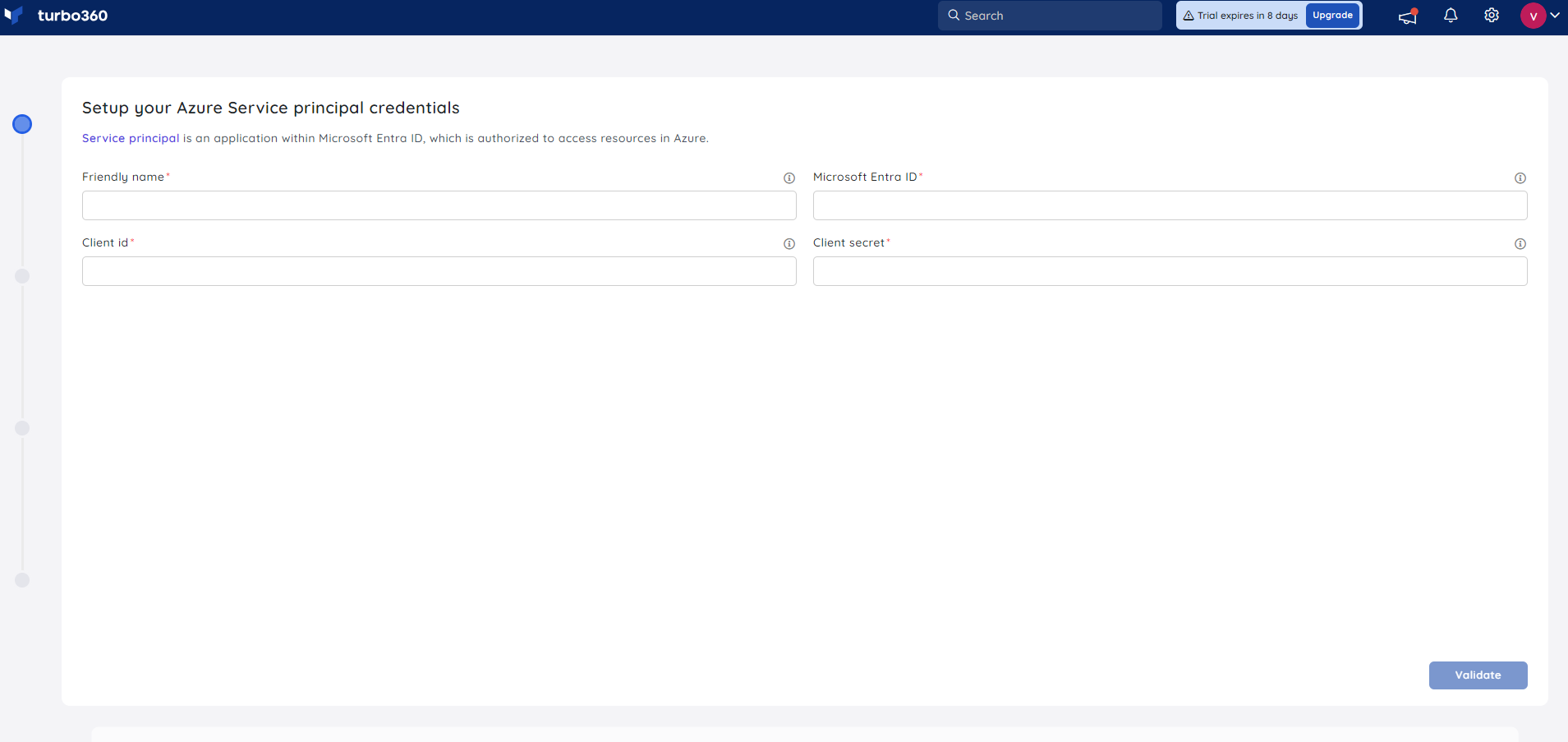
1. Subscription selection
The first step validates your service principal and lets you select one or more Azure subscriptions. The subscriptions you choose are used to configure all modules during onboarding.
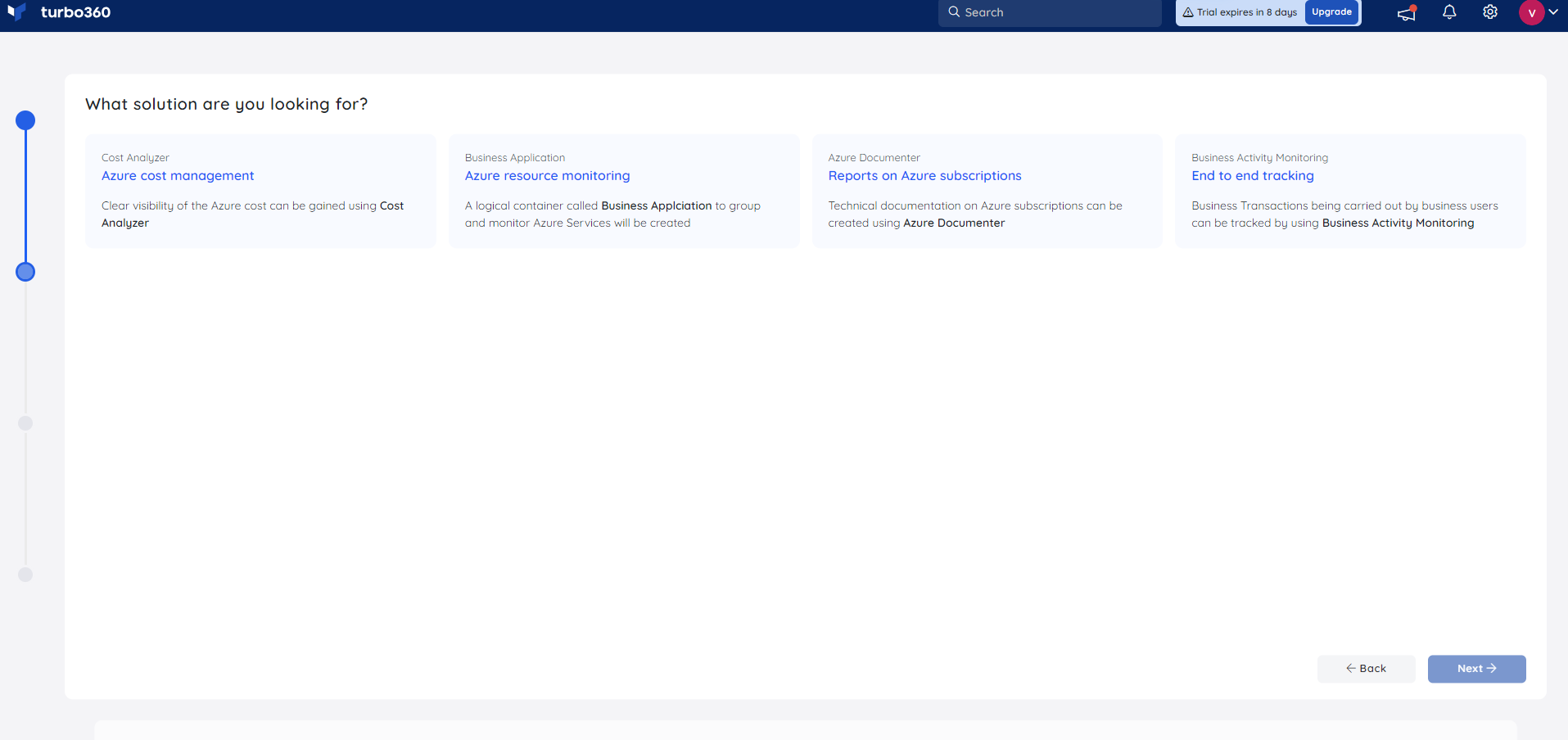
2. Module selection
Select the modules you want to activate for your account.
3. Module setup
Configure each module you selected. The options available in each module are scoped to the subscriptions you chose in step 1.
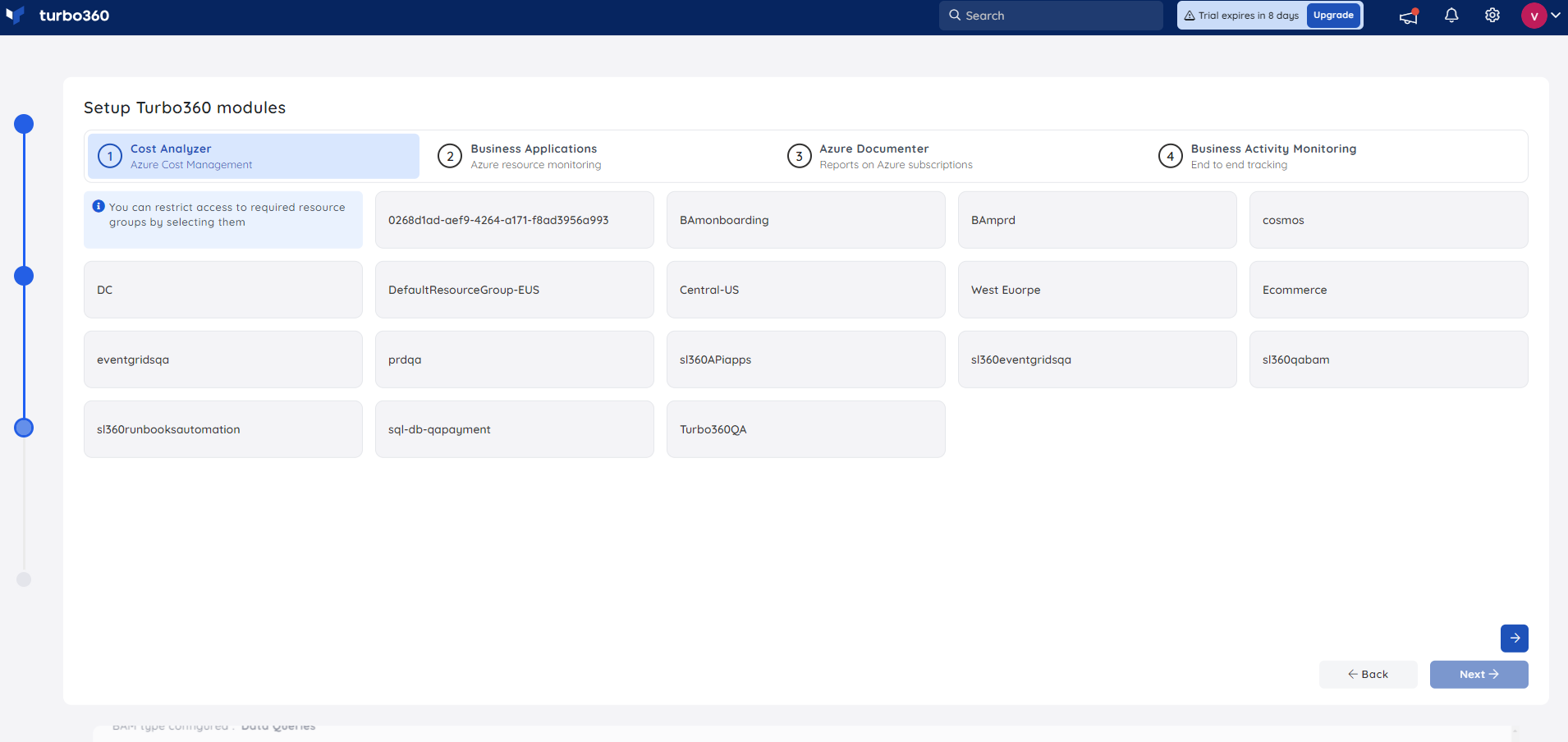
Cost Analyzer
Cost Analyzer categorizes your Azure spend across business dimensions and forecasts potential savings. It continuously reviews your cloud infrastructure and surfaces actionable rightsizing and optimization recommendations.
You can select specific resource groups, or skip selection to grant Cost Analyzer full access to all resources in the selected subscriptions.
Business Applications
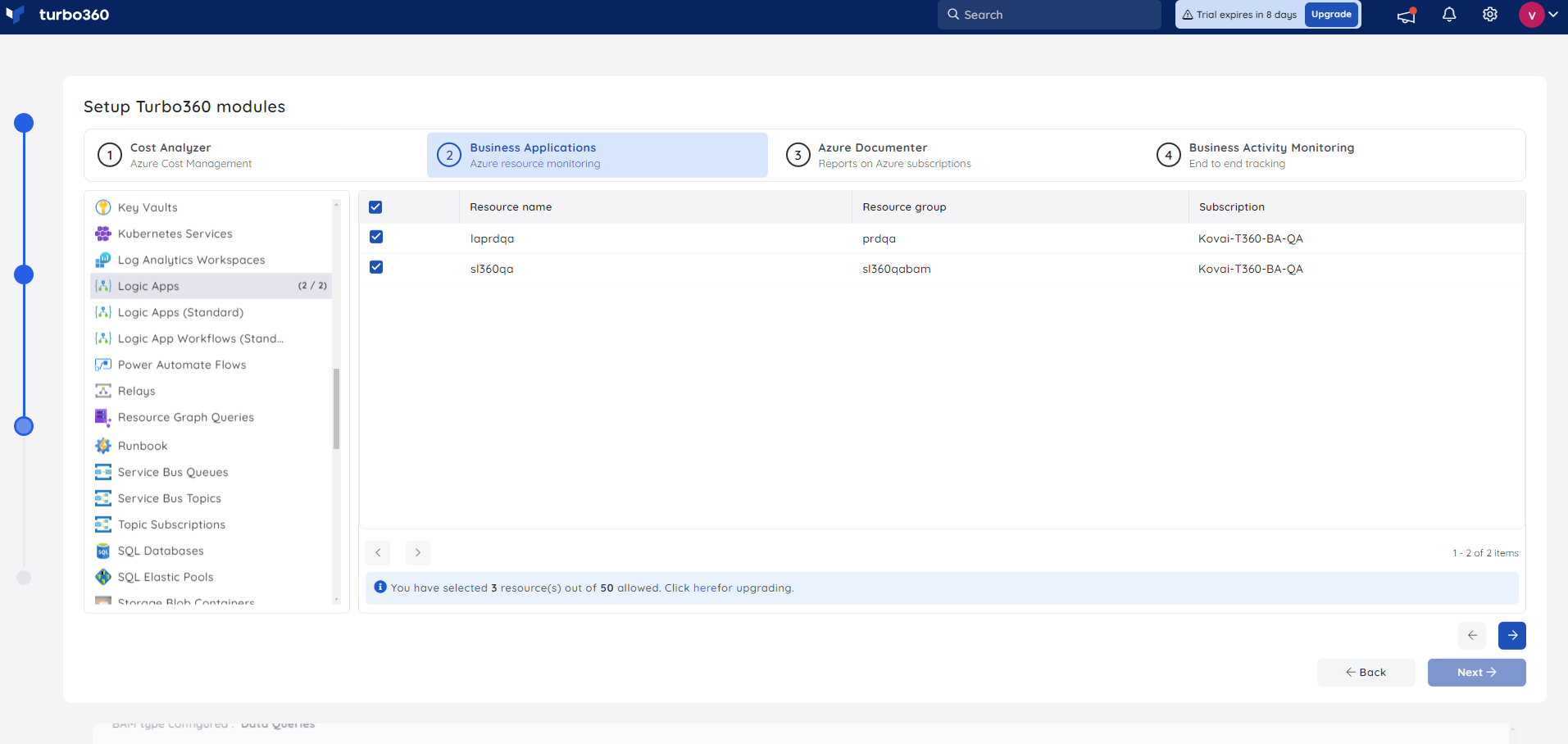
Business Applications lets you organize Azure services across multiple subscriptions into a single container, with integrated monitoring and data visualization. It reduces alert fatigue by delivering on-demand, consolidated reports that help teams detect and resolve issues faster.
You can only select resources available in the chosen subscriptions.
Note:
A system monitoring profile is applied to your Business Application by default.
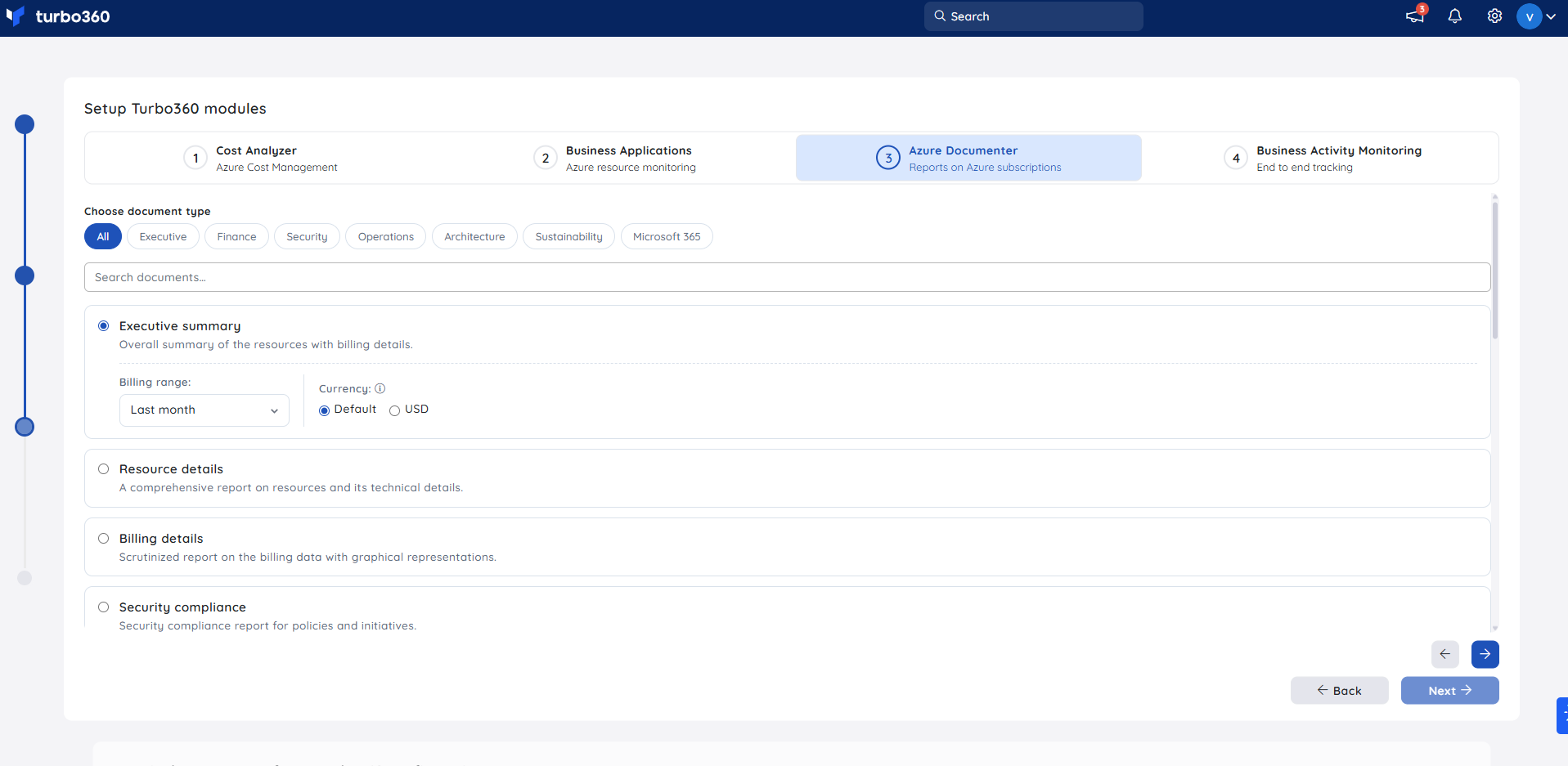
Azure Documenter
Azure Documenter generates detailed technical reports covering Azure usage, cost analytics, security assessments, and compliance checks. It also produces editable architecture diagrams that reflect your Azure resource structure.
Document generation is scoped to the selected subscriptions, regardless of the document type chosen.
Business Activity Monitoring
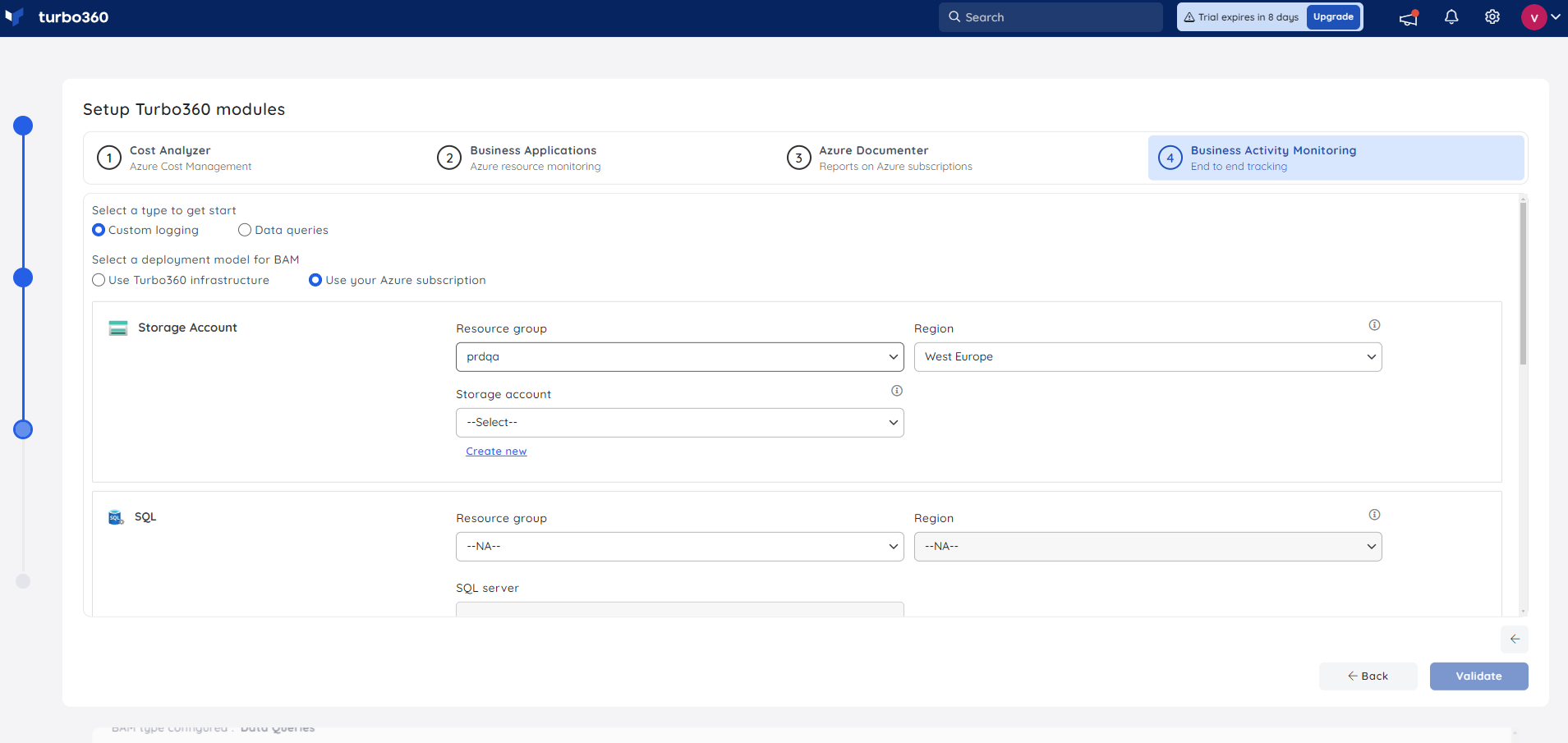
Business Activity Monitoring lets business users trace the flow of business data through your integration ecosystems from end to end. It enables immediate responses to business-critical queries without requiring IT involvement.
For Custom Logging BAM using the Use your Azure Subscription deployment model, the available resource groups reflect the selected subscription.
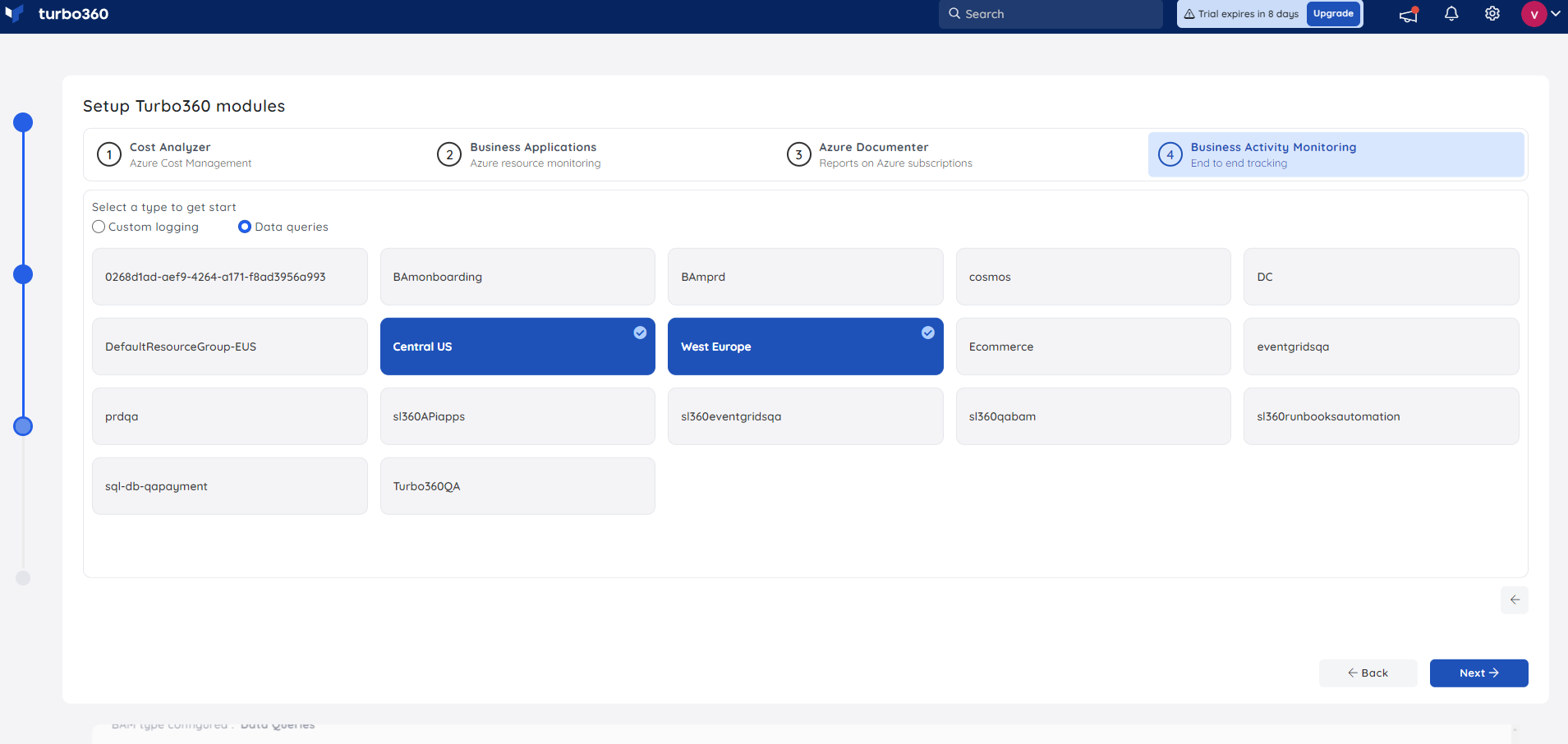
Resource group selection for Data Queries BAM follows the same pattern as Cost Analyzer.
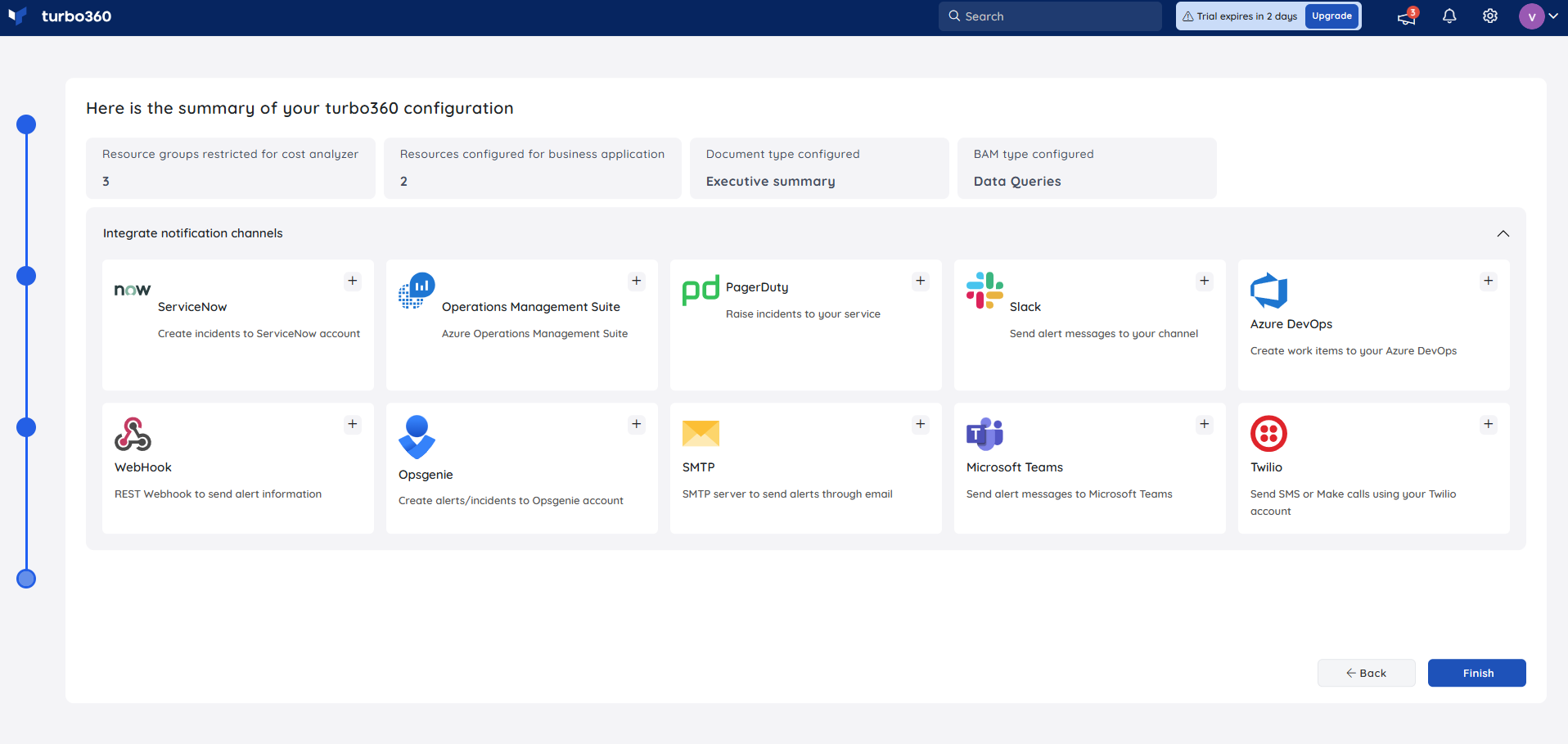
4. Notification channel configuration
Configure your preferred notification services for alerts. A summary of all configured modules is shown for review before you proceed.
5. Finish setup
Click Finish to complete setup. Your account is ready within seconds, with all selected modules active and notification services configured.
To grant broader subscription access to your configured modules after setup, update the service principal access policy.
Configuration
| Option | Description |
|---|---|
| Subscription selection | One or more Azure subscriptions to monitor. Scopes all module resource visibility. |
| Module selection | The Turbo360 modules to activate: Cost Analyzer, Business Applications, Azure Documenter, Business Activity Monitoring. |
| Resource group selection | Specific resource groups for each module, or full subscription access. |
| Notification channels | Preferred services for alert and notification delivery. |
Permission behavior
With access (Account owner): You can complete the onboarding wizard, validate the service principal, select subscriptions, configure modules, and set notification channels.
Without access: Users without the Account owner role cannot access the onboarding wizard. Contact your Turbo360 administrator to complete organization setup.
Example scenario
A cloud operations team signs up for Turbo360. On first login, the onboarding wizard launches automatically. They validate their service principal, select two Azure subscriptions, activate Cost Analyzer and Business Applications, assign specific resource groups to Cost Analyzer, apply the default system monitoring profile to Business Applications, configure email and Teams notification channels, and click Finish. Their account is live within seconds.
Limitations
- Resource group and subscription options are limited to what the service principal has access to at onboarding time.
- Module resource scope is determined at setup; to grant broader access afterward, you must update the service principal access policy within the relevant module.
Troubleshooting
Service principal validation fails.
Cause: The service principal credentials are incorrect or the principal lacks sufficient Azure permissions.
Fix: Verify the service principal details and ensure it has the required role assignments on the target subscriptions.No subscriptions appear in the selection step.
Cause: The service principal does not have access to any Azure subscriptions.
Fix: Assign the service principal the appropriate role (e.g., Reader or Contributor) on at least one subscription, then retry.Resource groups are missing in module setup.
Cause: The selected subscription contains no resource groups, or the service principal lacks permission to list them.
Fix: Confirm resource groups exist in the subscription and that the service principal has list access.Notification channel configuration is skipped or fails.
Cause: The notification service credentials or webhook URLs are invalid.
Fix: Verify the notification service details and re-enter them before clicking Finish.Account setup does not complete after clicking Finish.
Cause: A background provisioning step encountered an error.
Fix: Refresh the page and check module status. If modules are not active, contact Turbo360 support.
FAQs
When does the onboarding wizard appear?
The wizard launches automatically when a new account logs in for the first time, or when a new account is created from the Manage Accounts section in a SaaS environment.Can I add more subscriptions after completing setup?
Yes. Update the service principal access policy at the module level after setup to grant access to additional subscriptions for the desired module.Can I activate additional modules after the initial setup?
Yes. You can activate the modules missed out during onboarding with the help of Get started button available on the relevant module card in the Turbo360 Home screen.What happens if I skip a module during setup?
The skipped module is not configured. You can activate it later by pressing the Get started button for the relevant module from the Turbo360 Home screen.Is the system monitoring profile for Business Applications configurable during setup?
The system monitoring profile is applied by default. You can customize monitoring profiles after setup from within Business Applications.
Related articles
Was this article helpful?