

Integration Account
- 05 Aug 2026
- 1 Minute to read
- Print
- DarkLight
- Download PDF
Integration Account
- Updated on 05 Aug 2026
- 1 Minute to read
- Print
- DarkLight
- Download PDF
Article summary
Did you find this summary helpful?
Thank you for your feedback!
Overview
Integration accounts are Azure cloud-based containers that store, manage, and access artifacts used in Business-to-Business (B2B) communications.
Business value
Tracking Integration Account certificate expiry from Turbo360 prevents unplanned B2B message failures by giving teams advance notice to renew certificates before they expire.
How it works
- Azure Integration Accounts use certificates to secure and authenticate communication between parties.
- Certificates let you encrypt messages in B2B communication by importing a partner's private certificate into the Integration Account. As an alternative, you can send signed messages to partners, which they verify using their own private certificates.
Permissions
Access to Integration Account actions is controlled through RBAC when adding a role to a Business Application.
| Permission | Description |
|---|---|
| Read | View Integration Account details and certificate monitoring configuration. |
| Manage | Configure certificate expiry alerts. |
Monitoring
Integration Account supports certificate expiry monitoring, configured under Integration Account -> Monitoring.
Monitoring rules are saved per resource, and the monitoring state is reflected after every monitoring cycle.
Certificate expiry monitoring
Tracks the expiration of certificates available in the Integration Account and delivers notifications prior to the expiration date. Use this when partner certificates need to be renewed before they cause a B2B communication failure.
- Navigate to Integration Account -> Monitoring to view the list of certificates available in the Integration Account.
- Define the Alert Before field with the number of days before which you should be notified of the certificate expiry.
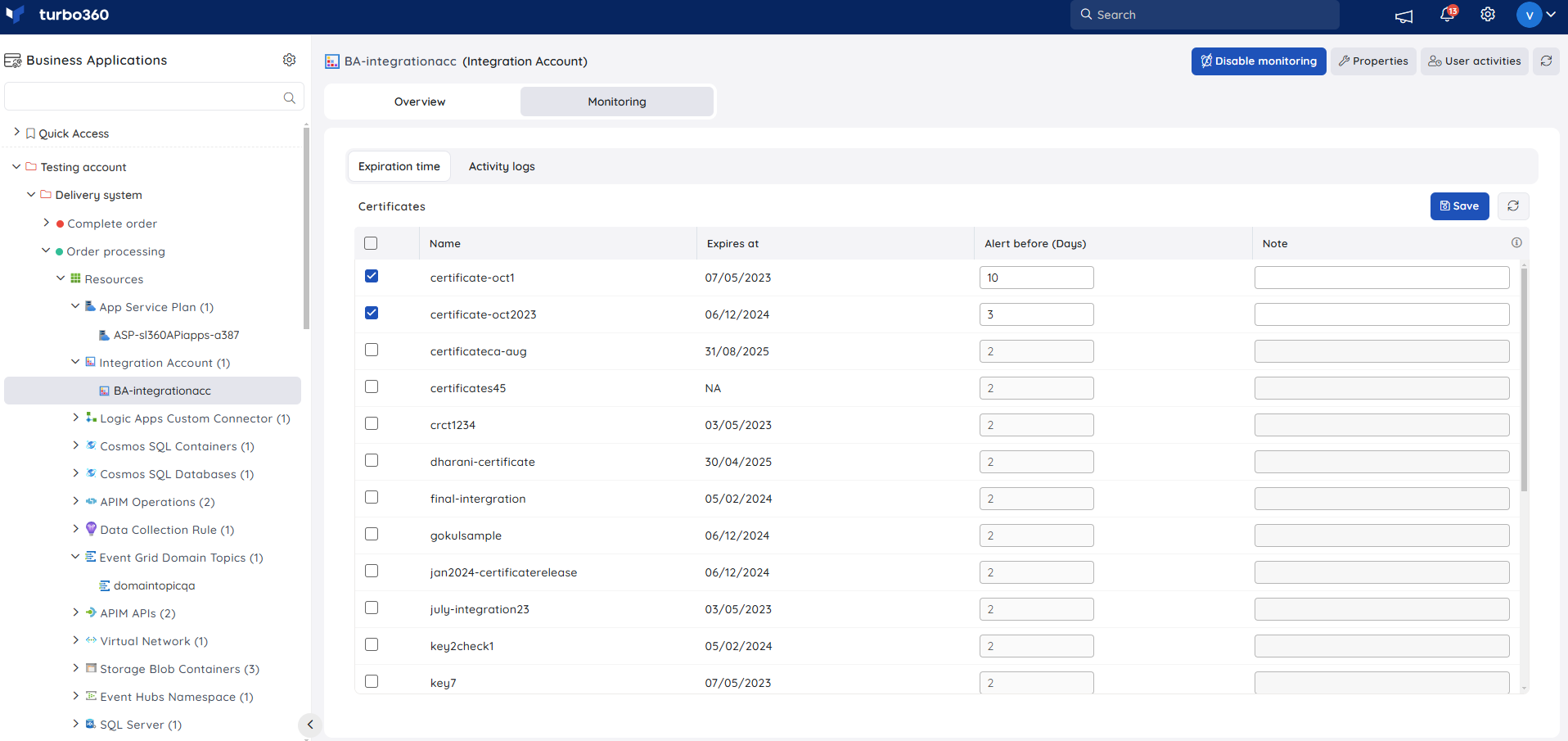
You will receive a notification before the specified time, prompting you to renew the certificate before expiry.
Troubleshooting
- Expiry alert is not received
Cause: The configured alert window has not yet been reached, or the rule was saved without a valid Alert Before value.
Fix: Confirm the configured number of days against the certificate's actual expiry date, and adjust if needed. - Certificate does not appear in the monitoring list
Cause: The certificate has not been imported into the Integration Account in Azure.
Fix: Import the certificate into the Integration Account, then refresh the monitoring list in Turbo360. - Signed message verification fails for a partner
Cause: The partner's private certificate used for verification does not match the certificate used to sign the message.
Fix: Confirm the correct partner certificate is imported and associated with the signing configuration.
Related articles
Was this article helpful?