

Key Vault
- 05 Aug 2026
- 3 Minutes to read
- Print
- DarkLight
- Download PDF
Key Vault
- Updated on 05 Aug 2026
- 3 Minutes to read
- Print
- DarkLight
- Download PDF
Article summary
Did you find this summary helpful?
Thank you for your feedback!
Overview
Key Vault is a cloud storage service that stores secure data such as certificates, keys, and secrets, reducing the chances of security information being accidentally leaked. In Turbo360, Key Vault offers secret management to safely store and tightly limit access to secrets, by monitoring them with available metrics and notifying you when secrets are about to expire.
Business value
Monitoring Key Vault availability, metrics, and secret expiry from Turbo360 gives you a single place to spot resource health issues and prevent secret-related outages, reducing the time to detect and respond to security configuration problems.
How it works
- Once associated with a Business Application, the vault's health status, performance metrics, and secret expiry become directly visible and monitorable from Turbo360.
Permissions
Access to Key Vault actions is controlled through RBAC when adding a role to a Business Application.
| Permission | Description |
|---|---|
| Read | View vault details and the resource dashboard. |
| Manage | Configure monitoring rules for availability status, metrics, and secret expiry. |
Resource dashboard
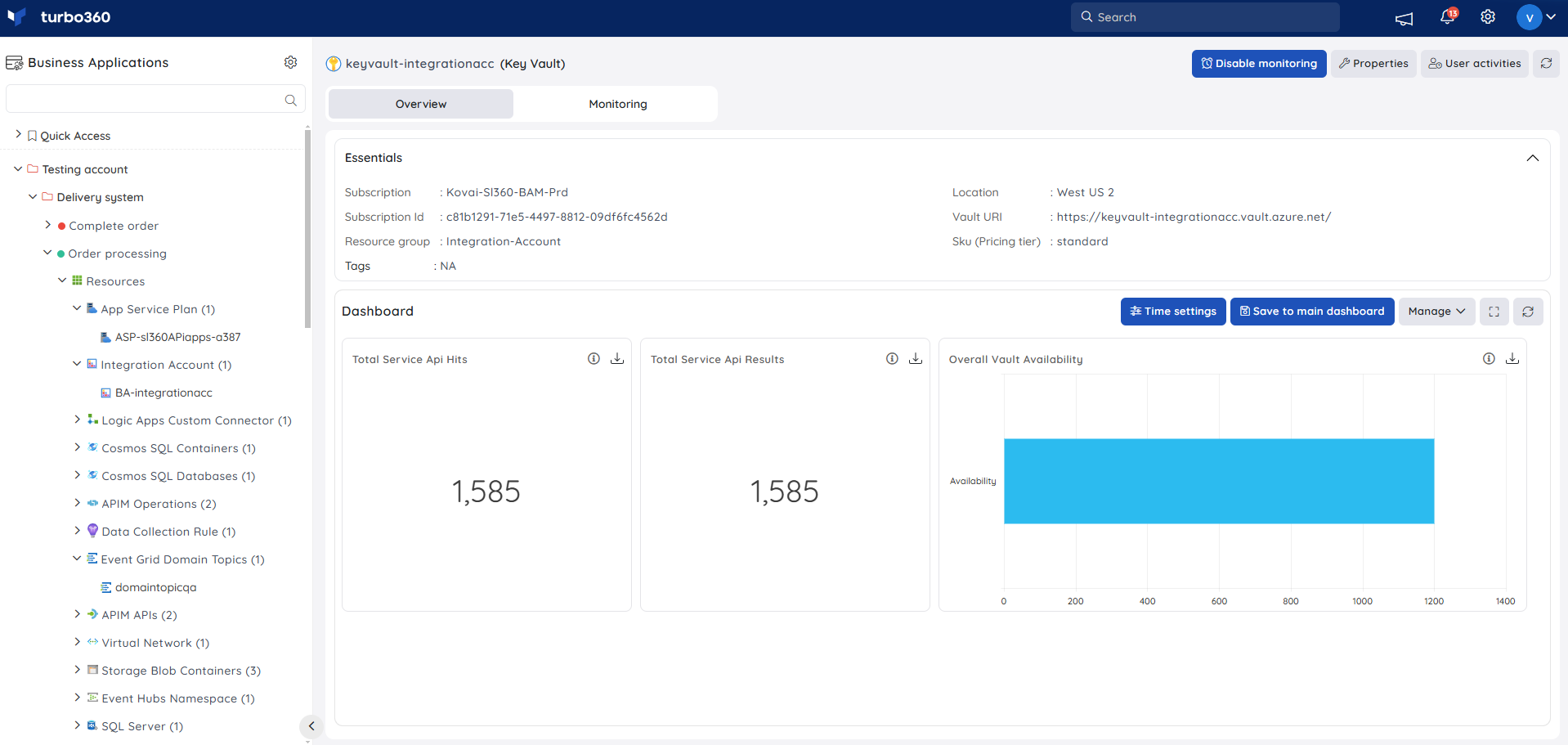
The Key Vault dashboard surfaces API usage and availability signals so you can spot access issues without leaving Turbo360.
| Widget | What it shows |
|---|---|
| Total Service Api Hits | Volume of API calls made against the vault. |
| Total Service Api Results | Volume of API call results, useful for spotting failure patterns against hit volume. |
| Overall Vault Availability | At-a-glance vault availability status. |
Metrics
The Metrics tab surfaces API call volume and vault availability data for Key Vault, giving you visibility into access patterns and security usage trends. Use the Metrics tab to identify unusual spikes in API activity that may indicate unauthorized access attempts, and to confirm availability recovers after a detected outage.
You can add, remove, or reconfigure widgets to focus on the metrics most relevant to your support scenario.
Monitoring
Key Vault supports availability status, metric, and secret expiry monitoring rules, configured under Key Vault -> Monitoring.
Monitoring rules are saved per resource, and the monitoring state is reflected after every monitoring cycle.
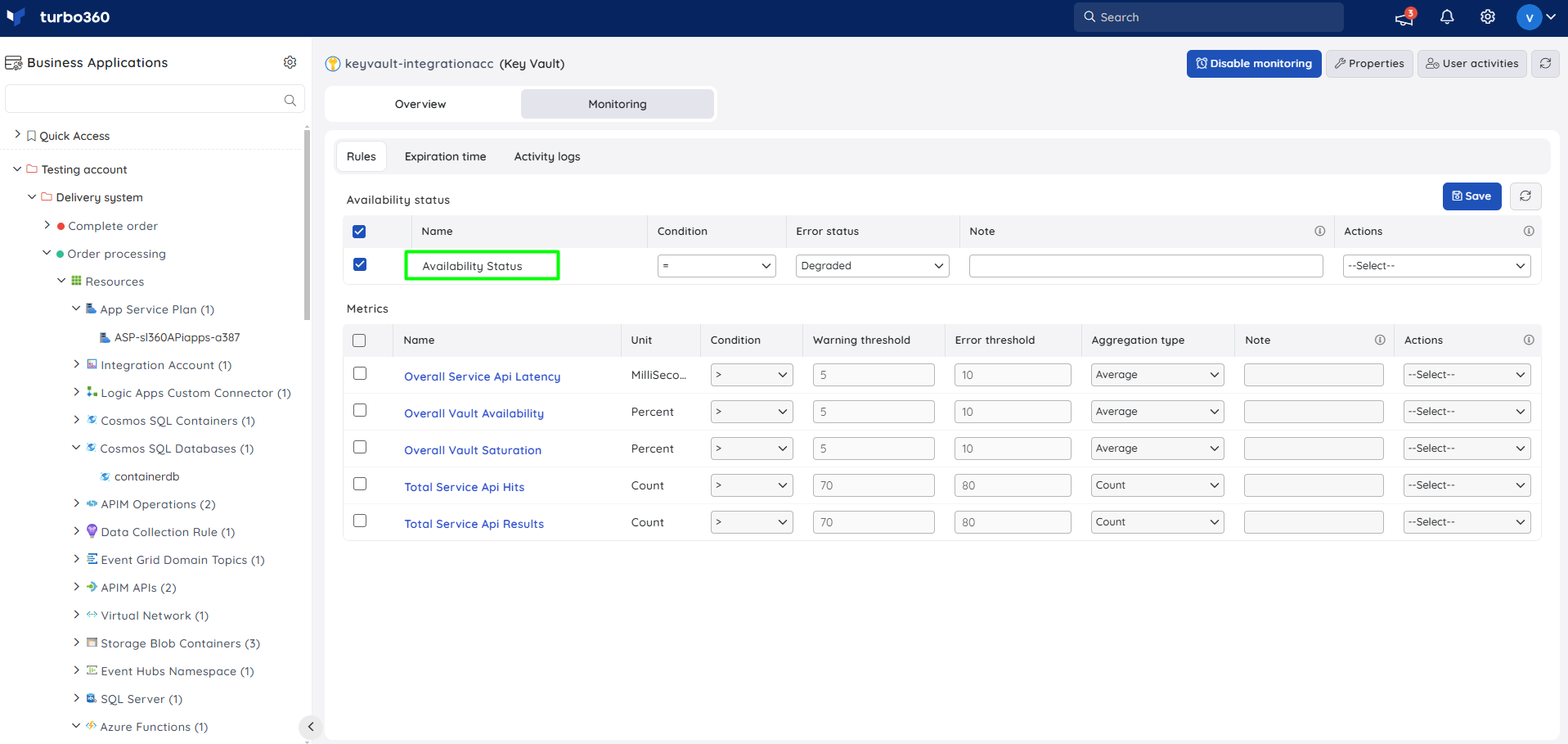
Availability status monitoring
Tracks the resource health status of the Key Vault. Use this when you need to be alerted as soon as the vault becomes unavailable or degraded.
- Navigate to Key Vault -> Monitoring.
- Switch to the Rules tab.
- Configure the Availability status rule with the desired threshold.
- Click Save.
Metric monitoring
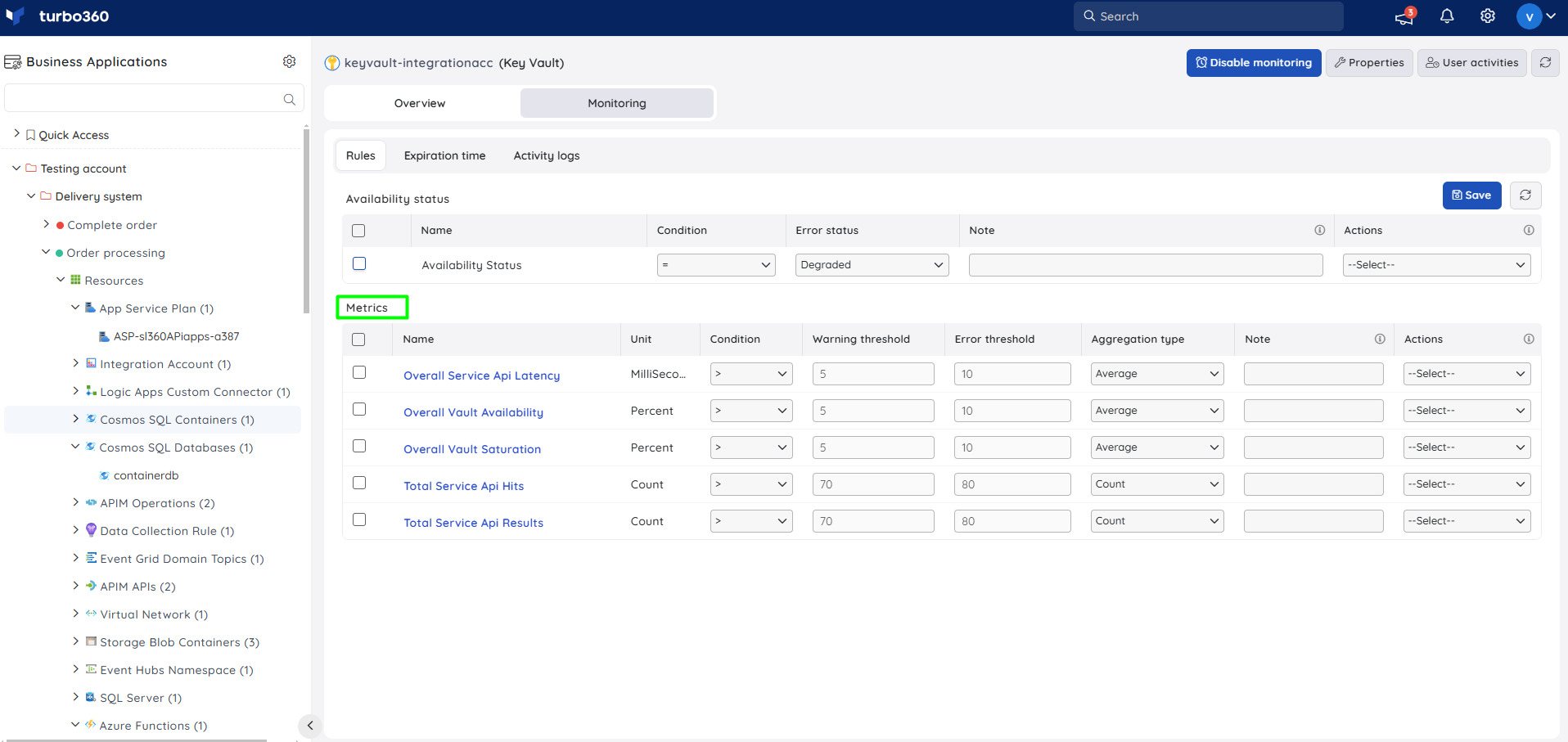
Tracks resource metrics against a configured threshold. Use this when you need to be alerted if API usage or another metric exceeds expected bounds.
- Navigate to Key Vault -> Monitoring.
- Switch to the Rules tab.
- Select the necessary monitoring metrics and configure the threshold values.
- Click Save.
The threshold values can be provided with any metric name; the rule is violated when the configured threshold value is met.
Secret expiry monitoring
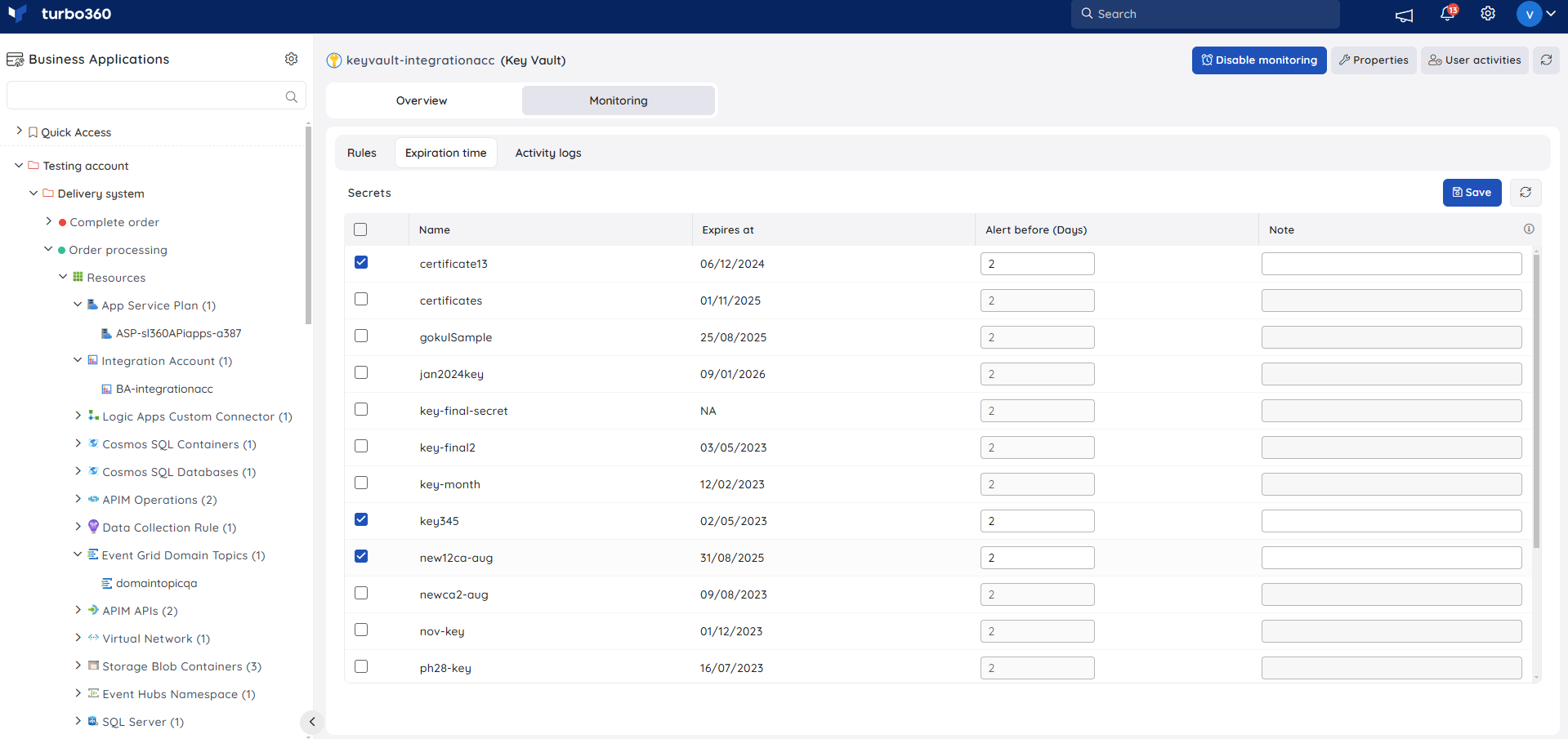
Tracks the expiration of secrets stored in the vault and delivers notifications prior to the expiration date. Use this when secrets need to be renewed before they cause an authentication or access failure.
- Switch to the Expiration time tab to configure expiration time.
- Select the required secrets and define the Alert Before field to specify the number of days before which the alert is to be received.
- Click Save.
Troubleshooting
- Availability status rule does not trigger
Cause: The rule was saved before the vault completed its first monitoring cycle.
Fix: Wait for the next monitoring cycle, then verify the rule status. - Secret expiry alert is not received
Cause: The configured Alert Before value does not align with the secret's actual expiry date.
Fix: Review the secret's expiry date in Azure and adjust the Alert Before value accordingly. - Metric monitoring rule does not trigger
Cause: The configured threshold does not match the metric's actual reporting unit.
Fix: Review the metric definition and adjust the threshold value accordingly. - Dashboard widgets show no data
Cause: The vault was recently associated and has not completed its first monitoring cycle.
Fix: Wait for the next monitoring cycle, then refresh the dashboard.
Related articles
Was this article helpful?