

Kill idle sessions workflow
- 05 Aug 2026
- 3 Minutes to read
- Print
- DarkLight
- Download PDF
Kill idle sessions workflow
- Updated on 05 Aug 2026
- 3 Minutes to read
- Print
- DarkLight
- Download PDF
Article summary
Did you find this summary helpful?
Thank you for your feedback!
Overview
A Workflow is a background task that runs on a predefined configuration to optimize Azure cost. You can trigger a workflow manually or schedule it to run at specific hours of the day.
The Kill idle sessions workflow automates termination of idle or disconnected user sessions in an Azure Virtual Desktop (AVD) host pool. It helps you manage session sprawl and control resource usage without manual session cleanup.
Business value
Automatically terminating idle AVD sessions frees up compute resources, improves host pool availability, and reduces operational costs — without requiring administrators to manually track and close sessions.
Prerequisites
Required permissions
| Role | Permission level | Access |
|---|---|---|
| Account owner, Owner, Contributor | — | Full access to Workflows |
| Custom role | Optimization feature enabled + Workflows: Read | View workflows |
| Custom role | Optimization feature enabled + Workflows: Manage | Full access to Workflows (create, update, delete, run) |
.jpg)
How it works
The Kill idle sessions workflow checks sessions in the targeted AVD host pool against the configuration you define:
- Host pool targeting — select the specific AVD host pool to monitor from the subscriptions accessible to the cost group.
- Recurring or on-demand execution — run the workflow on a defined schedule or trigger it manually at any time.
- Notification integration — configure notification services to receive alerts on workflow executions.
Setting up this workflow removes the need for manual session cleanup and ensures idle sessions don't continue occupying host pool resources.
Steps
Use the following steps to create and run a Kill idle sessions workflow. Navigate to the Workflows section within a Cost group to get started.
Create a workflow
Creating a workflow configures the target host pool, execution schedule, and notification settings for automated idle session termination.
- Click New configuration > Host Pool > Kill idle sessions in the Workflows section.
.png)
- Provide a name for the workflow.
- Select the required Azure Virtual Desktop (AVD) host pool from the list of subscriptions accessible to the cost group.
.png)
- Control the frequency and timing of workflow execution.
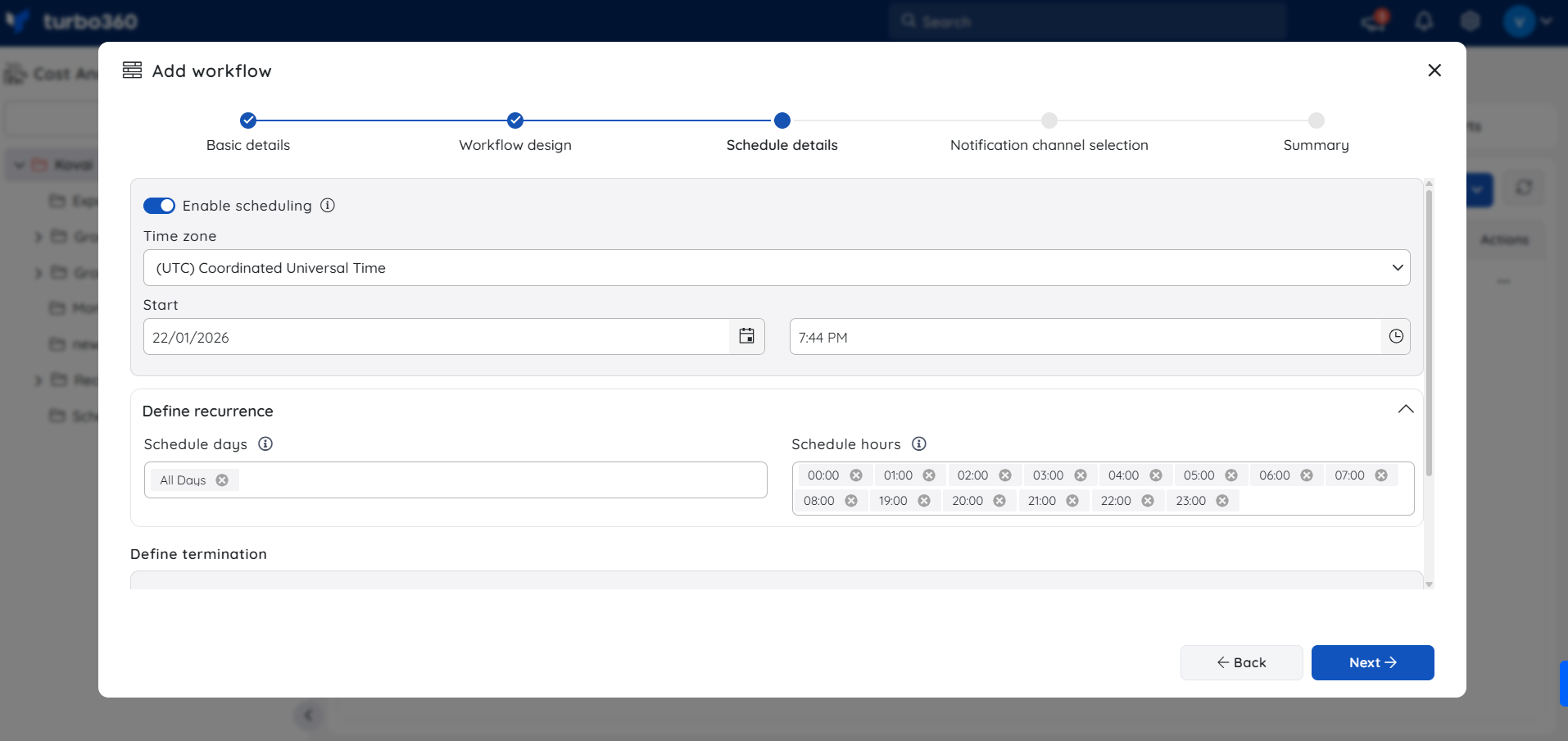
- Configure the desired notification services to receive alerts for workflow executions. Under Advanced settings, check one or both options to authorize notifications for specific situations.
.png)
- Click Save to finish setting up the workflow.
.png)
The View runs option shows both processed runs and scheduled runs awaiting processing.
.png)
Run a workflow on demand
Running a workflow on demand lets you immediately terminate idle sessions without waiting for the next scheduled execution.
- Go to the Workflows section in a Cost group.
- Click the Actions menu next to the workflow.
- Select Run.
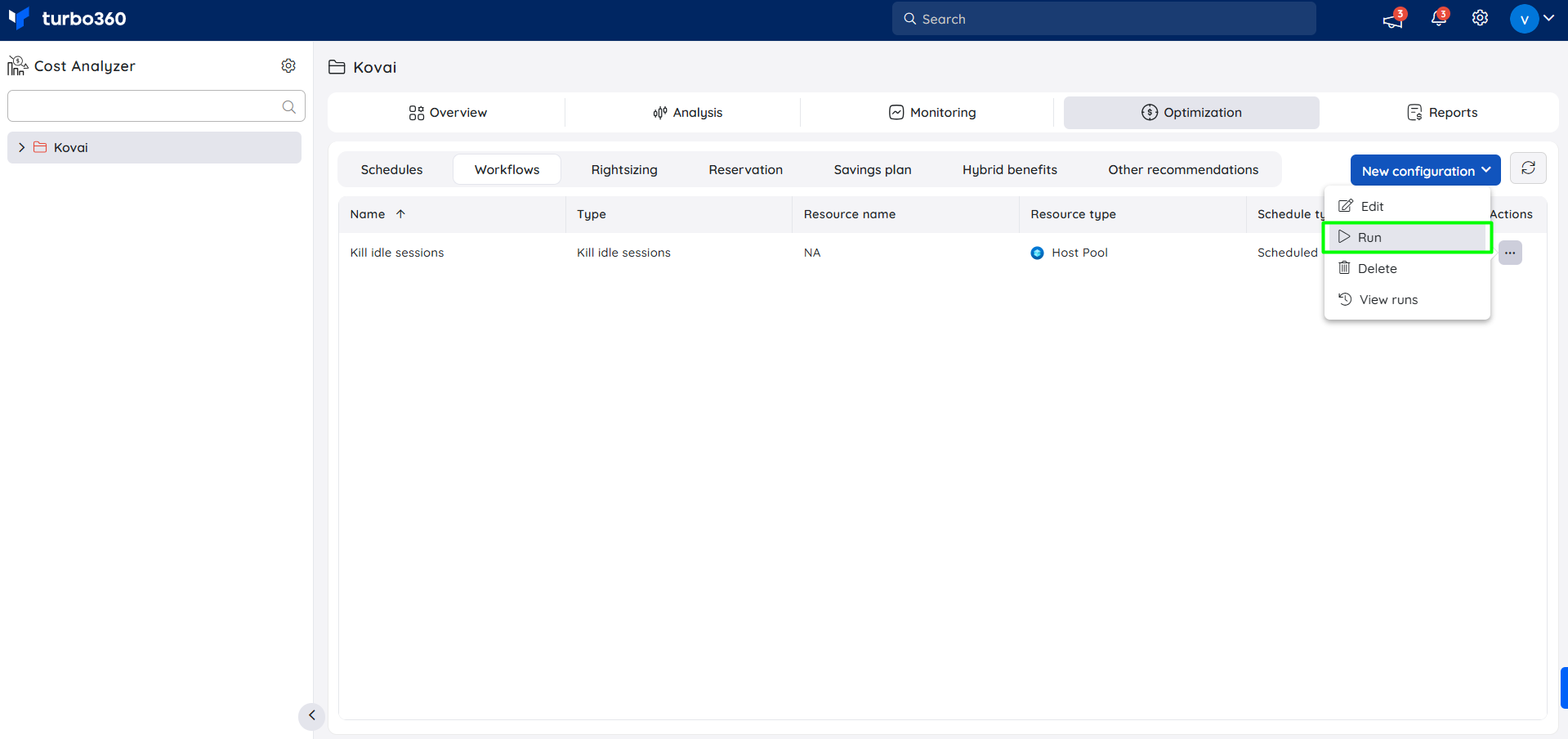
Example scenario
An organization uses Azure Virtual Desktop to support a large remote workforce operating primarily during business hours. Many users disconnect without signing out, leaving idle sessions running overnight and on weekends, consuming resources and preventing optimal host pool scaling.
By creating a Kill idle sessions workflow scheduled to run after business hours, the organization automatically terminates all idle sessions in the host pool. This frees up resources, lets virtual machines scale down efficiently, and reduces costs without manual intervention.
Troubleshooting
Idle sessions aren't being terminated even though the workflow is configured
Cause: The Service Principal used by Turbo360 doesn't have sufficient Azure-level access on the target AVD host pool.
Fix: Grant the required Azure role to the Service Principal, then wait for the next scheduled run or trigger the workflow manually.Notifications for workflow runs aren't being received
Cause: The notification channel wasn't configured, or the wrong channel/recipient was selected during setup.
Fix: Reopen the workflow configuration and confirm the correct notification service is selected under Advanced settings.The workflow doesn't run at the expected time
Cause: The frequency and timing configured for the workflow don't match the intended schedule.
Fix: Review and adjust the frequency and timing settings in the workflow configuration.
FAQs
Can I run the Kill idle sessions workflow manually instead of waiting for its schedule?
Yes. Click the Actions menu next to the workflow and select Run to trigger it on demand.Where can I check whether a Kill idle sessions workflow has run?
Open the View runs section for the workflow. It shows both completed runs and scheduled runs still awaiting processing.
Related articles
Was this article helpful?