

Logic App Workflow (Standard)
- 05 Aug 2026
- 6 Minutes to read
- Print
- DarkLight
- Download PDF
Logic App Workflow (Standard)
- Updated on 05 Aug 2026
- 6 Minutes to read
- Print
- DarkLight
- Download PDF
Article summary
Did you find this summary helpful?
Thank you for your feedback!
Overview
A workflow is a set of steps that define a specific task or process, beginning with a single trigger followed by one or more actions. The workflow of a Logic App on the Standard pricing plan is referred to as a standard workflow.
Business value
Managing Logic App Workflow (Standard) runs and triggers from Turbo360 gives you a single place to investigate failures, recover from errors, and automate recovery at the individual workflow level, reducing the time to detect and resolve execution issues.
How it works
- The Logic App Standard resource type allows two types of workflows within the same Logic App: a stateful workflow, which saves the inputs, outputs, and state for each Action in external storage (enabling run history review and high resilience during outages), and a stateless workflow, which saves all inputs, outputs, and state in memory only, for cases where you don't need to retain run data after each execution.
- A workflow run can fail when an individual action encounters an error — an expected scenario in complex business orchestrations.
Permissions
Access to Logic App Workflow (Standard) actions is controlled through RBAC when adding a role to a Business Application.
| Permission | Description |
|---|---|
| Read | View run history, trigger history, and monitoring rules. |
| Manage | Enable/disable, invoke triggers, configure inline and automated tasks, and configure monitoring rules. |
| Reprocess | Resubmit failed runs, individually or in bulk. |
Operations
Turbo360 lets you control workflow status, invoke triggers, and recover from failed runs directly, without switching to the Azure portal.
Enable and Disable
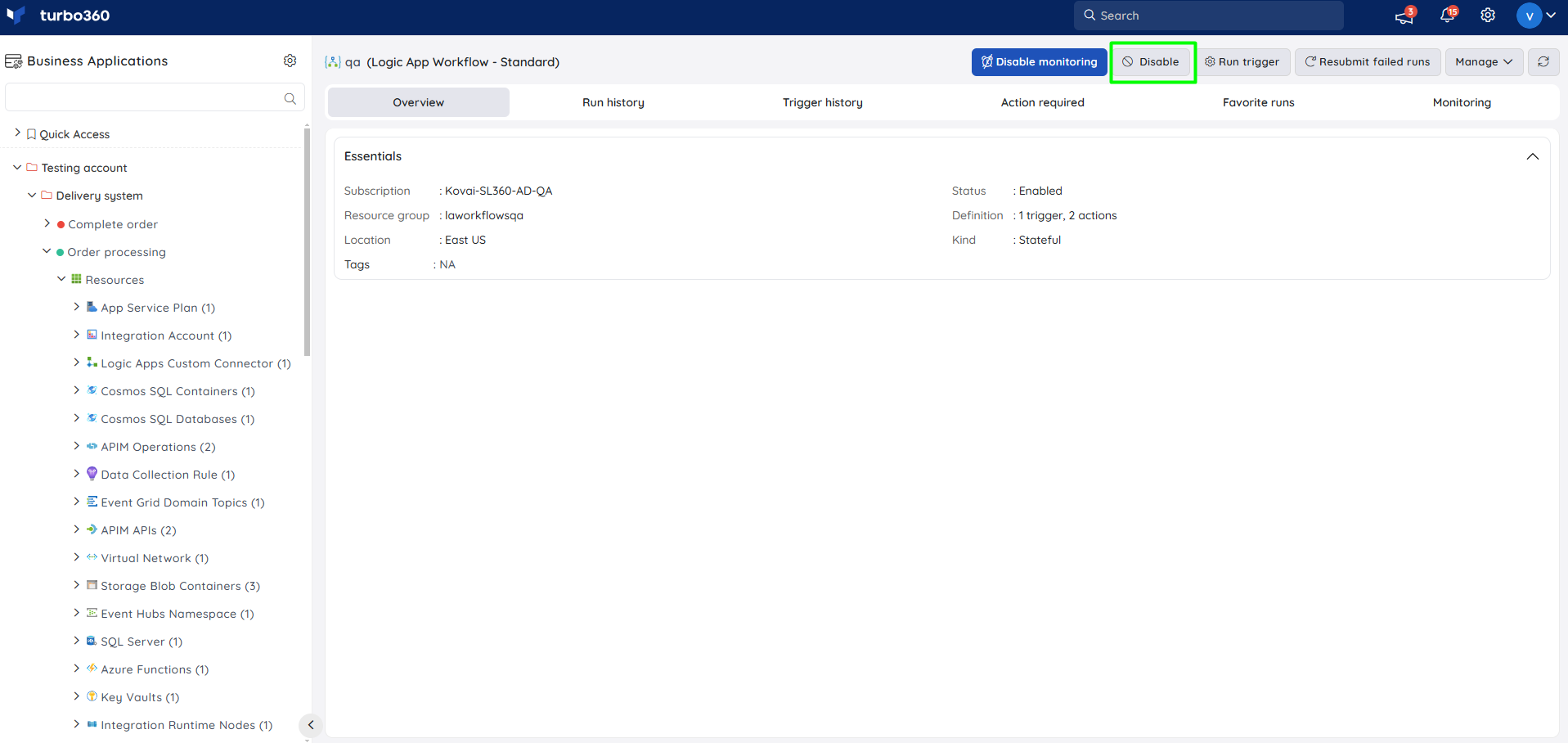
- Enable — turn on a Logic App Workflow, reflecting its status in the Azure Subscription.
- Disable — turn off a Logic App Workflow, reflecting its status in the Azure Subscription.
Bulk operations
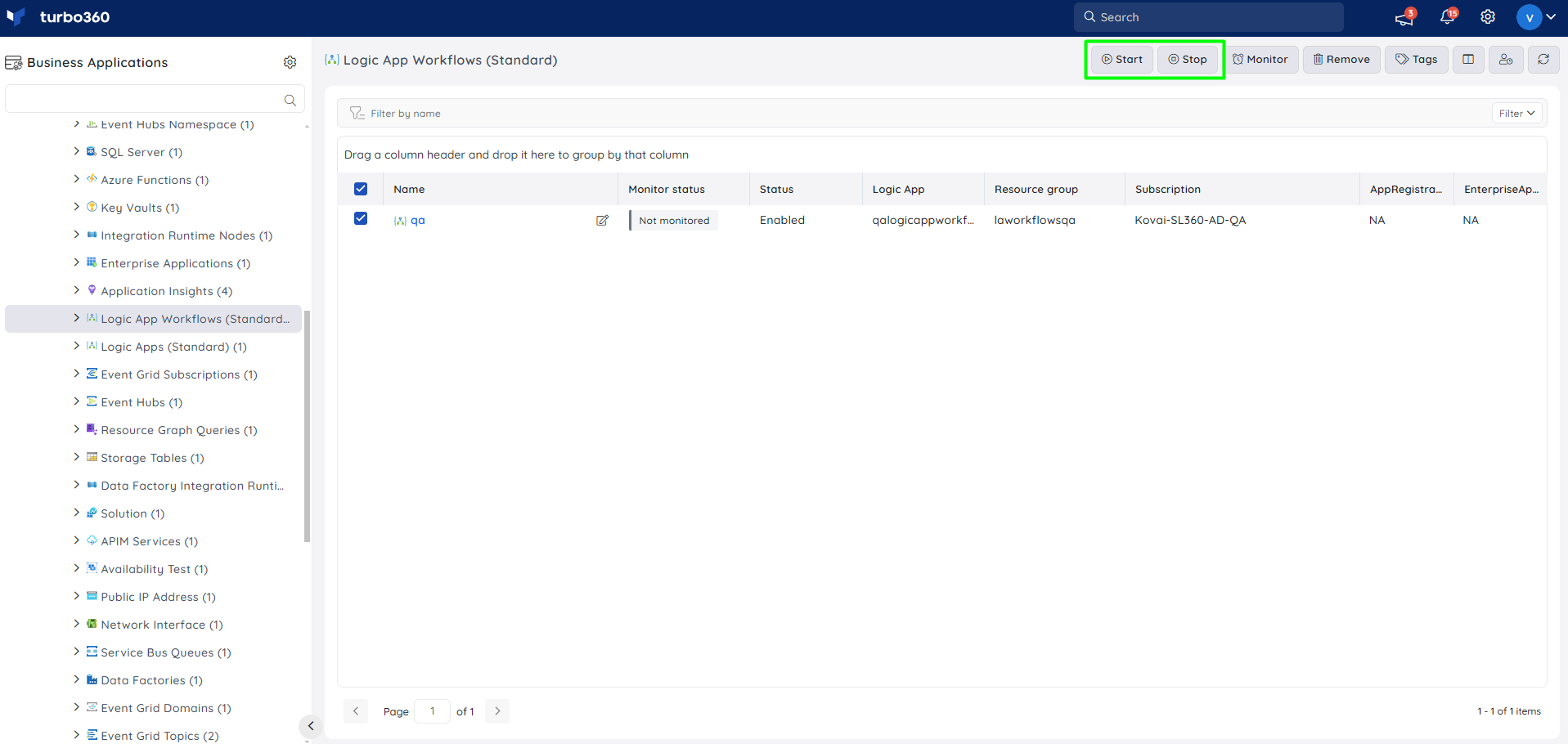
- Bulk Start/Stop — perform Enable or Disable on multiple workflows at once from the Logic App Workflow (Standard) resource section. Use this when several workflows need the same status change together, such as during planned maintenance.
Run trigger
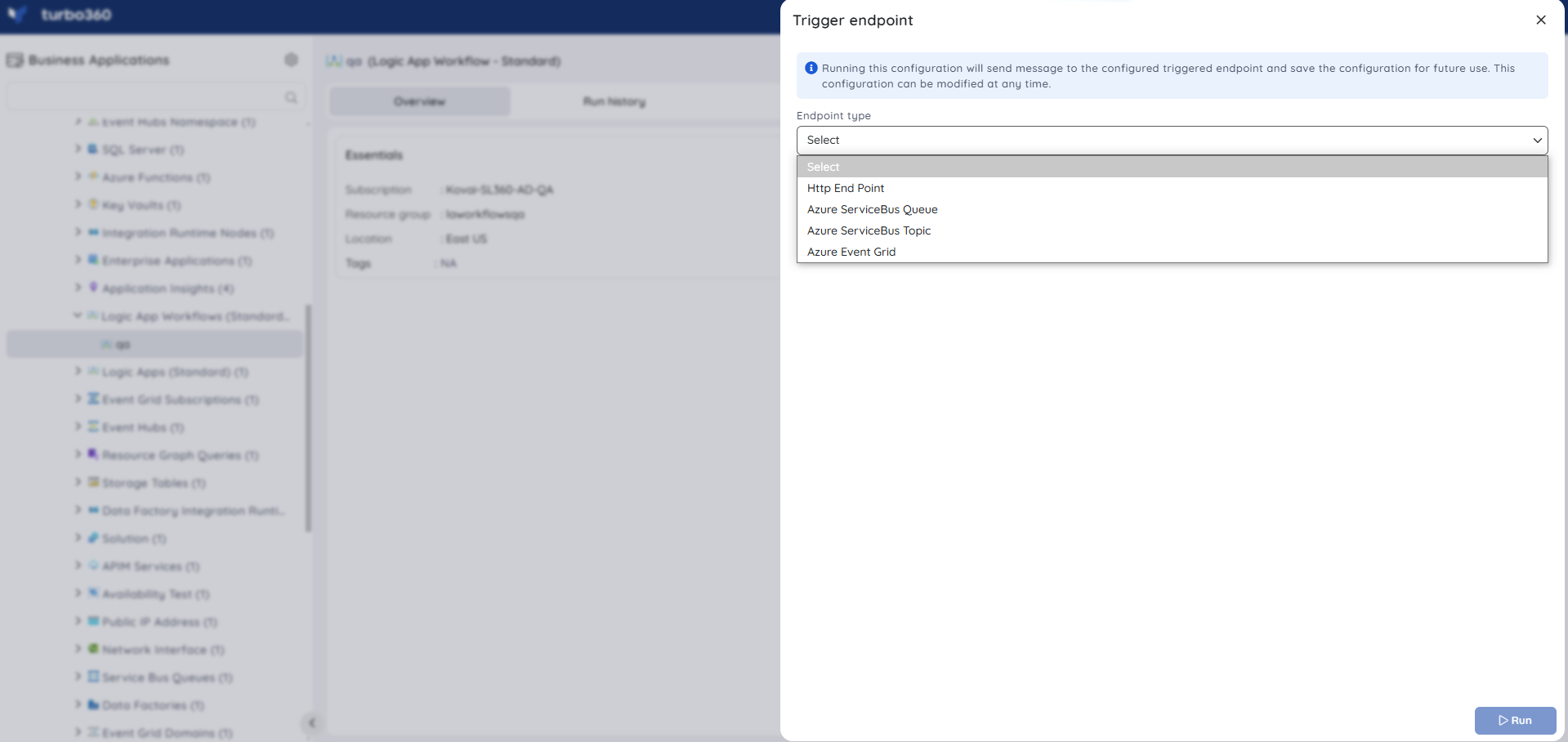
- Run trigger — invoke a Logic App Workflow by sending a message to its trigger, modifying the message if needed before sending. Use this when a workflow needs to be recovered from an error condition by replaying a corrected message. The option appears at the top of the screen when you open a specific workflow.
Run history
- View run history — displays a list of workflow executions, including start time, duration, and associated tags. Use this when you need to review execution outcomes over time.
.png)
- Drill into a run — click a run identifier to open detailed information, including each trigger and action's inputs and outputs.
.png)
The enhanced Run history view organizes execution steps into a timeline, letting you trace the path of a run, inspect individual actions, and access detailed inputs and outputs — and resubmit runs directly from the same view.
.png)
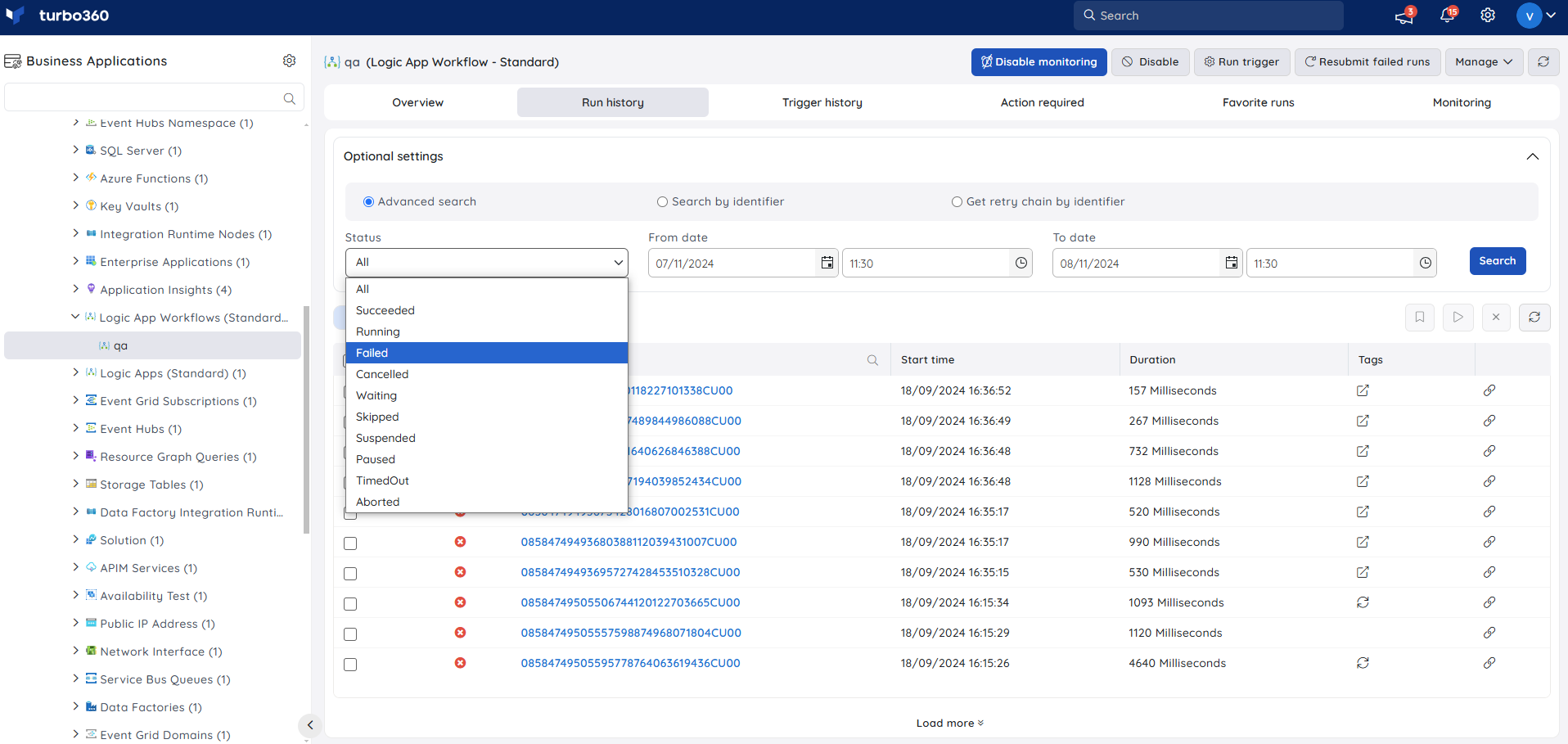
Optional settings available in the Run history tab:
- Advanced Search — filter runs by From date and To date along with a status (Succeeded, Running, Failed, Cancelled, Waiting, Skipped, Suspended, Paused, Timed Out, Aborted).
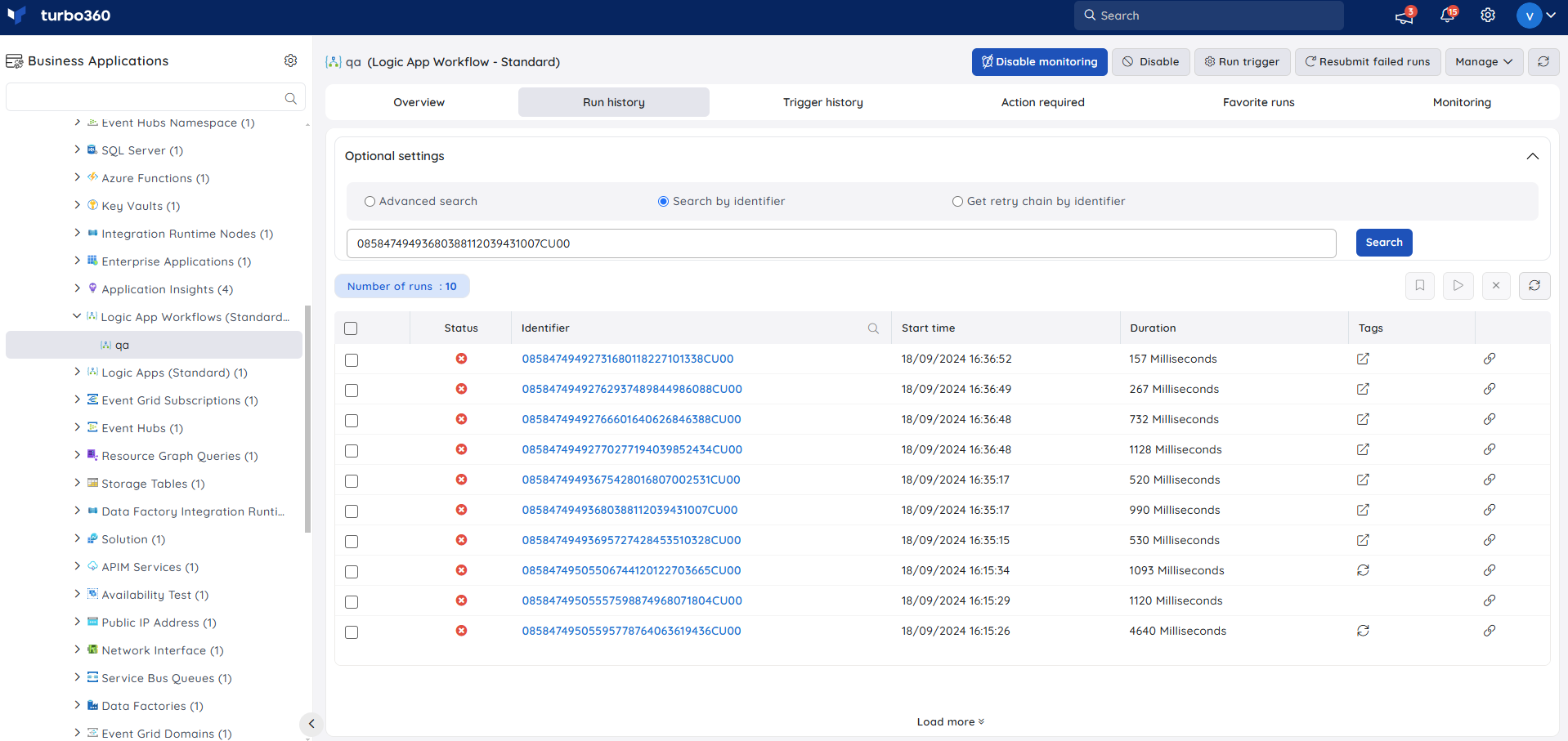
- Search by identifier — retrieve run details for a specific identifier.
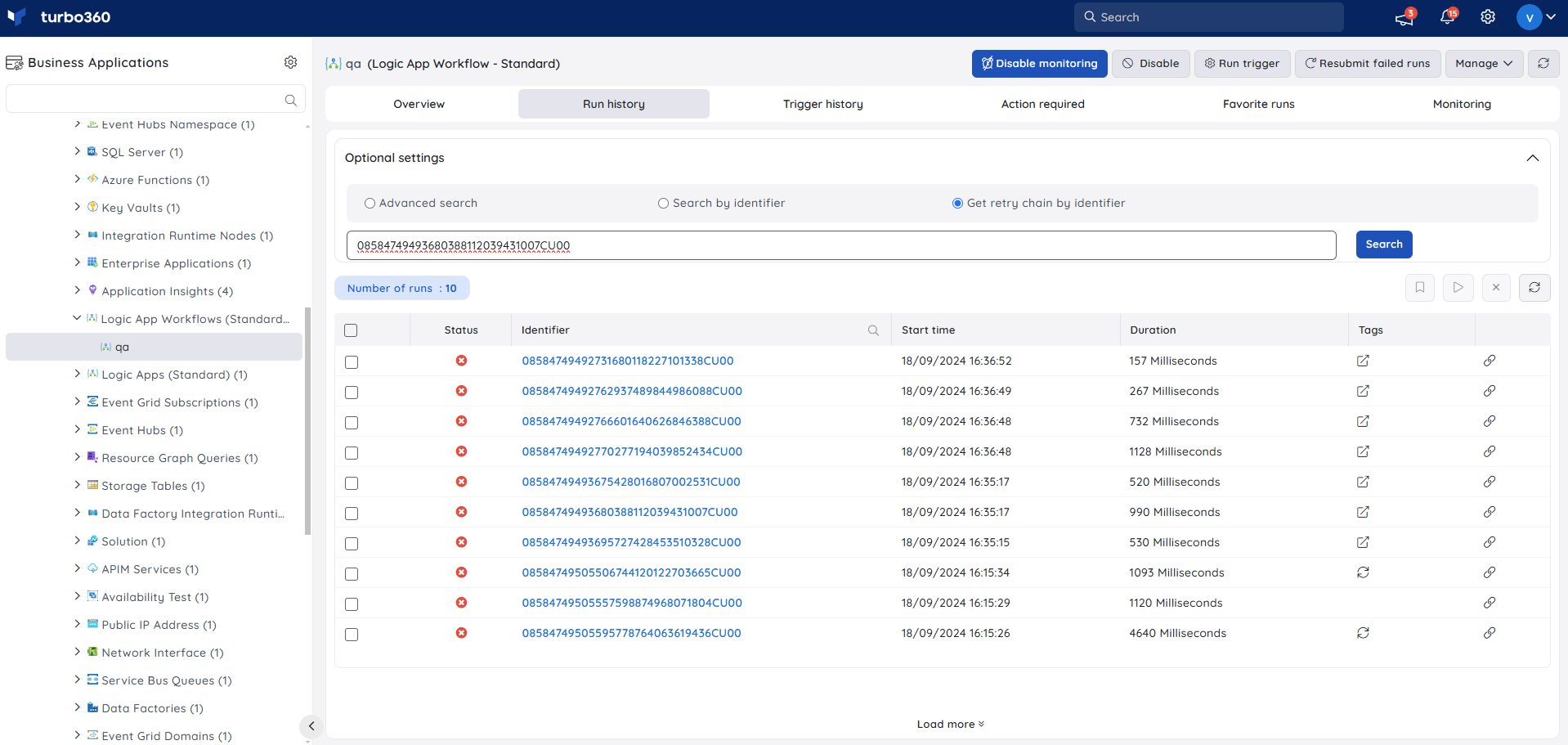
- Get Retry Chain by identifier — retrieve the retry chain for a run by entering its identifier, or by clicking the tag next to the run identifier.
Resubmit failed runs
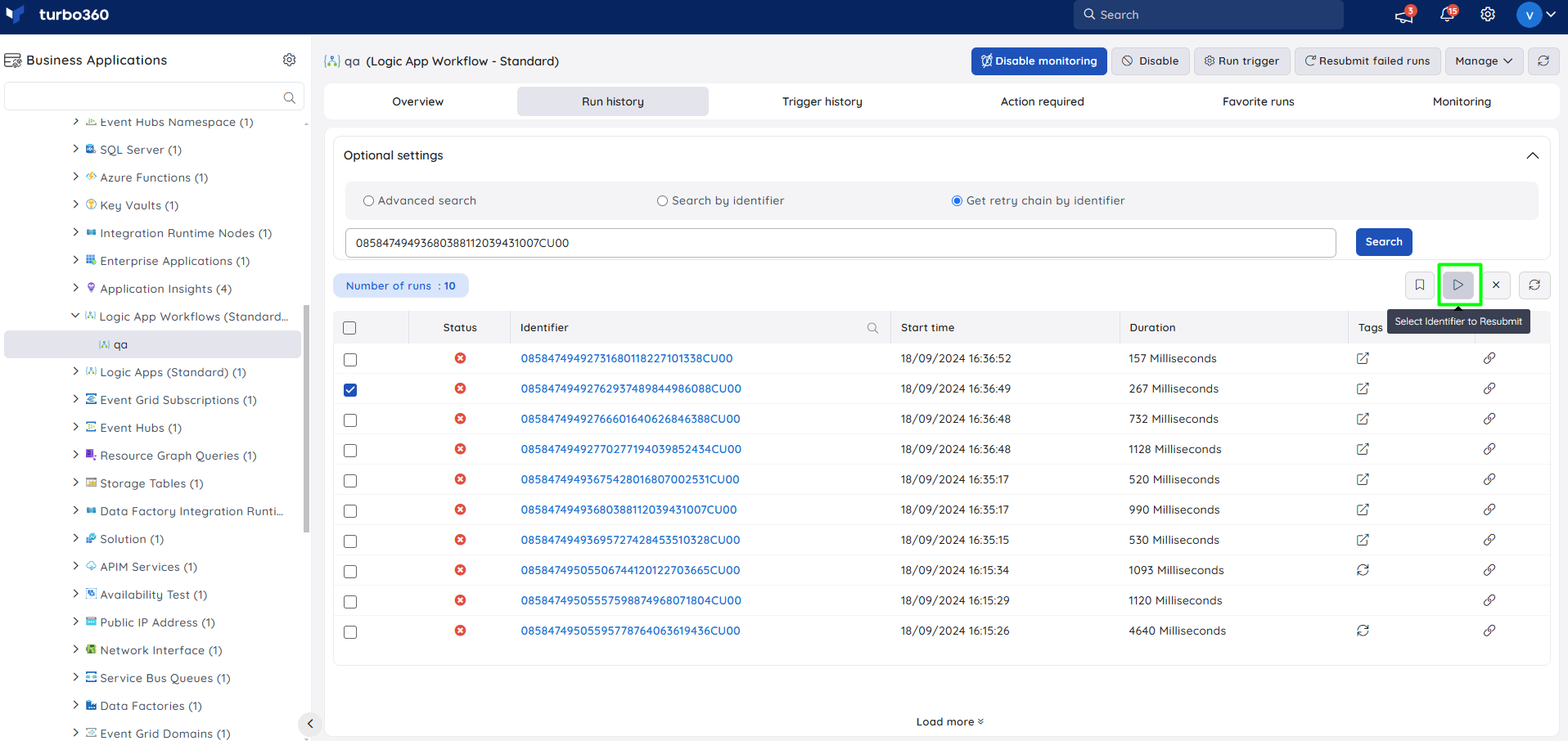
- Resubmit — resubmit a failed run directly from Run history. Use this when an action failed and the run needs to be replayed for recovery and continuity.
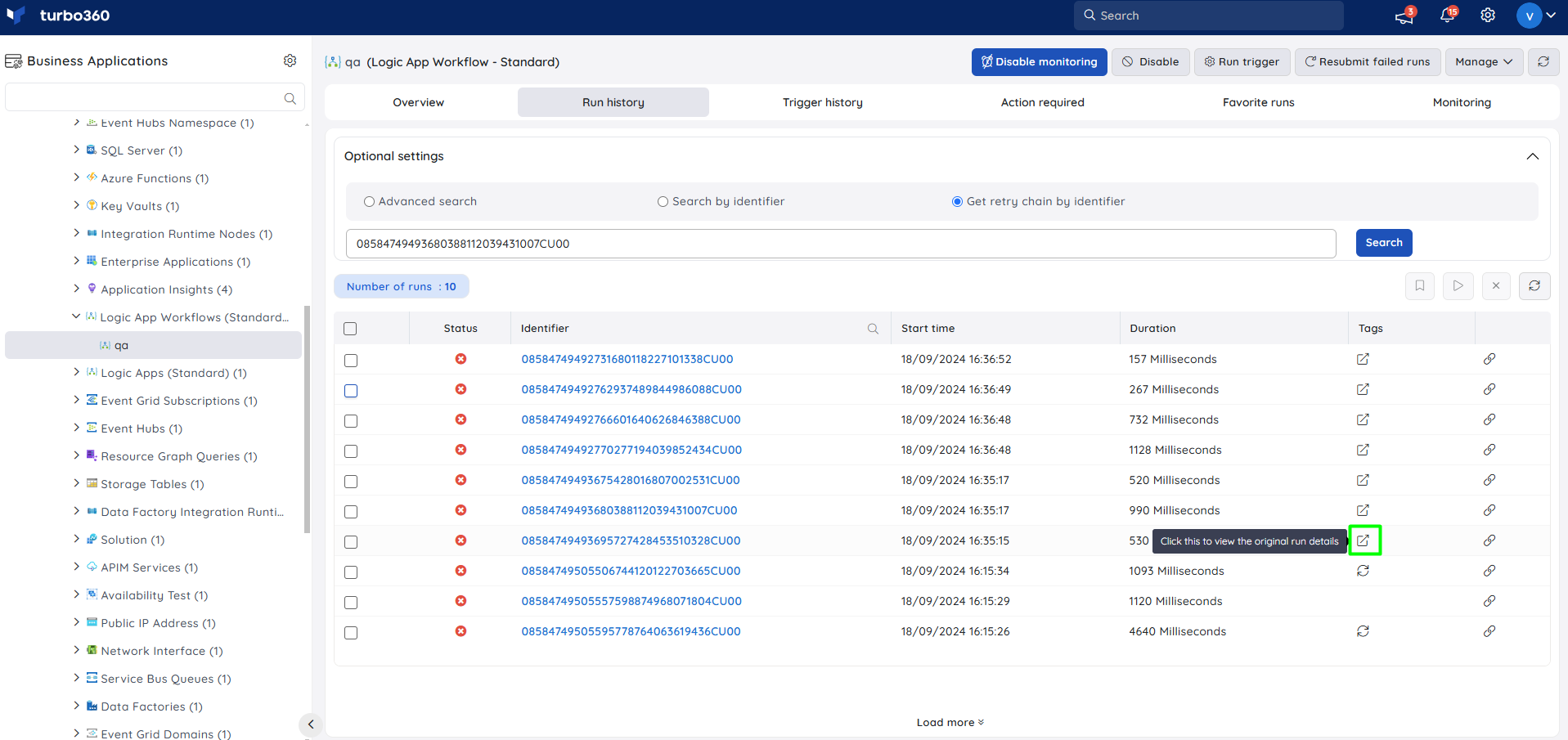
Resubmitted runs are tagged with a reference to the original parent run, providing clear traceability whether the resubmission happened from Turbo360 or the Azure portal.
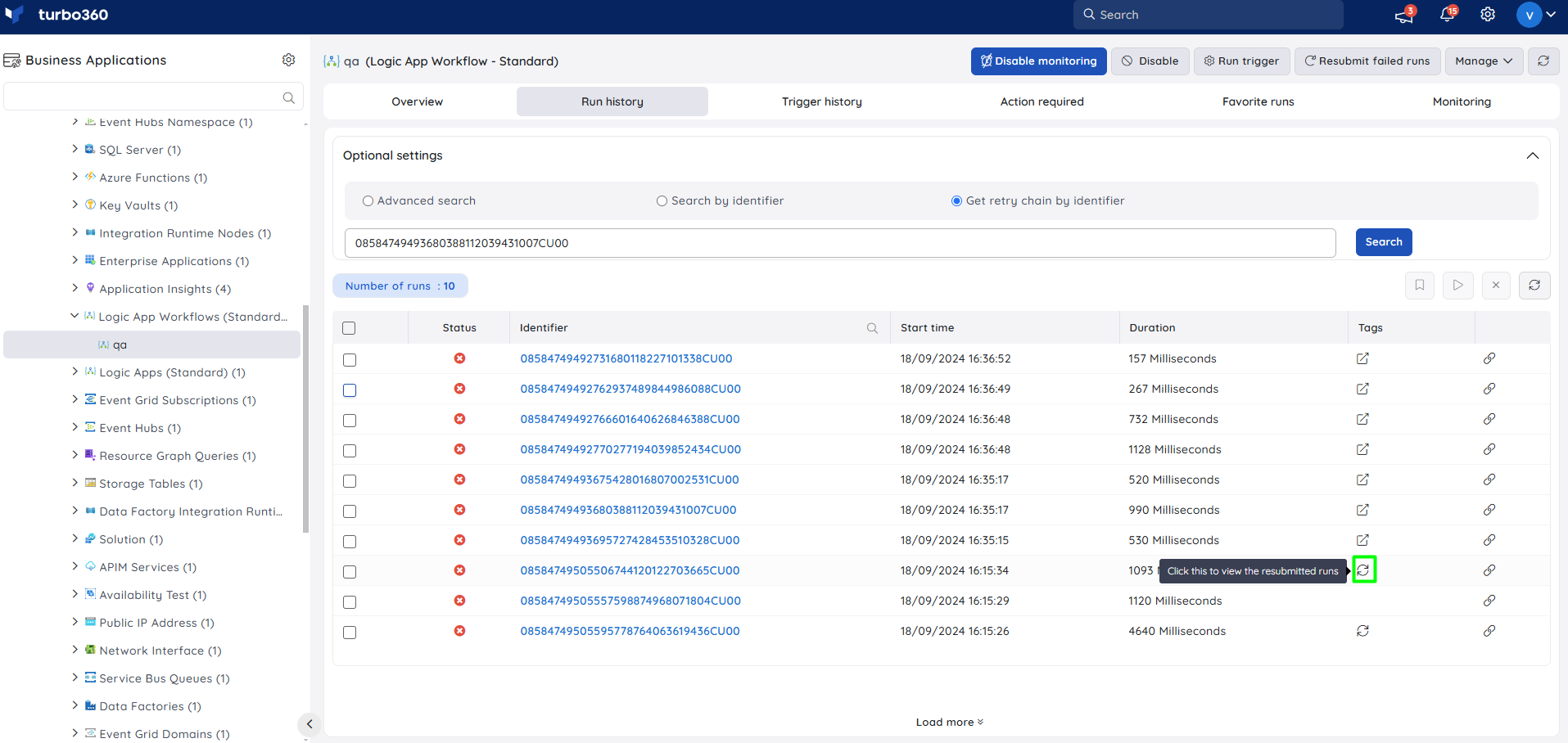
A maximum of 56 resubmissions is allowed within a 5-minute period. To manage requests beyond this limit, the system uses a callback URL. Tags are not available for runs resubmitted via the callback URL.
Ignore runs
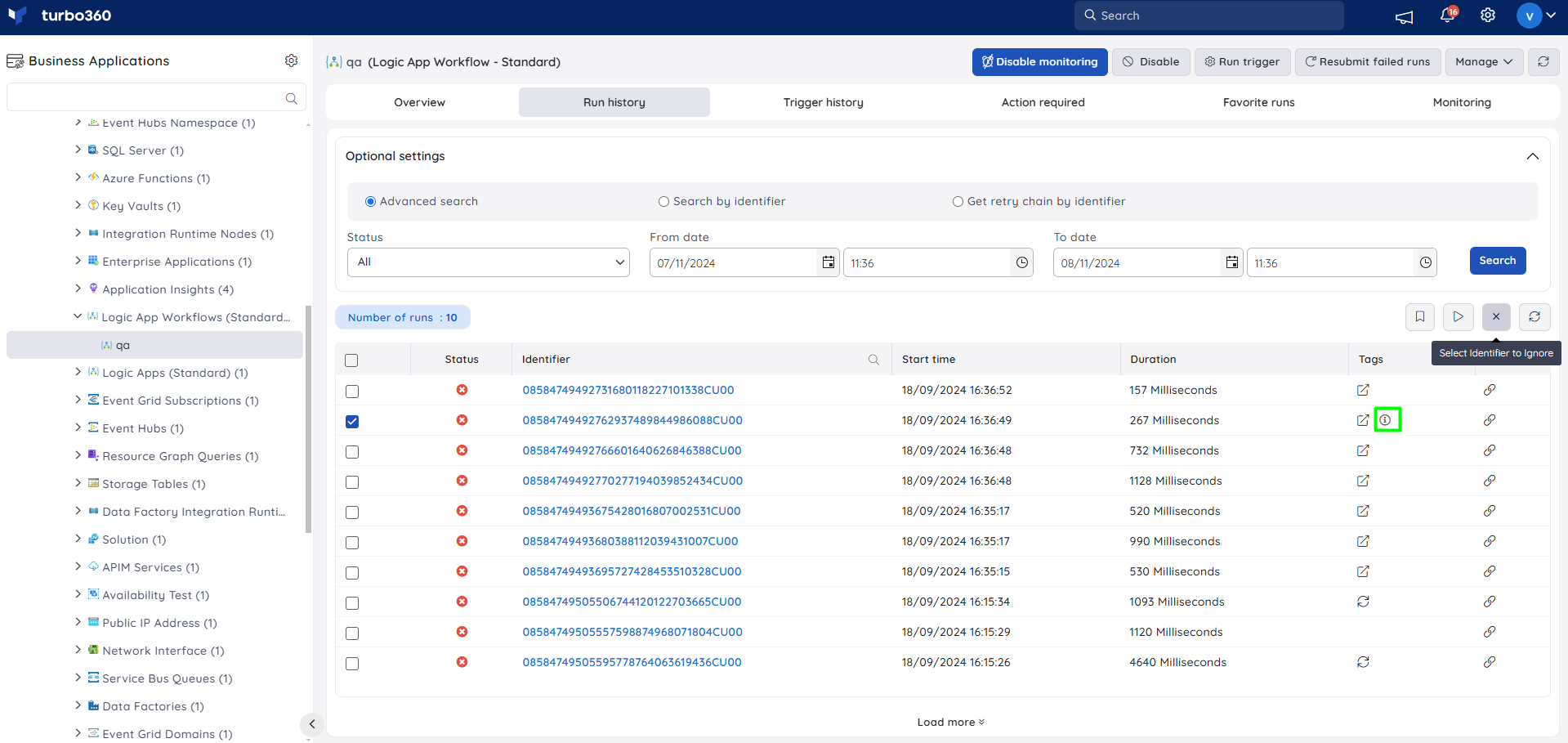
- Ignore runs — mark a bulk selection of runs as ignored, with a description attached. This tag is visible only in Turbo360 and has no effect on the actual runs.
Trigger history
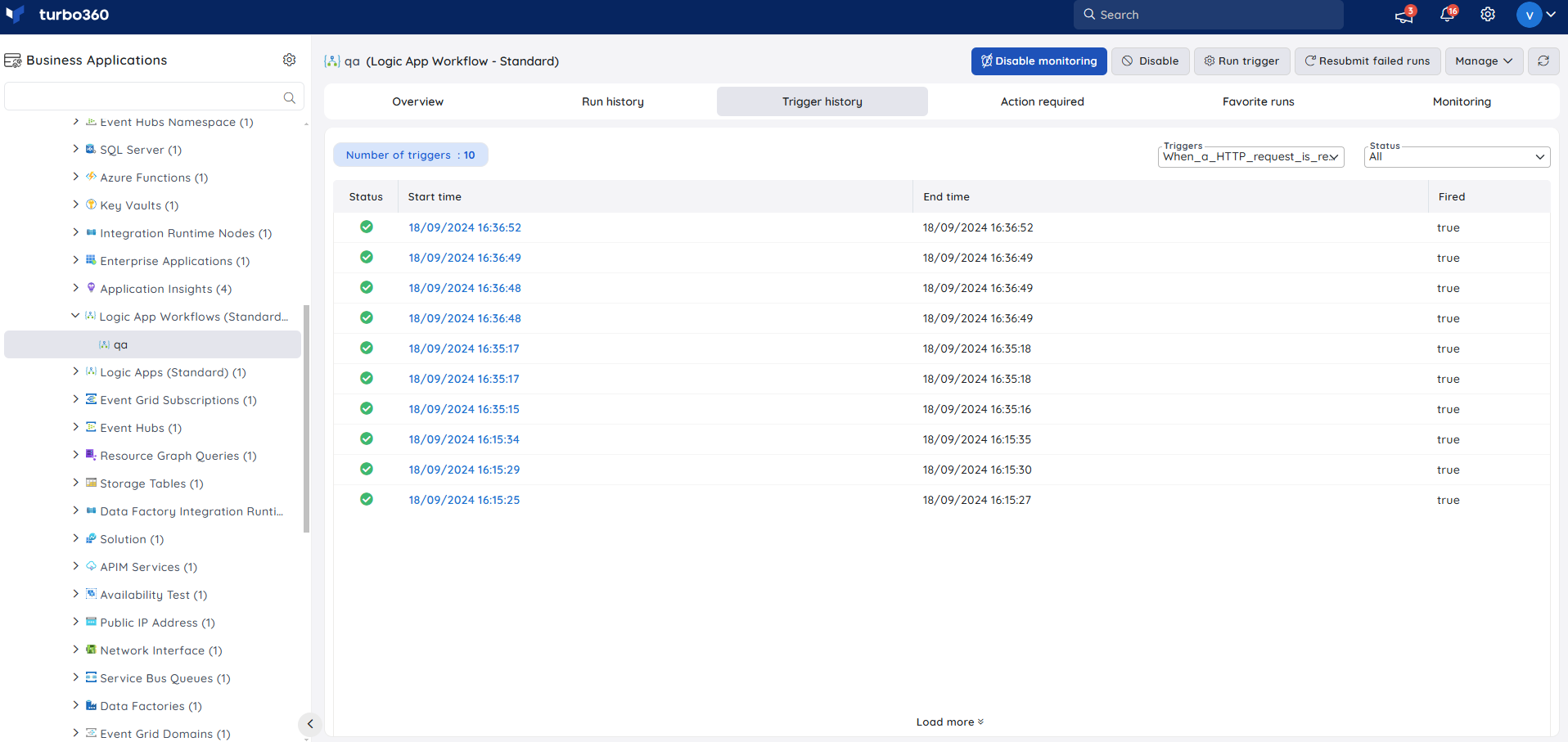
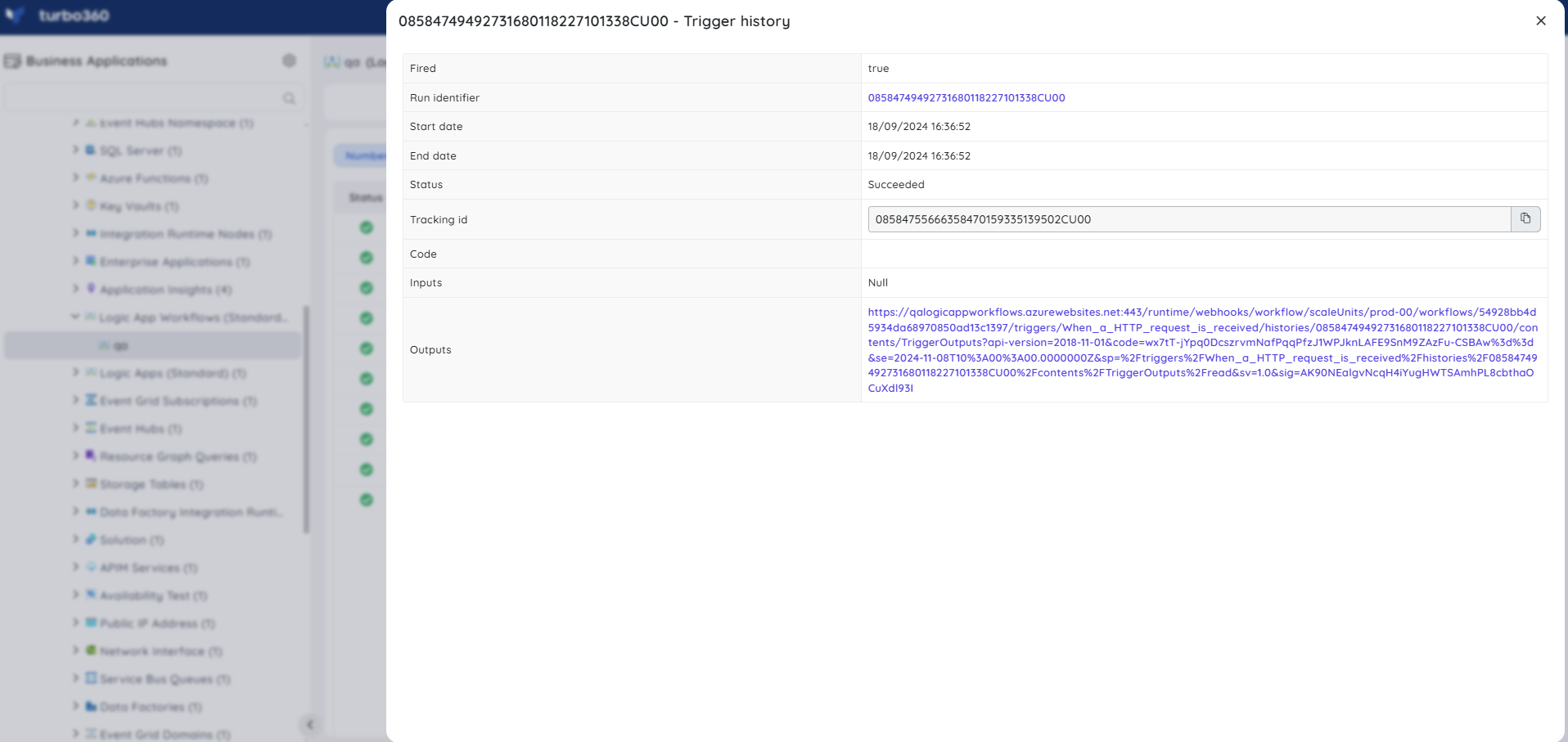
- View trigger history — view all triggers in the workflow along with input and output details for each. When multiple triggers exist, history can be filtered by trigger, as in the Azure portal, and by status (Succeeded, Running, Failed, Cancelled, Waiting, Skipped, Suspended, Paused, Timed out, Aborted).
Action required
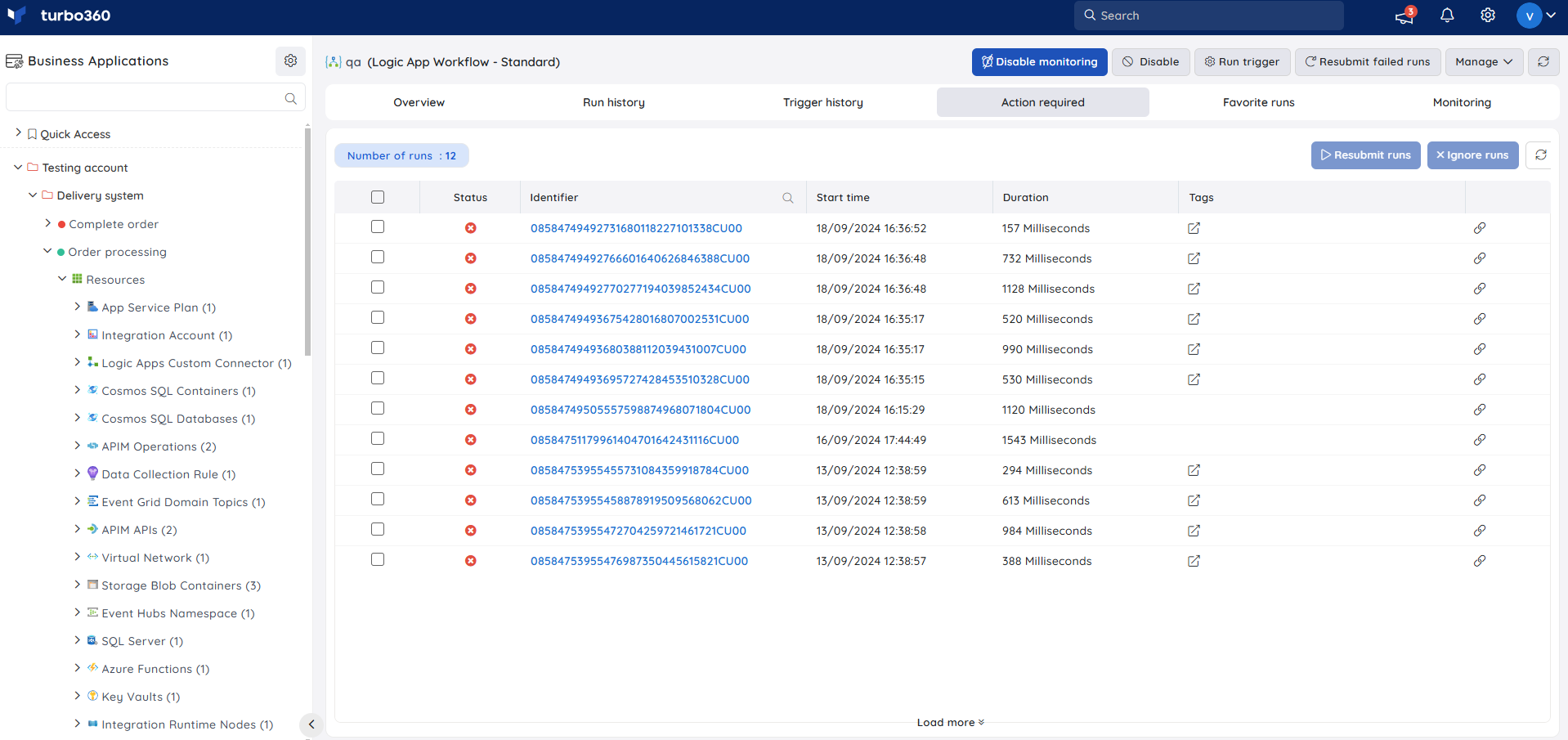
- Action required — surfaces failed workflow runs that need attention, and lets you resubmit or ignore them from the same view.
Favorite runs
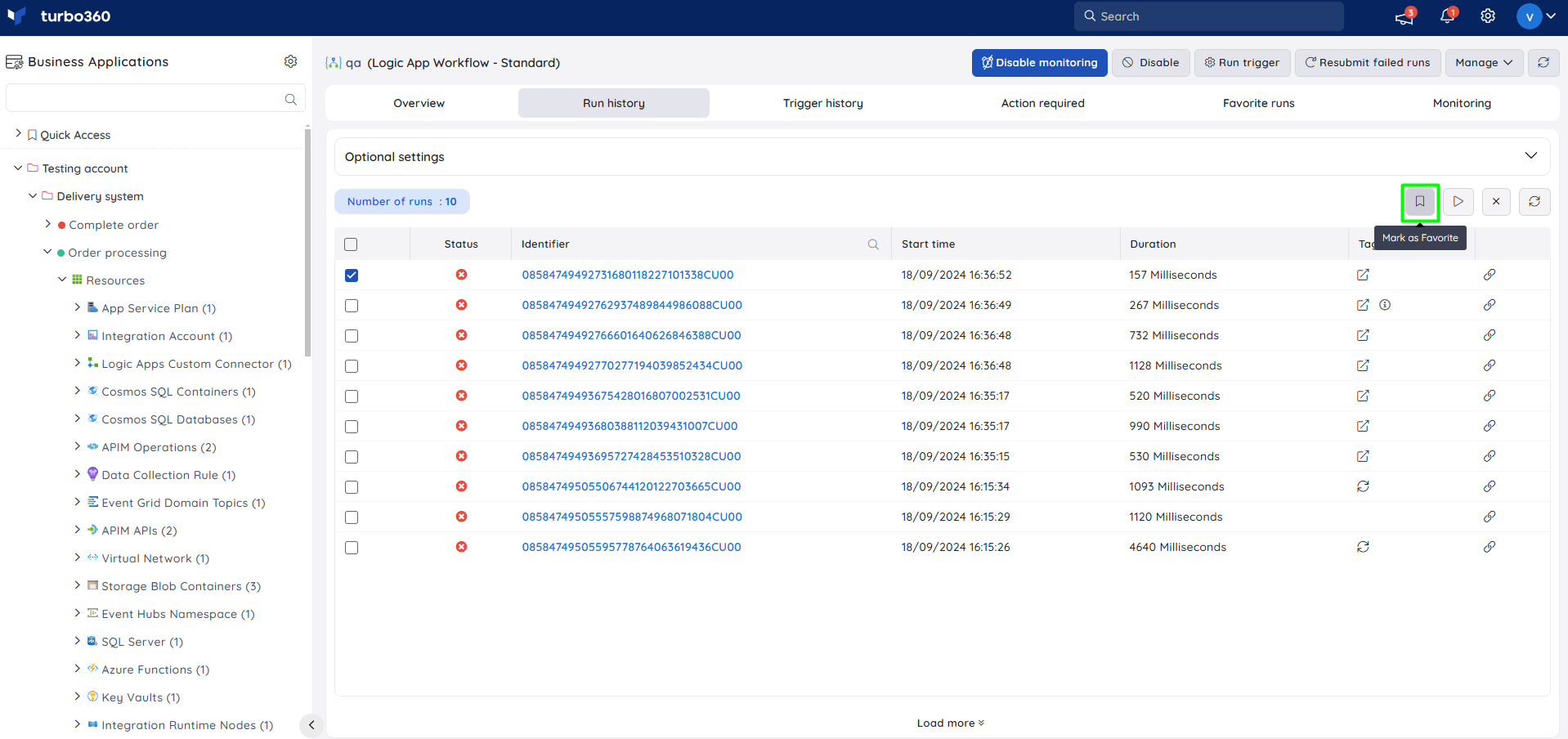
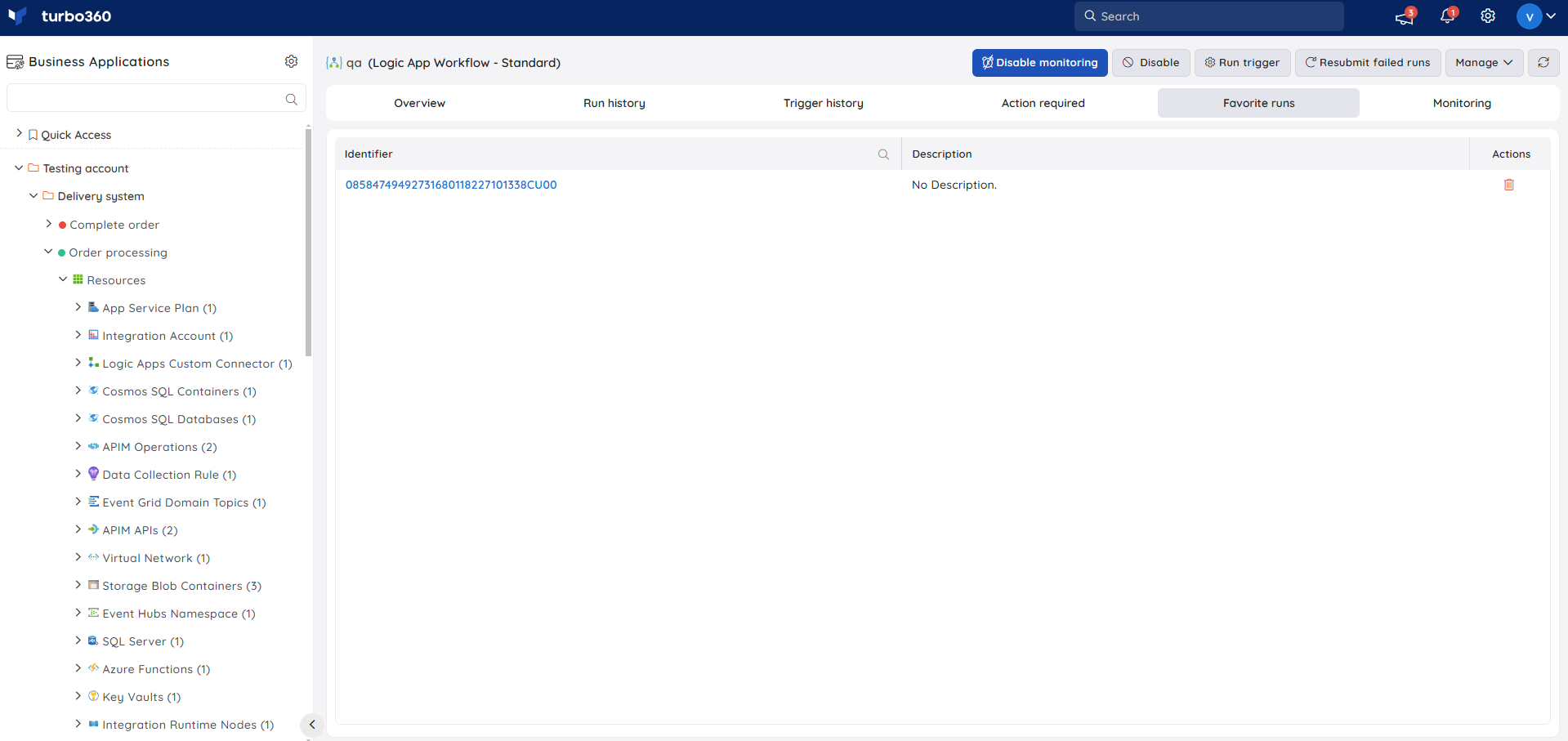
- Mark as favorite — mark frequently used runs as favorites, with an optional description, from either Run history or Action required. Multiple runs can be favorited at once, and removed from the Favorite runs tab.
Inline task to resubmit failed runs
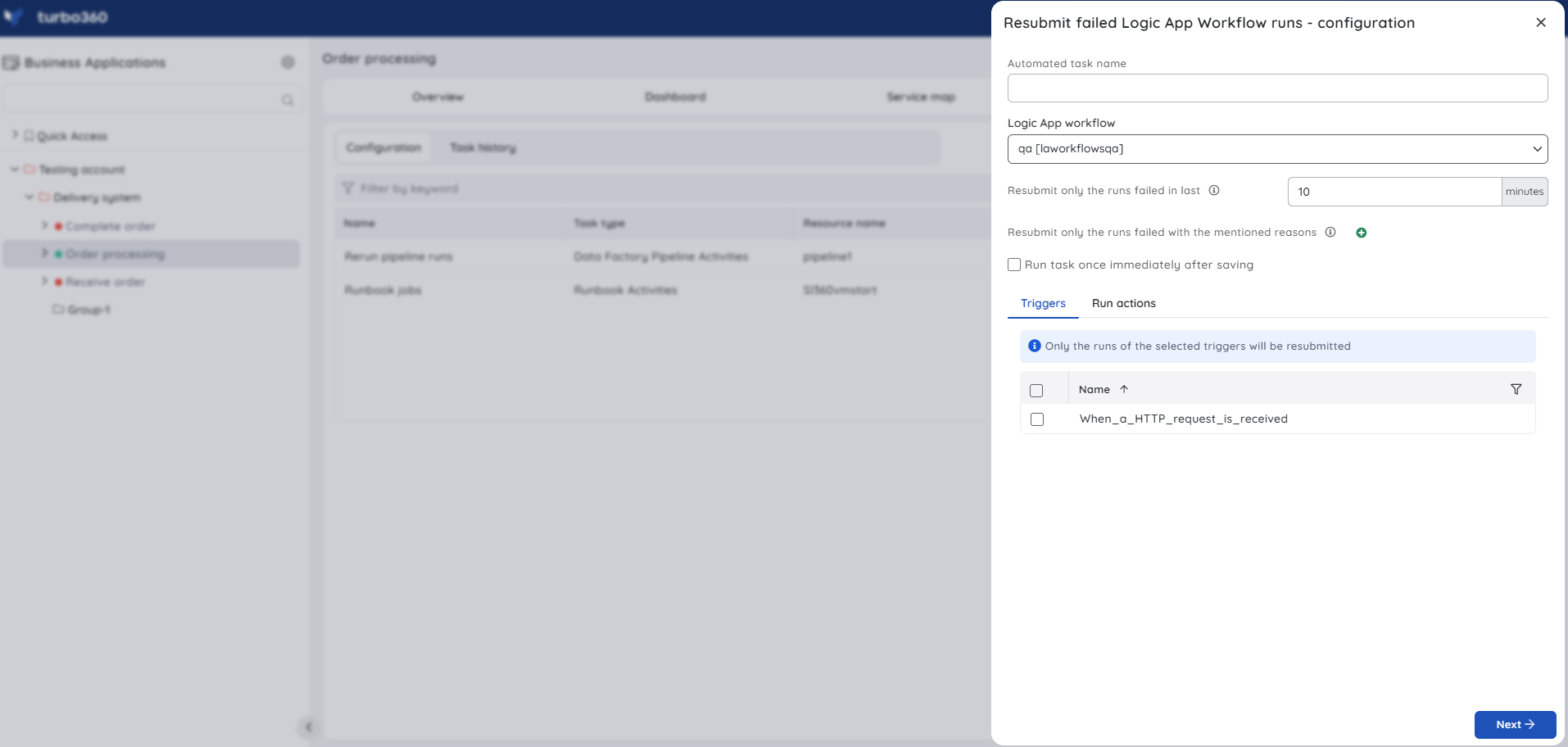
- Inline task — quickly resubmit failed workflow runs within a specified number of minutes (minimum 1, maximum 60). Use this when you need an immediate, one-off resubmission without configuring a recurring schedule.
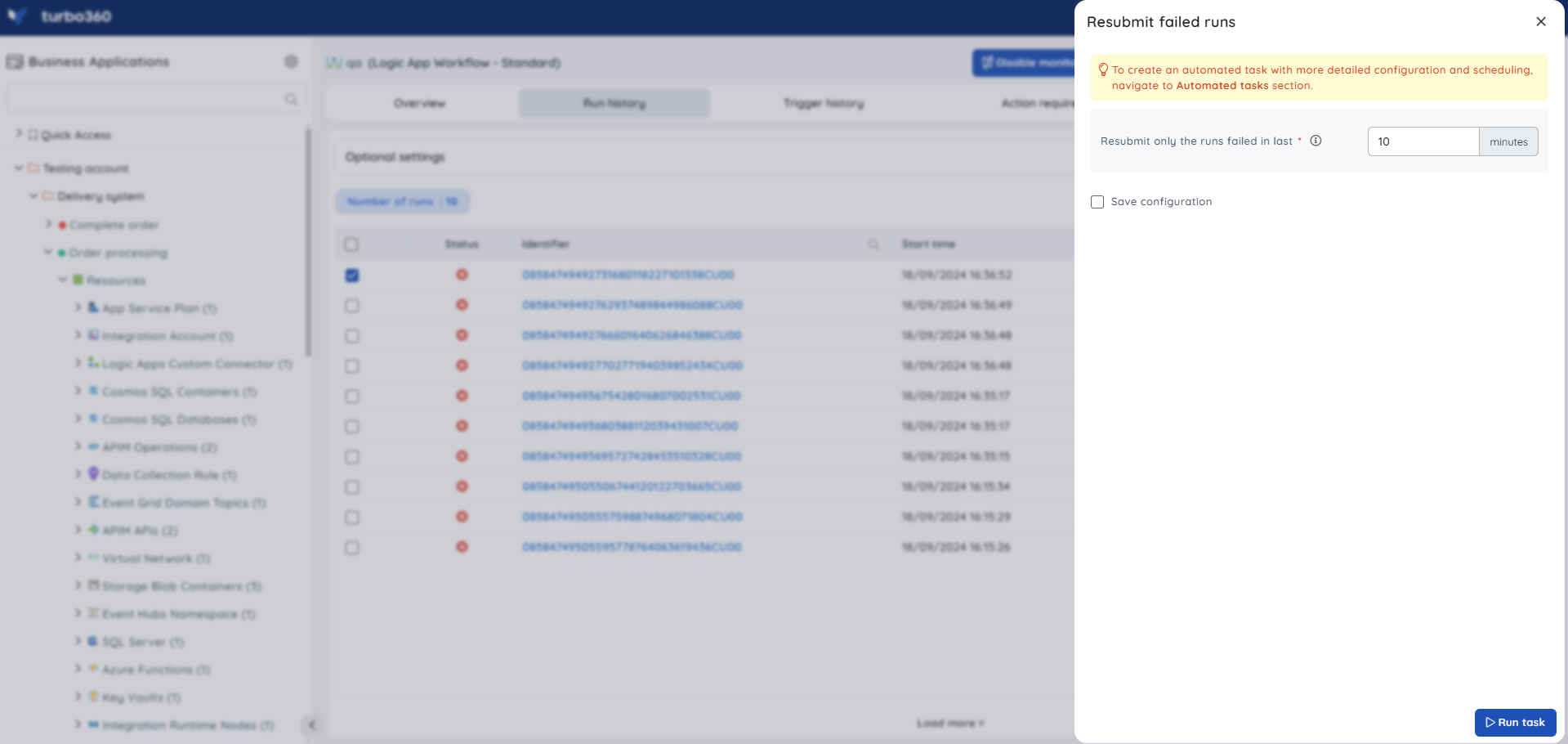
Task status can be viewed under Automated Tasks -> Task History.
- Users can use this feature to quickly create a task that runs immediately.
- Navigate to the Automated Tasks section in Turbo360 to create a task with a more detailed configuration, schedule tasks to run at a specific time, or automate the task to run on the specified hours, days, and more.
The Automated Task feature also lets you schedule automatic resubmission of failed runs for a specific duration and workflow — for example, automatically resubmitting failed runs in an employee-joining workflow that posts to a Service Bus Queue, Azure Function, and Storage Table.
Resource dashboard
[MISSING INFORMATION: resource dashboard widgets for Logic App Workflow (Standard)]
Metrics
The Metrics tab surfaces run count and trigger data for Logic App Workflow (Standard), giving you visibility into per-workflow execution trends. Use the Metrics tab to identify whether failed run counts are increasing over time and to confirm that run volume returns to baseline after automated resubmission.
Monitoring
Logic App Workflow state and runs count can be monitored using Turbo360, configured under Logic App Workflow (Standard) -> Monitoring.
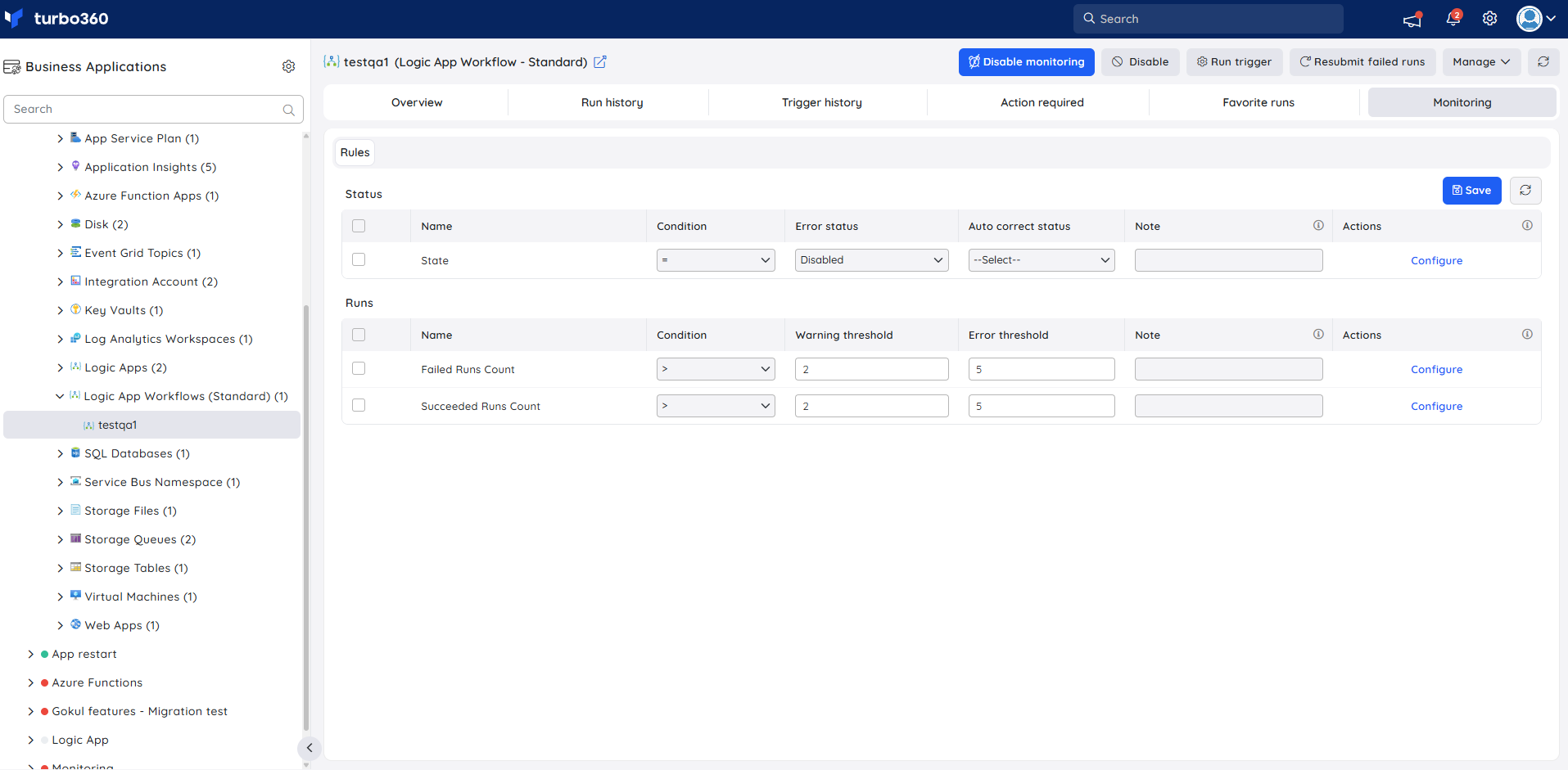
Monitoring rules are saved per resource, and the monitoring state is reflected after every monitoring cycle.
State monitoring
The status of a Logic App Workflow can be monitored to track its current state and ensure it is running as expected.
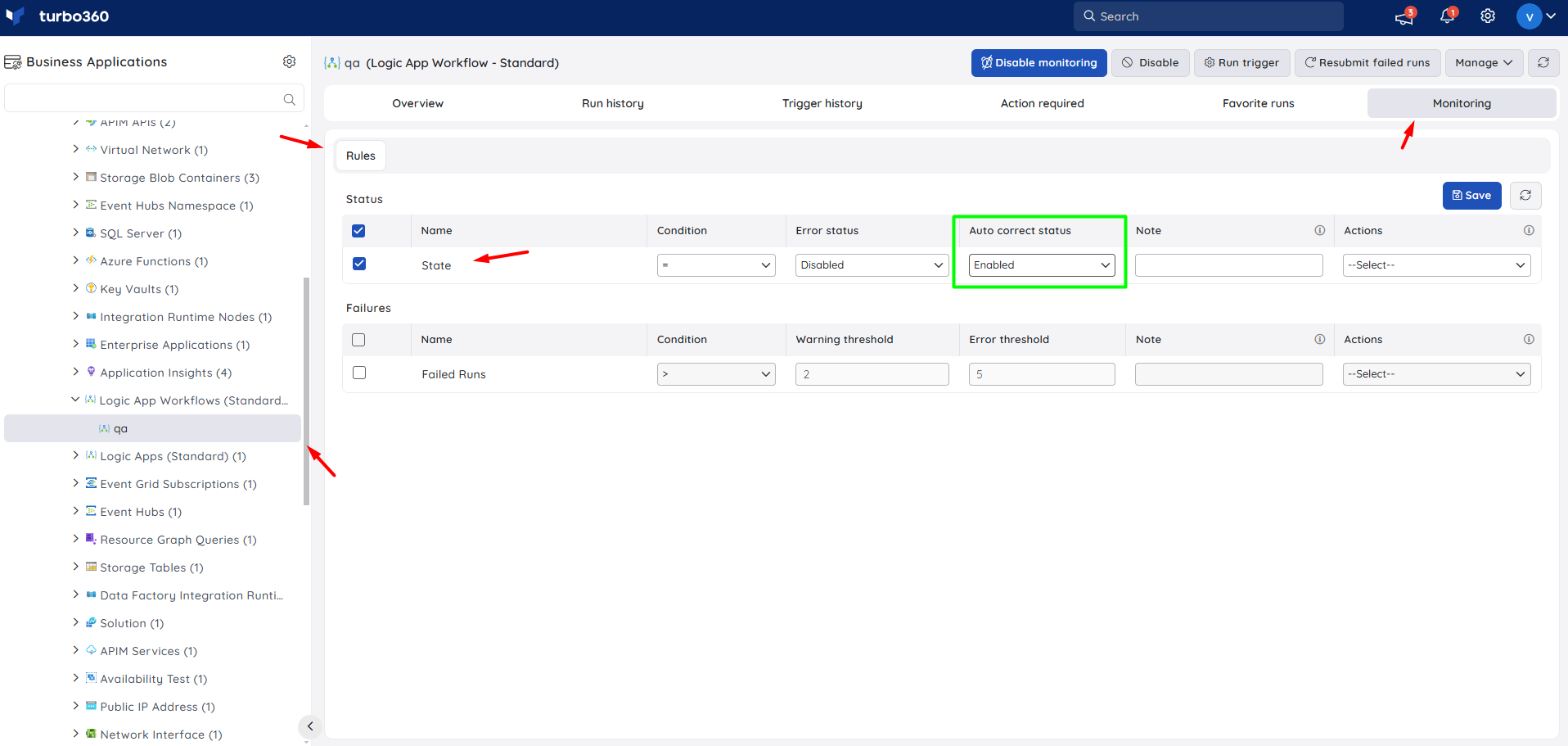
- Navigate to Logic App Workflow (Standard) -> Monitoring to configure the monitoring rules for Logic App Workflows (Standard).
- Configure the threshold state.
- Click Save.
Runs monitoring
The success and failure counts for a Logic App Workflow can be monitored to track execution outcomes and overall workflow health.
- Navigate to Logic App Workflow (Standard) -> Monitoring to configure the monitoring rules for Logic App Workflows.
- Choose between Failed Runs Count and Succeeded Runs Count under Runs and configure the threshold values.
- Click Save to apply the monitoring rules.
Monitoring recommendations
This section discusses common scenarios for Logic App Standard Workflow monitoring.
State — the image below demonstrates how to set up monitoring for alerts in case your workflow is disabled. You also have the option to enable the auto-correct feature.
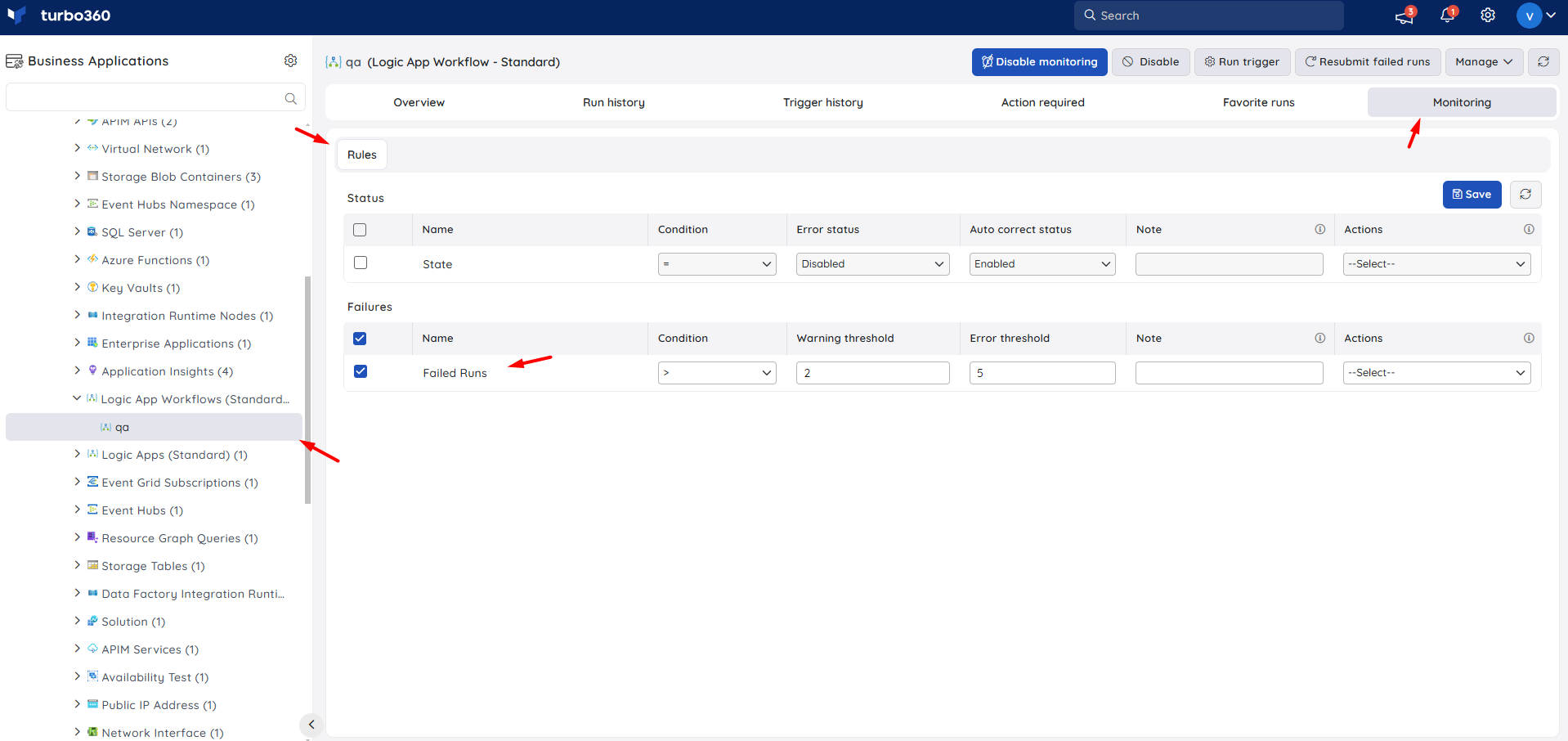
Failures — below is a visual guide on setting up monitoring for the number of failures allowed in your workflow before an alert is triggered. This threshold varies depending on the specific scenario of each workflow. While some errors are expected, alerts may be necessary for any errors in other cases.
Troubleshooting
- Resubmit fails after a large batch of failures
Cause: More than 56 resubmissions were attempted within a 5-minute period, triggering the callback URL fallback.
Fix: Spread resubmissions across a longer window, or note that traceability tags will not be available for runs resubmitted via the callback URL. - State monitoring rule does not auto-correct
Cause: No auto-correct status was configured on the rule.
Fix: Edit the rule and specify an auto-correct status. - Runs monitoring rule triggers too frequently
Cause: The configured threshold does not account for expected, non-actionable errors in this workflow's normal operation.
Fix: Adjust the threshold to reflect the specific failure tolerance of this workflow. - Resubmit option does not appear for a failed run
Cause: The role applied to the Business Application lacks the Reprocess permission.
Fix: Confirm the role has Reprocess access, then retry.
Related articles
Was this article helpful?