

Managing Business Application Groups
- 05 Aug 2026
- 6 Minutes to read
- Print
- DarkLight
- Download PDF
Managing Business Application Groups
- Updated on 05 Aug 2026
- 6 Minutes to read
- Print
- DarkLight
- Download PDF
Article summary
Did you find this summary helpful?
Thank you for your feedback!
Overview
Business Application Groups let you organize collections of Business Applications that belong to the same business unit. A group can contain multiple Business Applications and nested sub-groups, enabling you to represent and monitor complex enterprise hierarchies as a single structure. This article covers how to create, edit, and delete groups, and how to use health monitoring, pause monitoring, management operations, and access policy features at the group level.
Business value
Group-level management lets you control monitoring and resource state across an entire business unit in a single operation, reducing the overhead of managing individual Business Applications during maintenance windows or operational changes.
Required permissions
To create a Business Application Group, you must hold one of the following roles:
- Account owner
- Owner at the Business Applications module level or at the target parent Business Application Group level
- Contributor at the Business Applications module level or at the target parent Business Application Group level
How it works
Business Application Groups reflect the structure of your enterprise. Each group can hold Business Applications and child groups, forming a tree.
The health status of a group is represented using color-coded indicators based on the aggregated monitoring status of all Business Applications within it. The color is determined by the highest-severity state present, following this precedence order: Error > Warning > Healthy.
| Color | Meaning |
|---|---|
| Red | At least one Business Application in the group is in an error state. |
| Amber | At least one Business Application is in a warning state, and none are in an error state. |
| Green | All Business Applications in the group are healthy. |
The full precedence order across all possible states is: Error > Warning > Healthy > To be monitored > Not monitored.
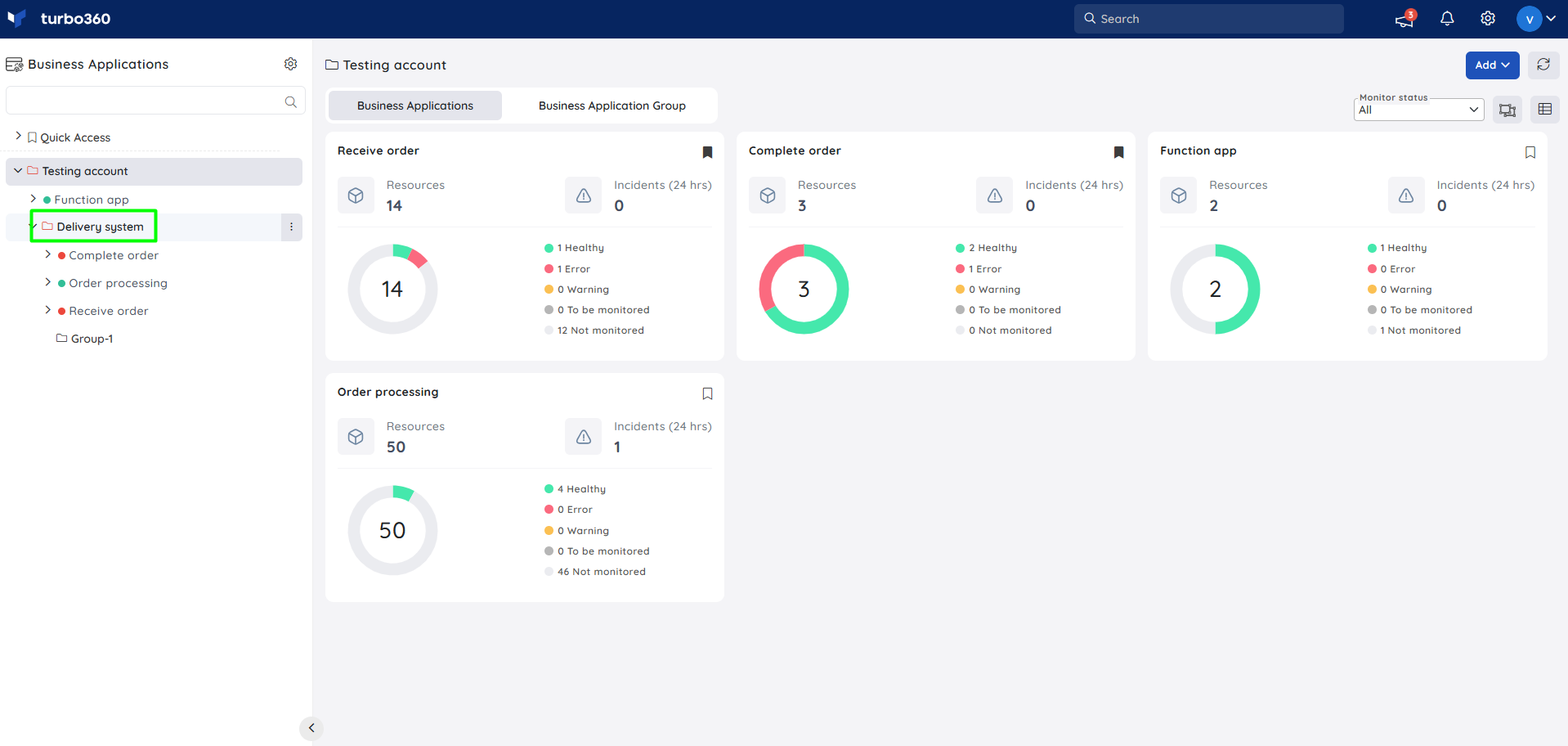
Monitoring can be enabled or disabled at the group level. Enabling or disabling monitoring for a group applies that change to all Business Applications and nested sub-groups within it simultaneously.
When a Business Application or nested group is moved into a parent group, the parent group's service principal access policy takes precedence. Resources associated with the parent service principal override the source permissions.
Steps
Add a Group
You can create a Business Application Group in two ways.
Using the Add button:
- Click Add on the Business Application home screen.
- Select Business Application Group from the drop-down.
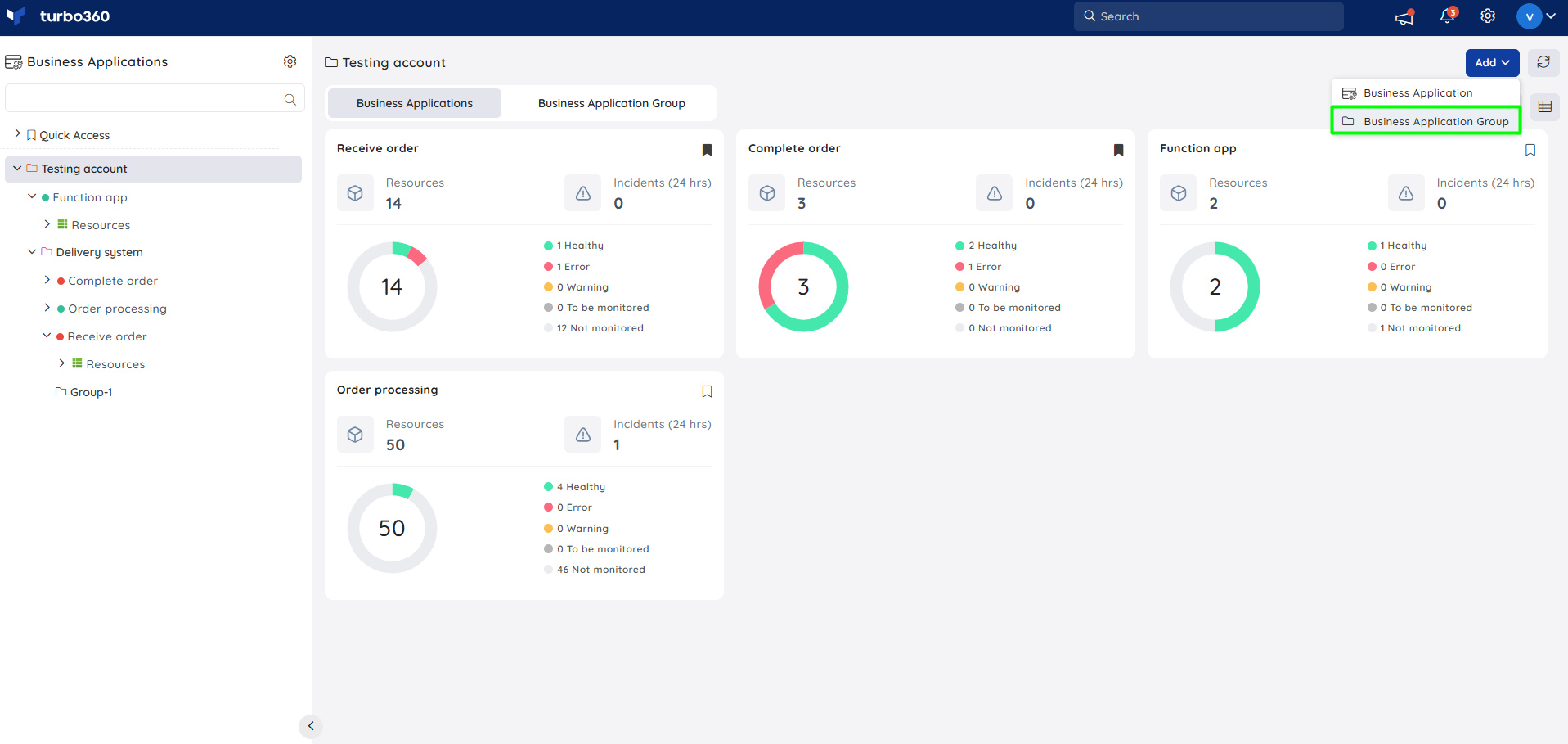
- Enter a name for the group.
- Configure the access policy — select the service principals that the group and its inherited groups and applications can access. You can change this at any time.
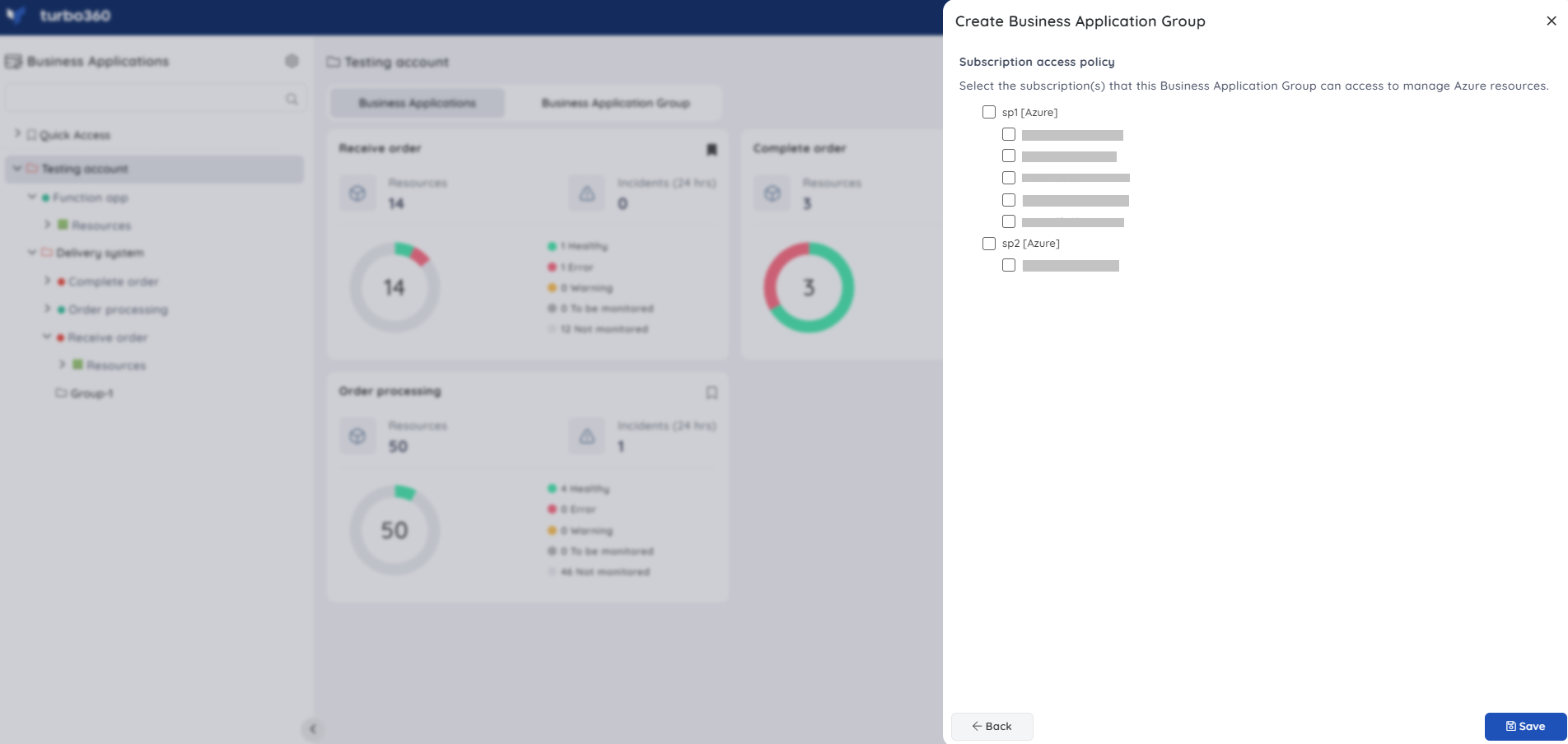
- Click Save.
Using the Context menu ( ⋮ ):
- Click the Context menu ( ⋮ ) next to any Business Application Group in the tree view.
- Select New Business Application group.
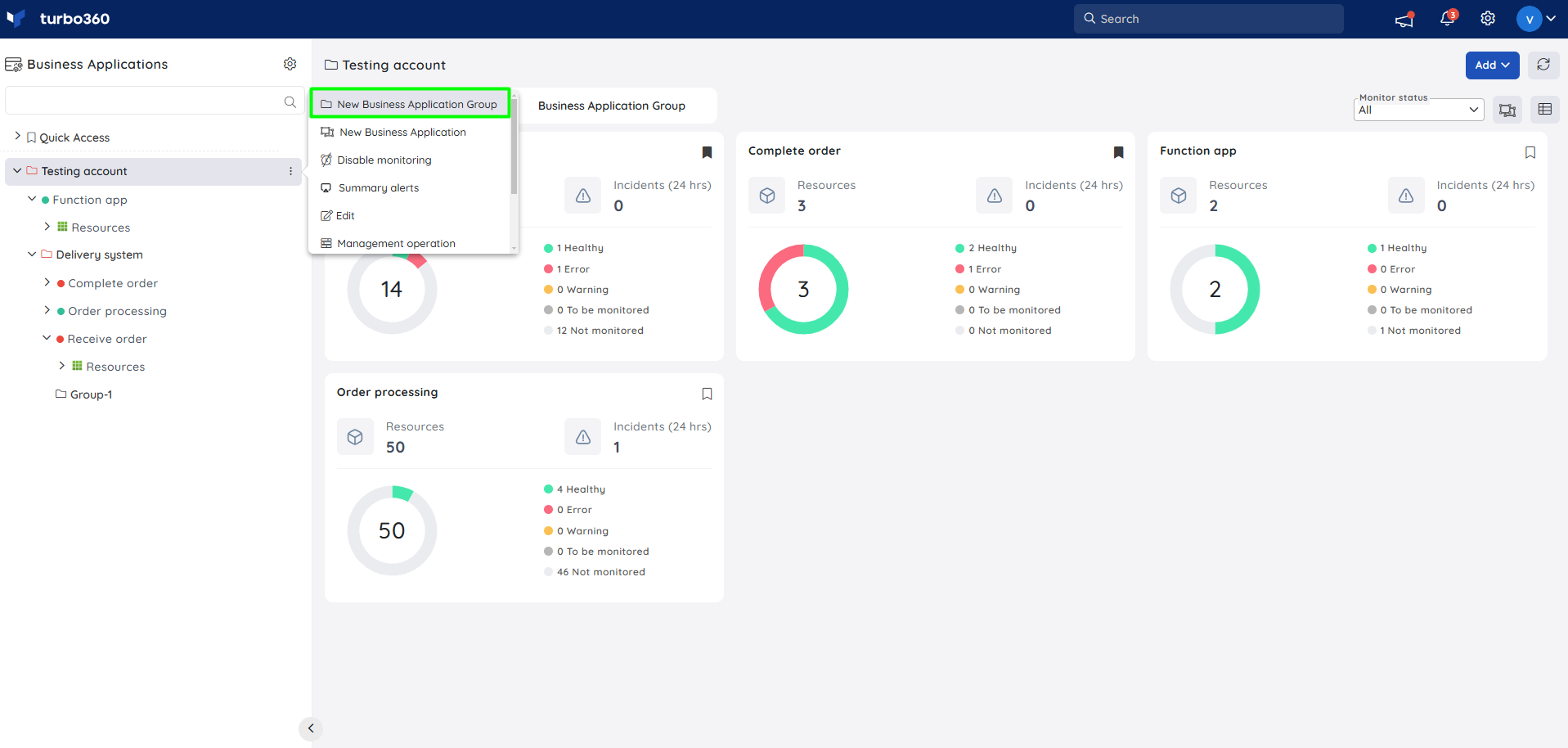
- Enter a name for the group.
- Configure the access policy and click Save.
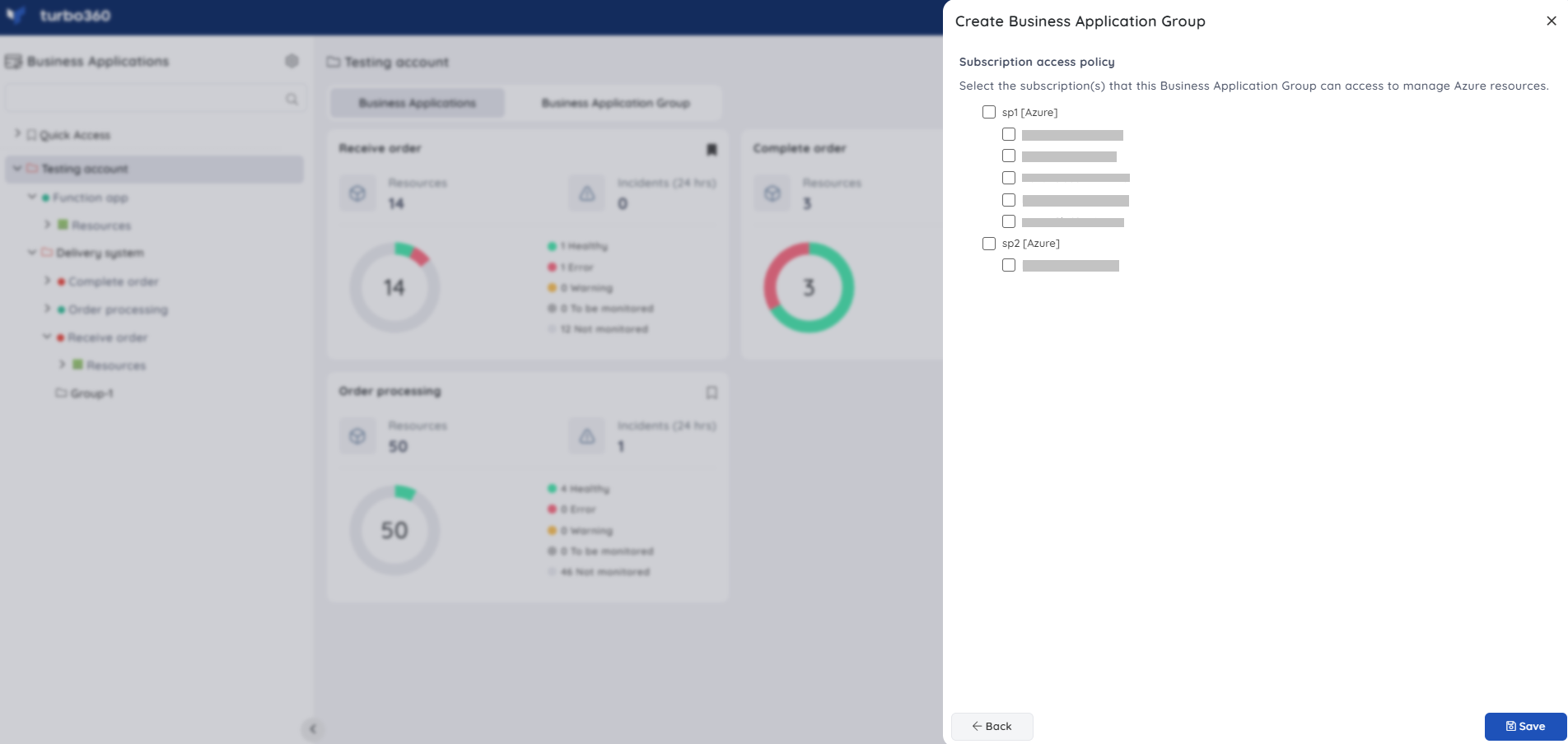
Edit a Group
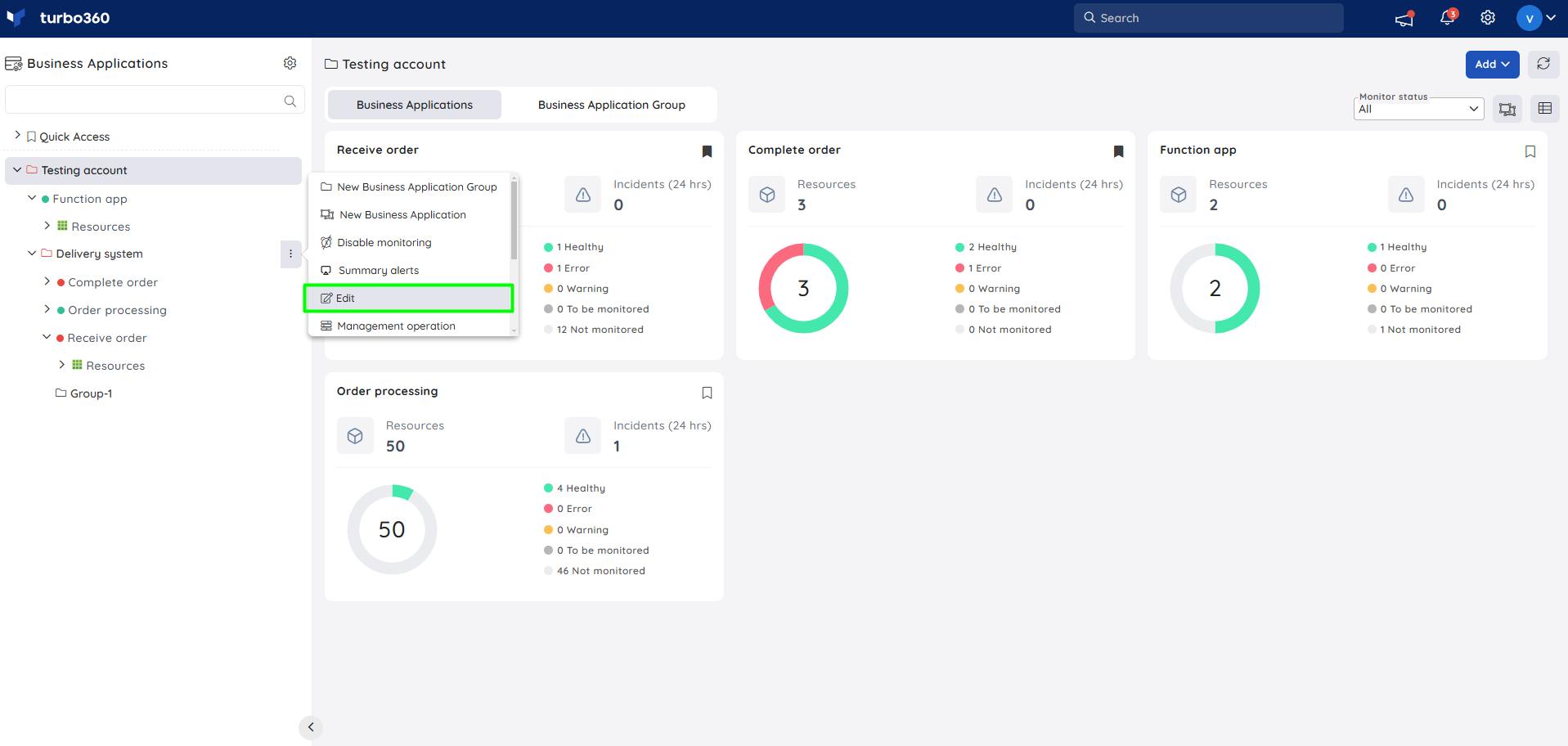
- Click the Context menu ( ⋮ ) next to the desired Business Application Group in the tree view.
- Select Edit.
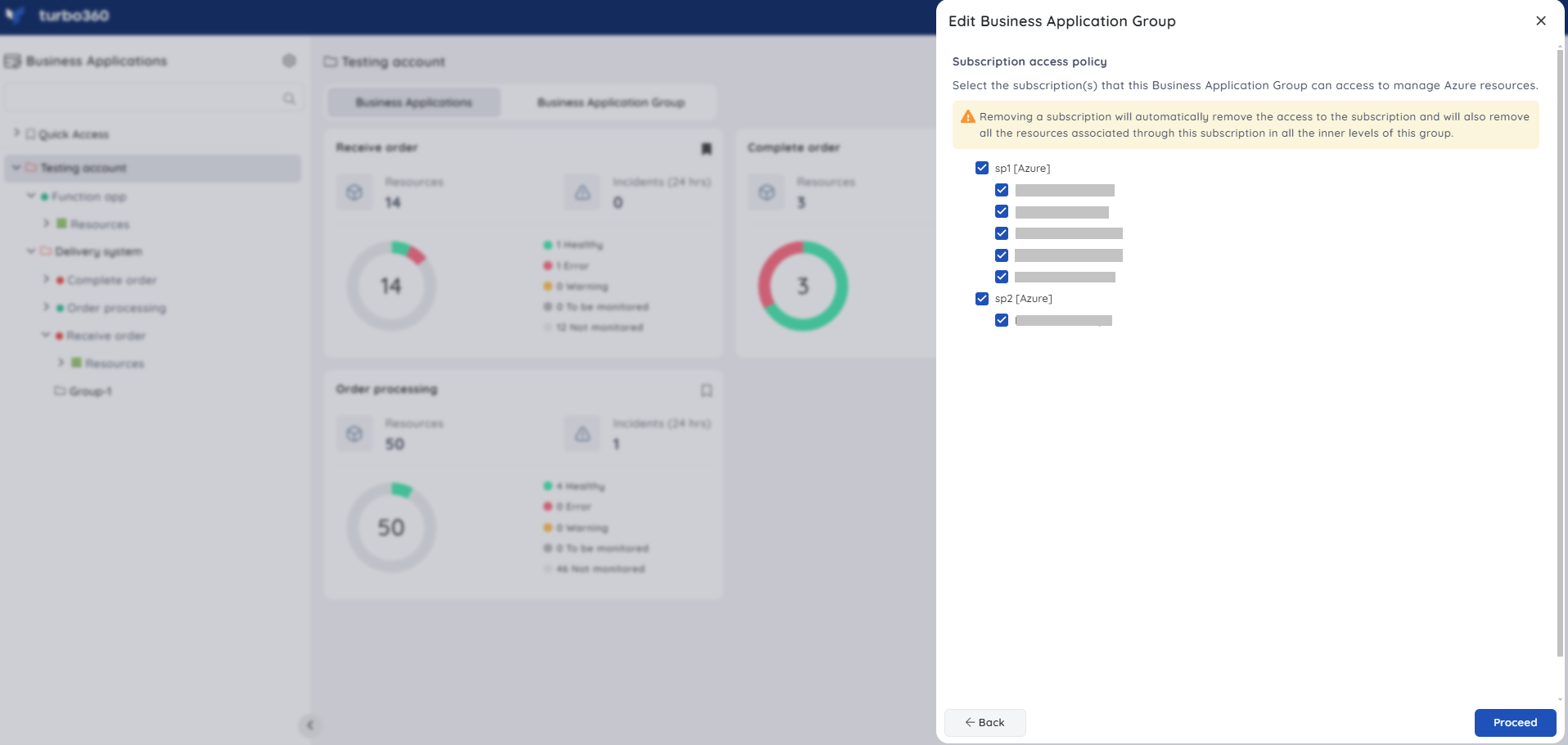
- Update the group name or access policy and click Proceed.
- Click Continue in the confirmation dialog.
Removing a service principal automatically removes it and all associated resources from every inner level of the group.
Delete a Group
- Click the Context menu ( ⋮ ) next to the Business Application Group in the tree view.
- Select Delete.
- Type the group name to confirm.
- Click Delete.
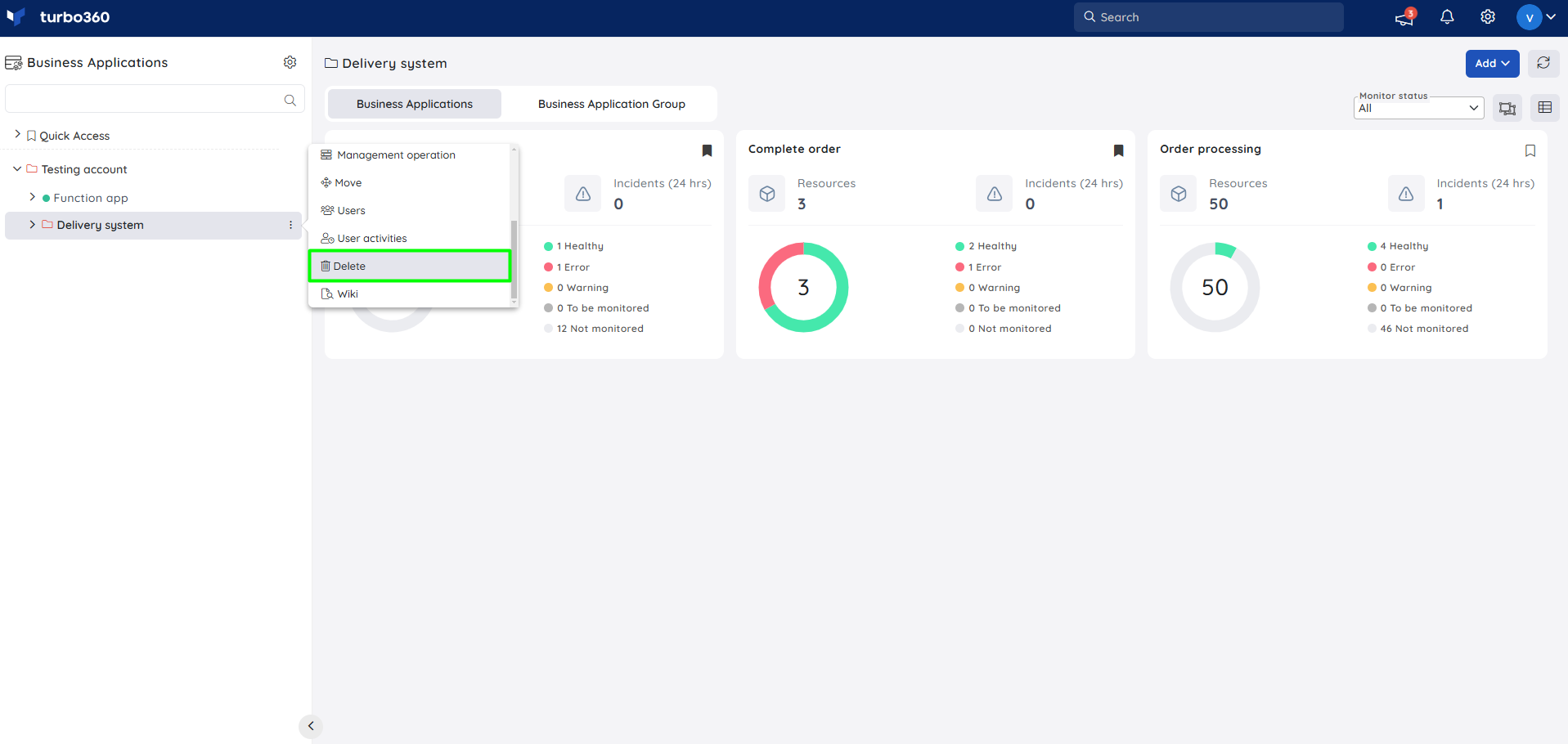
All Business Applications and child groups within this group, and their configurations, will be permanently deleted.
Deletion takes approximately one minute. License consumption updates after at least one minute.
Update monitoring state
To enable or disable monitoring for an entire group and all its nested content:
- Click the Context menu ( ⋮ ) next to the Business Application Group in the tree view.
- Select Enable Monitoring or Disable Monitoring.
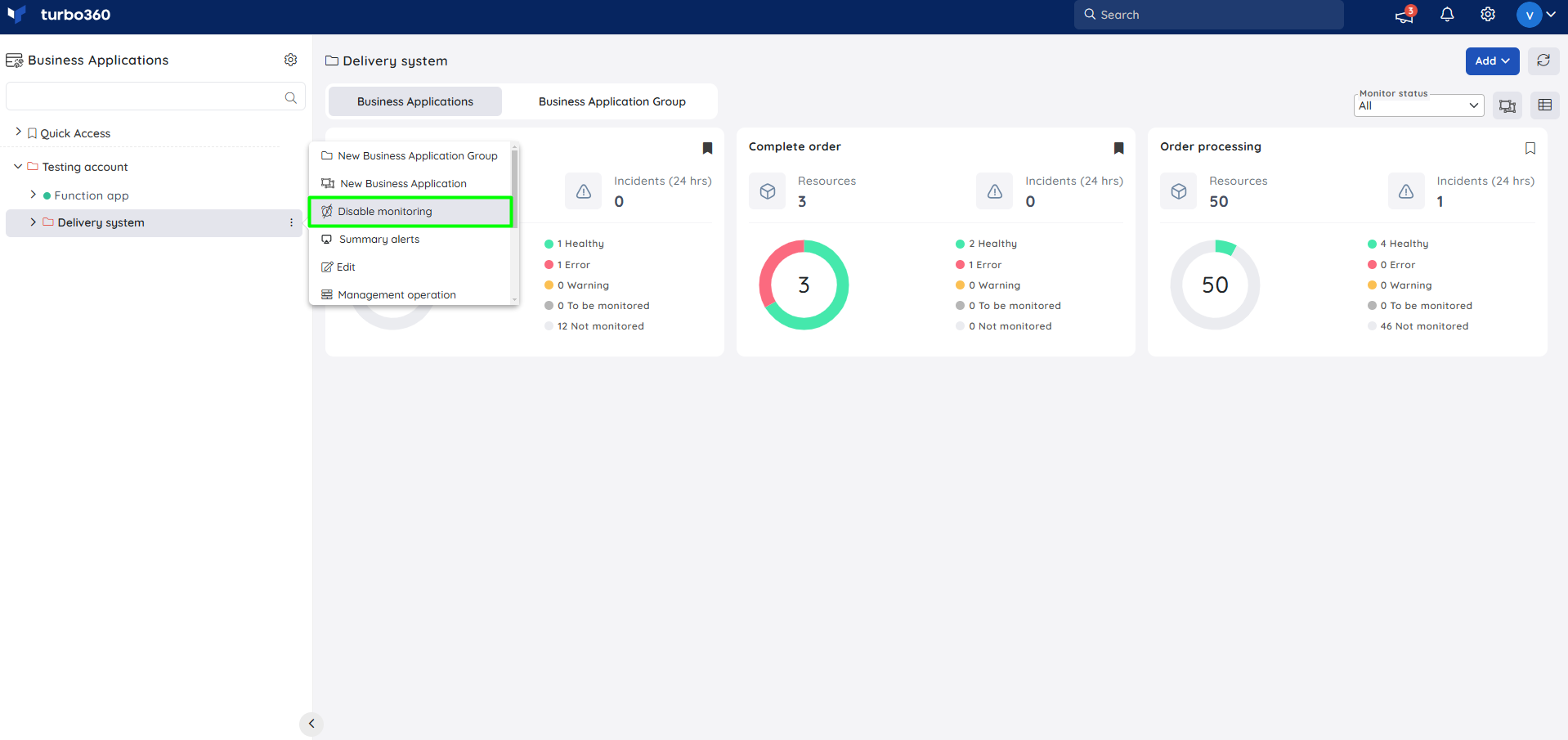
Enabling or disabling monitoring at the group level propagates the change to all Business Applications and nested sub-groups within that group.
Pause monitoring
Pause monitoring temporarily halts real-time monitoring for a Business Application Group without affecting overall service operations. Use it during maintenance windows, testing, or planned high-impact activities.
When monitoring is paused:
- Data collection stops — all Business Applications in the group move to a Not monitored state and no metrics are gathered.
- Alerts are suppressed — no alerts or notifications are triggered during the pause period.
- Historical data is unaffected — existing logs and historical data remain intact and accessible.
- Resume is manual or automatic — you can turn off the pause toggle manually, or monitoring resumes automatically when the specified end date and time is reached.
To configure pause monitoring:
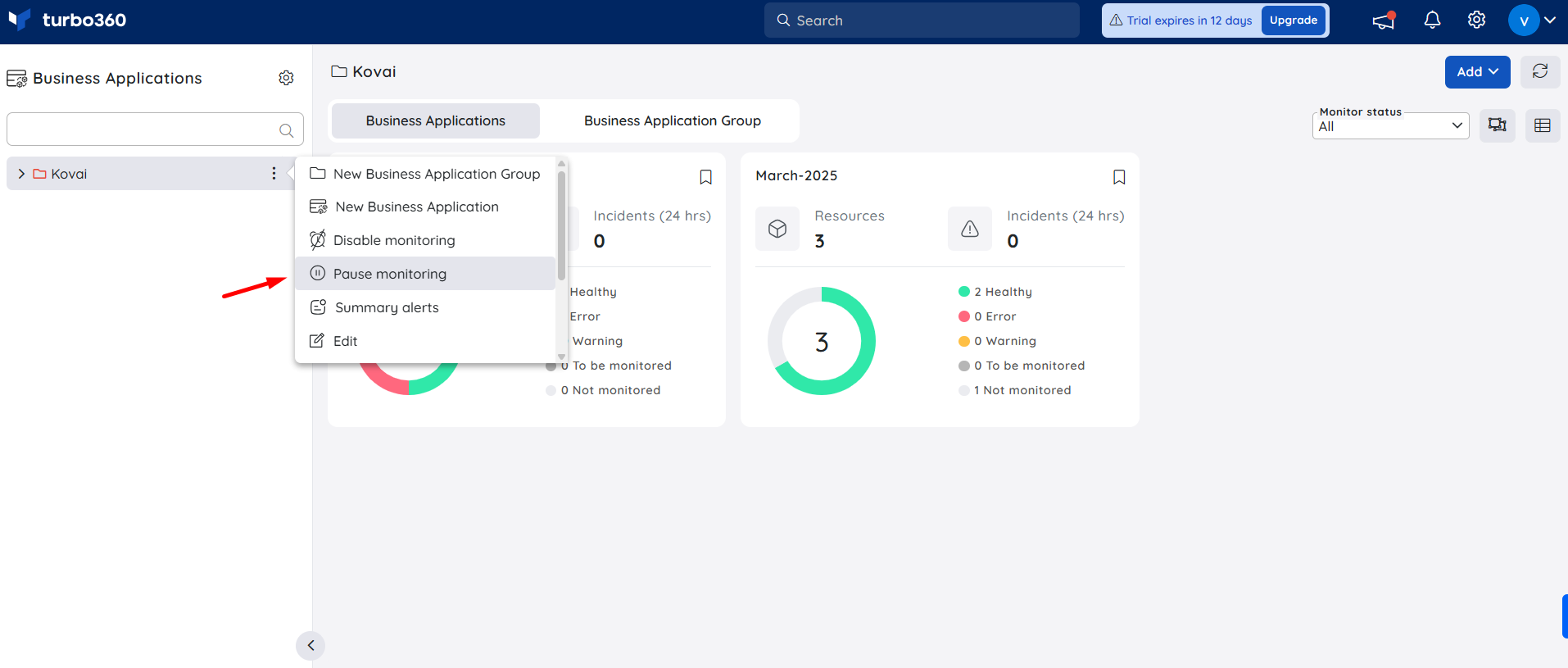
- Click the Context menu ( ⋮ ) next to the Business Application Group in the tree view.
- Select Pause monitoring.
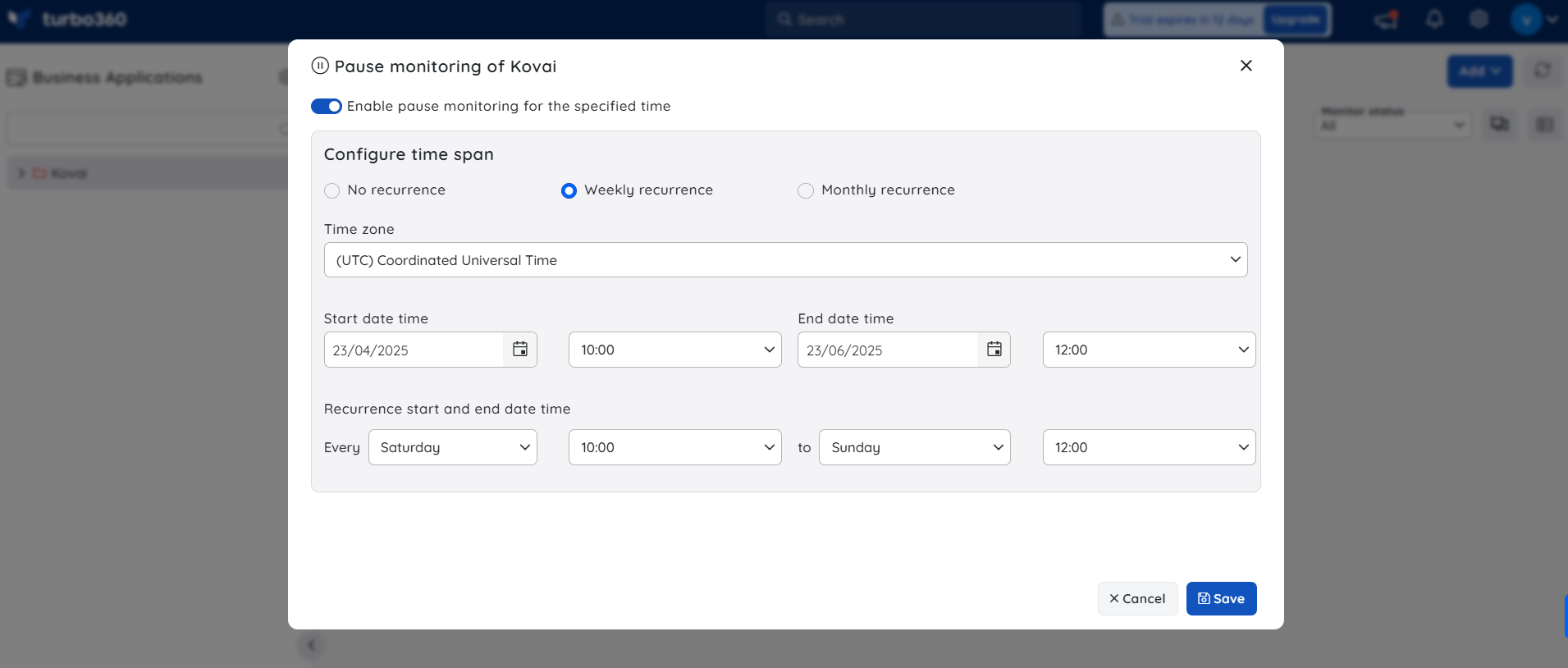
- Enable the toggle.
- Choose a recurrence option:
- No Recurrence — define a one-time window with a start time, end time, and time zone.
- Weekly or Monthly — automatically pause monitoring on specified days and times within the defined start and end dates.
- Click Save.
Management operations
Group-level management operations let you start, stop, restart, enable, disable, or change the state of all compatible resources across every Business Application in the group simultaneously.
Compatible resources and their supported operations:
| Resource type | Supported operations |
|---|---|
| API App | Start / Stop / Restart |
| APIM Product | Publish / Unpublish |
| Azure Function | Start / Stop / Restart |
| Databrick Compute Cluster | Start / Stop / Restart |
| Databrick Workflow Delta Live Table | Start / Stop / Restart |
| Event Hub | Enable / Disable |
| Kubernetes | Start / Stop / Restart |
| Logic App | Enable / Disable |
| Logic App (Standard) | Enable / Disable |
| Logic App Workflow (Standard) | Enable / Disable |
| Power Automate | Enable / Disable |
| Service Bus Queue | Active / Disabled |
| Service Bus Topic | Active / Disabled |
| Service Bus Topic Subscription | Active / Disabled |
| Virtual Machine | Start / Stop / Restart |
| Web App | Start / Stop / Restart |
| Web Job | Start / Stop / Restart |
To run a management operation:
- Click the Context menu ( ⋮ ) next to the Business Application Group in the tree view.
- Select Management Operations.
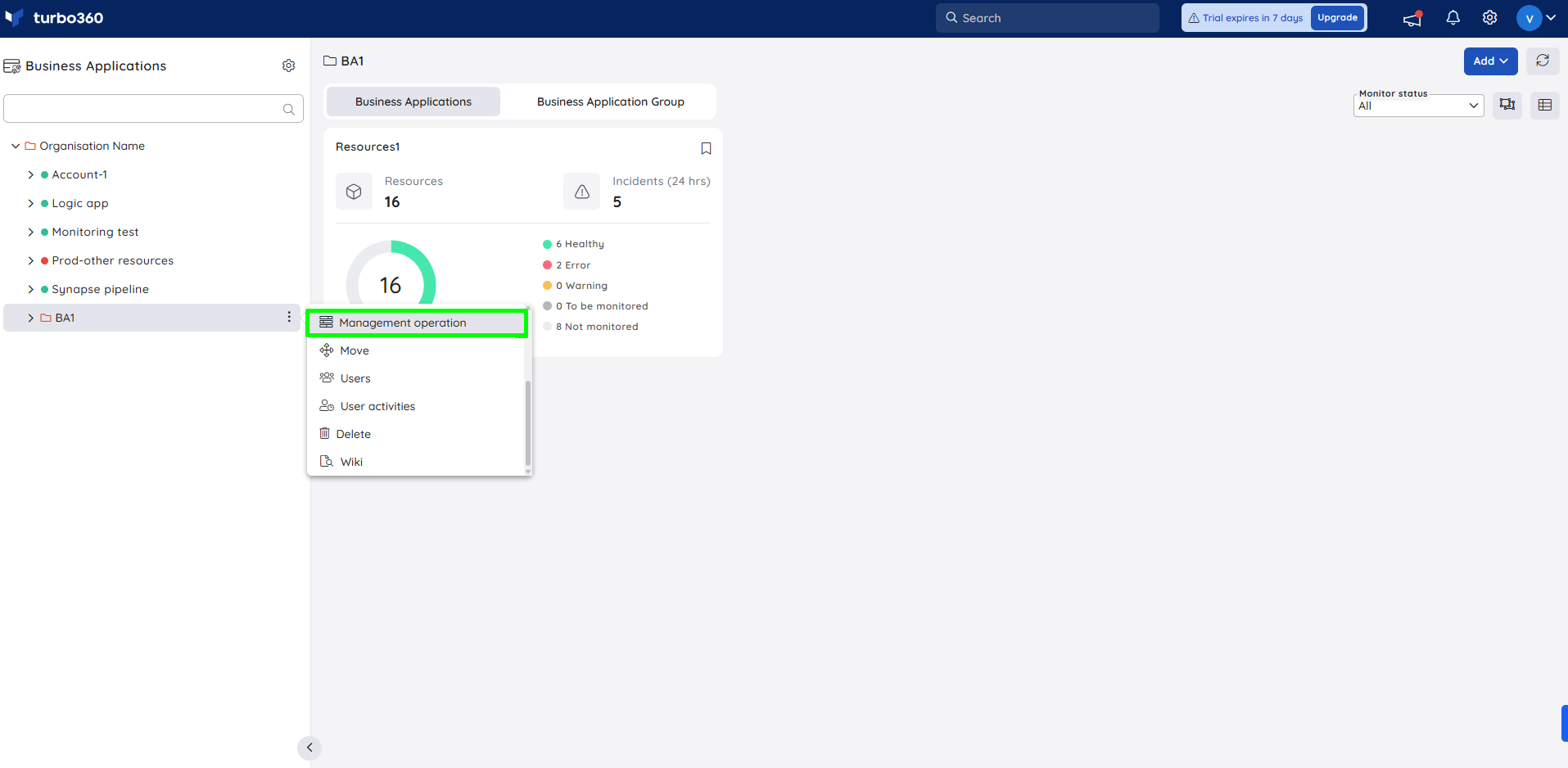
- Select the desired operation. Start maps to Publish, Active state, and Enable; Stop maps to Unpublish and Disabled state.
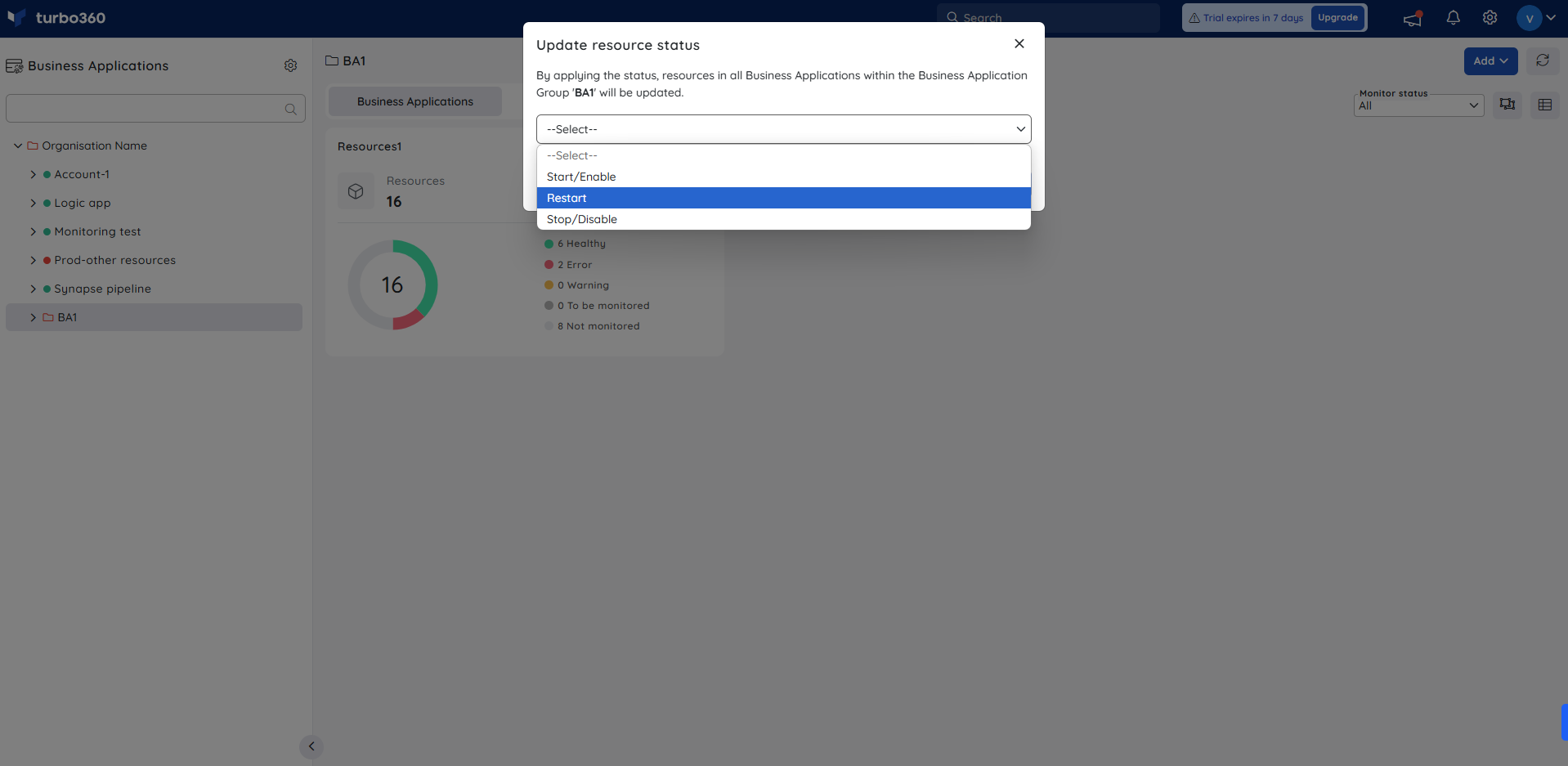
- Click Confirm.
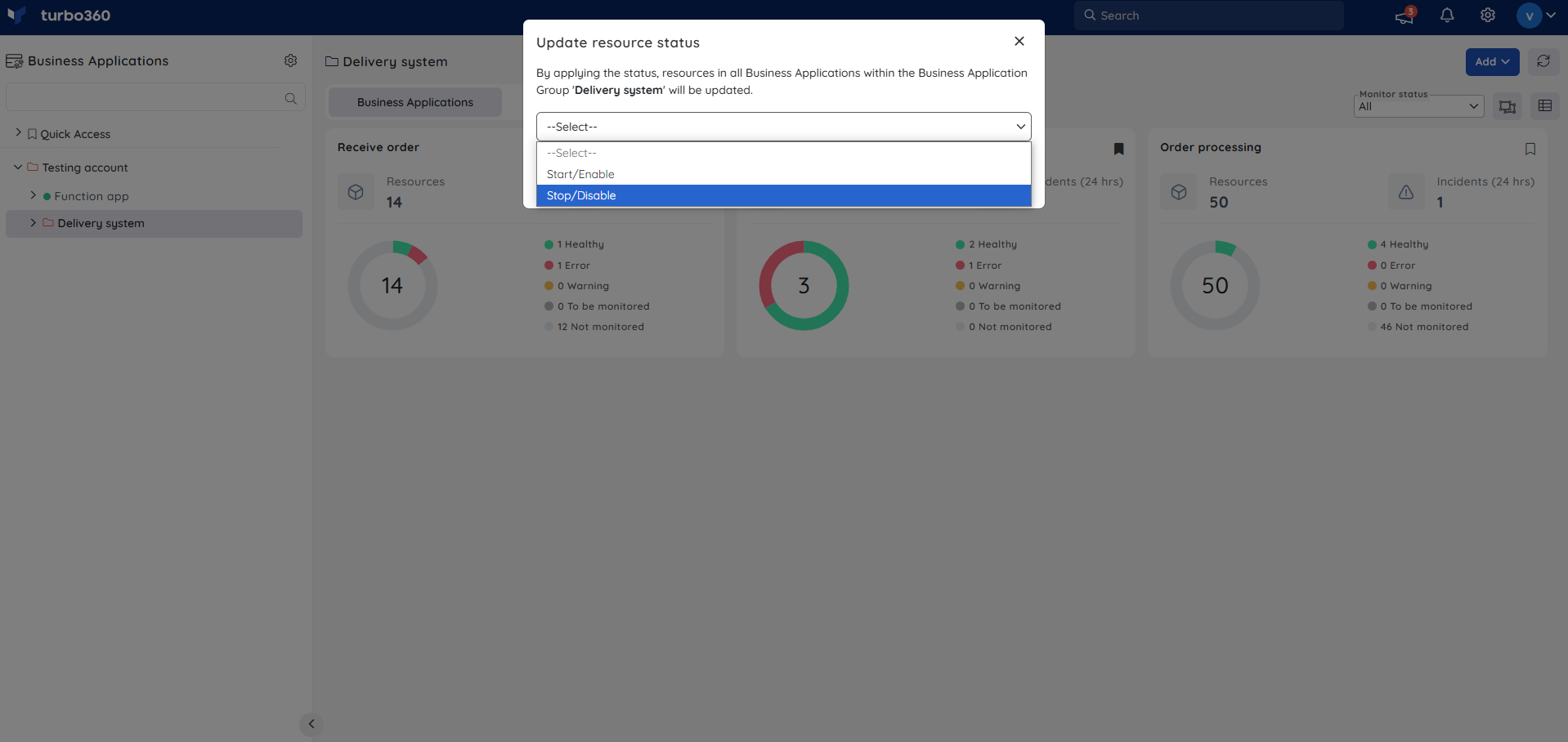
The status updates across all compatible resources within every Business Application in the group.
Permission behavior
- Each service principal is assigned to the root Business Application Group by default. The root group's service principal access policy cannot be changed.
- When a Business Application or nested group is moved into a parent group, the parent group's service principal access policy takes precedence and overrides the source resource's existing service principal associations.
Limitations
- No performance metrics are available for the duration of a pause monitoring window.
- Alerts triggered before a pause monitoring window begins remain open until resolved or acknowledged.
- Pause monitoring does not stop other background operations or module dependencies.
Troubleshooting
Group health status does not reflect recent changes.
Cause: Health status propagates from the highest-severity state among all contained Business Applications. A single application in an error state keeps the group in error.
Fix: Identify and resolve the alert incidents on the Business Application(s) in error or warning state, then verify the group status refreshes.Disabling monitoring at the group level does not stop monitoring for all nested applications.
Cause: Individual Business Applications within the group may have had their monitoring state changed independently after the group-level operation.
Fix: Re-apply the group-level enable/disable operation, or manually update monitoring for the affected Business Applications.Pause monitoring does not take effect at the scheduled time.
Cause: The recurrence configuration may have an incorrect time zone or the toggle was not saved.
Fix: Re-open the pause monitoring configuration, verify the time zone and recurrence settings, and click Save again.Management operation completes but some resources across the group are not updated.
Cause: Some resource types in the group are not in the compatible resources list, or individual resources are in a state that does not support the selected operation.
Fix: Review the compatible resources table and check the state of individual resources. Unsupported resource types must be managed from their respective resource pages.Group deletion is still pending after several minutes.
Cause: Large groups with many Business Applications, nested groups, and configurations may take longer than one minute to fully delete.
Fix: Wait a few additional minutes and refresh the page. If the group still appears, raise a support ticket.
Related articles
Was this article helpful?