

Managing cost groups
- 09 Aug 2026
- 11 Minutes to read
- Print
- DarkLight
- Download PDF
Managing cost groups
- Updated on 09 Aug 2026
- 11 Minutes to read
- Print
- DarkLight
- Download PDF
Article summary
Did you find this summary helpful?
Thank you for your feedback!
Overview
Cost Management Group is a logical container that brings together multiple Azure subscriptions to reflect your organization's structure. Cost groups give you centralized visibility into spending across teams, departments, or business units, and support consistent cost tracking and governance.
A single cost group can contain multiple child groups, enabling hierarchical cost modelling that mirrors your organizational hierarchy.
Business value
Cost groups let you aggregate and segment Azure spending by organizational unit without requiring separate Azure management group structures. You can apply custom billing adjustments for managed service scenarios, define scopes per subscription, and track group health through budget monitoring — all from a single interface.
Prerequisites
Required permissions
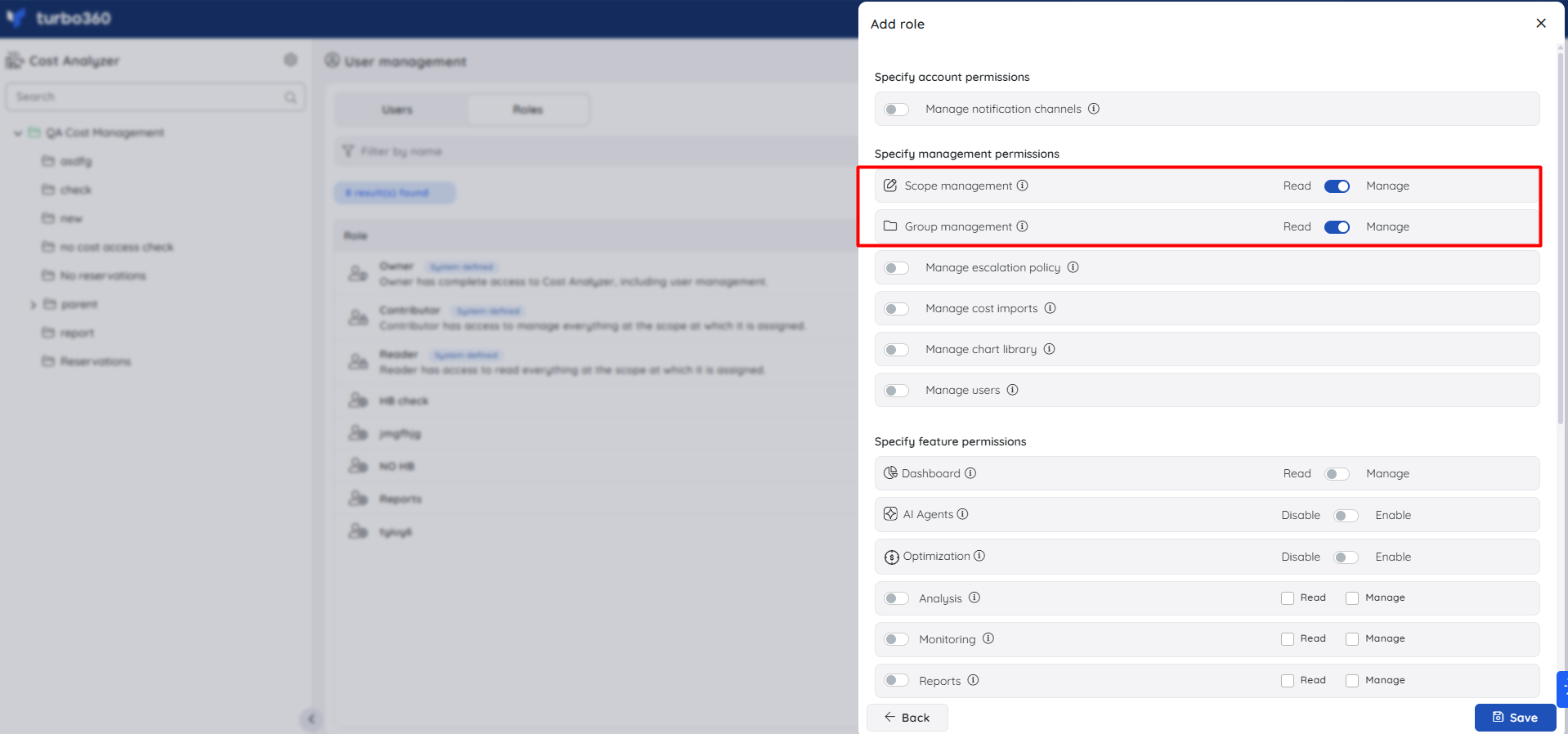
Cost group operations require the following permissions, configured under Settings > User management > Roles.
| Role | Permission level | Access |
|---|---|---|
| Owner | — | Full access, including all group management and dashboard widget operations |
| Contributor | — | Full access, including all group management and dashboard widget operations |
| Reader | Read | Can view group details, scope configuration, and dashboard widgets; cannot create, edit, move, delete groups, edit scope, or manage widgets |
| Custom role | Group management — Manage | Can create, edit, move, and delete cost groups |
| Custom role | Scope management — Manage | Can edit scope selection and bulk scope selection |
| Custom role | Dashboard — Manage | Can add, edit, and delete dashboard widgets |
| Custom role | Dashboard — Read | Can view the dashboard; cannot add, edit, or delete widgets |
Cost adjustment is restricted to the Account owner role regardless of other permission assignments.
How it works
Each cost group has two primary surfaces:
- Essentials — aggregates high-level cost data for the group, including previous month usage and potential savings.
- Dashboard — displays spending patterns as configurable widgets. Each widget shows cost data based on the configuration set at creation — subscriptions, granularity, chart type, and other options remain fixed until the widget is edited. You can right-click any data point on a chart to expand the cost breakdown by category.
Cost groups support a hierarchical model. A parent group can have multiple child groups. When a group is moved within the hierarchy, its cost data and resource links are preserved, but access permissions are replaced by those of the destination group.
Widget data is served from cache to improve dashboard load times. The cache resets automatically every day when the date rolls over. You can also trigger a manual reset when the displayed data appears outdated.
The health status of a cost group reflects its Group budget monitoring alert incidents for the current date. Closing all open incidents returns the group status to Healthy.
.png)
Default dashboards
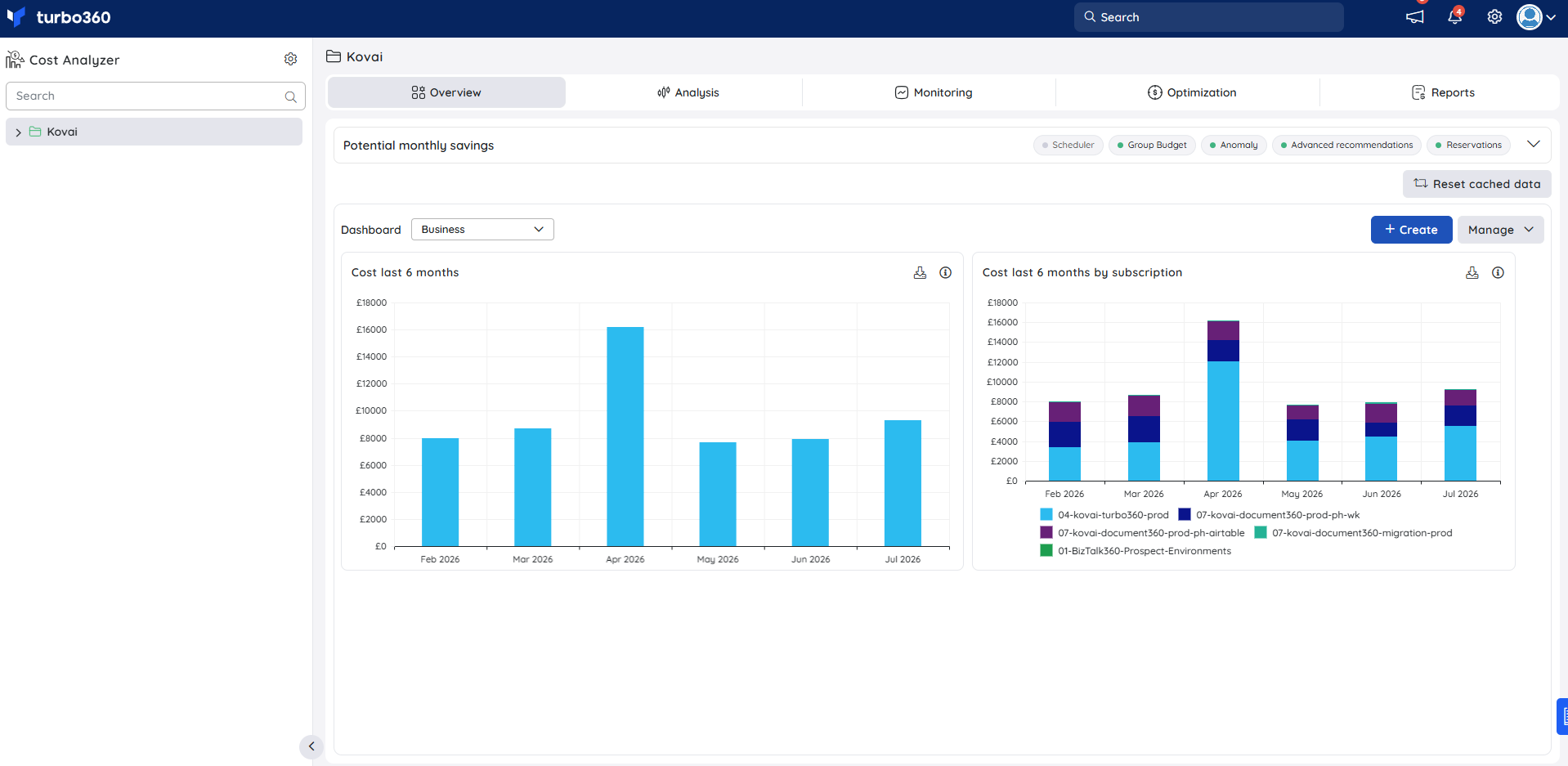
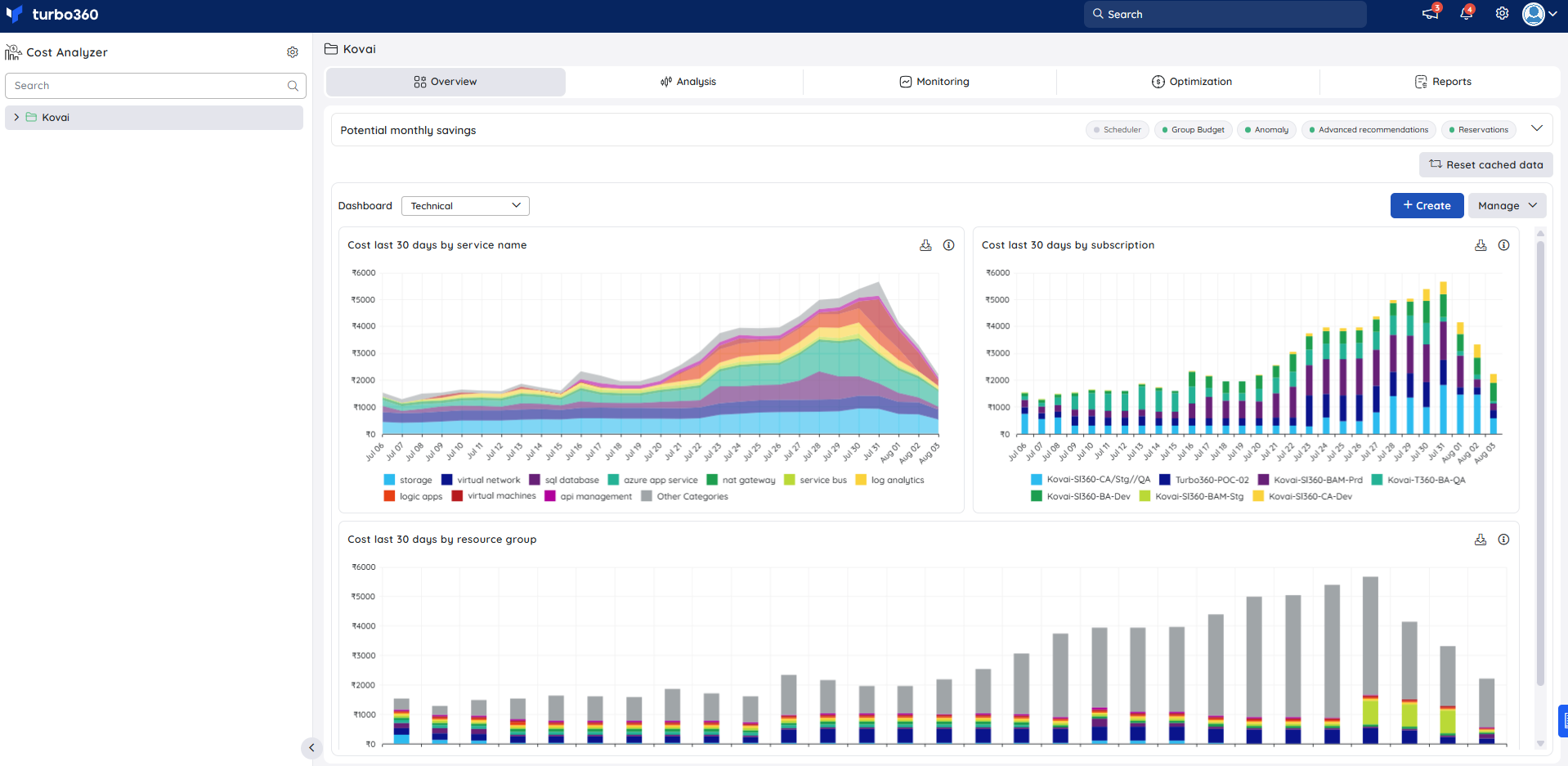
When a new cost group is created, two dashboards are available by default. Use the Dashboard dropdown to switch between them.
Business — provides a high-level view of spending across the group's subscriptions:
- Cost last 6 months
- Cost last 6 months by subscription
Technical — provides a granular breakdown of recent spend across all subscriptions scoped to the group:
- Cost last 30 days by service name
- Cost last 30 days by subscription
- Cost last 30 days by resource group
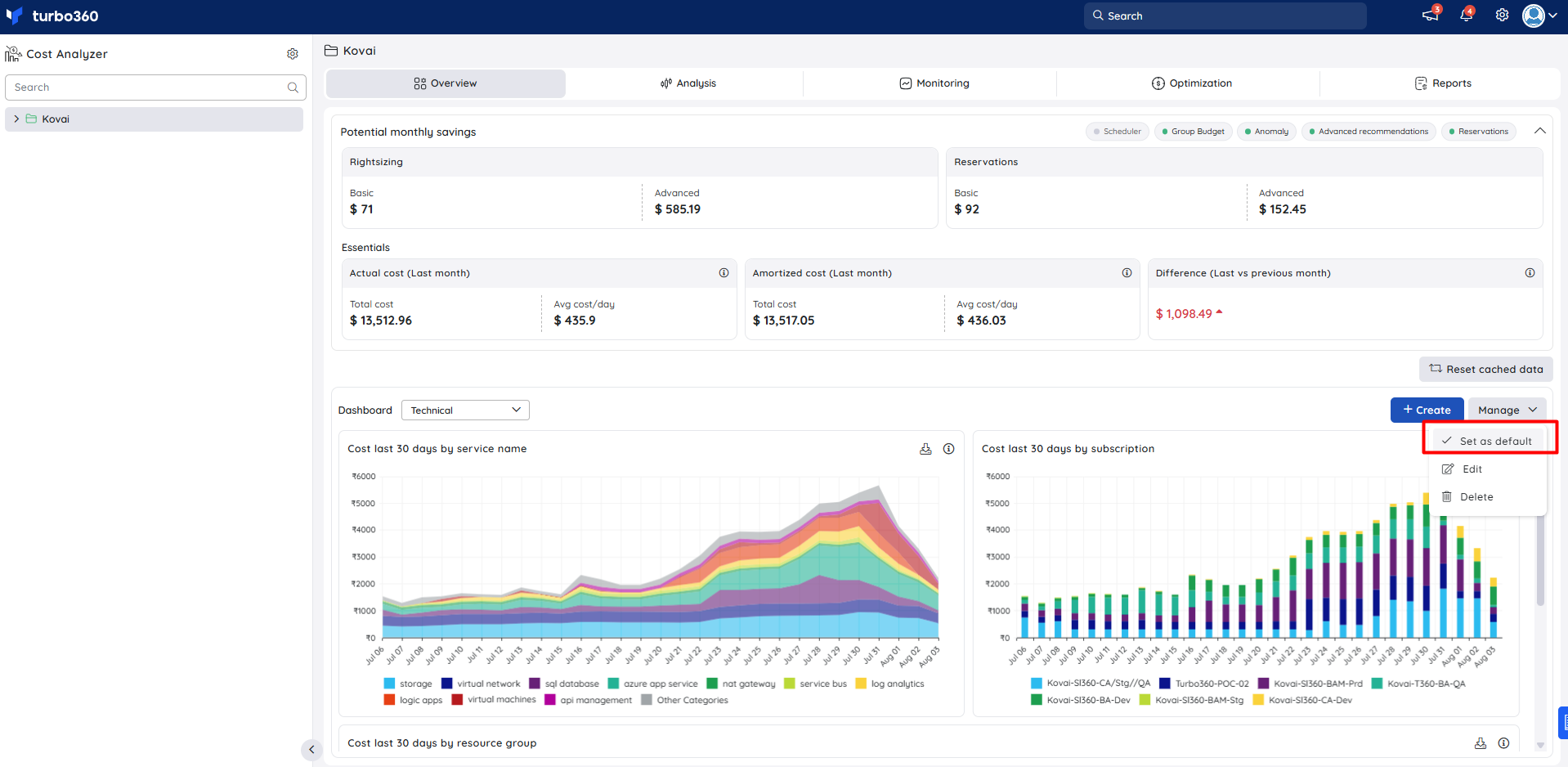
You can create additional dashboards using + Create. To set any dashboard as the default view for the group, click Manage > Set as default.
Steps
Use the following steps to create, configure, and manage cost groups in Cost Analyzer. Navigate to Cost Analyzer and select the relevant group in the tree view to get started.
Create a child group
Creating a child group lets you extend an existing cost group's hierarchy to reflect sub-teams, projects, or billing units within a parent organizational unit.
- Click the Context menu ( ⋮ ) next to the parent group in the tree view.
- Select Create child group.
- Enter a name for the new group and click Next.
- Select the subscriptions whose cost data this group will manage.
- Click Save.
Note:
A default analysis view is created automatically when the group is saved. It shows monthly cost for the selected subscriptions using a predefined set of filters.
.png)
Edit a cost group
Editing a cost group lets you update its name and description to keep it aligned with organizational changes.
- Click the Context menu ( ⋮ ) next to the desired group in the tree view.
- Select Edit.
- Update the name or description as needed.
- Click Update.
.png)
Move a cost group
Moving a cost group restructures it under a new hierarchy. Cost data and resource links are preserved, but the group's access permissions are replaced by those of the destination group.
- Click the Context menu ( ⋮ ) next to the group you want to move in the tree view.
- Select Move.
.png)
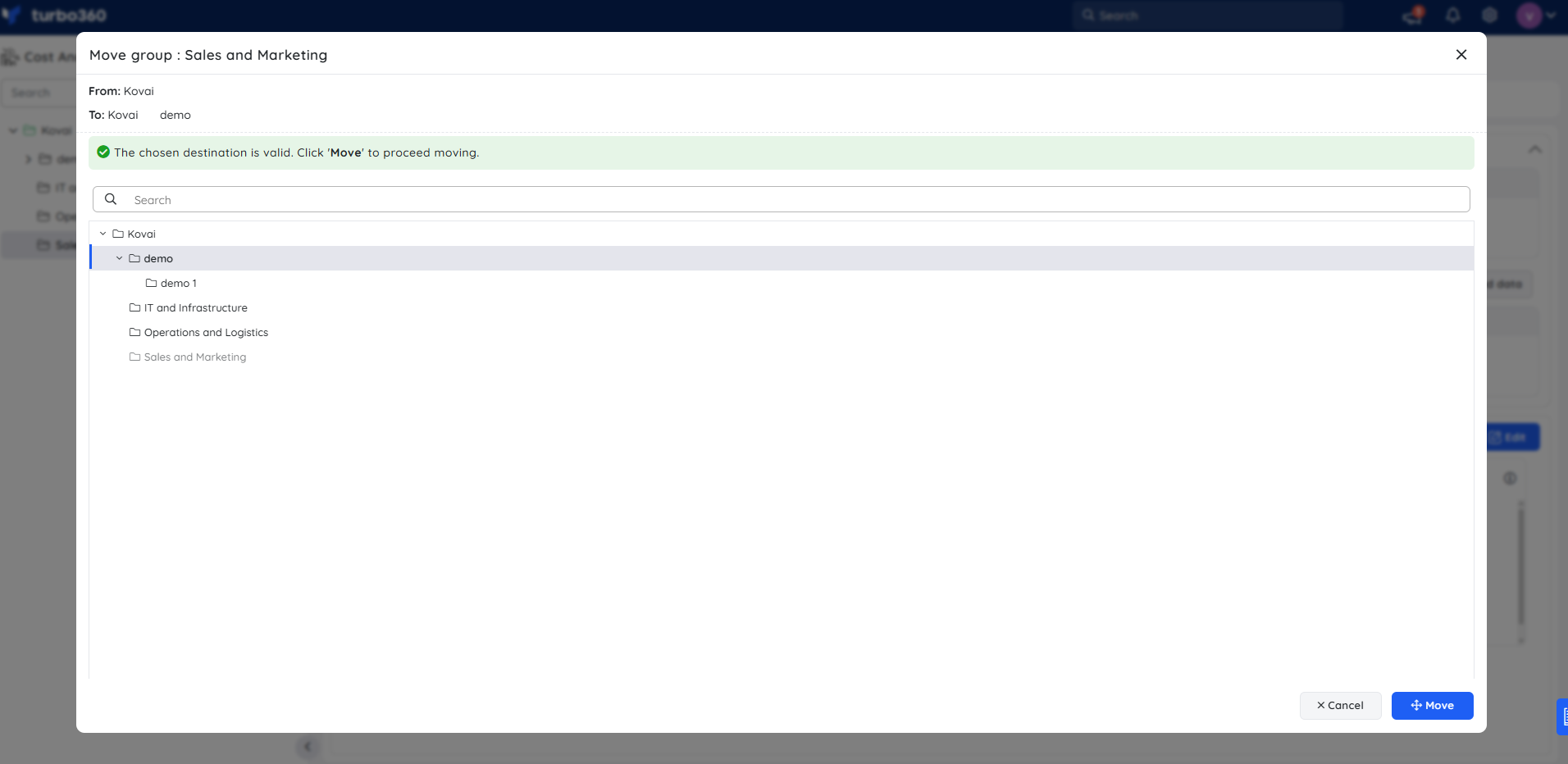
- Choose the destination group.
- Click Move to confirm.
Access policy impact
During the move:
- The user and service principal access policies defined in the source group are replaced by those of the destination group.
- Any custom role assignments, inherited permissions, or explicit access controls associated with the source group will no longer apply.
This change is immediate and cannot be reversed. Confirm that all required users and service principals have appropriate access in the destination group before proceeding.
Delete a cost group
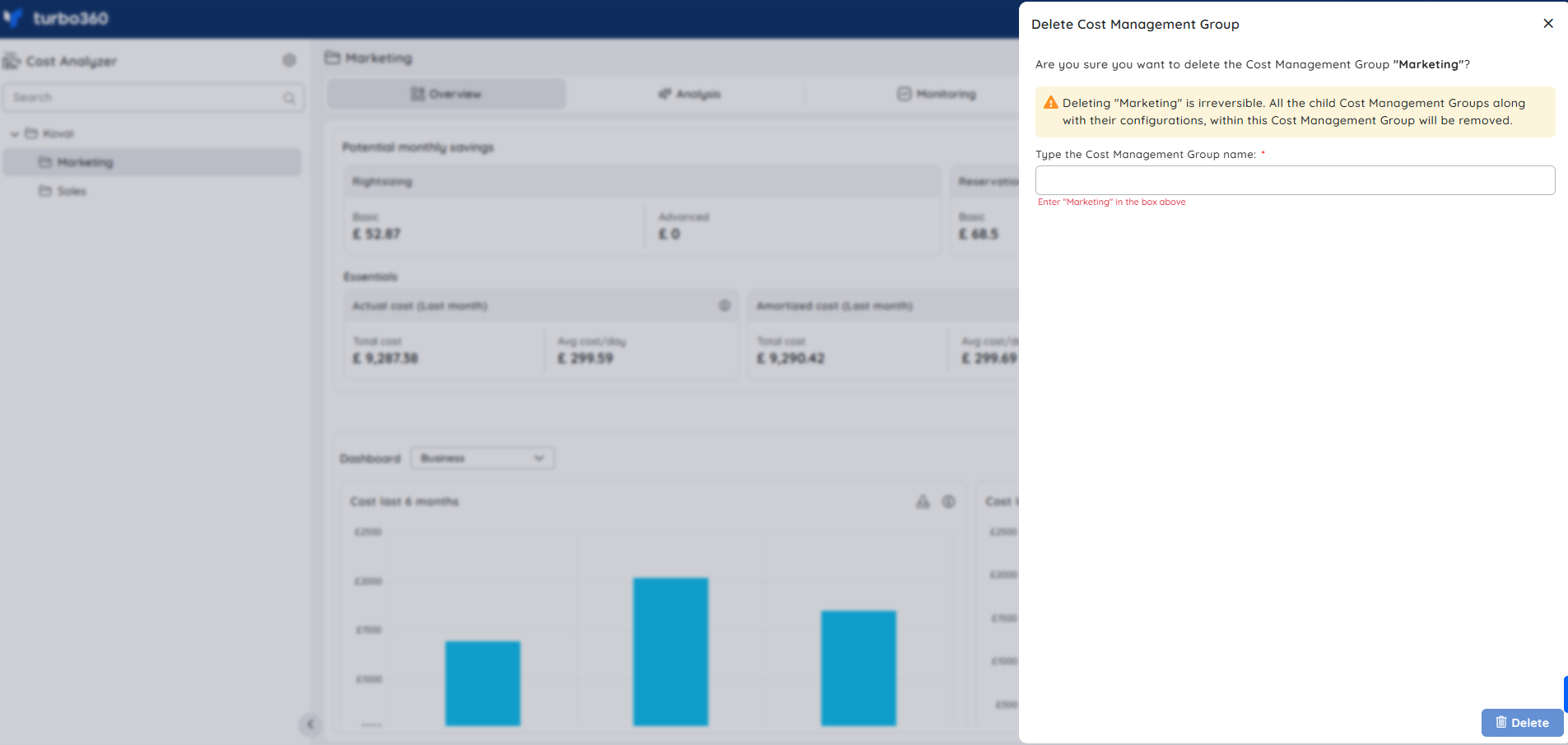
Deleting a cost group permanently removes it and requires name confirmation to prevent accidental deletion.
- Click the Context menu ( ⋮ ) next to the desired group in the tree view.
- Select Delete.
- Type the group name to confirm.
- Click Delete.
Configure scope selection
Scope selection defines which Azure subscriptions and resource targets are visible within a cost group, enabling precise cost and resource control.
- Click the Context menu ( ⋮ ) next to the desired group in the tree view.
- Select Edit Scope.
.png)
- Choose the target subscriptions whose cost data should be visible to this group.
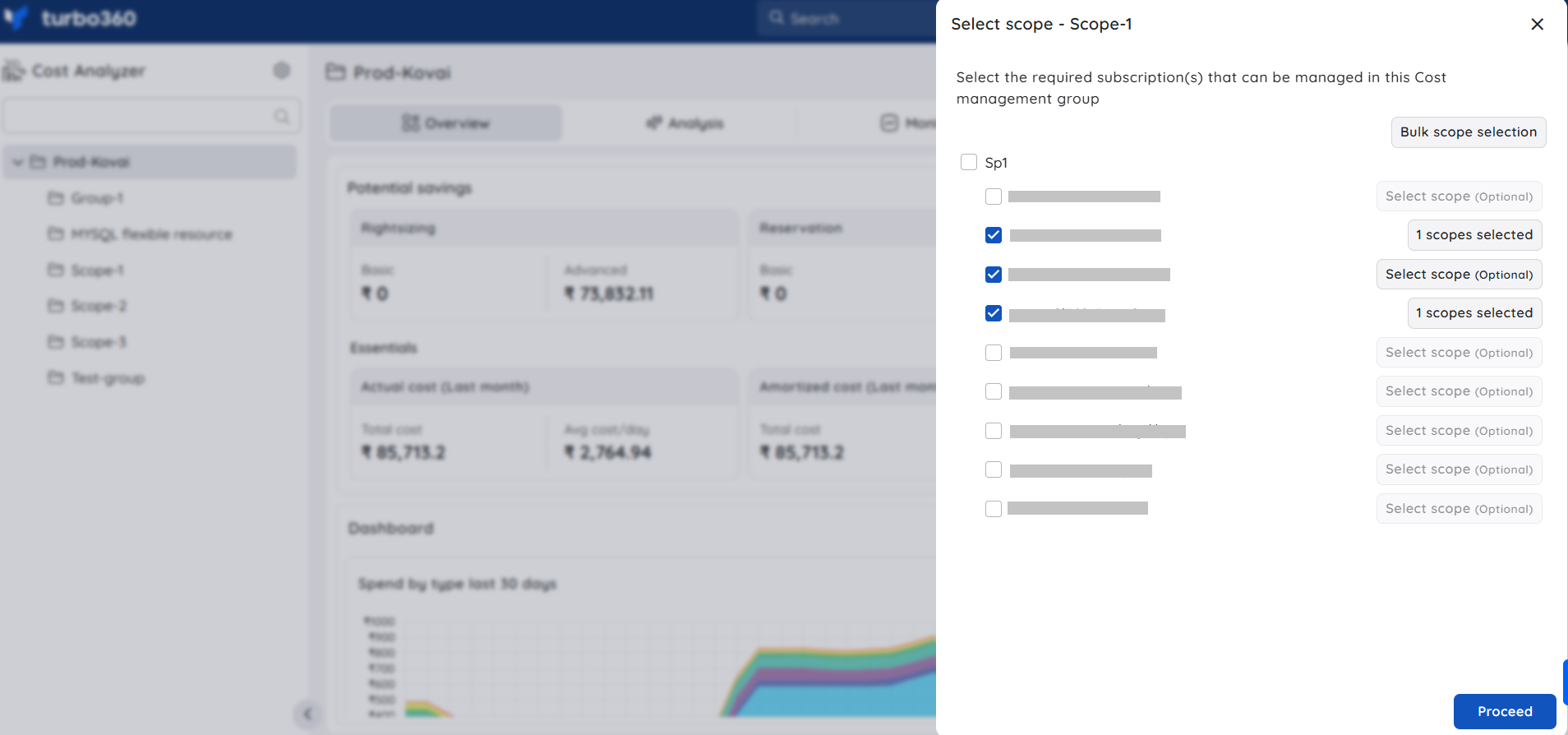
- Apply the desired scope to each selected subscription.
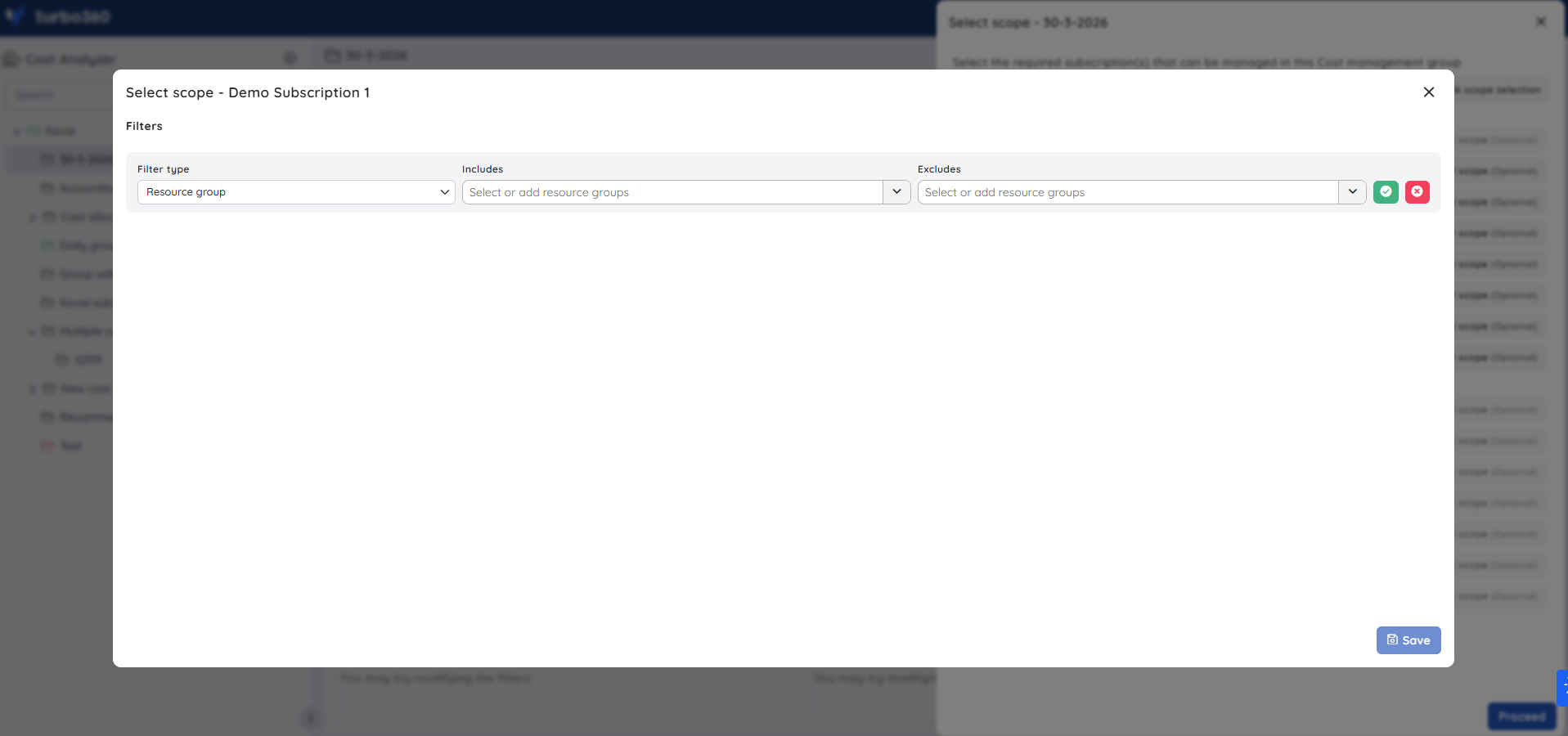
- You can also add custom filter items (for example, a new Resource Group) directly within the filter type. Once the same resource group is created in Azure, the associated cost is reflected. This capability is available across all filter types except the Resource filter type.
- In the confirmation window, click Proceed -> Continue to apply the changes.
Note:
Updating the scope selection reflects Unscheduled resources data by the following day at 12 AM UTC.
Bulk scope selection
Bulk scope selection lets you apply a common scope update across multiple subscriptions at once, reducing the effort of updating each subscription individually.
- In the Scope selection blade, select Bulk scope selection.
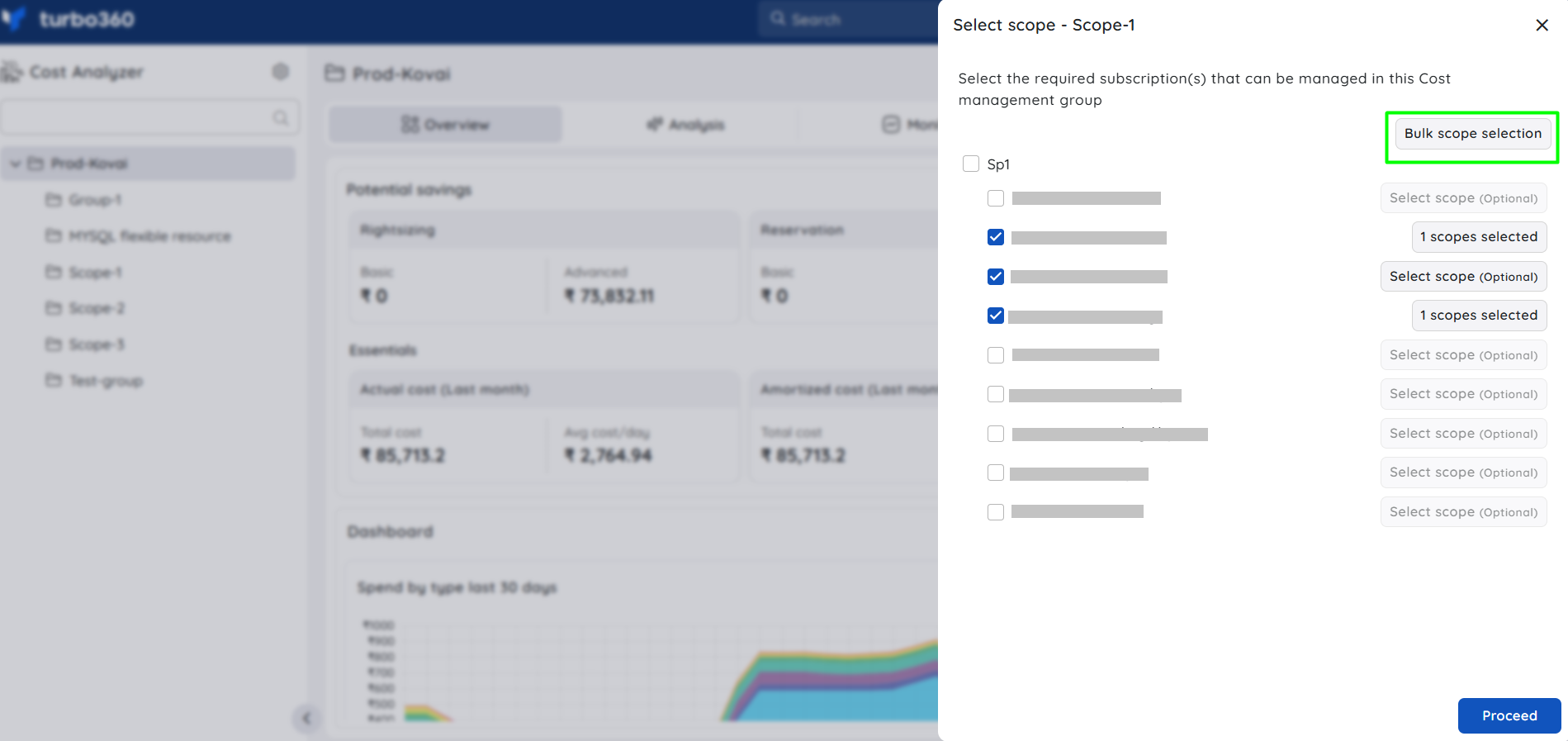
- Choose the target subscriptions.
- Specify the common scope to apply.
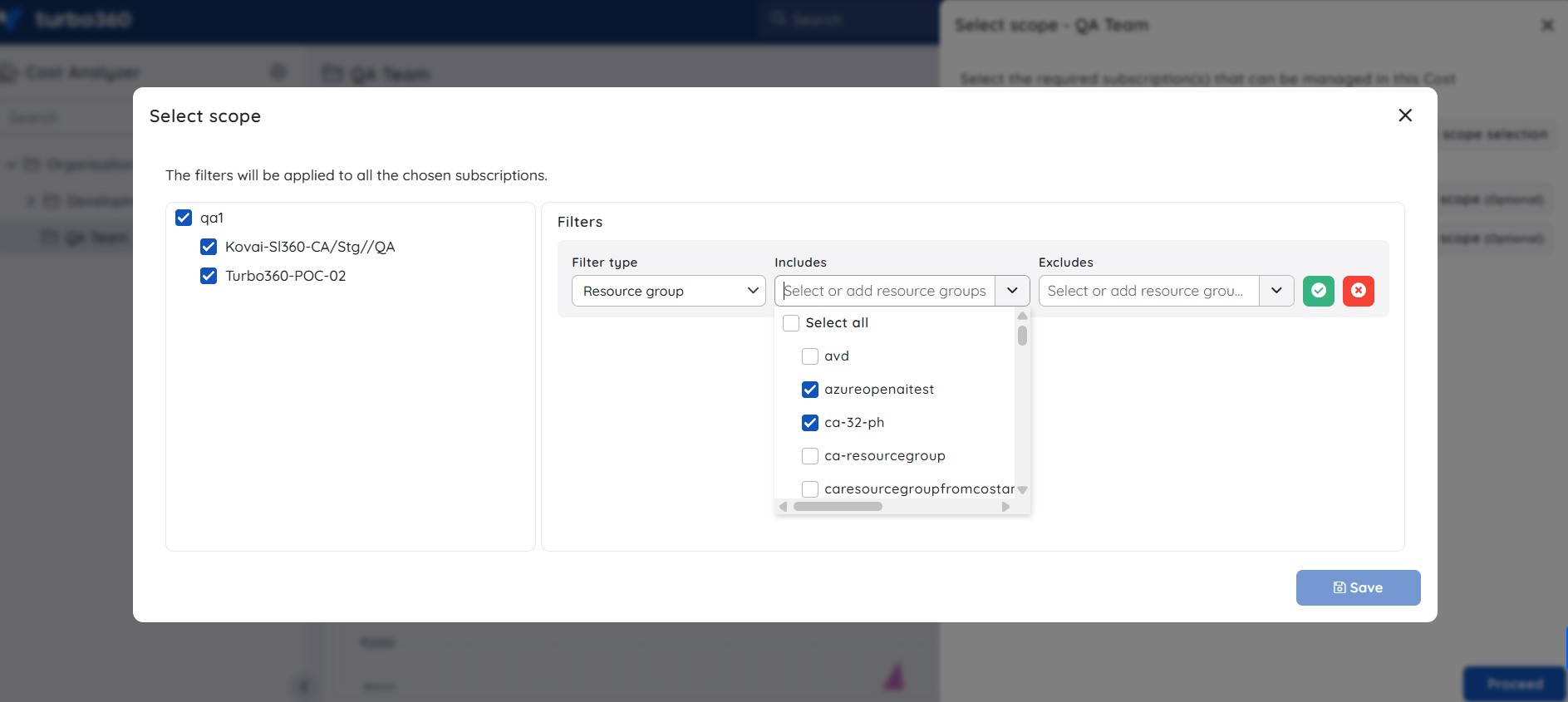
- Click Save.
- Click Proceed -> Continue to finalize the update.
Configure cost adjustment
Cost adjustment applies a percentage increase to the original spend of a cost group. Use this to apply custom billing rates, additional charges, or client-specific adjustments — particularly for Managed Service Providers (MSPs).
Only the Account Owner can access this option.
- Click the Context menu ( ⋮ ) next to the required cost group in the tree view.
- Select Cost adjustment.
.png)
- Enable the toggle and specify the adjustment percentage.
- Click Save.
.png)
Apply for child groups — Enable this option to propagate the adjustment percentage to all child groups, overriding their individual cost adjustment settings.
Note:
All cost data within the group is adjusted according to the configured percentage.
Manage dashboard widgets
The group dashboard supports two types of configurable widgets: Default widgets scoped to specific subscriptions, and Spend per group widgets that visualize cost across child groups. You can add, edit, and delete widgets to tailor the dashboard to your monitoring needs.
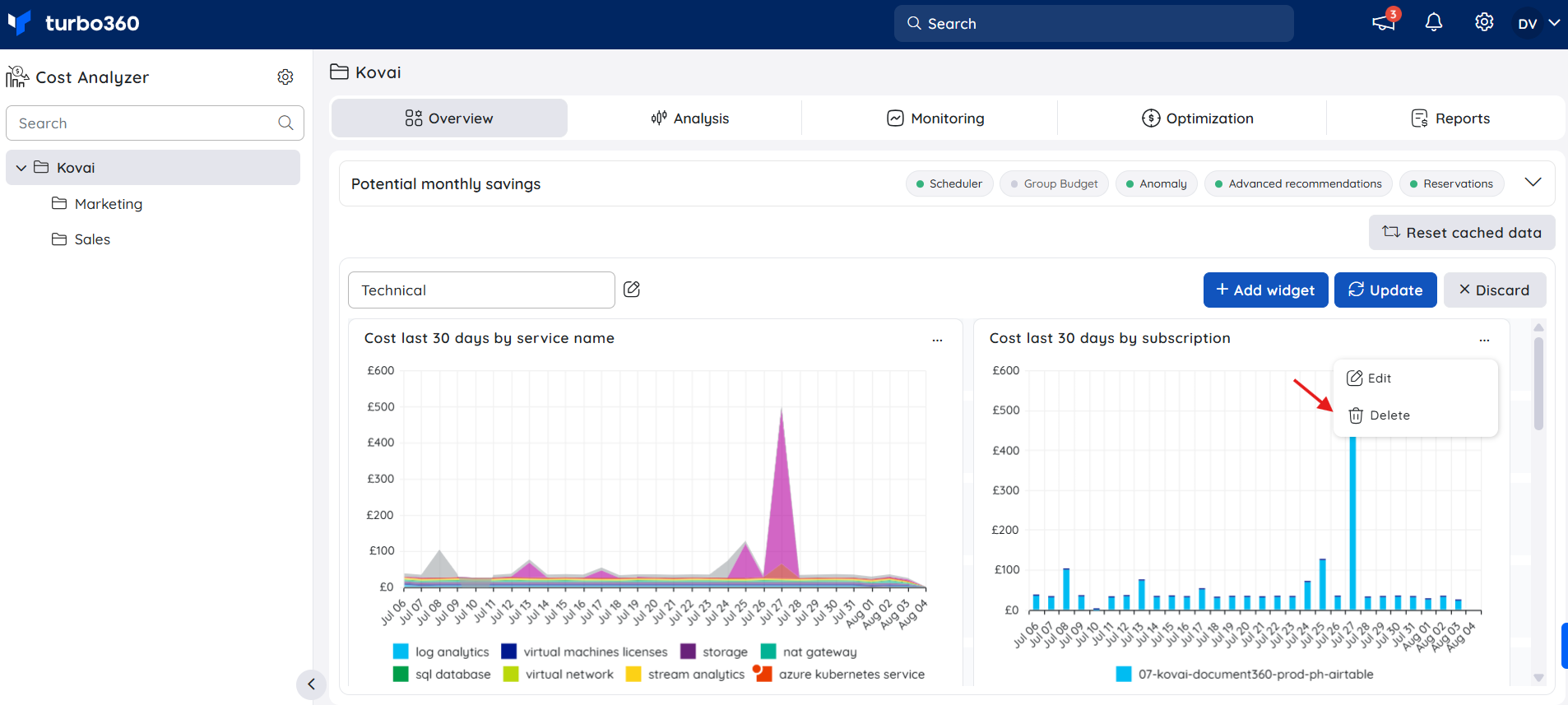
The data points on cost charts can be right-clicked to expand cost by different categories. To export a widget's chart as a PNG, click the download icon on the widget.
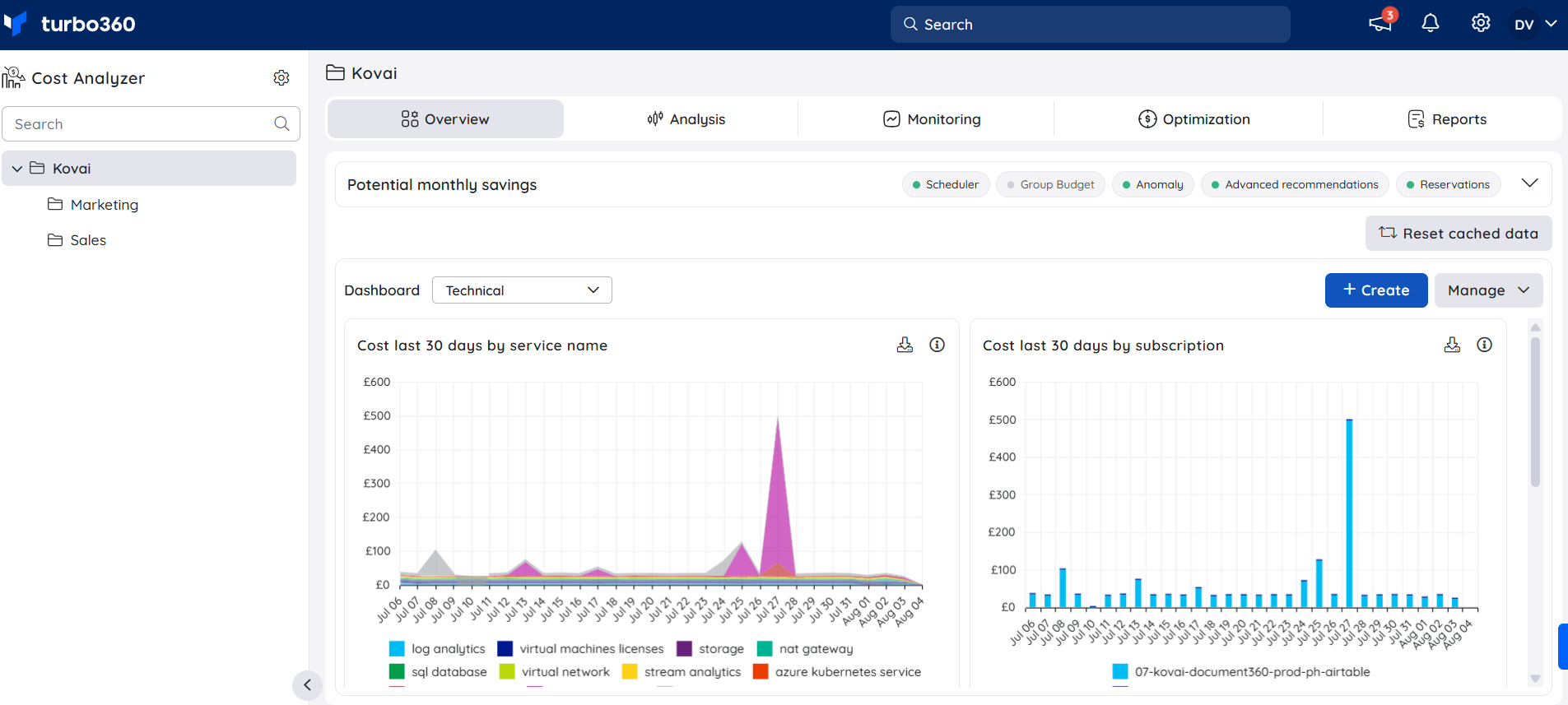
Add a widget
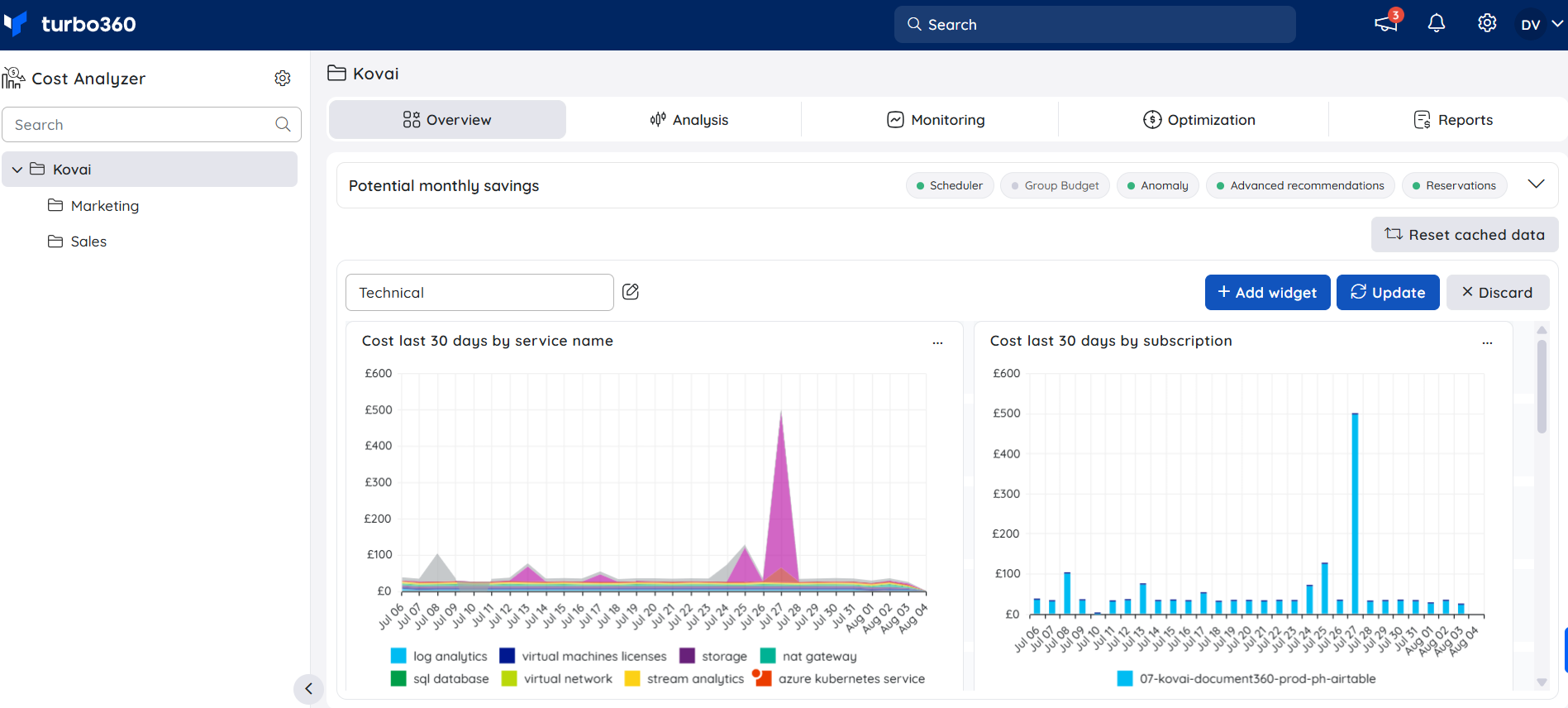
- On the group dashboard, click Edit, then select Add widget.
- Select the widget type using the tabs at the top of the panel — Default or Spend per group — then configure the fields for that type (see Configuration below).
- Click + Add widget to create the widget, then click Update to save the dashboard.
Edit a widget
- In the group dashboard, click Edit to enable editing.
- Click the Context menu ( ⋮ ) on the widget and select Edit.
- Modify the configuration settings in the edit pane, then click Update to apply the changes.
- Click Update on the dashboard to save all changes.
Delete a widget
- In the group dashboard, click Edit to enable editing.
- Click the Context menu ( ⋮ ) on the widget and select Delete.
- Click Update on the dashboard to save the changes.
Reset cached data
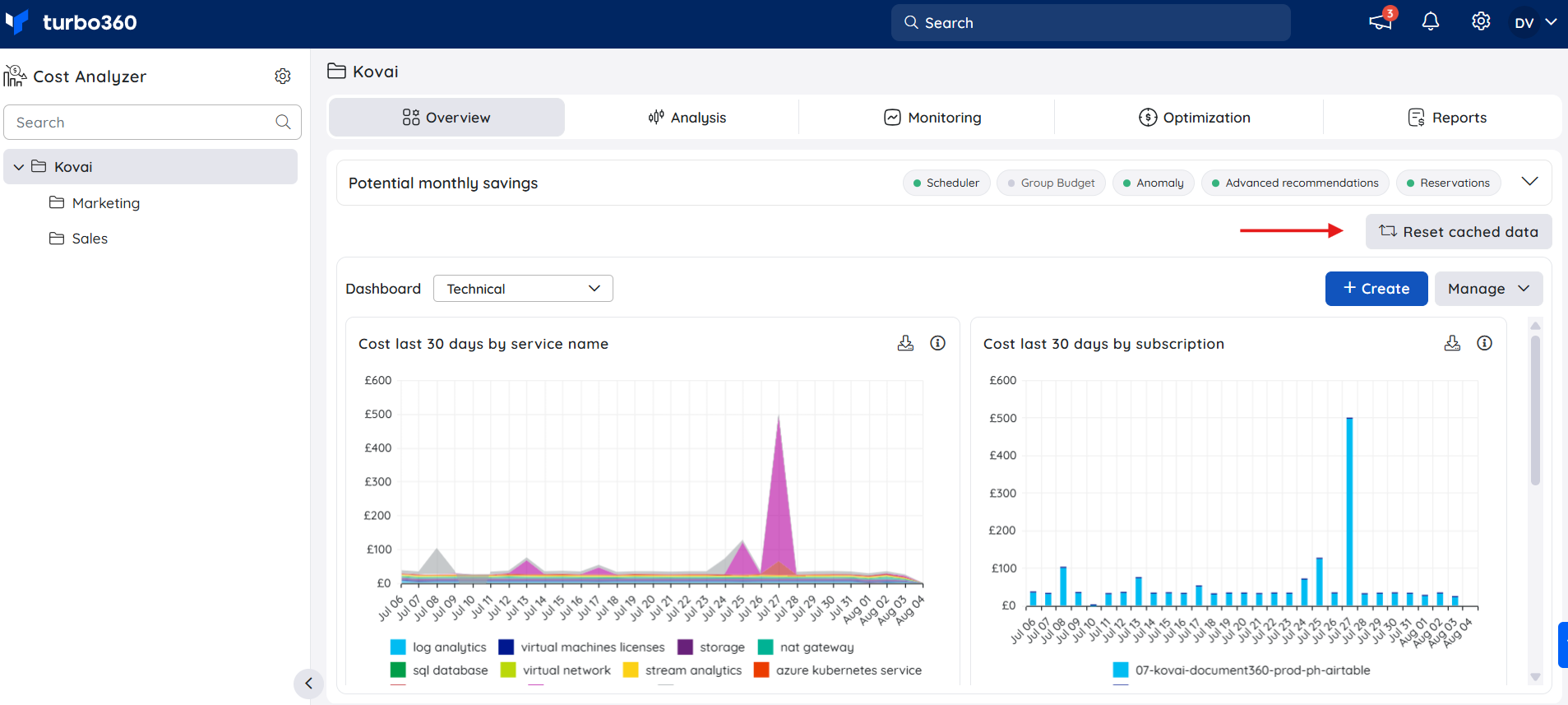
Resetting cached data forces Cost Analyzer to reload the latest cost records in the Essentials section and dashboard widgets. Use this when displayed data appears outdated or inconsistent after a scope change, or when you encounter data errors.
Note:
Cost Analyzer executes an automatic daily cache reset when the date rolls over.
Reset the cache when:
- The displayed cost data appears outdated or inconsistent with recent updates.
- You have made major changes to the cost group, such as updating its scope.
- You are encountering data errors or delays that may be related to cached content.
To reset:
- Click Reset cached data option.
Configuration
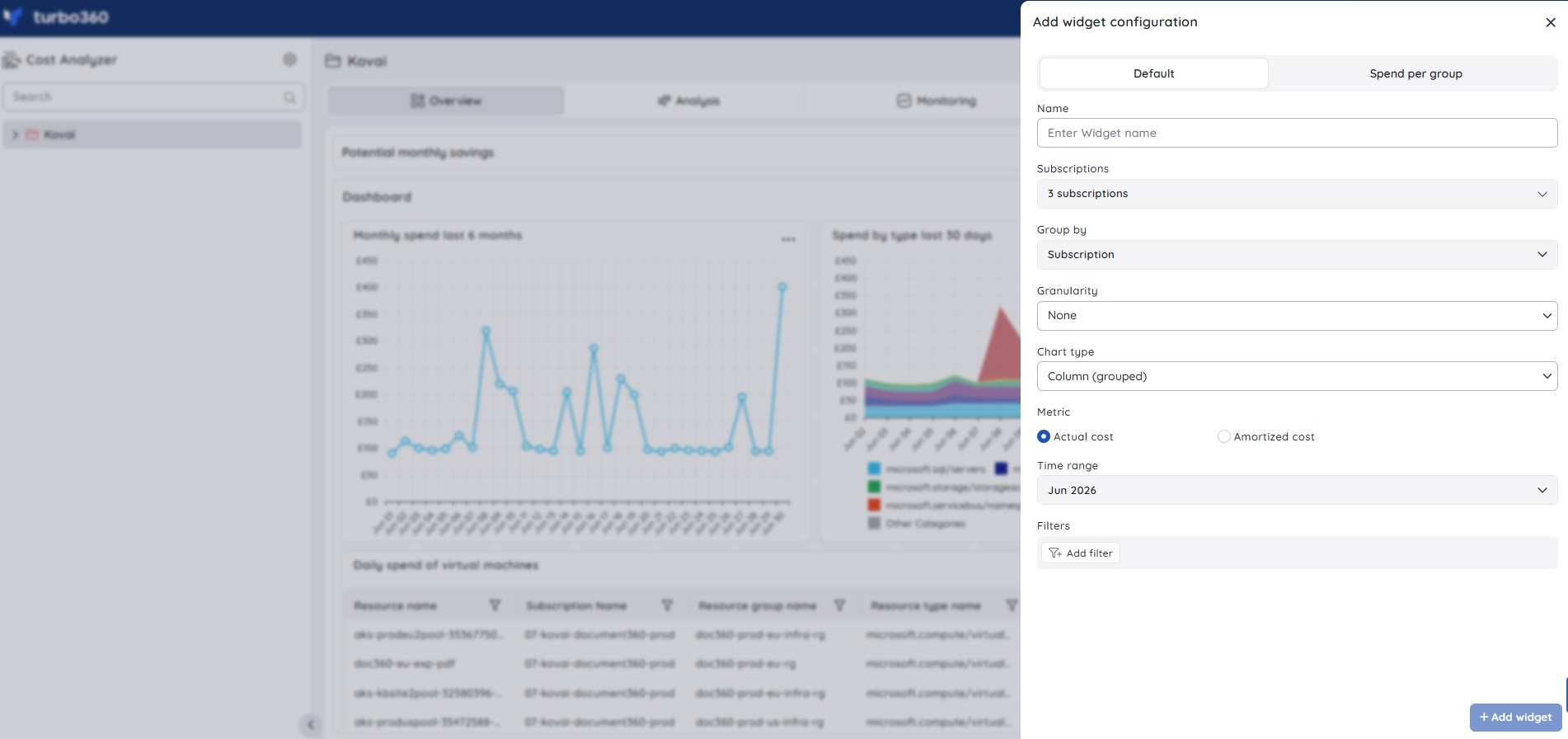
The dashboard widget configuration panel has two tabs depending on the widget type you want to create.
Default tab — a standard cost widget scoped to specific subscriptions:
| Option | Description |
|---|---|
| Name | A unique name for the widget |
| Subscriptions | The subscriptions the widget is scoped to |
| Group by | The dimension used to group cost data |
| Granularity | The level of time aggregation for the widget |
| Chart type | The visualization type for the widget |
| Metric | Actual cost or Amortized cost |
| Time range | The period the widget covers |
| Filters | (Optional) Additional filters applied to the widget |
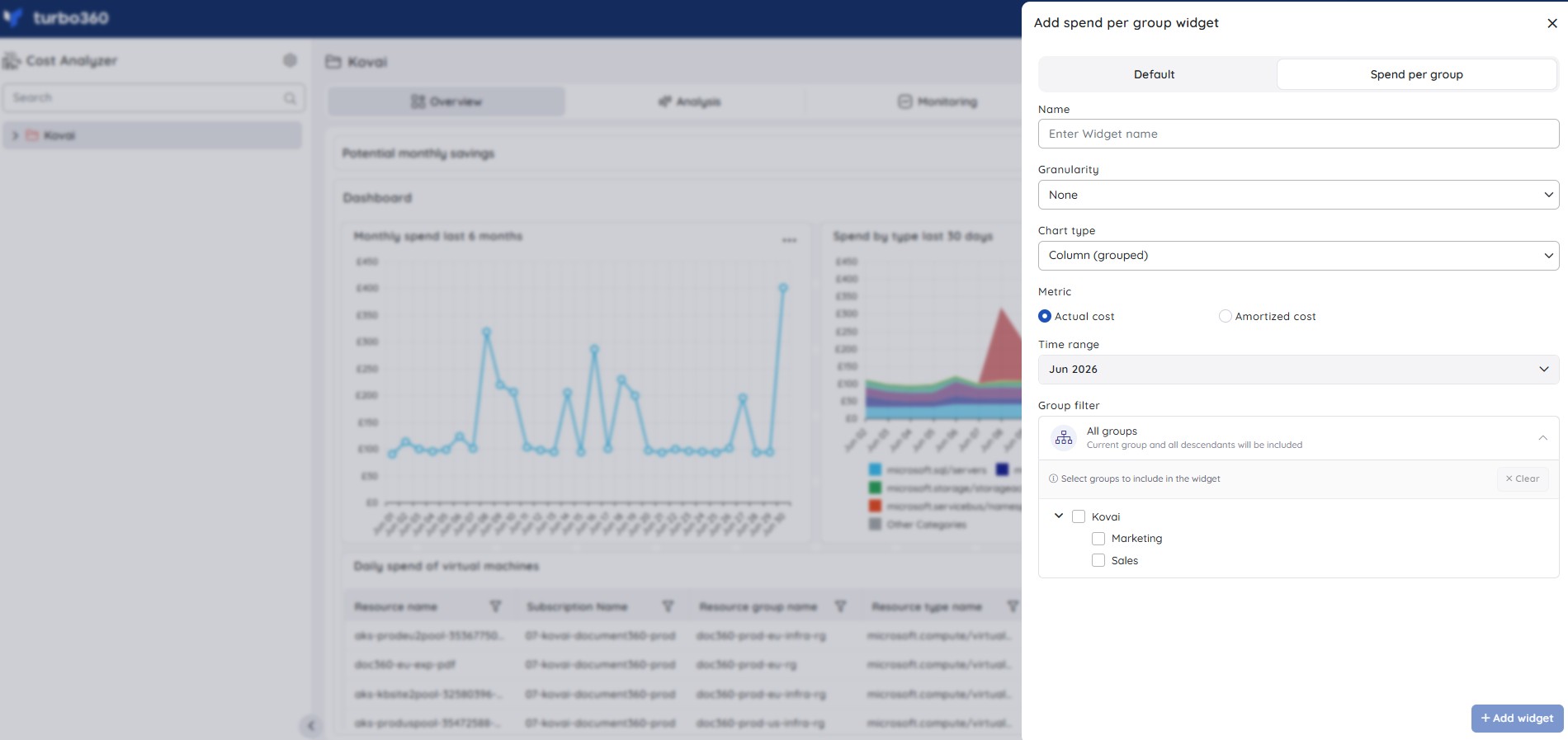
Spend per group tab — visualizes cost data across child groups of the current cost group:
| Option | Description |
|---|---|
| Name | A unique name for the widget |
| Granularity | The level of time aggregation for the widget |
| Chart type | The visualization type for the widget |
| Metric | Actual cost or Amortized cost |
| Time range | The period the widget covers |
| Group filter | The groups included in the widget. Defaults to All groups — the current group and all its descendants |
Permission behavior
| Operation | Read | Manage |
|---|---|---|
| View group details and the group overview | ✓ | ✓ |
| Create, edit, move, or delete a cost group | — | ✓ (Group management) |
| Edit scope or bulk scope selection | — | ✓ (Scope management) |
| View scope configuration | ✓ | ✓ |
| View dashboard widgets | ✓ | ✓ |
| Add, edit, or delete dashboard widgets | — | ✓ (Dashboard) |
| Configure cost adjustment | — | Account Owner only |
Example scenario
Contoso, a managed service provider, manages Azure costs for three client organizations. Their Cost Analyzer setup has a top-level group called Contoso MSP, with three child groups — Client A, Client B, and Client C — each scoped to the relevant client subscriptions.
To compare spend across all client groups on a single view, the team adds a Spend per group widget to the Contoso MSP dashboard, sets Granularity to Monthly, and leaves Group filter at All groups.
To reflect a new billing agreement with Client B, the account owner opens Client B in the tree view, selects Cost adjustment, and sets a 15% markup. They enable Apply for child groups to propagate the rate to any sub-groups under Client B.
After a quarterly reorganization, the team moves the Client C group from its current parent to a newly created APAC Clients group. Before confirming the move, they verify that all relevant service principals have access in the APAC Clients group, as source-group permissions do not transfer.
Limitations
- Moving a cost group replaces the source group's access policies with those of the destination group. This change is immediate and cannot be reversed.
- Scope selection changes for Unscheduled resources take effect the following day at 12 AM UTC.
- Custom filter items (such as resource groups) added in scope selection only reflect costs after the corresponding resource is created in Azure.
- The Area chart type is not supported on the group dashboard when Granularity is set to None.
- Only the Account Owner can configure cost adjustments.
Troubleshooting
Dashboard widgets show outdated cost data after a scope change.
Cause: Cost Analyzer caches group data to improve performance. Scope changes do not immediately invalidate the cache.
Fix: Click Reset cached data option.Unscheduled resources are not visible after updating scope selection.
Cause: Scope changes for Unscheduled resources are applied at 12 AM UTC the following day.
Fix: Wait until the next day for the updated scope to take effect. Verify the scope configuration is saved correctly in the meantime.Cost adjustment option is not visible in the context menu.
Cause: Only the Account Owner role can access the Cost adjustment option.
Fix: Confirm you are signed in as the Account Owner. If the option is still absent, contact your Turbo360 administrator to verify your role assignment.Child group cost adjustment was not updated after enabling "Apply for child groups".
Cause: The child group may have an individually overridden adjustment setting.
Fix: Open each child group and verify that the cost adjustment settings reflect the parent value. Re-apply from the parent group if needed.Cost group health status does not update to Healthy after resolving incidents.
Cause: Health status is based on Group budget monitoring alert incidents for the current date only. Open incidents from today prevent a Healthy status.
Fix: Confirm all open incidents for the current date are closed. Navigate to the Group budget monitoring section to review and close any remaining active incidents.
Related articles
Was this article helpful?