

Managing escalation policies
- 11 Aug 2026
- 6 Minutes to read
- Print
- DarkLight
- Download PDF
Managing escalation policies
- Updated on 11 Aug 2026
- 6 Minutes to read
- Print
- DarkLight
- Download PDF
Article summary
Did you find this summary helpful?
Thank you for your feedback!
Overview
An escalation policy is a time-based alerting rule that automatically escalates a Turbo360 alert to additional notification channels when no action is taken within a defined time period. Each policy contains up to five sequential rules, each targeting a different notification channel or recipient group.
A default escalation policy is available out of the box. It is a system-defined escalation policy that pre-configures all available notification channels. You can assign this policy immediately without manual rule setup.
Business value
Critical alerts can go unnoticed when a single notification channel is missed. Escalation policies ensure that unacknowledged alerts reach the right people automatically — reducing mean time to response and preventing monitoring gaps from becoming outages.
Prerequisites
Before creating an escalation policy, ensure that at least one notification channel (email, Teams, SMS, or similar) is configured in your Turbo360 organization settings.
Required permissions
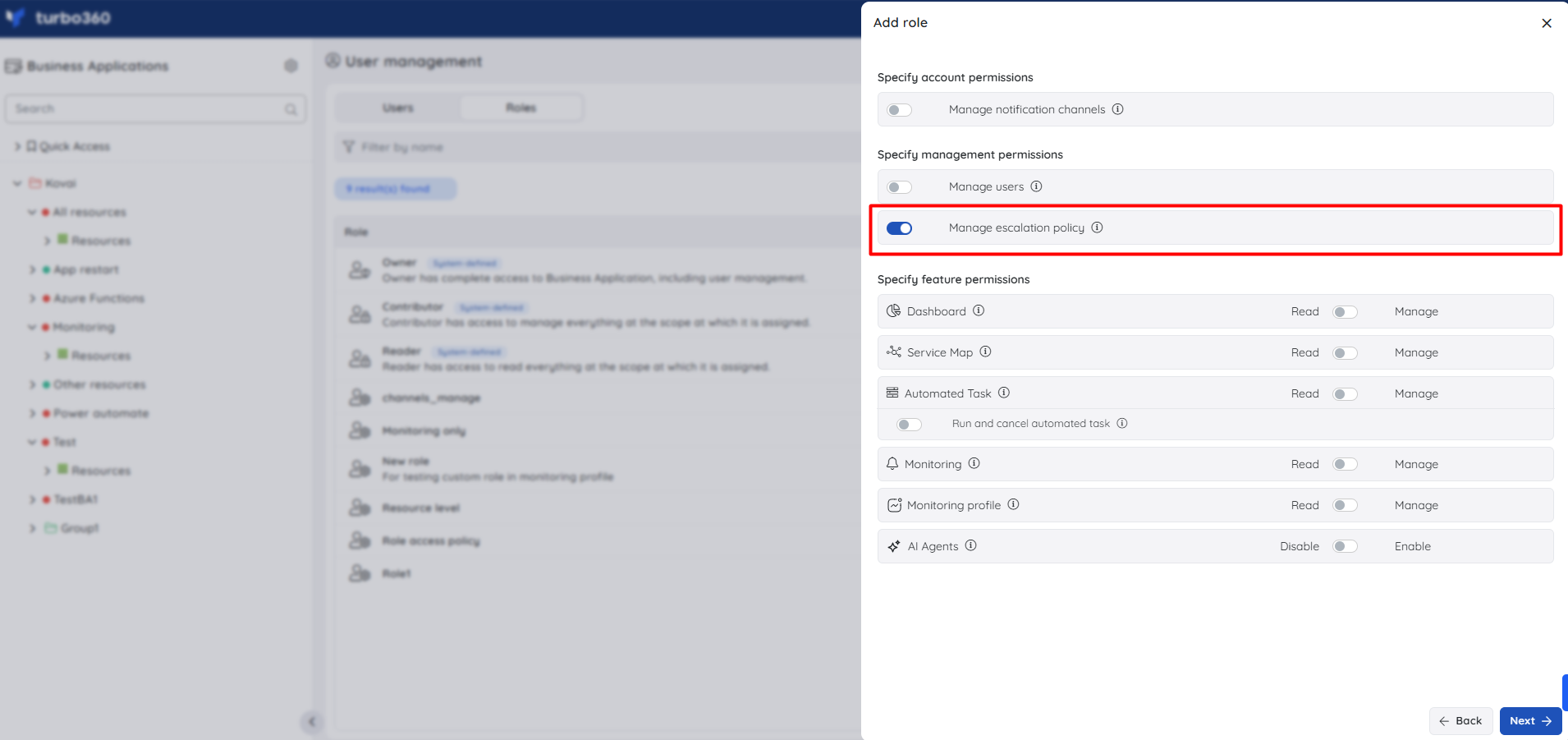
To create, update, or delete escalation policies, you need the Manage permission for Escalation policies in Business Applications. Users with custom roles that include this permission can manage policies even if their base access is scoped to specific Business Application groups or applications.
How it works
When an alert is triggered in Business Applications, Turbo360 evaluates the escalation policy assigned to that Business Application or monitoring profile. If the alert incident remains unacknowledged after the time limit defined in a rule, Turbo360 sends the alert to the notification channel configured in the next rule.
- Each rule in the policy targets a notification channel or email address and defines a time limit before escalation proceeds.
- A policy can be configured to repeat up to 5 times if no action is taken on the alert incident after all rules have fired.
- Escalation stops only when the alert incident is acknowledged from the Turbo360 application.
- Deleting a policy that is mapped to a Business Application monitoring configuration automatically replaces it with the default escalation policy.
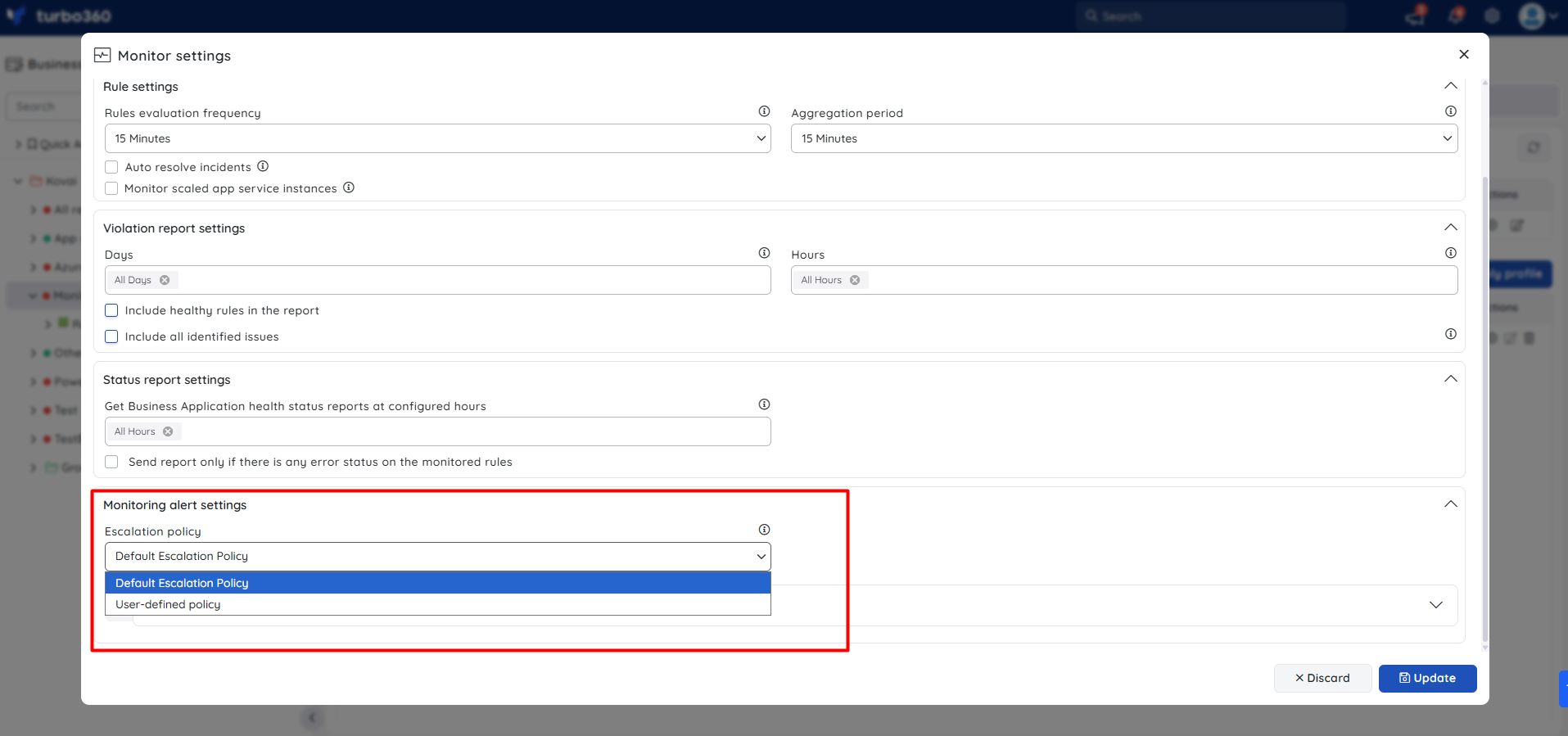
You assign an escalation policy at the Business Application level or the Monitoring profile level when configuring monitoring. The notification channels and email addresses used by the assigned policy can be customized per Business Application without modifying the policy itself.
Limits
- The maximum duration allowed per escalation rule is 60 days.
- A policy can repeat up to 5 times.
- Each escalation policy can have a maximum of 5 rules.
- Escalation stops only when the alert incident is acknowledged from the Turbo360 application.
Steps
Use the following steps to create, update, and delete escalation policies. Navigate to Monitoring settings > Escalation policies to get started.
Create a policy
Creating a policy lets you define a custom escalation sequence for alert incidents that go unacknowledged.
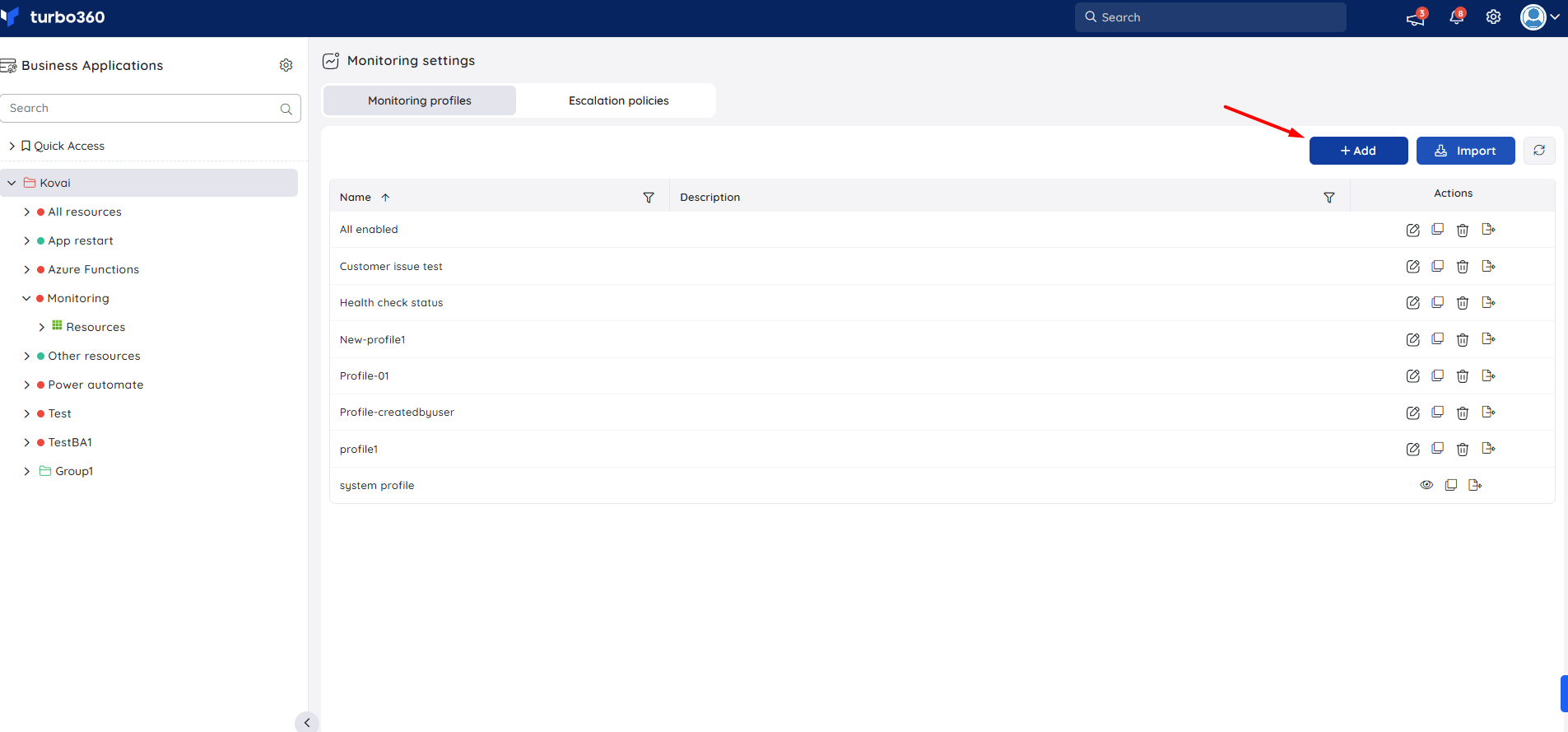
Navigate to Monitoring settings > Escalation policies.
Click Add Escalation policy.
Enter a name for the policy and click Next.
Add escalation rules and configure the notification channel or email address for each rule.
Define the time limit after which the alert escalates from each rule.
Optionally, enable repeat and set the number of repetition cycles if you want the policy to re-execute when no action is taken after all rules have fired.
Click Save.
.png)
Update a policy
Updating a policy lets you modify escalation rules, change notification channels, and propagate changes to all monitoring configurations that already use the policy.
- Navigate to Monitoring settings > Escalation policies.
- Click the Edit icon next to the policy you want to update.
- Update the name or description on the first page and click Next.
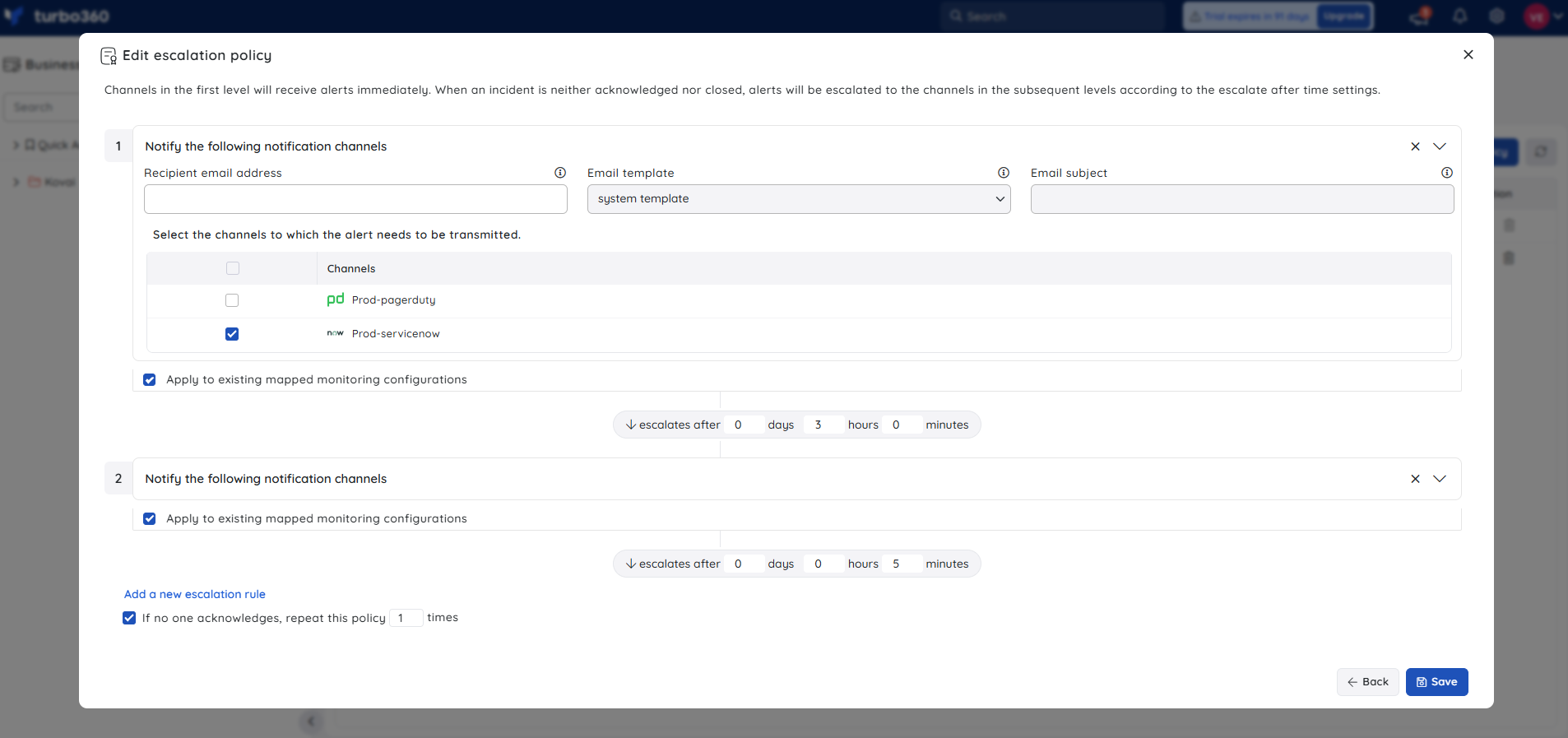
- Modify the escalation rules and channel configuration as needed.
- To apply channel or email changes to all existing monitoring configurations that use this policy, enable the Apply to existing mapped monitoring configurations checkbox on the relevant rule.
- Click Save.
Delete a policy
Deleting a policy removes it from the system. Any Business Application monitoring configuration that used the deleted policy is automatically reassigned to the default escalation policy.
- Navigate to Monitoring settings > Escalation policies.
- Click the Delete icon next to the policy you want to remove. A confirmation popup lists the Business Applications currently mapped to this policy.
- Click Delete to confirm.
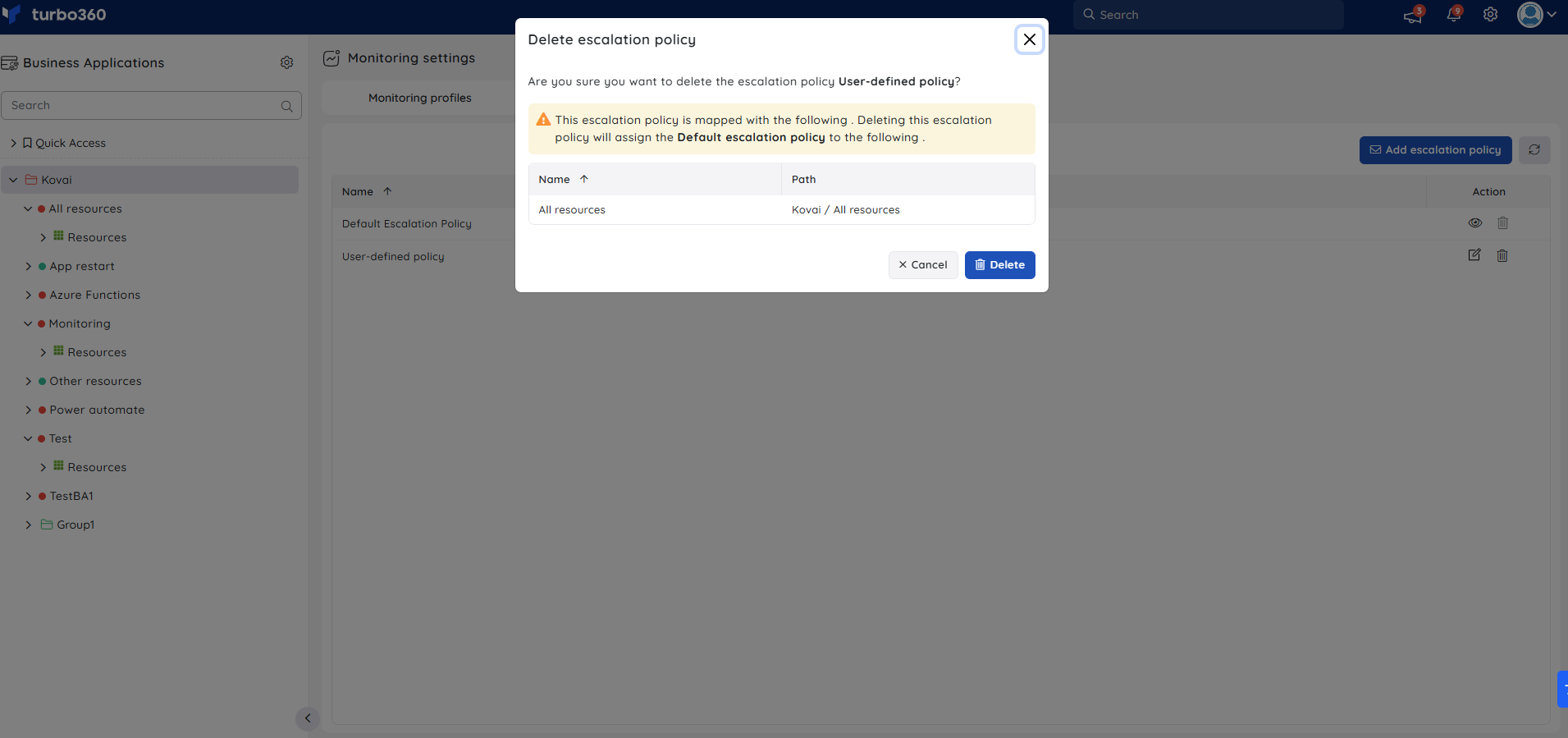
Deleting a policy mapped to a Business Application monitoring configuration will replace it with the default escalation policy.
Permission behavior
Users with custom roles that include the Escalation policies Manage permission can create, update, and delete policies regardless of whether their base role is scoped to specific Business Application groups or individual applications. This allows organizations to delegate escalation policy management independently from broader monitoring ownership.
Example scenario
A support team has two tiers: L1 handles first response and L2 handles escalated issues. You create an escalation policy with two rules:
- Rule 1 — notify the L1 Teams channel immediately when an alert fires.
- Rule 2 — if no acknowledgment after 30 minutes, send an email to the L2 distribution list.
You map this policy to a Business Application that monitors a critical Logic App. When an alert fires and L1 does not acknowledge it within 30 minutes, Turbo360 automatically escalates to L2 — without any manual intervention.
Limitations
- Each escalation policy supports a maximum of 5 rules.
- The maximum escalation interval per rule is 3 days.
- A policy can repeat a maximum of 5 times.
- Escalation cannot be stopped by resolving the underlying resource issue alone — the alert incident must be explicitly acknowledged in the Turbo360 application.
- The default escalation policy cannot be deleted or renamed.
Troubleshooting
Alert is not escalating after the defined time limit
Cause: The alert incident was acknowledged before the escalation timer expired, or the notification channel configured in the rule is inactive.
Fix: Confirm the alert incident status in Alert incidents. Verify that the notification channel is active and correctly configured under Monitoring settings.Escalation policy changes are not reflected in existing monitoring configurations
Cause: The Apply to existing mapped monitoring configurations checkbox was not enabled when saving the updated rule.
Fix: Edit the policy, enable the checkbox on the relevant rule, and save again.A deleted policy is no longer visible but monitoring is still active
Cause: Deletion replaces the policy with the default escalation policy automatically — monitoring continues uninterrupted.
Fix: No action required. To use a different policy, edit the Business Application or monitoring profile and select the preferred policy.Cannot create or edit an escalation policy
Cause: Your role does not include the Escalation policies Manage permission.
Fix: Ask an Account owner to add the Escalation policies Manage permission to your custom role, or to assign a role that includes it.policy is not firing for a specific Business Application
Cause: An escalation policy may not be assigned at the Business Application or monitoring profile level, or the alert was already acknowledged.
Fix: Navigate to the Business Application monitoring settings and confirm that an escalation policy is selected. Check Alert incidents to verify acknowledgment status.
FAQs
What happens if an escalation policy is deleted while alerts are actively firing?
Any in-progress alert incidents continue to use the policy rules that were active at the time the alert was triggered. New alert incidents raised after the deletion will use the default escalation policy.Can I assign different escalation policies to different resources within the same Business Application?
Yes. You can assign escalation policies at the monitoring profile level, which allows different resources within a Business Application to use different policies.Does acknowledging an alert incident in one notification channel stop escalation across all channels?
Yes. Acknowledging the alert incident in the Turbo360 application stops the escalation regardless of which notification channel the acknowledgment comes through.
Related articles
Was this article helpful?