

Managing escalation policies
- 11 Aug 2026
- 5 Minutes to read
- Print
- DarkLight
- Download PDF
Managing escalation policies
- Updated on 11 Aug 2026
- 5 Minutes to read
- Print
- DarkLight
- Download PDF
Article summary
Did you find this summary helpful?
Thank you for your feedback!
Overview
An Escalation policy is a set of rules that escalates a Turbo360 alert to configured notification channels after a predetermined time, so unacknowledged cost alerts reach the right people before they're missed.
Business value
Escalation policies cut the risk of cost alerts going unnoticed by automatically routing them through support tiers and notification channels in sequence, so teams respond to budget or anomaly alerts faster and avoid unplanned Azure spend.
Prerequisites
A Cost management group with a Group budget or cost monitor configured must exist before you can create an escalation policy — escalation policies can be mapped to either. At least one notification channel must also be configured, as it is required during escalation policy creation.
Required permissions
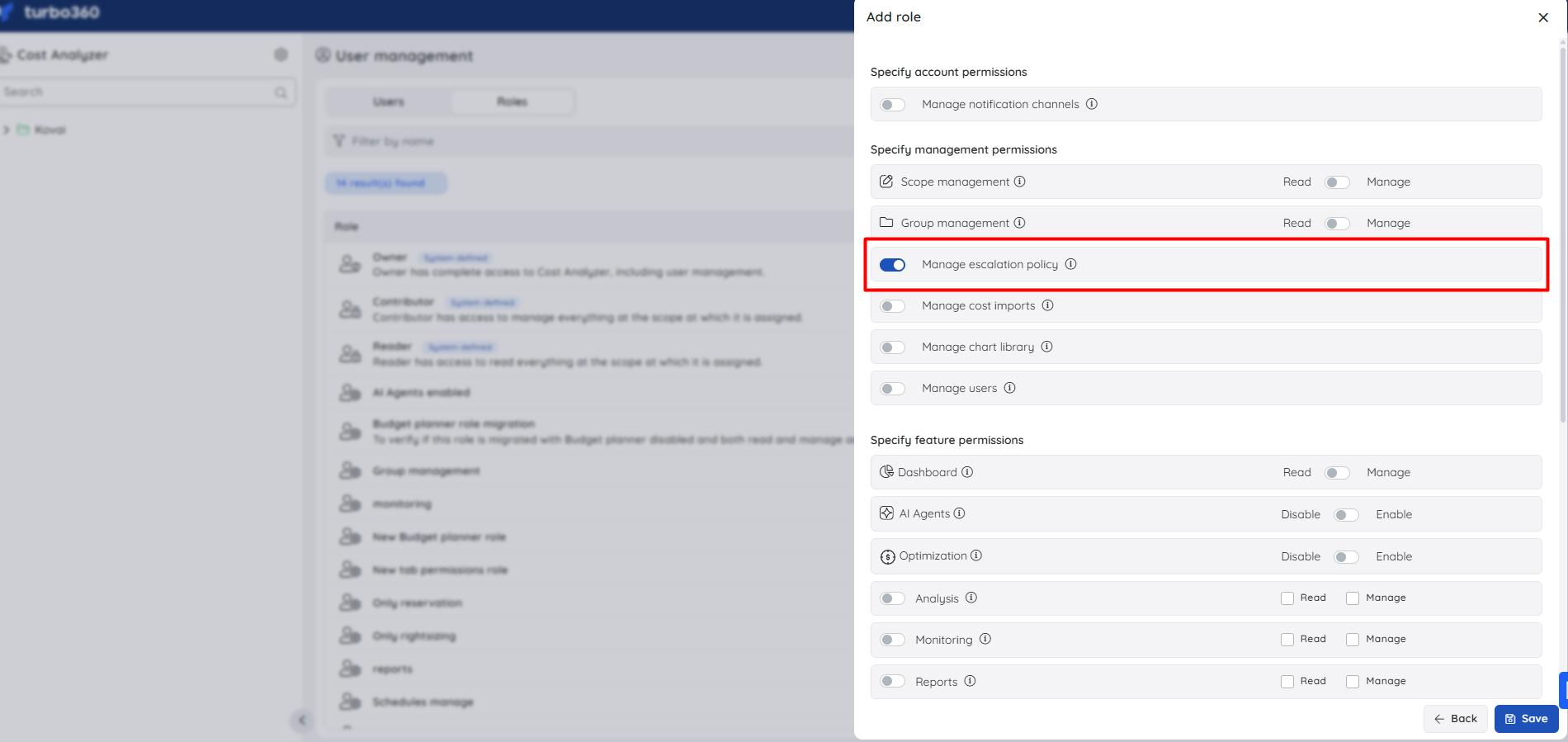
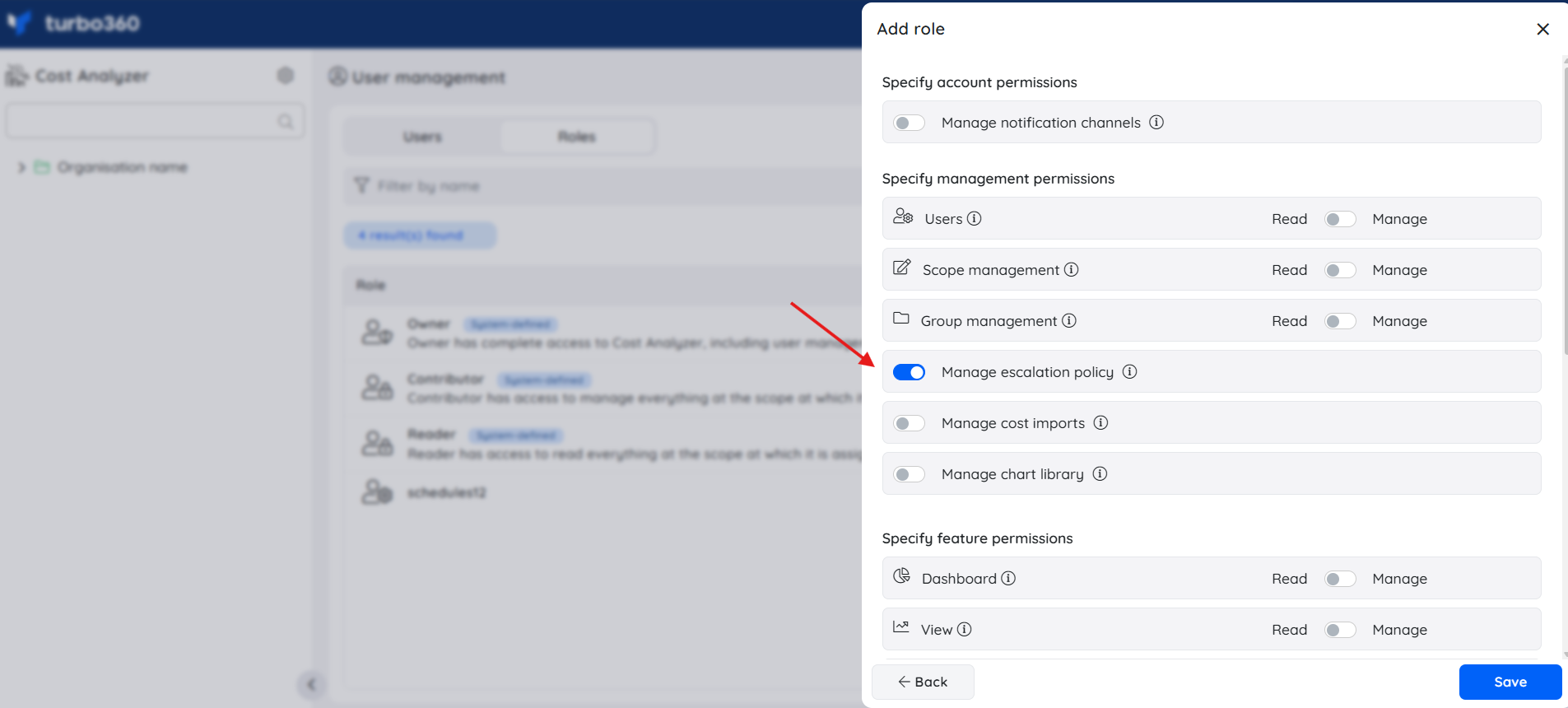
To create, update, and delete escalation policies, a user must be assigned a custom role with the Manage escalation policy permission enabled.
This permission is available under Specify management permissions during role creation and grants full escalation policy management without requiring broader ownership or contributor rights.
Dependencies
- Configured notification channels to deliver alerts at each rule
- A Group budget or cost monitor mapped to a Cost management group
How it works
- Turbo360 escalates an unacknowledged alert to configured notification channels after a time period you define, instead of leaving it with a single team or channel.
- Each policy consists of rules, with each rule mapped to a different notification channel.
- Default policy is a system-defined policy that configures all available notification channels by default.
- A policy can repeat for a specified period if no action is taken on the alert incident.
- Escalation stops only when the alert incident is acknowledged from the Turbo360 application.
Steps
Use the following steps to create, map, update, and delete escalation policies. Click the Context menu ( ⋮ ) next to Settings in the tree view and select Escalation policies to get started.
Create an escalation policy
Creating an escalation policy defines the rules, notification channels, and optional repeat behavior that Turbo360 uses to route unacknowledged alerts.
- Click the Context menu ( ⋮ ) next to Settings in the tree view.
- Select Escalation policies.
- Click Add Escalation Policy.
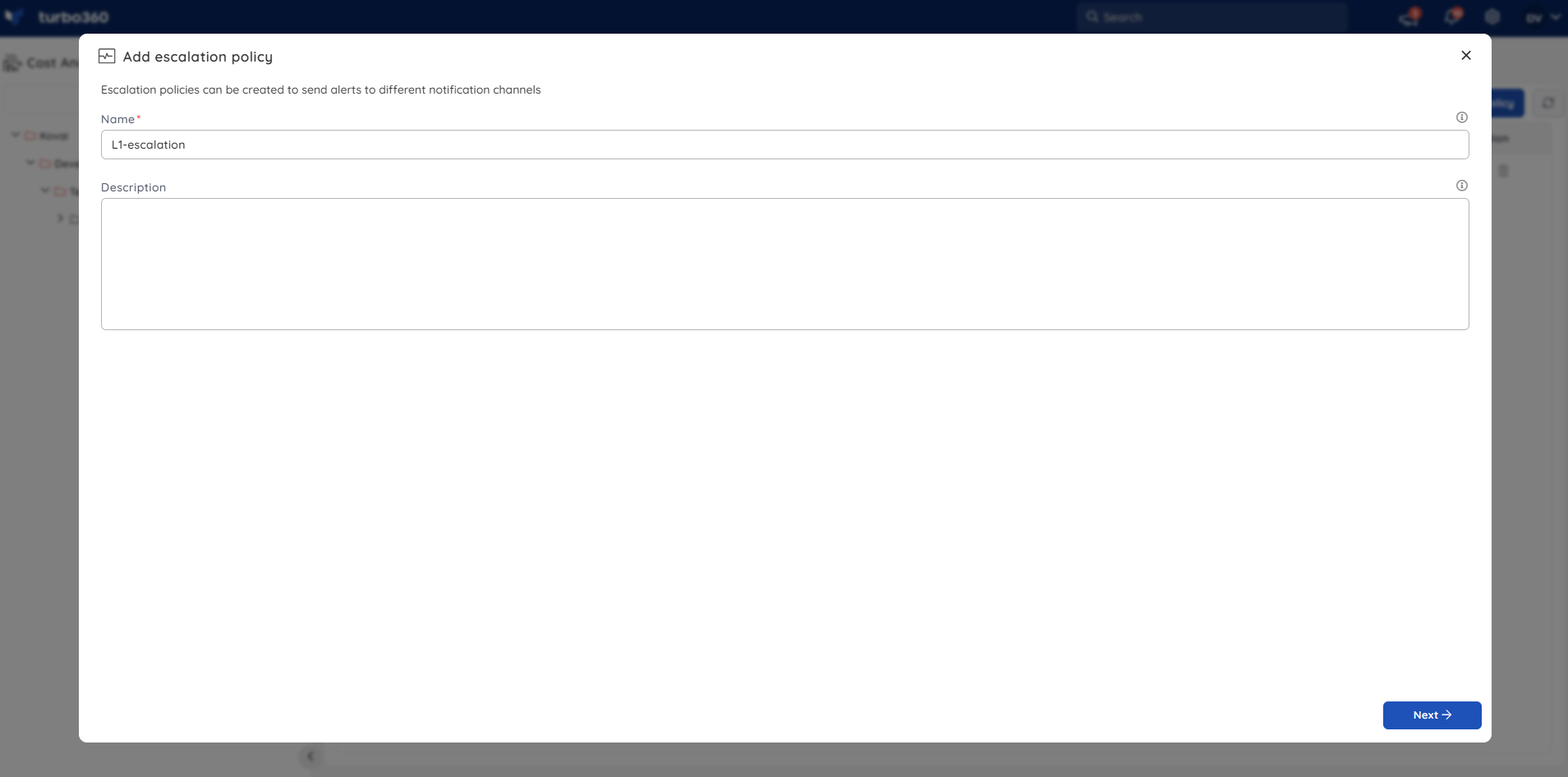
- Provide a name for the policy and click Next.
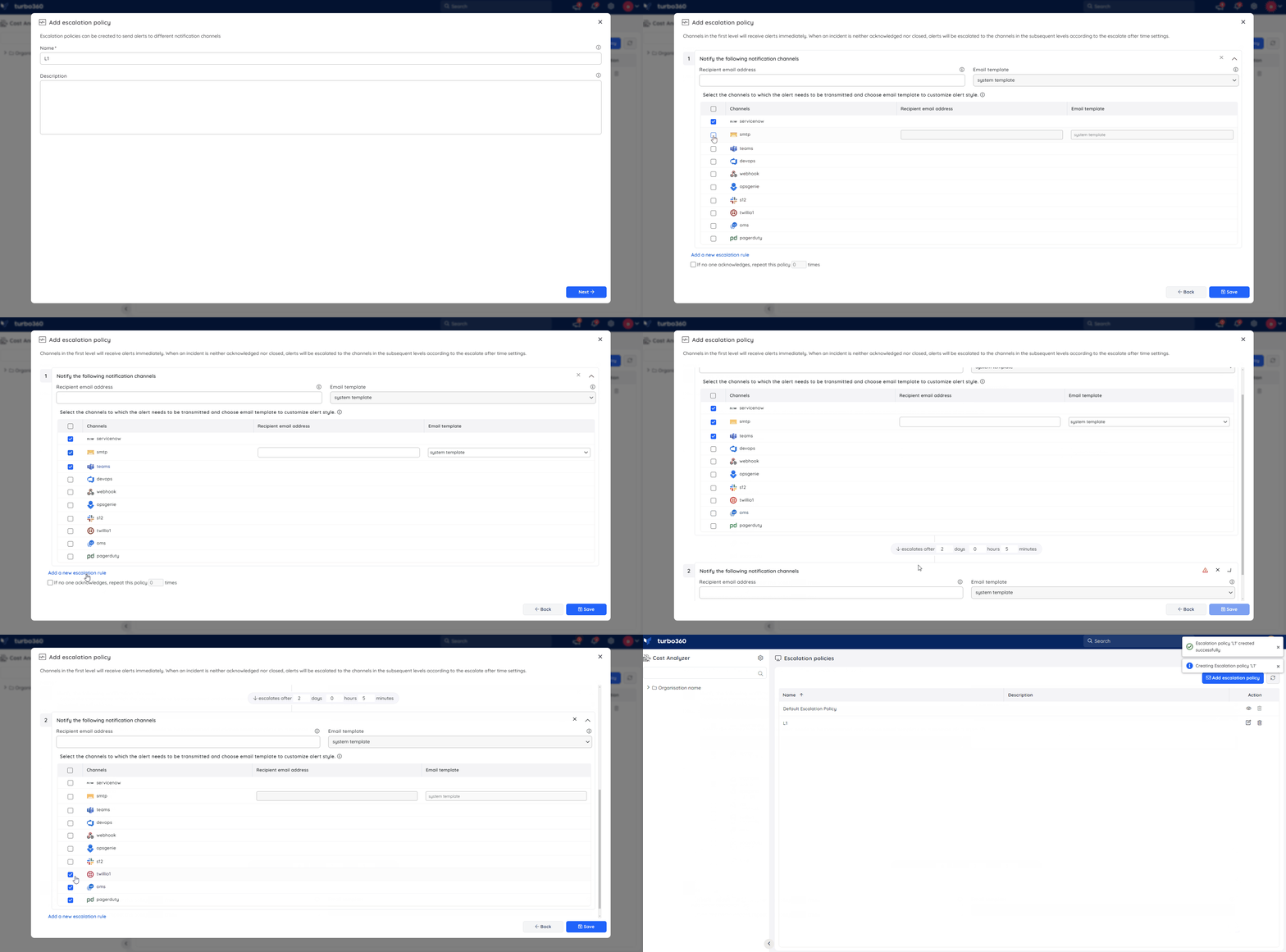
- Add escalation rules and configure each rule's notification channel(s) or email address(es).
- Click Save.
A policy can also be set to repeat for a specified period if no action is taken on the alert incident.
Points to remember
- Maximum escalation time per rule: 60 days.
- Maximum repeats per policy: 5.
- Maximum rules per policy: 5.
- Escalation stops only on acknowledgment from the Turbo360 application.
Map a policy to a cost monitor
Mapping connects an escalation policy to a cost monitor so that triggered alerts are routed through the policy's notification channels and rules.
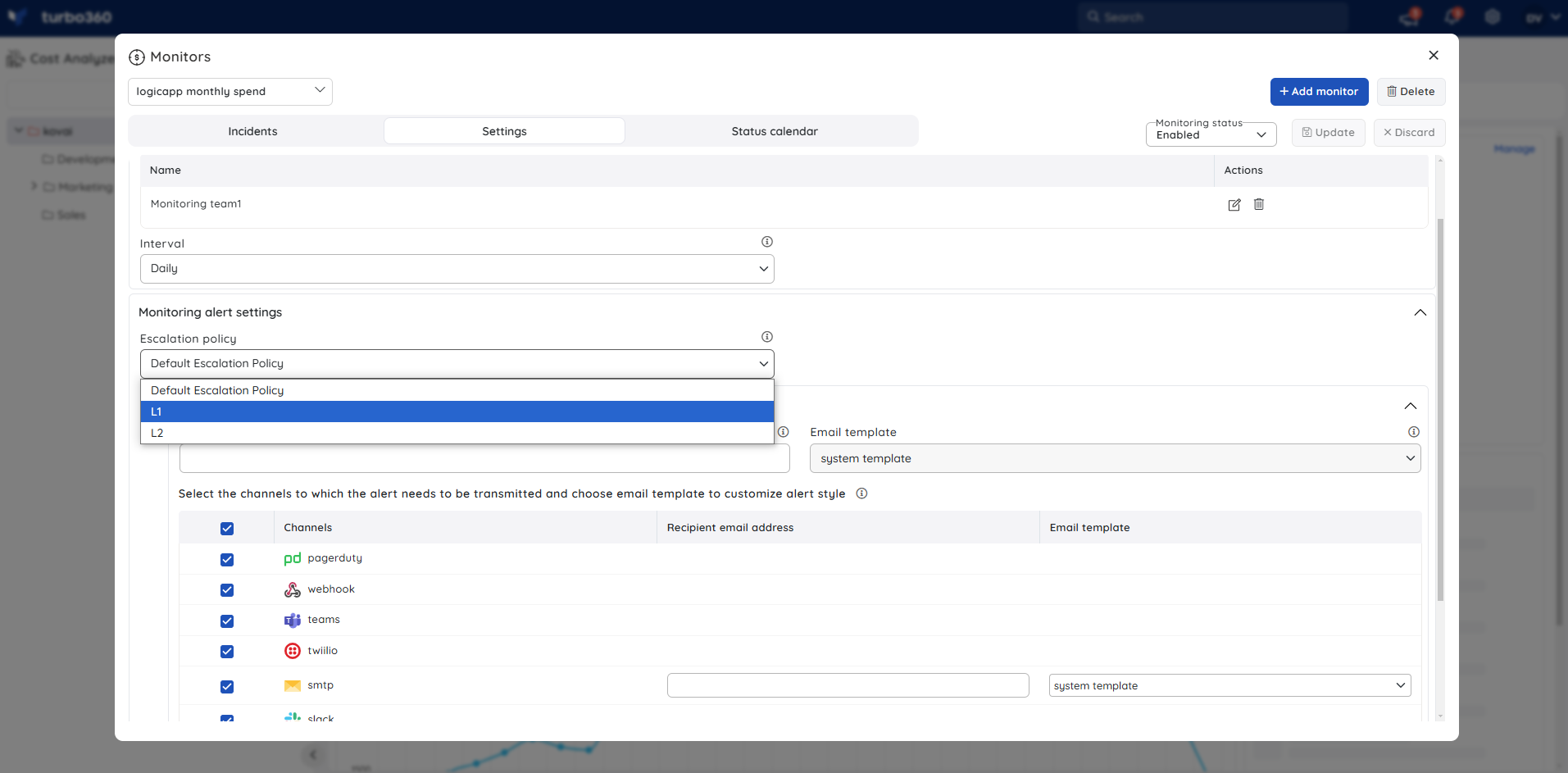
An escalation policy can be configured in a Group budget or a cost monitor, by choosing it from the list of available policies while configuring cost monitoring. Notification channel and mail configuration can be customized per monitor.
Update a policy
Updating a policy lets you change its name, rules, or notification channels — and optionally push those changes to all cost monitors already mapped to it.
- Click the Context menu ( ⋮ ) next to Settings in the tree view.
- Select Escalation policies.
- Click the Edit icon next to the policy you want to update.
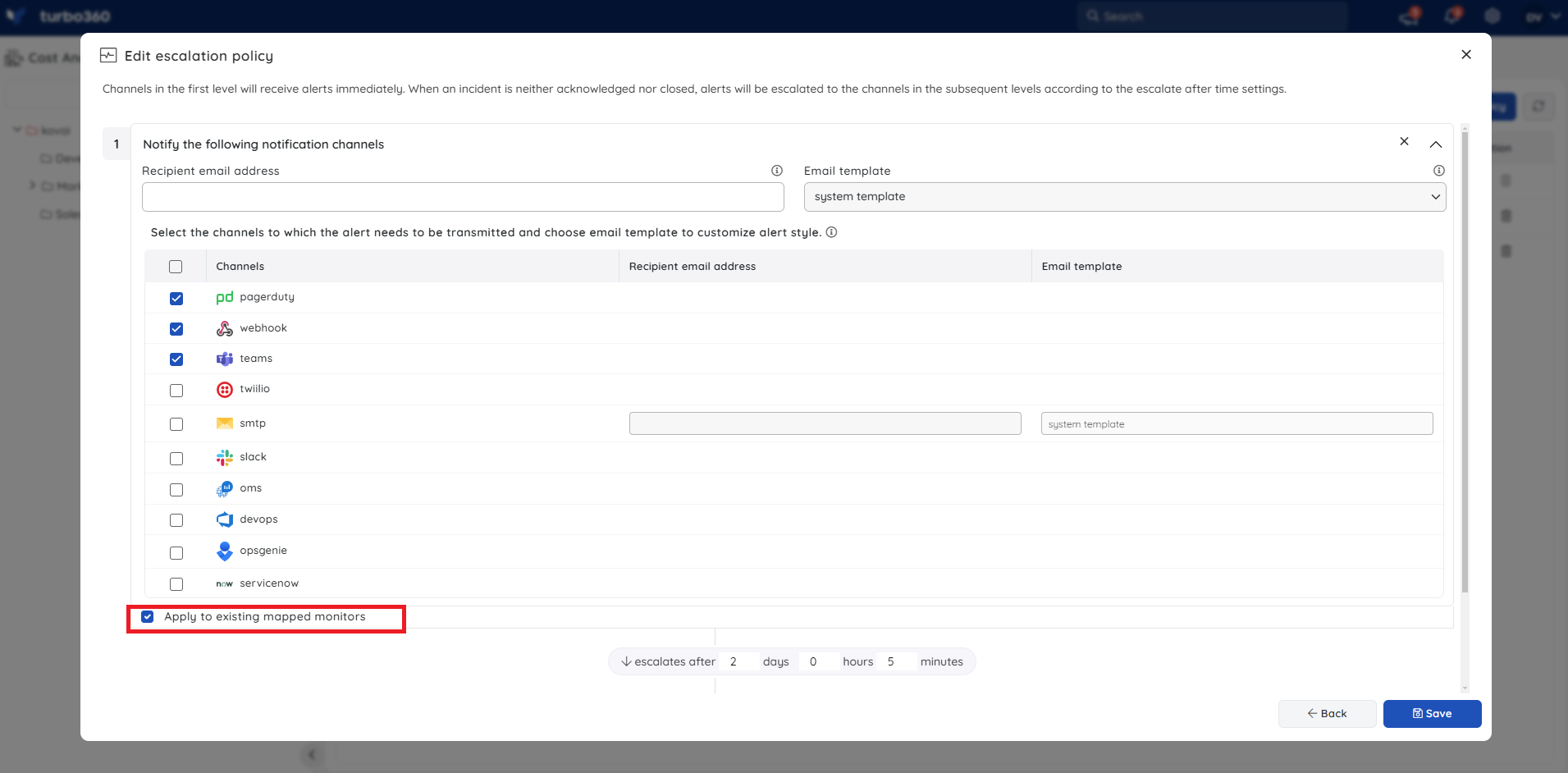
- Modify the name, description, rules, or channel selection. Click Next to continue.
- Click Save.
Enable Apply to existing mapped monitors to push a notification channel or mail address change to every cost monitor already mapped to the policy.
Delete a policy
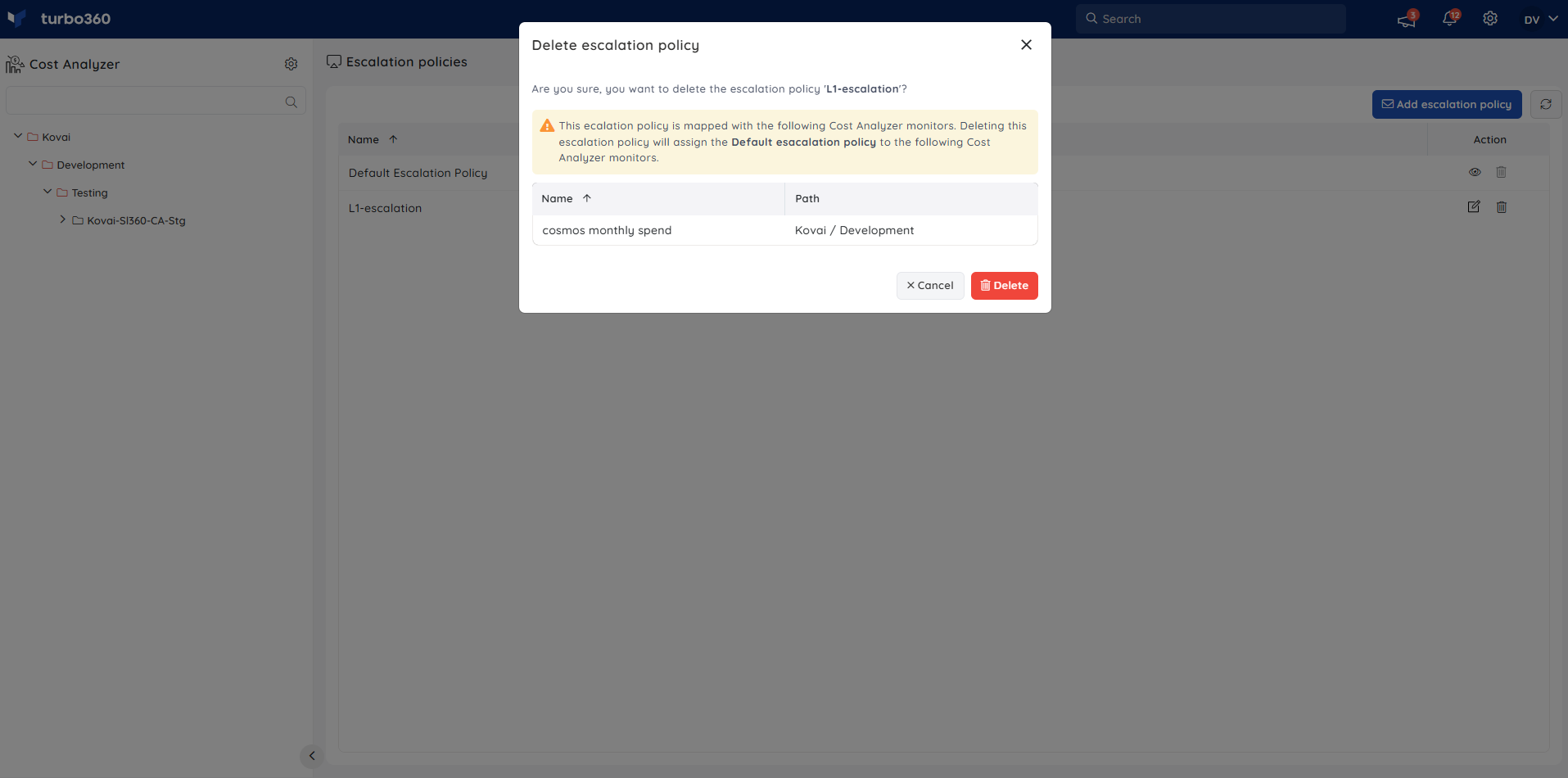
Deleting a policy permanently removes it. Cost monitors mapped to the deleted policy are automatically reassigned to the Default policy.
- Click the Context menu ( ⋮ ) next to Settings in the tree view.
- Select Escalation policies.
- Click the Delete icon next to the policy, then click Delete.
Configuration
| Option | Type | Default | Required | Description | Allowed values |
|---|---|---|---|---|---|
| Notification channel | Selection | — | Yes | Channel that delivers the alert; configured during policy creation | Mail, Microsoft Teams, etc. |
| Escalation time per rule | Number | — | Yes | Time after which an unacknowledged alert escalates to the rule's notification channel | Up to 3 days |
| Repeat | Toggle | Off | No | Repeats the policy if no action is taken on the alert incident | Up to 5 repeats |
| Rules per policy | Number | — | Yes | Number of escalation rules in a single policy | Up to 5 rules |
| Apply to existing mapped monitors | Checkbox | Off | No | Propagates a notification channel or mail address change to all cost monitors mapped to the policy | On / Off |
Permission behavior
With the Manage escalation policy permission enabled on a custom role, you can create, update, and delete escalation policies independently of broader Cost Analyzer access — base permissions scoped to a specific group or child node are sufficient.
Example scenario
A support team has two tiers, L1 and L2. An unacknowledged alert first posts to a Microsoft Teams channel for L1. If it stays unacknowledged, it escalates to an email rule for L2, and finally to Slack — ensuring the alert reaches someone before it's lost.
Limitations
- Maximum escalation time per rule is 3 days; maximum rules per policy is 5; maximum repeats per policy is 5.
- Escalation only stops on manual acknowledgment from the Turbo360 application — it doesn't time out after the final rule or repeat cycle completes.
- Deleting a policy reassigns its mapped cost monitors to the Default policy rather than leaving them unmonitored.
Troubleshooting
Alert keeps escalating through every rule
Cause: The alert incident hasn't been acknowledged from the Turbo360 application.
Fix: Acknowledge the alert incident to stop further escalation.Can't add another escalation rule to a policy
Cause: The policy has reached the maximum of 5 rules.
Fix: Remove or consolidate an existing rule before adding a new one.Updated notification channel isn't reflected on existing cost monitors
Cause: Apply to existing mapped monitors wasn't enabled during the update.
Fix: Re-open the update flow and enable it before saving.A cost monitor is alerting through the wrong policy after a deletion
Cause: Its mapped escalation policy was deleted.
Fix: Deleted policies fall back to the Default policy; remap the monitor to a different policy if Default isn't appropriate.
FAQs
What happens to cost monitors when their escalation policy is deleted?
They're automatically reassigned to the Default escalation policy.Can a user manage escalation policies without full Cost Analyzer ownership or contributor rights?
Yes — enable the Manage escalation policy permission on a custom role during role creation.Is there a built-in escalation policy available by default?
Yes — the Default policy configures all available notification channels by default.
Related articles
Was this article helpful?