

Managing monitoring profiles
- 09 Aug 2026
- 7 Minutes to read
- Print
- DarkLight
- Download PDF
Managing monitoring profiles
- Updated on 09 Aug 2026
- 7 Minutes to read
- Print
- DarkLight
- Download PDF
Article summary
Did you find this summary helpful?
Thank you for your feedback!
Overview
A monitoring profile lets you define a reusable set of monitoring rules for specific Azure resource types, independent of the rules configured at the Business Application level. You create a profile once and map it to any Business Application to apply consistent monitoring across all matching resources.
Business value
Configuring monitoring rules resource-by-resource doesn't scale once a Business Application contains many resources. Monitoring profiles let you define rules once per resource type and apply them in bulk, reducing setup effort and keeping monitoring consistent across resources.
Prerequisites
You need an existing Business Application with resources added before you can map a monitoring profile to it.
Required permissions
You need the Monitoring profile permission to work with monitoring profiles:
- Read — allows you to view monitoring profiles.
- Manage — allows you to create, edit, clone, import, export, and map monitoring profiles.
.png)
How it works
- A monitoring profile groups monitoring rules (metric-based or state-based) by Azure resource type.
- Each profile can include rules for multiple resource types in a single definition.
- Mapping a profile to a Business Application applies its rules to every matching resource in that Business Application at once.
- A resource type shows a tick mark in the Add monitoring profile panel once rules are configured for it.
- The Auto correct status rule is available only for compatible resource types.
Steps
Use the following steps to create, update, delete, clone, import, export, and map monitoring profiles. Navigate to Monitoring settings > Monitoring profiles to get started.
Add a profile
Adding a profile creates a named, reusable rule set you can map to one or more Business Applications.
- Go to Monitoring settings > Monitoring profiles and click Add.
.png)
- Enter a unique profile name and a description to distinguish it from other profiles.
- Select the monitoring metrics for the required resource types and configure the threshold values. Click the sparkle icon ( ✦ ) next to any metric name to open the Explain with AI panel, which provides AI-generated guidance on what the metric measures, suggested thresholds, recommended aggregation type, and common setup pitfalls for that metric.
- Optionally, add a note to attach with rule violations.
- Click Save.
.png)
Points to remember:
- The rules configuration section lists all supported Azure services for monitoring, including other resource types.
- A tick mark next to a resource type in the Add monitoring profile panel indicates that rules are configured for it.
- The Auto correct status rule is available only for compatible resource types.
Update a profile
Updating a profile lets you revise its name, description, or rules and push the changes to every Business Application it is already mapped to.
- Go to Monitoring settings > Monitoring profiles.
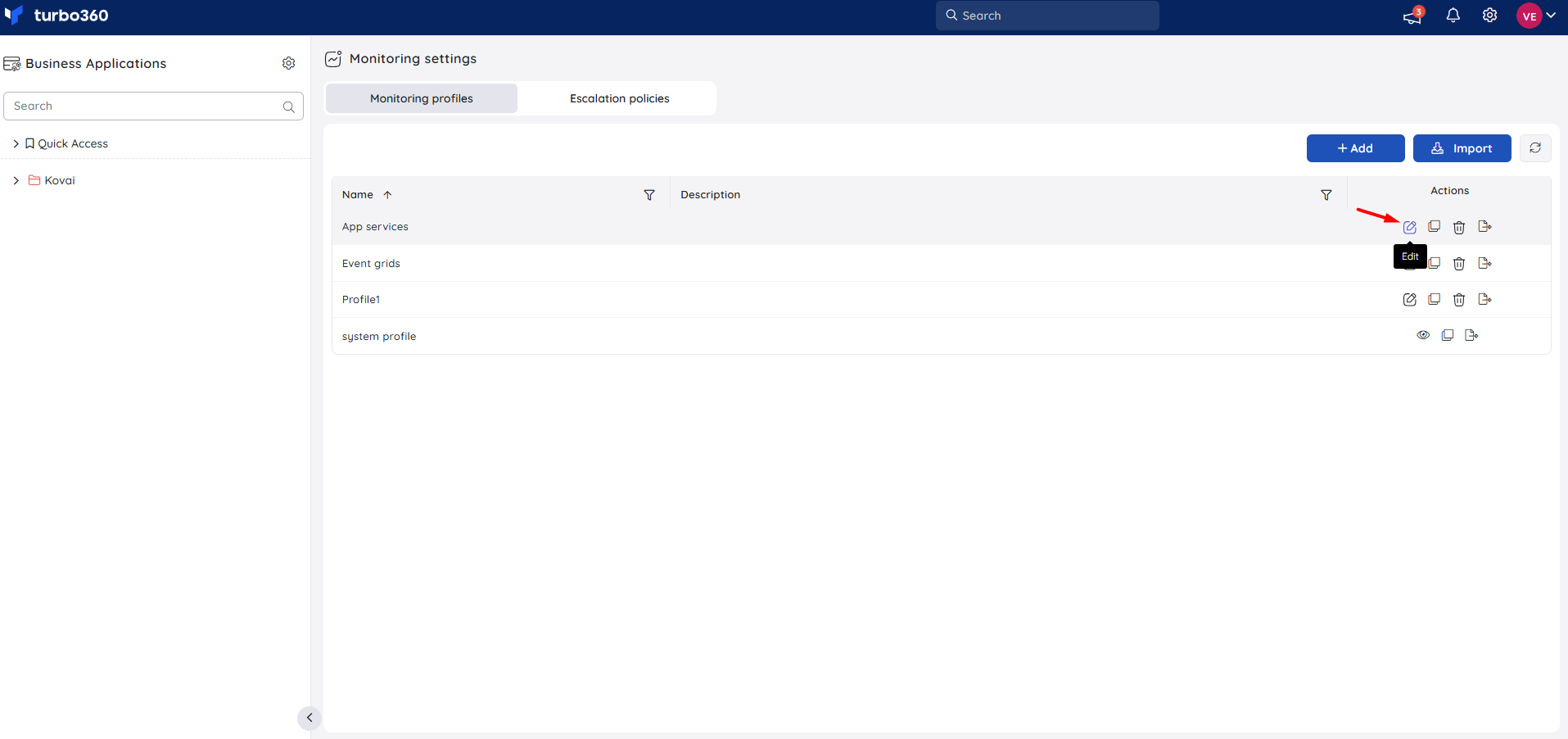
- Click the Edit icon next to the profile you want to change.
- Update the profile name or description on the first page, then click Next.
- Update or add rules for any resource type, then click Next.
- Review the Business Applications the profile is mapped to, select them, and click Save to apply the changes.
Delete a profile
Deleting a profile permanently removes it and unmaps it from any Business Application it was applied to.
- Go to Monitoring settings > Monitoring profiles.
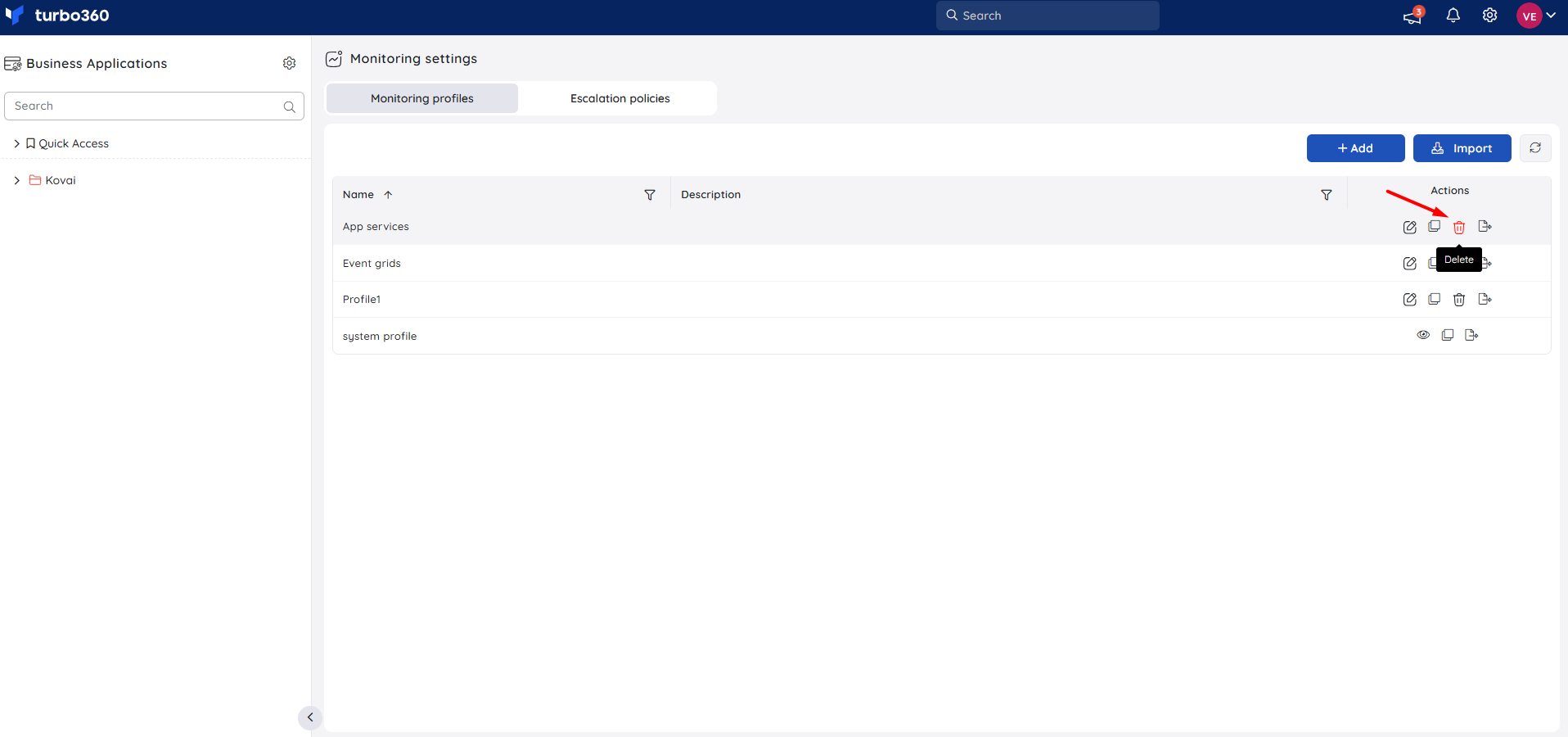
- Click the Delete icon next to the profile you want to remove.
- Click Delete in the confirmation dialog.
Clone a profile
Cloning creates a copy of an existing profile, preserving its rule set as a starting point for a new profile without rebuilding rules from scratch.
- Go to Monitoring settings > Monitoring profiles.
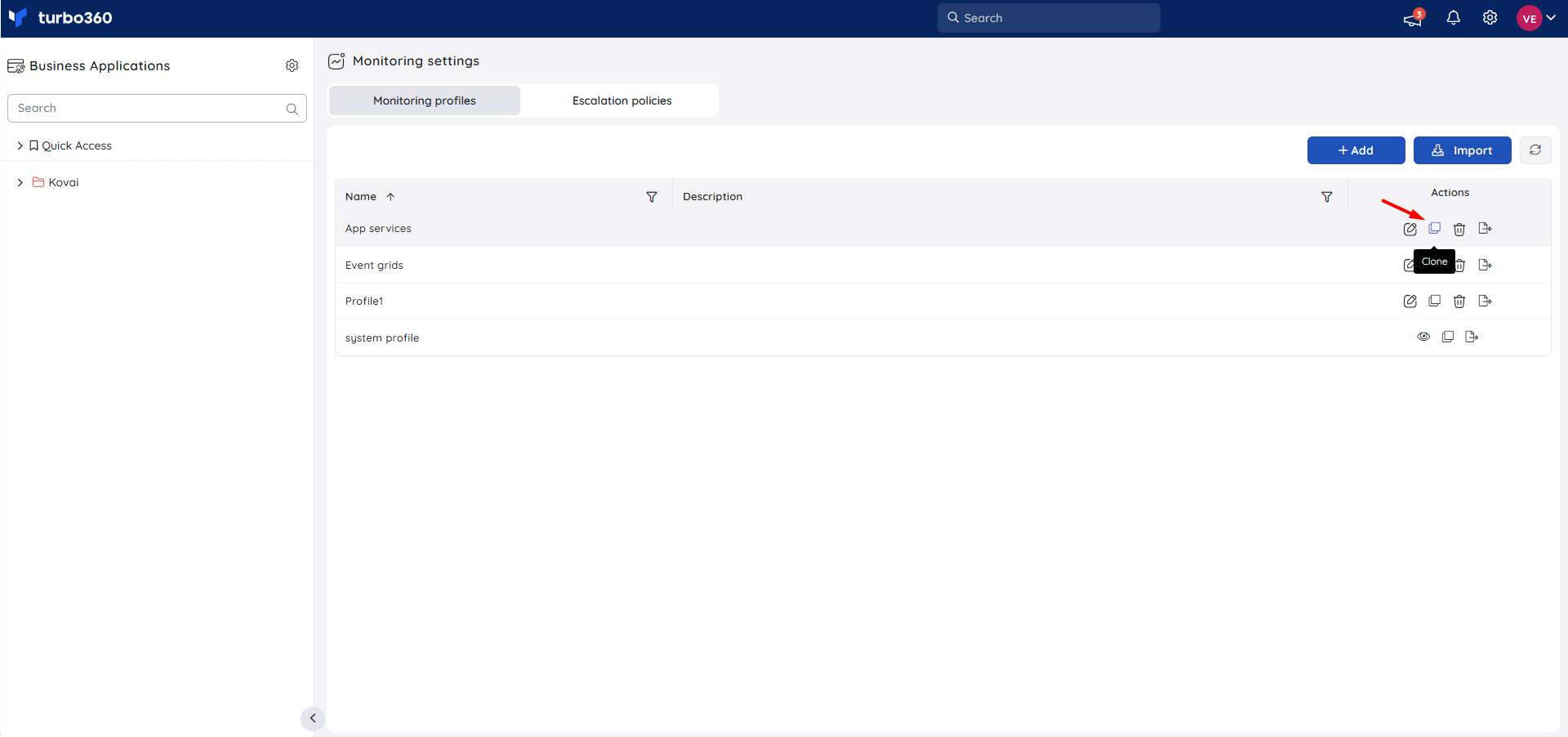
- Click the Clone icon next to the profile you want to copy.
- Enter a name for the cloned profile and click Save.
Export and import profiles
Exporting and importing lets you review and update profile rules in bulk using Excel, rather than editing each rule in the UI.
- Go to Monitoring settings > Monitoring profiles.
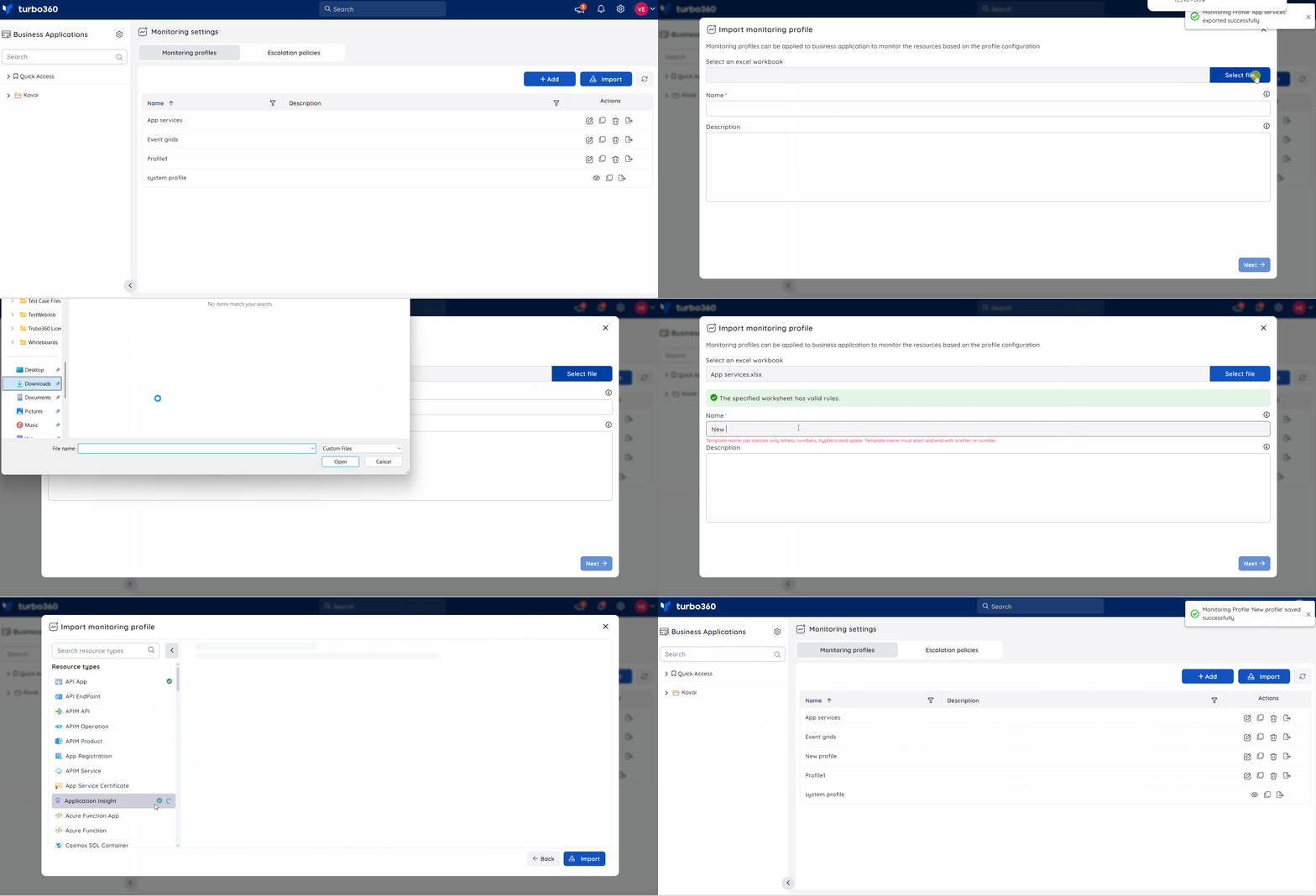
- To export, click Export next to Delete under Actions to download the profile as an Excel file.
- To import, click Import, select the Excel workbook, enter a profile name, and click Next.
- Choose the resource types, configure the rules, and click Import to add the profile to your Business Applications.
Map a profile to a Business Application
Mapping a profile applies its rules to every matching resource type within the selected Business Application in a single action.
- Go to Business Application > Monitoring > Profile settings.
- Click Apply profile. You'll see all user-created profiles and the system profile available to map.
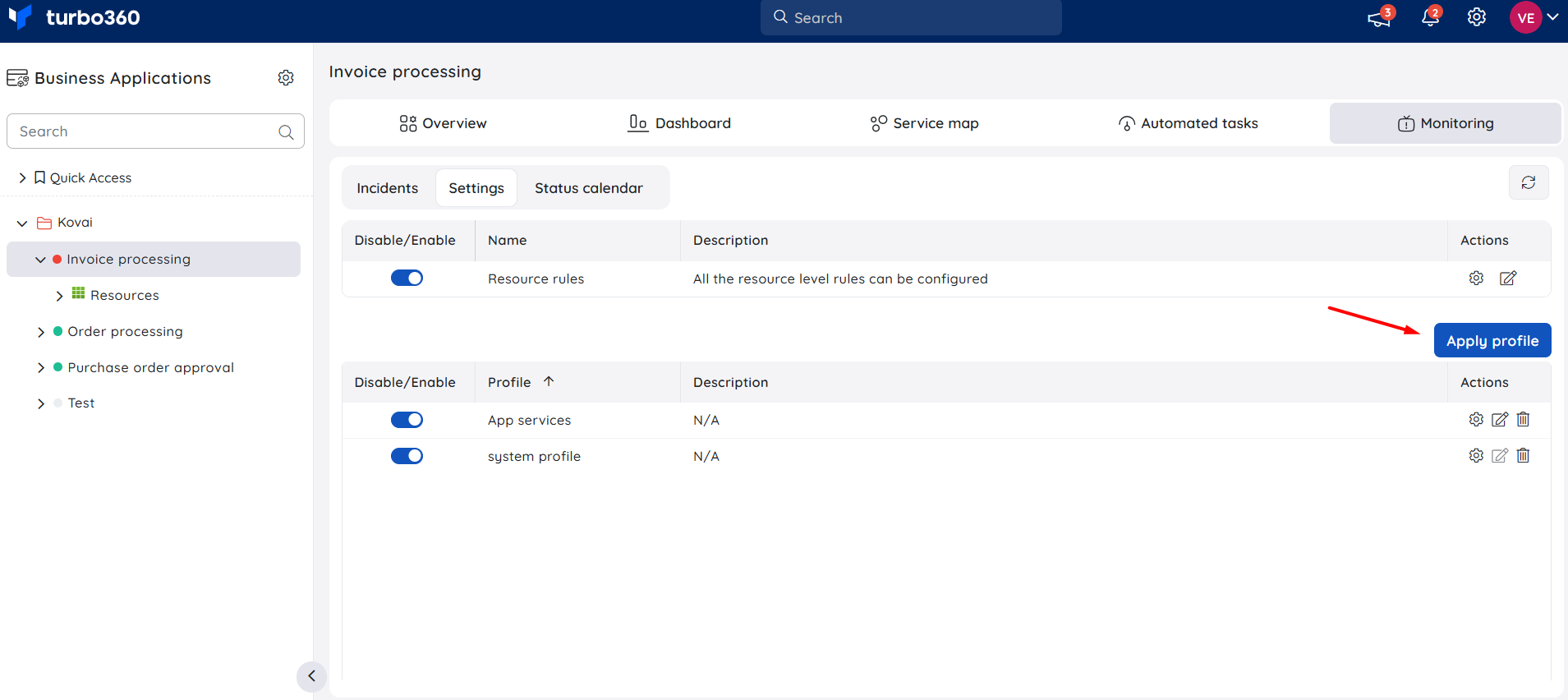
- Select the resources whose monitoring rules you want applied from the profile.
- Click Next.
- Configure the monitoring alert settings for the profile.
- Click Save.
You can update the alert settings and rules for a mapped profile anytime from the Actions column for that profile.
Points to remember:
- Only resource types that have monitoring rules in the profile are listed when you configure resources during mapping.
- Removing a profile from a Business Application only affects that Business Application; the profile itself isn't deleted.
View applied profile rules
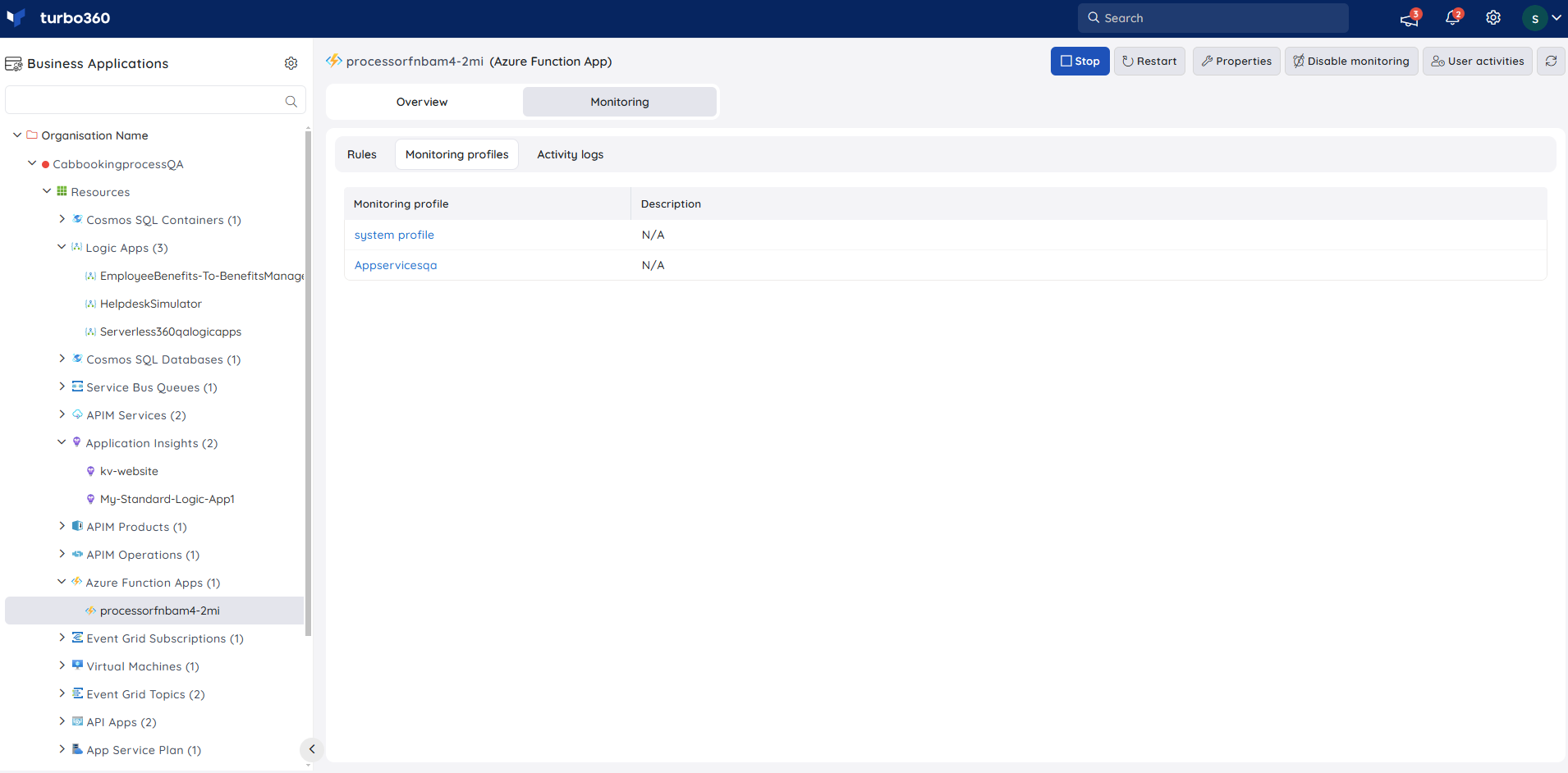
Viewing applied rules lets you confirm which monitoring rules are active on a resource through any profile mapped to its Business Application.
You can check which rules apply to a resource through any mapped profile under Monitoring > Monitoring profiles.
Include or exclude a resource from profile monitoring
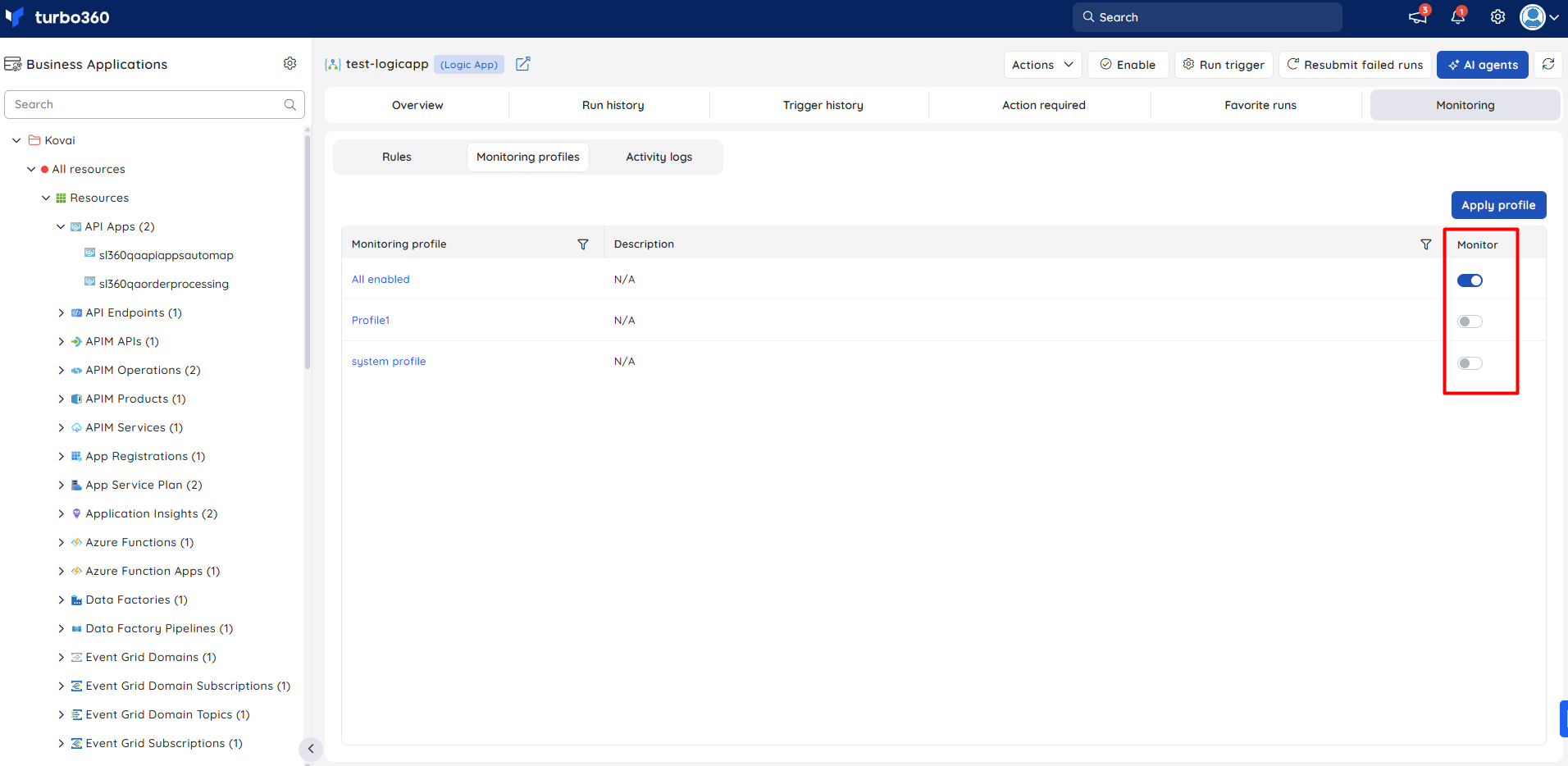
When a profile is applied at the Business Application level and has monitoring rules for a resource, you can use the Monitor toggle to control whether that specific resource is included in or excluded from monitoring under that profile.
- Open the Business Application and go to [Resource] > Monitoring > Monitoring profiles.
- Locate the applied profile whose monitoring scope you want to adjust.
- Use the Monitor toggle next to the profile to include or exclude the resource from monitoring under that profile:
- Toggle on — the resource is monitored using the rules defined in the profile.
- Toggle off — the resource is excluded from monitoring for that profile. Rules from the profile are not evaluated for this resource.
Note:
The Monitor toggle controls participation at the individual resource level only. It does not affect other resources in the same Business Application or the profile itself.
Permission behavior
- With Read access, you can view existing monitoring profiles and the rules they contain, but you can't create, edit, or map them.
- With Manage access, you can create, edit, clone, import, export, and map monitoring profiles to Business Applications.
Example scenario
A Business Application contains dozens of Function Apps and Logic Apps that all need the same metric and state-based monitoring rules. Instead of configuring each resource individually, you create a single monitoring profile with rules for both resource types and map it to the Business Application, applying consistent monitoring to every matching resource in one action.
Troubleshooting
Profile rules aren't applying to a resource
Cause: the resource type wasn't selected when the profile was mapped to the Business Application.
Fix: open the profile mapping for the Business Application, select the resource type, and save.Imported profile is missing expected rules
Cause: the exported Excel file was edited in a way that broke the expected resource type or rule structure.
Fix: re-export a fresh template, make changes carefully without altering the structure, and re-import.Auto correct status isn't triggering for a resource
Cause: Auto correct status is only available for compatible resource types, and this resource type may not support it.
Fix: check whether the resource type supports Autocorrect status before relying on it in the profile.Updated profile rules aren't reflected on an already-mapped Business Application
Cause: editing a profile doesn't automatically push changes to existing mappings.
Fix: open the Business Application's monitoring settings and update the mapping for that profile.Can't delete a profile
Cause: the system profile is a default profile provided by Turbo360 and can't be deleted.
Fix: only user-created profiles can be removed; use Clone if you need a customised, deletable version.
FAQs
What's the difference between a monitoring profile and resource-level rules set directly on a Business Application?
A profile is a reusable rule set you define once and map to one or more Business Applications, and it takes precedence for any resource type it covers. Resource-level rules set directly on a Business Application apply only to that application.Can the same monitoring profile be mapped to more than one Business Application?
Yes. The same profile can be mapped to multiple Business Applications, each with its own alert configuration.What is the system profile?
The system profile is a default monitoring profile provided by Turbo360. It's always available for mapping and can't be deleted, unlike user-created profiles.
Related articles
Was this article helpful?