

Managing resources
- 05 Aug 2026
- 4 Minutes to read
- Print
- DarkLight
- Download PDF
Managing resources
- Updated on 05 Aug 2026
- 4 Minutes to read
- Print
- DarkLight
- Download PDF
Article summary
Did you find this summary helpful?
Thank you for your feedback!
Overview
Resources must be associated with a Business Application before they can be managed and monitored in Turbo360. You can associate resources when creating a Business Application or later by editing an existing one.
Turbo360 classifies resources into two groups during association:
- Resources (Management & Monitoring) — feature-rich resource types that support both management and monitoring operations.
- All Resources — recently added resource types, some of which support monitoring operations.
Business value
Associating resources with a Business Application gives you centralised visibility and control over your Azure services. You can apply monitoring rules, view dashboards, configure service maps, and run automated tasks across all associated resources from a single context.
Required permissions
A Reader role cannot change the friendly name of a resource. All other resource management operations require a Contributor or Owner role.
How it works
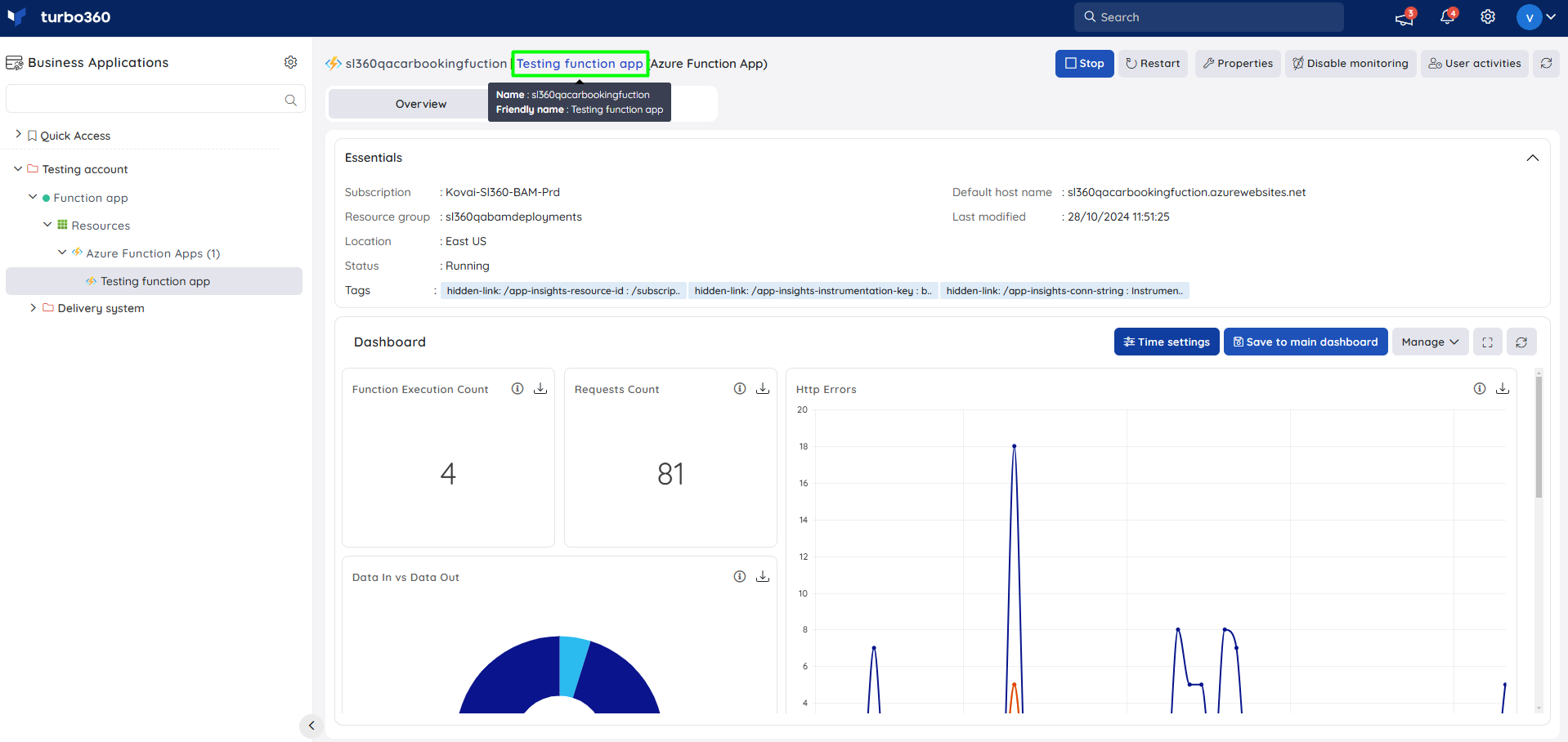
Each resource associated with a Business Application can optionally be assigned a friendly name. This name is displayed across Turbo360 features — including Monitoring, Service Maps, Dashboards, and Automated Tasks — in place of the original Azure resource name.
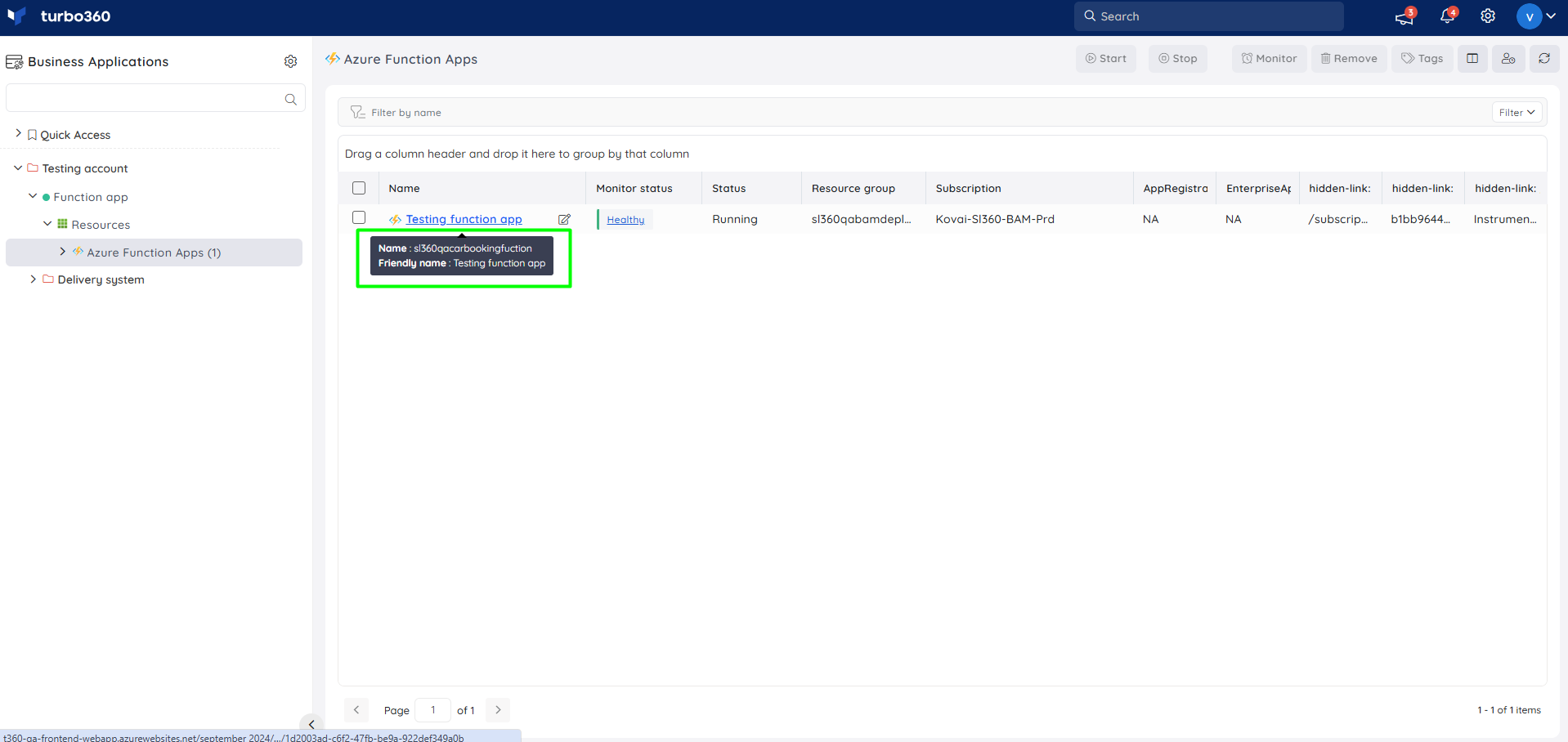
When you hover over a resource that has a friendly name, a tooltip shows both the original resource name and the friendly name. Friendly names should be unique within a Business Application to avoid confusion.
The friendly name of an Azure resource is not reflected in the Resource selection section when creating a new Business Application.
Adding a resource to a Business Application increases the licensing count by one. Adding the same resource to another Business Application where it already exists does not increase the licensing count again. The count decreases only when the resource is removed from all Business Applications it belongs to.
Steps
Add resources
- Open the Business Application and go to the Resources section.
- Click Add → Resources.
- Select a Service Principal from the list to associate resources from it, or add a new Service Principal.
- Click Next.
- Select the Azure resources by clicking their resource types. For parent resource types, child resources are pre-loaded automatically. Use the Associate all the child resources of the selected resources checkbox to select multiple child resources at once.
- Click Next to review the association summary.
- Click Add to complete the resource association.
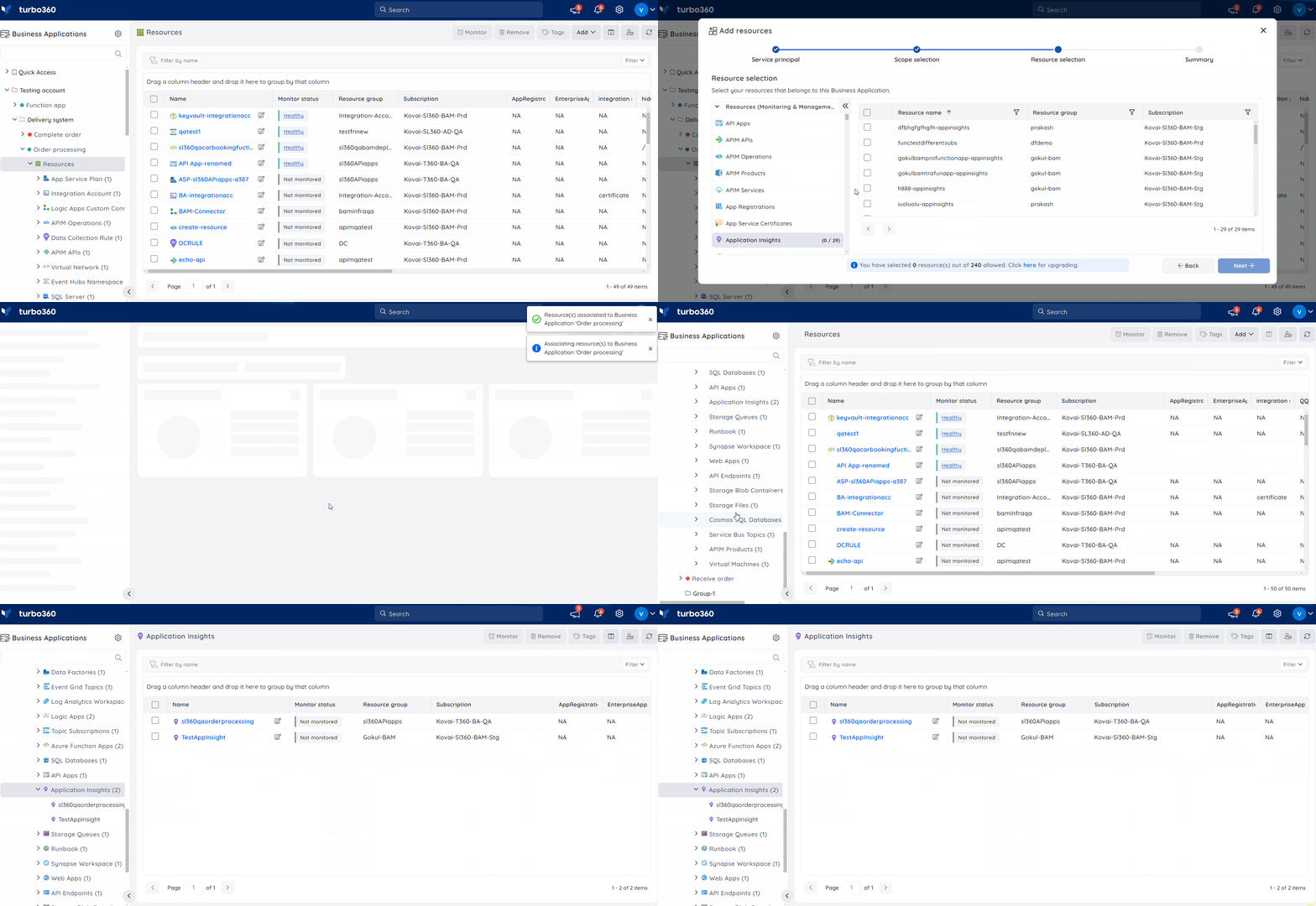
The licensing count increases by one each time a resource is added to a Business Application. Adding a resource that already exists in another Business Application does not increase the count again.
Remove resources
- In the Resources section of the Business Application, select the resources to remove.
- Click Remove.
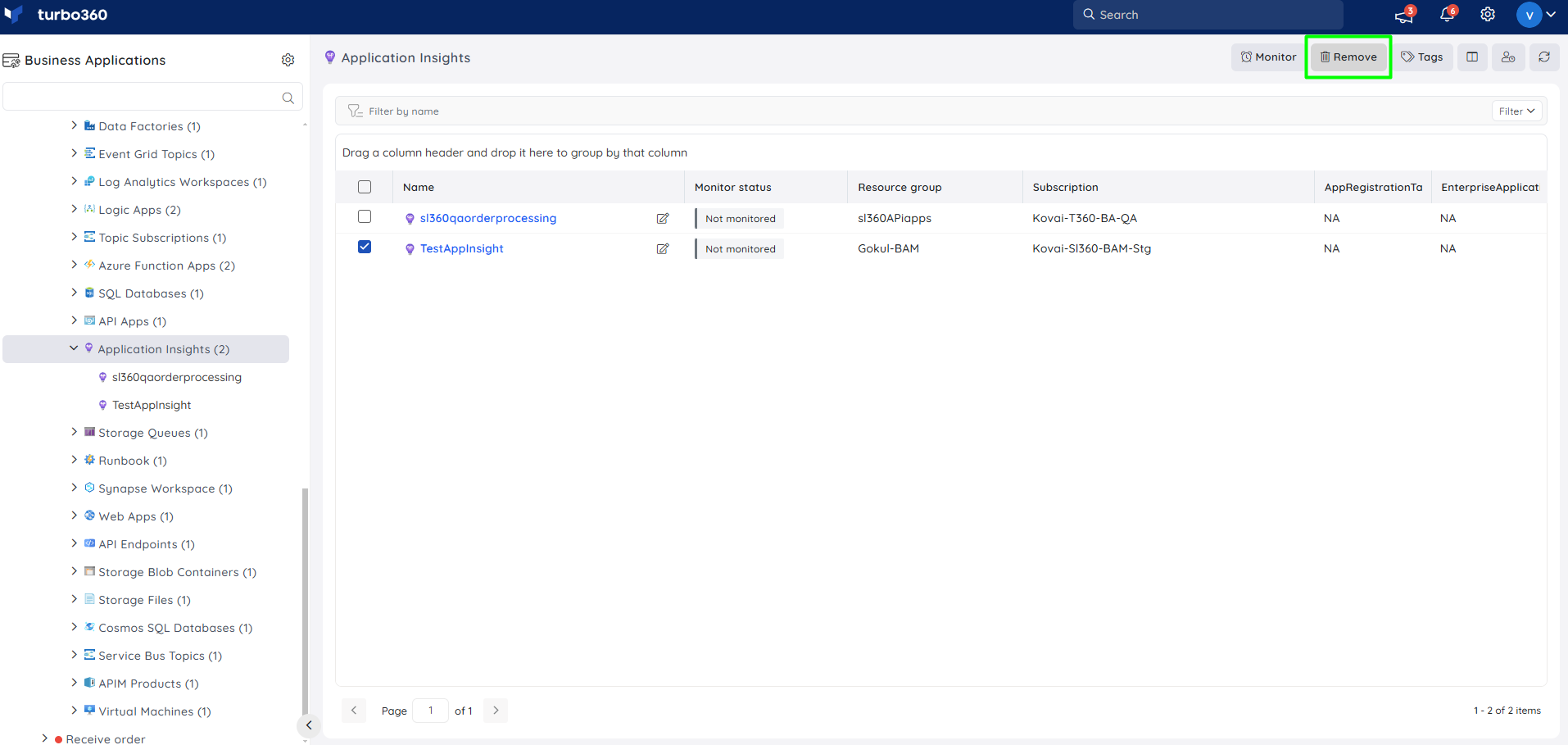
- Removing a resource decreases the licensing count by one. The count only decreases when the resource is removed from all Business Applications.
- Removed resources can be re-added to the Business Application at any time.
Set a friendly name
- In the Resources section or the All Resources section of the Business Application, locate the resource.
- Click the Friendly Name icon next to the resource.
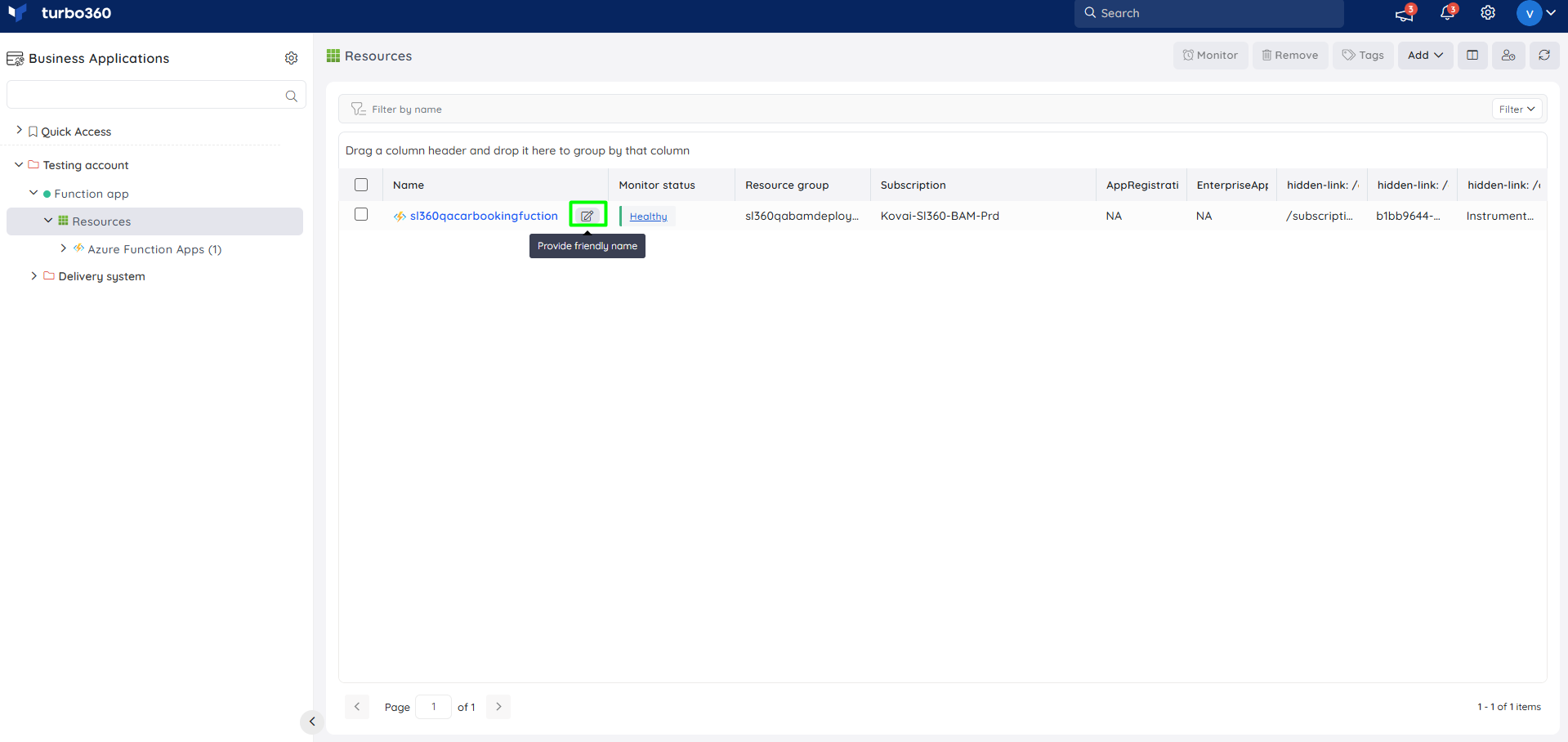
- Enter a friendly name and save.
The friendly name appears in all major Turbo360 features for that resource. Hovering over the resource shows a tooltip with both the original name and the friendly name.
Manage Azure tags
Tags are name/value pairs that let you categorise Azure resources and consolidate billing across resources and resource groups. You can assign tags to resources associated with a Business Application.
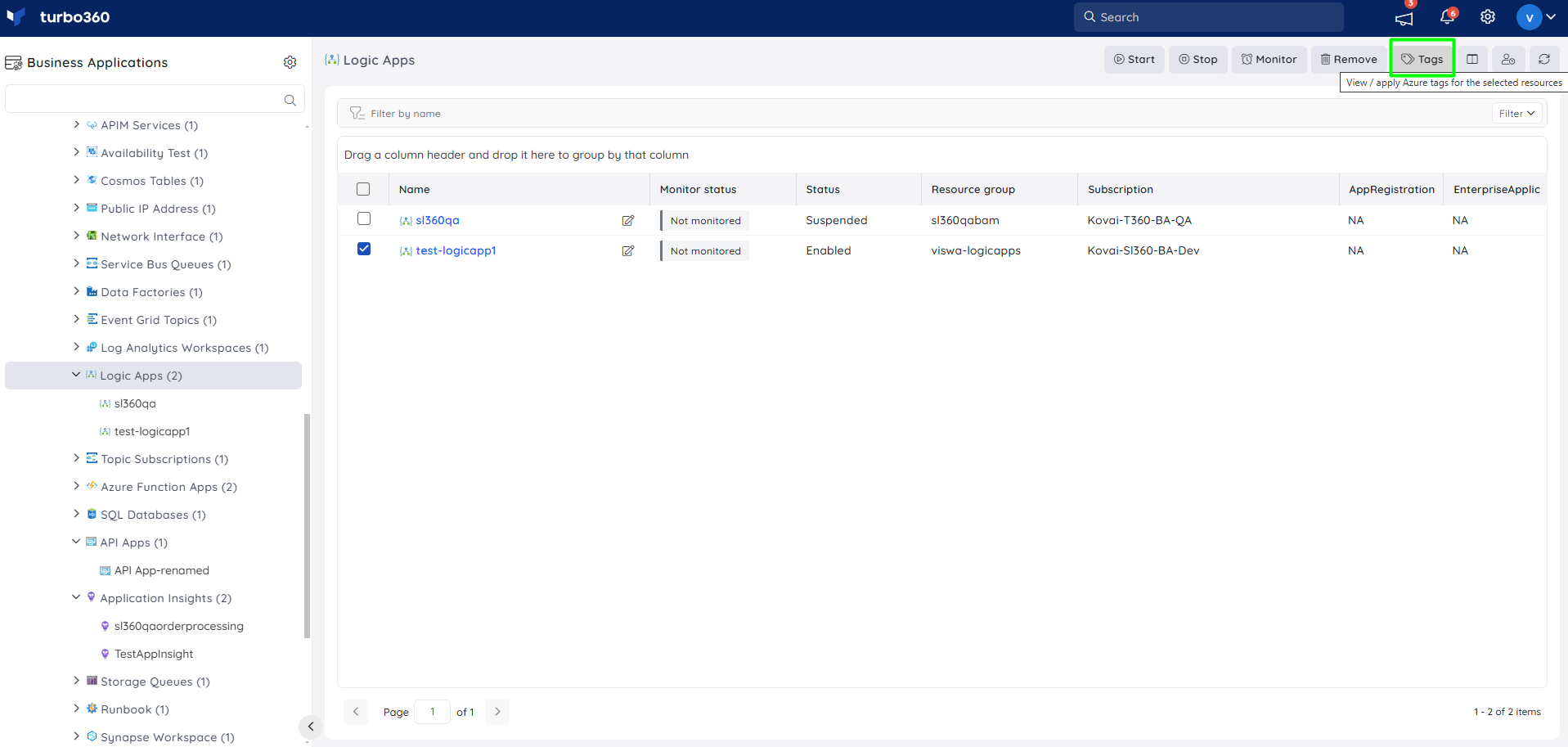
- In the Resources section of the Business Application, select the resource.
- Click Tags.
- Enter a tag name and value.
- Click Add tag to add additional tags.
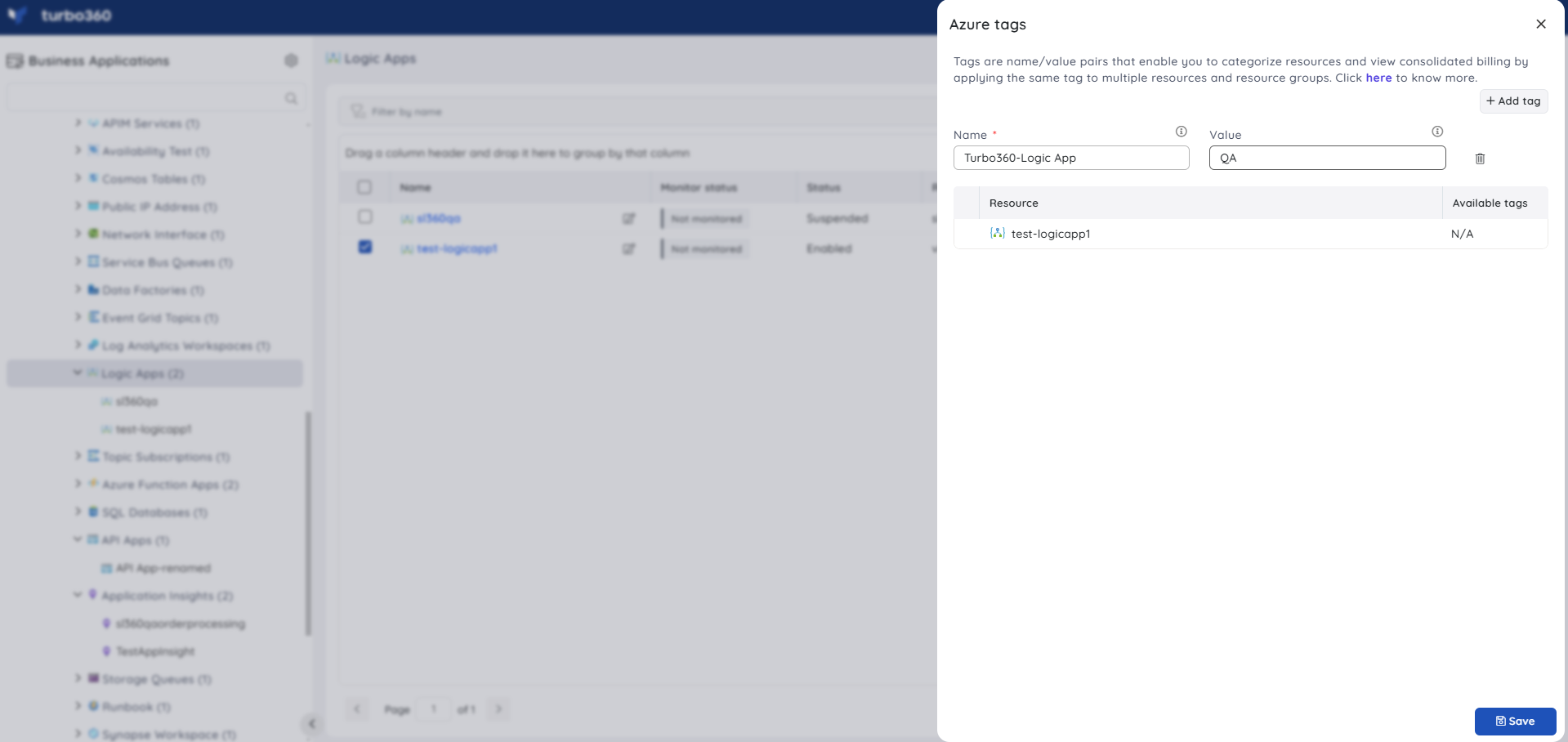
- Click Save to assign the tags.
The assigned tags appear in the Azure tags blade / Tags Column after a manual or auto-refresh.
- Tag values are case-sensitive.
- Tags can only be assigned to resource types that support tagging. Refer to the Azure resource tag support documentation for the full list.
Troubleshooting
Friendly name not visible in resource selection when creating a Business Application
Cause: Friendly names are not surfaced in the resource selection step during Business Application creation.
Fix: This is by design. The friendly name becomes visible after the Business Application is created and the resource is associated.Licensing count does not decrease after removing a resource
Cause: The resource is still associated with one or more other Business Applications.
Fix: Remove the resource from all Business Applications for the licensing count to decrease.Tags not appearing after assignment
Cause: The tag data has not yet been refreshed.
Fix: Trigger a manual refresh or wait for the next auto-refresh cycle.Resource type not available during association
Cause: The resource type may be listed under All Resources rather than Resources (Management & Monitoring).
Fix: Check the All Resources tab during the association step. Refer to the Supported Azure resources article for the full list of supported types.Unable to change a friendly name
Cause: The user account has a Reader role.
Fix: Request a Contributor or Owner role assignment to modify friendly names.
Related articles
Was this article helpful?