

Managing service principals in Cost Analyzer
- 05 Aug 2026
- 6 Minutes to read
- Print
- DarkLight
- Download PDF
Managing service principals in Cost Analyzer
- Updated on 05 Aug 2026
- 6 Minutes to read
- Print
- DarkLight
- Download PDF
Article summary
Did you find this summary helpful?
Thank you for your feedback!
Overview
A Service principal is an application within Microsoft Entra ID that Turbo360 uses to connect to your Azure environment and access Azure resources on your behalf. Turbo360 uses the authentication tokens of the Service principal, scoped to the permissions you assign, to import cost data and power the features in Cost Analyzer.
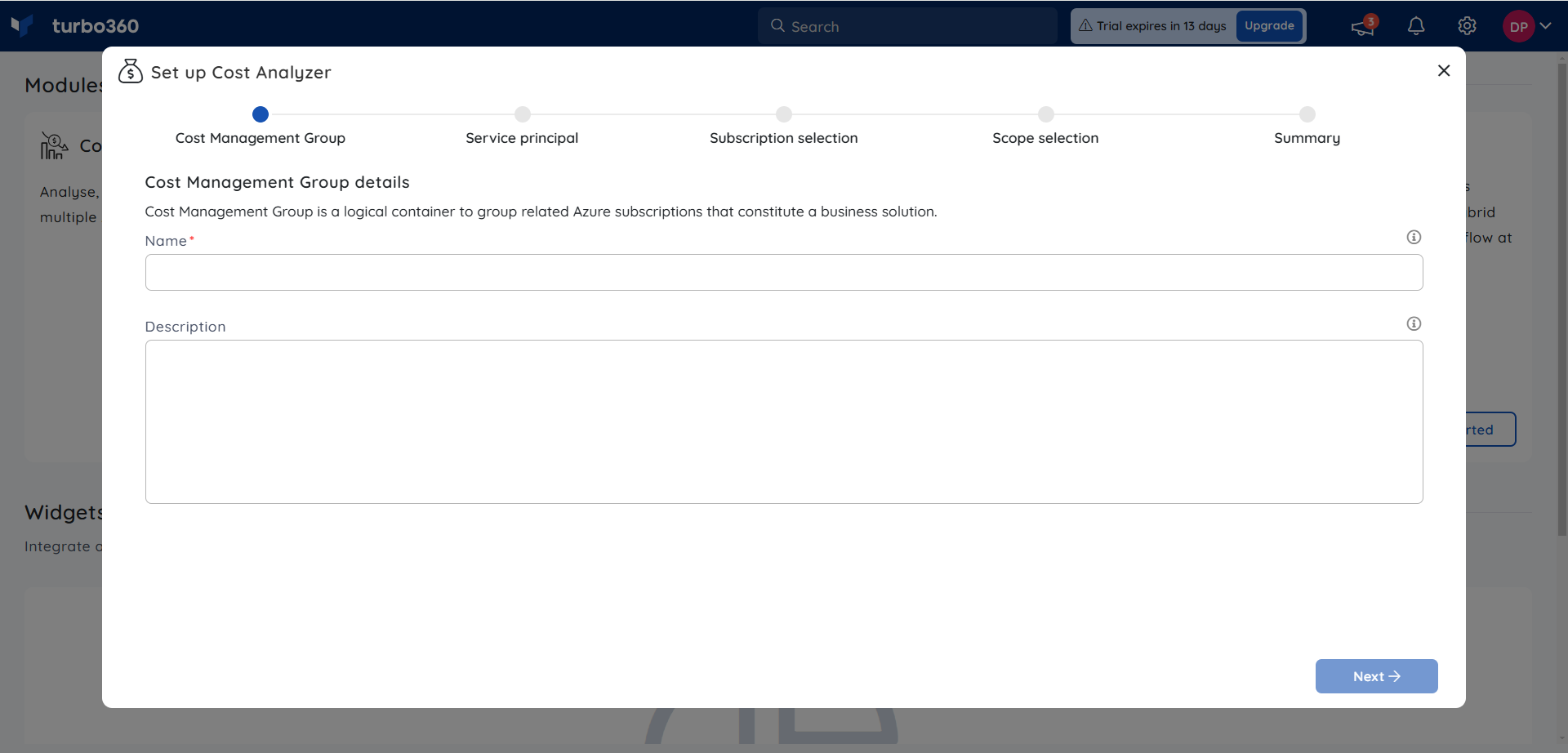
This article covers how to add, update, remove, and automate the scope of a Service principal in Cost Analyzer.
Business value
Managing your Service principal directly from Turbo360 lets you control exactly which Azure subscriptions and cost management groups Turbo360 can access, keep client secrets current without service interruption, and automatically extend access as your Azure environment grows — reducing manual re-configuration and the risk of import failures caused by expired credentials.
Prerequisites
- An Azure Service principal (App registration in Microsoft Entra ID) with at least Reader access at the subscription level. See What is a service principal? for how to create one.
- The Service principal's Microsoft Entra ID (tenant) ID, Client ID, and Client secret.
Azure
Required permissions
| Azure RBAC permission | Allows you to use | Notes |
|---|---|---|
| Reader (minimum) | Import cost data, Analysis, Monitoring (budget planner, anomaly detection), Reports, Optimization (basic and advanced rightsizing, other recommendations) | Applied at subscription or management group level |
| Reservation Reader (recommended) | View existing reservations, advanced recommendations, reservation expiry and usage monitoring, reservations in the Potential Savings and executive summary reports | Applied via role assignment in the Reservations area — not a subscription-based permission |
| Savings Plan Reader (recommended) | View existing savings plans, monitor expiry and utilization | Applied via role assignment in the Savings Plans area — not a subscription-based permission |
Additional, feature-specific permissions (for example, resource-level Contributor roles for Advanced Rightsizing or Scheduler actions) are documented in Permissions for service principal.
Turbo360
In addition, accessing Service principals in Turbo360's Cost Analyzer requires one of the following roles: Account owner, Owner, or Contributor.
| Role | Add a Service principal | Edit a Service principal | Delete a Service principal |
|---|---|---|---|
| Account owner | ✓ | ✓ | ✓ |
| Owner | ✓ | ✓ | ✓ |
| Contributor | ✓ | ✓ | ✓ |
| Other roles | ✗ | ✗ | ✗ |
How it works
- Turbo360 uses the Service principal's authentication tokens to manage the Azure resources it has been granted access to — it never accesses resources outside the assigned scope.
- Client secrets have an expiration date. Turbo360 lets you configure the same expiry date as the Azure portal and notifies you 7 days before expiry so you can rotate the secret before access is interrupted.
- You can update the client secret and its expiration date at any time from Service principal management, without needing to remove and re-add the Service principal.
- Scope automation rules let Turbo360 automatically assign newly added subscriptions to the correct cost management groups, based on subscription name, instead of requiring manual assignment each time.
Steps
Use the following steps to add, update, configure scope automation for, and remove a Service principal. Navigate to Cost Analyzer > Service Principal to get started.
Add a Service principal
Adding a Service principal connects an Azure environment to Cost Analyzer and defines which subscriptions and cost management groups it can access.
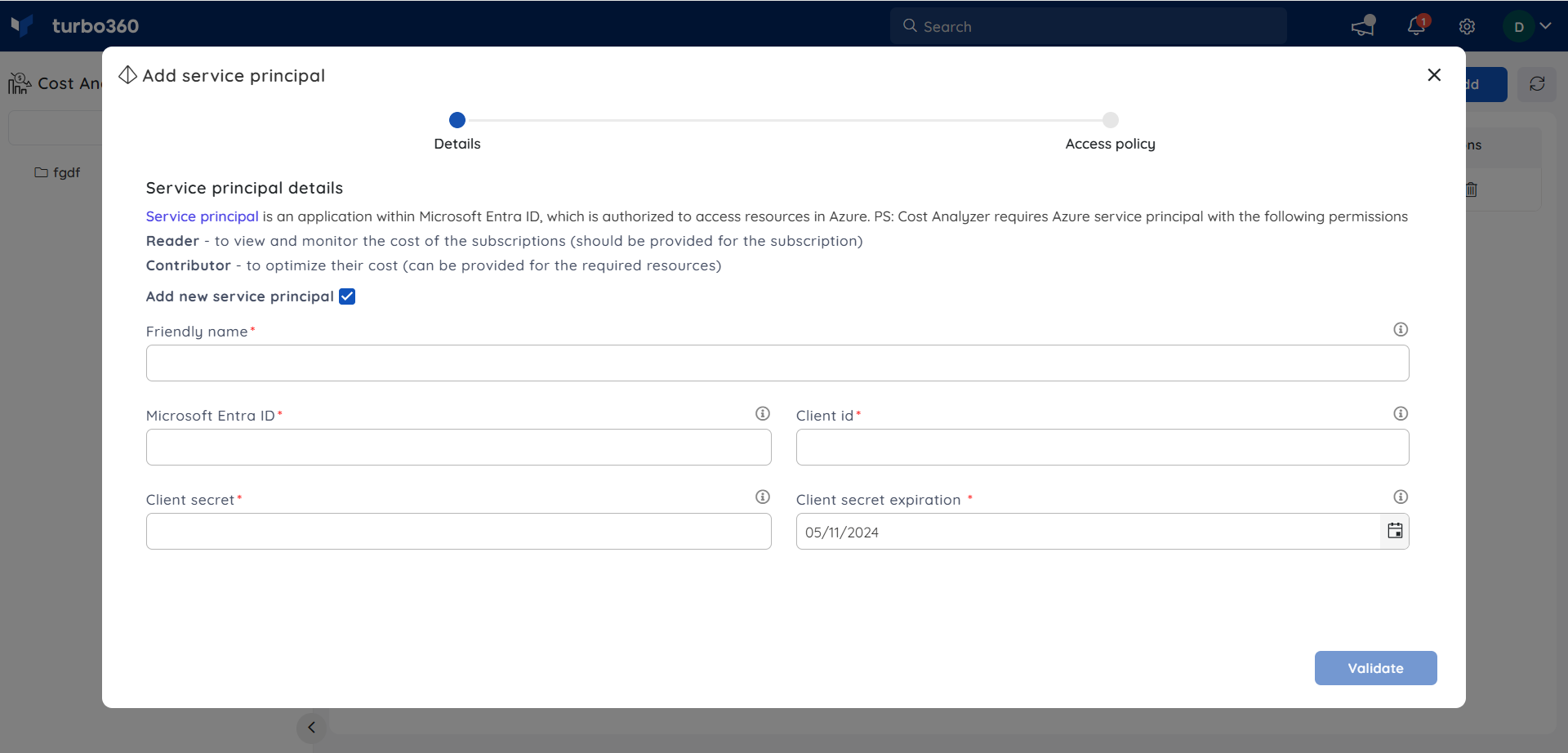
Go to the Service principals section and click Add.
Select an existing Service principal or choose to add a new one.
Enter the required details: Microsoft Entra ID, Client ID, and Client secret expiration date.
Click Validate.
After successful validation, click Next.
Configure access to cost management groups:
- Select a subscription from the left panel to assign a cost management group.
- To update multiple subscriptions at once, select them together.
- Use Copy from Subscription to apply a subscription's access policy to multiple subscriptions.
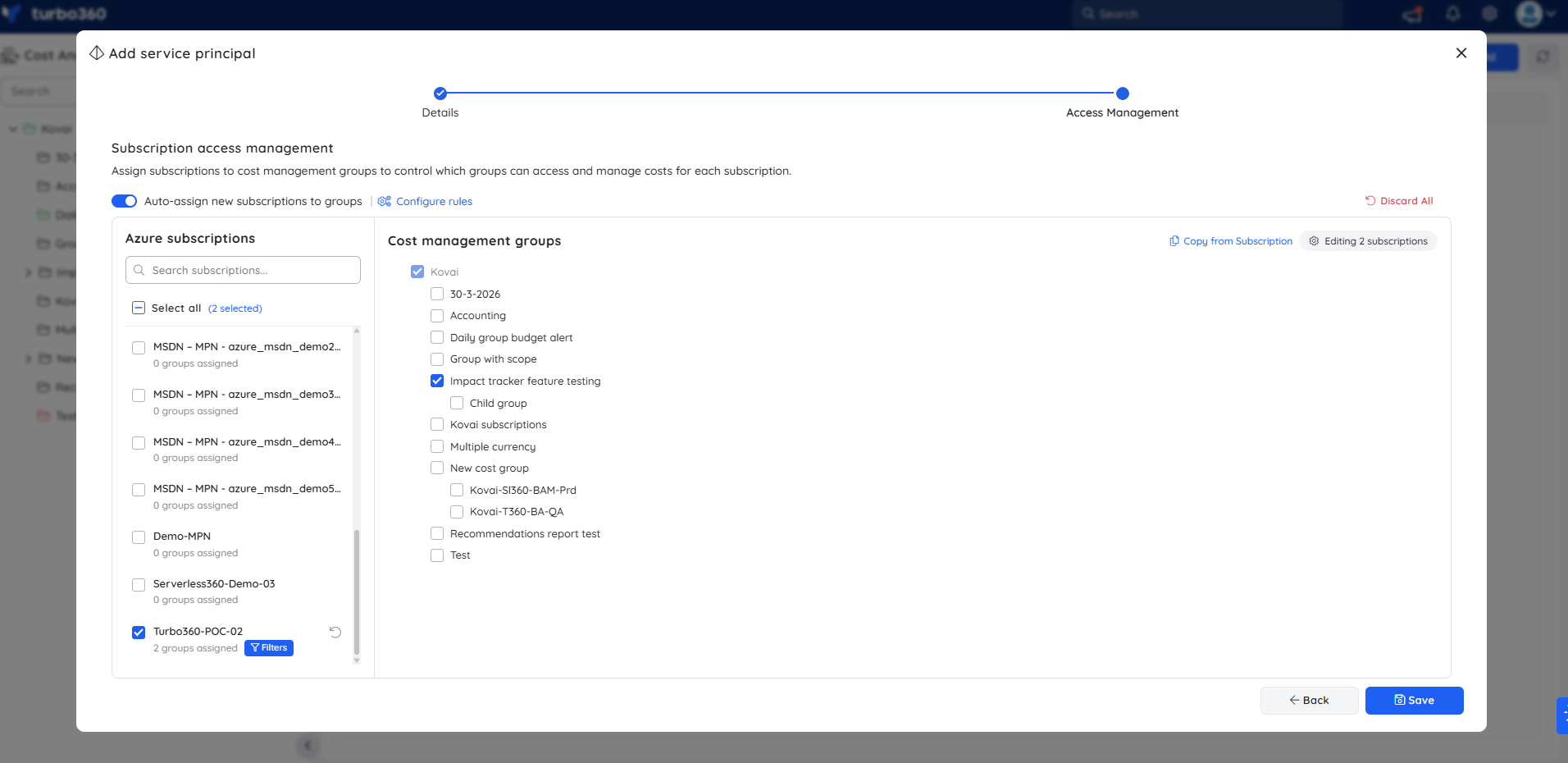
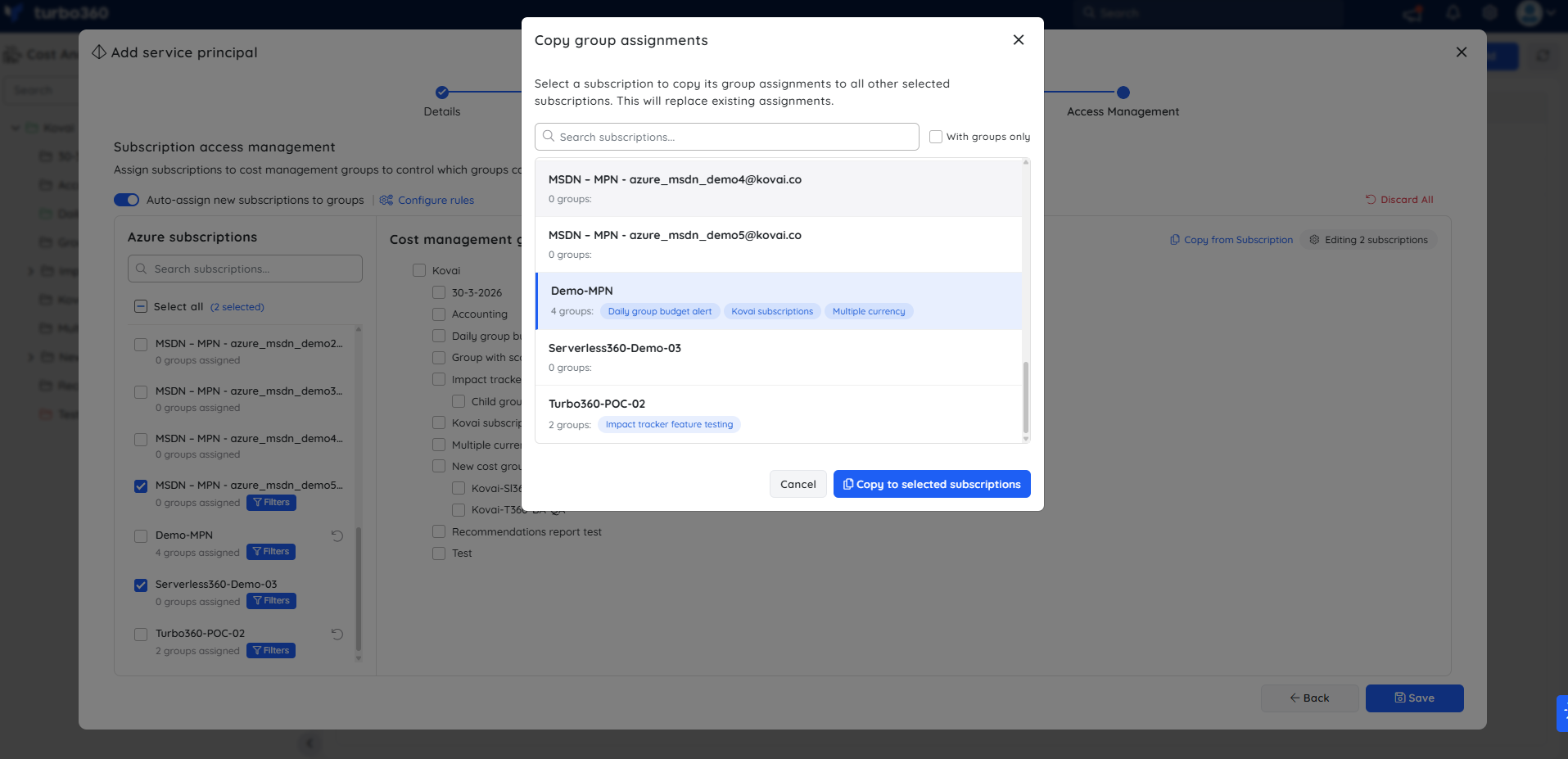
Scope can be applied for selected subscriptions using the Filters option available next to it (for example, resource types, tags). Click Save to apply the scope to the subscription.
.png)
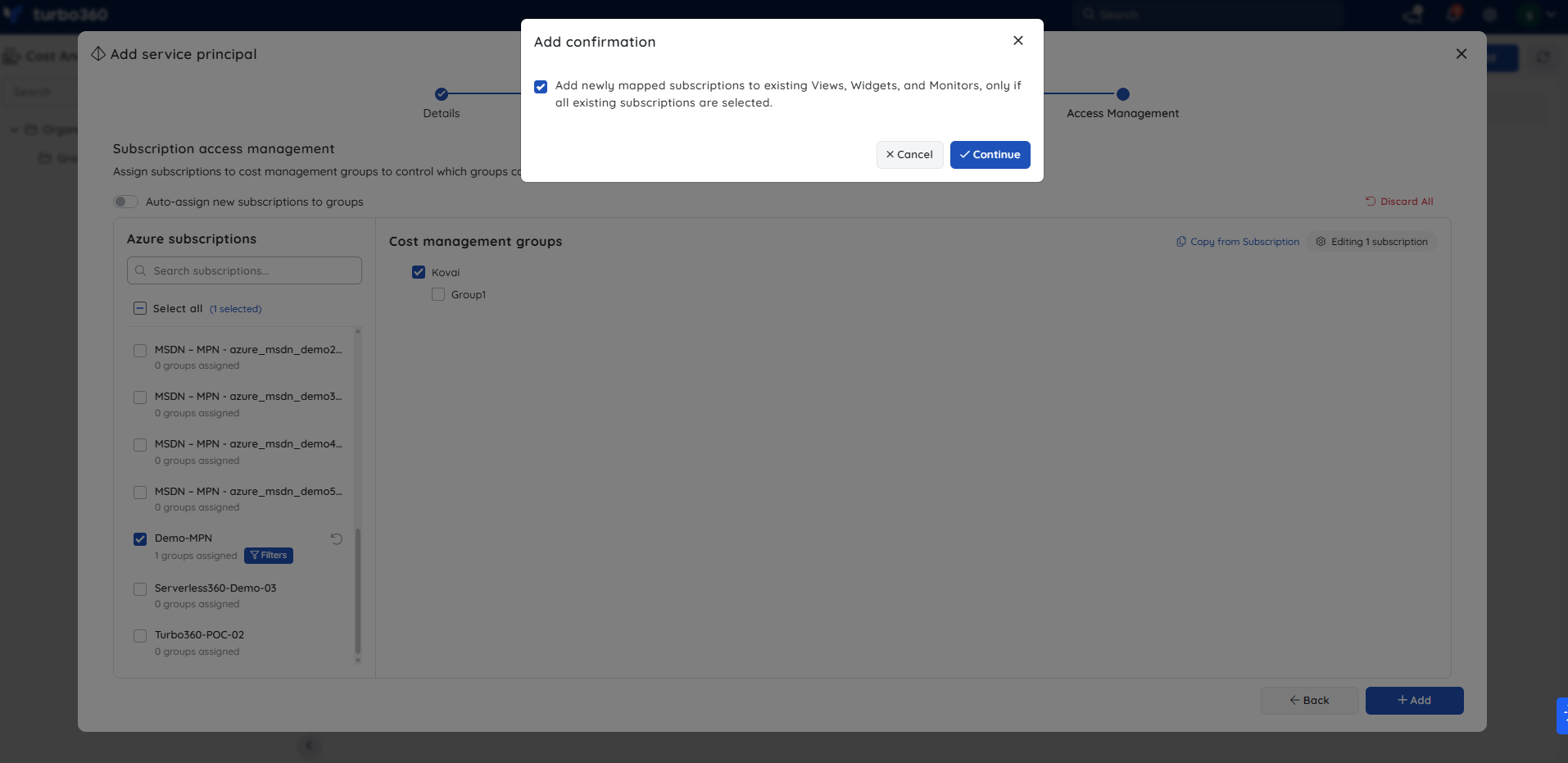
Click Add. In the Add Confirmation dialog, optionally select Add newly mapped subscriptions to existing Views, Widgets, and Monitors, only if all existing subscriptions are selected. When enabled, new subscriptions are automatically included wherever the Select All option is currently selected in the subscription filtering.
Click Confirm to complete the setup.
Update a Service principal
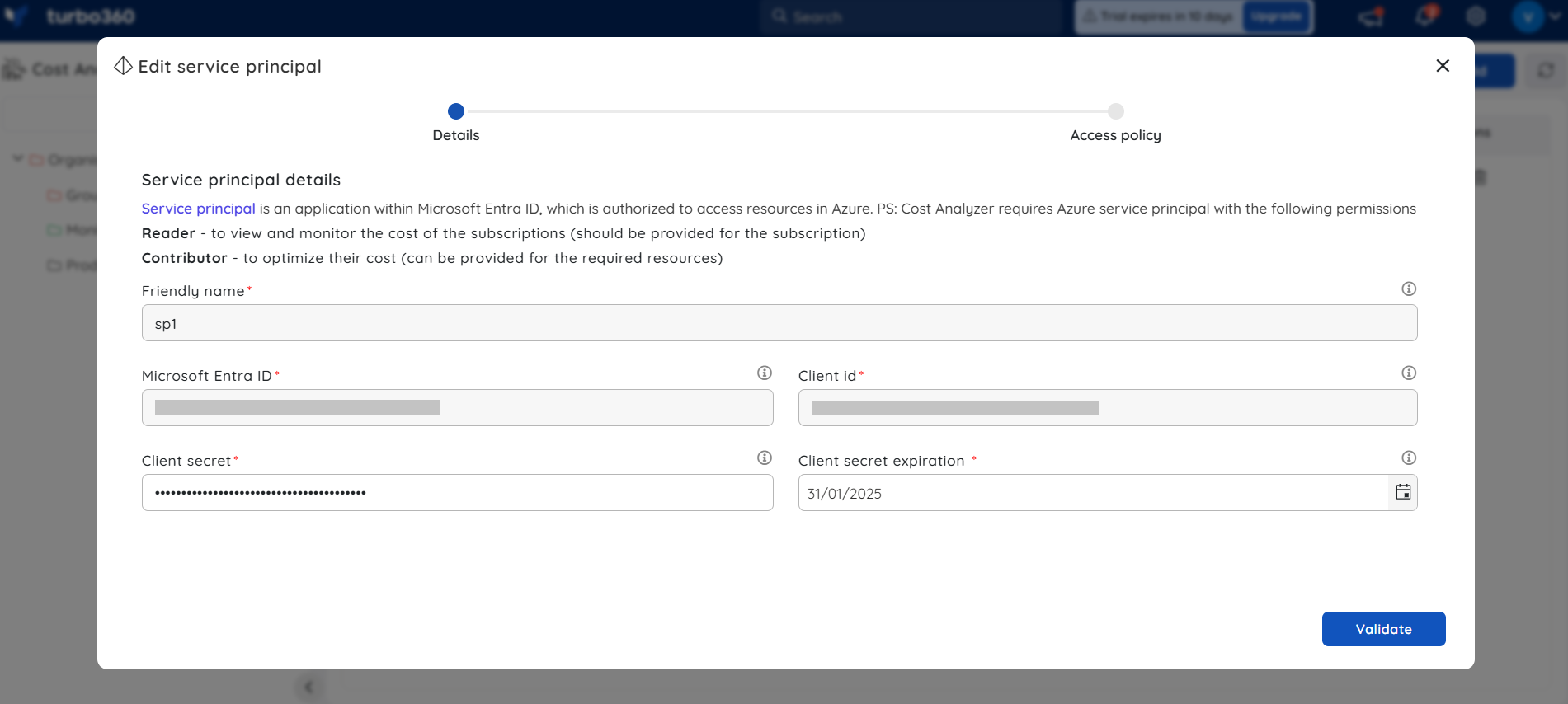
Editing a Service principal lets you rotate the client secret and its expiration date, add new subscriptions, modify the scope of existing subscriptions, and manage access policies and scope-based automation rules.
Go to the Service principals section and click Edit on the Service principal you want to update.
Update the Client secret, expiration date, subscriptions, or scope as needed.
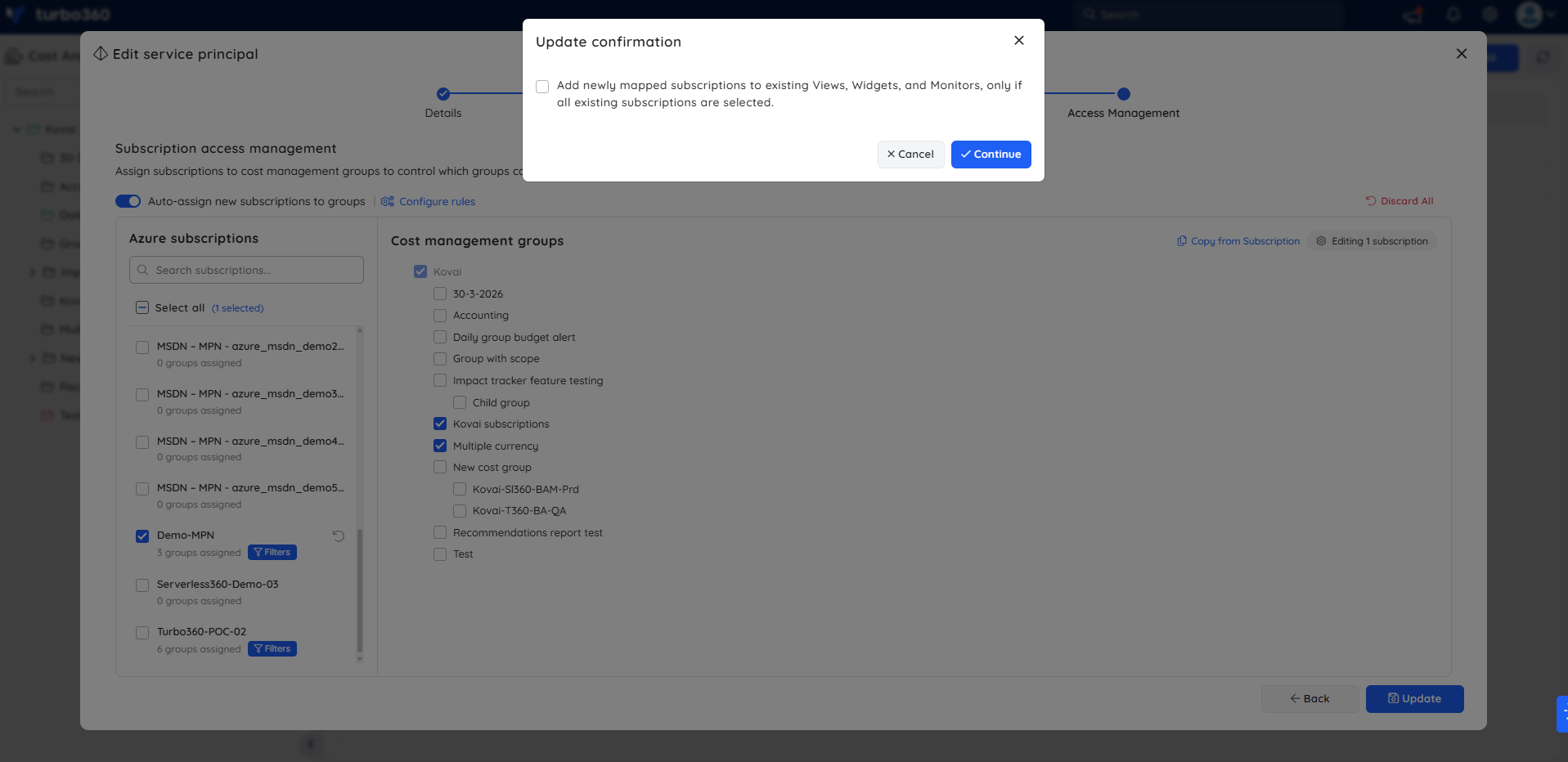
In the confirmation dialog, optionally select Add newly mapped subscriptions to existing Views, Widgets, and Monitors only when all subscriptions are selected. When enabled, newly added subscriptions are automatically included in existing Views, Widgets, and Monitors wherever Select All is currently selected in the subscription filtering.
Remove a Service principal
Click the Delete icon next to the required Service principal in the Service principals section, and confirm the deletion to remove it from the Cost Analyzer module.
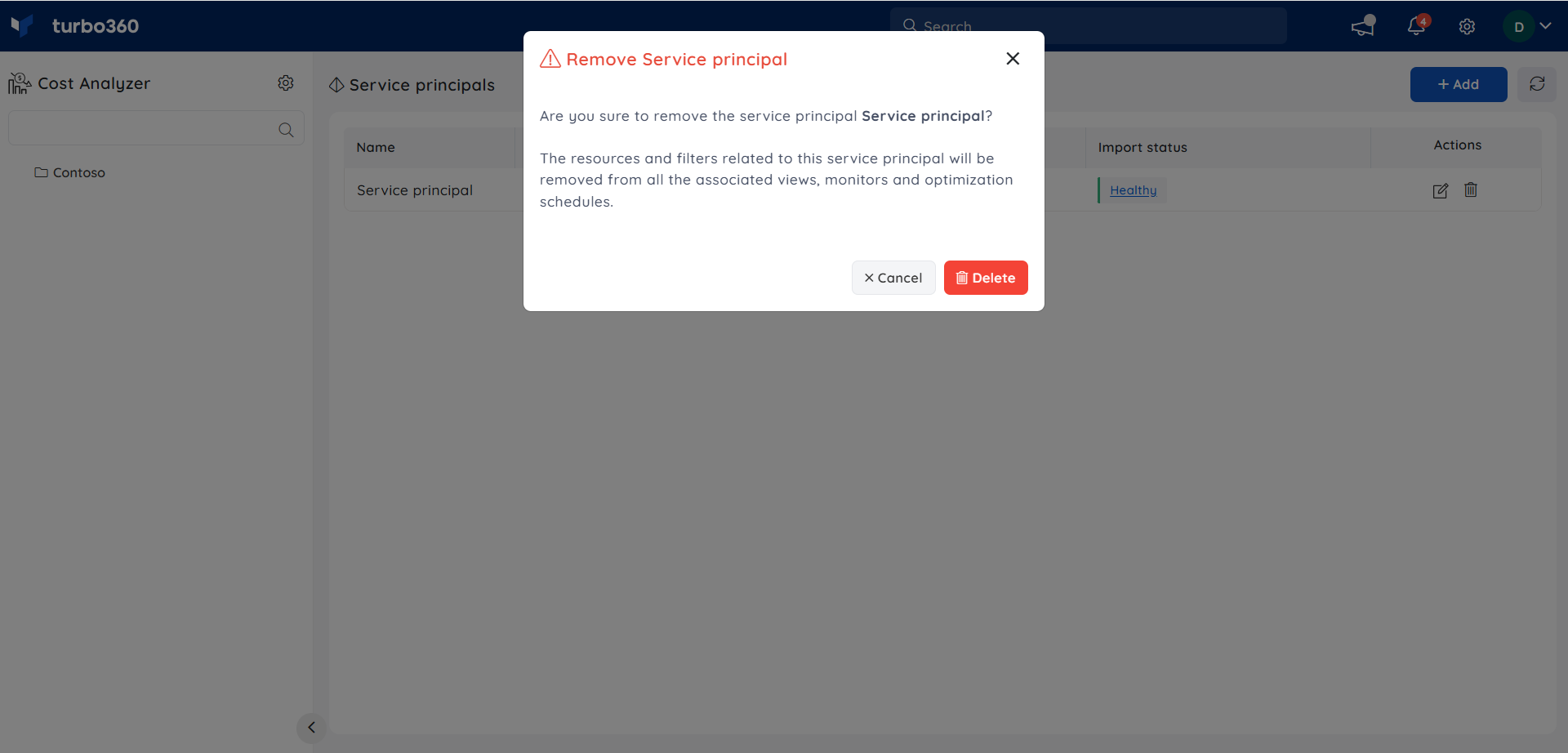
The removed Service principal remains available in the global Service principals section and can be added back later.
.png)
Configure scope automation
Scope automation applies cost management group scopes automatically, based on subscription name, so newly granted subscriptions are added to the correct cost management groups without manual assignment.
Go to the Service principals section and Add or Edit a Service principal to configure automation rules.
Validate the credentials and proceed to the next step.
Enable Auto-assign new subscriptions to groups to automatically grant root-level access to newly added subscriptions when no rules are defined.
.png)
Click Configure rules to define rules that automatically assign matching subscriptions to specific cost management groups. Subscriptions that meet the defined criteria are granted access to the configured scopes.
.png)
Click Save to apply the automation rules.
Click Update to finish setting up the automation rules.
Configuration
| Option | Type | Default | Required | Description |
|---|---|---|---|---|
| Client secret expiration date | Date | Matches Azure portal expiry | Yes | Sets when Turbo360 expects the client secret to expire. Turbo360 sends a notification 7 days before this date so the secret can be rotated in time. |
| Auto-assign new subscriptions to groups | Toggle | Off | No | When enabled with no rules defined, grants root-level access to newly added subscriptions automatically. |
| Configure rules (scope automation) | Rule set | None | No | Automatically assigns matching subscriptions to specific cost management groups based on subscription name. |
Troubleshooting
Validation fails when adding a Service principal
Cause: The Microsoft Entra ID, Client ID, or Client secret entered doesn't match an active app registration, or the client secret has expired in Azure.
Fix: Confirm the values against the app registration in Microsoft Entra ID, and generate a new client secret if it has expired, then retry Validate.Cost data doesn't appear after adding a Service principal
Cause: The Service principal doesn't have Reader access at the subscription level in Azure.
Fix: Assign the Reader role to the Service principal at the subscription (or management group) level in Azure, then re-import."Add" or "Edit" option is unavailable for a Service principal
Cause: The signed-in Turbo360 user doesn't have the Account Owner, Owner, or Contributor role.
Fix: Ask a Turbo360 Account Owner or Owner to grant one of these roles, or to perform the action on your behalf.
Related articles
- What is a service principal?
- Permissions for service principal
- Additional service principal permissions
- Script to Setup Commitment Permissions [NEEDS VERIFICATION: no v3 article found matching this title]
Was this article helpful?