

Managing tag configurations
- 05 Aug 2026
- 4 Minutes to read
- Print
- DarkLight
- Download PDF
Managing tag configurations
- Updated on 05 Aug 2026
- 4 Minutes to read
- Print
- DarkLight
- Download PDF
Article summary
Did you find this summary helpful?
Thank you for your feedback!
Overview
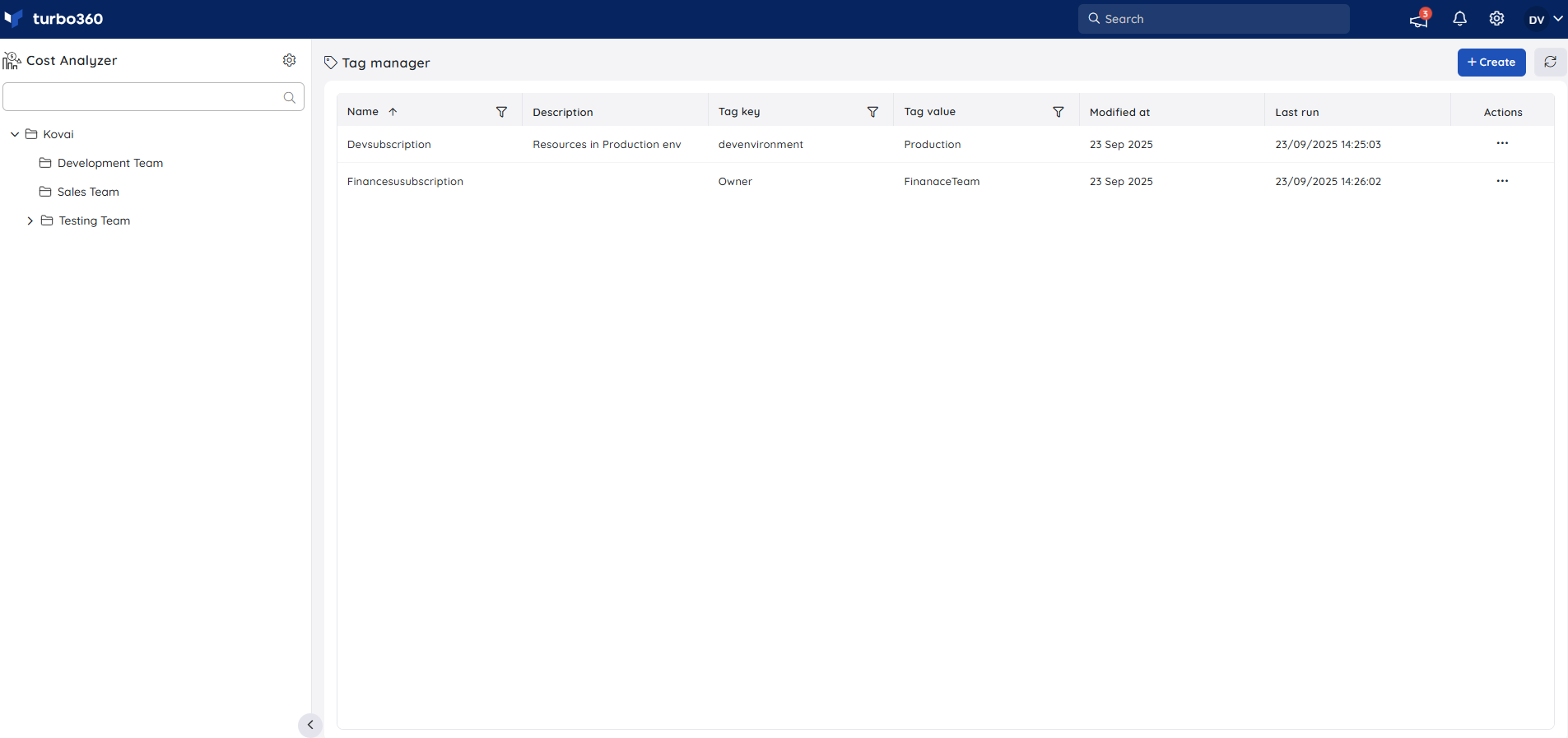
Tag manager enables rule-based automation to standardize tagging across Azure resources. You can define conditional rules that automatically create and apply tags to resources that meet specified criteria.
Rules can be configured to evaluate resource attributes such as subscription, resource group, resource type, naming conventions, or other metadata. Once defined, these rules are applied across multiple subscriptions from a centralized configuration.
Business value
Tag manager removes the manual effort of applying consistent tags across Azure resources, reducing tagging errors and ensuring cost, ownership, and governance tags stay consistent as your environment scales.
Prerequisites
Required permissions
Only the Account owner and Owner roles have access to perform all Tag manager actions in Cost Analyzer, including creating, cloning, editing, deleting, and running rule configurations.
.jpg)
In Azure, the service principal connected to Turbo360 needs Contributor permission on the target resources, since applying a tag directly to a resource is a write operation.
How it works
- A rule configuration pairs a tag key-value with one or more criteria that determine which resources the tag applies to.
- Criteria can evaluate resource attributes such as subscription, resource group, resource type, and naming conventions.
- Once saved, a configuration runs automatically on a daily basis, starting from the time it was last saved or updated.
- Configurations can also be triggered on demand instead of waiting for the daily run.
- Tags applied by a configuration are reflected directly in Azure on the target resources.
Steps
Use the following steps to create, run, clone, edit, and delete Tag manager rule configurations. Navigate to Settings > Tag manager to get started.
Create a rule configuration
Creating a configuration lets you automatically apply a tag key-value pair to every resource that matches your defined criteria.
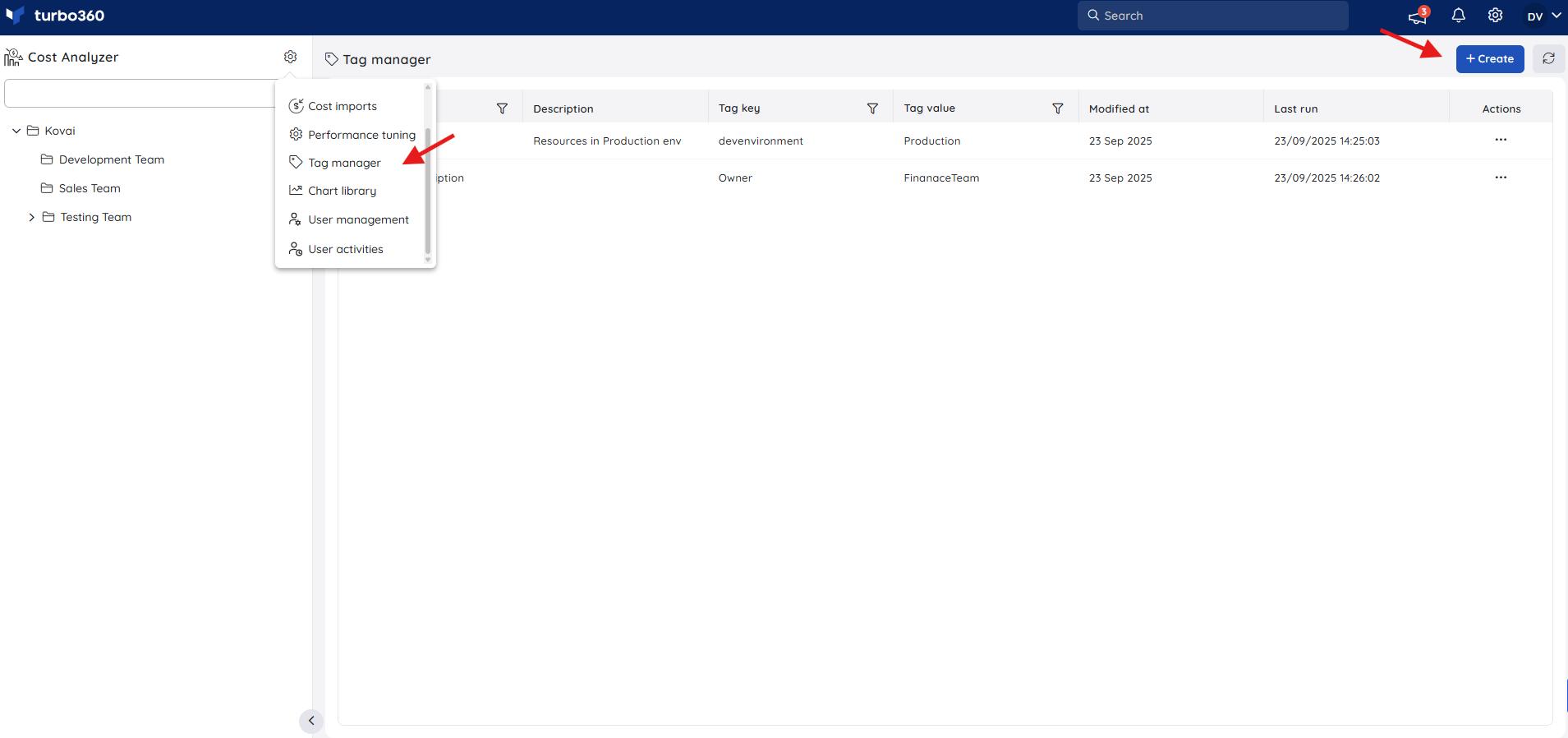
- Navigate to Settings > Tag manager > Create to initiate a new configuration.
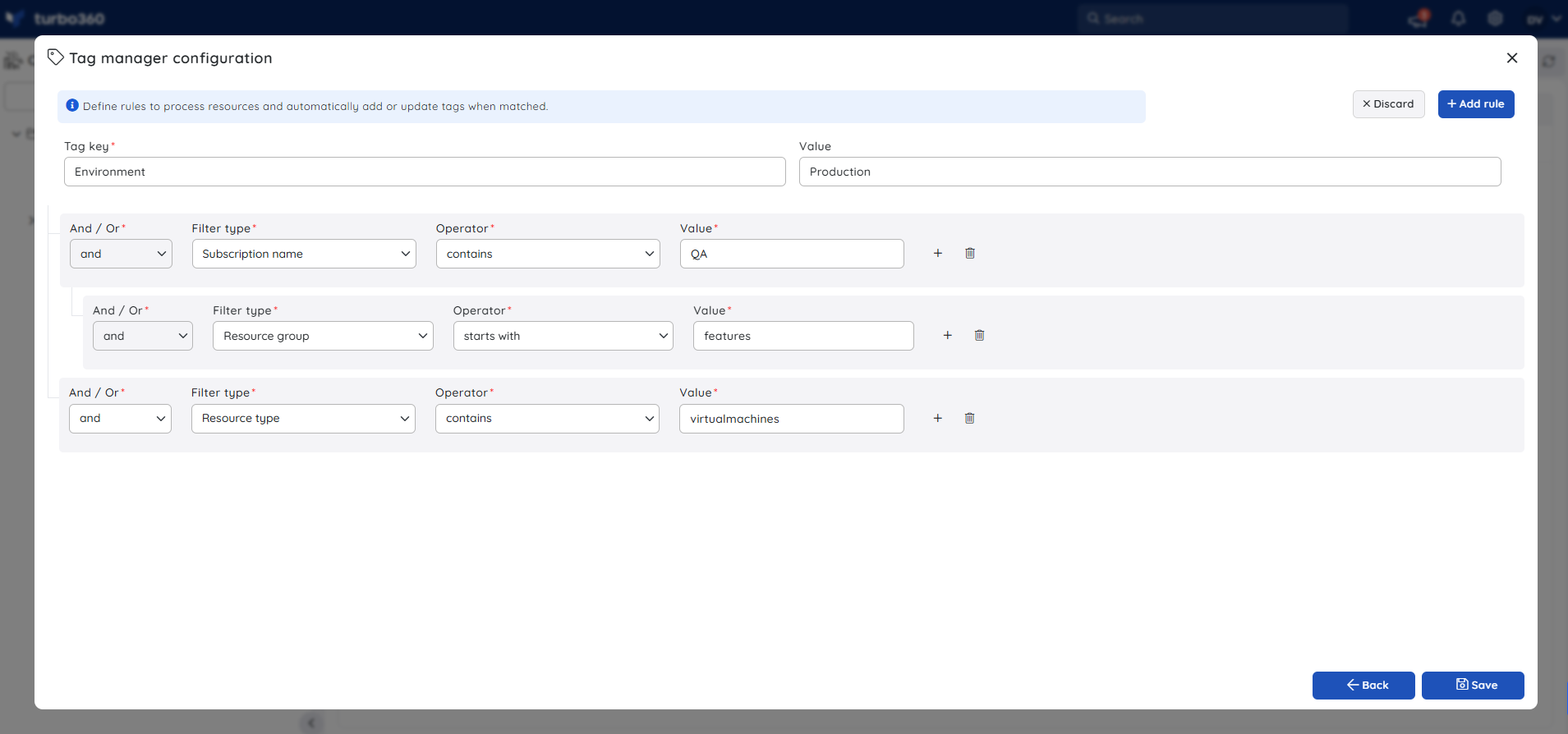
- Enter a unique name to identify the configuration, and then select Next.
- Specify the required tag key and corresponding value.
- Define the rule criteria that determine which resources will automatically be applied with the specified tag key-value pair.
- Select Save to complete and activate the configuration.
Run a configuration on demand
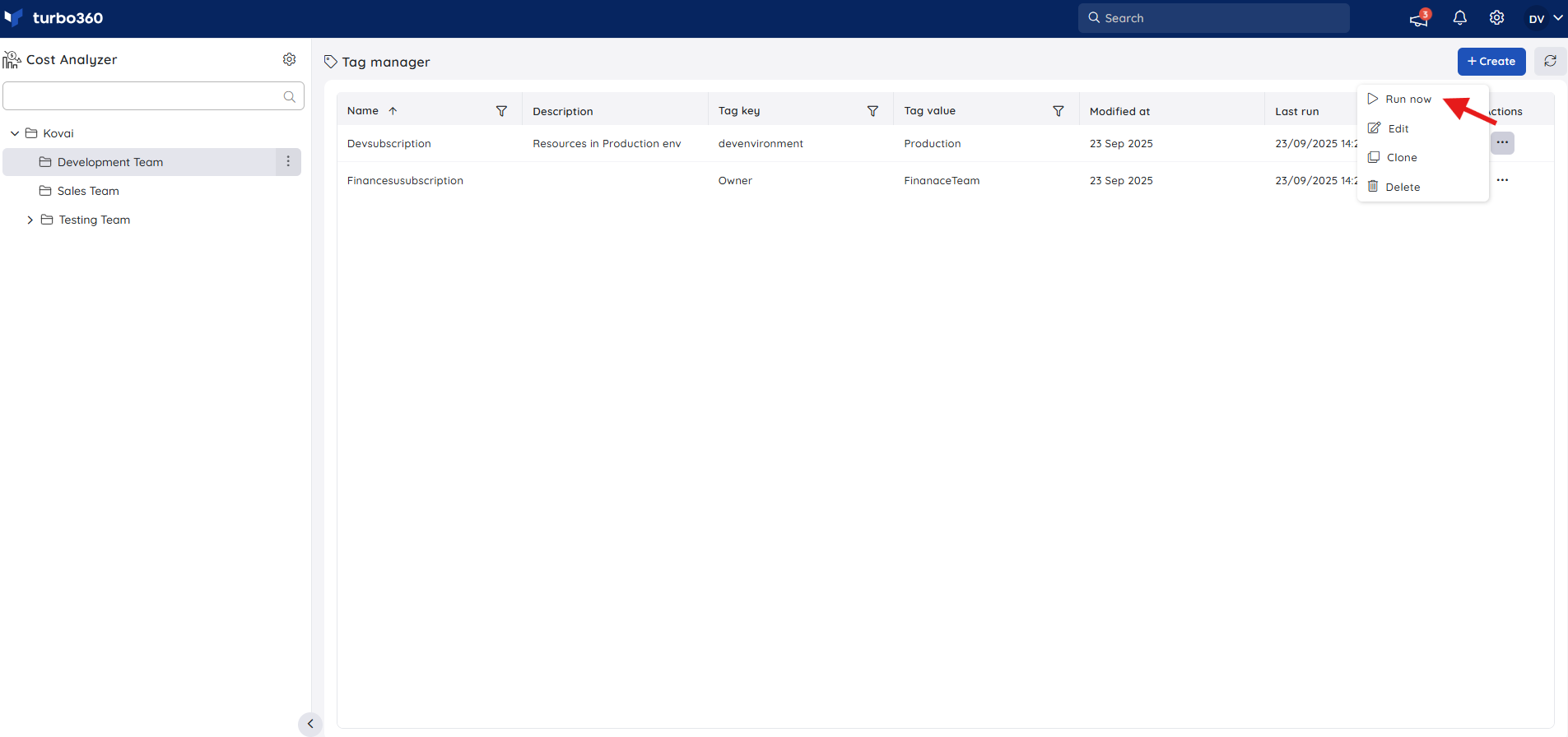
Running a configuration instantly applies its rules without waiting for the next scheduled daily run — useful when a tag key-value or criteria change needs to take effect immediately.
- Click the Actions menu next to the configuration and select Run now.
- Updated tags (new key-value or modified rules) are applied instantly to the relevant resources in Azure.
Clone a configuration
Cloning creates a copy of an existing configuration, retaining its rules, tag key-value pairs, and criteria, so you can reuse them as a starting point without rebuilding a configuration from scratch.
- Click the Actions menu next to the configuration to be duplicated and select Clone.
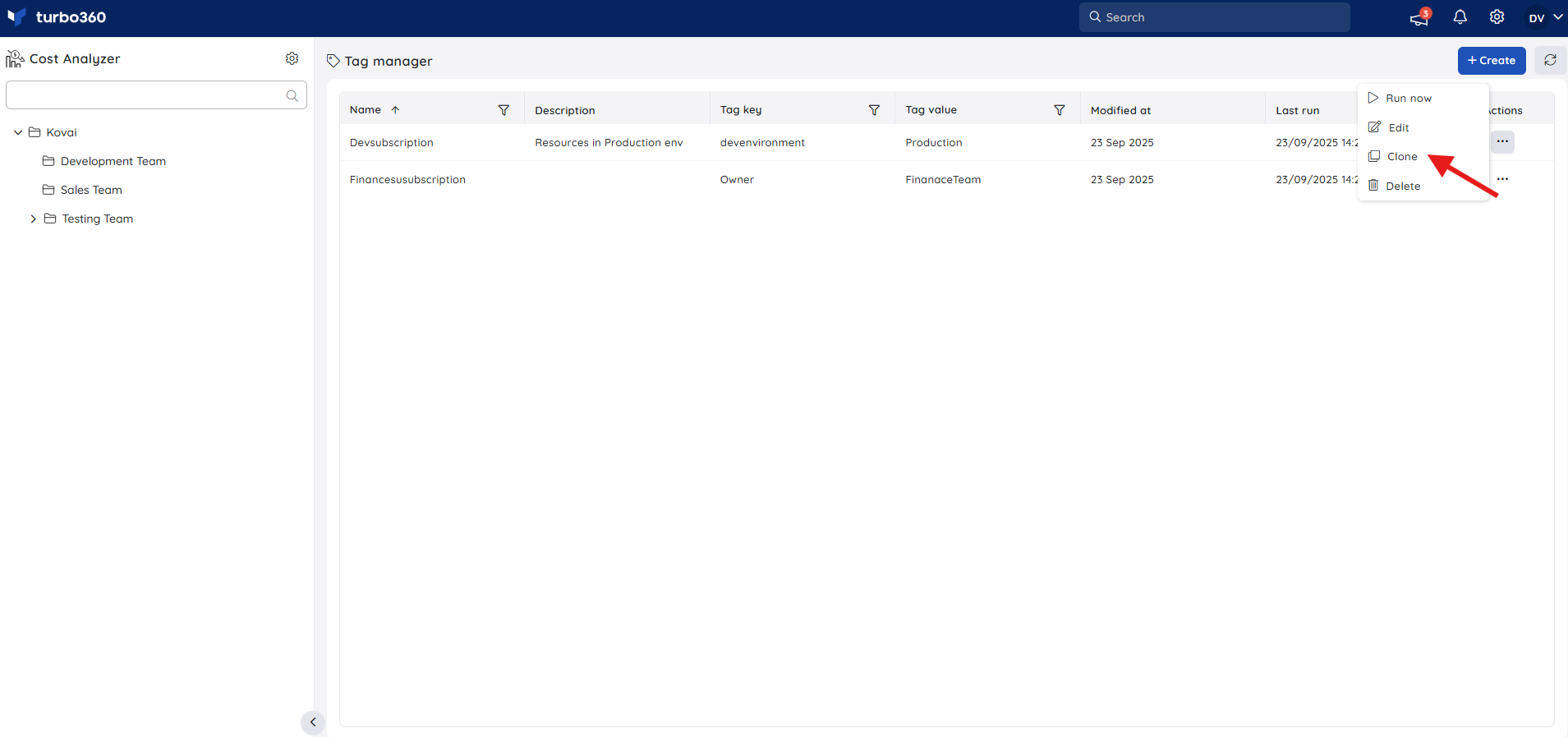
- Provide a unique name for the new configuration to distinguish it from the original.
- Review the retained rules and tag key-value pairs, making any adjustments if needed.
- Click Save to create the cloned configuration.
Edit or delete a configuration
Editing lets you update a configuration's name, rules, or tag key-value pairs. Deleting permanently removes a configuration you no longer need.
- Click the Actions menu next to the configuration.
- Select Edit to modify the configuration, or Delete to remove it permanently.
.png)
Example scenario
An administrator wants every resource in the Production resource group to carry an Environment: Production tag. They create a configuration with that tag key-value pair and a criterion matching resource group Production. The configuration runs automatically each day, tagging any new resources added to the group, and the administrator uses Run now immediately after saving to apply the tag without waiting for the next scheduled run.
Troubleshooting
A configuration isn't tagging a resource I expect it to tag
Cause: The resource doesn't meet all criteria defined in the rule configuration.
Fix: Review the configuration's criteria and confirm the resource's subscription, resource group, resource type, or naming pattern matches every defined condition.Tags haven't updated since I changed a configuration
Cause: The configuration runs automatically once daily, so changes may not appear until the next scheduled run.
Fix: Use the Run now option under the Actions menu to apply the updated rules immediately instead of waiting for the daily run.I don't have access to create, edit, or delete a configuration
Cause: Only the Account owner and Owner roles have access to Tag manager actions.
Fix: Ask an Account owner or Owner to perform the action, or to review your role assignment.A rule configuration runs but tags aren't applied to the resource in Azure
Cause: The service principal connected to Turbo360 doesn't have Contributor permission on the target resource, so the write operation to apply the tag fails.
Fix: Grant the service principal Contributor permission on the resource, resource group, or subscription scope, then run the configuration again.
Related articles
Was this article helpful?