

Monitoring profiles
- 05 Aug 2026
- 2 Minutes to read
- Print
- DarkLight
- Download PDF
Monitoring profiles
- Updated on 05 Aug 2026
- 2 Minutes to read
- Print
- DarkLight
- Download PDF
Article summary
Did you find this summary helpful?
Thank you for your feedback!
Overview
A monitoring profile is a reusable set of monitoring rules that can be applied to a Business Application. Instead of defining rules individually for each resource, you configure a profile once — specifying which resource types to monitor and what thresholds or conditions to evaluate — and then map it to one or more Business Applications.
Monitoring profiles work alongside monitoring rules configured directly at the Business Application level. A profile takes precedence for any resource type it covers, letting you apply consistent, reusable monitoring standards across different applications without duplicating configuration.
Business value
Monitoring profiles eliminate the overhead of configuring monitoring rules resource by resource across large Business Applications. A single profile can govern monitoring for all instances of a given resource type across multiple Business Applications, making it faster to enforce consistent monitoring standards and easier to update them when requirements change.
How it works
Profile scope
A monitoring profile defines monitoring rules at the resource type level. For each resource type included in the profile, you configure the relevant metrics or state conditions and their threshold values. When the profile is mapped to a Business Application, the rules apply to all resources of that type within that application.
Rules in a profile can optionally include a note that is attached to any alert triggered by a rule violation, providing context for the team investigating the alert.
.gif)
Profile types
- User-created profiles — profiles you define for specific monitoring requirements.
- System profile — a default profile provided by Turbo360. It is always available for mapping and cannot be deleted.
Profile mapping
A profile is activated by mapping it to a Business Application. During mapping, you select which resource types from the profile to apply, then configure the alert settings — including notification channels and escalation policies — for that mapping. The same profile can be mapped to multiple Business Applications with different alert configurations for each.
Profile mappings can be updated after the fact. Both the alert settings and the rule configuration for a mapped profile can be edited from the monitoring settings of the Business Application.
.gif)
Rules accessibility
Once a profile is mapped to a Business Application, the monitoring rules it provides for each resource type are visible under Monitoring → Monitoring profiles within that application. This lets you see, for any given resource, which profiles are governing its monitoring and what rules are in effect.
.png)
Profile operations
Monitoring profiles support the following operations:
- Clone — duplicate an existing profile as a starting point for a new one. Useful when you need a profile with mostly similar rules but different thresholds or resource types.
- Export — download a profile's rule configuration as an Excel file for review or offline editing.
- Import — create a new profile by uploading a previously exported (and optionally modified) Excel file.
.png)
Autocorrect status
For compatible resource types, a monitoring rule can include an Autocorrect status setting. This enables Turbo360 to automatically attempt to correct a resource's state when a rule violation is detected, without requiring manual intervention.
.png)
User access control
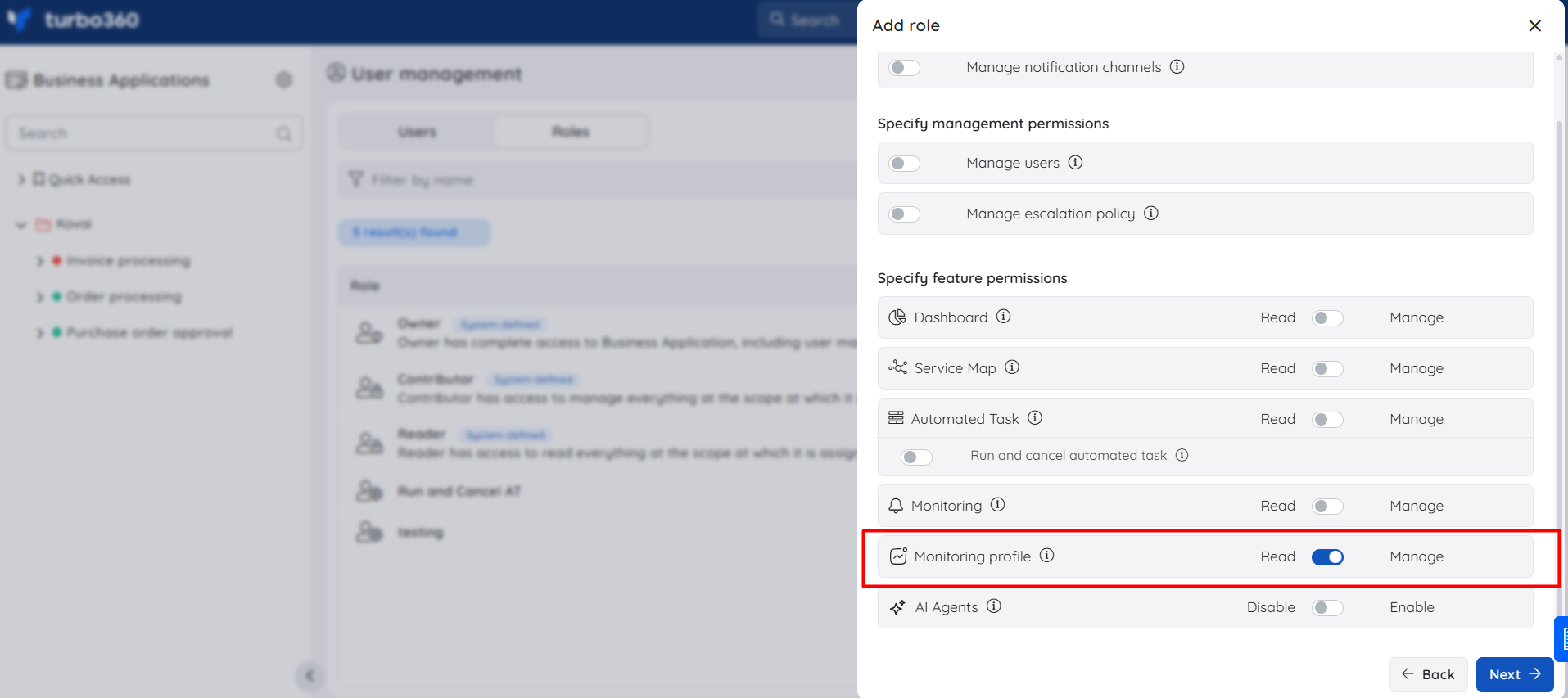
Access to monitoring profile management is controlled through user access policies in Business Applications. The Monitoring profile permission is a dedicated feature-level permission that can be granted independently of broader monitoring access.
Custom roles can be configured to allow Read or Manage access to monitoring profiles, enabling teams to delegate profile management without granting full monitoring or application-level rights.
Related articles
Was this article helpful?