

Other recommendations
- 09 Aug 2026
- 5 Minutes to read
- Print
- DarkLight
- Download PDF
Other recommendations
- Updated on 09 Aug 2026
- 5 Minutes to read
- Print
- DarkLight
- Download PDF
Article summary
Did you find this summary helpful?
Thank you for your feedback!
Overview
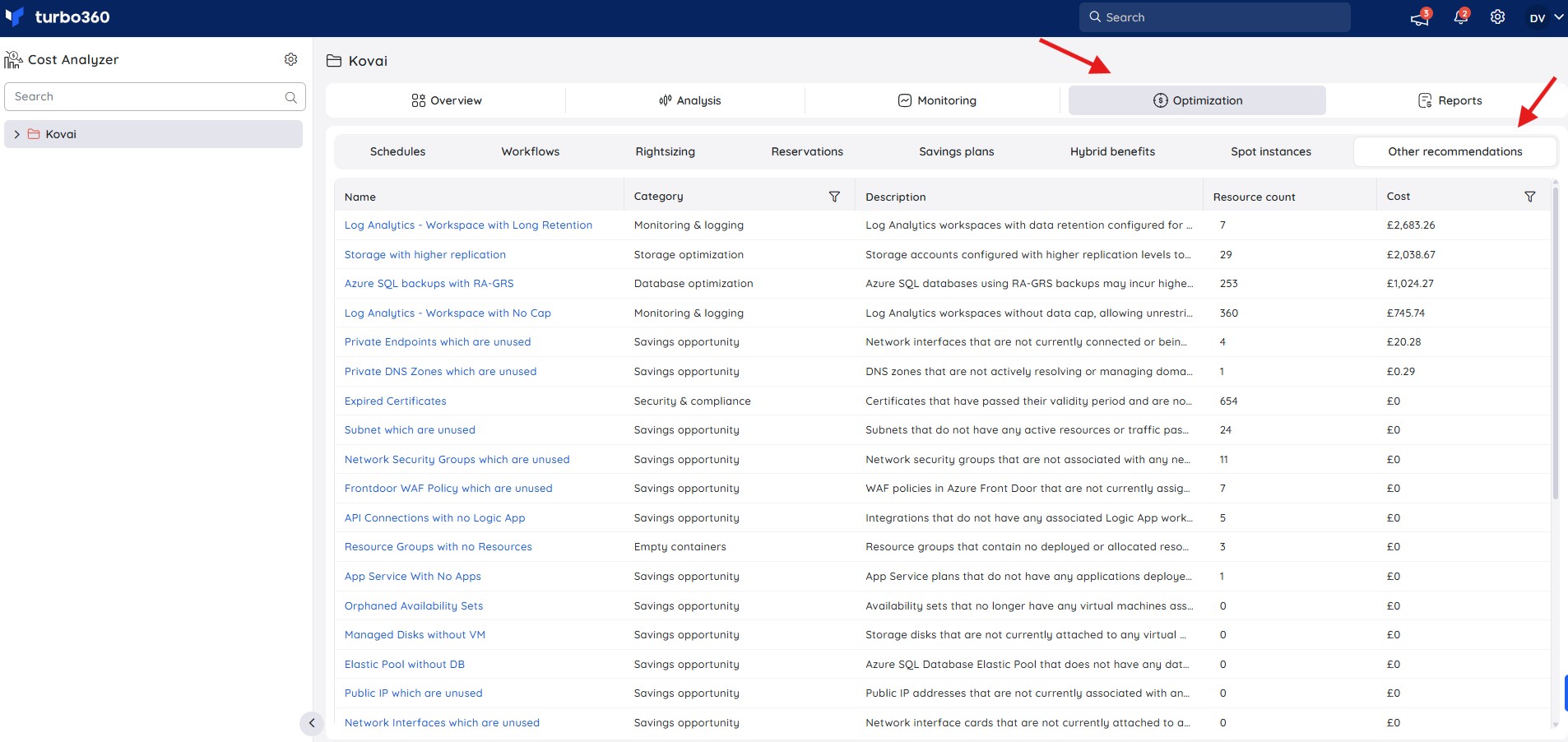
Other recommendations identifies idle or underutilized Azure resources across multiple subscriptions and management groups, consolidates them, and offers actionable recommendations. It's available in a cost management group at Cost Analyzer > Optimization > Other recommendations.
Business value
Other recommendations consolidates idle and underutilized resource findings across subscriptions into a single view, so teams can act on cost-saving opportunities without reviewing each subscription individually.
Prerequisites
Required permissions
Access to Other recommendations is controlled through the Optimization tab permissions in Cost Analyzer roles.
| Permission | Description |
|---|---|
| Optimization (tab) | Must be enabled on the role before any Optimization capability — including Other recommendations — becomes accessible. |
| Other recommendations — Read | View recommendation types, affected resources, and consolidated savings. |
| Other recommendations — Manage | Trigger notifications, ignore or restore resources, and export recommendation data |
To configure: go to Cost Analyzer > User management > Roles, add or edit a role, enable Optimization, then under Specify optimization tab permissions, toggle on Other recommendations and select Read and/or Manage.
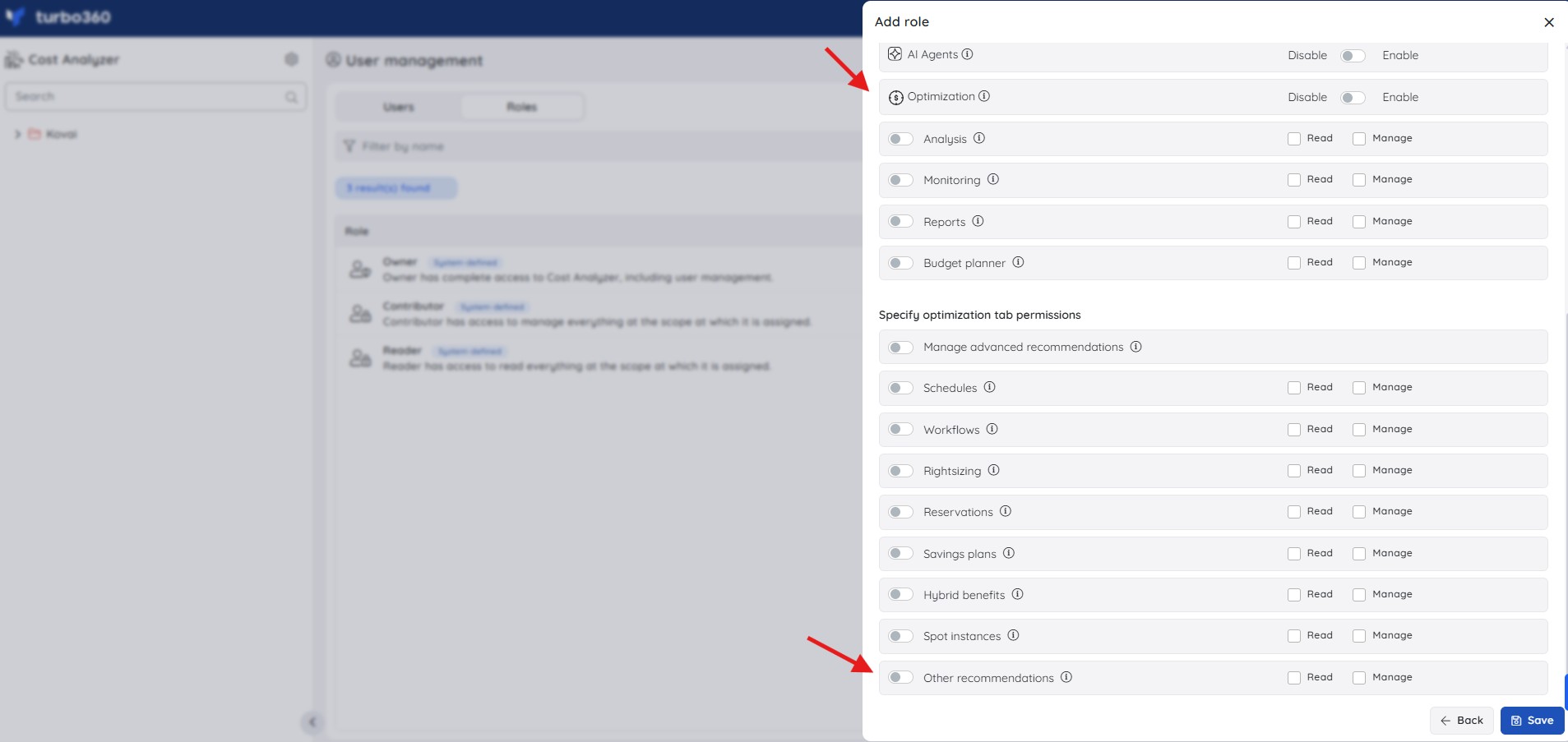
System-defined roles — Owner and Contributor — include Manage access by default. Reader includes Read access only.
How it works
Other recommendations scans Azure resources across subscriptions and management groups to identify idle and underutilized resources, then consolidates them into recommendation types.
- Each recommendation type lists a description, the number of affected resources across subscriptions, and the consolidated cost of the identified resources to highlight potential savings.
- Each recommendation type also displays an Impact label — High, Medium, or Low — based on the consolidated cost of the affected resources, so you can prioritize which recommendations to act on first.
| Impact | Consolidated cost |
|---|---|
| High | Greater than 100 |
| Medium | 10–100 |
| Low | Less than 10 |
- Selecting a recommendation name opens the resources and details identified for that recommendation type.
- Each listed resource includes quick-action icons to open the resource directly in the Azure portal and to view the resource's single view.
.png)
Generate a cleanup script
Generating a cleanup script produces ready-to-run Azure CLI commands to delete the resources identified by a recommendation, without leaving Turbo360.
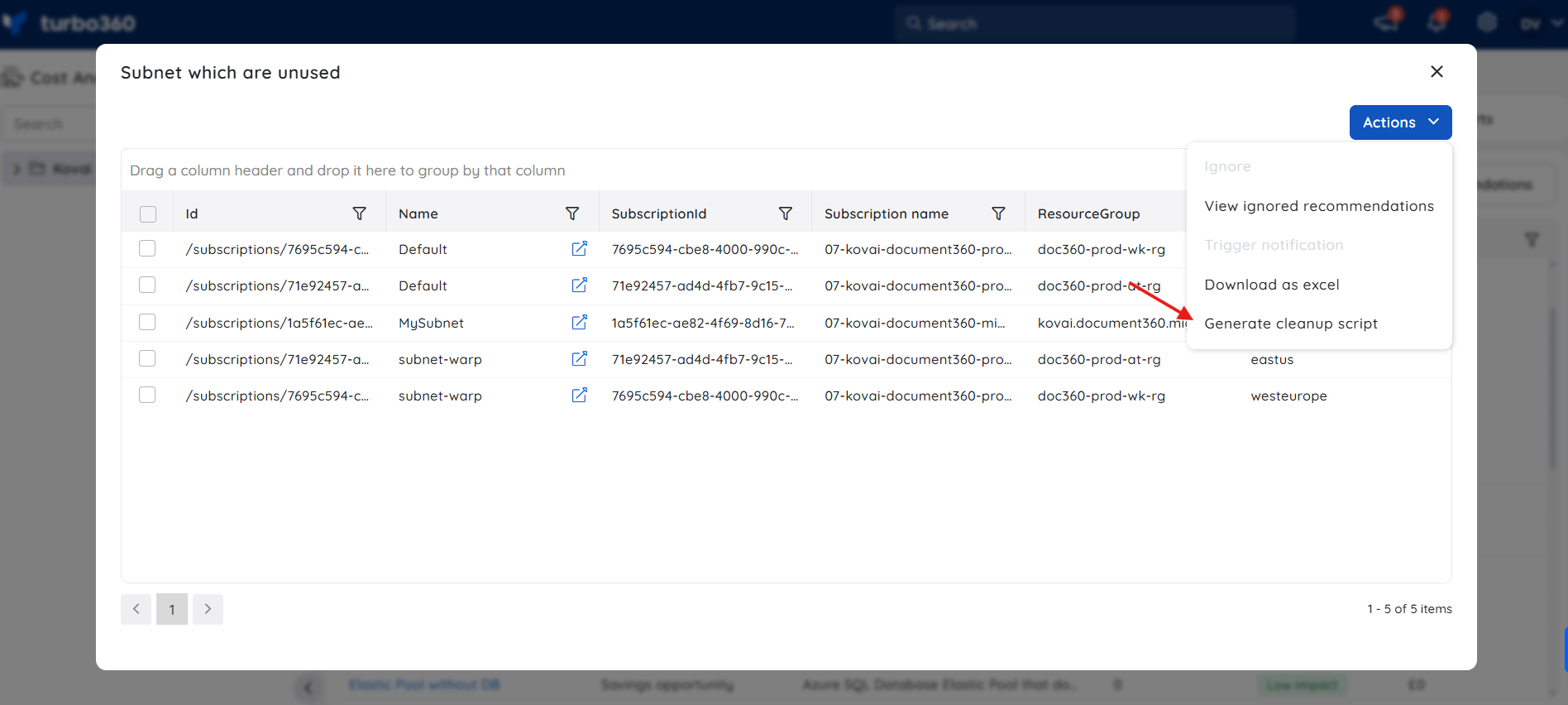
- Select a recommendation name.
- Click Actions > Generate cleanup script.
The Cleanup script (Az CLI) dialog opens with the commands needed to delete each affected resource, grouped by subscription — an az account set command followed by the relevant deletion command per resource (for example, az network vnet subnet delete for an unused subnet).
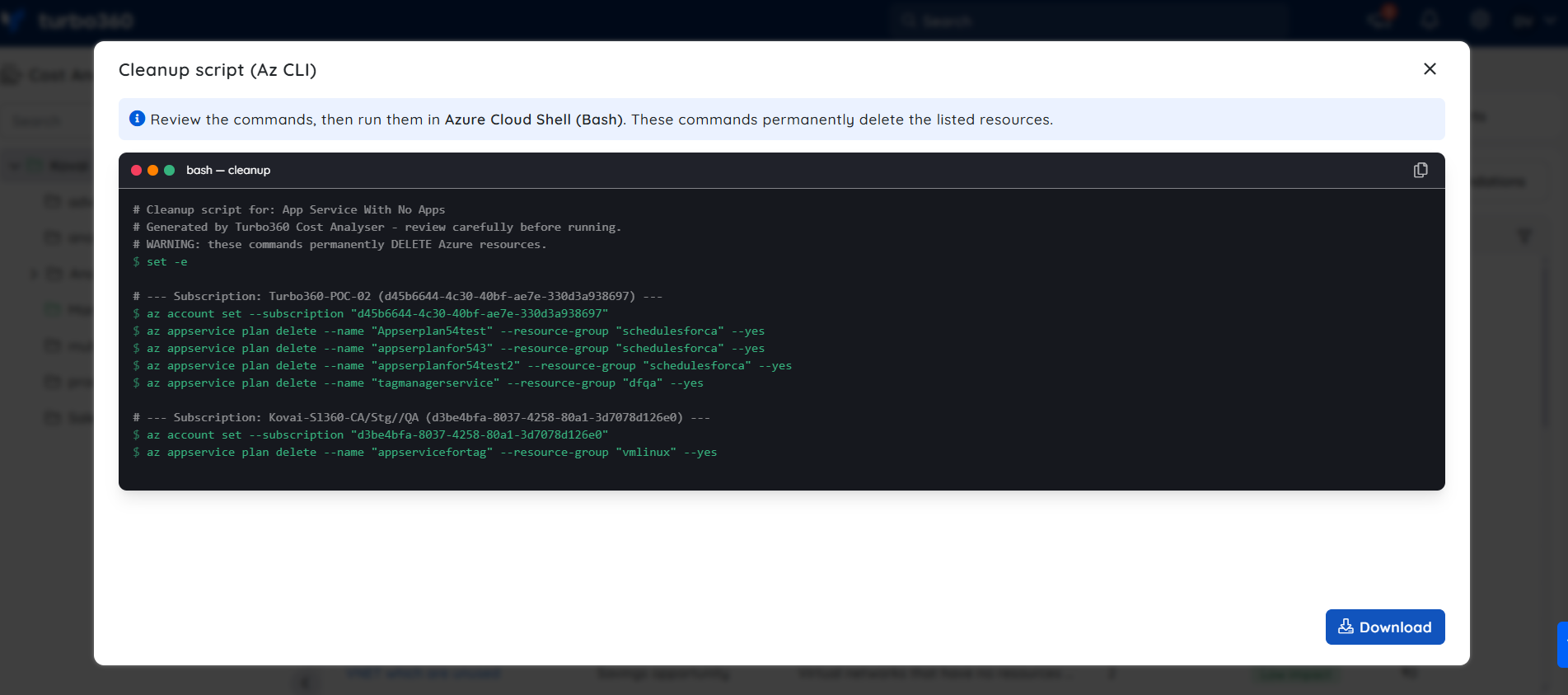
- Review the commands.
- Click Download to save the script, or copy it directly, then run it in Azure Cloud Shell (Bash).
These commands permanently delete the listed resources. Review each command carefully before running it.
Generate cleanup script is available for recommendation types that identify unused or empty resources.
Task planner integration
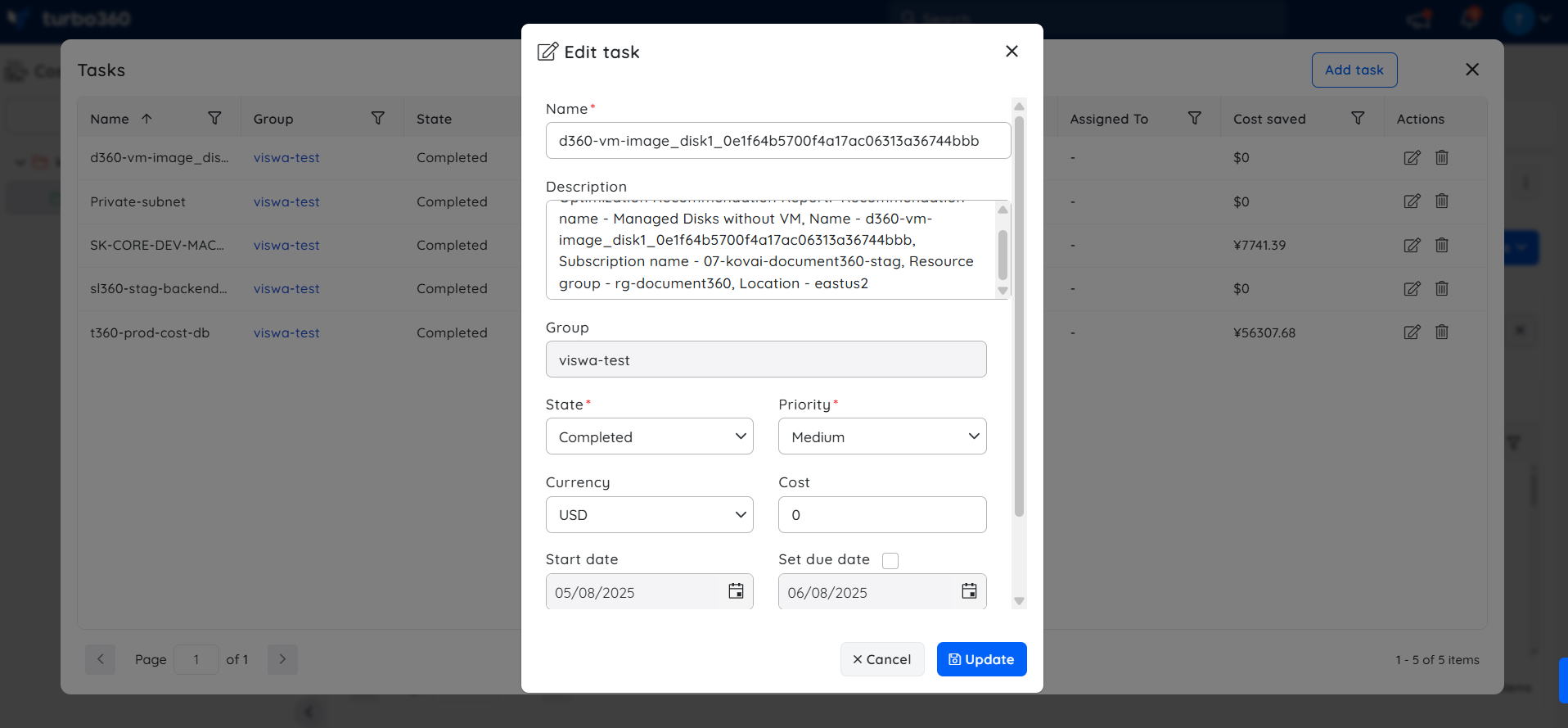
Cost Analyzer integrates with Task planner to automatically generate a task when a user triggers a notification for Other recommendations.
The generated task can be accessed in two ways:
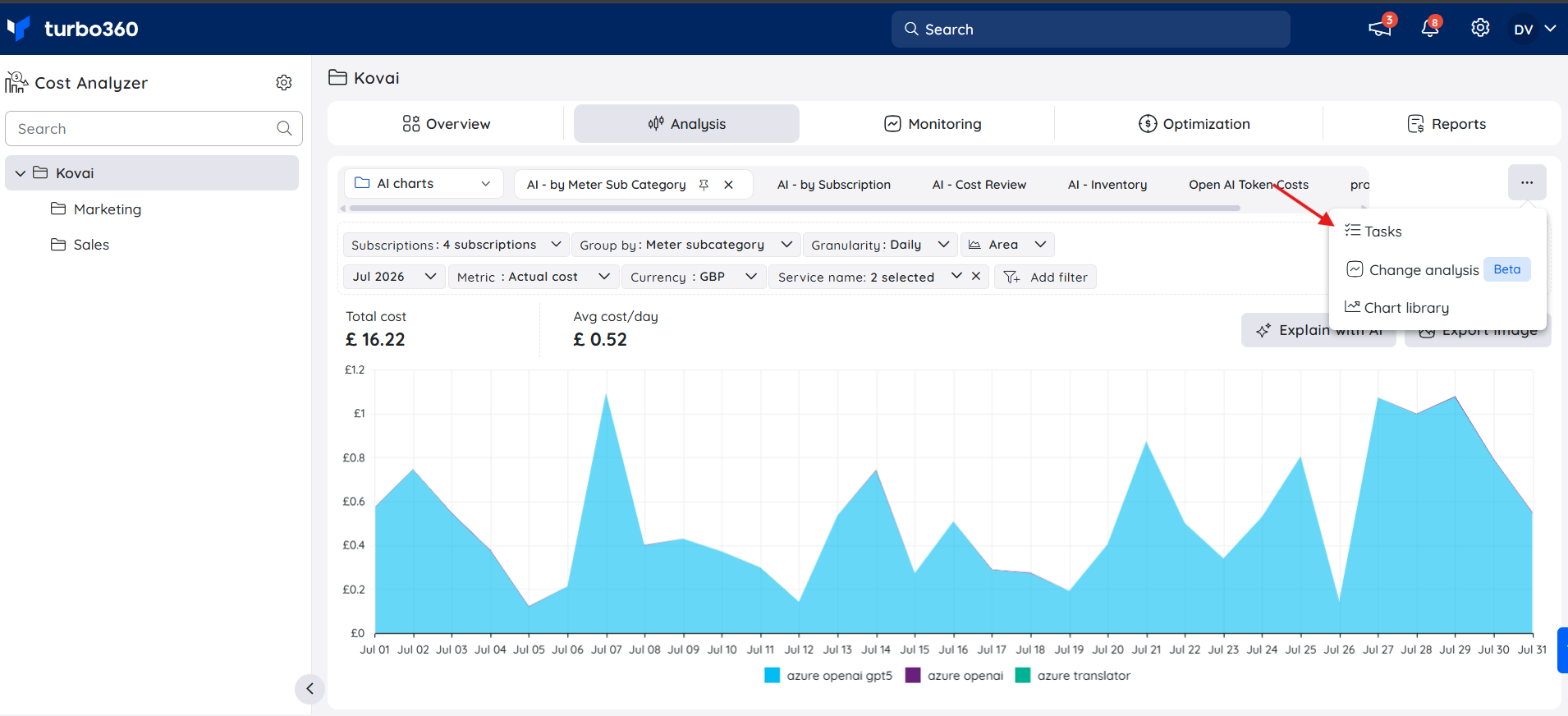
- From the respective cost management group, click the Context menu ( ⋮ ) within the Analysis section, then select Tasks.
- From Task planner, available under the My profile dropdown, for broader visibility across groups.
Steps
Use the following steps to trigger notifications, ignore resources, generate a cleanup script, and export recommendation data. Navigate to Optimization > Other recommendations within a cost management group to get started.
Trigger a recommendation notification
Triggering a notification sends a consolidated report on selected resources to a team or team member so they can prioritize action.
- Select a recommendation name.
- Select a recommended resource.
- Click Actions > Trigger notification.
.png)
- Choose the desired channels, or configure a recipient email address.
- Click Send.
The recommended resource data is sent as a report to the configured channels.
A maximum of 10 recommendations can be selected to trigger a consolidated notification.
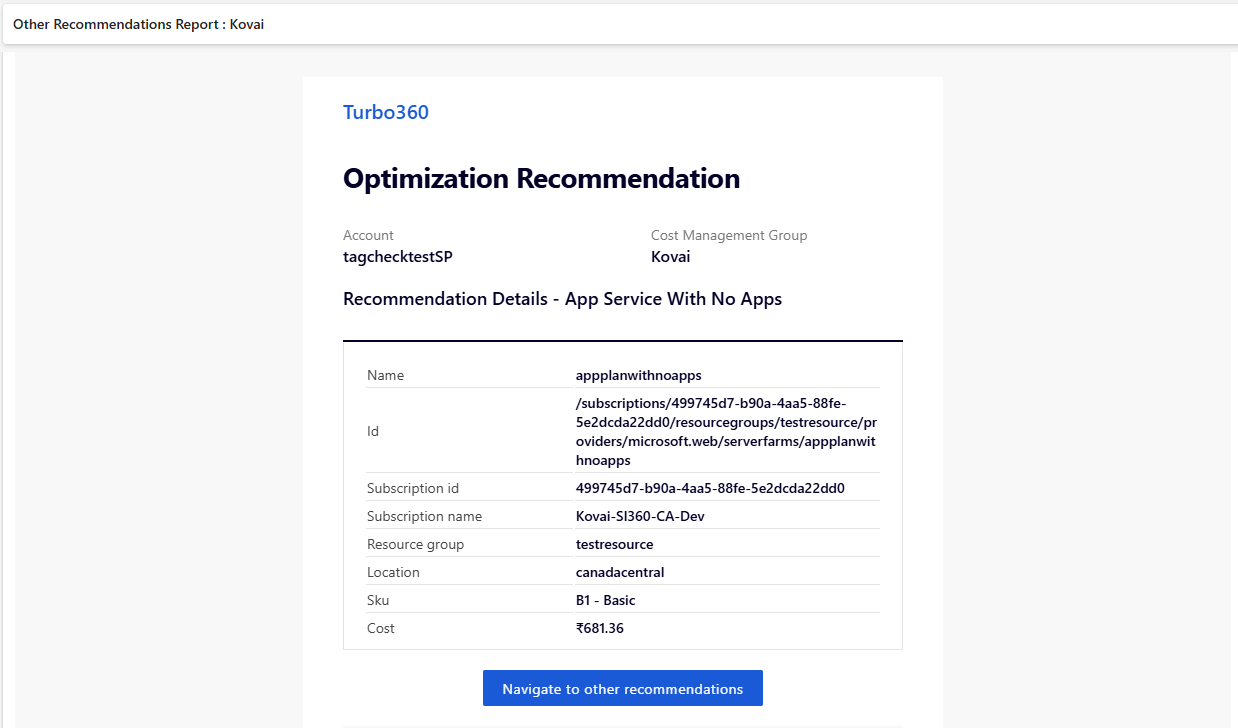
Below is a sample recommendation report received by email after triggering a notification:
Ignore a recommendation
Ignoring a resource excludes it from future recommendations when you prefer to keep its current usage.
- Select the resources from the recommendation.
- Click Actions > Ignore.
- Choose to permanently exclude the resource, or ignore it until a specified date range.
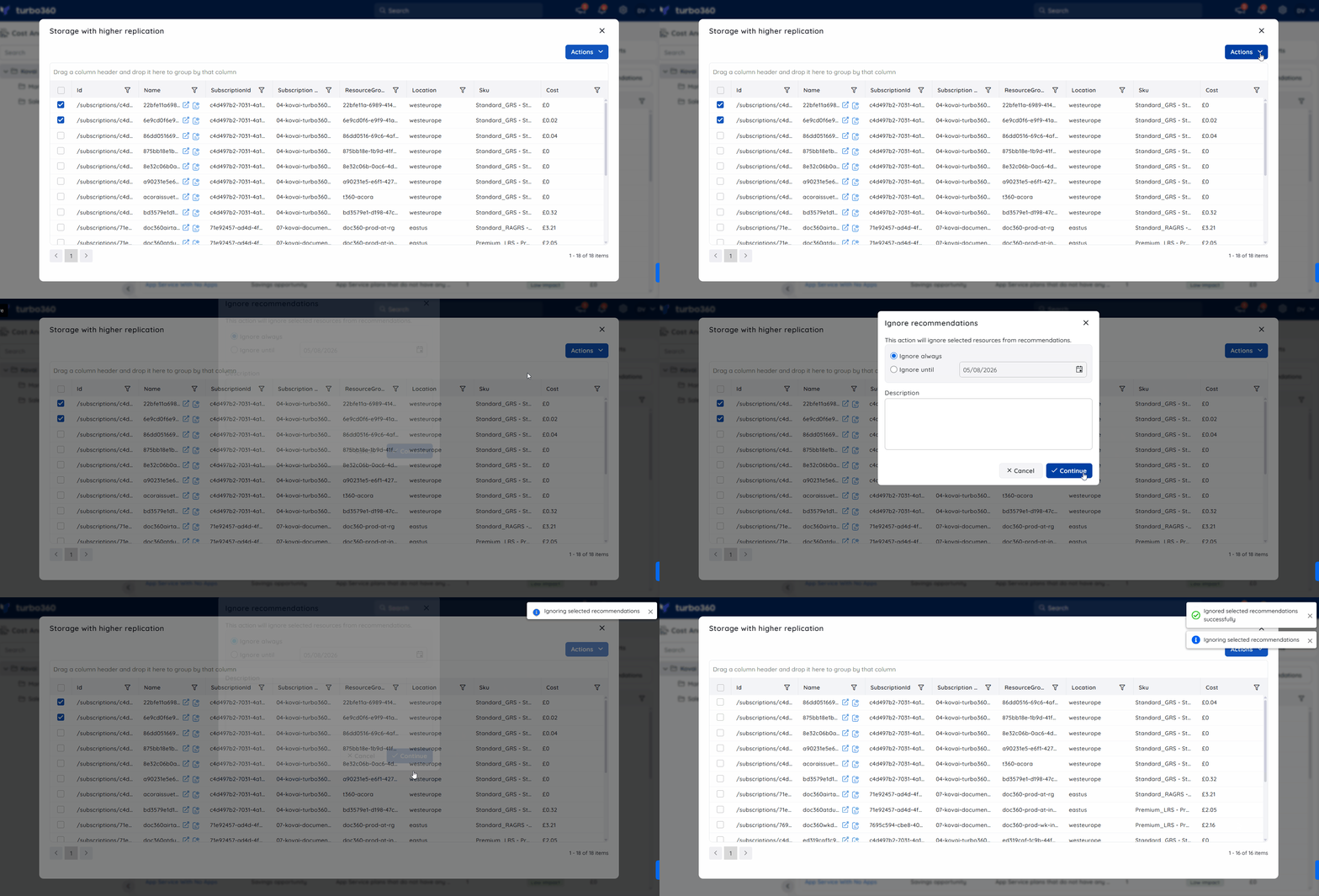
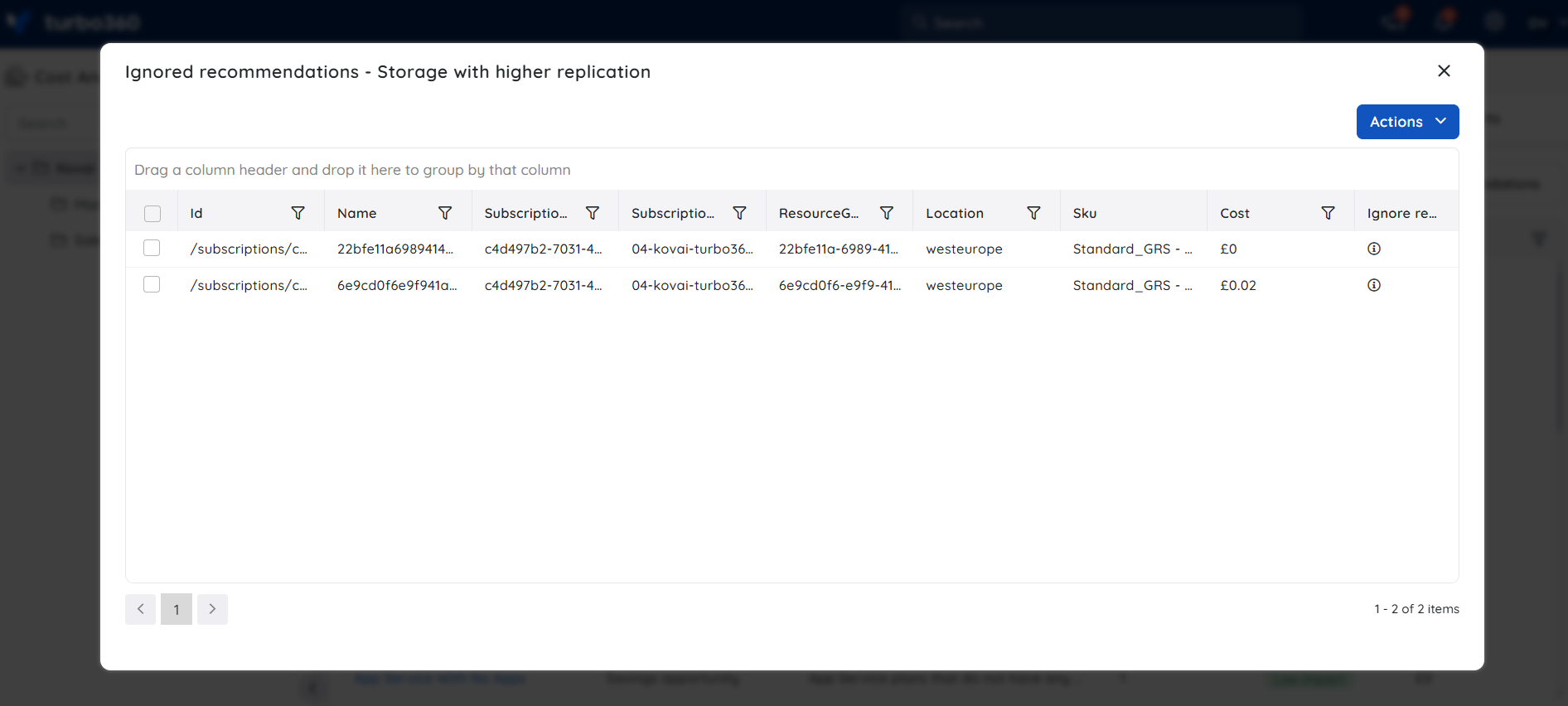
Ignored resources are accessible under Actions > View ignored recommendations.
Export recommendations
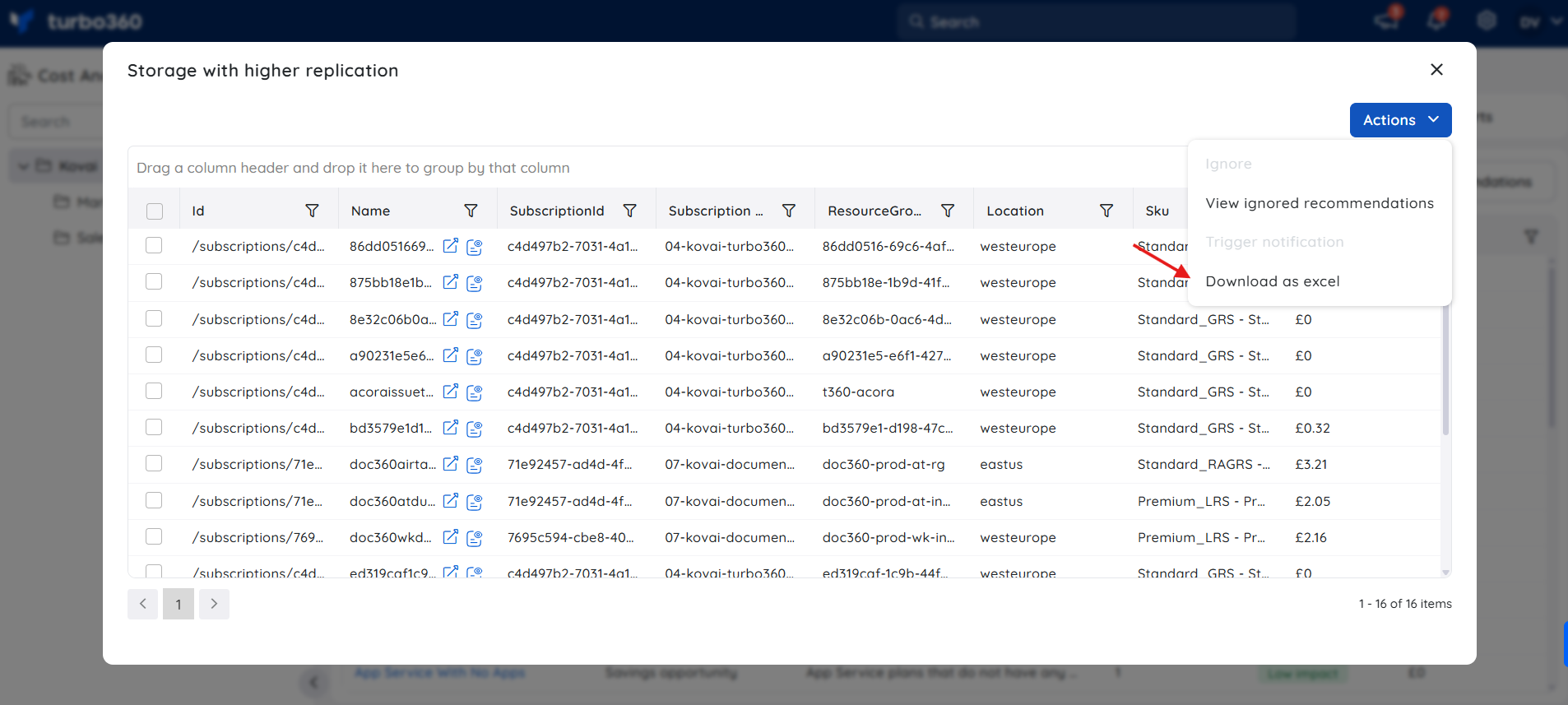
Exporting downloads the recommendation data as an Excel workbook containing basic resource details.
- Click Recommendation name > Actions > Download as excel.
Example scenario
An operations team manages a Contoso cost management group spanning multiple subscriptions. Reviewing Other recommendations, they find several idle disks and underutilized virtual machines consolidated into recommendation types. The team lead selects the top resources, triggers a notification to the finance channel, and permanently ignores three resources reserved for a planned migration. The remaining resources are exported as an Excel workbook for the monthly cost review.
Troubleshooting
Other recommendations isn't visible in the Optimization tab
Cause: The Optimization feature permission is disabled for your role, or the Other recommendations toggle isn't enabled.
Fix: Ask your administrator to enable Optimization and grant at least Read on Other recommendations under Specify optimization tab permissions in Roles.Can't trigger a notification or ignore a resource
Cause: Your role only has Read permission on Other recommendations.
Fix: Request Manage permission on Other recommendations from your administrator.Generate cleanup script option is greyed out or not available for a recommendation
Cause: The selected recommendation type does not support resource deletion — Generate cleanup script is available only for recommendation types that identify unused or empty resources.
Fix: Confirm the recommendation type falls under a category such as Savings opportunity or Empty containers. For recommendation types that require reconfiguration rather than deletion, use the relevant Azure portal setting instead.
FAQs
How many recommendations can I notify at once?
You can select a maximum of 10 recommendations to trigger a single consolidated notification.Can I permanently exclude a resource from recommendations?
Yes. Use Actions > Ignore and choose to permanently exclude the resource, or ignore it until a specified date range.Can I export recommendation data?
Yes. Use Actions > Download as excel to export the basic resource details for a recommendation.Does Generate cleanup script delete resources automatically?
No. It only generates the Azure CLI commands. You must review and run them yourself in Azure Cloud Shell — Turbo360 does not execute the deletion.
Related articles
Was this article helpful?