

Other resources
- 05 Aug 2026
- 6 Minutes to read
- Print
- DarkLight
- Download PDF
Other resources
- Updated on 05 Aug 2026
- 6 Minutes to read
- Print
- DarkLight
- Download PDF
Article summary
Did you find this summary helpful?
Thank you for your feedback!
Overview
Other resources is a category of Azure resource types that you can associate with a Business Application in Turbo360. These resources are grouped under All Resources in the resource selection step and are governed by a single, shared permission — Other Resources.
Business value
Associating other resources with a Business Application extends your monitoring and operational coverage beyond the core integration resource types. You gain unified visibility across a broader set of Azure services without managing permissions individually for each resource type.
How it works
When you create or edit a Business Application, the resource selection step organizes available Azure resource types into named groups. Resources that do not belong to a dedicated permission group (such as Logic App, Service Bus Queue, or Power Automate Flow) are listed under All Resources.
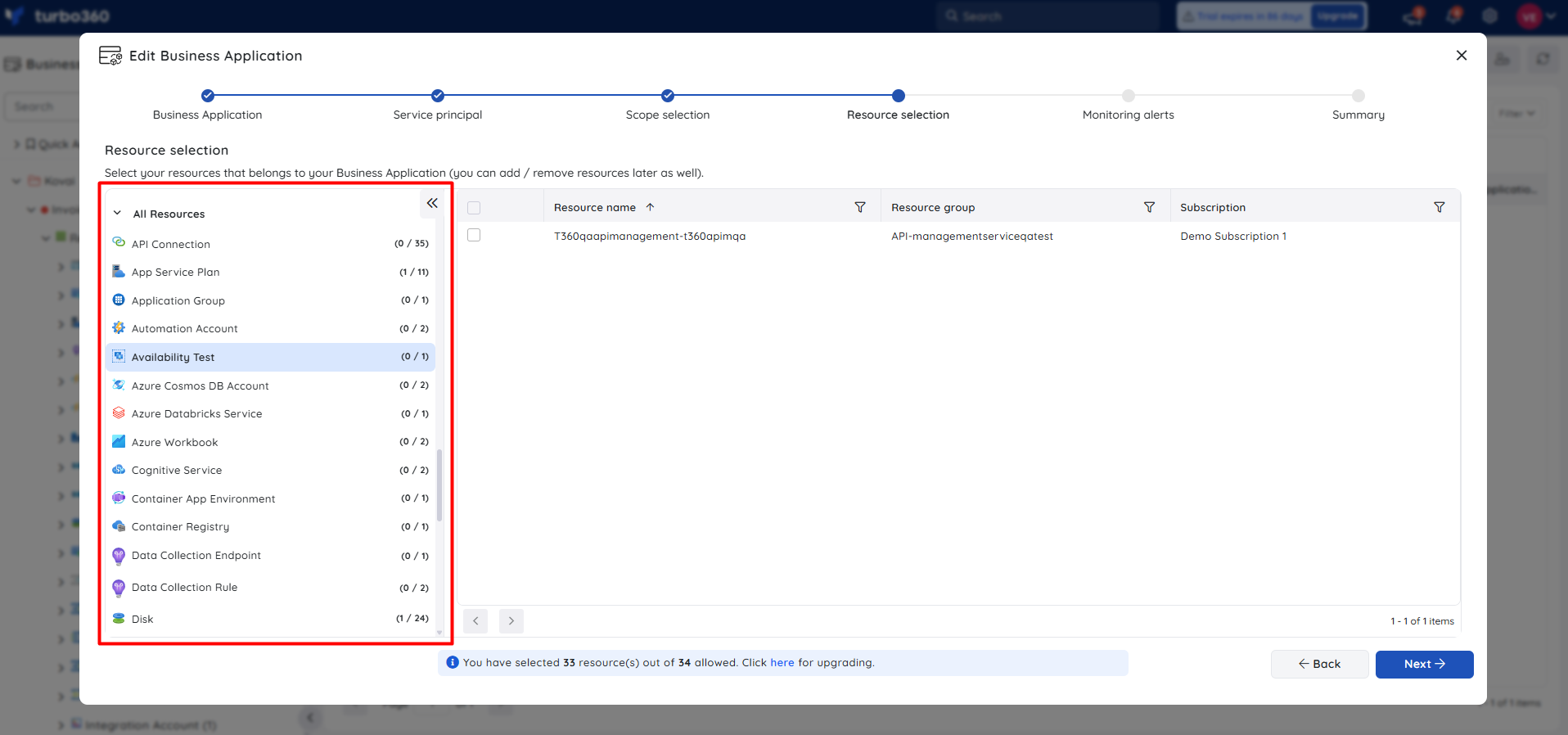
All resource types in the All Resources group share the Other Resources permission. Turbo360 evaluates this permission to determine whether a user can view or manage these resources within a Business Application.
The following Azure resource types fall under the Other Resources permission:
- API Connection
- App Service Plan
- Application Group
- Automation Account
- Availability Test
- Azure Cosmos DB Account
- Azure Databricks Service
- Azure Workbook
- Cognitive Service
- Container App Environment
- Container Registry
- Data Collection Endpoint
- Data Collection Rule
- Disk
- Event Hubs Namespace
- Host Pool
- Logic Apps Custom Connector
- Managed Identity
- NAT Gateway
- Network Interface
- Network Security Group
- Network Watcher
- Private DNS Zone
- Private Endpoint
- Public IP Address
- Recovery Services Vault
- Relay
- Resource Graph Query
- SQL Server
- SQL Virtual Machine
- SSH Key
- Service Bus Namespace
- Shared Dashboard
- Snapshot
- Solution
- Storage Account
- Virtual Machine Scale Set
- Virtual Network
- Workspace
Any additional Azure resource types supported by Turbo360 that are not assigned a dedicated permission group are also governed by the Other Resources permission.
Permissions
Access to other resources within a Business Application is controlled by the Other Resources permission.
| Permission level | What it allows |
|---|---|
| Read | View other resources associated with a Business Application, including their dashboard and monitoring state. |
| Manage | Add, remove, and configure other resources within a Business Application. |
Users without at least Read access on the Other Resources permission cannot view any resource types from the All Resources group within a Business Application, even if those resources are associated with it.
.png)
Note:
The Other Resources permission applies at the Business Application scope. A user's access level is determined by the role assigned to them for that Business Application.
Operations
You can perform the following operations on other resources from within a Business Application. Using Turbo360 for these actions removes the need to switch to the Azure portal during monitoring or incident response.
View resource details
- View — Open a resource to inspect its current state, properties, and monitoring data. Use this when you need to investigate the health or configuration of a specific resource during an incident.
To view a resource:
- Open the Business Application in Turbo360.
- Locate the resource in the tree view.
- Click the resource name to open its details.
Bulk operations
When a Business Application contains multiple other resources of the same type, you can select them in bulk from the resource list view to perform actions like updating monitoring status across all selected items simultaneously.
Resource dashboard
Other resources do not have default dashboard widgets. You can build a custom dashboard by adding widgets for the metrics relevant to the specific resource type you are monitoring.
To configure the dashboard:
- Open the resource in the Business Application.
- Select the Dashboard tab.
- Click Add widget.
- Select the metrics relevant to the resource type.
- Click Save.
You can add, remove, or reconfigure widgets at any time to focus on the metrics most relevant to your support scenario.
AI Agents
AI Agents are available for other resources. Click AI agents in the top bar of the resource detail view to access them. The following AI Agents are supported:
- AI resource overview — Generates a summary of the resource's current state, configuration, and key properties. Use this to get a quick understanding of a resource during an investigation or incident review.
- AI security checklist — Evaluates the resource against a set of security best practices and surfaces any gaps or misconfigurations. Use this to identify security risks across resources in the All Resources group.
Monitoring
Open the resource in the Business Application and select the Monitoring tab to configure monitoring. The Monitoring tab contains two sub-tabs: Rules and Activity logs.
Note:
Monitoring rules are saved per resource. The monitoring state updates after every monitoring cycle.
Metric monitoring
Metric monitoring tracks performance counters for the resource against defined thresholds. Use this when you want to detect performance degradation — for example, high disk write operations on a Disk resource.
Available metrics vary by resource type. For each metric, you can configure the following fields:
| Field | Description |
|---|---|
| Condition | The comparison operator applied to the metric value. |
| Warning threshold | The value at which a warning alert is triggered. |
| Error threshold | The value at which an error alert is triggered. |
| Aggregation type | How the metric value is aggregated over the evaluation period (e.g. Average). |
| Note | Optional note for context on the rule. |
To configure metric monitoring:
- Open the resource in the Business Application.
- Select the Monitoring tab.
- Select the Rules sub-tab.
- Set the Condition, Warning threshold, Error threshold, and Aggregation type for each metric you want to monitor.
- Click Save.
Activity log monitoring
Activity log monitoring tracks control-plane operations recorded in the Azure activity log — such as configuration changes, role assignments, or delete operations. Use this when you want to detect unauthorized or unexpected changes to a resource.
To view activity logs:
- Open the resource in the Business Application.
- Select the Monitoring tab.
- Select the Activity logs sub-tab.
Availability status monitoring
Availability status monitoring tracks whether the resource is running, stopped, or in a degraded state. Use this when you want to be alerted if a supported resource goes offline or enters an unhealthy state unexpectedly.
Note:
Availability status monitoring is available only for certain supported Azure resource types. If this option is not visible for a resource, it is not supported for that resource type.
- Open the resource in the Business Application.
- Select the Monitoring tab.
- Select the Rules sub-tab.
- Configure the availability status condition and alert settings.
- Click Save.
Troubleshooting
Resource does not appear in the Business Application tree view.
Cause: The user does not have Read access on the Other Resources permission for this Business Application.
Fix: Ask a Business Application admin to assign a role that includes Read access on the Other Resources permission.Resource dashboard shows no data.
Cause: No widgets have been configured for the resource dashboard.
Fix: Open the resource dashboard, click Add widget, and add widgets relevant to the resource type.Monitoring rule is not triggering alerts.
Cause: The monitoring rule condition may not have been met, or the rule was saved with an incorrect threshold.
Fix: Review the threshold values on the Rules sub-tab and verify the condition and aggregation type match the expected alert behavior.Cannot add a resource to the Business Application.
Cause: The user does not have Manage access on the Other Resources permission.
Fix: Ask a Business Application admin to assign a role that includes Manage access on the Other Resources permission.Resource type is not visible in the All Resources list during resource selection.
Cause: The resource type may not be supported in the current Turbo360 subscription tier, or the Azure subscription scope was not selected correctly in the resource selection step.
Fix: Verify the correct subscription scope is selected. If the resource type should be available, contact Turbo360 support.
Related articles
Was this article helpful?