

Power Automate Flow
- 05 Aug 2026
- 6 Minutes to read
- Print
- DarkLight
- Download PDF
Power Automate Flow
- Updated on 05 Aug 2026
- 6 Minutes to read
- Print
- DarkLight
- Download PDF
Article summary
Did you find this summary helpful?
Thank you for your feedback!
Overview
Power Automate is a Microsoft product that automates workflows and tasks across various applications and services, letting you integrate and connect different apps to create automated flows that trigger actions based on specific events and streamline repetitive tasks. Managing Power Automate flows in Turbo360 is similar to managing Logic Apps, letting you view flow execution history and resubmit in case of errors.
Business value
Managing Power Automate flow runs and triggers from Turbo360 gives you a single place to investigate failures, recover from errors, and automate recovery, reducing the time to detect and resolve workflow execution issues.
How it works
- Once a Power Automate flow is associated with a Business Application, its status, run history, trigger history, and monitoring become directly manageable from Turbo360.
- A flow execution can fail due to failure in one of its actions — a scenario that occurs fairly often in business orchestrations.
Prerequisites
Required permissions
The following steps must be completed in the Azure portal and Turbo360 to manage and monitor Power Automate flows.
Microsoft Azure:
- Create an App registration in the Azure portal.
- Navigate to the registered application.
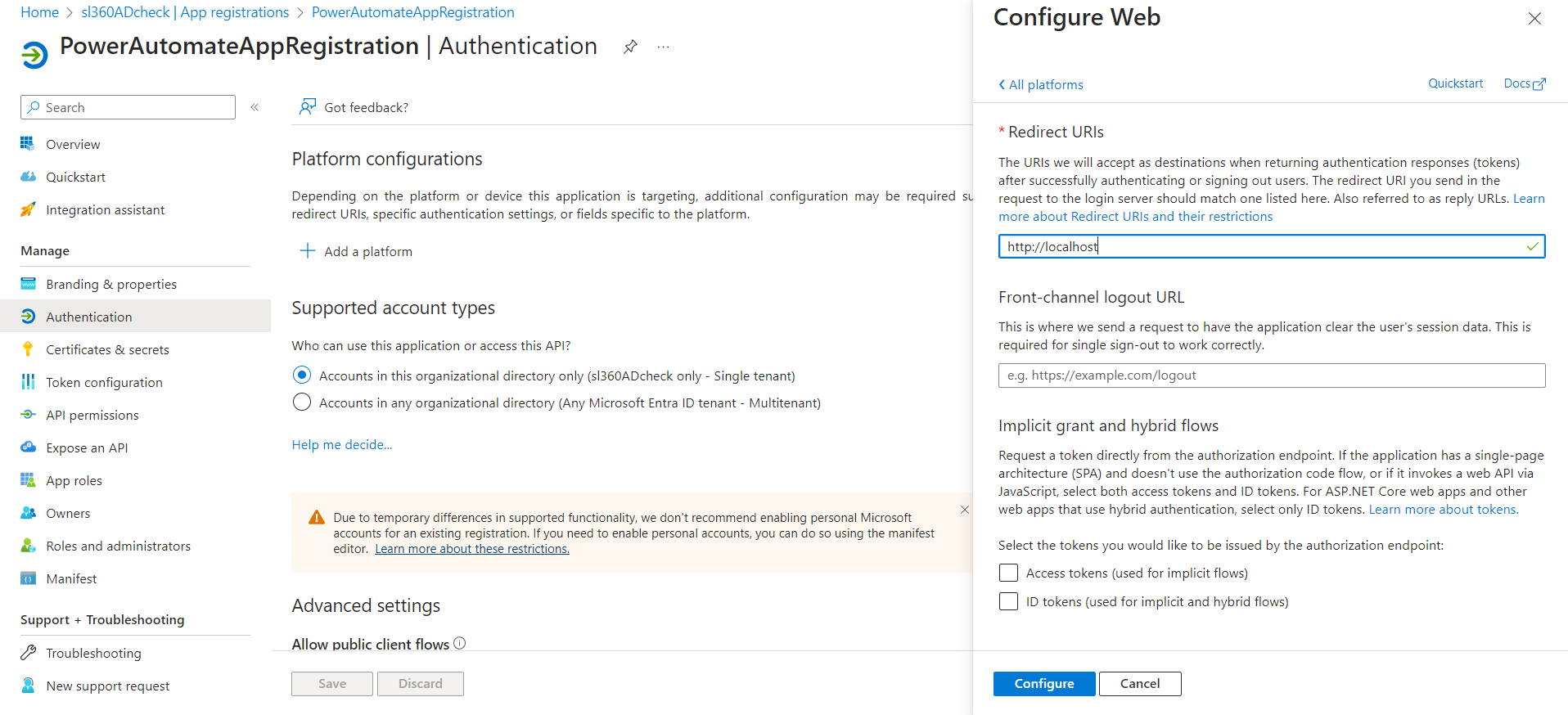
- Go to Manage -> Authentication and click Add a platform.
- Add a redirect URL
http://localhostwith Web as the platform.
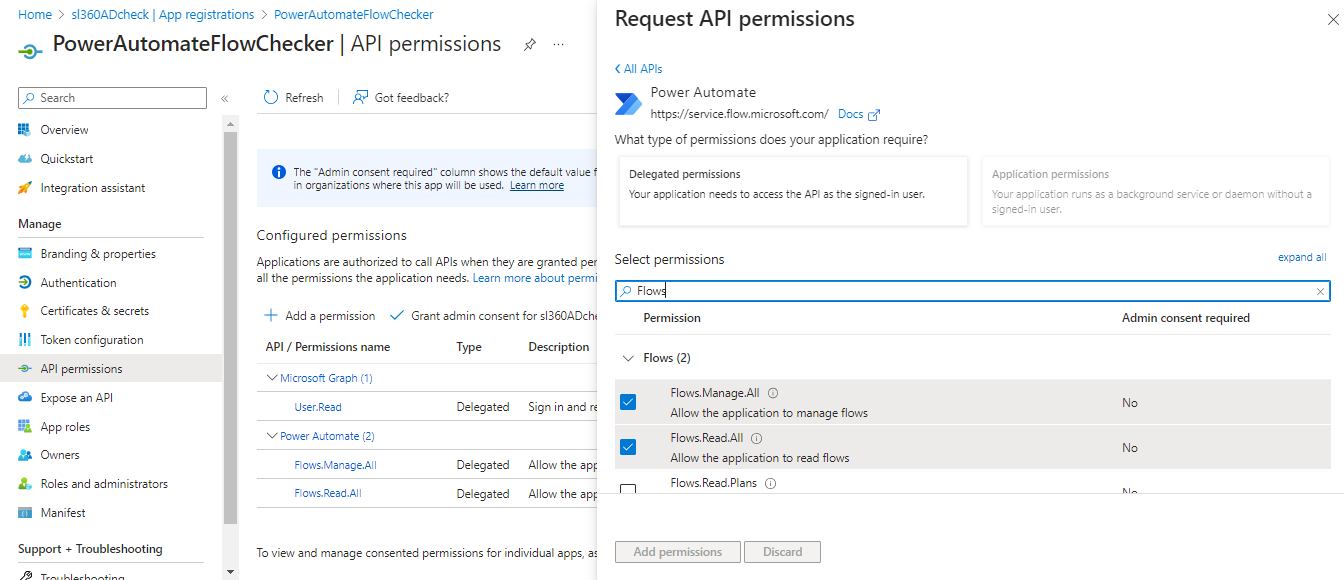
- Go to Manage -> API permissions -> Power Automate.
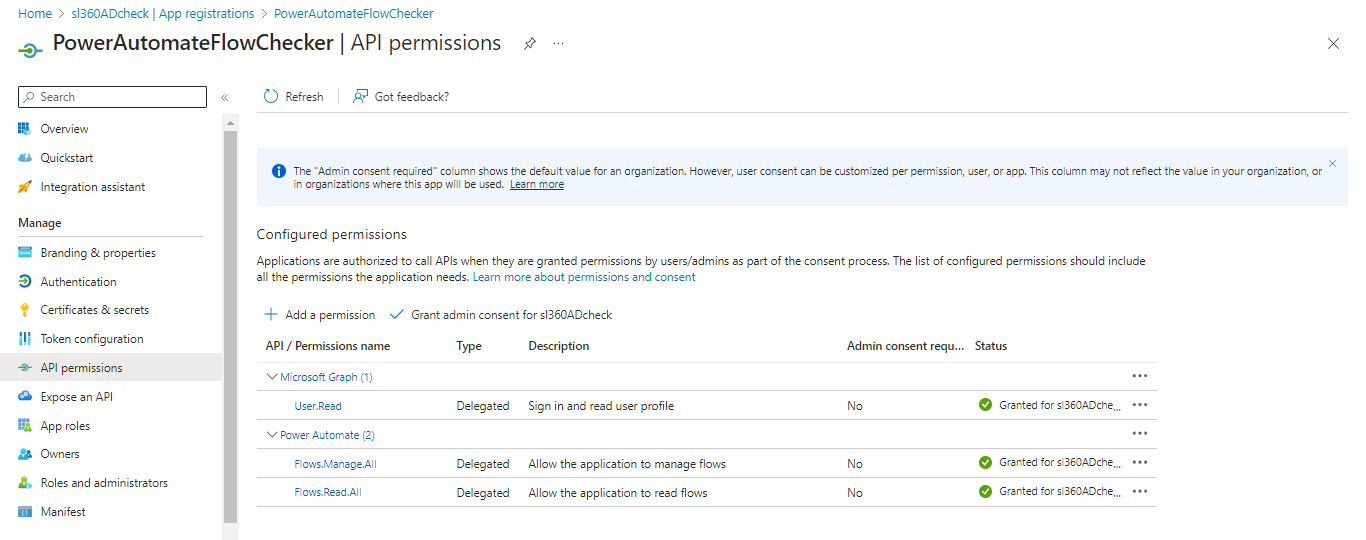
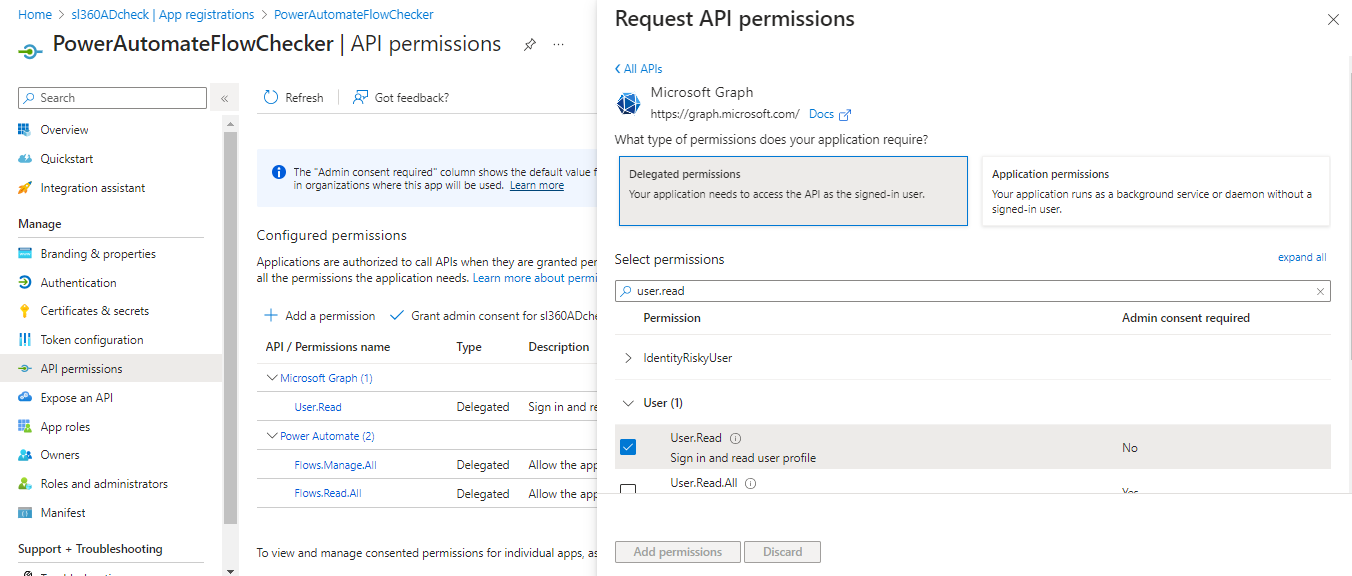
- Grant Admin Consent to the following permissions: User.Read, Flows.Read.All, Flows.Manage.All.
Turbo360:
After completing the Azure steps, add a Service principal that can access Power Automate.
- Navigate to the Service principals section within Business Applications.
- Click Add to add a new Service principal.
- Select Manage Power Automate Flows.
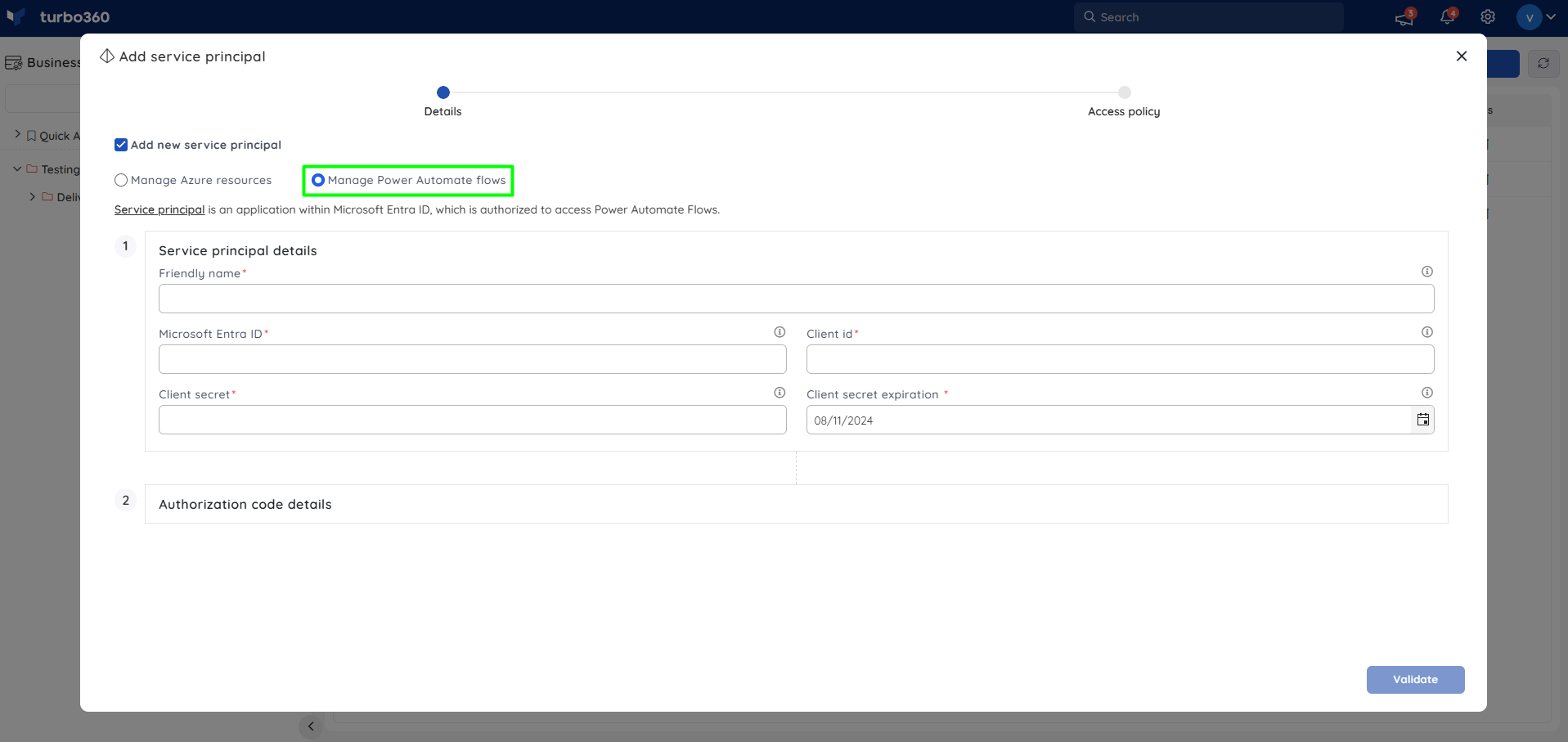
- Enter the Service principal credentials and click Validate.
- Once validation succeeds, navigate to the given URL.
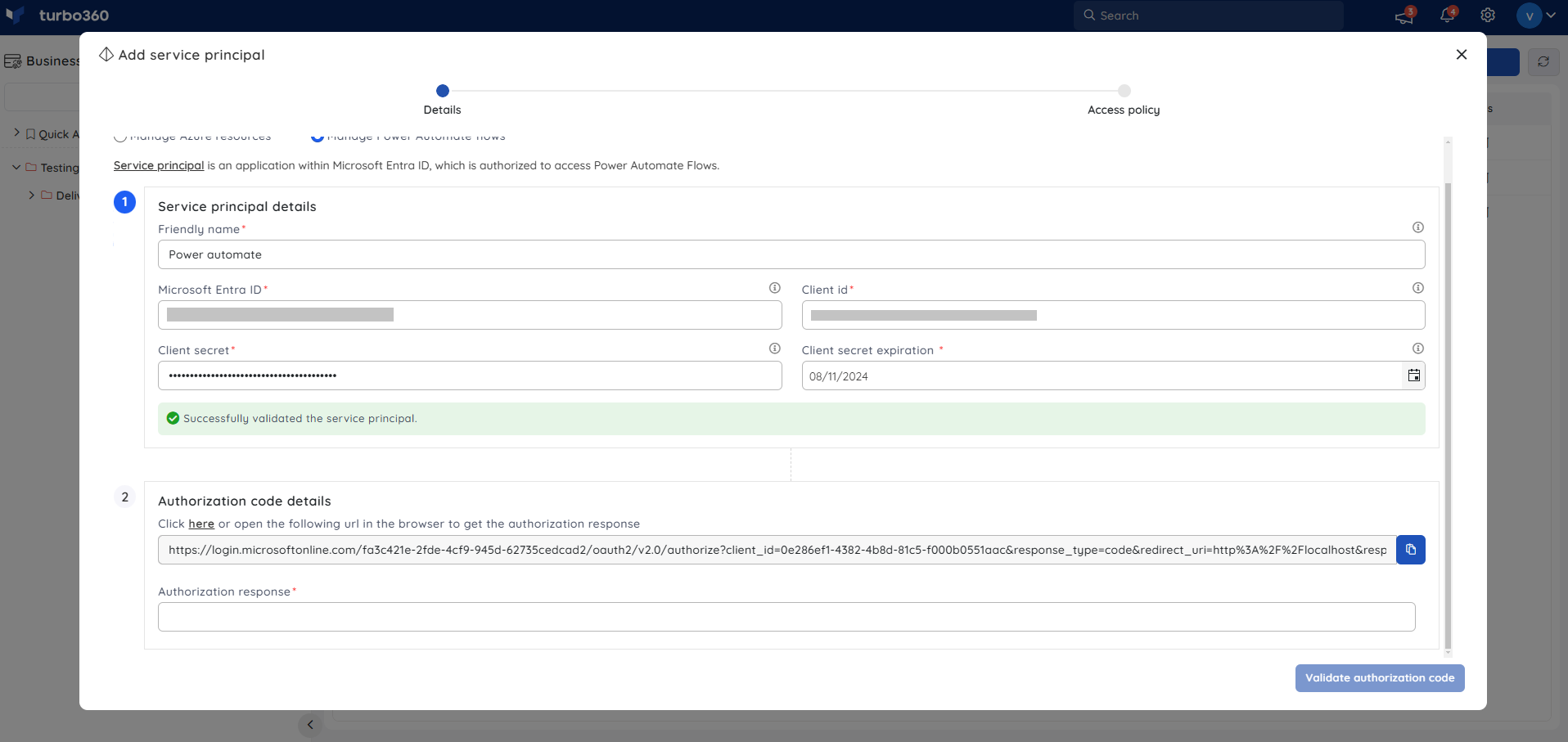
- Copy the response from the browser.
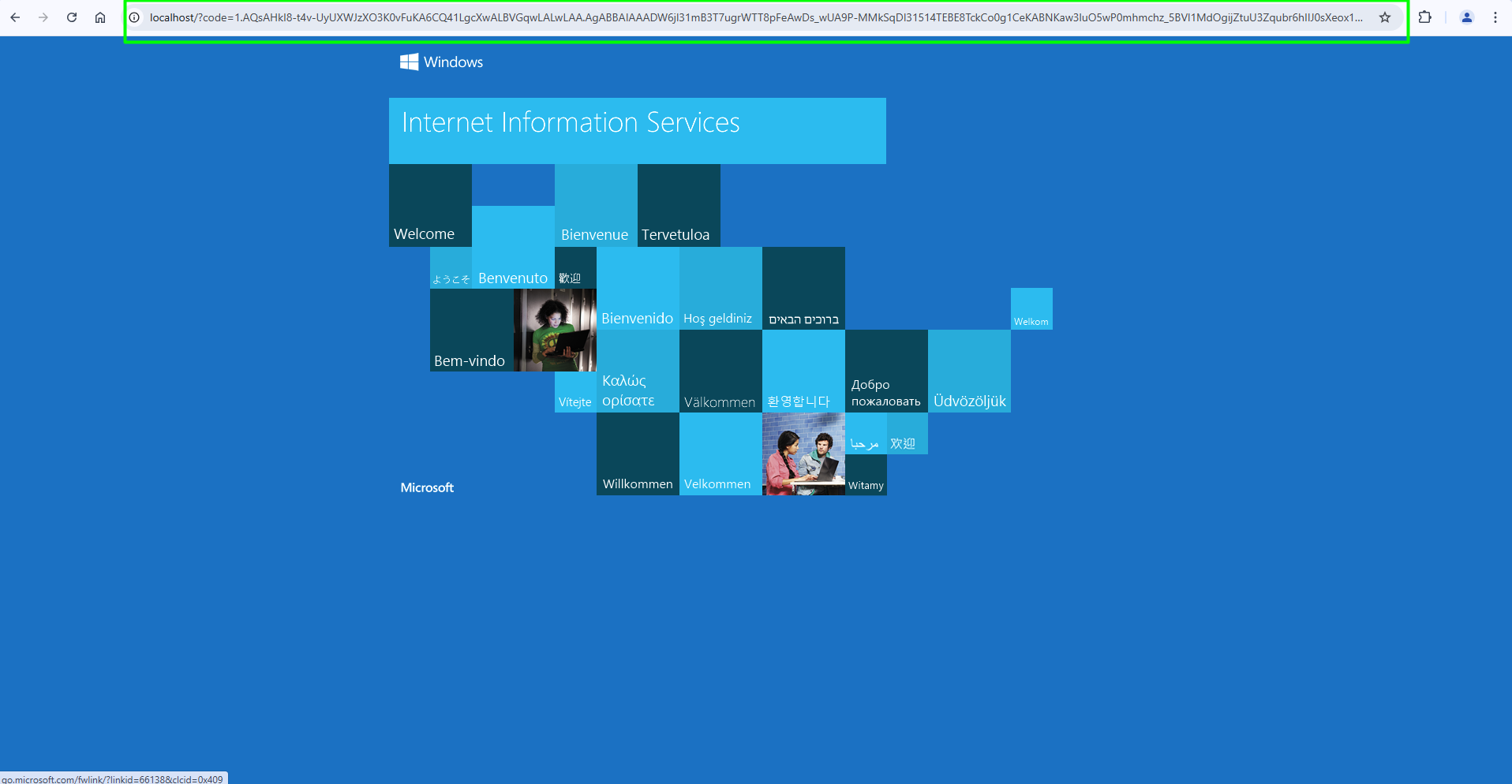
- Click Validate authorization code, then Next after successful validation.
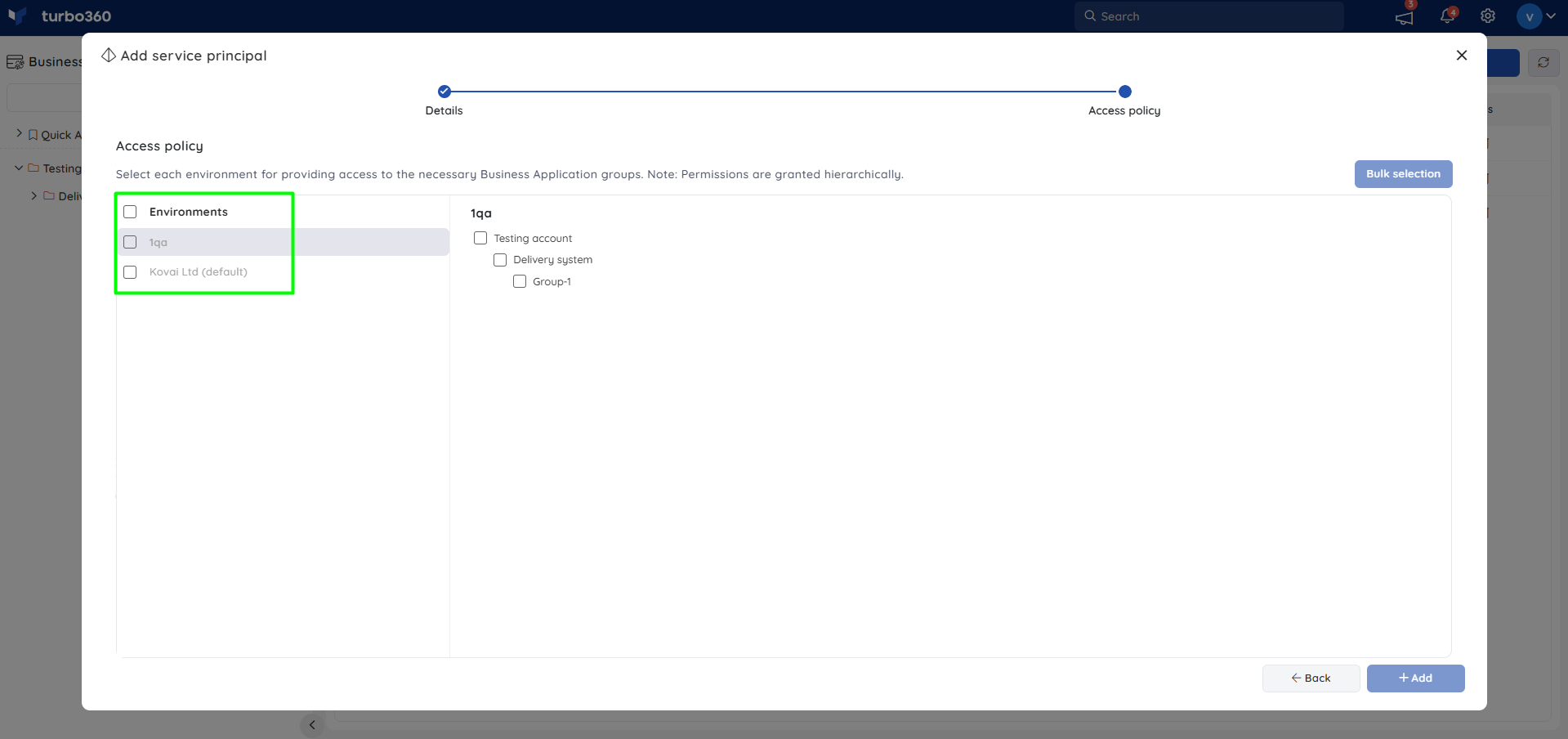
- Select the required Power Automate environments and corresponding Business Application Groups.
- Click Add to create the Service principal with access to Power Automate flows.
Permissions
Access to Power Automate Flow actions is controlled through RBAC when adding a role to a Business Application.
| Permission | Description |
|---|---|
| Read | View run history, trigger history, and monitoring rules. |
| Manage | Enable/disable, invoke triggers, configure inline and automated tasks, and configure monitoring rules. |
| Reprocess | Resubmit failed runs, individually or in bulk. |
Operations
Turbo360 lets you control flow status, invoke triggers, and recover from failed runs directly, without switching to the Azure portal.
Enable and Disable
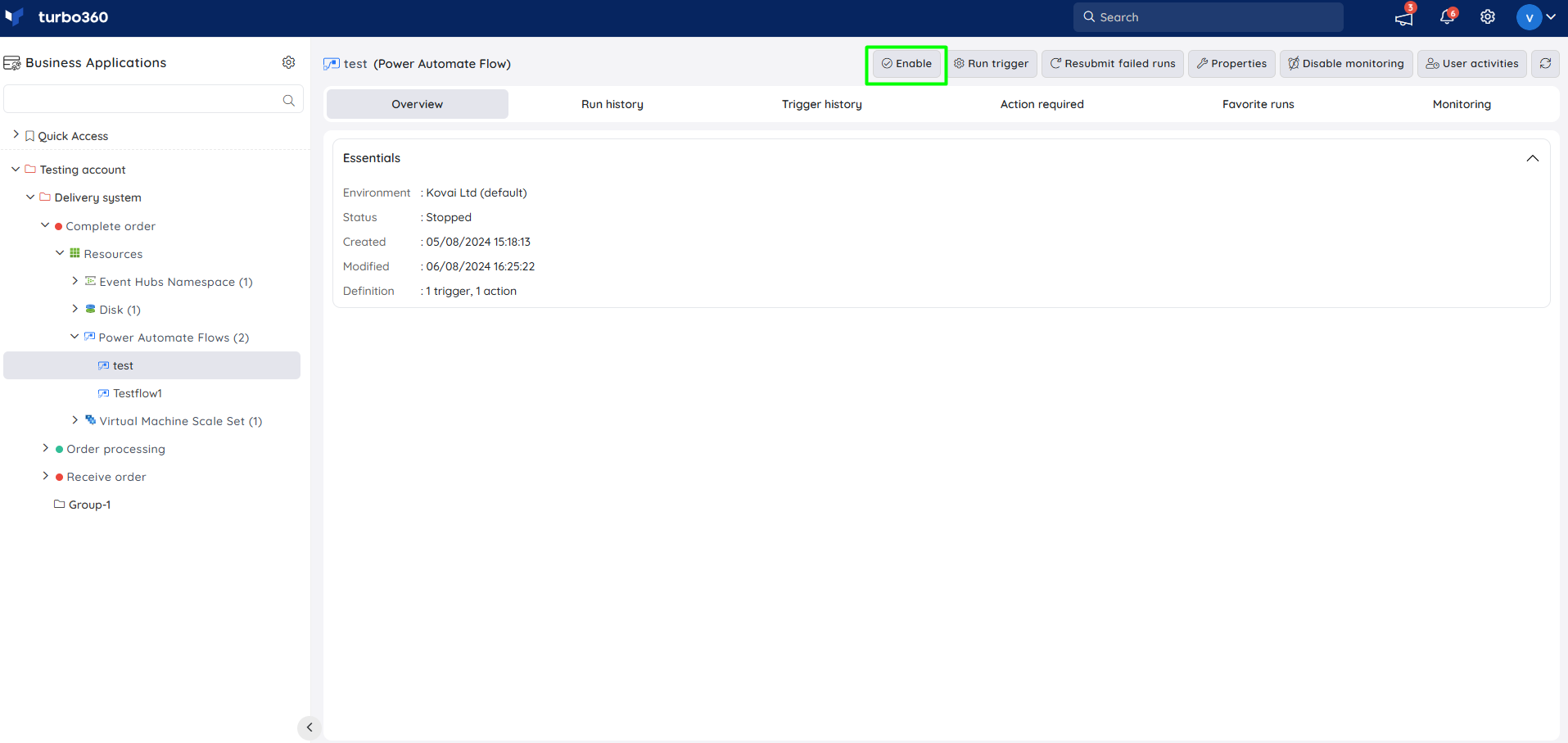
- Enable — turn on a Power Automate flow directly from Turbo360, without the Azure portal. The option is at the top of the screen for the flow resource.
- Disable — turn off a Power Automate flow directly from Turbo360.
Bulk operations
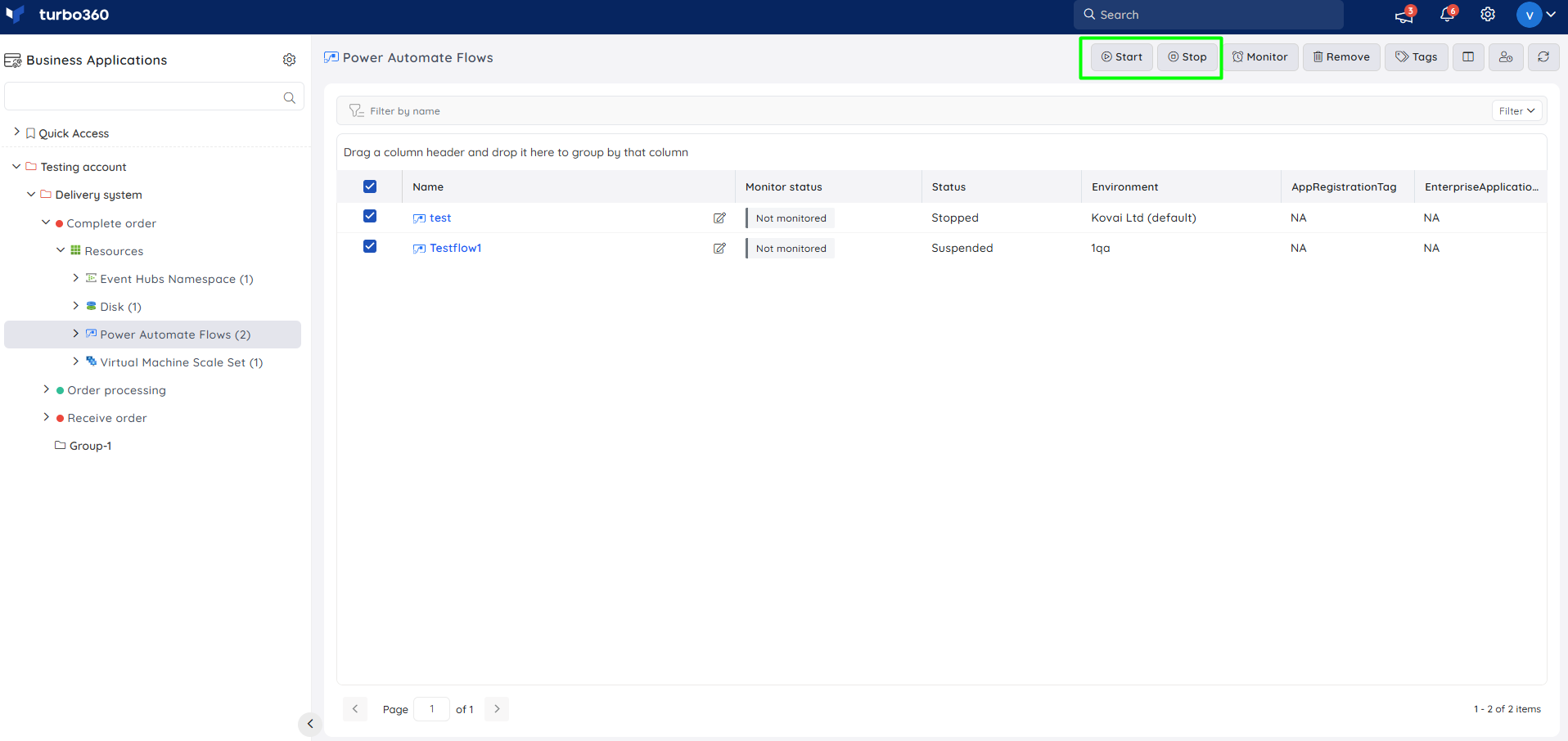
- Bulk Start/Stop — enable or disable multiple flows at once from the Power Automate flow resource section in the associated Business Application. Use this when several flows need the same status change together, such as during planned maintenance.
Run trigger
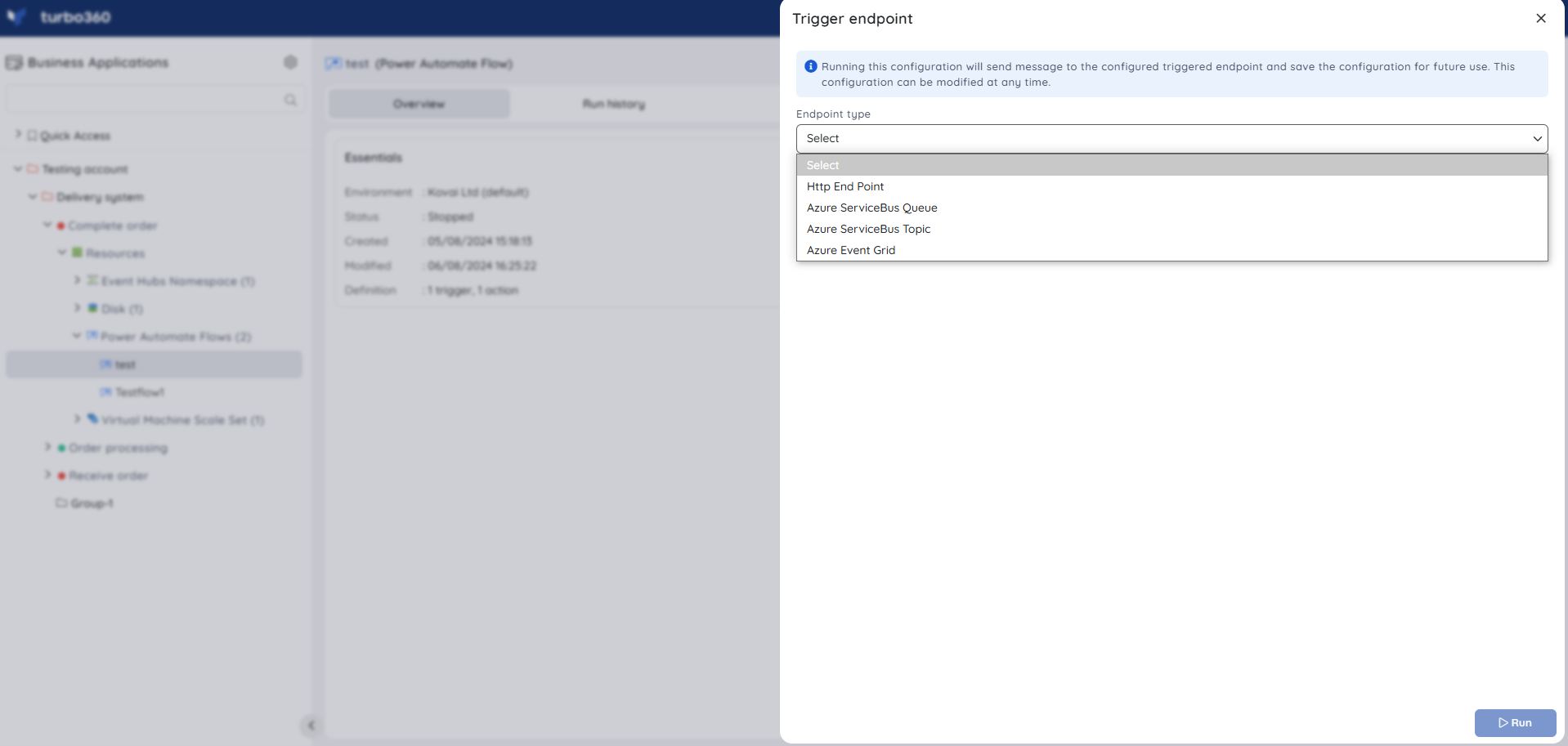
- Run trigger — invoke a flow by sending a message to one of its trigger endpoints, modifying the message if needed before sending. Use this when a flow needs to be recovered from an error condition by replaying a corrected message.
- Click Run trigger at the top of the screen.
- Choose the desired trigger endpoint.
- Provide the required information for the selected endpoint.
- Click Run.
Run history
- View run history — check the history of flow executions, and click an identifier to view its run details.
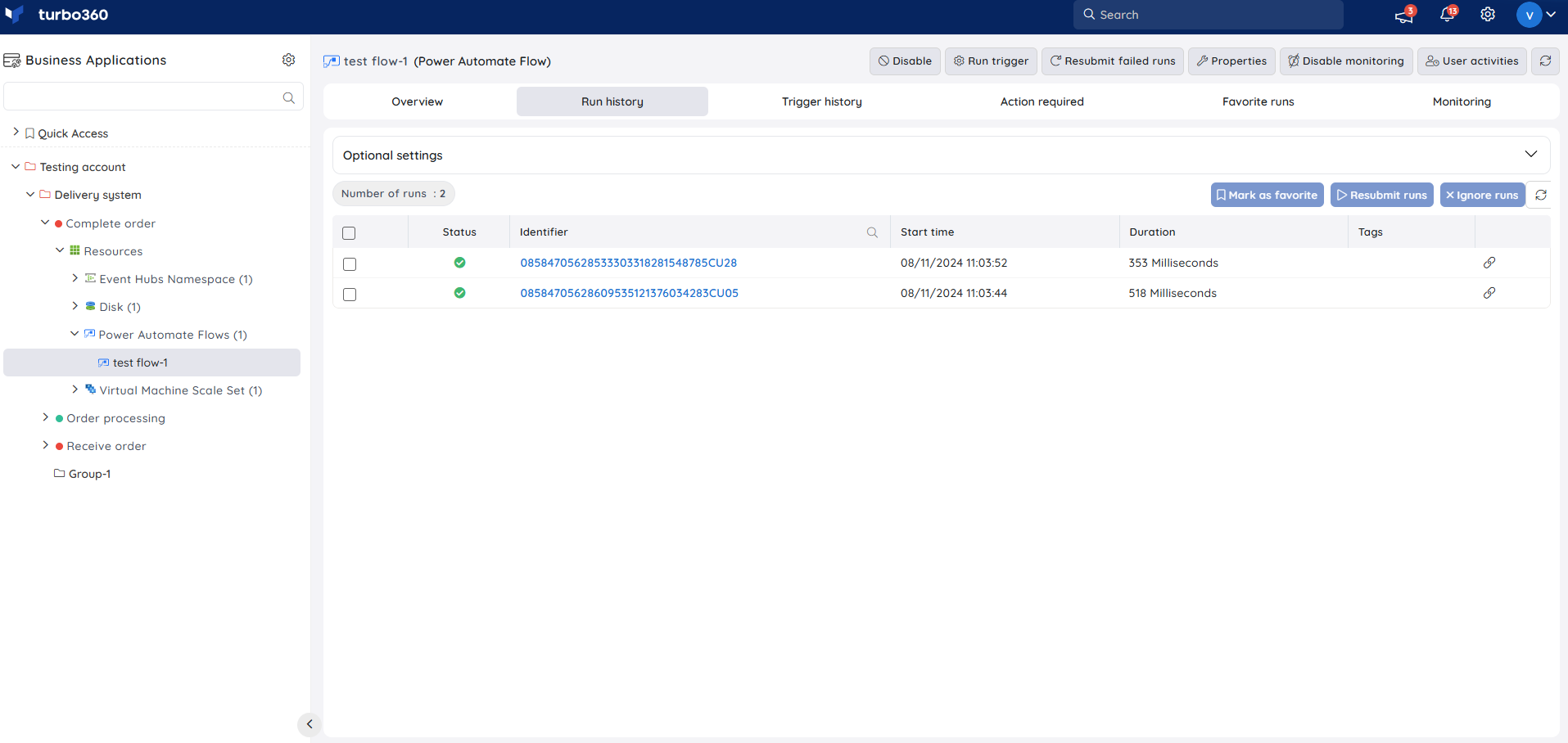
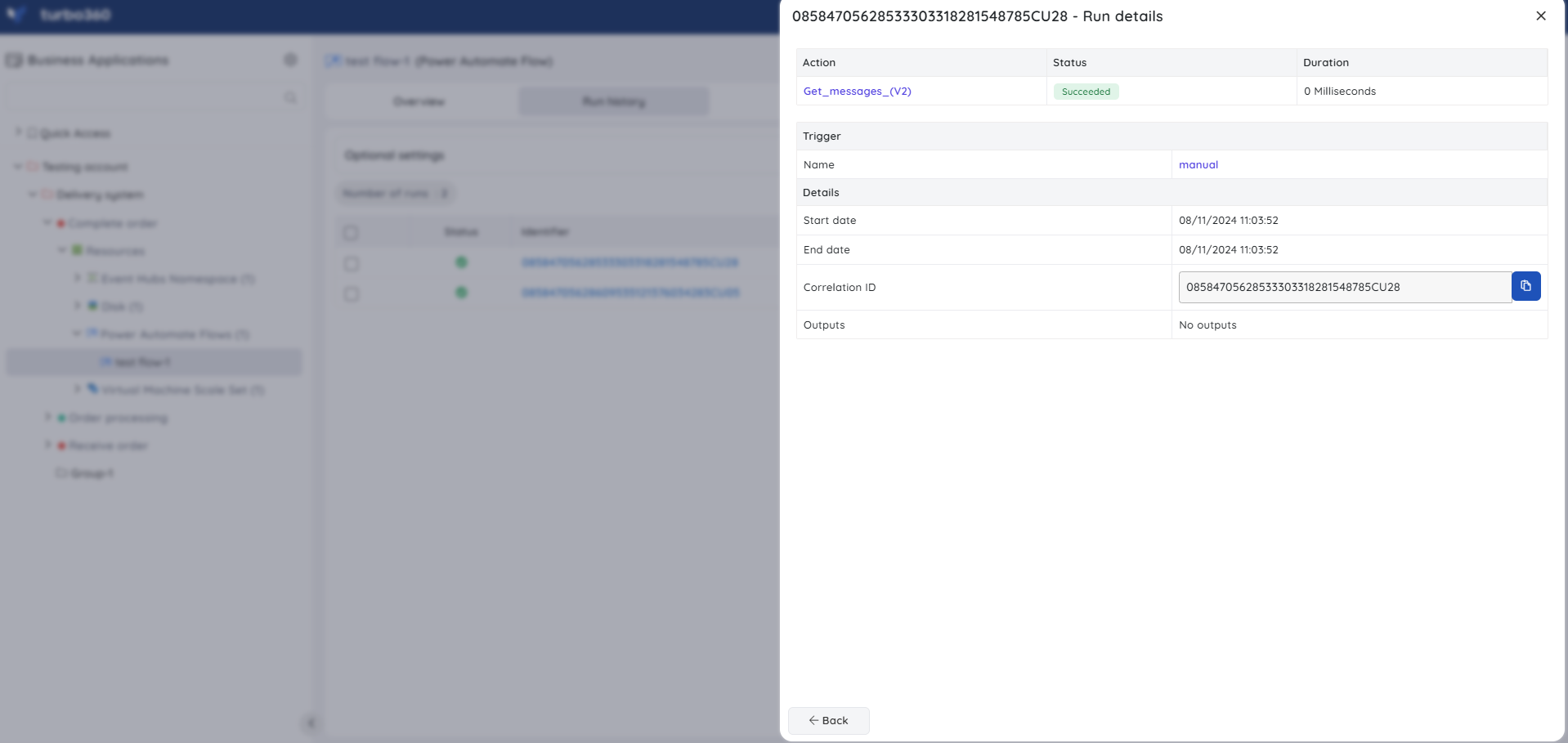
Optional settings available when there are many flow executions:
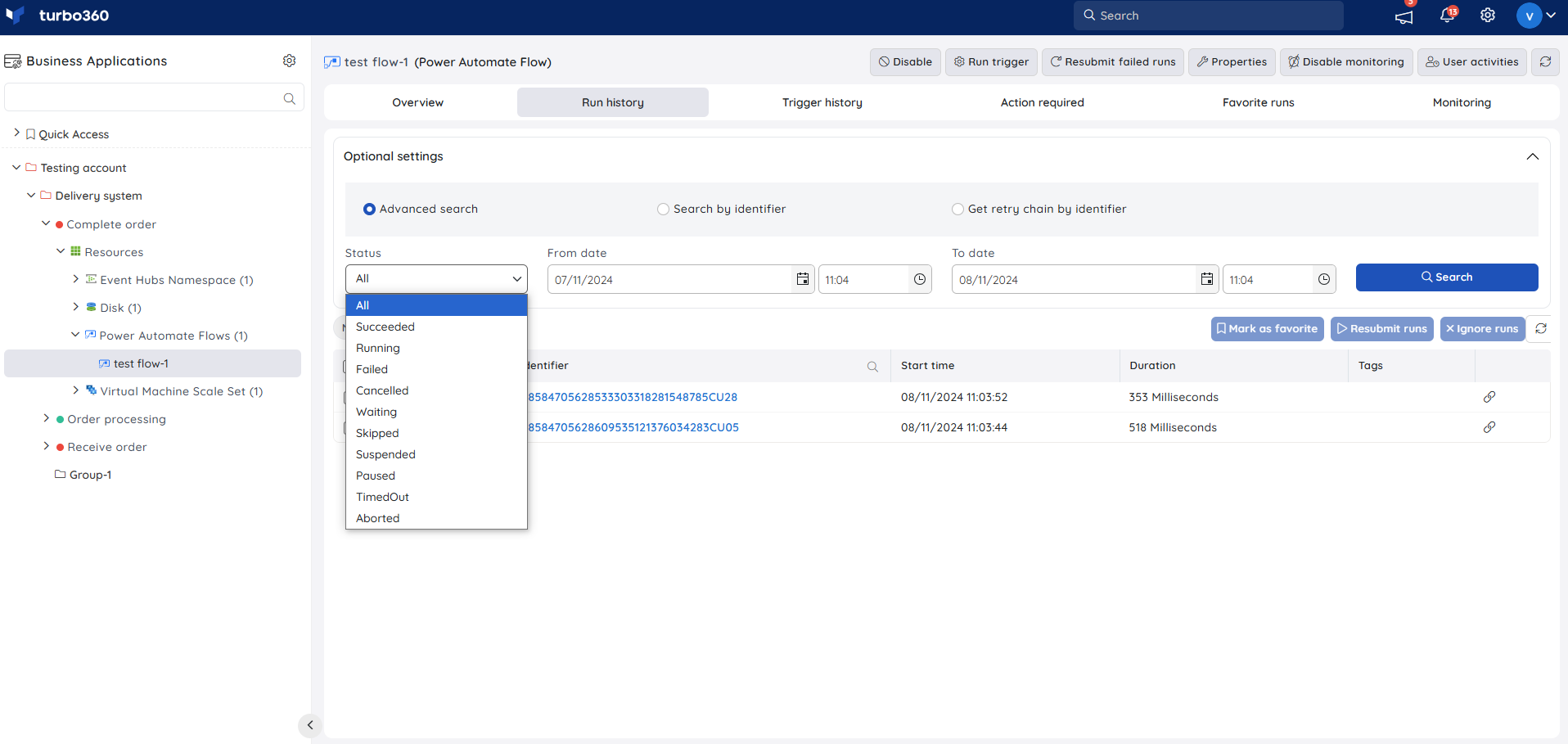
- Advanced search — filter executions by From and To dates along with a status (Succeeded, Running, Failed, Cancelled, Waiting, Skipped, Suspended, Paused, Timed Out, Aborted).
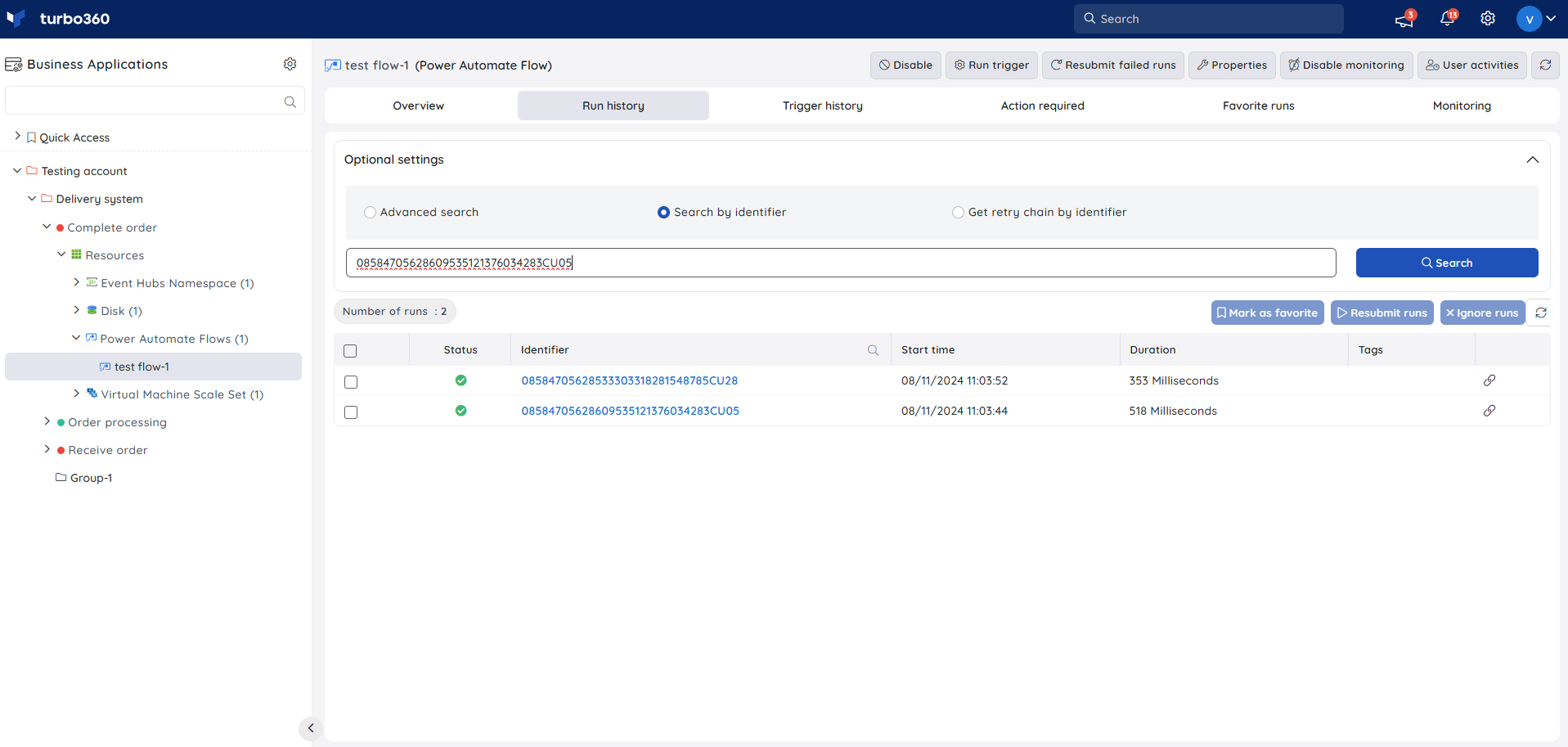
- Search by identifier — search for a specific flow run by its identifier value.
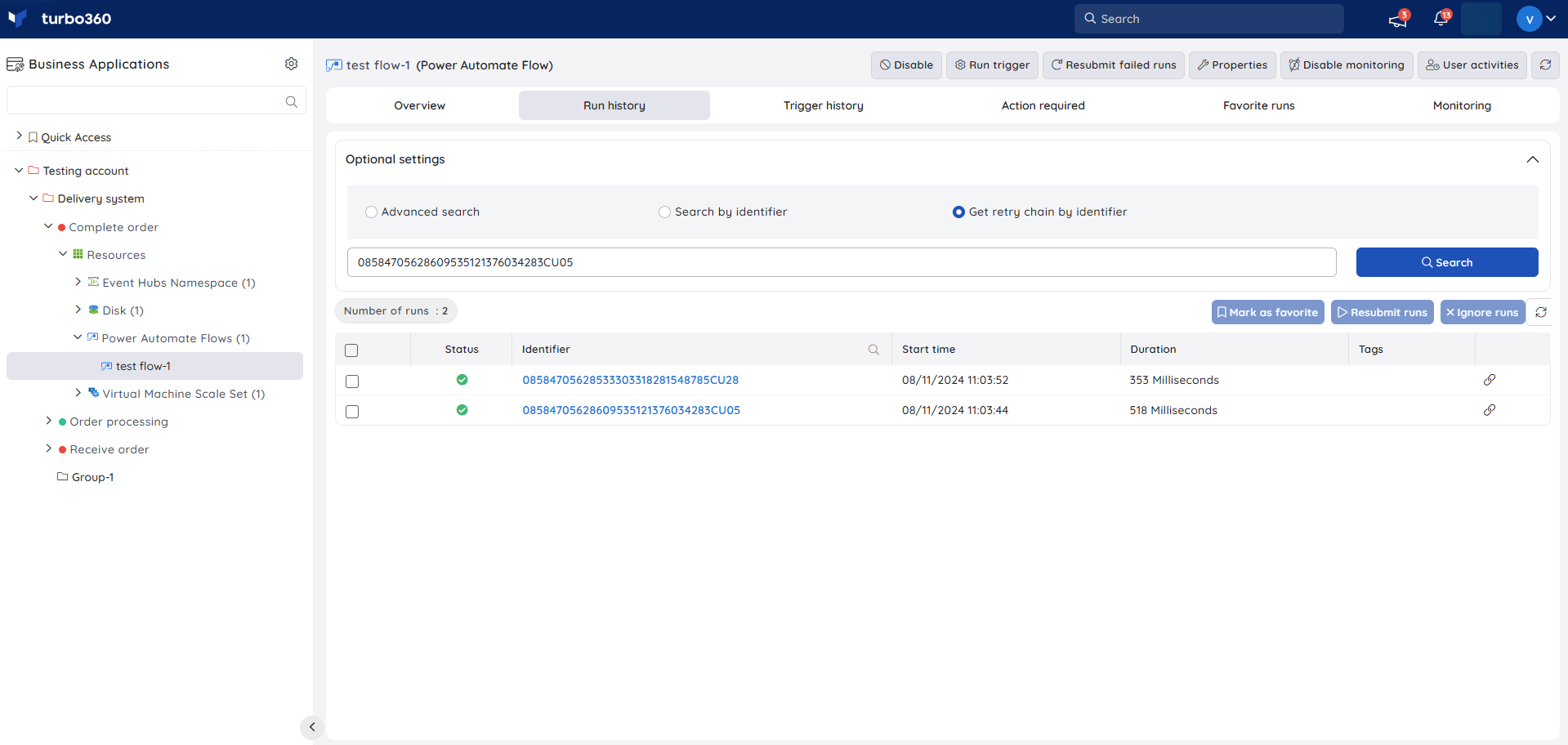
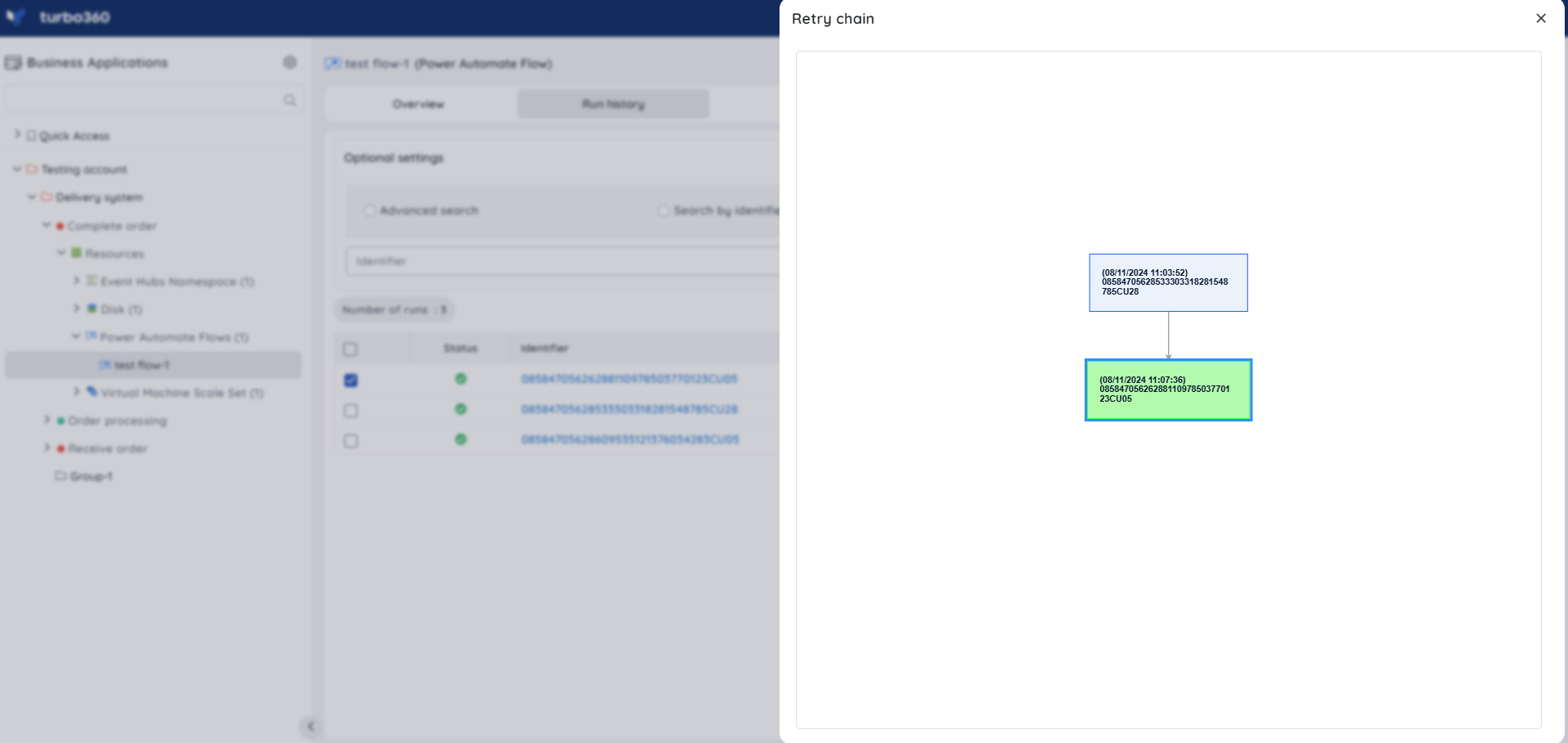
- Get retry chain by identifier — view the retry chain of a flow execution by entering its identifier, useful when a flow has been resubmitted multiple times and you need to see the status of each attempt in sequence. The link icon next to the Tag column on each identifier also opens the retry chain.
Resubmit failed runs
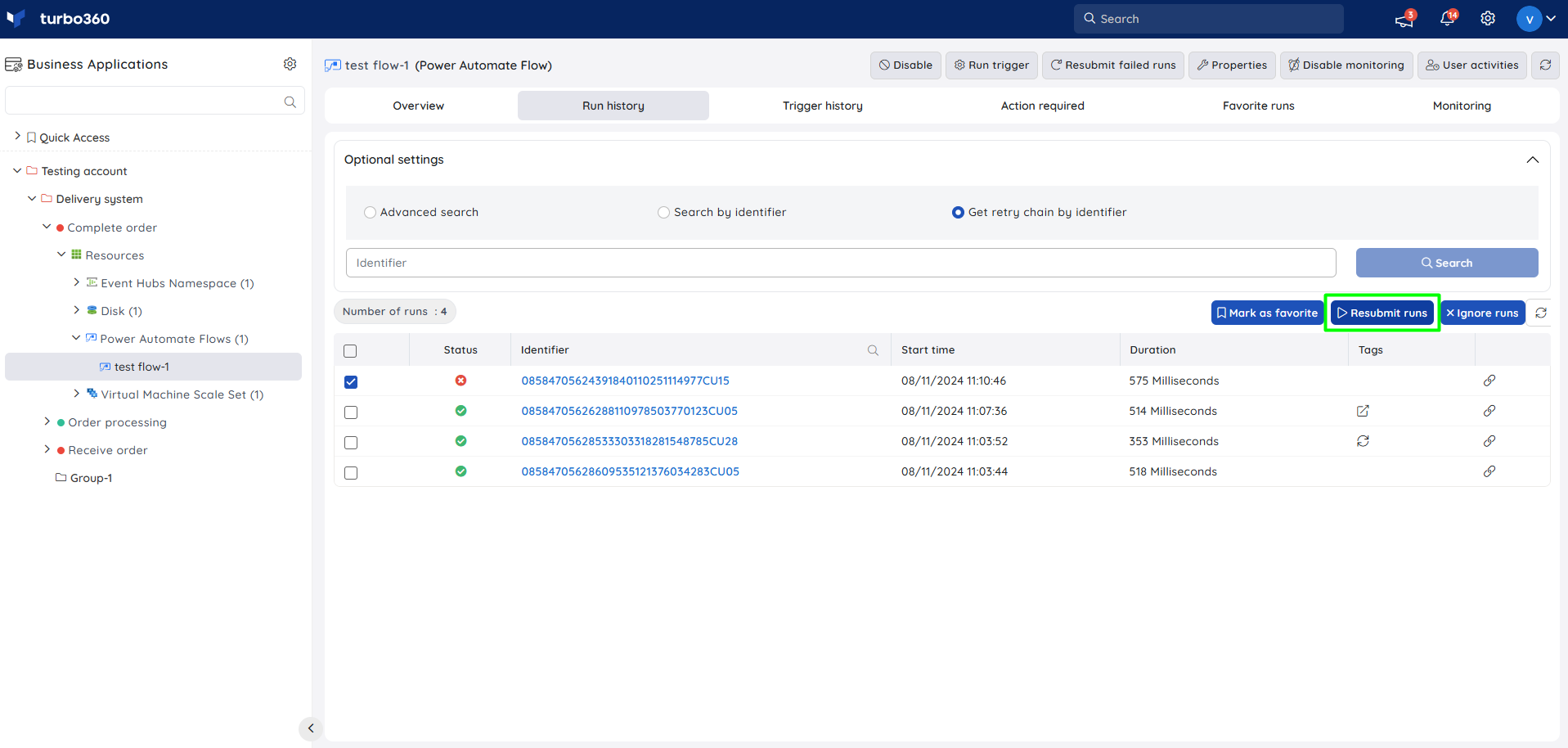
- Resubmit runs — select the required failed runs and click Resubmit runs. Use this when a flow execution failed due to an action error and needs to be replayed.
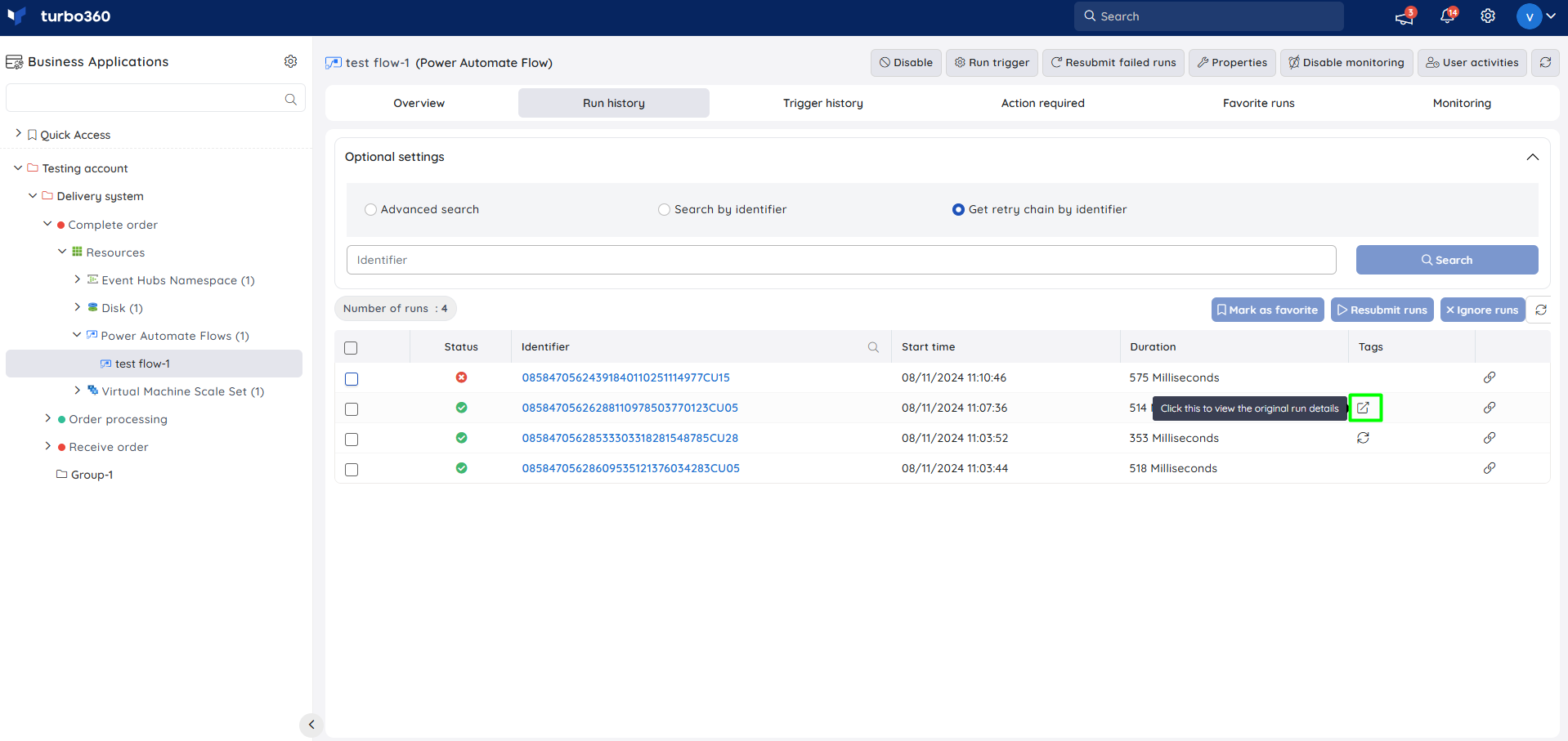
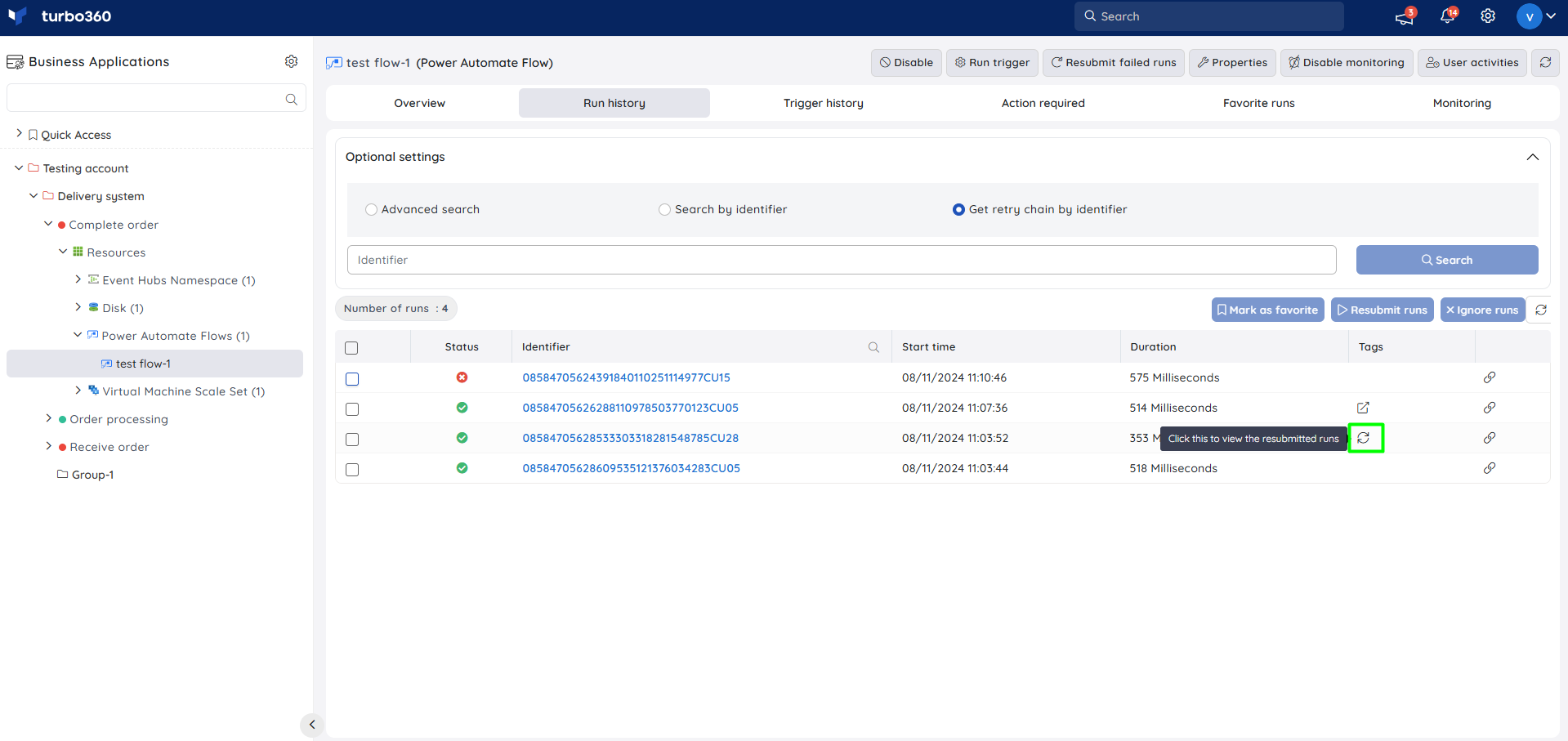
Resubmitted runs are tagged with details of the original parent run for traceability, whether resubmitted from Turbo360 or the Azure portal; the parent run is also tagged so you can find all its child/resubmitted runs.
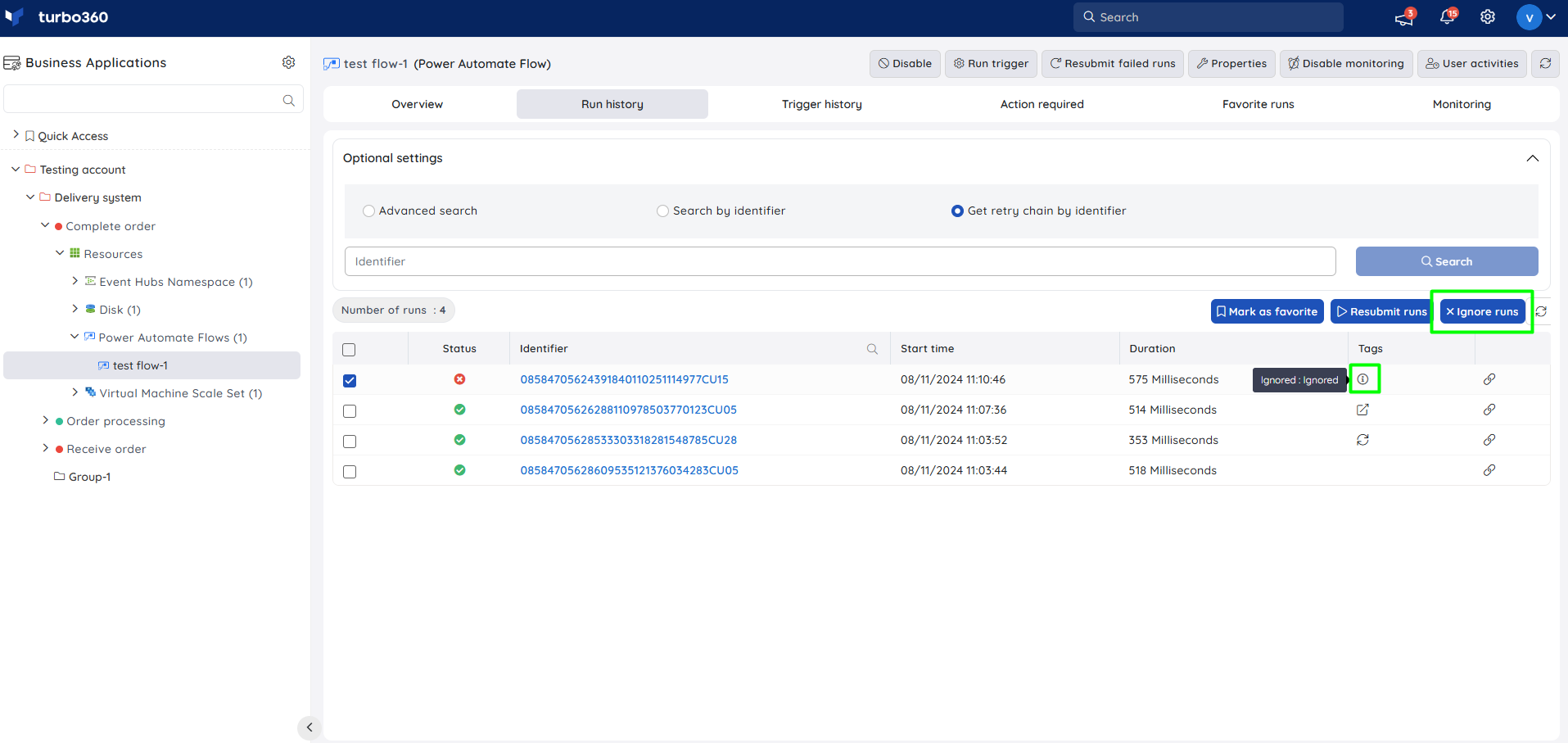
Ignore runs
- Ignore Runs — select runs that aren't useful at scale and click Ignore Runs to mark them with a custom description. This tag is visible only in Turbo360 and has no effect on the actual runs.
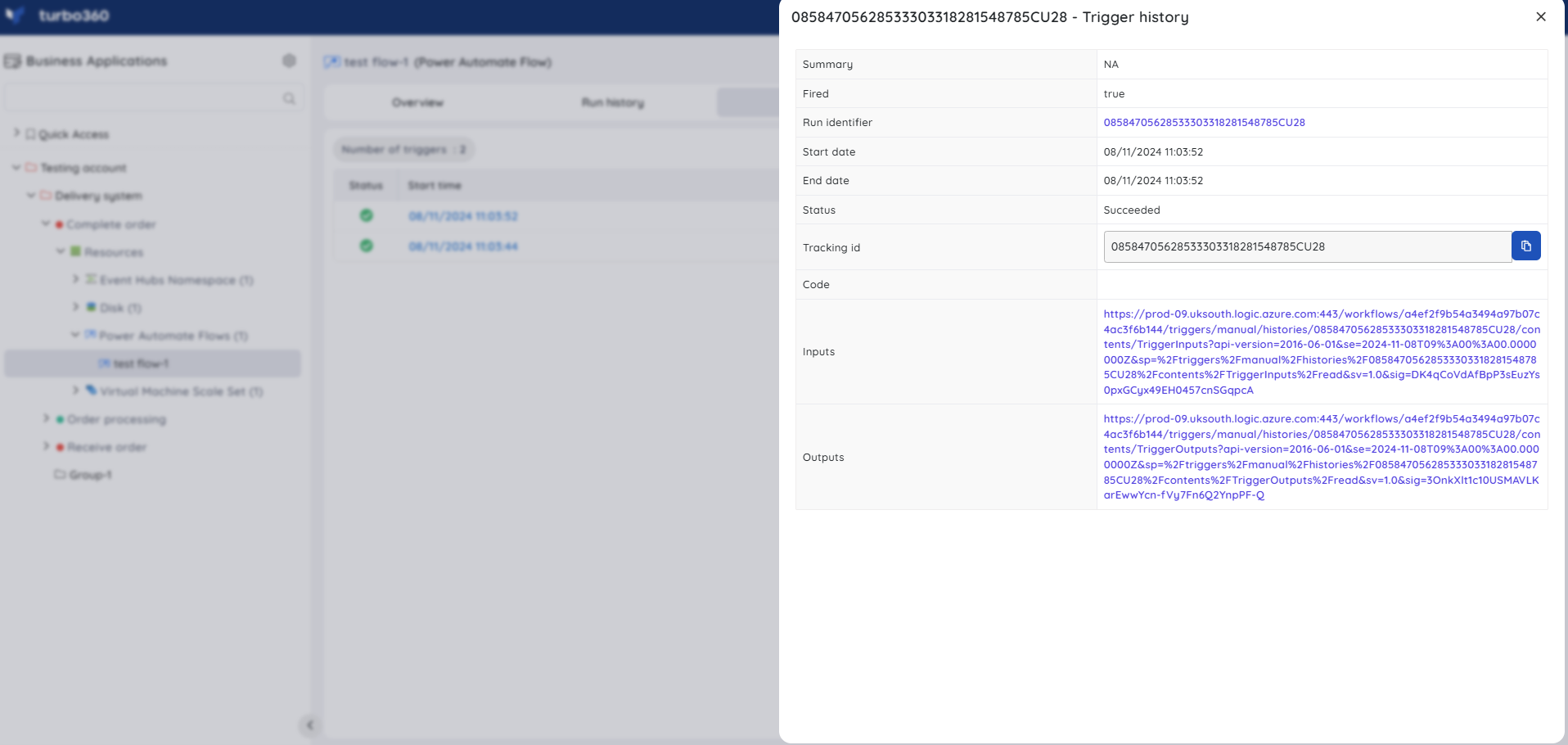
Trigger history
- View trigger history — view all triggers in the flow along with input and output details. When multiple triggers exist, history can be filtered by trigger, as in the Azure portal, and by status (Succeeded, Running, Failed, Cancelled, Waiting, Skipped, Suspended, Paused, Timed out, Aborted).
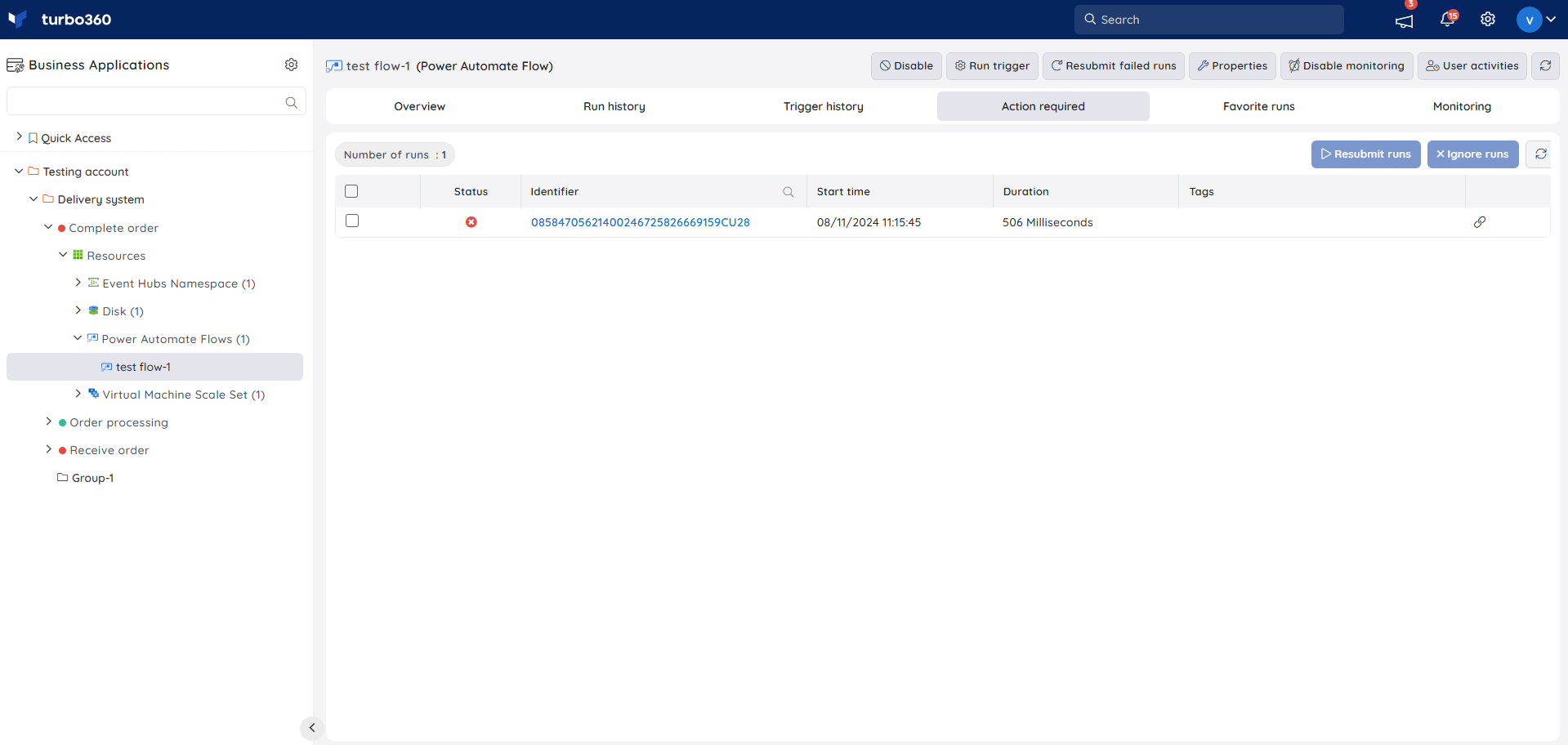
Action required
- Action required — focuses on failed flow runs that need action, with options to Resubmit runs or Ignore runs.
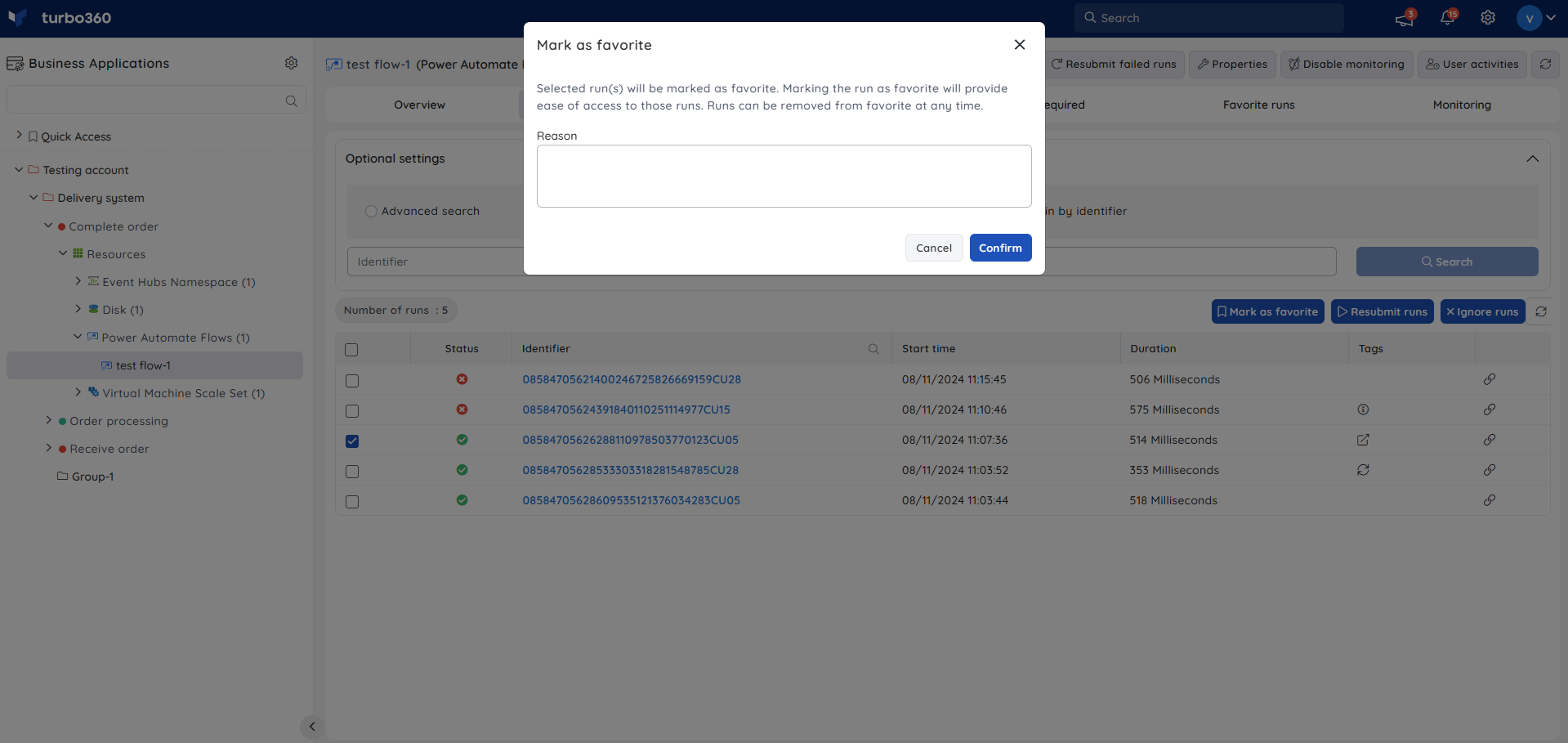
Favorite runs
- Mark as favorite — select frequently used runs from Run history or Action required and click Mark as favorite.
Inline task to resubmit failed runs
- Inline task — quickly resubmit runs that failed within a specified number of hours (minimum 1 hour) using the Resubmit failed runs option at the top of the screen.
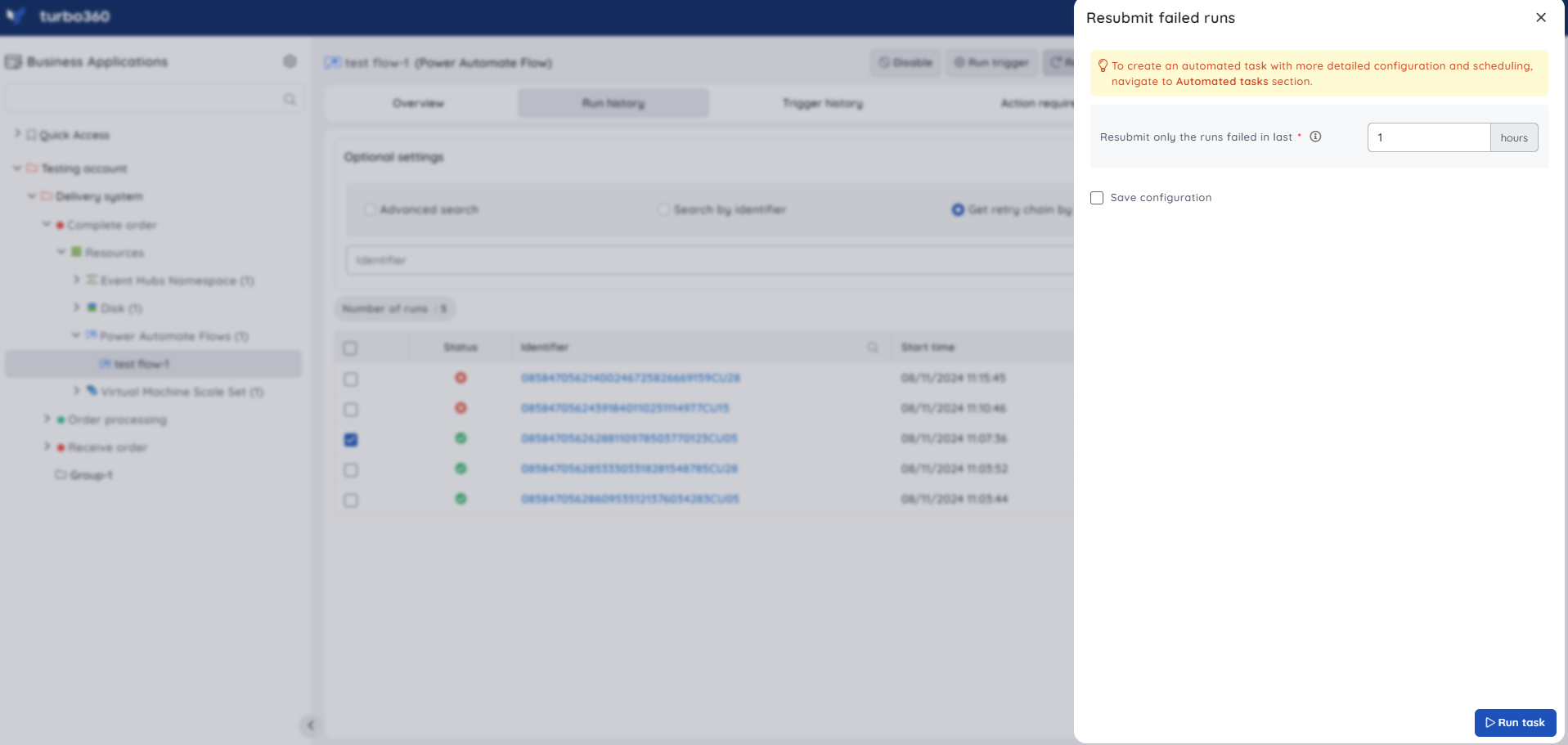
Task status can be viewed under Automated Tasks -> Task history.
Note:
- Users can use this feature to quickly create a task that runs immediately.
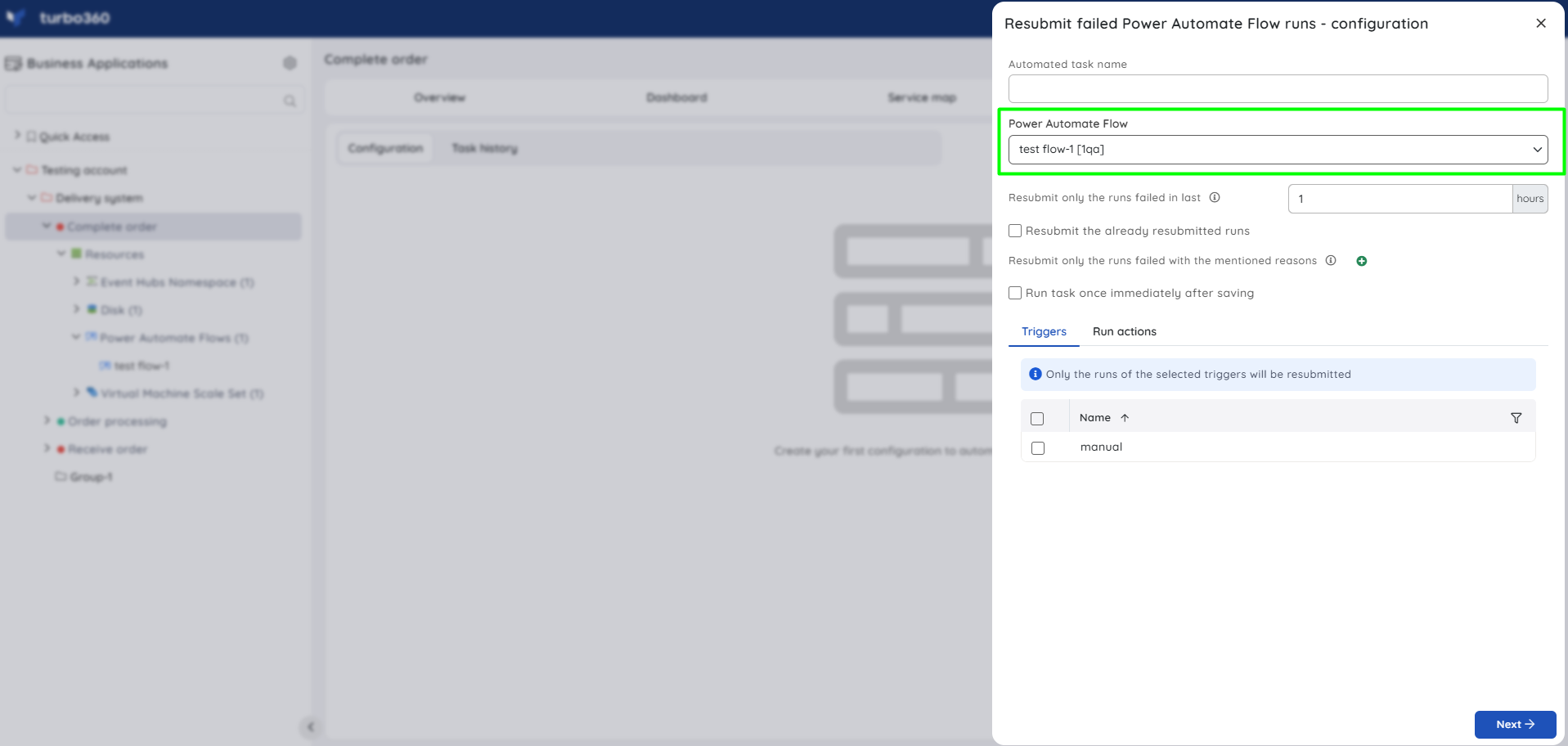
- Navigate to the Automated Tasks section in Turbo360 to create a task with a more detailed configuration, schedule tasks to run at a specific time, or automate the task to run on the specified hours, days, and more.
The Automated Task feature lets you configure resubmission of failed runs for a specified time, which is beneficial when there are multiple workflows — for example, automatically resubmitting failed runs in an employee-joining flow that posts to a Service Bus Queue, Azure Function, and Storage Table.
Monitoring
Power Automate Flow supports state and failure monitoring rules, configured under Power Automate Flow -> Monitoring.
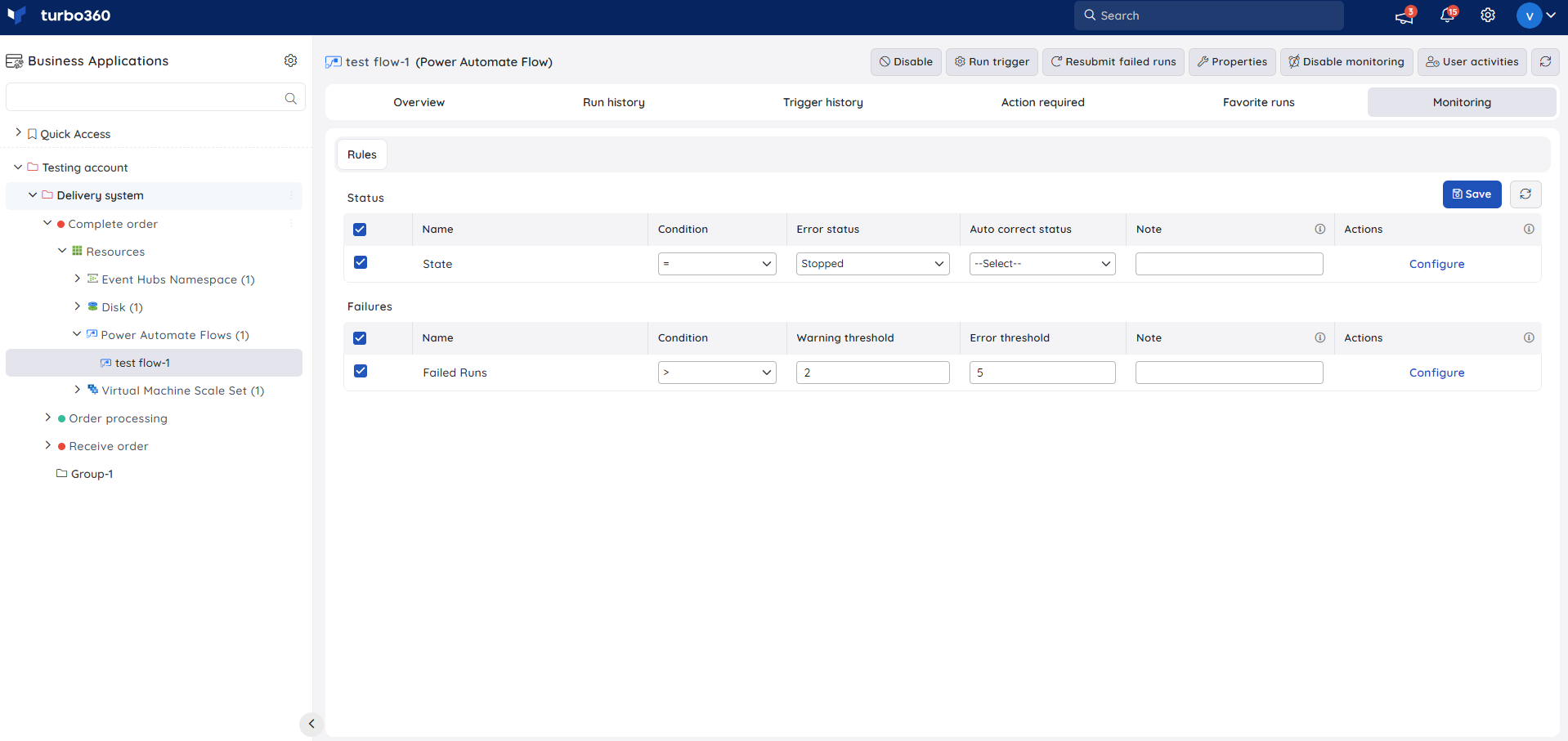
Monitoring rules are saved per resource, and the monitoring state is reflected after every monitoring cycle.
State monitoring
Tracks the state of the Power Automate flow to determine its health state. Use this when you need to be alerted if the flow's state changes unexpectedly.
- Navigate to Power Automate Flow -> Monitoring.
- Configure the threshold value for the state of the flow.
- Click Save.
Failure monitoring
Tracks failed flow runs. Use this when you need to be alerted as soon as run failures exceed expected bounds.
- Navigate to Power Automate Flow -> Monitoring.
- Select Failed runs under Failures and configure the threshold values.
- Click Save.
Troubleshooting
- Service principal validation fails
Cause: The required Microsoft Graph permissions (User.Read, Flows.Read.All, Flows.Manage.All) were not granted admin consent in Azure AD.
Fix: Revisit the Azure portal prerequisite steps and confirm admin consent was granted for all three permissions. - Resubmit option does not appear for a failed run
Cause: The role applied to the Business Application lacks the Reprocess permission.
Fix: Confirm the role has Reprocess access, then retry. - Retry chain does not show all resubmissions
Cause: One or more resubmissions were made directly from the Azure portal using a method that doesn't carry the traceability tag.
Fix: Use Turbo360 for resubmissions going forward to keep the retry chain complete. - Run trigger fails to invoke the flow
Cause: The selected trigger endpoint does not match the input the flow expects.
Fix: Confirm the trigger endpoint and required input fields match what the flow's actual trigger expects, then retry.
Related articles
Was this article helpful?