

Purchasing via a direct private offer
- 05 Aug 2026
- 5 Minutes to read
- Print
- DarkLight
- Download PDF
Purchasing via a direct private offer
- Updated on 05 Aug 2026
- 5 Minutes to read
- Print
- DarkLight
- Download PDF
Article summary
Did you find this summary helpful?
Thank you for your feedback!
Overview
The direct private offer is the preferred route for purchasing Turbo360 through the Azure Marketplace. The Turbo360 team creates a private offer via WeTransact scoped to your billing account. Once published, you accept the offer and complete the subscription in the Azure portal.
Business value
The direct private offer gives your organization a dedicated, pre-negotiated offer that is only visible to your billing account. It bypasses the standard marketplace listing and gives the Turbo360 team full control over the terms, pricing, and duration before you accept.
Prerequisites
Before starting:
- Obtain your Azure billing account ID and share it with the Turbo360 team so they can target the offer to your account. See how to find your billing account ID for guidance.
- Wait for confirmation from the Turbo360 team that your private offer is published and ready to accept.
- Ensure the person accepting the offer has access to the Azure portal and the target subscription.
Required permissions
| Permission | Why |
|---|---|
| Billing account reader or higher | Required to view and accept private offers in the Azure Marketplace. |
| Subscription Contributor or Owner | Required to create the marketplace subscription resource in the target subscription. |
| Entra ID consent approver (Global Admin or delegated) | An admin consent may be required when configuring the account via the WeTransact portal. |
How it works
Turbo360 partners with WeTransact to manage marketplace integrations. When the Turbo360 team publishes a direct private offer for your billing account, it appears in your Azure portal under Private offers. You accept the offer, select a subscription and resource group, confirm the purchase, and are redirected to the WeTransact portal to finalize the order. The Turbo360 team then accepts the order on their side to complete the transaction.
Steps
Use the following steps to locate, accept, and complete your direct private offer. Navigate to the Azure Marketplace in the Azure portal to get started.
Provide your billing account ID
Share your billing account ID with the Turbo360 team so they can create and target the offer to your account.
- Locate your billing account ID using the WeTransact guide.
- Share the billing account ID with the Turbo360 team.
- Wait for the Turbo360 team to confirm that your private offer is published.
Find your private offer
Once the Turbo360 team confirms your offer is ready, locate it in your Azure portal.
- Sign in to the Azure portal.
- Navigate to Azure Marketplace > Private offers.
- Locate the Turbo360 private offer in the list.
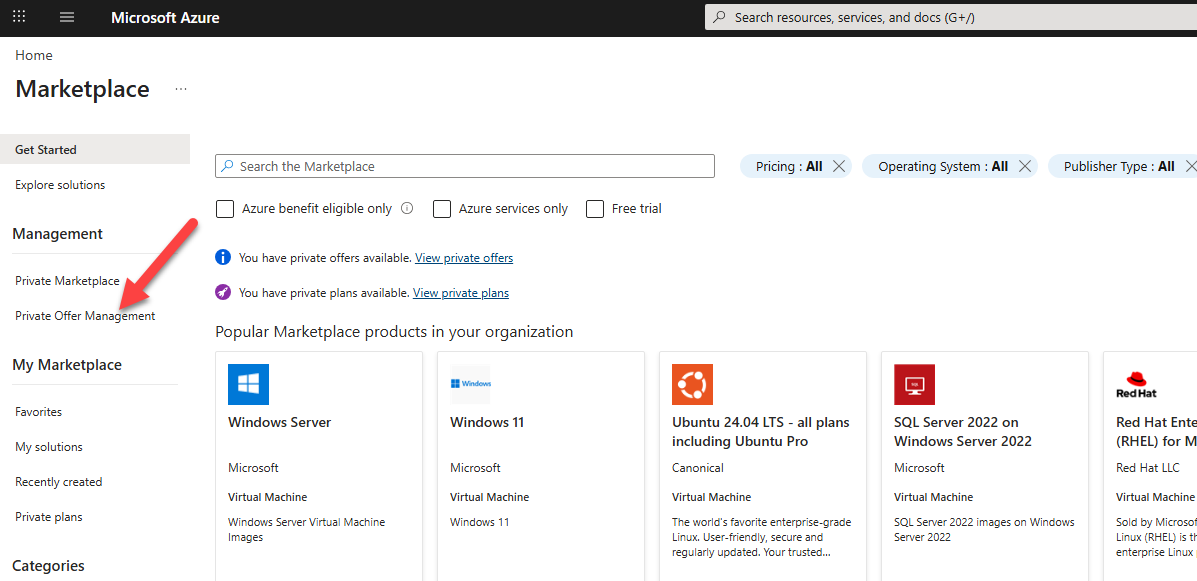
For a detailed walkthrough, see the WeTransact guide to finding private offers.
Accept your private offer
- Select the private offer to open it.
- Follow the wizard to review the offer terms.
- Click Accept to proceed.
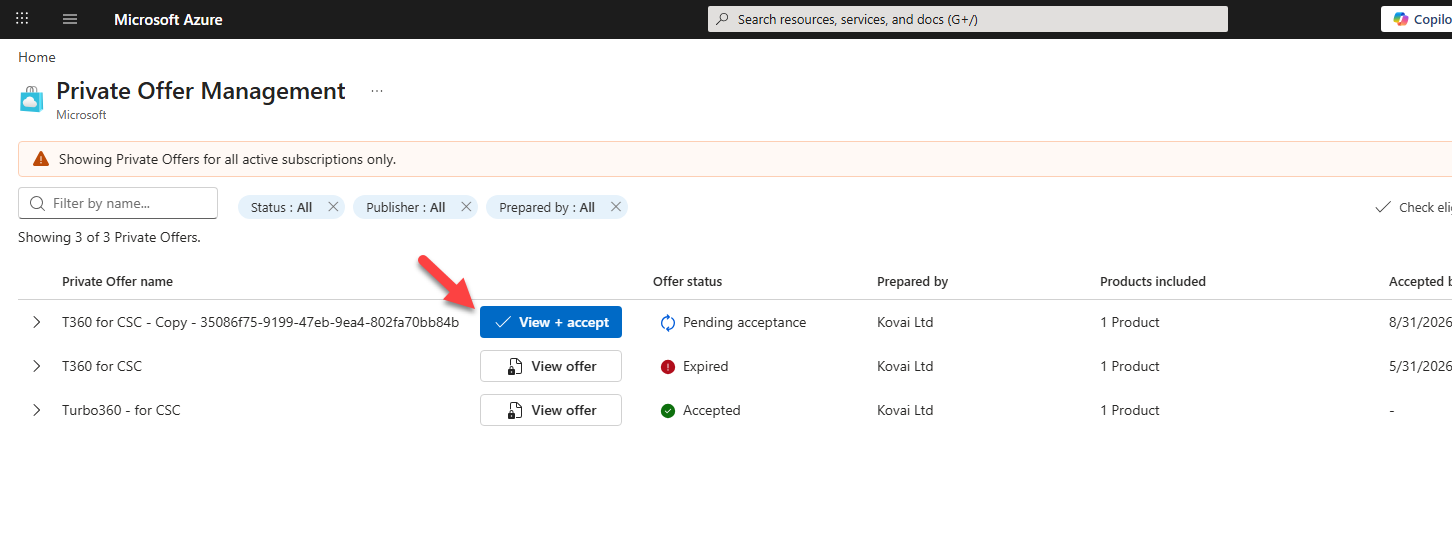
For a detailed walkthrough, see the WeTransact customer acceptance guide.
Complete the purchase
- After accepting, click the Set up account button shown in the Azure portal.
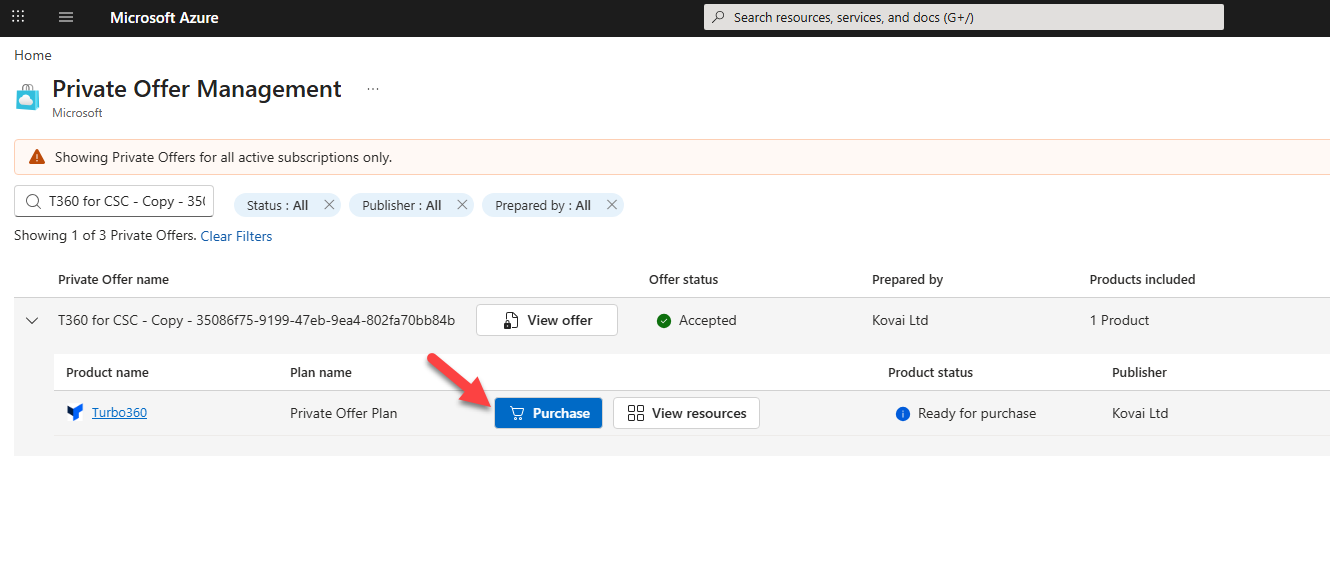
- Select the target subscription and fill in the required fields.
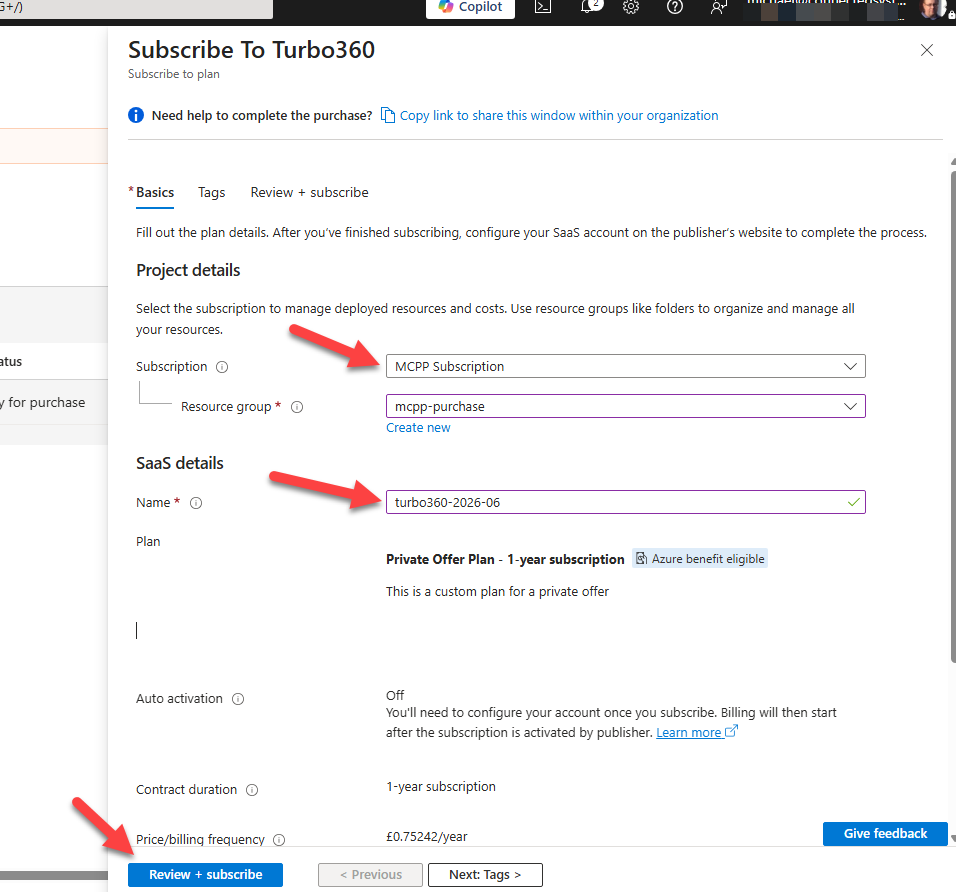
- Review the details and click Subscribe.
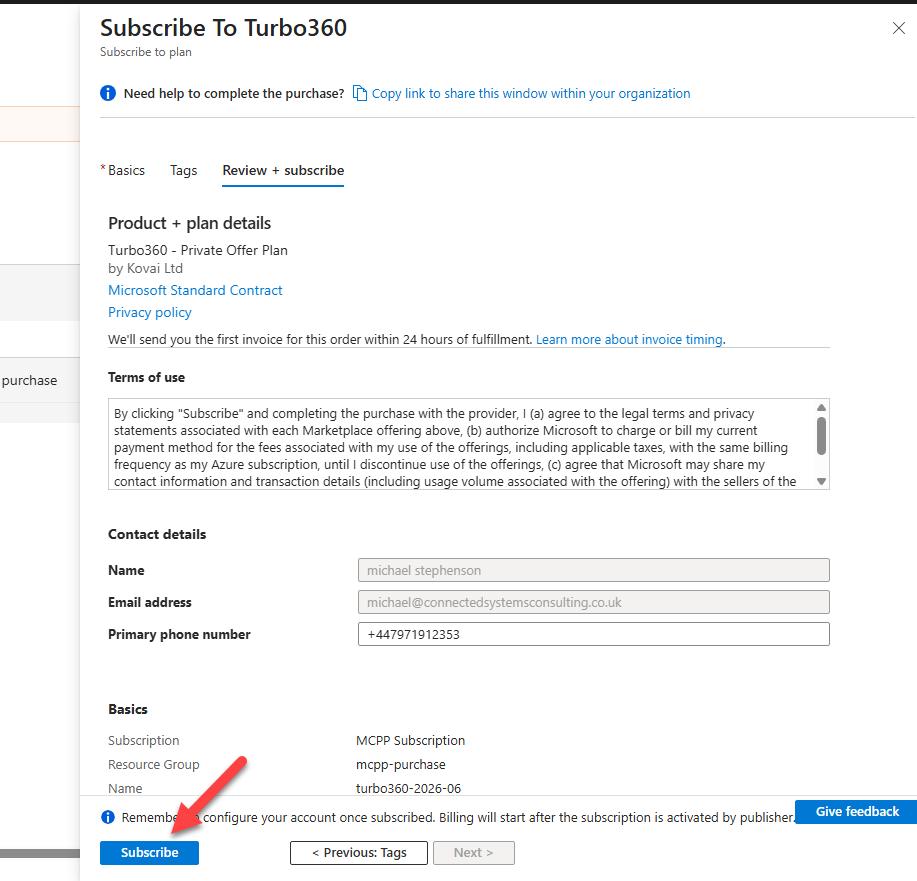
- Wait for Azure to process the subscription (approximately one minute), then click Configure your account.
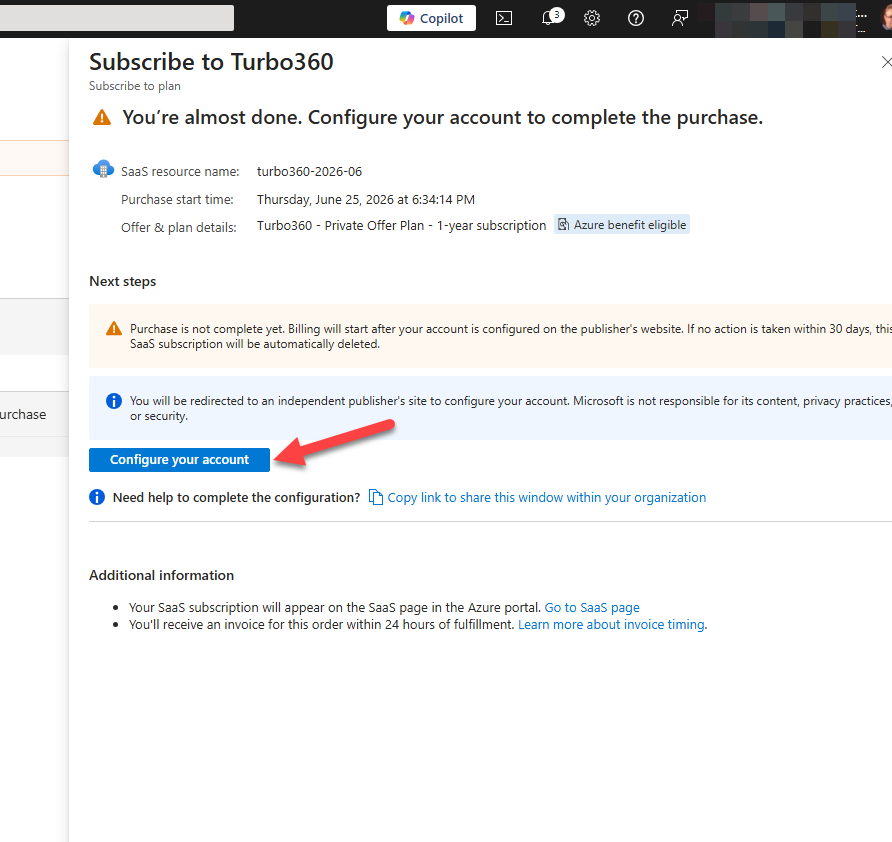
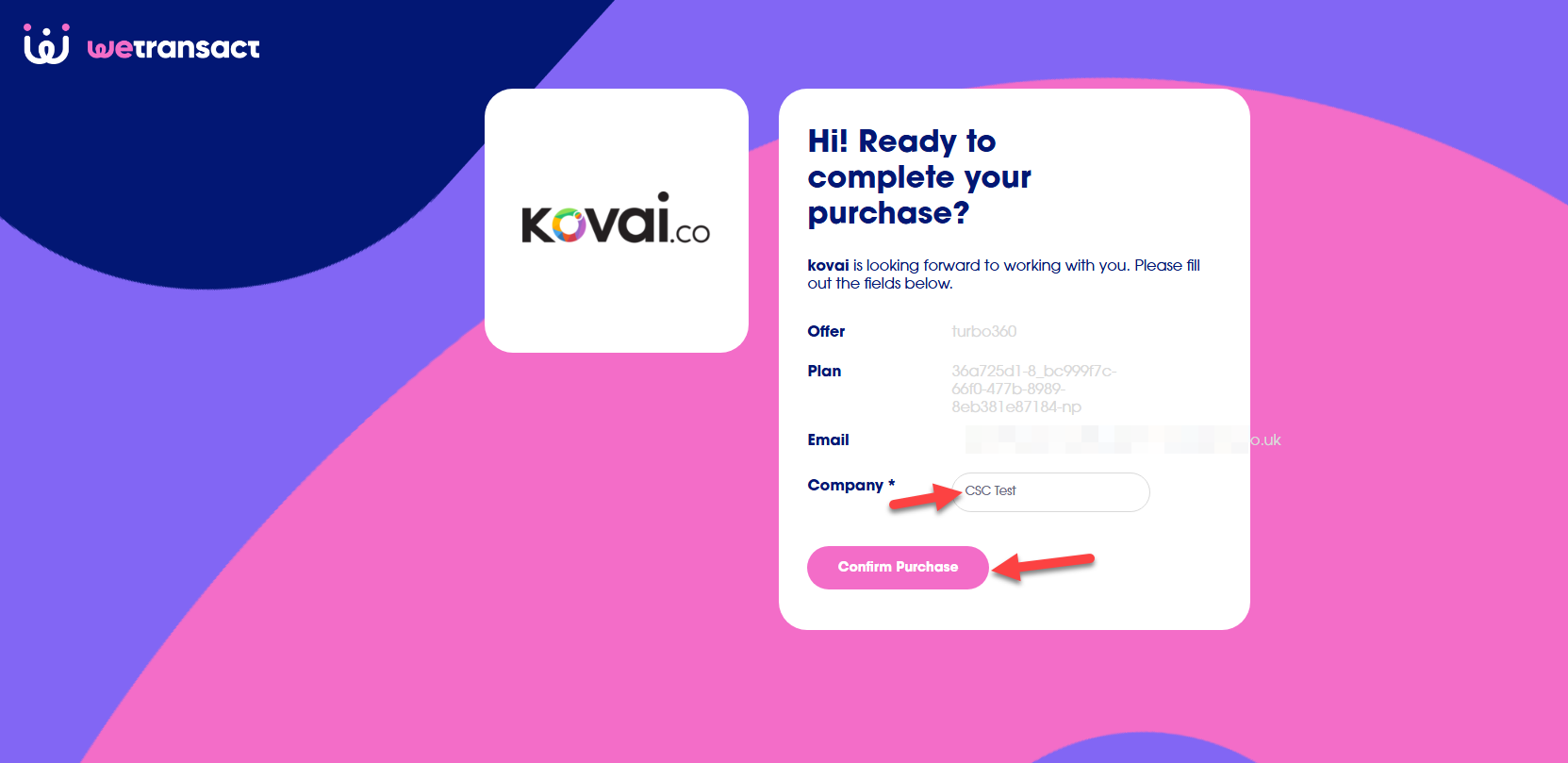
- You are redirected to the WeTransact portal. Enter your company name — this helps the Turbo360 team correlate the purchase to your organization. Use your company name where possible.
:::(Info)(Note:)
An Entra ID admin consent may be required at this step. If you do not have consent approval rights, coordinate with your Global Admin before proceeding.
:::
- Click the button to finalize the marketplace purchase.
The Turbo360 team will now accept the order on their side. Once accepted, the Azure Marketplace private offer purchase is complete.
Example scenario
A procurement manager at a financial services firm receives confirmation that their Turbo360 private offer is ready. They sign in to the Azure portal, navigate to Private offers, locate the Turbo360 offer, and click Accept. They select the production subscription, fill in the required fields, click Subscribe, and follow the WeTransact redirect to enter the company name and finalize the purchase. The Turbo360 team accepts the order the same day and sends license details by email.
Limitations
- The direct private offer is visible only to the billing account it was created for. Other billing accounts cannot see or access it.
- An Entra ID admin consent is required during the WeTransact finalization step. If the purchaser does not have consent approval rights, a Global Admin must complete this step.
Troubleshooting
The private offer does not appear in the Azure portal.
Cause: The offer is targeted to a specific billing account. If it is not visible, the billing account ID may have been entered incorrectly, or the offer has not yet been published.
Fix: Confirm the billing account ID shared with the Turbo360 team is correct, and verify with the team that the offer is published and confirmed as active.The Accept button is unavailable.
Cause: Your user account may not have sufficient permissions on the billing account to accept marketplace offers.
Fix: Contact your Azure billing administrator to grant the required permissions, or ask them to accept the offer on your behalf.The admin consent step fails in the WeTransact portal.
Cause: Admin consent requires Global Admin or a delegated consent approver role in Entra ID.
Fix: Coordinate with your Global Admin to approve the enterprise application consent. They can complete the consent step separately if needed.The subscription fails to create after clicking Subscribe.
Cause: The target subscription may not have Azure Marketplace purchases enabled, or the user lacks Contributor rights on the target subscription.
Fix: Ensure Azure Marketplace purchases are enabled and that the purchaser has Subscription Contributor or Owner role.The Turbo360 team has not responded after the purchase is complete.
Cause: The Turbo360 team must accept the order on their side before the purchase is fully processed.
Fix: If you have not received a response within one business day after finalizing through WeTransact, contact Turbo360 support with your purchase confirmation details.
FAQs
Can the purchase and a private hosted deployment live in separate resource groups or subscriptions?
Yes. The marketplace subscription resource and your Turbo360 private hosted deployment do not need to be in the same resource group or subscription.Who should I contact if the purchase process is blocked internally?
If your organization requires change control approval, subscription access, or admin consent from separate teams, coordinate those approvals before starting the purchase. The Turbo360 team can assist with technical questions but cannot bypass your organization's internal approval processes.What is WeTransact and why is it involved?
Turbo360 partners with WeTransact to manage Azure Marketplace private offer transactions. WeTransact handles the offer publishing and finalization steps. The WeTransact portal is where you enter your company name and confirm the purchase before the Turbo360 team accepts the order.
Related articles
Was this article helpful?