

Purchasing via a private plan
- 05 Aug 2026
- 5 Minutes to read
- Print
- DarkLight
- Download PDF
Purchasing via a private plan
- Updated on 05 Aug 2026
- 5 Minutes to read
- Print
- DarkLight
- Download PDF
Article summary
Did you find this summary helpful?
Thank you for your feedback!
Overview
When purchasing Turbo360 via a private plan, the Turbo360 team creates a plan scoped exclusively to your Azure tenant. The plan is published in the Azure Marketplace and is only visible to your organization. You locate it, subscribe to it, and confirm the purchase in the Azure portal.
Business value
Purchasing through the Azure Marketplace lets your organization consolidate Turbo360 licensing costs within your existing Azure billing. The private plan supports your negotiated purchase terms, has no expiry date, and maps charges to the subscription and billing account associated with the resource group you select at purchase time.
Prerequisites
Before starting the purchase process, complete the following:
- Share your Azure Entra Tenant ID with the Turbo360 team so they can create your private plan.
- Confirm that the Turbo360 team has notified you that your private plan is published and ready.
- Ensure Azure Marketplace purchases are enabled on the subscription you intend to use.
- Identify the resource group and subscription where the marketplace resource will be created.
- Coordinate internally if your organization requires a change control process or has a separation of responsibilities for Azure changes.
Required permissions
The person completing the purchase is referred to as the Marketplace Purchaser. This person requires the following permissions:
| Permission | Why |
|---|---|
| Global Admin | An admin consent is required for the Turbo360 enterprise application that will be registered in your Entra ID during purchase. |
| Resource Group Contributor | The purchaser must be able to add a resource to the target resource group. |
Dependencies
- A Turbo360 private plan must be created and published by the Turbo360 team before you can proceed.
- The private plan is visible only in your Azure tenant and is not available to other organizations.
How it works
When you subscribe to the private plan, Azure creates a billing resource inside the resource group you select. This resource appears on your Azure bill and represents your Turbo360 license entitlement — there is no code execution from it. The charge maps to the subscription and billing account associated with the resource group.
The purchase resource and any Turbo360 private hosted deployment can exist in separate resource groups or subscriptions; they do not need to be co-located.
After the purchase is confirmed, the Turbo360 team approves it on their side and contacts you with license details for either the SaaS or private hosting instance of Turbo360.
Steps
Use the following steps to locate the private plan and complete the subscription. Navigate to the Azure Marketplace in the Azure portal to get started.
Pre-purchase checklist
Before proceeding, verify the following:
- Change control is submitted and approved (if required by your organization).
- The Marketplace Purchaser is identified and has the required permissions (see Required permissions above).
- The target resource group and subscription are identified.
- Azure Marketplace purchases are enabled on the target subscription.
- RBAC permissions on the resource group allow the purchaser to add a resource.
- The purchaser has permission to approve admin consent for the Entra ID enterprise application.
Complete the purchase
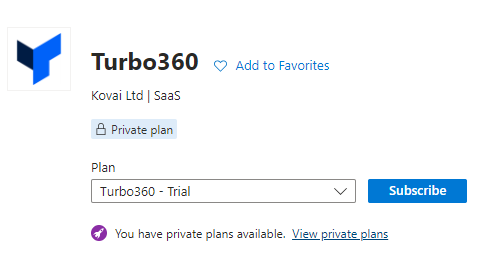
Go to the Azure Marketplace and locate Turbo360. Select the appropriate module for which your private plan has been created.
Choose the pricing plan tailored for your organization by the Turbo360 team.
Click Subscribe to set up a SaaS subscription for the Turbo360 application.
Note:
Ensure these prerequisites are met before proceeding to the next step.
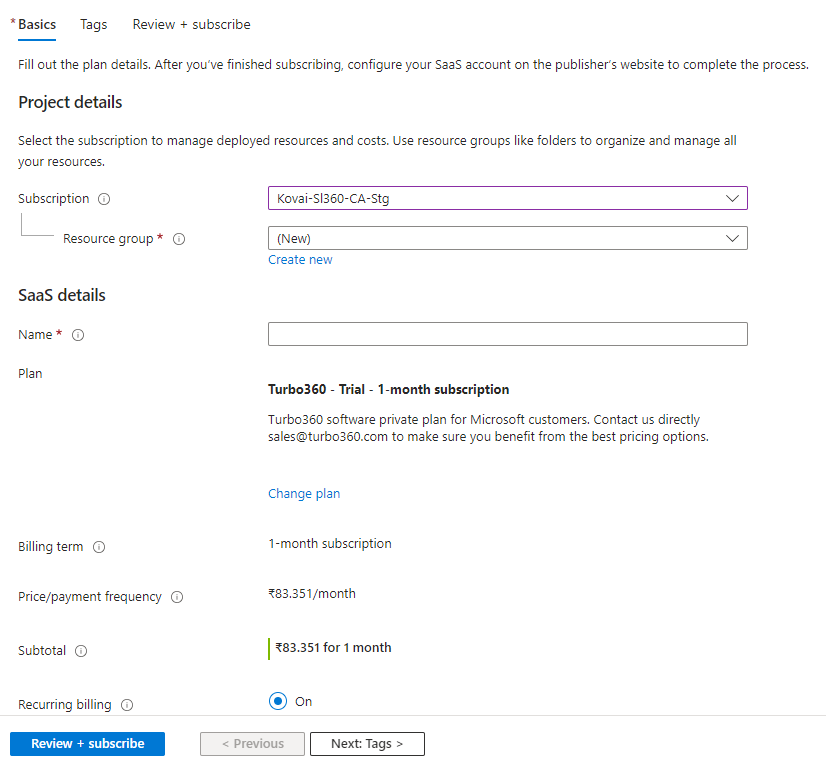
- Select the subscription and resource group, then fill in the required fields.
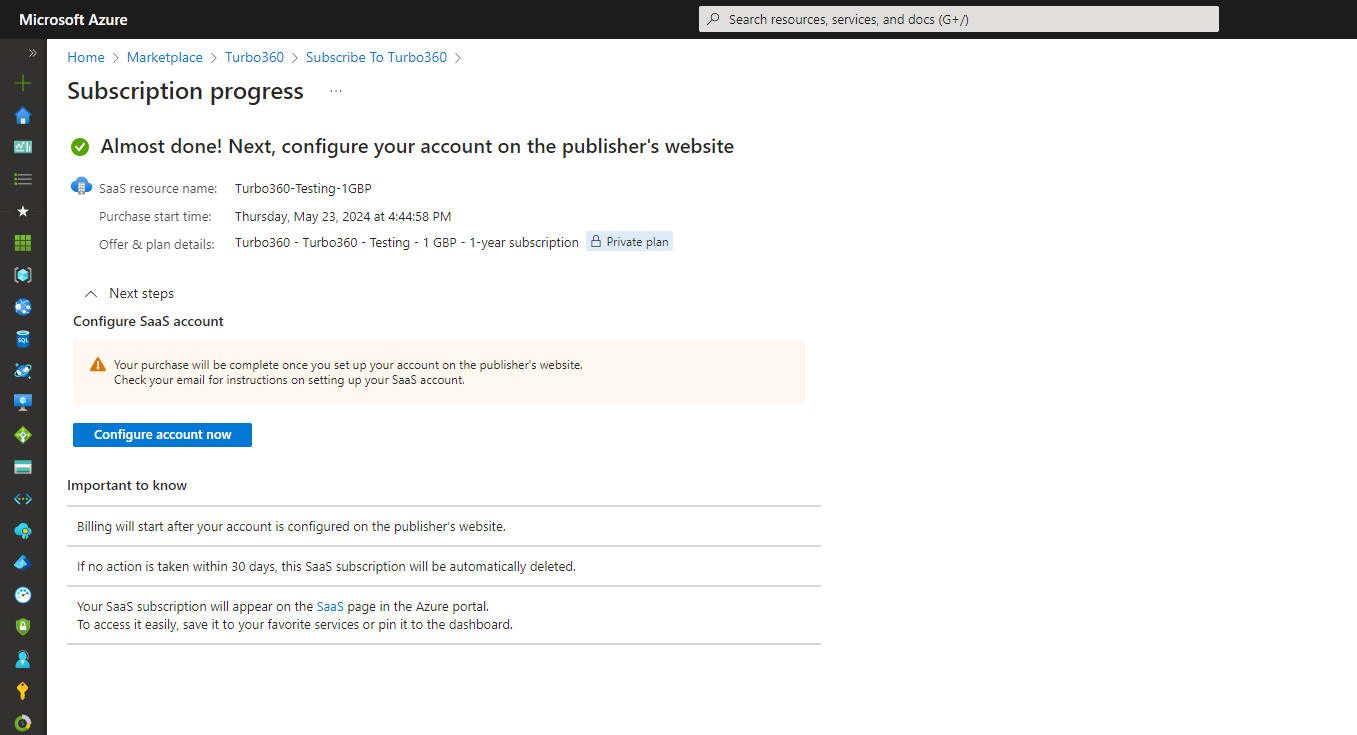
- Once the offer is subscribed, click Configure account now to confirm the purchase.
- Fill in the required fields.
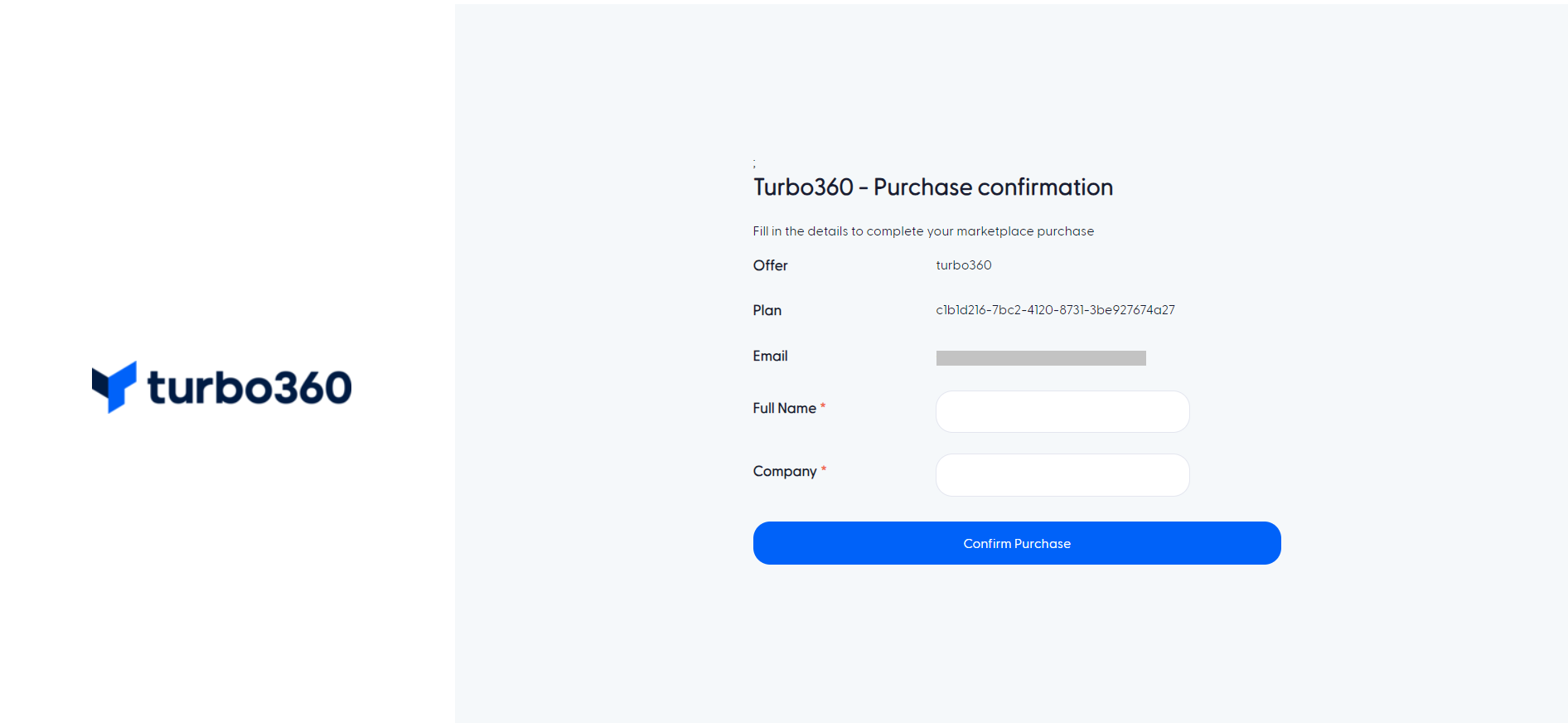
- Click Confirm Purchase to complete the transaction.
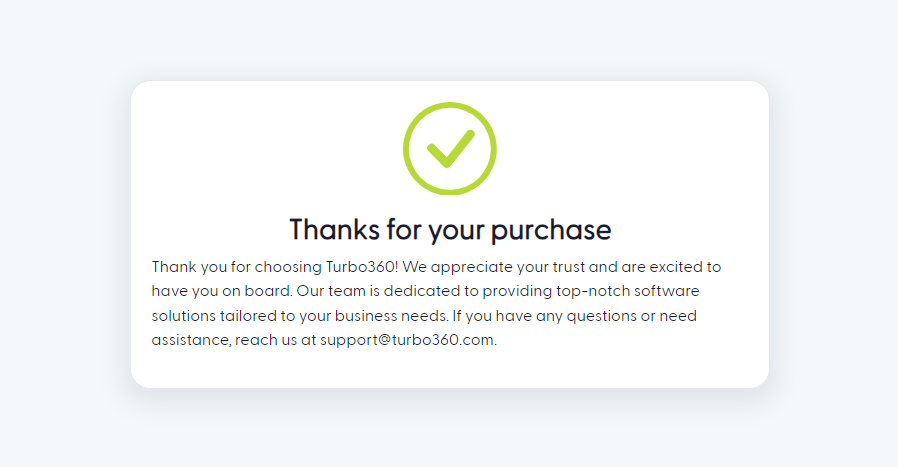
After the purchase completes, the Turbo360 team approves it and contacts you with license details for either the SaaS or private hosting instance.
Example scenario
An enterprise IT team receives notice from the Turbo360 team that their private plan is published. The Marketplace Purchaser — an IT admin with Global Admin and Resource Group Contributor roles — opens the Azure Marketplace, locates the Turbo360 offer, selects the organization's private plan, chooses the production resource group, fills in the required fields, and clicks Confirm Purchase. The Turbo360 team approves the transaction and provides license details by the following business day.
Limitations
- The private plan is visible only in the Azure tenant for which it was created. Other tenants cannot see or subscribe to it.
- The purchase resource and any private hosted deployment can exist in separate resource groups or subscriptions; however, charges always map to the billing account of the resource group used at purchase time.
- The private plan does not have an expiry date, but renewal behavior depends on the deal type configured in Azure: the plan may auto-renew, or a new plan may need to be created if your Turbo360 subscription has changed since the initial purchase.
Troubleshooting
I cannot find the private plan in the Azure Marketplace.
Cause: The private plan is only visible in the specific Azure tenant for which it was created.
Fix: Confirm you are signed in to the correct tenant and that the Turbo360 team has confirmed the plan is published. If the plan does not appear, contact Turbo360 support.The Subscribe button is unavailable or the purchase fails immediately.
Cause: Azure Marketplace purchases may be disabled on the target subscription.
Fix: Ask your Azure administrator to enable Marketplace purchases on the subscription following the Microsoft documentation.The admin consent step fails during purchase.
Cause: Admin consent requires Global Admin or a delegated consent approver role in Entra ID.
Fix: Coordinate with your Global Admin to approve the enterprise application consent separately if the Marketplace Purchaser does not have this permission.The purchaser cannot add a resource to the resource group.
Cause: Resource Group Contributor is required.
Fix: Ask your Azure administrator to assign the Contributor role to the purchaser on the target resource group before retrying.The Turbo360 team has not responded after purchase completion.
Cause: The Turbo360 team must approve the transaction on their side before issuing license details.
Fix: If you have not received a response within one business day after clicking Confirm Purchase, contact Turbo360 support with your purchase confirmation details.
FAQs
Can the purchase and a private hosted deployment live in separate resource groups or subscriptions?
Yes. The marketplace purchase resource and your Turbo360 private hosted deployment do not need to be in the same resource group or subscription.What happens at renewal time?
Renewal behavior depends on the deal type configured in Azure. Your plan may auto-renew, or you may need a new plan created if your Turbo360 subscription has changed since the first purchase. Contact the Turbo360 team before your renewal date to confirm the correct approach.Who should I contact if the purchase process is blocked internally?
If your organization requires change control approval, resource group access, or admin consent from different teams, coordinate those approvals internally before starting the purchase. The Turbo360 team can assist with technical questions but cannot bypass your organization's internal approval processes.
Related articles
Was this article helpful?