

Recommendations
- 05 Aug 2026
- 3 Minutes to read
- Print
- DarkLight
- Download PDF
Recommendations
- Updated on 05 Aug 2026
- 3 Minutes to read
- Print
- DarkLight
- Download PDF
Article summary
Did you find this summary helpful?
Thank you for your feedback!
Overview
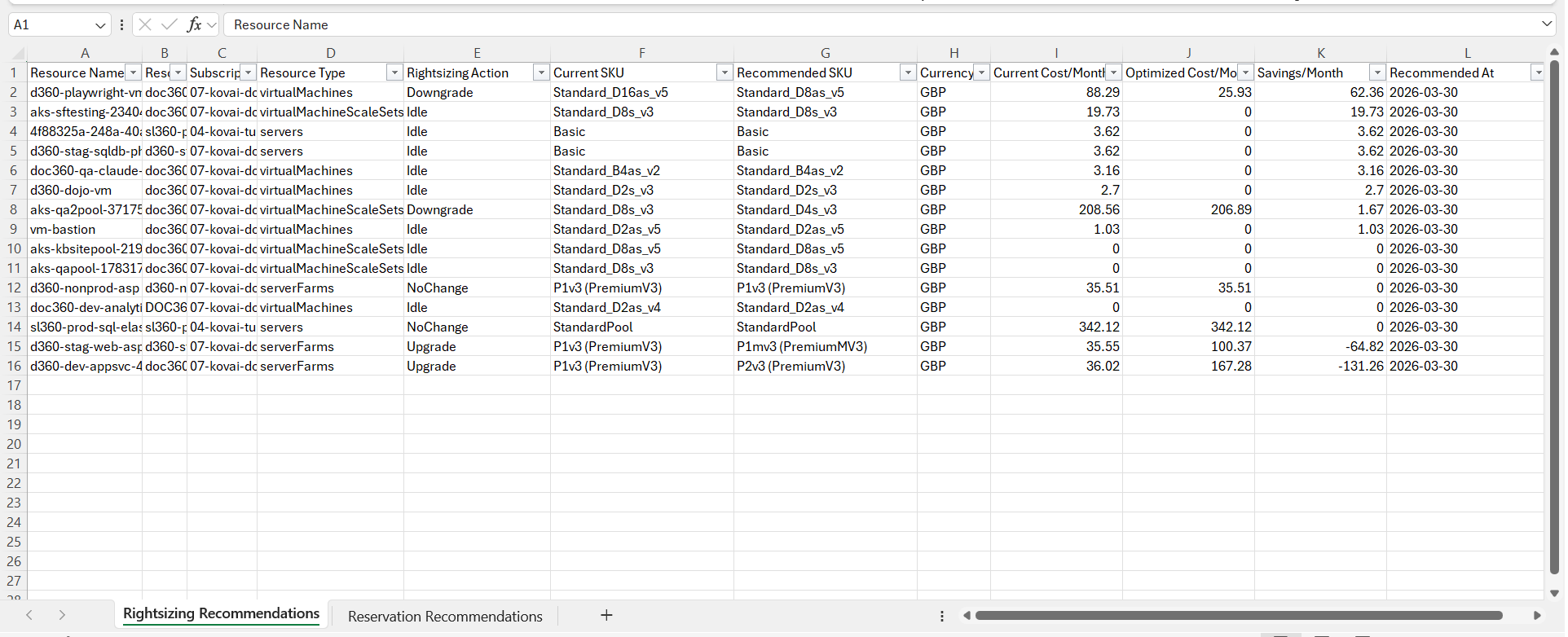
Recommendations is a weekly Excel-based report that consolidates newly identified and updated optimization recommendations — including rightsizing and reservations — from the past 7 days into a single structured report. Reports are available for download from Generation history.
Business value
By surfacing new and changed recommendations on a recurring cadence, this report helps cloud governance and FinOps teams track optimization opportunities over time, prioritize high-impact actions, and stay on top of the environment without manually re-checking each optimization category. Mail alerts highlighting the top 10 recommendations let teams spot high-impact opportunities at a glance.
Prerequisites
Required permissions
Access to the Recommendations report is controlled by the same Reports permission that governs Cost Analyzer's reporting suite:
| Role | Permission level | Access |
|---|---|---|
| Account owner, Owner, Contributor | — | Full access to Reports |
| Custom role | Reports: Read | View all reports |
| Custom role | Reports: Manage | Edit report configuration and generate reports |
When assigning a custom role, grant Read or Manage on Reports under Specify feature permissions.
.jpg)
How it works
- Weekly consolidation — brings together newly identified and updated recommendations from the past 7 days into one report.
- Cross-category coverage — includes recommendations from key optimization categories such as rightsizing and reservations.
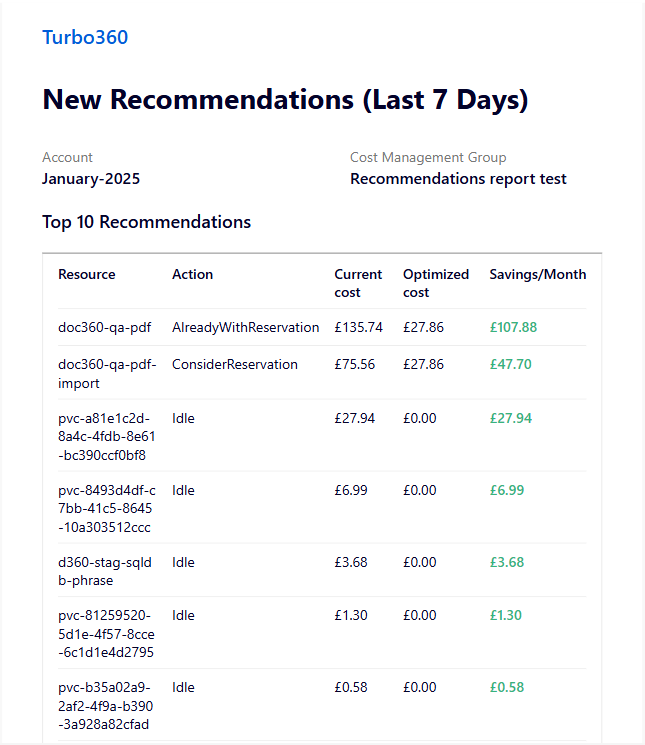
- Mail alert highlights — surfaces the top 10 recommendations in the alert email so high-impact opportunities are easy to spot without opening the full report.
- Generation history — every triggered report is retained per cost management group for later download.
The following image illustrates a sample mail alert received for the Recommendations report:
Steps
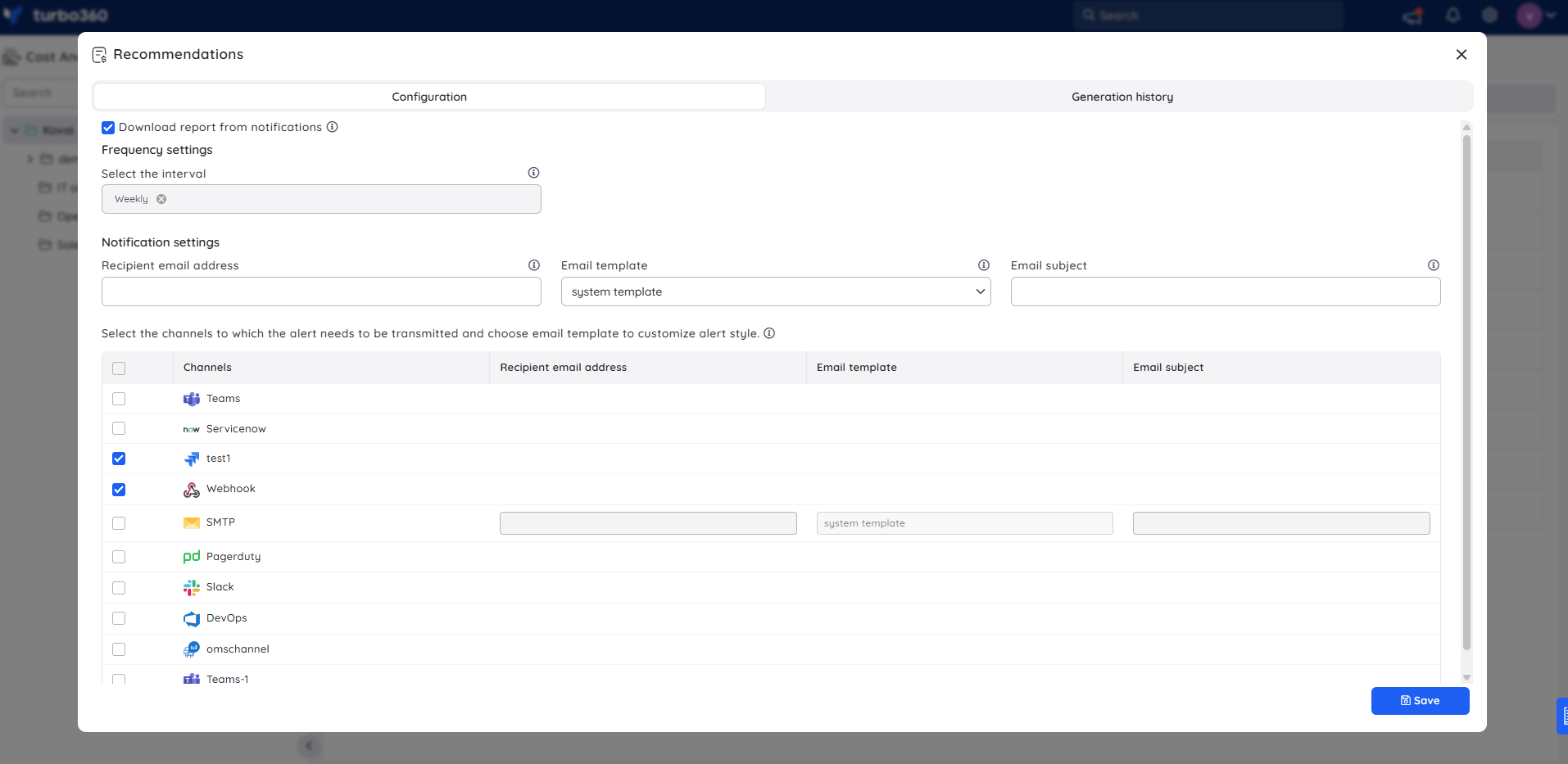
Use the following steps to schedule and generate Recommendations reports for a cost management group. Navigate to Cost management group > Reports to get started.
- Click the Edit icon next to the Recommendations report type.
- Check Download report from notifications to allow the report to be downloaded from alerts.
- Choose the desired notification services to receive alerts.
- Click Save to apply the values.
- Enable the Recommendations report type toggle.
Generate a report on demand
Generating on demand produces a weekly Recommendations report immediately, without waiting for the next scheduled cycle.
- Open the Actions menu next to the Recommendations report type.
- Select Generate Now.
.png)
The report type toggle must be enabled in the Reports section, and at least one notification channel must be selected, before Generate Now will produce a report.
All triggered reports for the relevant cost management group appear in Generation history, with a download option next to each record for easy access.
.png)
Example scenario
A cloud governance lead enables the weekly Recommendations report for the root cost management group, with Download report from notifications enabled. Each week, a mail alert highlighting the top 10 recommendations arrives via the configured notification channel, and the full report is also available from Generation history.
The following image illustrates a sample weekly Recommendations report downloaded from the Generation history:
Limitations
- The report is Excel-based rather than PDF-based, so branding settings (custom logo) don't apply to it.
Troubleshooting
Generate Now produces no report
Cause: The Recommendations report type toggle is disabled, or no notification channel is selected.
Fix: Enable the toggle in the Reports section and select at least one notification channel, then retry.Report not appearing in Generation history
Cause: The report has not yet completed generation, or generation failed silently.
Fix: Wait a few minutes and refresh. If the report still doesn't appear, regenerate it using Generate Now.Mail alert not received
Cause: Download report from notifications was not checked, or the selected notification channel is misconfigured.
Fix: Reopen the report configuration, confirm Download report from notifications is checked, and verify the notification channel settings.
FAQs
Can I generate a Recommendations report outside its scheduled weekly cycle?
Yes. Use Generate Now from the report type's Actions menu to generate it on demand.Which optimization categories does the report cover?
It includes recommendations from key optimization categories, such as rightsizing and reservations, consolidated into a single report.What does the mail alert show compared to the full report?
The mail alert highlights only the top 10 recommendations for quick review, while the full report — available from Generation history — contains the complete set of newly identified and updated recommendations.
Related articles
Was this article helpful?