

Relay
- 05 Aug 2026
- 6 Minutes to read
- Print
- DarkLight
- Download PDF
Relay
- Updated on 05 Aug 2026
- 6 Minutes to read
- Print
- DarkLight
- Download PDF
Article summary
Did you find this summary helpful?
Thank you for your feedback!
Overview
Azure Relay provides secure connectivity between on-premises environments and Azure-hosted services without requiring inbound firewall changes. A Relay is a Windows Communication Foundation (WCF) relay entity within an Azure Relay namespace — enabling request-reply and one-way message exchange between on-premises WCF services and cloud applications. In Business Applications, Turbo360 surfaces the relay metadata and Azure Monitor metrics for each Relay directly in the resource view.
Business value
Relay resources are common integration points in hybrid architectures where legacy on-premises WCF services communicate with cloud-hosted consumers. Monitoring relay resources in Turbo360 brings listener availability, connection error rates, and data transfer volumes into the same view as the rest of the application topology — helping you detect listener failures and isolate relay connectivity issues without switching to the Azure portal.
How it works
WCF Relay creates a rendezvous endpoint in Azure where an on-premises WCF service (the listener) registers and waits for incoming connections. Cloud or SaaS applications (senders) connect to the same public relay endpoint to forward requests. Azure routes the WCF traffic between sender and listener without requiring the on-premises host to open inbound firewall ports.
When a Relay is part of a Business Application, Turbo360 displays its resource view with two top-level tabs: Overview and Monitoring.
The Overview tab shows the Essentials panel with the resource's key properties:
- Resource group — the Azure resource group the relay belongs to
- Listeners — the number of WCF listeners currently registered with the relay endpoint
- Location — the Azure region where the resource is deployed
- Subscription — the Azure subscription associated with the resource
- Tags — any Azure tags assigned to the relay
- Created at and Updated at — timestamps for when the resource was created and last modified in Azure
Within the Overview tab, the Dashboard and Metrics sub-tabs let you configure and view custom metric widgets for the resource. The Monitoring tab provides access to monitoring rules and monitoring profiles.
Permissions
| Permission | Description |
|---|---|
| Read | View the Relay resource, its Essentials panel, dashboard, and monitoring data. |
| Manage | Configure monitoring rules, create and manage dashboard widgets, and update monitoring profiles. |
Resource dashboard
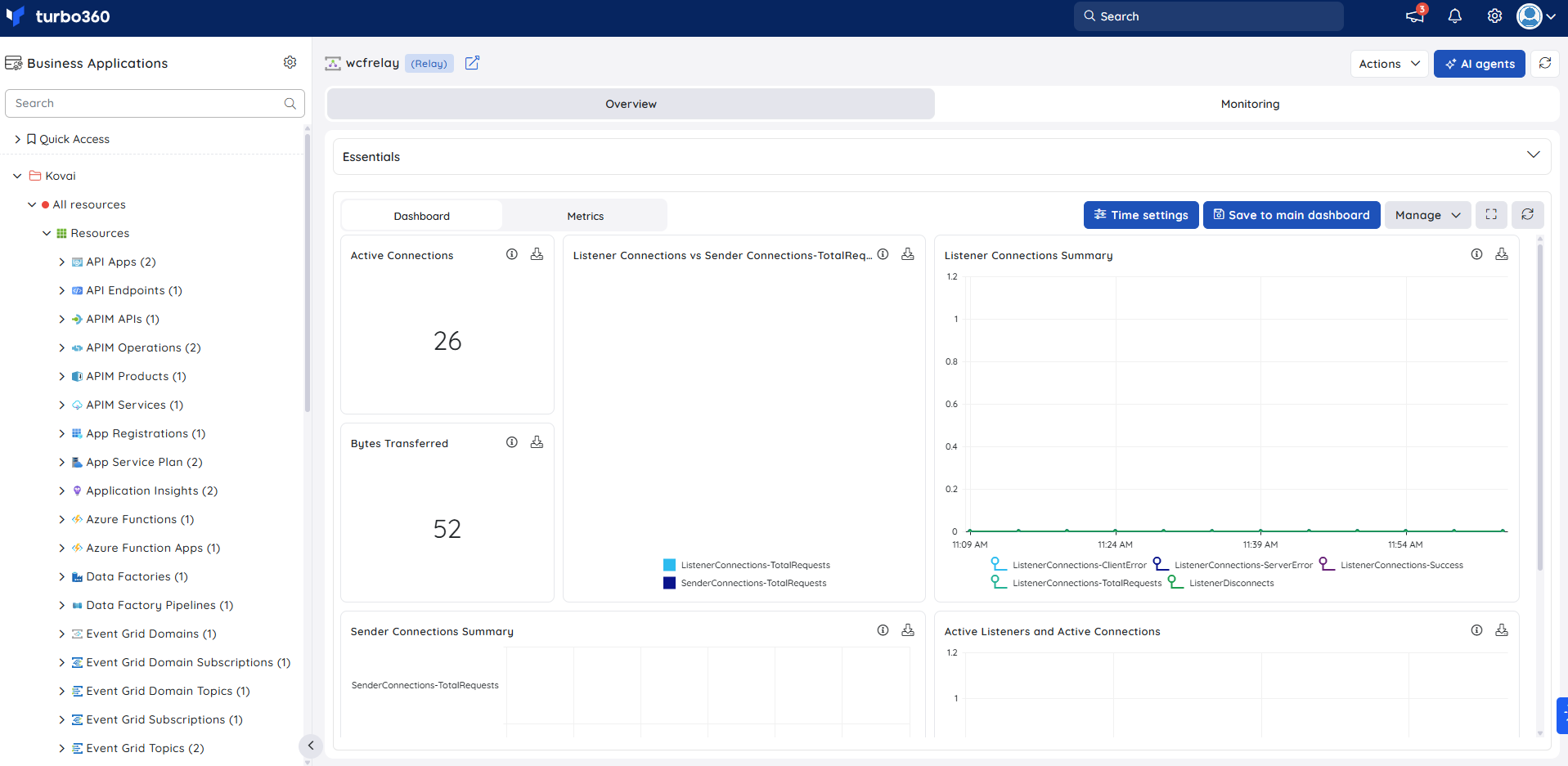
The Relay dashboard gives you real-time visibility into connection activity, data transfer volumes, and relay health — surfacing the signals you need to detect listener failures and sender-side connectivity issues without querying Azure Monitor directly.
| Widget | What it shows |
|---|---|
| Active Connections | Current number of relay connections open — a sustained drop to zero indicates a relay failure. |
| Bytes Transferred | Total bytes transferred through the relay over the selected time window — use this to baseline normal traffic volume. |
| Listener Connections vs Sender Connections-TotalRequests | Comparison of SenderConnections-TotalRequests against ListenerConnections-TotalRequests over time — useful for spotting asymmetric traffic between senders and listeners. |
| Listener Connections Summary | Time-series breakdown of ListenerConnections-ClientError, ListenerConnections-ServerError, ListenerConnections-Success, ListenerConnections-TotalRequests, and ListenerDisconnects — use this to diagnose listener-side connection failures. |
| Sender Connections Summary | Bar chart of SenderConnections-TotalRequests, SenderDisconnects, SenderConnections-ServerError, and SenderConnections-Success — useful for identifying sender-side connection issues at a glance. |
| Active Listeners and Active Connections | Time-series chart tracking ActiveConnections and ActiveListeners simultaneously — use this to confirm the relay endpoint is operational. |
Metrics
The Metrics tab surfaces connection activity, data transfer volumes, and relay health data for Relay, giving you visibility into WCF relay performance trends over time. Use the Metrics tab to identify periods of elevated listener or sender connection failures and sustained drops in transferred bytes, and to confirm that relay traffic returns to normal after resolving WCF service host issues or upstream sender misconfigurations.
You can add, remove, or reconfigure widgets to focus on the metrics most relevant to your support scenario.
Monitoring
Relay supports metric and property monitoring rules, configured from the Relay resource > Monitoring.
Note:
Monitoring rules are saved per resource. The monitoring state updates after every monitoring cycle.
Metric monitoring
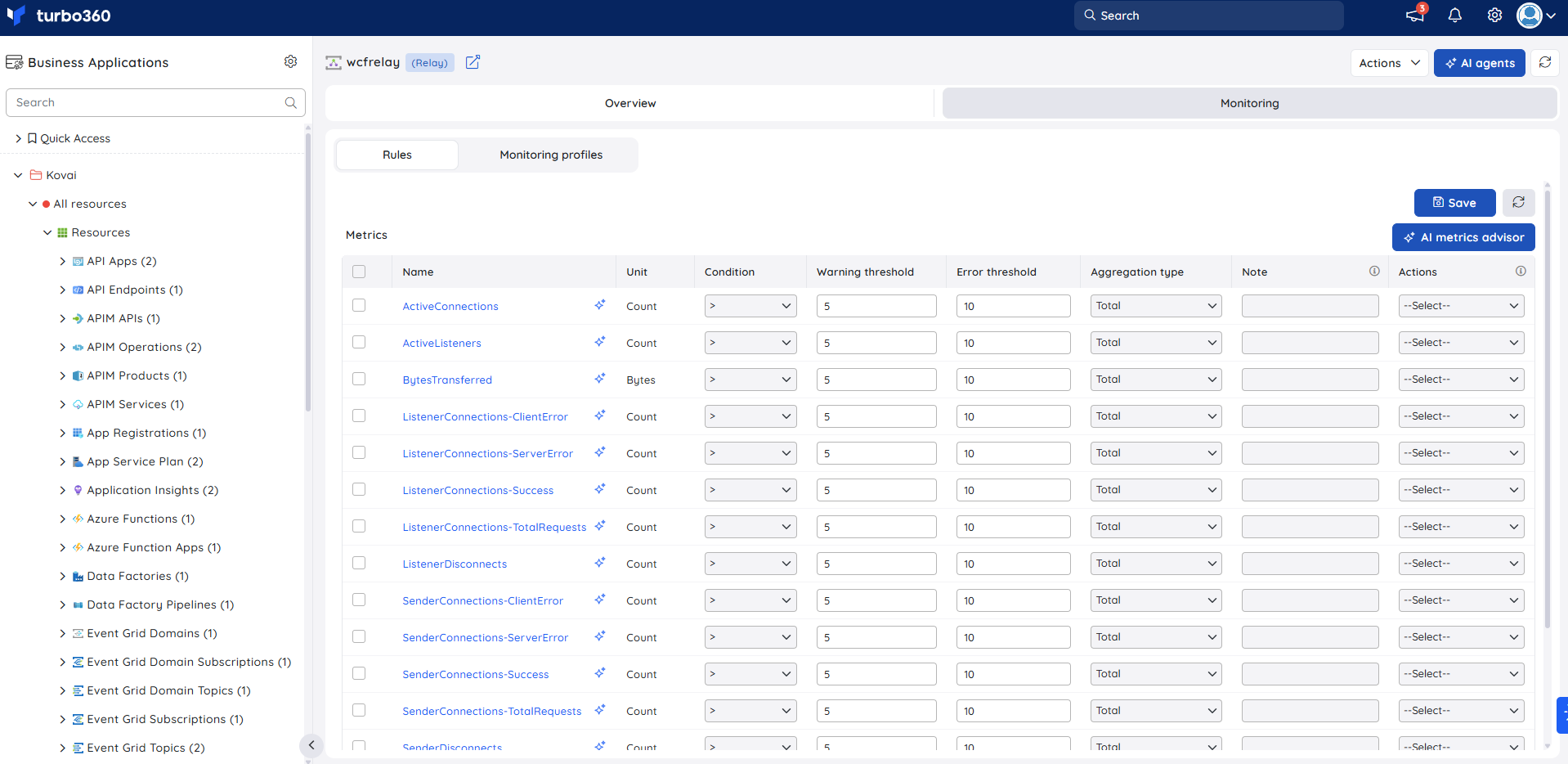
Tracks Azure Monitor metrics for the Relay against configured thresholds. Use this when you need to detect connection failures, listener drops, or abnormal data transfer volumes — for example, when an on-premises WCF service stops registering with the relay endpoint unexpectedly.
- Select the metrics you want to monitor in the Metrics table.
- Set the Condition, Warning threshold, Error threshold, and Aggregation type for each metric.
- Click Save.
The following metrics are available:
| Metric | Unit | Description |
|---|---|---|
| ActiveConnections | Count | Number of relay connections currently active. |
| ActiveListeners | Count | Number of WCF listeners currently registered with the relay. |
| BytesTransferred | Bytes | Total bytes transferred through the relay. |
| ListenerConnections-ClientError | Count | Listener connection attempts that failed due to a client-side error. |
| ListenerConnections-ServerError | Count | Listener connection attempts that failed due to a server-side error. |
| ListenerConnections-Success | Count | Listener connection attempts that completed successfully. |
| ListenerConnections-TotalRequests | Count | Total listener connection requests received. |
| ListenerDisconnects | Count | Number of times a listener disconnected from the relay. |
| SenderConnections-ClientError | Count | Sender connection attempts that failed due to a client-side error. |
| SenderConnections-ServerError | Count | Sender connection attempts that failed due to a server-side error. |
| SenderConnections-Success | Count | Sender connection attempts that completed successfully. |
| SenderConnections-TotalRequests | Count | Total sender connection requests received. |
| SenderDisconnects | Count | Number of times a sender disconnected from the relay. |
Property monitoring
Tracks specific resource property values against configured thresholds. Use this when you need to alert on the active listener count — for example, to detect when listeners drop to zero during business hours, indicating the on-premises WCF service host has gone offline or lost its connection to the relay namespace.
- Locate the property in the Properties table.
- Set the Condition, Warning threshold, and Error threshold values.
- Click Save.
The following property is available:
| Property | Type | Description |
|---|---|---|
| Listener Count | Property | The current number of active WCF listeners registered to the relay endpoint. |
Troubleshooting
Metric values are not updating in the monitoring view
Cause: The monitoring cycle has not completed since the rule was last saved.
Fix: Wait for the next monitoring cycle to run, then refresh the resource view. If metrics still do not update, verify the Azure subscription connection is healthy under Platform Administration.Listeners count shows 0 in the Essentials panel
Cause: The on-premises WCF service host has stopped or lost its outbound connection to the Azure Relay namespace.
Fix: Confirm the WCF service host is running and has outbound access to the relay namespace endpoint. Restart the host service if needed and confirm the listener count updates on the next resource refresh.ListenerConnections-ClientError or SenderConnections-ClientError metrics are elevated
Cause: The client is using an invalid, expired, or revoked shared access policy key, or the relay endpoint address has changed.
Fix: Verify the connection string and shared access key configured in both the WCF listener and sender. If the key has expired, regenerate it in the Azure portal and update the configuration on the affected hosts.BytesTransferred remains at zero despite active listeners
Cause: No traffic is flowing through the relay — the upstream sender may not be running, or it is targeting an incorrect relay endpoint address.
Fix: Confirm the sending application is running and targeting the correct relay endpoint. Verify that SenderConnections-Success is also non-zero to confirm the sender is establishing connections successfully.Dashboard widgets are not loading
Cause: The widget configuration references a metric that is no longer available, or the browser session has expired.
Fix: Refresh the resource view. If the issue persists, open the Manage menu on the Dashboard sub-tab, remove the affected widget, and re-add it with the correct metric configuration.
Related articles
Was this article helpful?