

Reports in Cost Analyzer
- 05 Aug 2026
- 4 Minutes to read
- Print
- DarkLight
- Download PDF
Reports in Cost Analyzer
- Updated on 05 Aug 2026
- 4 Minutes to read
- Print
- DarkLight
- Download PDF
Article summary
Did you find this summary helpful?
Thank you for your feedback!
Overview
Cost Analyzer provides a reporting suite that turns cost and usage data into actionable insights. Reports summarize spending trends, resource utilization, optimization opportunities, and task activity, so teams can review the information they need without navigating the full application.
Business value
Scheduled and on-demand reports give teams recurring visibility into cost trends and optimization opportunities without manual effort. This supports proactive cost control and keeps stakeholders aligned on spending and savings goals.
Prerequisites
Required permissions
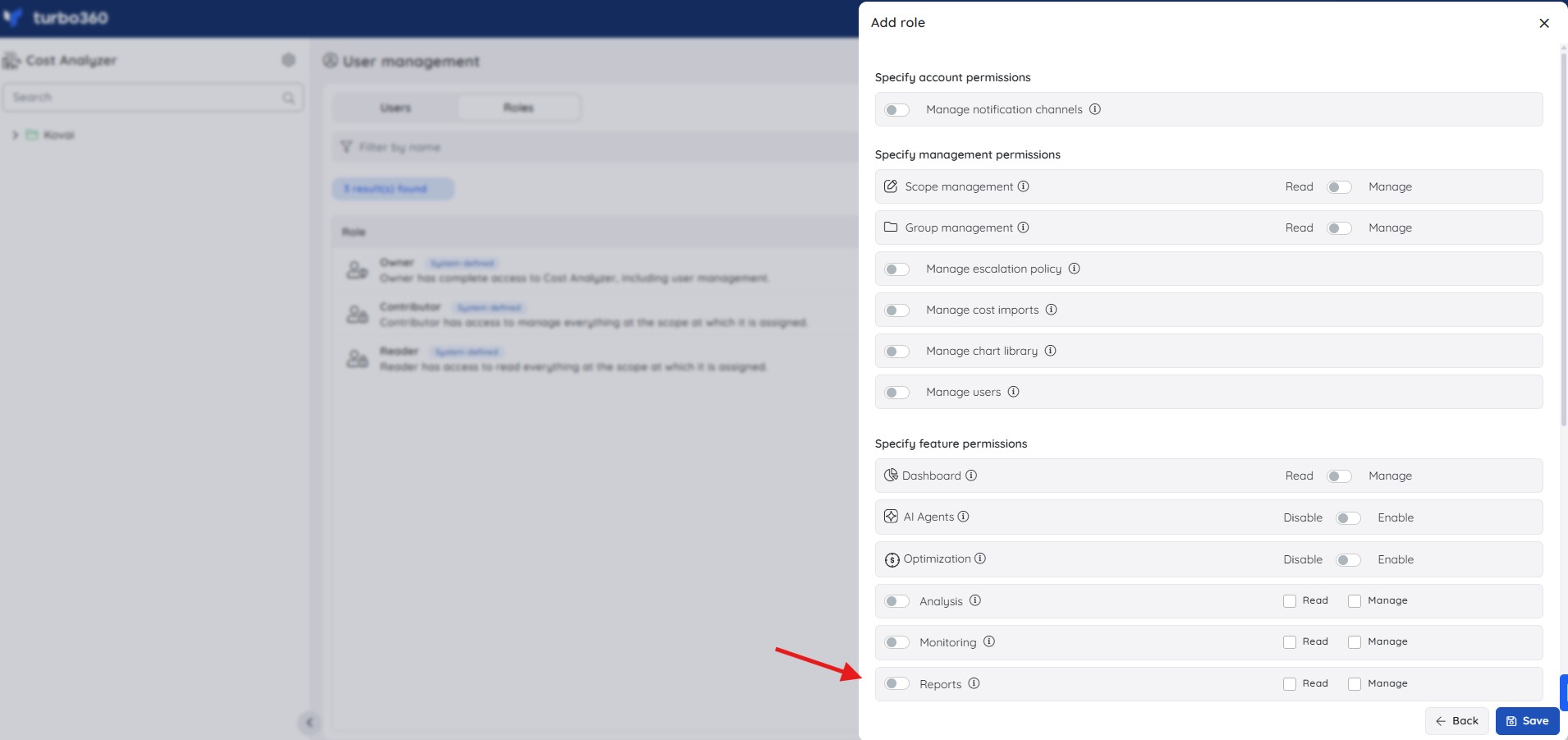
Access to Cost Analyzer reports is controlled by the Reports permission:
| Role | Permission level | Access |
|---|---|---|
| Account owner, Owner, Contributor | — | Full access to Reports |
| Custom role | Reports: Read | View all reports |
| Custom role | Reports: Manage | Edit report configuration and generate reports |
When assigning a custom role, grant Read or Manage on Reports under Specify feature permissions.
How it works
- Analyze cost trends — understand where budgets are being spent across projects and services.
- Monitor resource utilization — track allocation and usage patterns to ensure efficiency.
- Identify optimization opportunities — pinpoint areas to reduce costs and improve ROI.
- Review inline tasks — see team member assignments directly within the application for better accountability.
Reports can be scheduled to run automatically at weekly and monthly intervals. Weekly reports are delivered every Wednesday, and monthly reports are delivered on the 3rd of each month. If both frequencies are selected and their scheduled times fall on the same day, the monthly report takes priority.
The Generate Now option, available within each report type, lets you generate a report on demand outside the scheduled cycle.
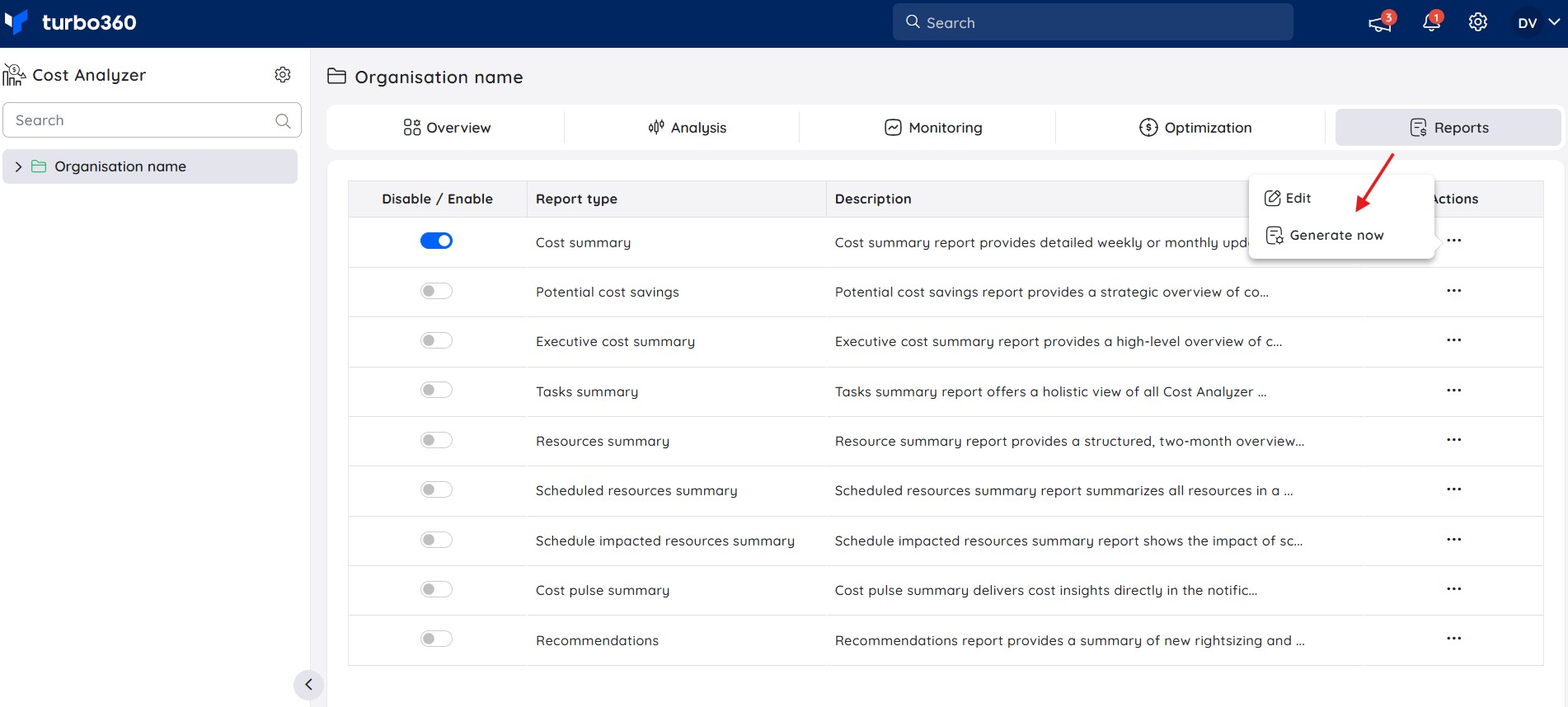
After you select Generate Now, the button shows the current generation status. You can find report notifications by reopening the configuration and switching to the Generation history tab.
Report types
Cost Analyzer's reporting suite includes the following report types:
- Cost summary — compares recent cost data to track changes and trends over the past two weeks or months.
- Potential cost savings — highlights cost-reduction opportunities through rightsizing and reservations, with actionable recommendations.
- Executive cost summary — an executive-level report covering cost group expenditures, rightsizing and reserved instance recommendations, potential savings from optimization schedules, and forecasting and monitoring activity at the group level.
- Tasks summary — summarizes the previous month's Cost Analyzer tasks in an Excel report; configurable only at the root group level.
- Resources summary — highlights resource-level changes over the past two months in an Excel report, with separate sheets for newly charged resources, resources no longer charged, and resources with savings or overruns beyond a user-defined cost threshold.
- Scheduled resources summary — an Excel report summarizing all scheduled resources, including parent and child groups.
- Schedule impacted resources summary — an Excel report analyzing how scheduling affects cost optimization for resources across parent and child groups over a defined period.
- Cost pulse summary — delivers cost insights directly in the notification, including a 7-day daily breakdown or a two-month workload comparison.
- Recommendations — highlights new and updated optimization recommendations, including rightsizing and reservation insights, from the past 7 days.
.png)
Configuration
Branding settings
The Branding settings in the report configuration let you define your organization's branding for Cost Analyzer reports.
- The uploaded logo appears at the top of the report. The footer logo is derived from the application logo, which you can customize through Theme settings. This keeps branding consistent across all reports.
.jpg)
- Selecting Apply this for all reports and saving the configuration applies the uploaded logo to all report types that support branding.
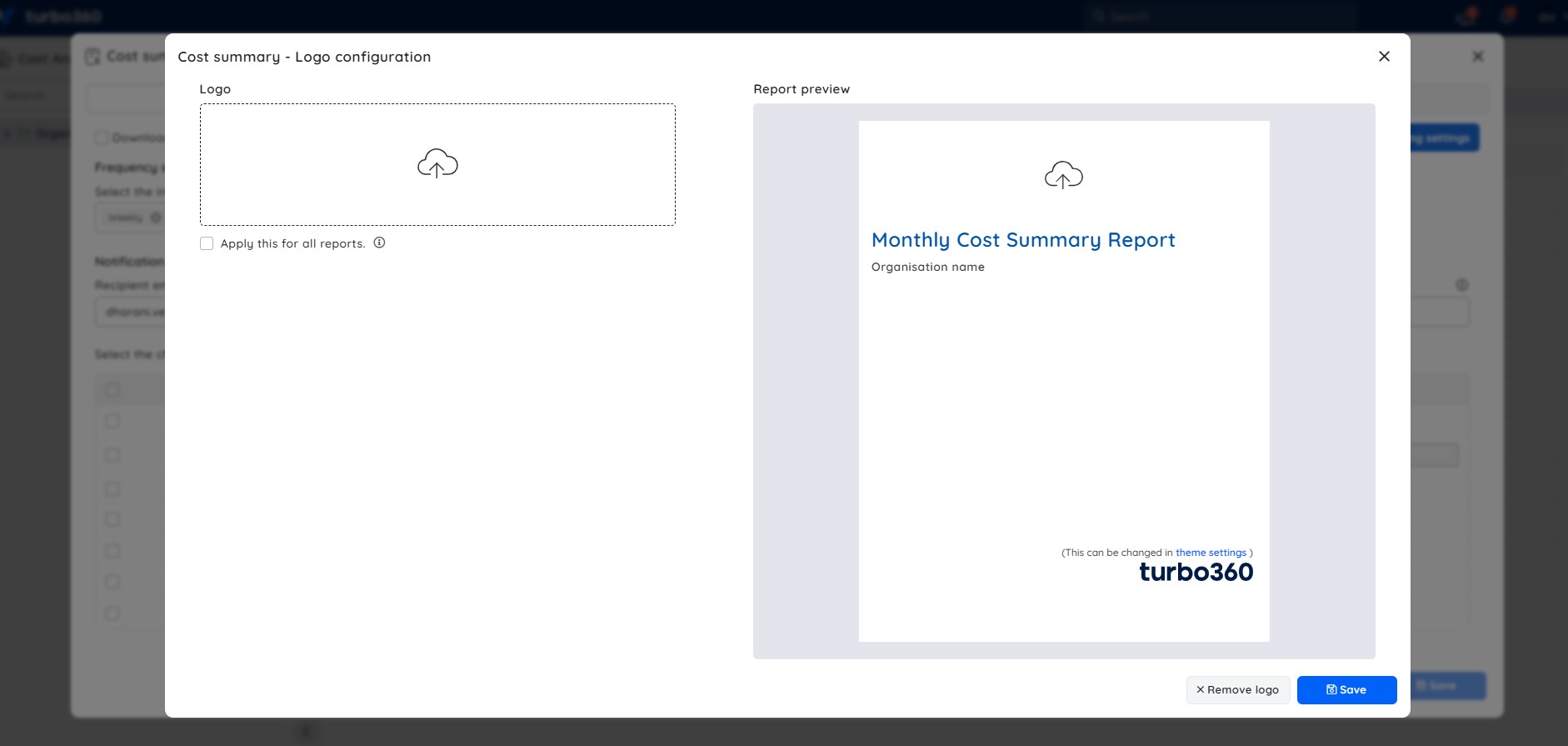
Branding settings support is limited to PDF reports: Cost summary, Potential cost savings, and Executive cost summary.
Limitations
- Branding settings apply only to PDF-based reports — Cost summary, Potential cost savings, and Executive cost summary. Excel-based reports (Tasks summary, Resources summary, Scheduled resources summary, Schedule impacted resources summary) do not support branding.
- If both weekly and monthly schedules fall on the same delivery day, only the monthly report is sent — the weekly report for that day is skipped.
- Tasks summary can only be configured at the root group level, not at child group scope.
Troubleshooting
Uploaded logo not appearing on generated report
Cause: Report type does not support branding, or Apply this for all reports was not selected before saving.
Fix: Confirm the report is a supported PDF type (Cost summary, Potential cost savings, or Executive cost summary), then reopen Branding settings and save again with Apply this for all reports enabled.Tasks summary option greyed out or unavailable
Cause: Report is being configured at a child group rather than the root group.
Fix: Navigate to the root group and configure the Tasks summary report from there.Scheduled report not received on expected delivery day
Cause: Both weekly and monthly frequencies are selected and coincide on the same day — the monthly report takes priority and the weekly report is skipped for that cycle.
Fix: This is expected behavior. If independent delivery of both is required, adjust the schedule so the frequencies do not overlap.
FAQs
Can I generate a report outside its scheduled cycle?
Yes. Use the Generate Now option within the report type's Actions menu to generate it on demand.Why did I only receive the monthly report and not the weekly one?
When weekly and monthly schedules fall on the same day, the monthly report takes priority and the weekly report is skipped for that cycle.Can I apply my organization's logo to all supported reports at once?
Yes. Configure the logo in Branding settings and select Apply this for all reports before saving — this applies it to all report types that support branding.
Related articles
Was this article helpful?