

Resource Graph Query
- 05 Aug 2026
- 5 Minutes to read
- Print
- DarkLight
- Download PDF
Resource Graph Query
- Updated on 05 Aug 2026
- 5 Minutes to read
- Print
- DarkLight
- Download PDF
Article summary
Did you find this summary helpful?
Thank you for your feedback!
Overview
Azure Resource Graph is an Azure service that provides fast, responsive exploration of your Azure resources through a unified API and query language. A resource graph query lets you retrieve data about resources across a specified set of subscriptions, and can be associated with a Business Application alongside other Azure resource types.
Business value
Resource graph queries let your team surface custom, cross-subscription resource insights — such as recently deleted resources or configuration drift — directly from Turbo360, without switching to the Azure portal.
How it works
Resource graph queries available in an Azure subscription can be associated to a Business Application in the same way as other Azure resource types, using the Add resources, Create Business Application, or Edit Business Application flows.
A new query created from within a Business Application is also created as a new resource graph query in the Azure portal, and is automatically added to the Business Application it was created from — no separate association step is needed. Existing resource graph queries already defined in a subscription are brought into Turbo360 separately, by associating them through the Add resources flow.
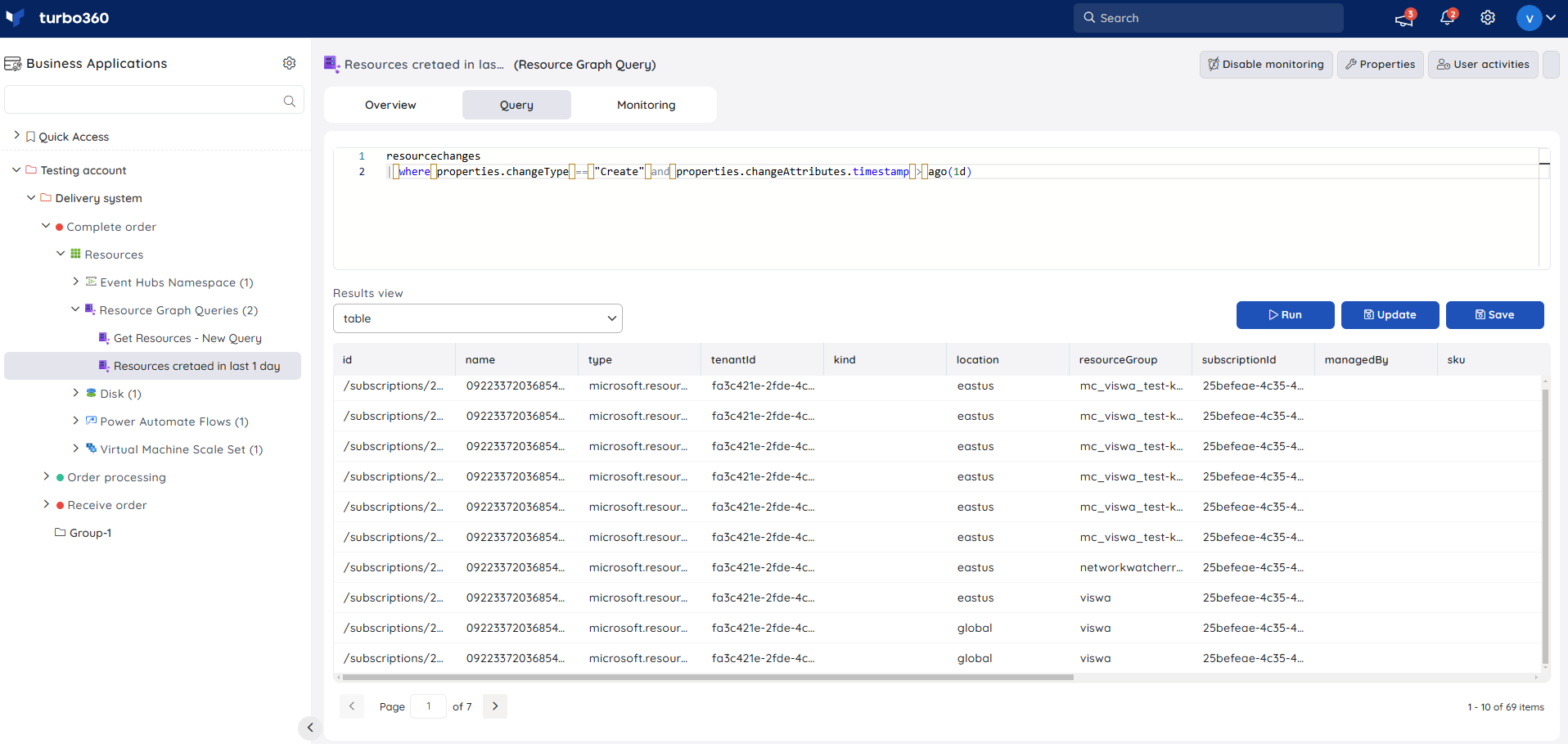
Here's an example Azure Resource Graph query that retrieves resources deleted in the last day:
resourcechanges
| where properties.changeType == "Delete" and properties.changeAttributes.timestamp > ago(1d)
resourcechanges— the table in Azure Resource Graph containing information about all resources that have been created, updated, or deleted.where properties.changeType == "Delete" and properties.changeAttributes.timestamp > ago(1d)— filters the results to resource types deleted in the last day.
Running this query returns the deleted resources along with details such as resource name and type. Azure Resource Graph also supports more advanced queries involving multiple tables, filtering, and aggregation.
License consumption for resource graph queries works the same as for other Azure resource types.
Permissions
| Permission | Description |
|---|---|
| Read | View existing resource graph queries, their results, dashboard, and monitoring configuration. |
| Manage | Create, update, execute, and save resource graph queries, in addition to all Read capabilities. |
Steps
Creating a new query
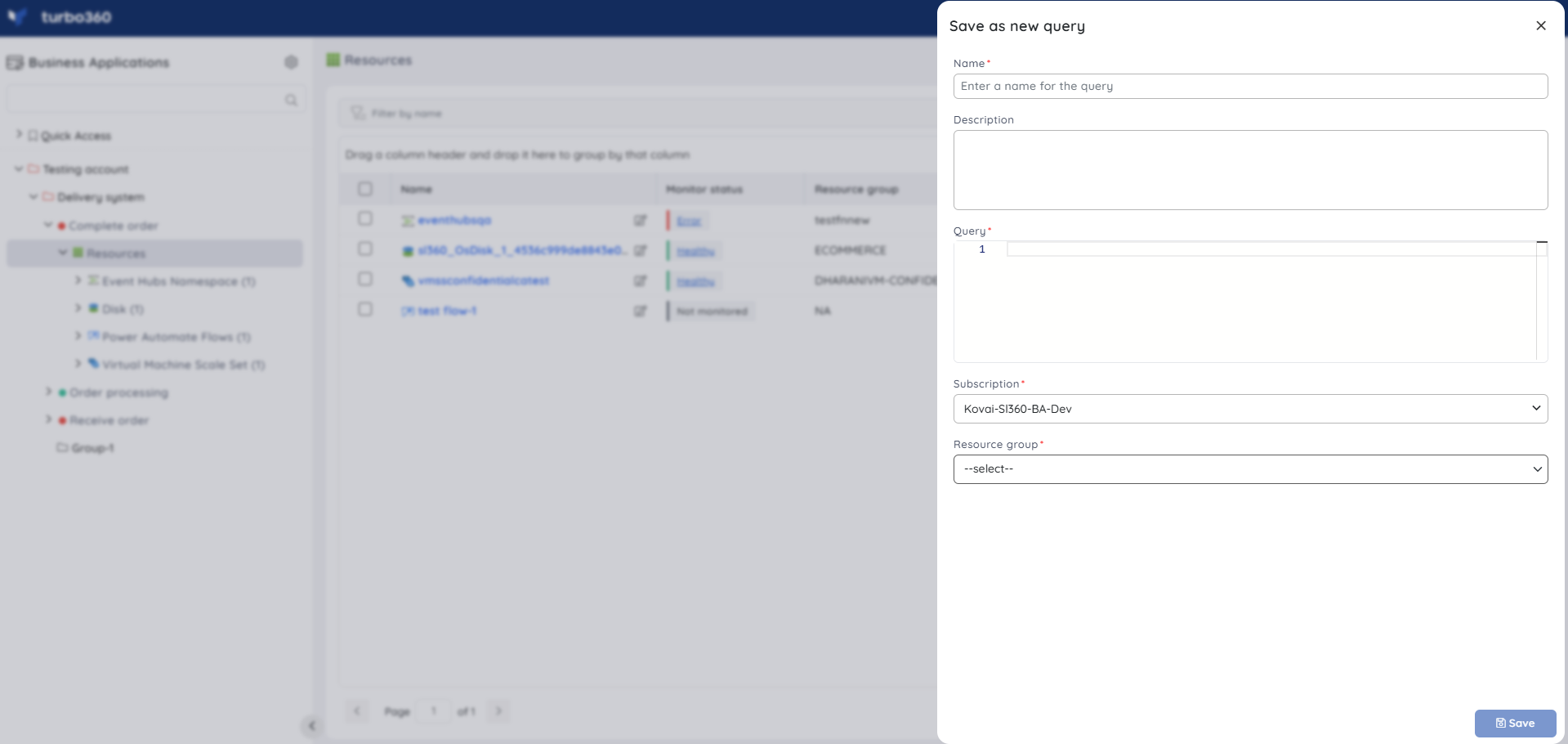
Creating a query through Turbo360 creates a corresponding new resource graph query directly in the Azure portal, and the new query is automatically added as a resource to the Business Application it was created from.
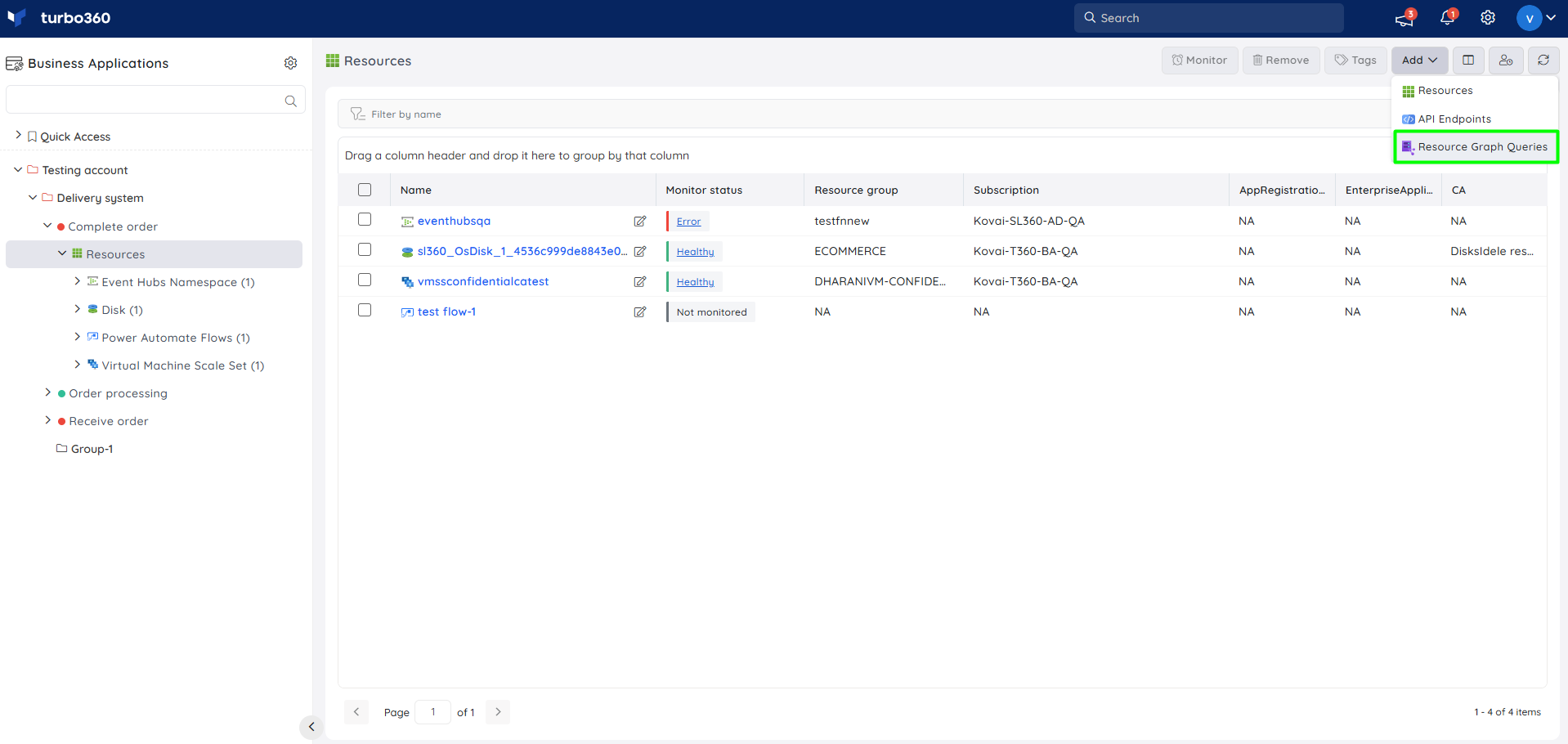
- In a Business Application, use the Add dropdown in the Resources section.
- Give the query a unique name and an optional description. Enter the query, then select the Azure subscription and resource group to assign it as an Azure resource.
Associating an existing query
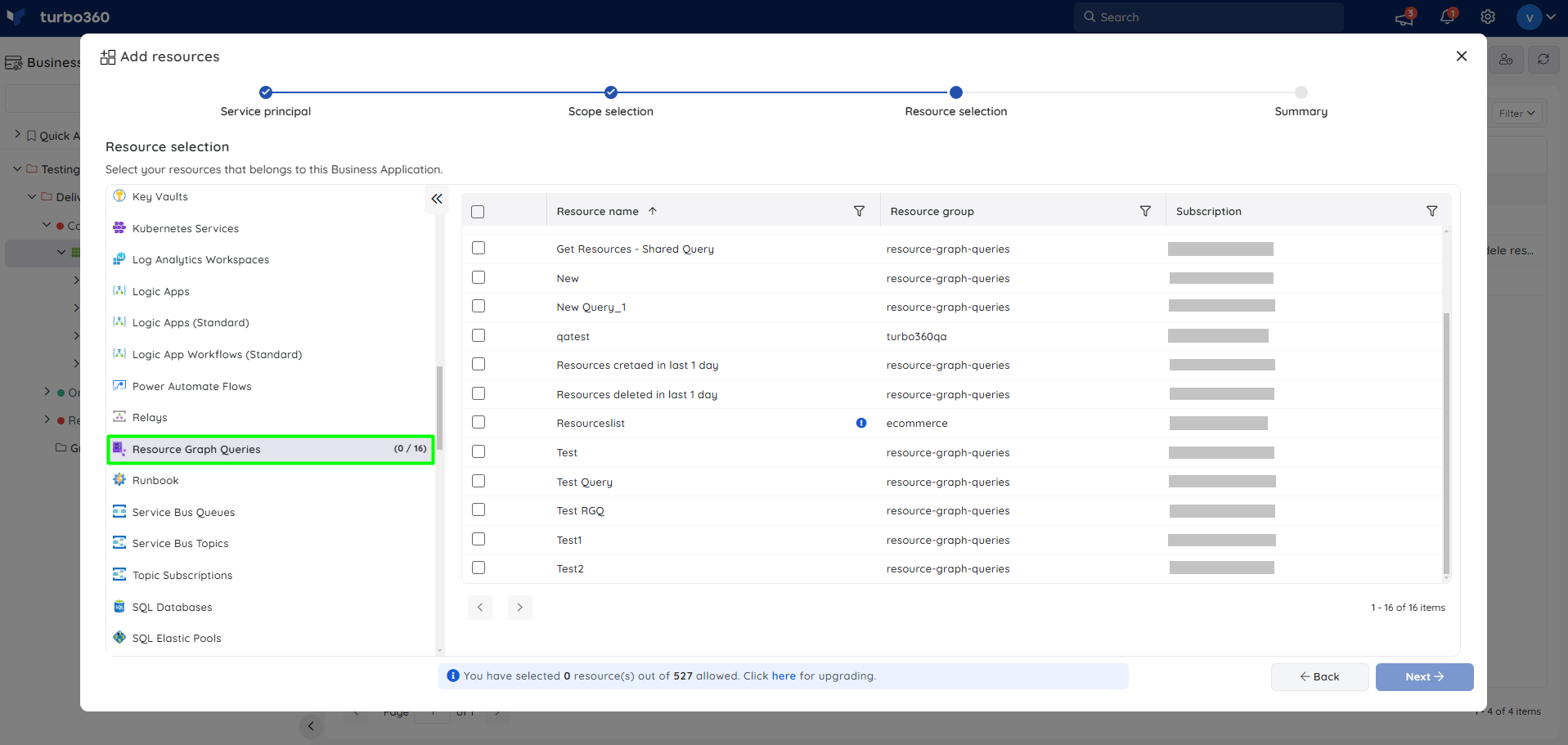
Resource graph queries that already exist in an Azure subscription are not created again — they are associated to a Business Application using the Add resources flow. Use this when a query has already been authored in the Azure portal and you want to bring it under Turbo360 management and monitoring.
- In the Business Application, start the Add resources flow.
- Complete the Service principal and Scope selection steps, choosing the subscription that contains the existing resource graph queries.
- In Resource selection, choose Resource Graph Queries from the resource type list on the left.
- Select the required queries from the list of existing queries for that subscription (shown with Resource name, Resource group, and Subscription columns).
- Continue to Summary and complete the wizard to associate the selected queries with the Business Application.
Operations
Run queries directly from Turbo360 to validate logic and review results without switching to the Azure portal.
Run query
- Run — executes the query and displays results using the selected chart type. Use this when you want to validate a query or check current results on demand.
Provide valid query data and click Run. Different chart types are available to display the results.
Saving a new query from an existing one
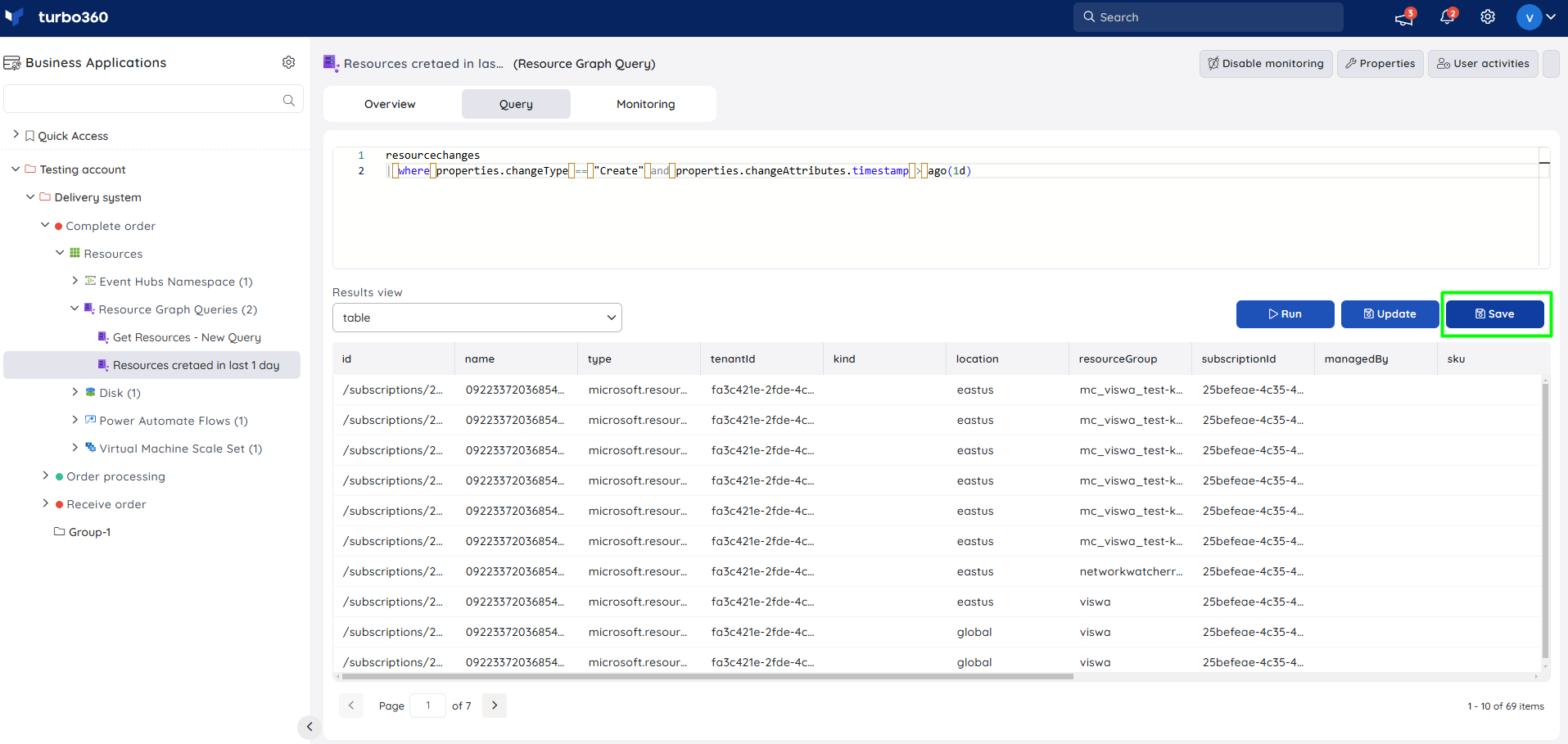
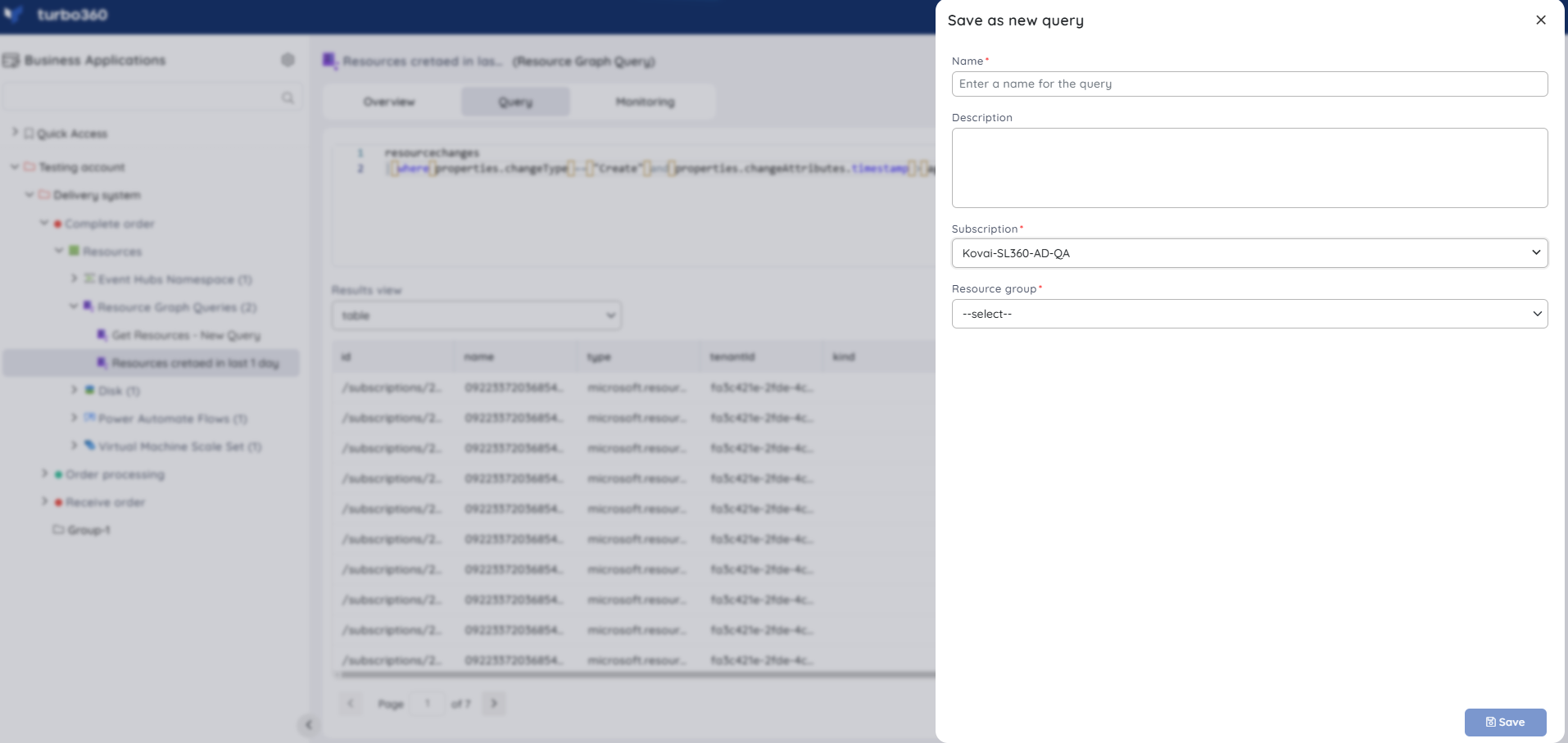
Execute a new query inside an existing resource graph query and click Save to create a new query from it.
Updating an existing query
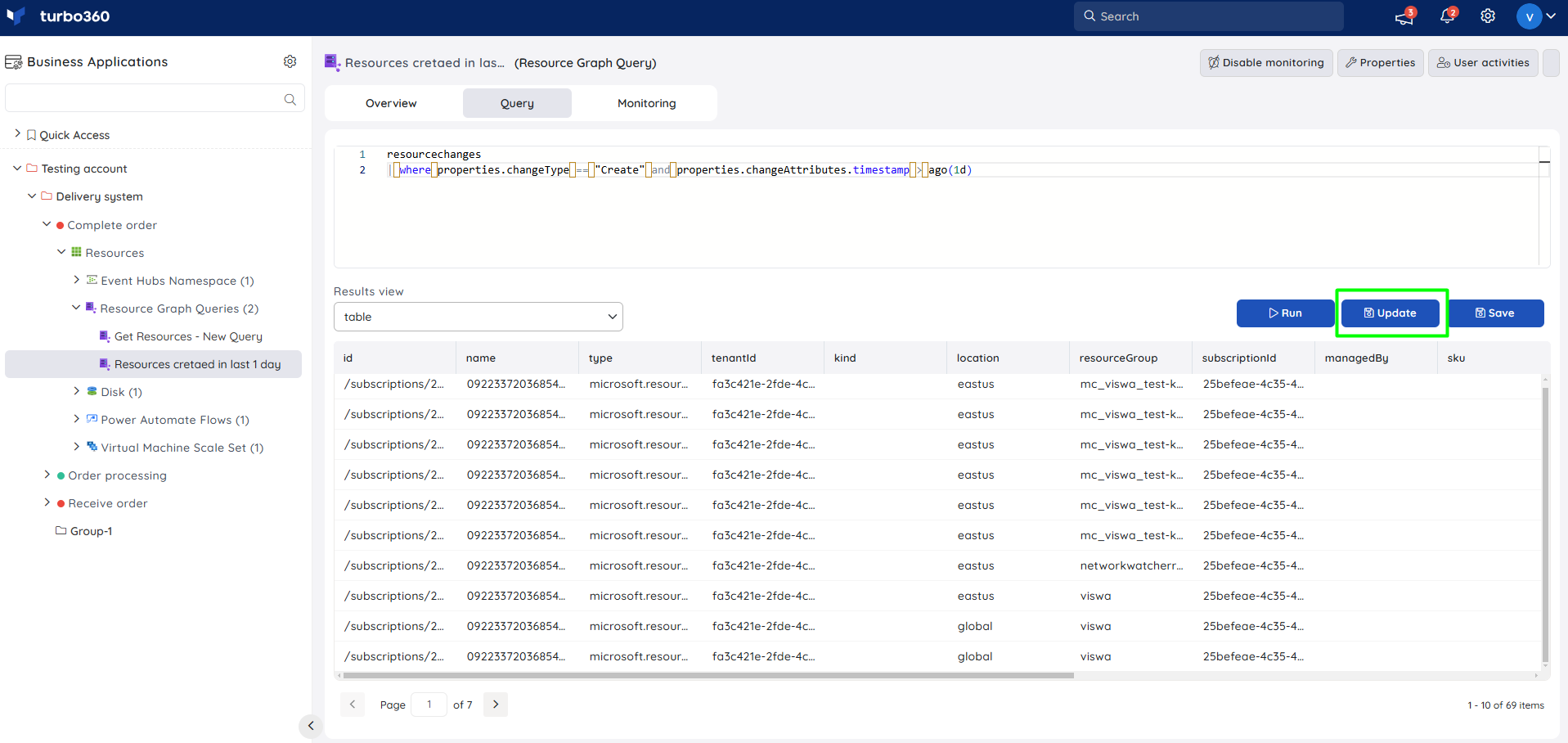
Use the Update button to add new query data to an existing resource graph query.
Resource dashboard
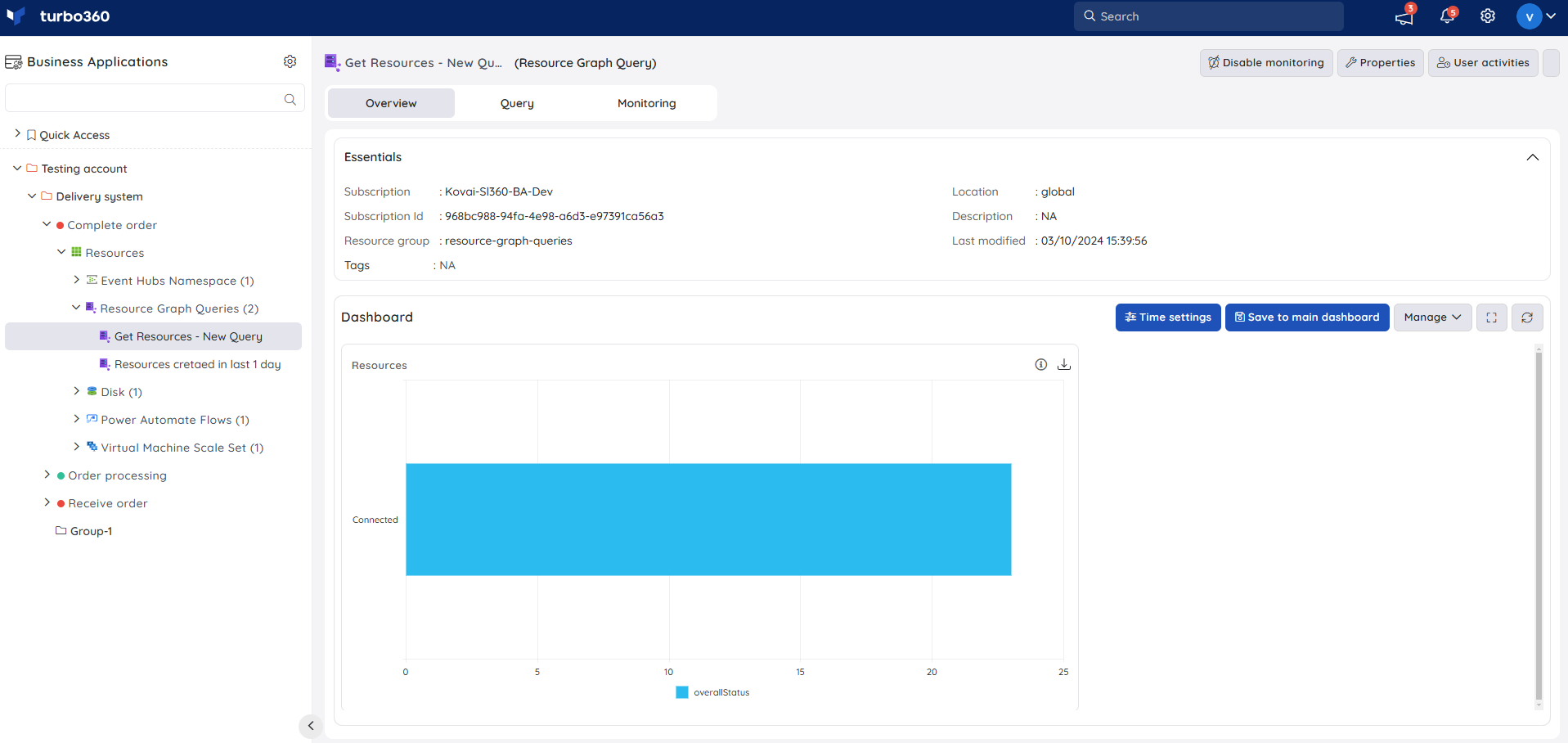
The dashboard visualizes resource graph query results over time, helping you track trends in the data your query surfaces without re-running it manually.
| Widget | What it shows |
|---|---|
| Query results | Visual representation of the most recent query output, based on the configured chart type. |
Metrics
The Metrics tab surfaces query result trend data for Resource Graph Query, giving you visibility into how the values your query tracks change over time. Use the Metrics tab to identify whether a monitored condition — such as a count of non-compliant resources — is trending in the expected direction between monitoring cycles.
You can add, remove, or reconfigure widgets to focus on the metrics most relevant to your support scenario.
Monitoring
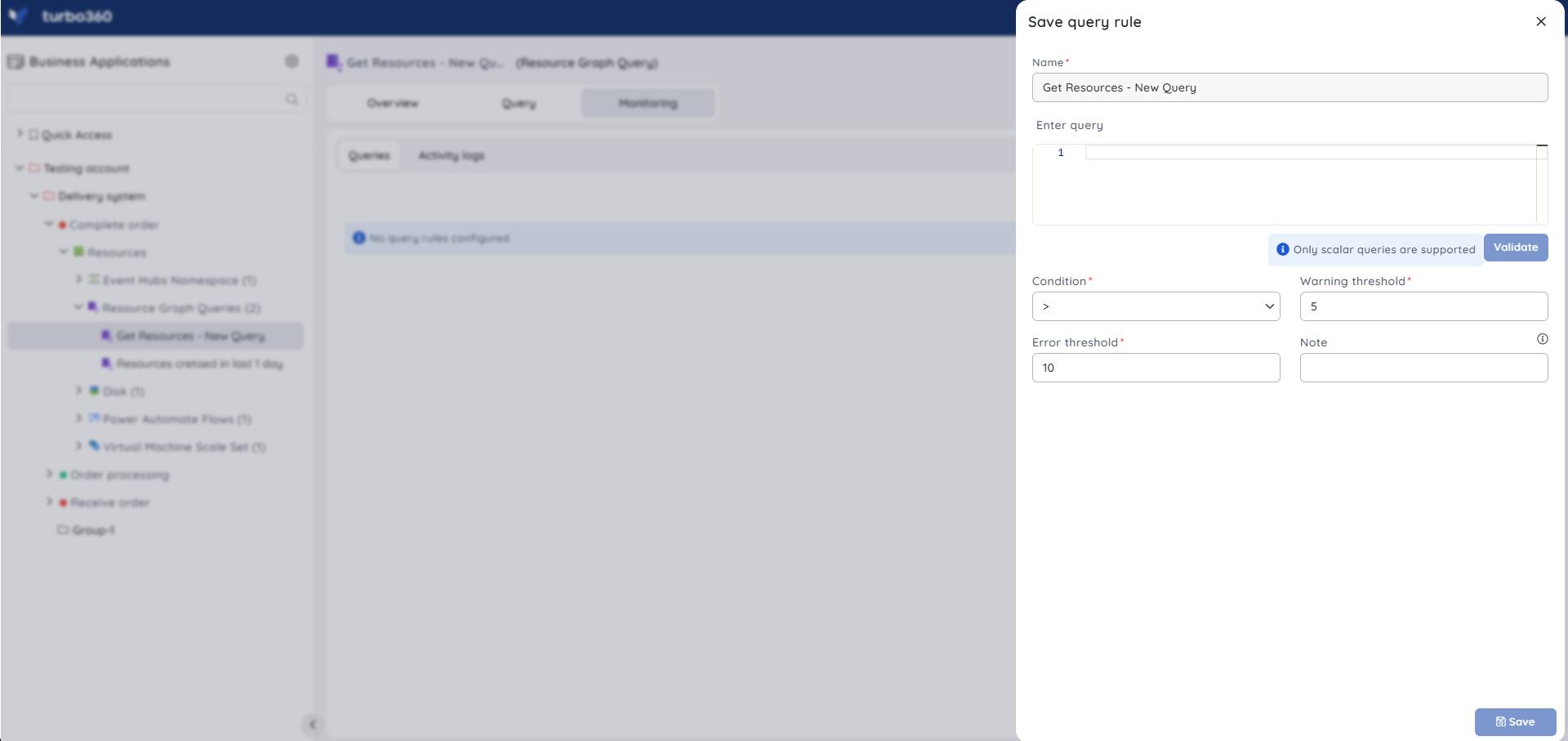
Resource graph queries support query-based monitoring rules, configured from Resource Graph Query -> Monitoring.
Monitoring rules are saved per resource graph query, and the monitoring state updates after every monitoring cycle.
Query monitoring
Tracks the result of a resource graph query against a defined threshold. Use this when you need to be alerted if a query's results (for example, a count of non-compliant resources) cross an acceptable limit.
- Configure the desired threshold values for the rule.
- Click Save.
Troubleshooting
Query returns no results despite matching resources existing in Azure
Cause: The query syntax or filter conditions don't match the current resource state, or the query targets a subscription not associated with the Business Application.
Fix: Validate the KQL syntax and confirm the correct Azure subscription and resource group are selected.Existing query does not appear in the Add resources flow
Cause: The wrong subscription was selected in the Scope selection step, or the query was created after the subscription's resource list was last cached.
Fix: Confirm the correct subscription is selected, and retry the Add resources flow to refresh the resource list.Dashboard widget shows stale data
Cause: The widget reflects the last executed query run rather than a live result.
Fix: Run the query again, or check the monitoring cycle interval for when the next refresh occurs.Monitoring rule not triggering
Cause: The configured threshold doesn't match the actual query output, or the rule was saved before the first monitoring cycle completed.
Fix: Review the threshold configuration and allow one full monitoring cycle to pass before re-checking.
Related articles
Was this article helpful?