

Query monitoring
- 05 Aug 2026
- 7 Minutes to read
- Print
- DarkLight
- Download PDF
Query monitoring
- Updated on 05 Aug 2026
- 7 Minutes to read
- Print
- DarkLight
- Download PDF
Article summary
Did you find this summary helpful?
Thank you for your feedback!
Overview
Query monitoring lets you run custom queries against compatible Azure resources in a Business Application and trigger alerts when query results breach a configured threshold. Turbo360 evaluates each rule on a schedule and surfaces violations as alerts to your configured notification channels — at the individual resource level or across a monitoring profile.
Business value
Query monitoring eliminates the need to manually check resource-specific query outputs. Define thresholds once and receive proactive alerts when a result exceeds expected values, reducing the time it takes to detect performance or data anomalies across your Azure resources.
Prerequisites
The resource must be associated with a Business Application. Query monitoring is available for the following resource types:
| Resource type |
|---|
| APIM Service |
| APIM API |
| APIM Operation |
| Application Insight |
| Azure Function |
| Cosmos SQL Container |
| Cosmos Table |
| Log Analytics Workspace |
| Resource Graph Query |
| SQL Database |
| Storage Table |
APIMs and Azure Function require an Application Insight resource to be associated with the same Business Application before you can configure query monitoring.
Required permissions
Permission requirements differ depending on where the query rule is configured:
- Resource-level rules — requires at least Read access on the resource, plus Manage permission on the resource's Monitoring feature.
- Profile-level rules — requires Manage permission on the Monitoring profiles feature. This permission is assigned through custom role creation (RBAC) in the Business Applications module.
.png)
How it works
- Compatible resources expose a Queries tab under their Monitoring section, where you can add query rules with configurable thresholds.
- Query rules is also available as a rule category when configuring rules through a monitoring profile, so a single profile can apply query rules across multiple resources of the same compatible type.
- When Turbo360 evaluates a rule, any result that exceeds a configured threshold is treated as a violation.
- Rules can be configured independently at resource level and at profile level. A resource can have both; profile-level rules apply to every resource of that type linked to the profile.
- For scalar-result resources (Cosmos SQL Container, SQL Database), the scalar value is used for evaluation. For Cosmos Table and Storage Table, the row count returned by the query is used. Application Insight and Log Analytics Workspace support both scalar and non-scalar queries.
Steps
Use the following steps to configure query rules at the resource level or across multiple resources using a monitoring profile. Navigate to the resource's Monitoring section in the tree view to get started.
Configure a resource-level rule
Configuring a rule at the resource level monitors a specific query result for that resource only.
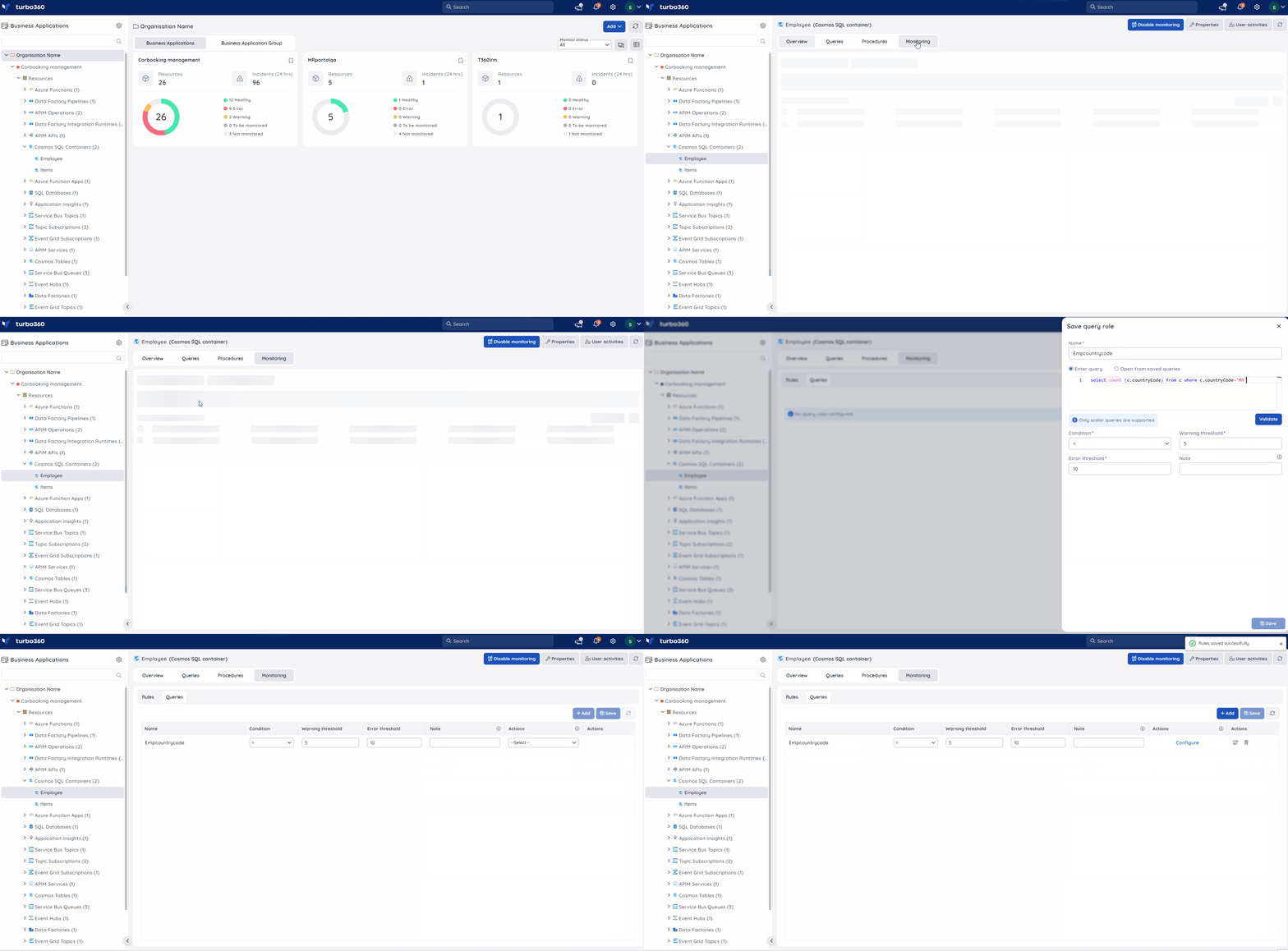
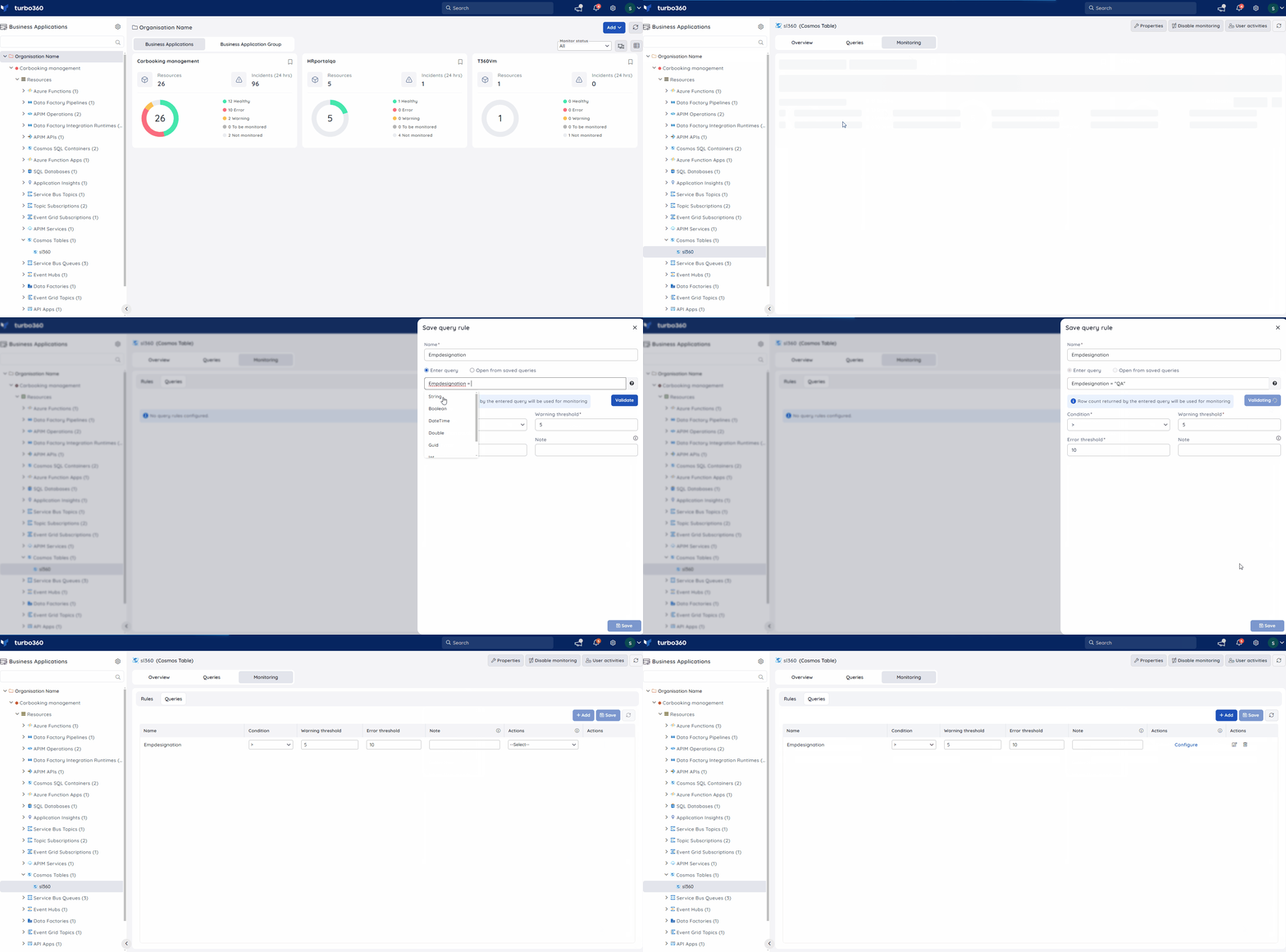
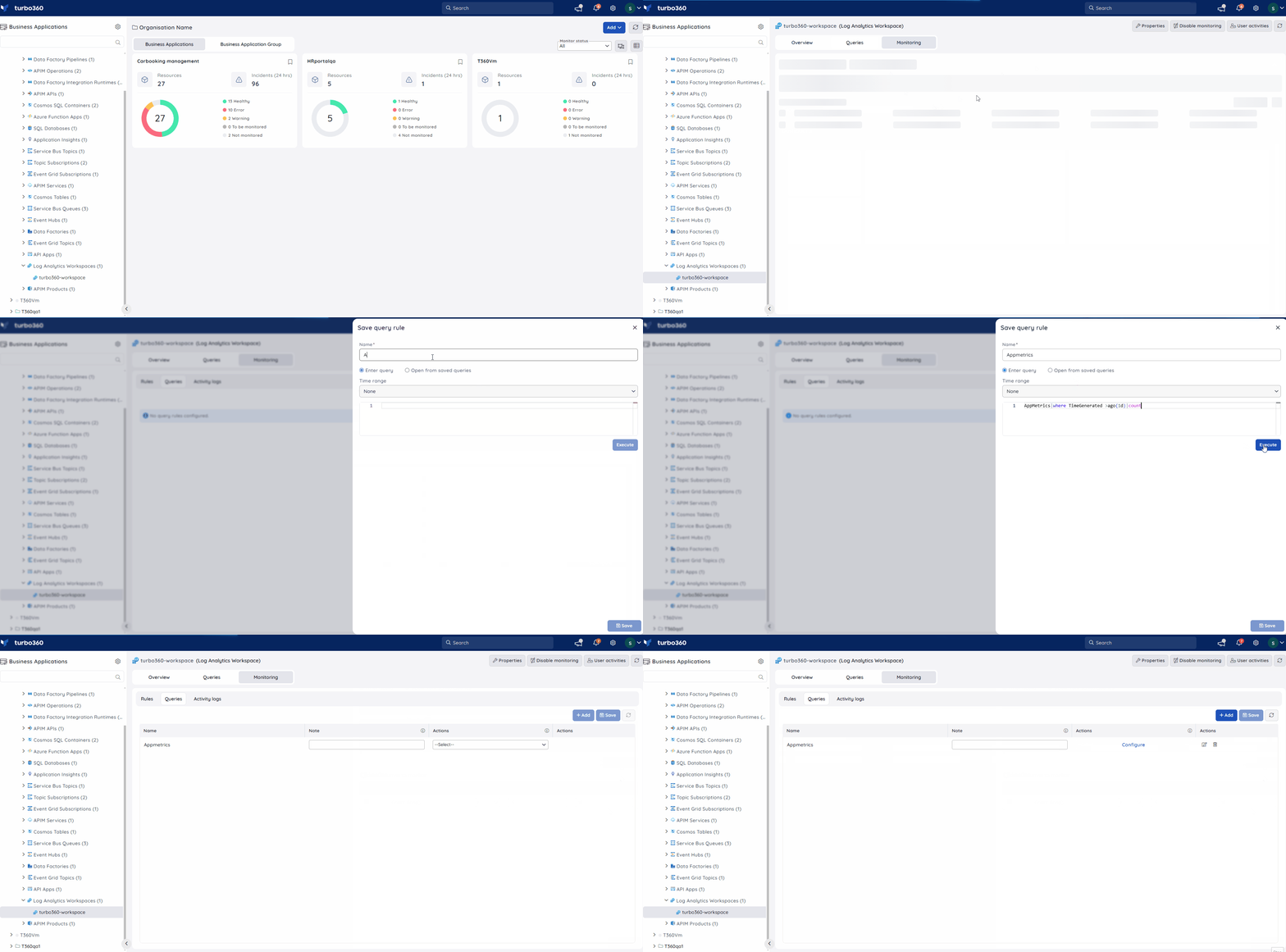
- Open the compatible resource and navigate to its Monitoring section.
- Select the Queries tab.
- Click + Add to open the query rule dialog.
- Enter a Name for the rule.
- Enter the query in the Query field, or select a saved query, then click Validate.
- Set the Condition, Warning threshold, and Error threshold.
- Optionally, enter a Note to appear alongside violation alerts.
- Click Execute to test the query, then click Save.
When the monitor evaluates the rules, any rule whose result exceeds one of the configured thresholds is treated as a violation. A consolidated alert report is sent to the configured notification channels and email addresses for all monitored resources in the Business Application.
You can edit the condition, warning, and error thresholds for all query rules in bulk using the Save button in the Queries tab. Individual rules can be updated or deleted using the options next to each saved rule.
Points to remember:
- Scalar query result from resources like Cosmos SQL Container and SQL Database is used for evaluation. For Cosmos Table and Storage Table, the row count returned by the query is used.
- Application Insight and Log Analytics Workspace support both scalar and non-scalar queries.
API Management Service
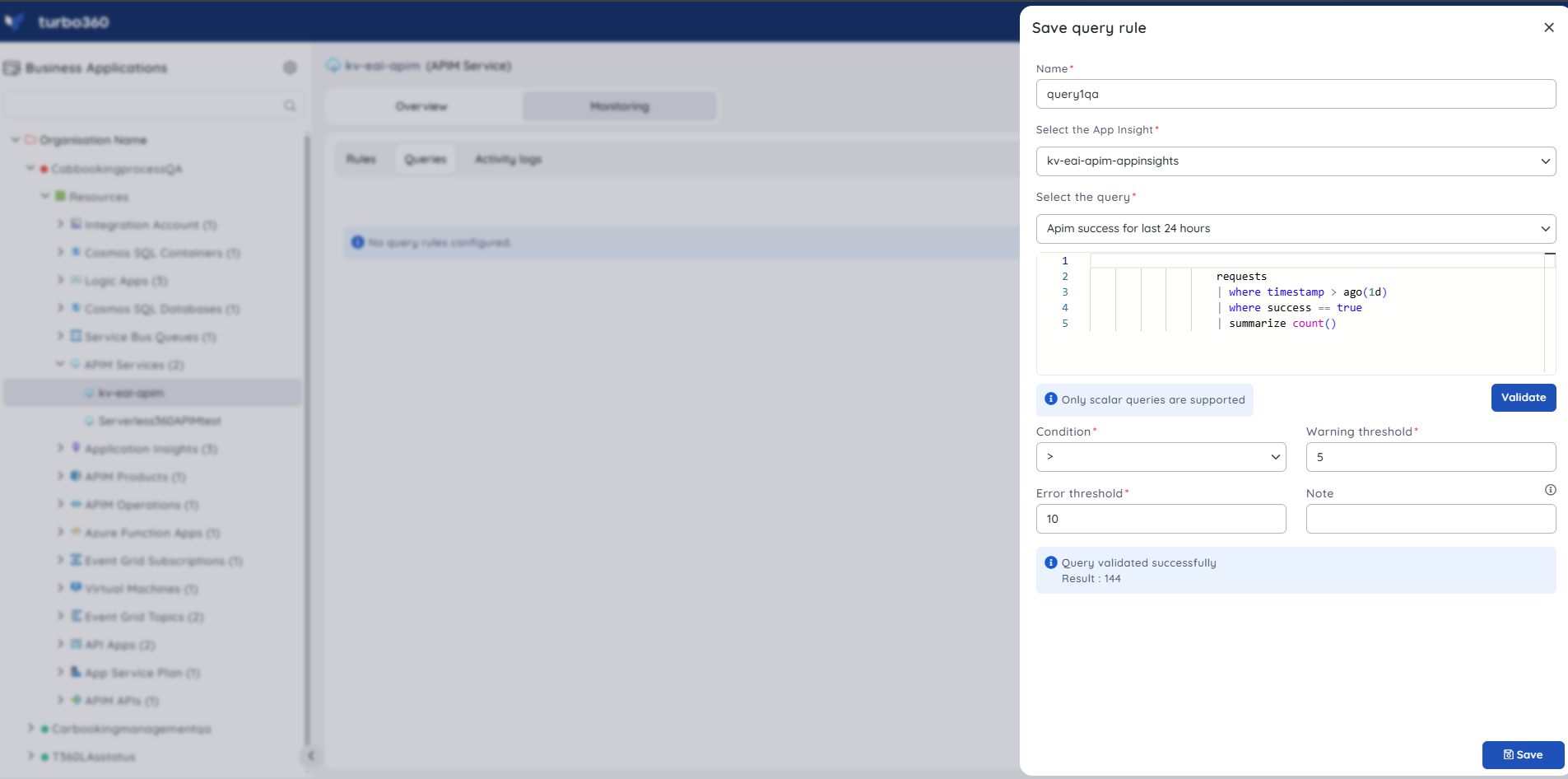
APIM API
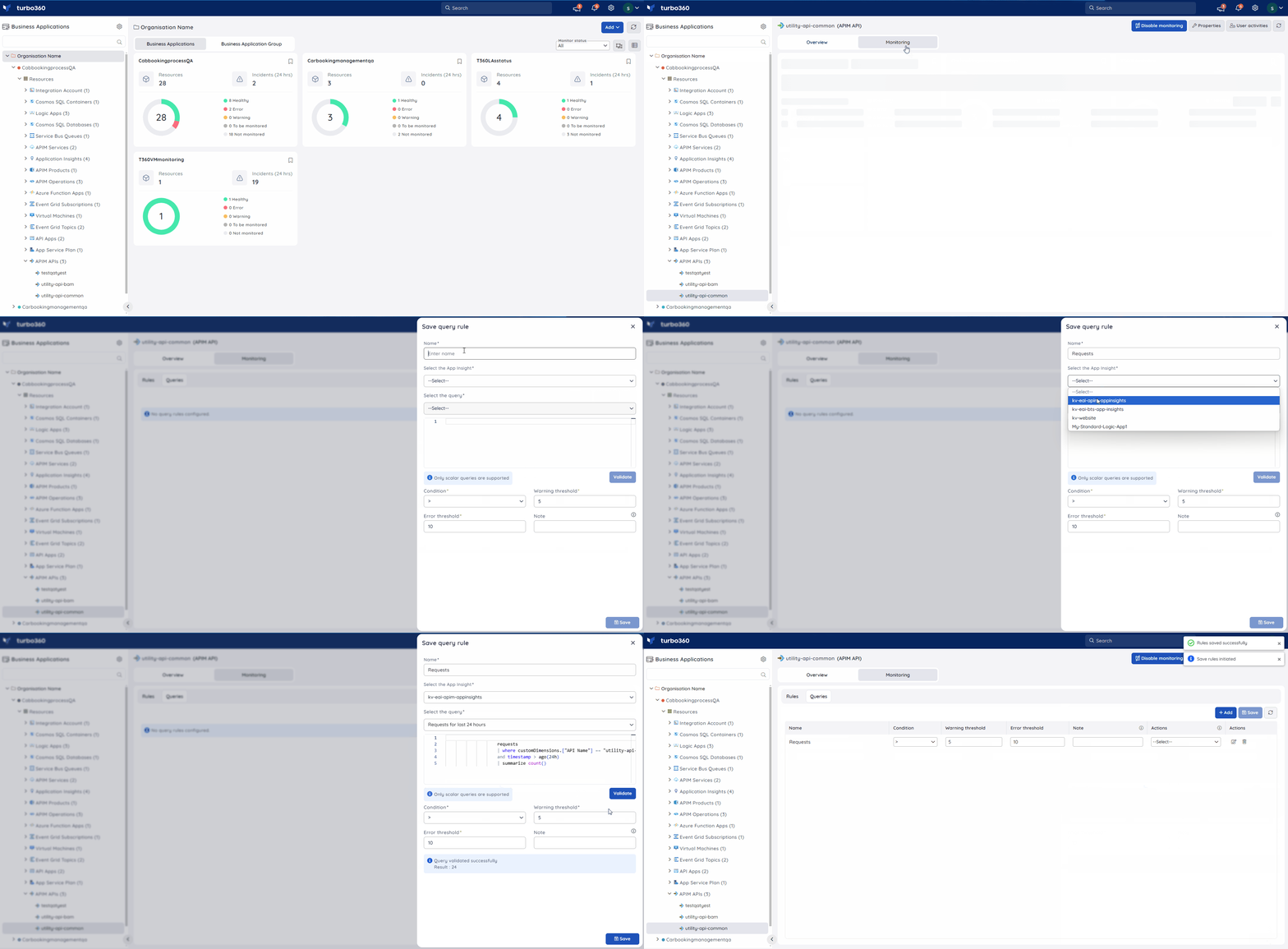
APIM Operation
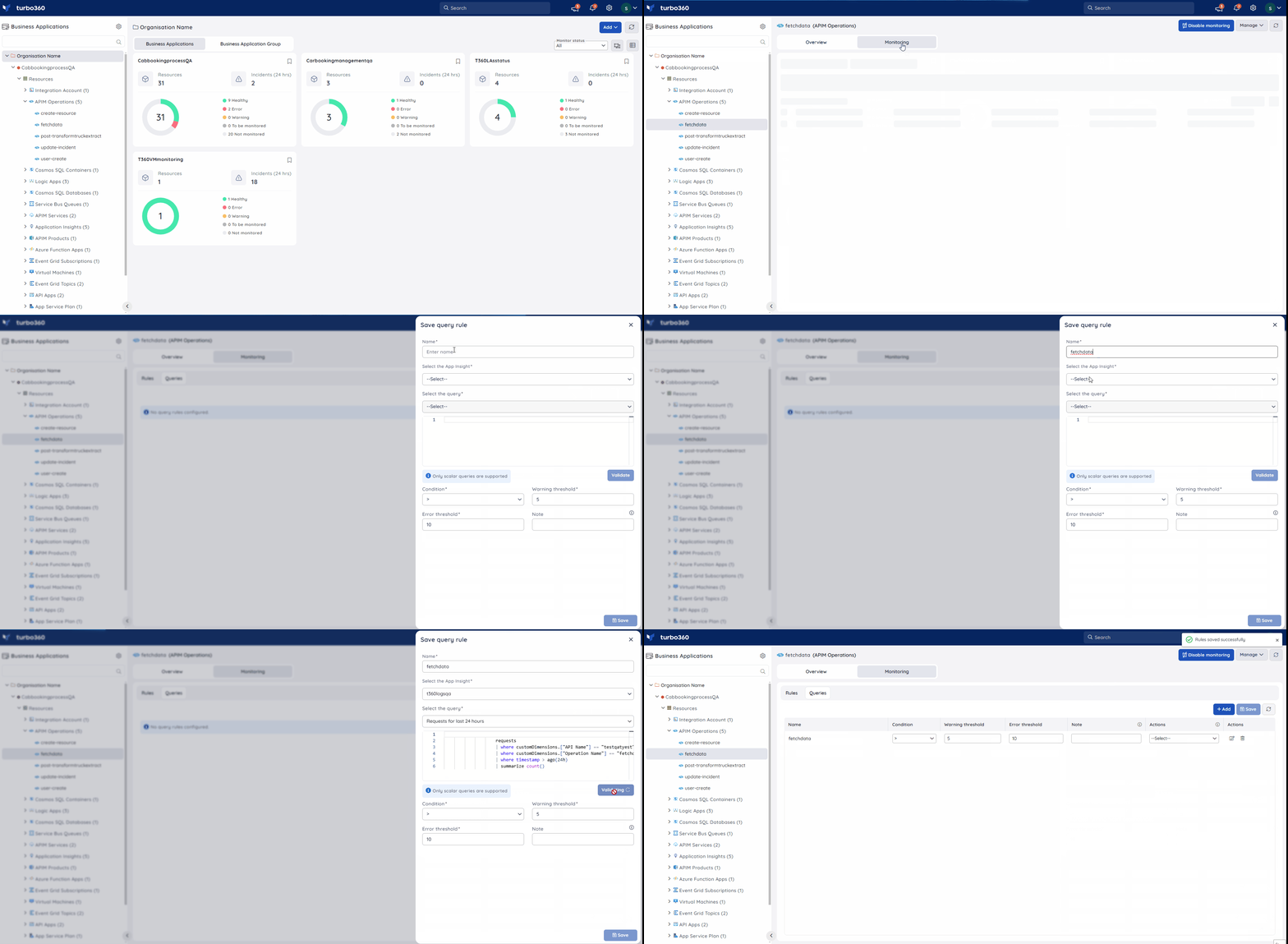
Application Insight
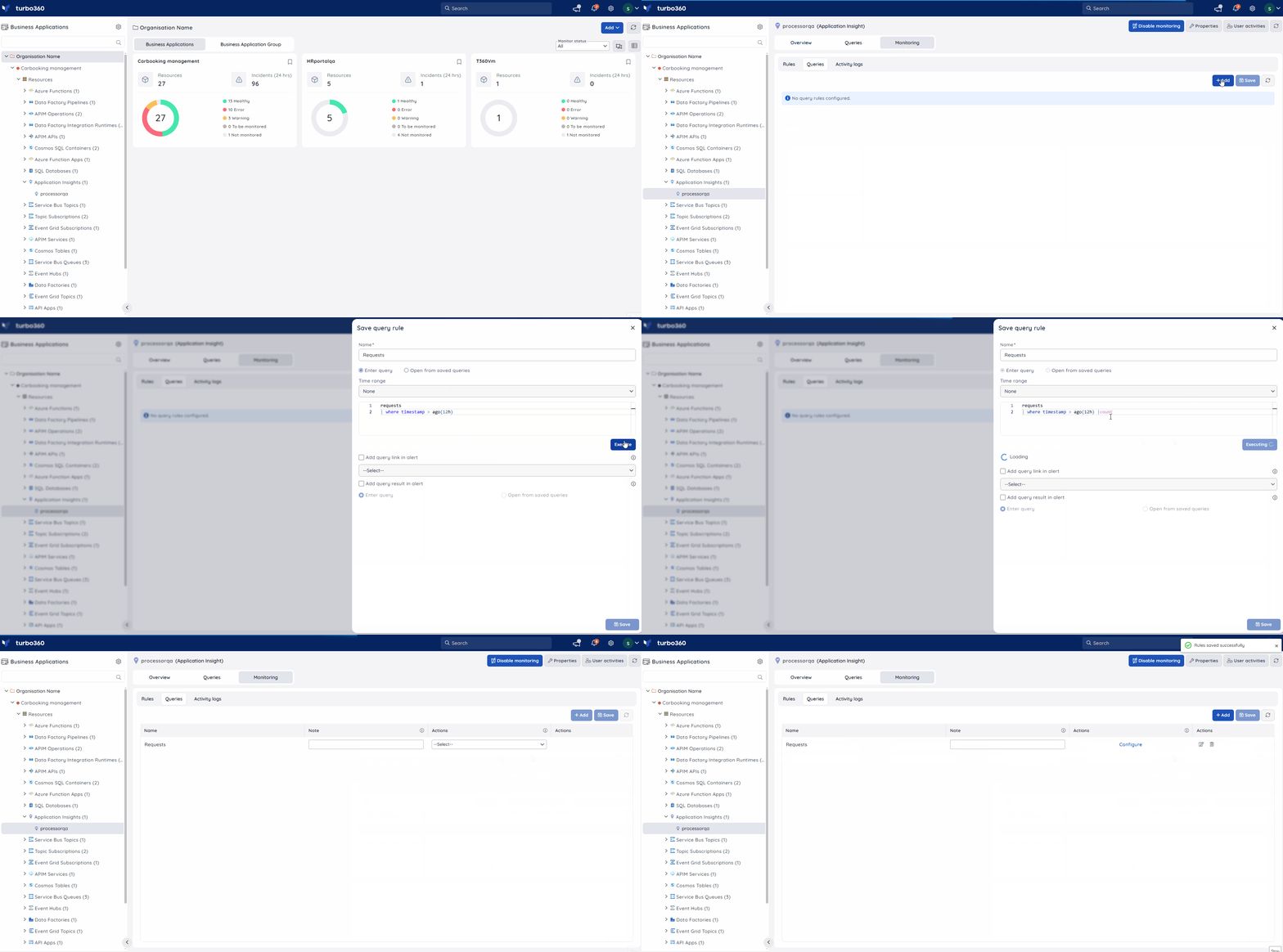
Azure Function
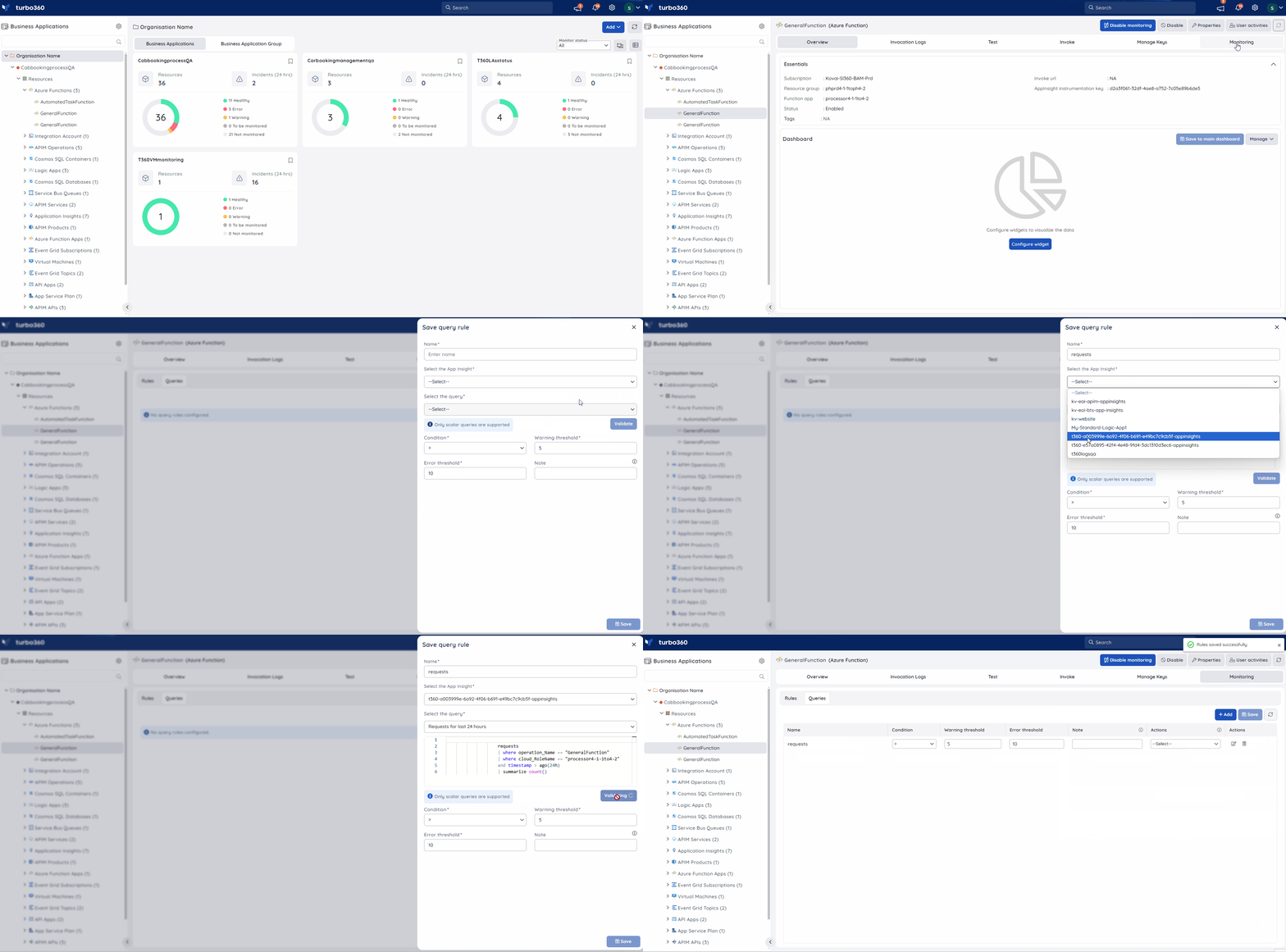
Cosmos SQL Container
Cosmos Table
Log Analytics Workspace
Resource Graph Query
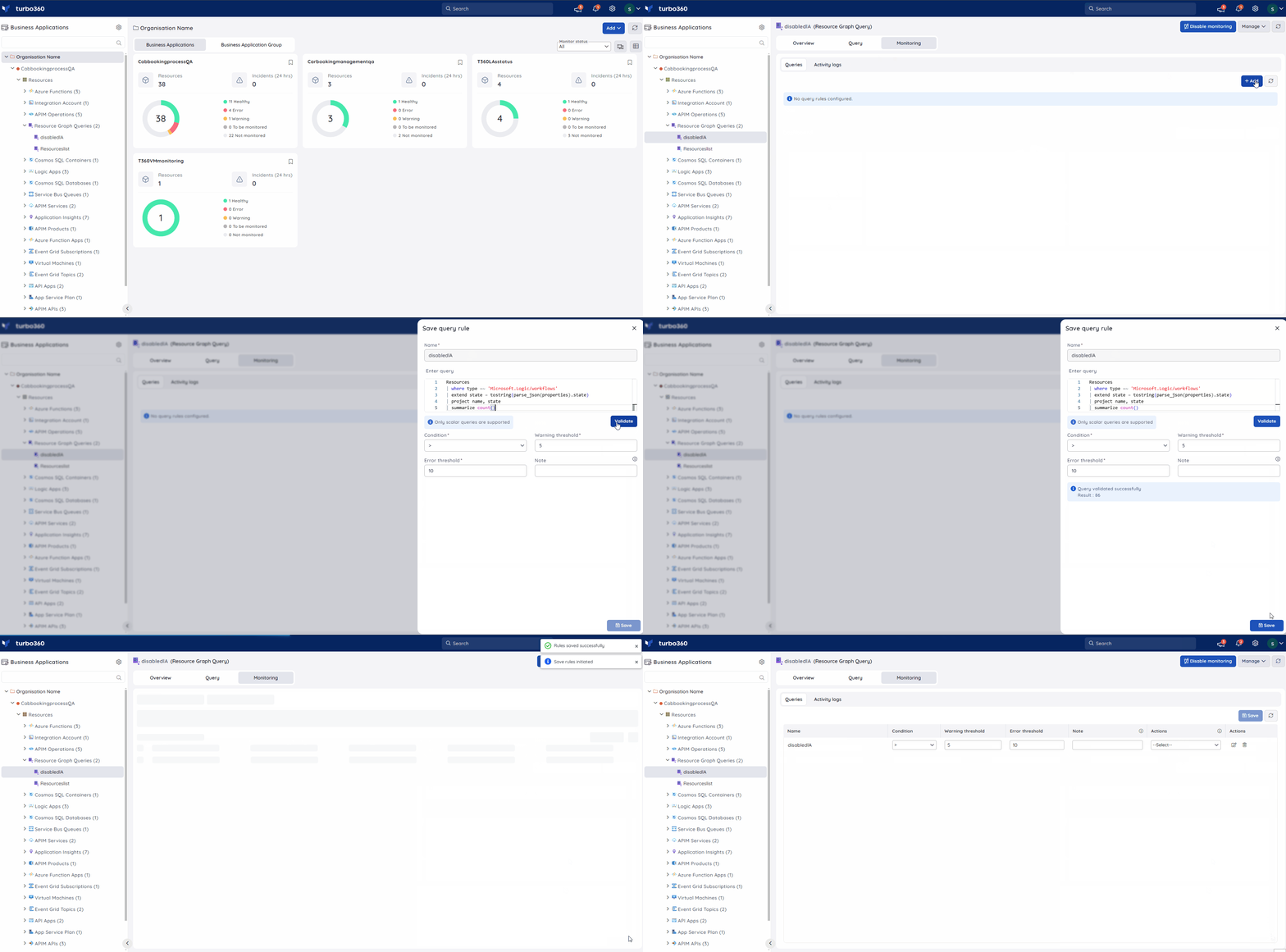
SQL Database
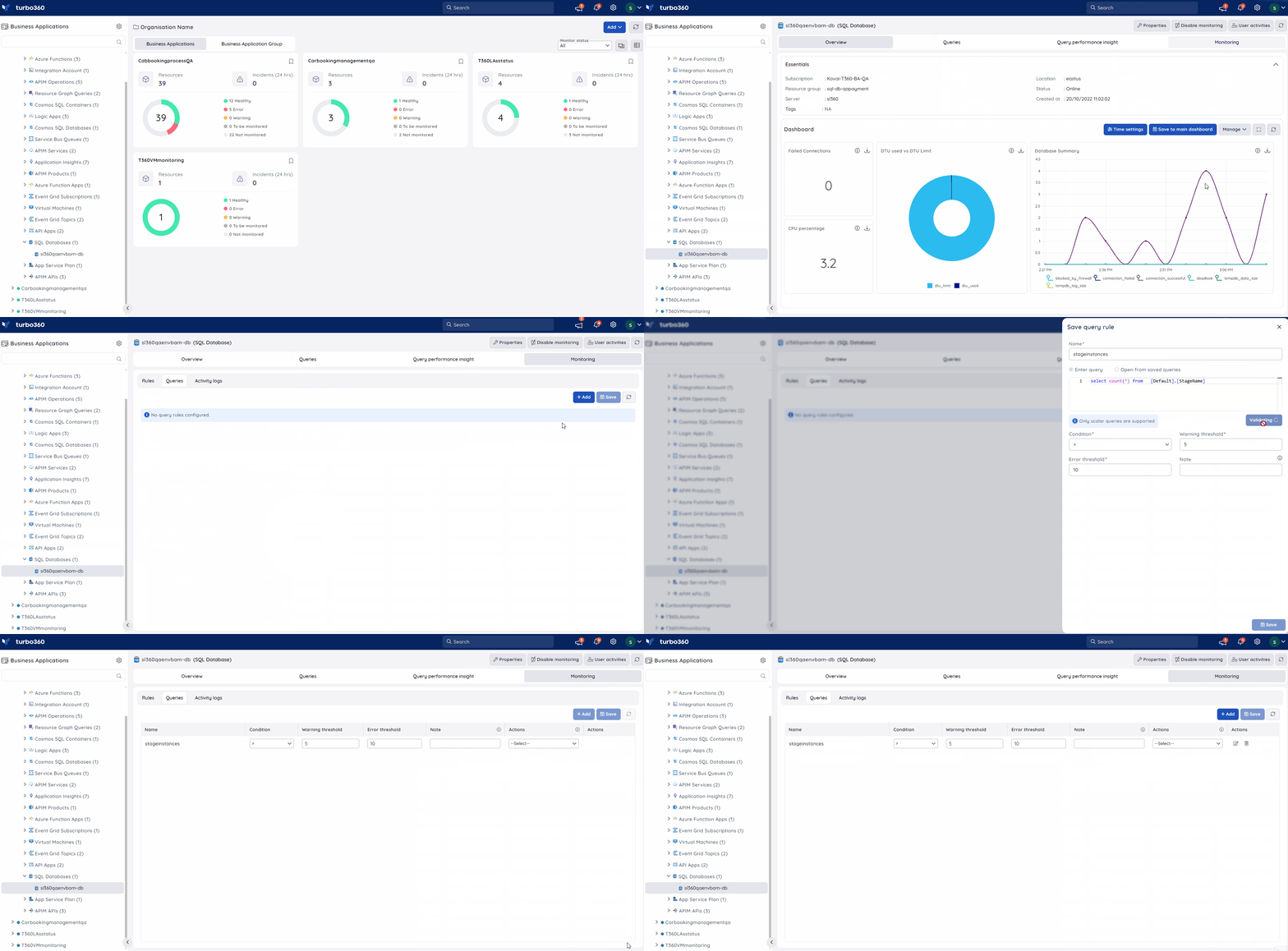
Storage Table
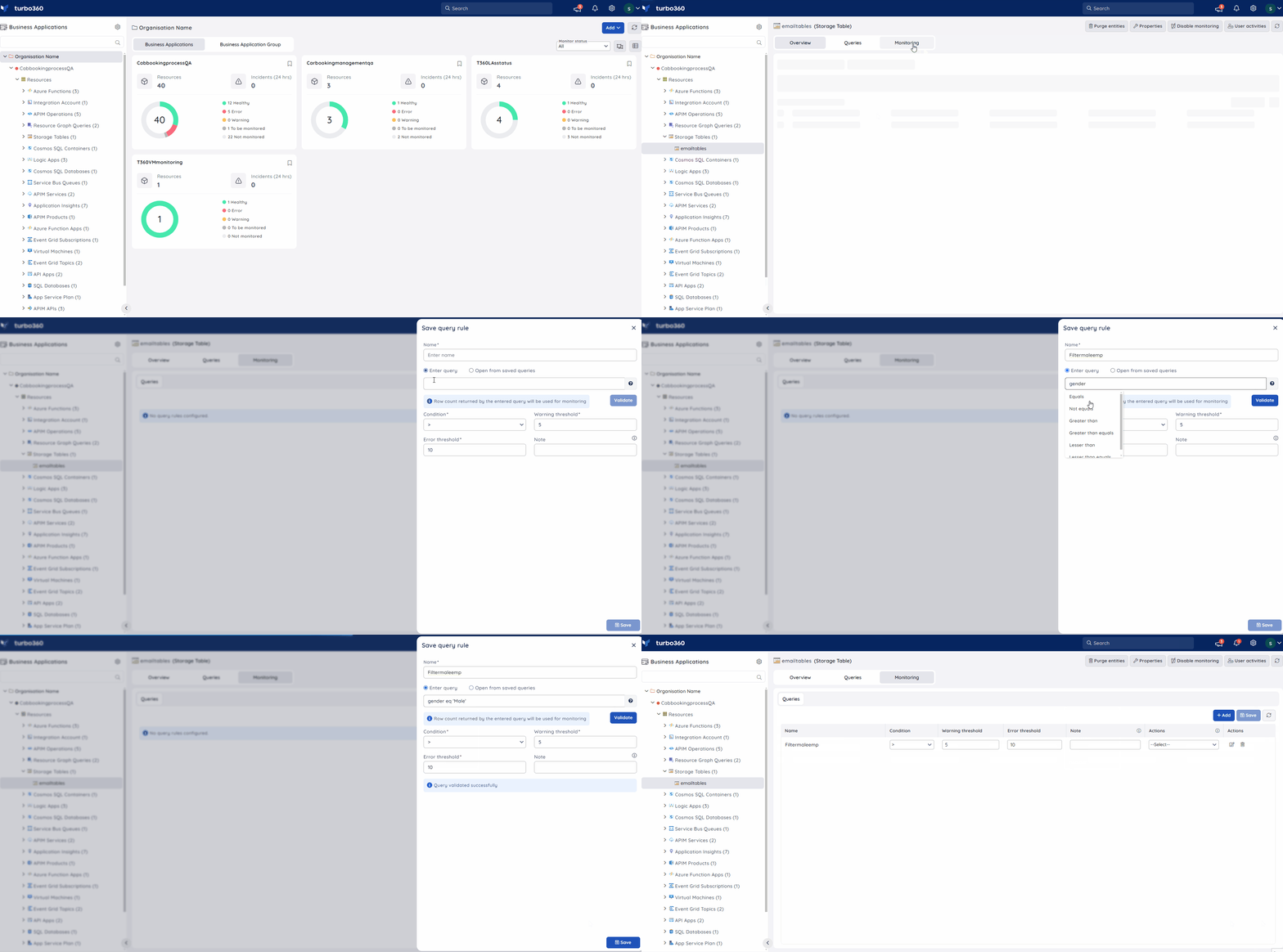
Configure a profile-level rule
Configuring a rule at the monitoring profile level applies it to every resource of that compatible type linked to the profile, eliminating per-resource setup.
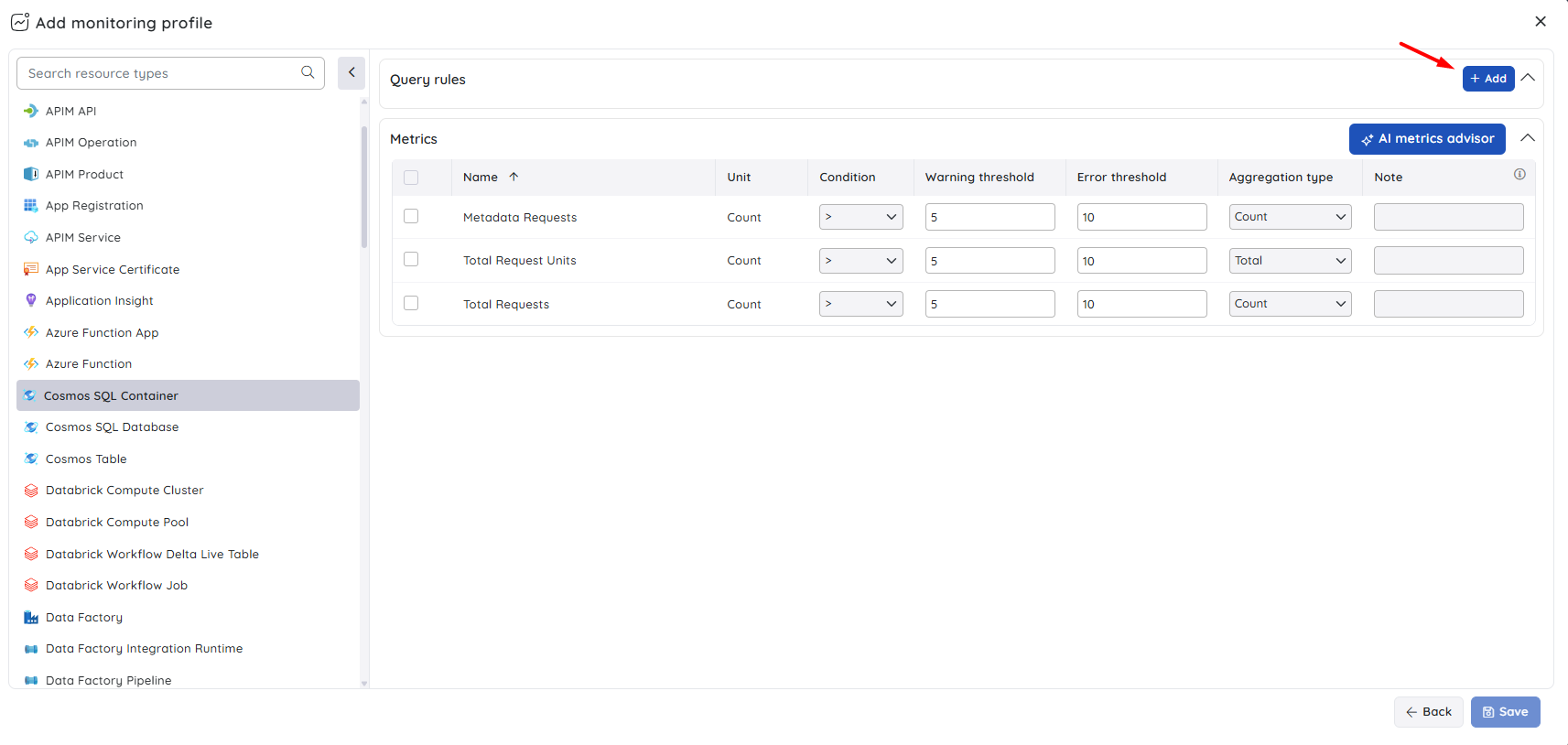
- Access a monitoring profile and select the resource type that supports query monitoring.
- Select Query rules as the rule category.
- Click + Add to open the query rule dialog.
- Enter a Name and the Query, then set the Condition, Warning threshold, and Error threshold.
- Click Save.
Configuration
| Option | Description |
|---|---|
| Name | A label for the query rule. |
| Query | The query to execute against the resource. Enter a custom query or select a saved query. |
| Condition | The comparison operator used to evaluate the result against the thresholds (e.g. >). |
| Warning threshold | The value at which a warning violation is triggered. |
| Error threshold | The value at which an error violation is triggered. |
| Note | Optional. A description displayed alongside the violation alert in configured notification channels. |
Resolution notes
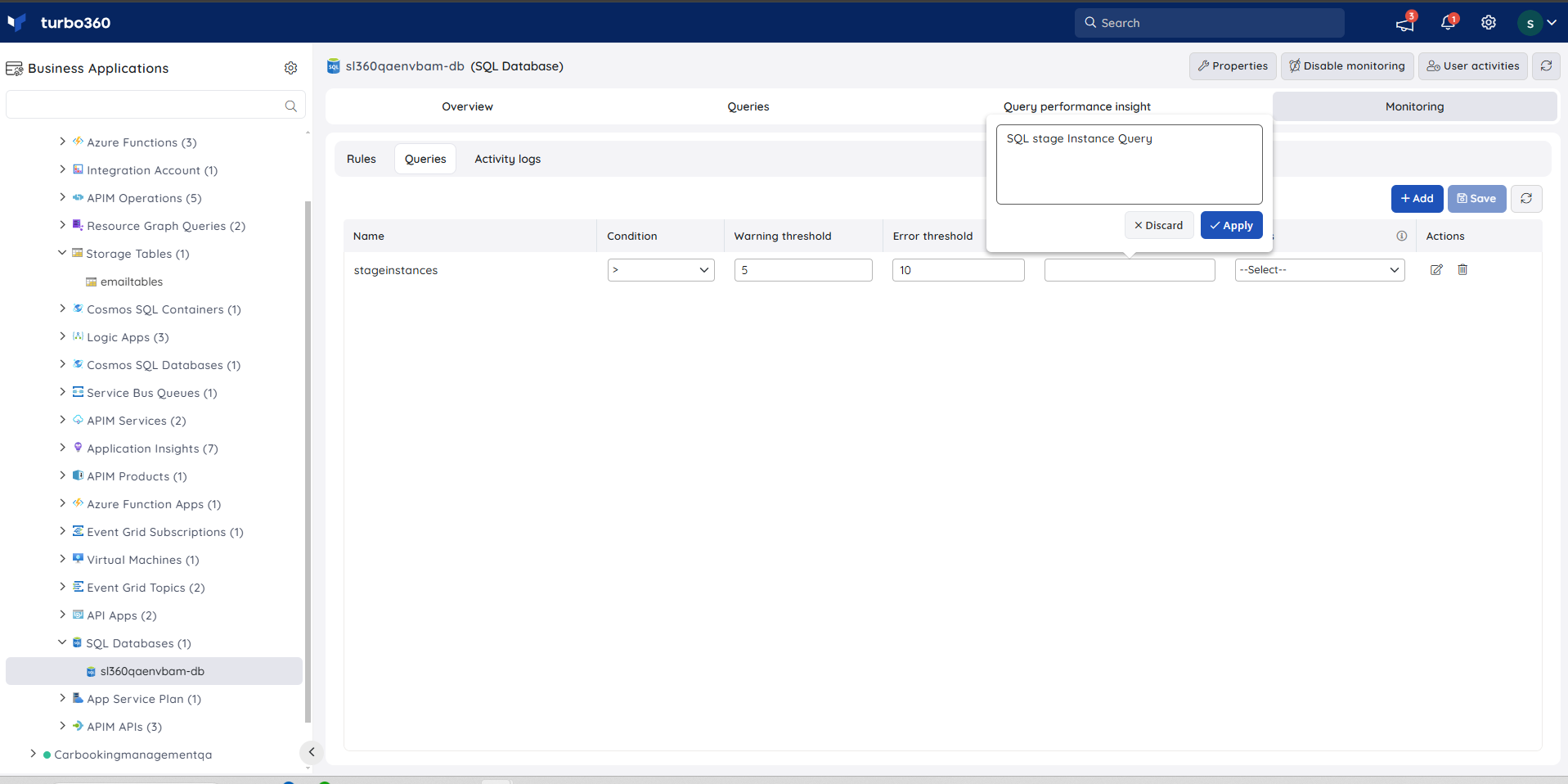
A resolution note is an optional message you add to a query rule to describe the appropriate action when a violation occurs. The note appears alongside the violation alert in all configured notification channels, giving responders immediate context on what to do.
The image below shows how to configure a resolution note for a query rule violation:
Example scenario
You monitor a Cosmos SQL Container that tracks order records. You configure a query rule to count rows where status = 'failed' and set the error threshold to 10. When the query returns more than 10 failed rows during an evaluation cycle, Turbo360 triggers an alert to your configured Slack channel so you can investigate before downstream processes are affected.
Permission behavior
Resource-level rules: With Read access on the resource and Manage permission on its Monitoring feature, you can create, edit, and delete query rules for that resource. With Read permission only, you can view existing rules but cannot modify them.
Profile-level rules: Configuring query rules through a monitoring profile requires Manage permission on the Monitoring profiles feature. This is assigned via custom role creation (RBAC) in the Business Applications module. Without this permission, profile-level rule configuration is unavailable.
Alert notifications
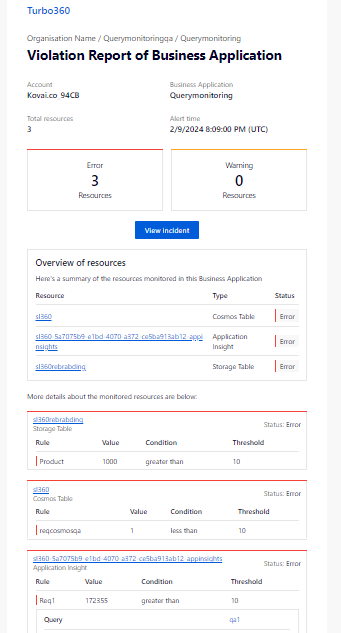
Query alerts are delivered to the configured notification channels and email addresses in the same way as all other monitoring alerts.
The image below is an example of a query alert for Cosmos Table, Application Insight, and Storage Table resources received via email:
Troubleshooting
Query rule does not trigger an alert despite threshold being exceeded
Cause: The query result type may not match the evaluation method for that resource type. Scalar-result resources (Cosmos SQL Container, SQL Database) evaluate the returned value directly; row-count resources (Cosmos Table, Storage Table) evaluate the number of rows returned.
Fix: Verify the query returns the expected result type and that the threshold is set accordingly. Use the Execute button in the query rule dialog to test the query before saving.Queries tab or rule options are read-only
Cause: Your account has only Read permission on the resource's Monitoring area.
Fix: Request Manage permission for Monitoring on that resource from your administrator.APIM or Azure Function does not show a Queries tab
Cause: No Application Insight resource is associated with the same Business Application.
Fix: Associate an Application Insight resource with the Business Application, then return to configure query rules.Query validation fails when setting up a rule
Cause: The query syntax may be invalid for the selected resource type, or the resource is unreachable.
Fix: Test the query directly in the Azure portal against the resource, correct any syntax errors, then re-enter it in Turbo360.Profile-level query rule configuration is unavailable
Cause: Your account does not have Manage permission on the Monitoring profiles feature.
Fix: Request the appropriate role assignment via custom role creation (RBAC) in the Business Applications module from your administrator.
FAQs
Can I configure query rules at both the resource level and the monitoring profile level?
Yes. Resource-level rules apply to that single resource only. Profile-level rules apply to every compatible resource of that type linked to the profile. Both can be active at the same time.What is the difference between how query results are evaluated across resource types?
For Cosmos SQL Container and SQL Database, the scalar value returned by the query is evaluated against the threshold. For Cosmos Table and Storage Table, the row count returned is used. Application Insight and Log Analytics Workspace support both scalar and non-scalar queries.What is a resolution note and when should I use it?
A resolution note is an optional message attached to a query rule that appears in violation alerts. Use it to describe the expected action when a threshold is breached, so on-call responders have immediate guidance without needing to consult additional documentation.
Related articles
Was this article helpful?