

Resources summary
- 05 Aug 2026
- 4 Minutes to read
- Print
- DarkLight
- Download PDF
Resources summary
- Updated on 05 Aug 2026
- 4 Minutes to read
- Print
- DarkLight
- Download PDF
Article summary
Did you find this summary helpful?
Thank you for your feedback!
Overview
Resources summary is a report type that provides a two-month, resource-level view of cost changes in your Azure environment. It is generated as an Excel file and grouped into four categories based on how a resource's cost has changed compared to the previous two months. Reports are available for download from Generation history.
Business value
Resources summary gives finance and operations teams a ready-to-share view of where costs are rising, falling, or shifting at the resource level — without manually comparing usage data across periods. It helps teams track cost efficiency, monitor budget compliance, and catch cost overruns early.
Prerequisites
- A Cost management group must be configured with the subscriptions you want to report on.
- All subscriptions within the cost management group must share the same billing currency. Report generation fails if currencies differ across subscriptions.
Required permissions
Access to Resources summary is controlled by the same Reports permission that governs Cost Analyzer's reporting suite:
| Role | Permission level | Access |
|---|---|---|
| Account owner, Owner, Contributor | — | Full access to Reports |
| Custom role | Reports: Read | View all reports |
| Custom role | Reports: Manage | Edit report configuration and generate reports |
.jpg) {height="" width=""}
{height="" width=""}
When assigning a custom role, grant Read or Manage on Reports under Specify feature permissions.
How it works
Resources summary compares resource-level costs over a two-month window and organizes the results into separate sheets:
- New charges — resources that started incurring costs, where the cost difference exceeds your configured threshold.
- No longer charged — resources that stopped incurring costs, where the cost variance exceeds your configured threshold.
- Cost savings — resources with reduced costs, where the cost variance exceeds your configured threshold.
- Cost overruns — resources with increased costs, where the cost variance exceeds your configured threshold.
Thresholds are evaluated per data category and calculated using your billing currency.
Steps
Use the following steps to configure, generate, and access Resources summary reports. Navigate to your Cost management group > Reports to get started.
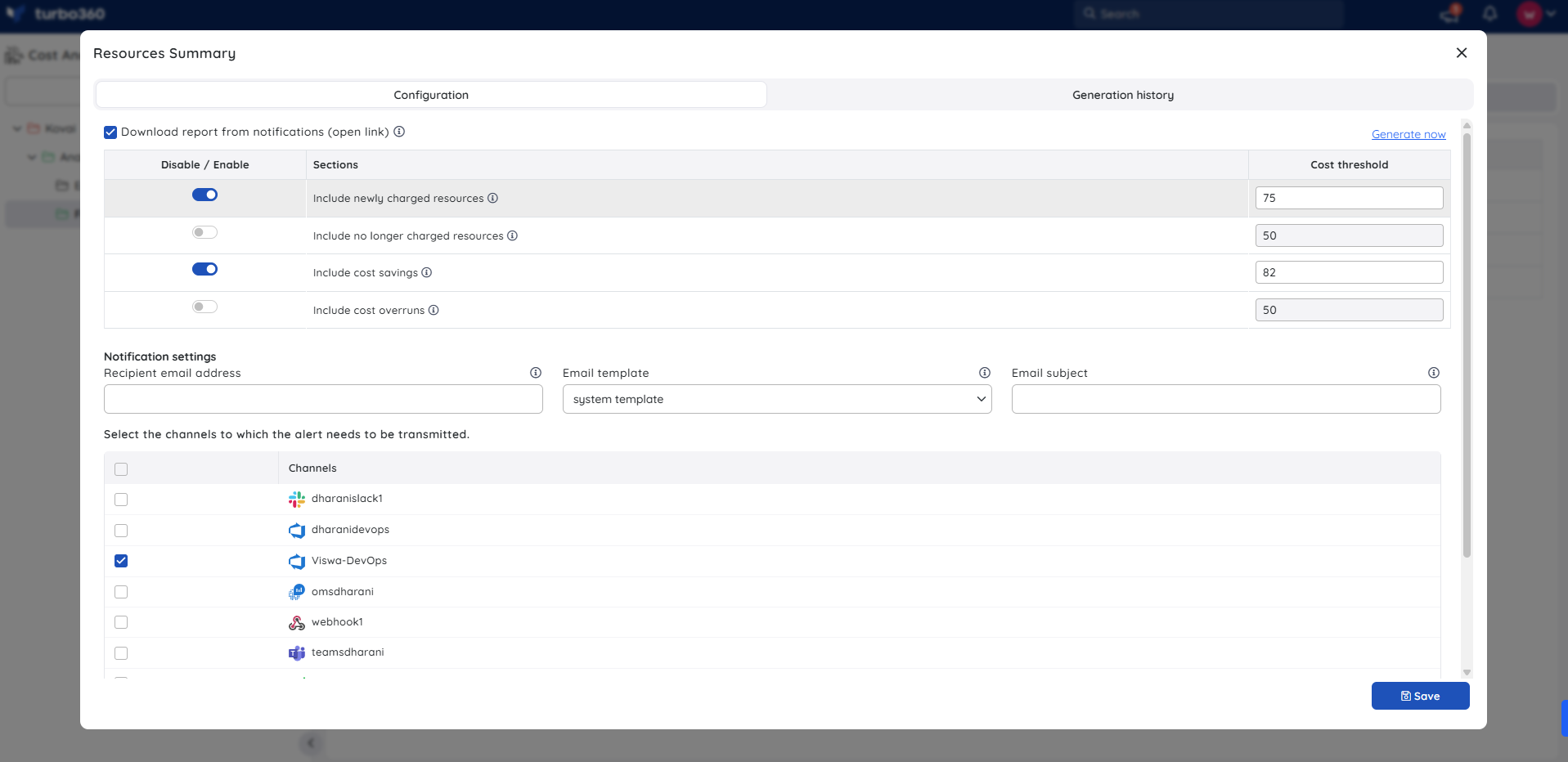
Configure the report
Configuring the report determines which cost categories are included and what threshold triggers each one.
- Navigate to Cost management group > Reports.
- Click the Edit icon next to the Resources summary report type.
- Turn on the data toggles for the categories you want included in the report.
- Set a cost threshold for each data category so the report only includes changes exceeding that limit.
- Check Download report from notifications to allow the report to be downloaded directly from alerts.
- Select the notification services that should receive the report alert.
- Click Save.
- Enable the Resources summary report type toggle.
Important notes
- The configured cost threshold is defined using the billing currency.
- Resources summary reports can only be scheduled on a monthly basis.
- Report generation fails if the cost management group contains subscriptions with different billing currencies.
Generate an instant report
Generating an instant report lets you get an on-demand copy without waiting for the next scheduled run.
- Go to the Reports section of the relevant cost management group.
- Click the Actions menu next to the Resources summary report type.
- Select Generate Now.
.png)
The report type toggle must be enabled in the Reports section, and at least one notification channel must be selected.
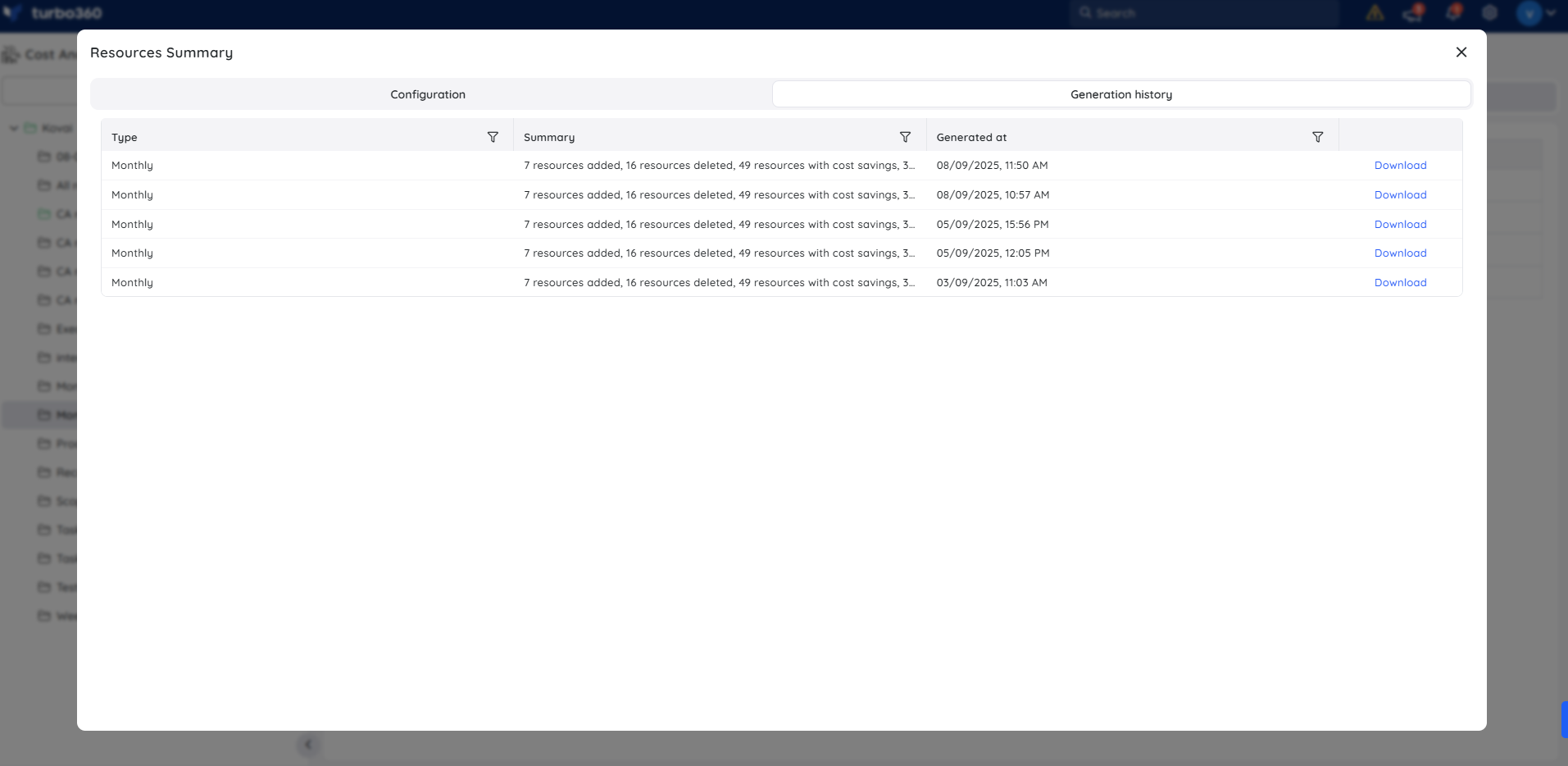
View generation history
Generation history lets you access and re-download previously generated reports without regenerating them. Each record shows the report Type (Monthly), a Summary of the category counts included in that run (for example, "5 new charges, 14 no longer charged, 5 resources with cost savings, 3 resources with cost overruns"), and the Generated at timestamp, with a Download link next to each entry.
- Go to the Reports section of the relevant cost management group.
- Open Generation history to view all triggered reports.
- Click Download next to any record to retrieve that report.
Example scenario
A finance lead wants monthly visibility into resource cost swings across a shared subscription group. They enable New charges, Cost savings, and Cost overruns with a threshold that filters out minor fluctuations, select Teams as the notification channel, and turn on Download report from notifications. Each month, the report arrives as an alert with a direct download link.
Sample report:
.png)
Limitations
- Resources summary reports can only be scheduled on a monthly basis.
- The report compares only the two most recent months; longer historical trends are not available.
- Report generation fails if the cost management group contains subscriptions with different billing currencies.
Troubleshooting
Report generation fails
Cause: The cost management group contains subscriptions with different billing currencies.
Fix: Ensure all subscriptions in the group share the same billing currency, or split them into separate groups.A category shows no data
Cause: No resources in that category exceeded the configured cost threshold.
Fix: Lower the threshold for that data category and regenerate the report.Report not received via notification
Cause: Download report from notifications is disabled, or the selected notification channel is misconfigured.
Fix: Enable Download report from notifications and verify the notification channel settings.
FAQs
How far back does the Resources summary report look?
It compares resource costs over the two most recent months only.Can I schedule this report weekly or quarterly?
No. Resources summary reports can only be scheduled on a monthly basis.Why does my report fail to generate?
This typically happens when the cost management group includes subscriptions billed in different currencies.
Related articles
Was this article helpful?