

Runbook
- 05 Aug 2026
- 3 Minutes to read
- Print
- DarkLight
- Download PDF
Runbook
- Updated on 05 Aug 2026
- 3 Minutes to read
- Print
- DarkLight
- Download PDF
Article summary
Did you find this summary helpful?
Thank you for your feedback!
Overview
Process automation in Azure Automation lets you create and manage PowerShell, PowerShell Workflow, and graphical runbooks. Automation runs your runbooks based on the logic defined inside them — if a runbook is interrupted, it restarts from the beginning. Starting a runbook creates a job, which is a single execution instance of that runbook.
Business value
Managing runbook jobs from Turbo360 lets your team track execution history, react to failures, and trigger automation logic without leaving your operational dashboard.
How it works
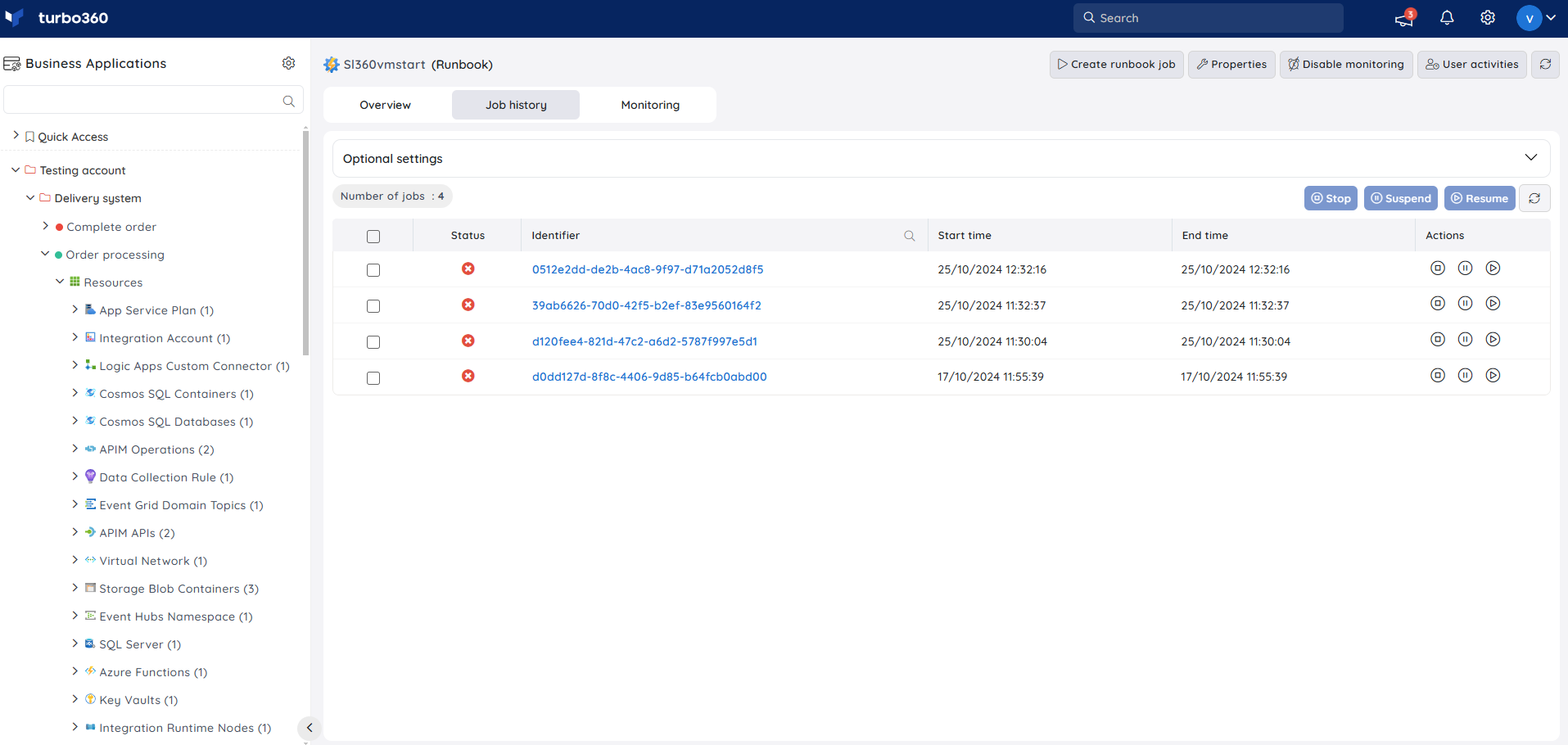
The status of all runbook jobs is available in the Job history section for the corresponding Runbook resource.
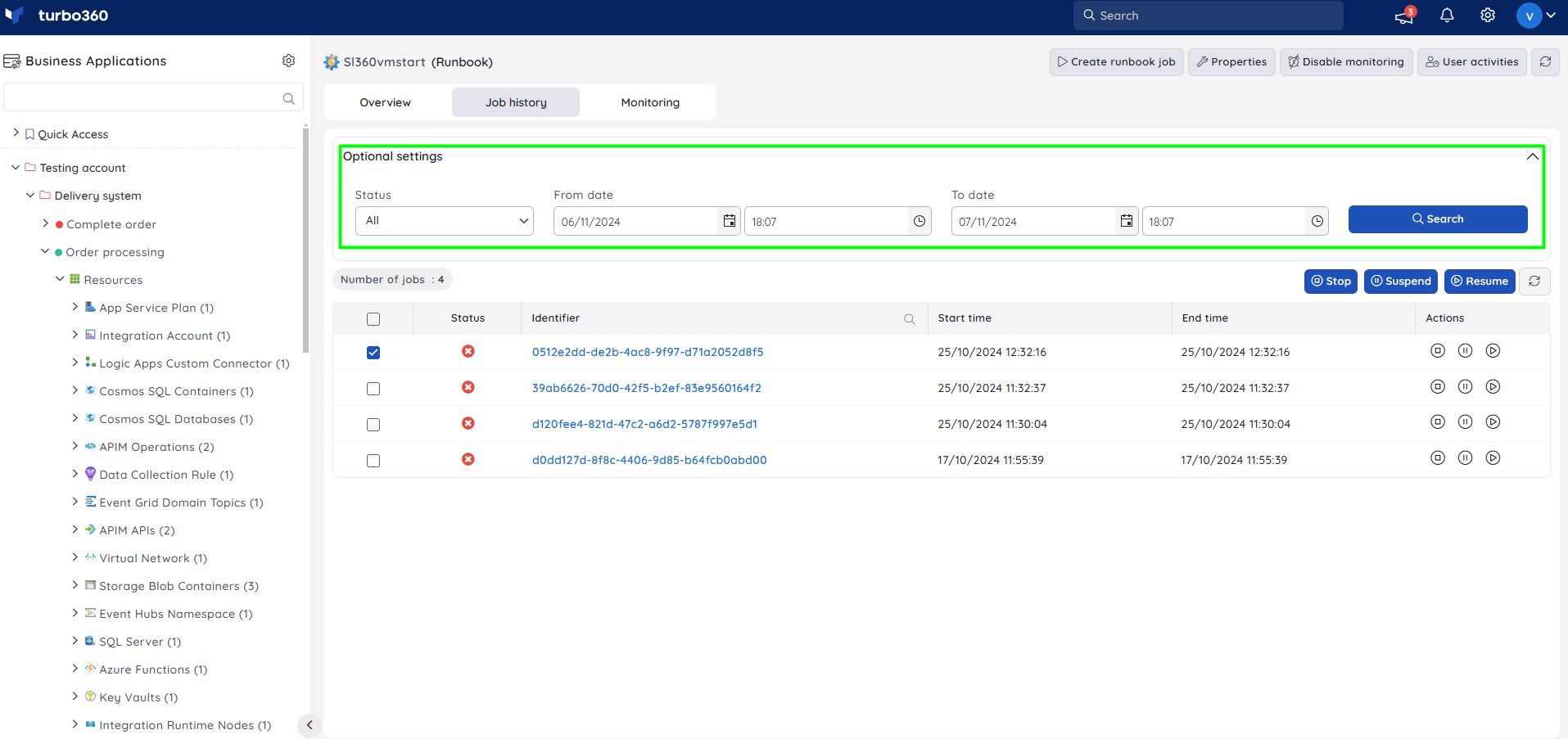
Runbook jobs can be filtered by From date and To date, along with any one of the following statuses: Completed, Failed, Stopped, Suspended, Blocked, Disconnected, New, Resuming, Running.
Permissions
| Permission | Description |
|---|---|
| Read | View job history, job status, and monitoring configuration for the Runbook. |
| Manage | Start, stop, suspend, and resume runbook jobs; create inline and automated tasks, in addition to all Read capabilities. |
Operations
Manage runbook job execution directly from Turbo360 — avoiding portal context-switching during incident response or routine job management.
Start, Stop, and Suspend
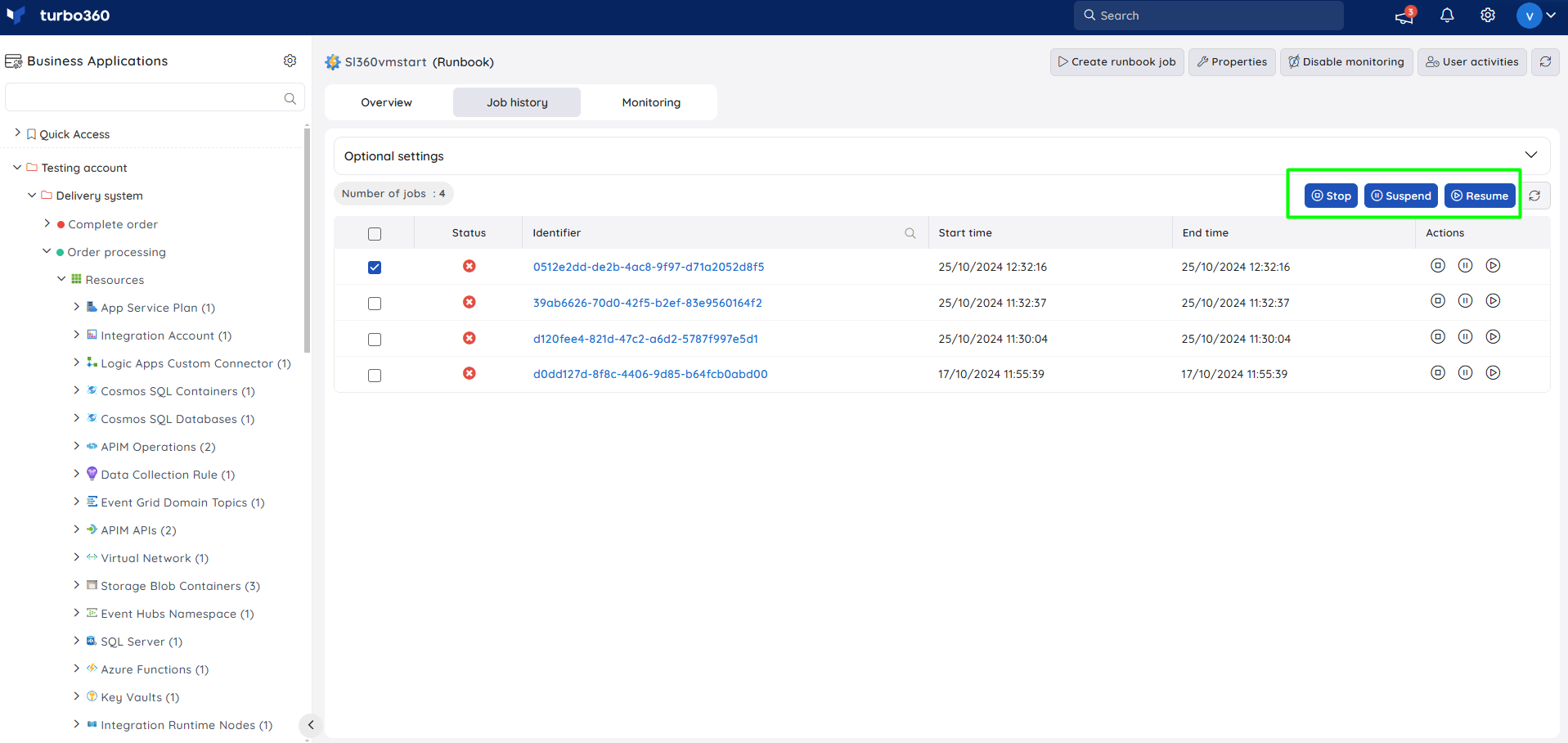
- Start/Resume — starts a new job or resumes a suspended one. Use this when you need to (re)trigger runbook execution on demand.
- Stop — halts a running job. Use this when a job is misbehaving or no longer needed.
- Suspend — pauses a running job without ending it. Use this when you need to temporarily halt execution while preserving job state.
These actions are available for individual or multiple runbook jobs from Job history.
Inline task
- Create runbook job — creates a new runbook job from the Runbook resource you're exploring, with or without parameters. Use this when you need to trigger a one-off job immediately rather than scheduling one.
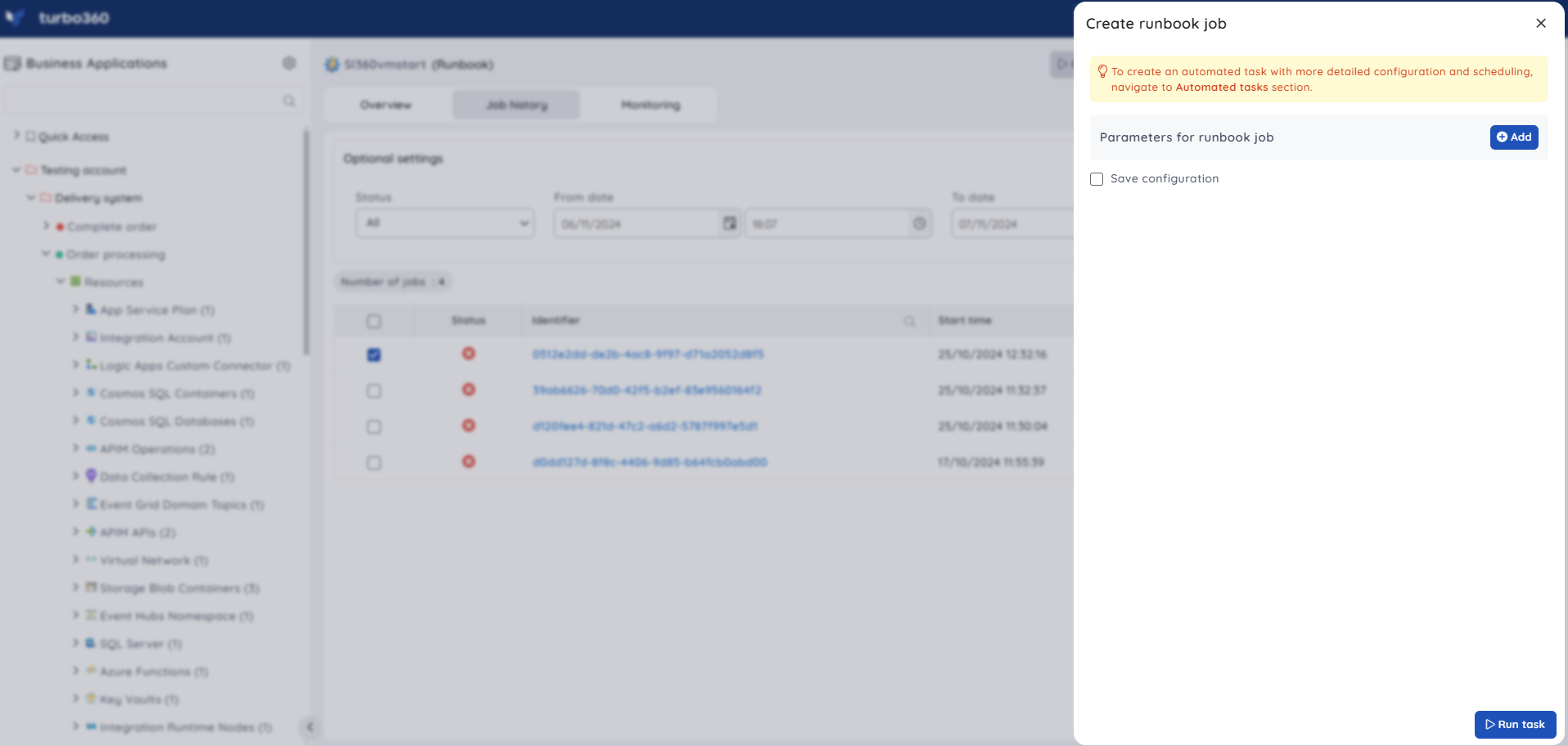
The task status can be viewed by navigating to Automated tasks -> Task history.
Note:
Navigate to the Automated tasks section in Turbo360 to create a task with a more detailed configuration, schedule tasks to run at a specific time, or automate the task to run on the specified hours, days, and more.
Automated task
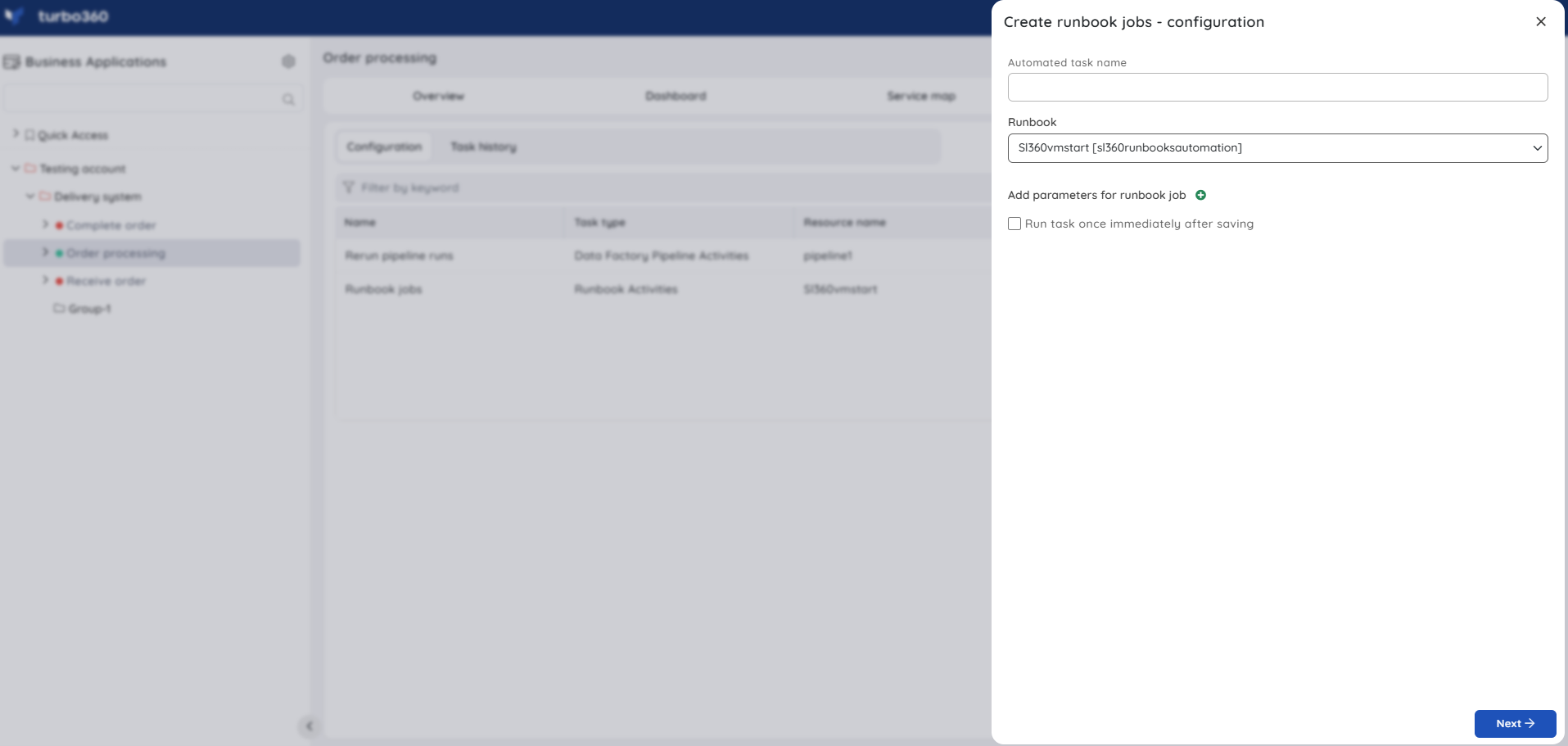
- Automated task — runs a runbook job automatically when a defined monitoring condition is met. Use this when you need to act on a resource state without manual intervention — for example, releasing idle Virtual Machine resources by triggering a runbook job when a monitoring rule detects a VM stopped state.
Monitoring
Runbooks support failure-based monitoring, configured from Runbook -> Monitoring.
Monitoring rules are saved per Runbook, and the monitoring state updates after every monitoring cycle.
Failure monitoring
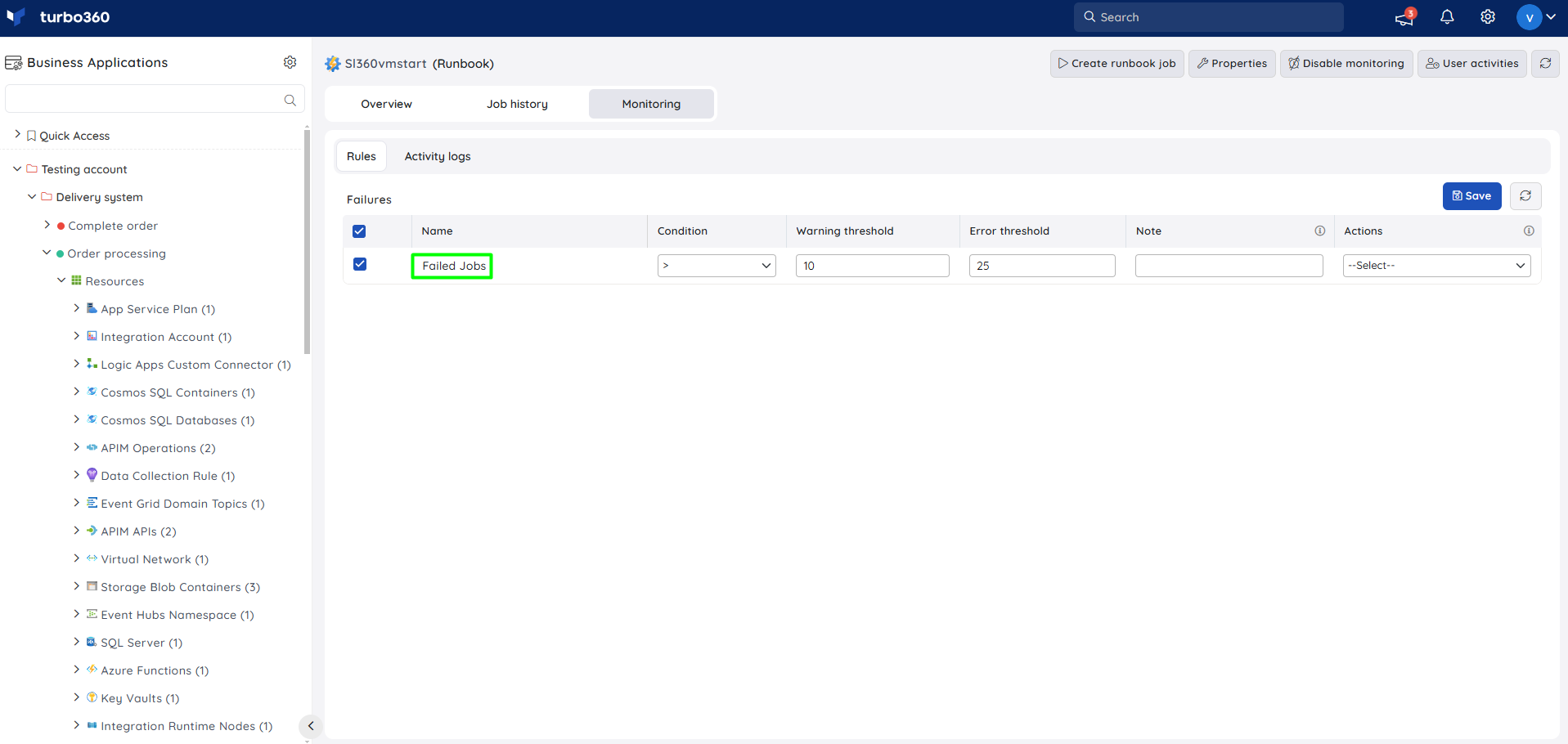
Tracks the count of failed jobs for a Runbook. Use this when you need to be alerted as soon as a runbook starts failing repeatedly, rather than discovering it during a manual review.
- Select the Failed Jobs rule and configure the desired threshold values.
- Click Save.
Troubleshooting
Job stuck in Running or Resuming state
Cause: The underlying Azure Automation job hasn't reported a terminal status back to Azure yet.
Fix: Check the job's status directly in the Azure portal; if it's genuinely stuck, stop and restart the job from Turbo360.Failure monitoring rule not triggering after a job fails
Cause: The rule was saved after the failure occurred, or one full monitoring cycle hasn't elapsed yet.
Fix: Confirm the rule is saved and allow one monitoring cycle to complete before re-checking.Inline task does not appear in Task history
Cause: The task was created but not yet refreshed in the Task history view, or it was created against a different Runbook resource.
Fix: Refresh the Automated tasks -> Task history view and confirm the correct Runbook resource is selected.
Related articles
Was this article helpful?