

Savings plans
- 05 Aug 2026
- 5 Minutes to read
- Print
- DarkLight
- Download PDF
Savings plans
- Updated on 05 Aug 2026
- 5 Minutes to read
- Print
- DarkLight
- Download PDF
Article summary
Did you find this summary helpful?
Thank you for your feedback!
Overview
Savings plans track Azure Savings Plan commitments and recommendations directly within Cost Analyzer, so you don't need to open the Azure portal to review discount opportunities or monitor plan utilization. Azure Savings Plans offer discounted rates on compute services in exchange for a commitment to a consistent usage amount (measured in $/hour) over a one- or three-year term, compared to standard pay-as-you-go pricing.
Business value
Centralizing savings plan recommendations and monitoring inside Cost Analyzer helps teams catch under-utilized or expiring plans early, reducing wasted commitment spend and avoiding last-minute renewal decisions.
Prerequisites
Turbo360 needs specific Azure and Cost Analyzer configuration before it can surface savings plan data.
Required permissions
Grant Savings Plan Reader access to the service principal so Turbo360 can view all purchased savings plans linked to a tenant's subscriptions.
Azure
To assign Savings Plan Reader access to the service principal:
- Search for Savings plan in the Azure portal search bar and open the Savings plan section.
- Select the Role assignment option.
- Select Add role assignment > Savings plan reader from the available job function roles.
- Click Next, then select the required service principal using the Select members option.
- Click Select, then complete the process by selecting Review + assign.
Subscription owners at the time of purchase can view, manage, and delegate permissions for the associated savings plan.
Turbo360
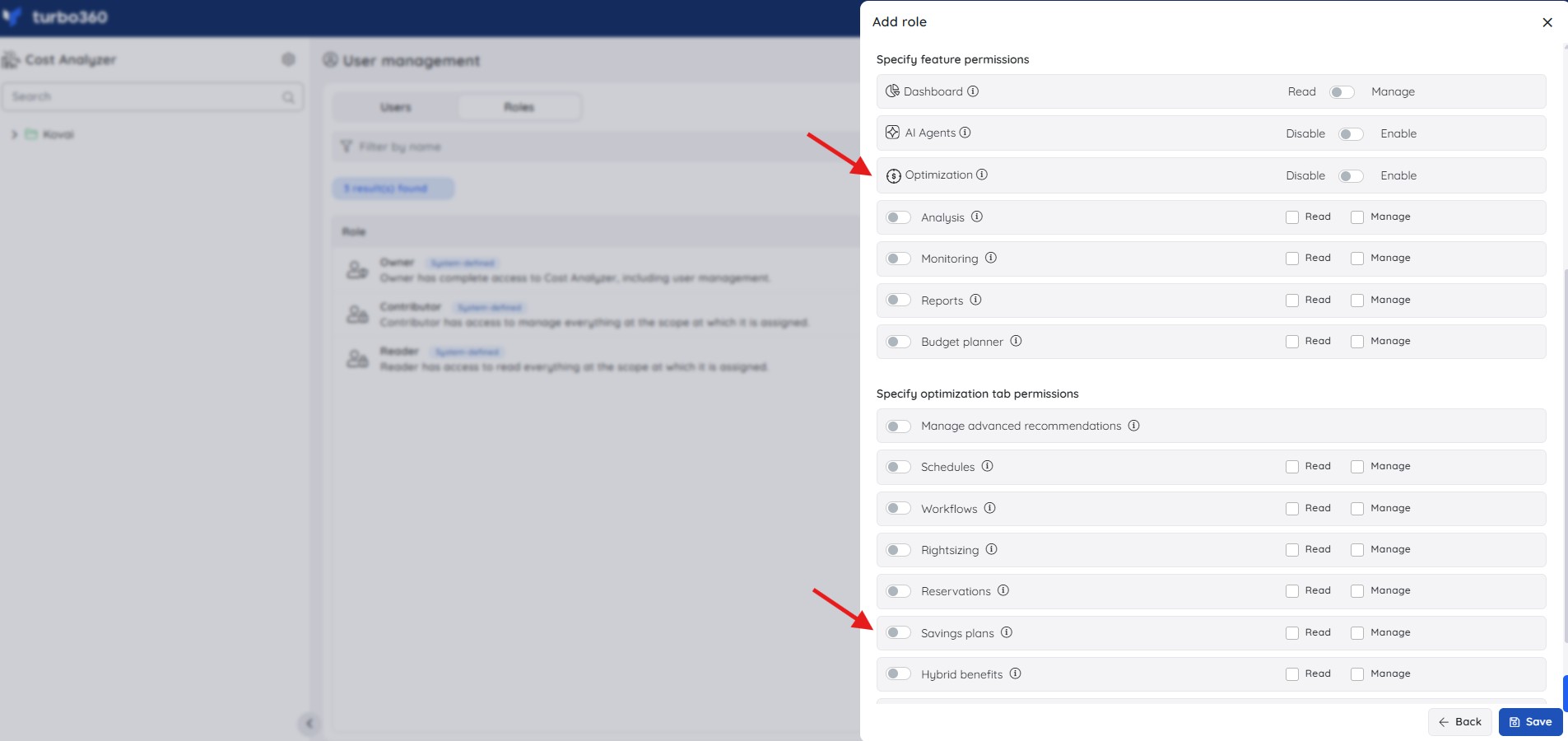
In addition, the following Turbo360 role permissions control access to Savings plans within Cost Analyzer:
| Role | Permission level | Access |
|---|---|---|
| Account owner, Owner, Contributor | — | Full access to Savings plans |
| Custom role | Optimization feature enabled + Savings plans: Read | View Savings plans |
| Custom role | Optimization feature enabled + Savings plans: Manage | Full access to Savings plans |
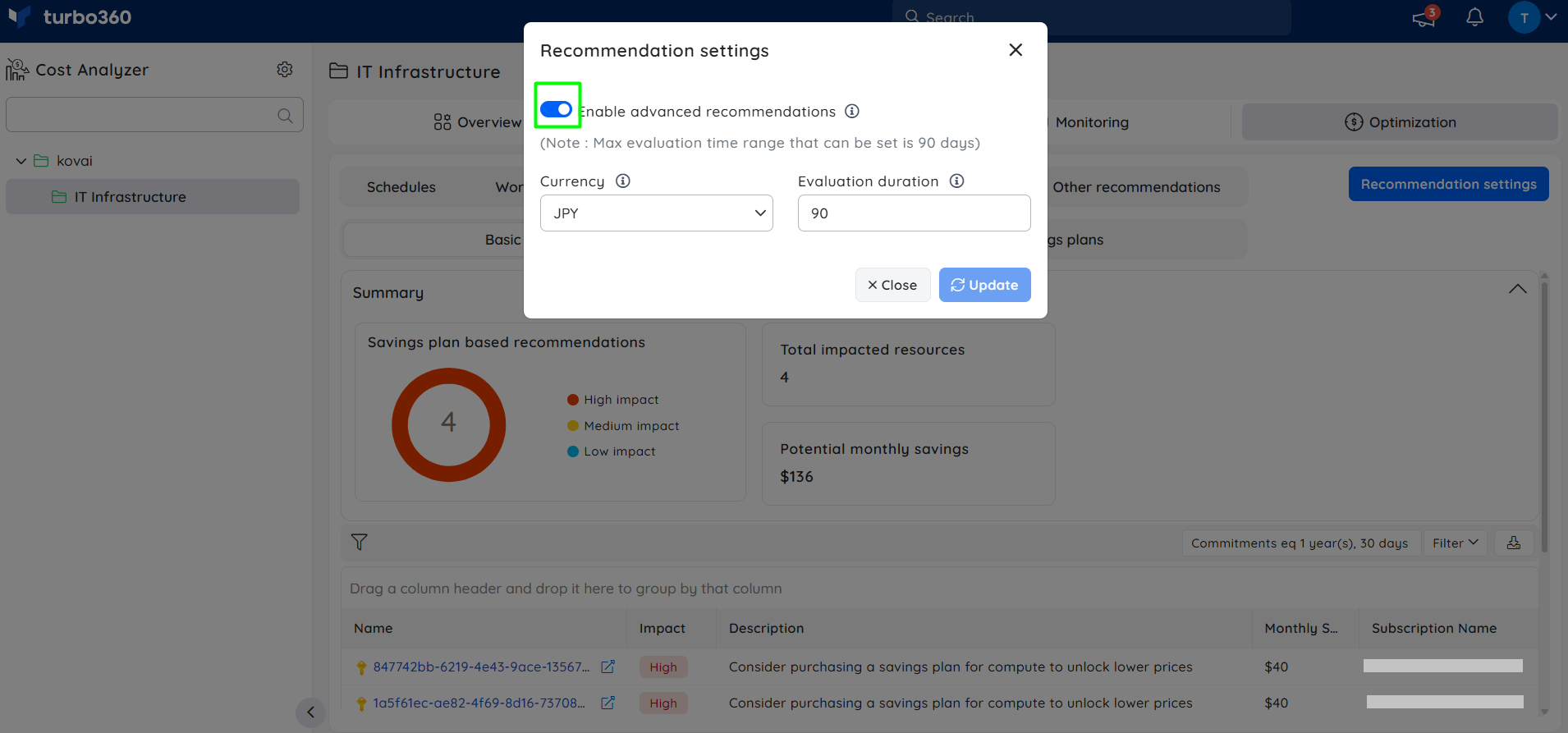
In Cost Analyzer, enable advanced recommendations in the Recommendation Settings of each cost management group (excluding the root group) to provide access to all purchased savings plans linked to that cost group.
How it works
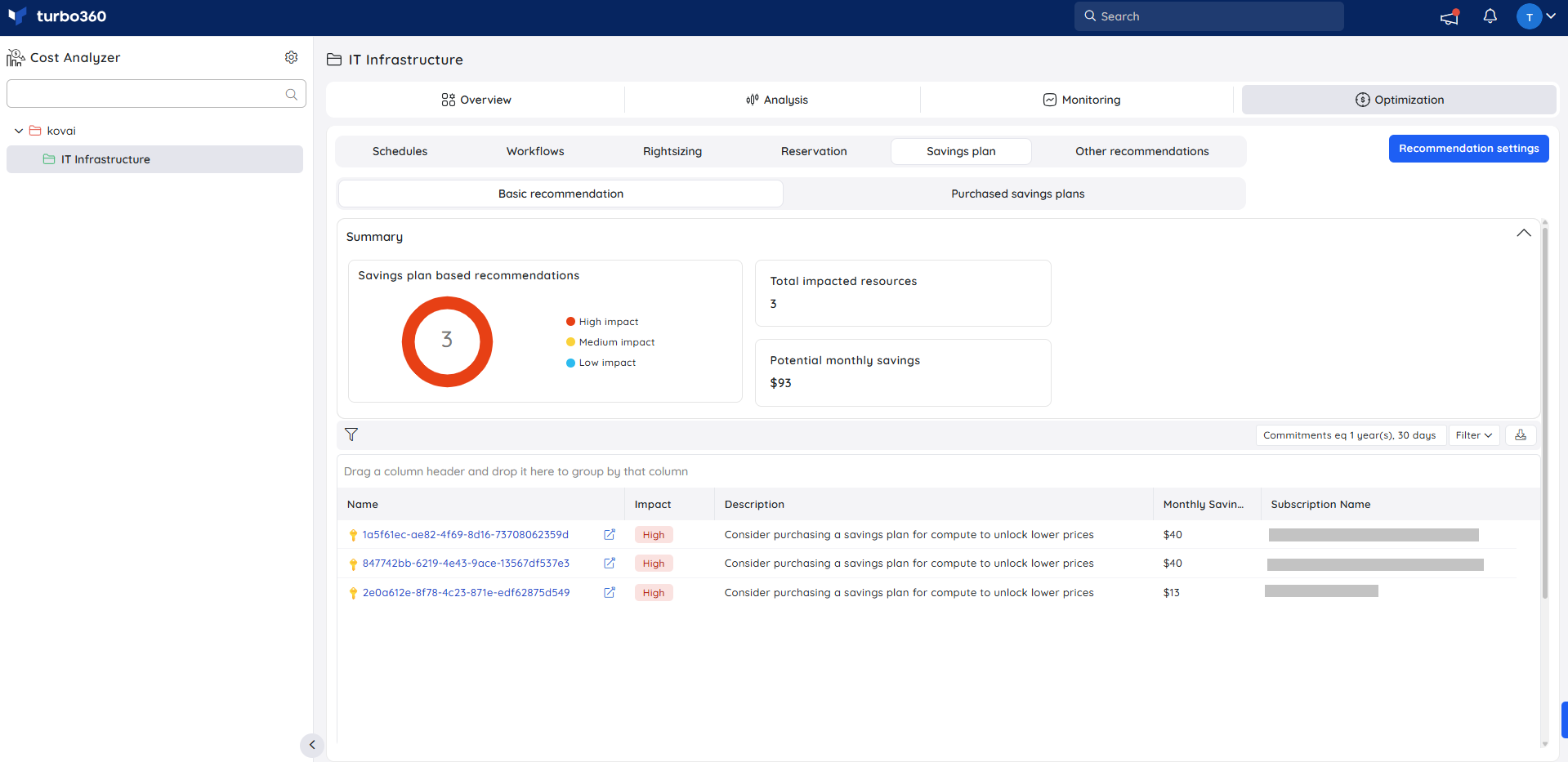
- Basic recommendations — displays recommendations from Azure Advisor. Select an individual recommendation to view detailed insights, use Export to download recommendations as an
.xlsxfile, or select the external link icon to open the recommendation directly in the Azure portal.
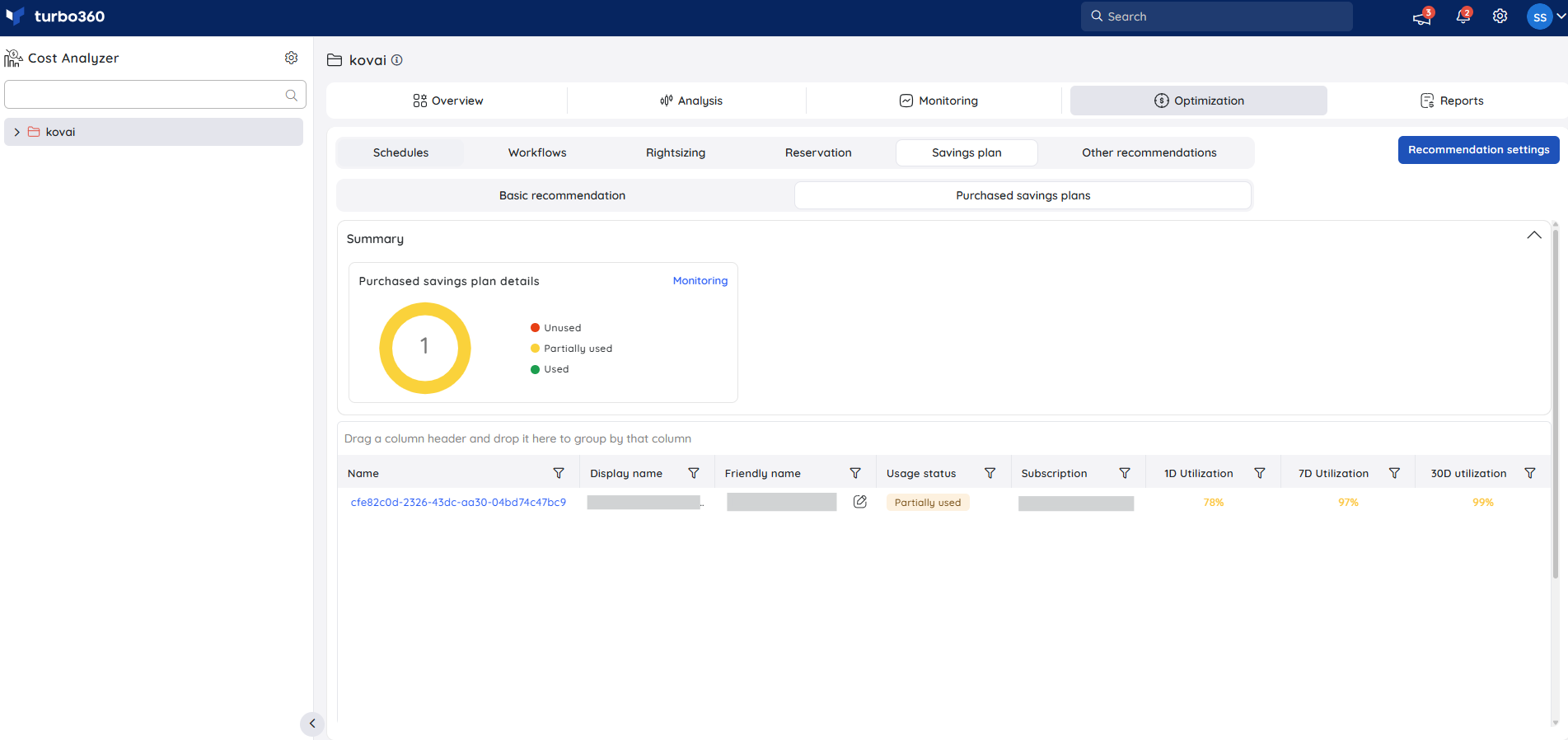
- Purchased savings plans — lists all purchased savings plans across your Azure subscriptions. It displays usage status based on a 7-day utilization trend and utilization percentages across multiple intervals.
- Monitoring — provides expiry monitoring to flag upcoming plan expirations and utilization monitoring to track how efficiently purchased plans are being used.
Steps
Use the following steps to configure expiry and utilization monitoring for your savings plans. Start from the Summary card in the Savings plan section.
Configure expiry monitoring
Expiry monitoring alerts you ahead of a plan's expiry date so you have time to renew or replace it.
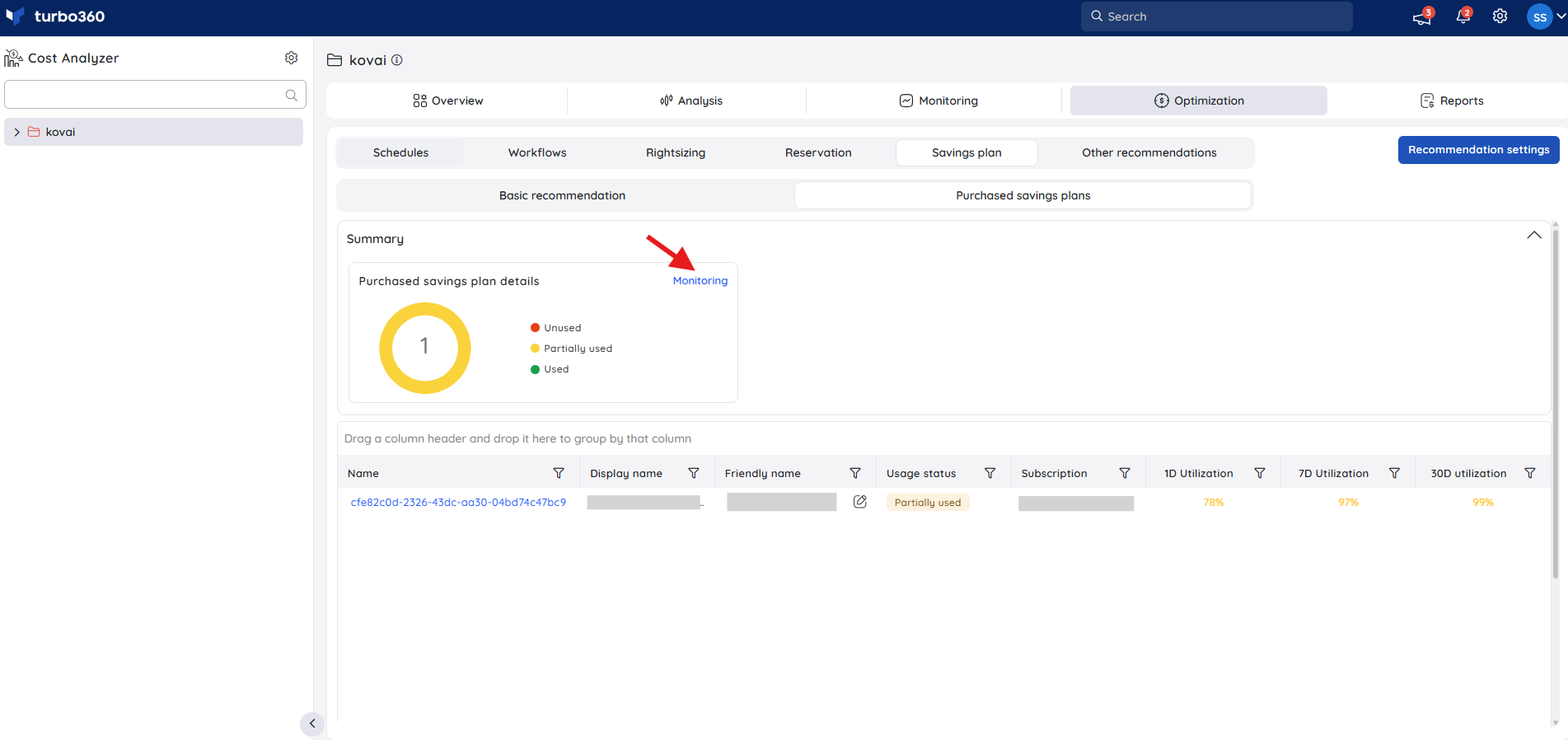
- In the Summary card, select the Monitoring option.
- Open the Expiry monitoring tab and turn on the Expiry monitoring toggle.
- Specify the number of days before expiration when alerts should be triggered.
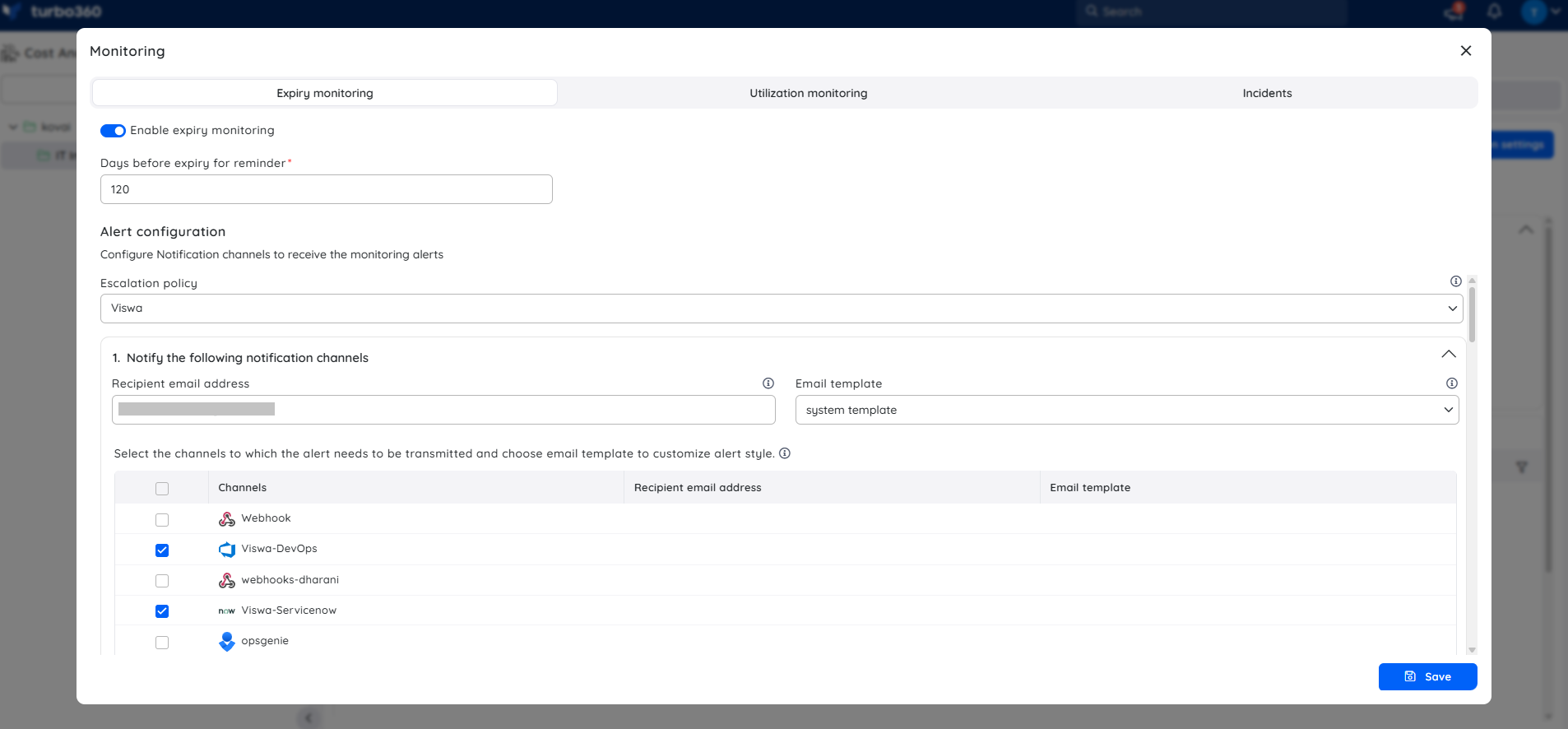
- Select an escalation policy and configure the notification services.
- Click Save to confirm the settings.
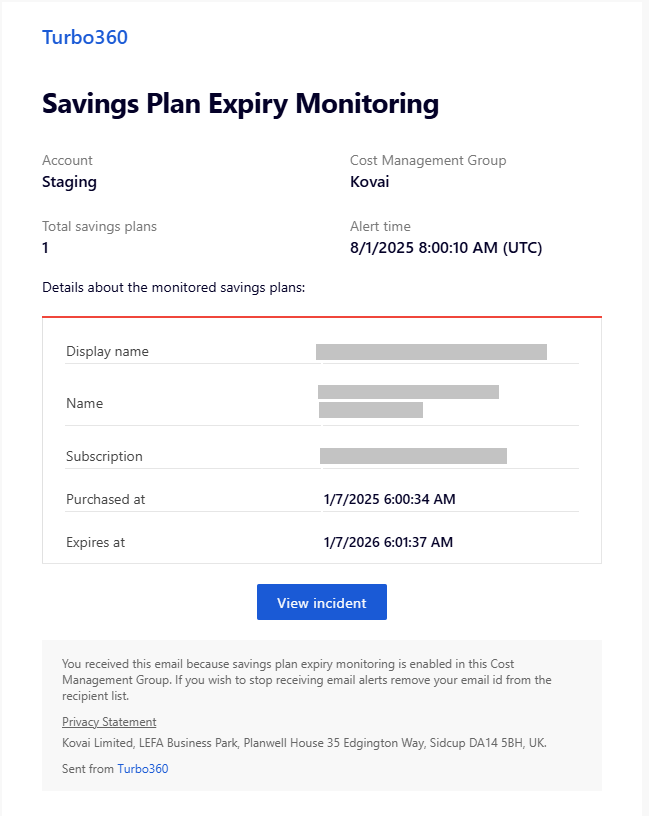
Below is an example of a savings plan expiry alert received via Turbo360 mail, detailing the savings plan information, including the purchase date and expiry date:
Configure utilization monitoring
Utilization monitoring helps you track the consumption of your savings plans, ensuring alignment with expected usage patterns.
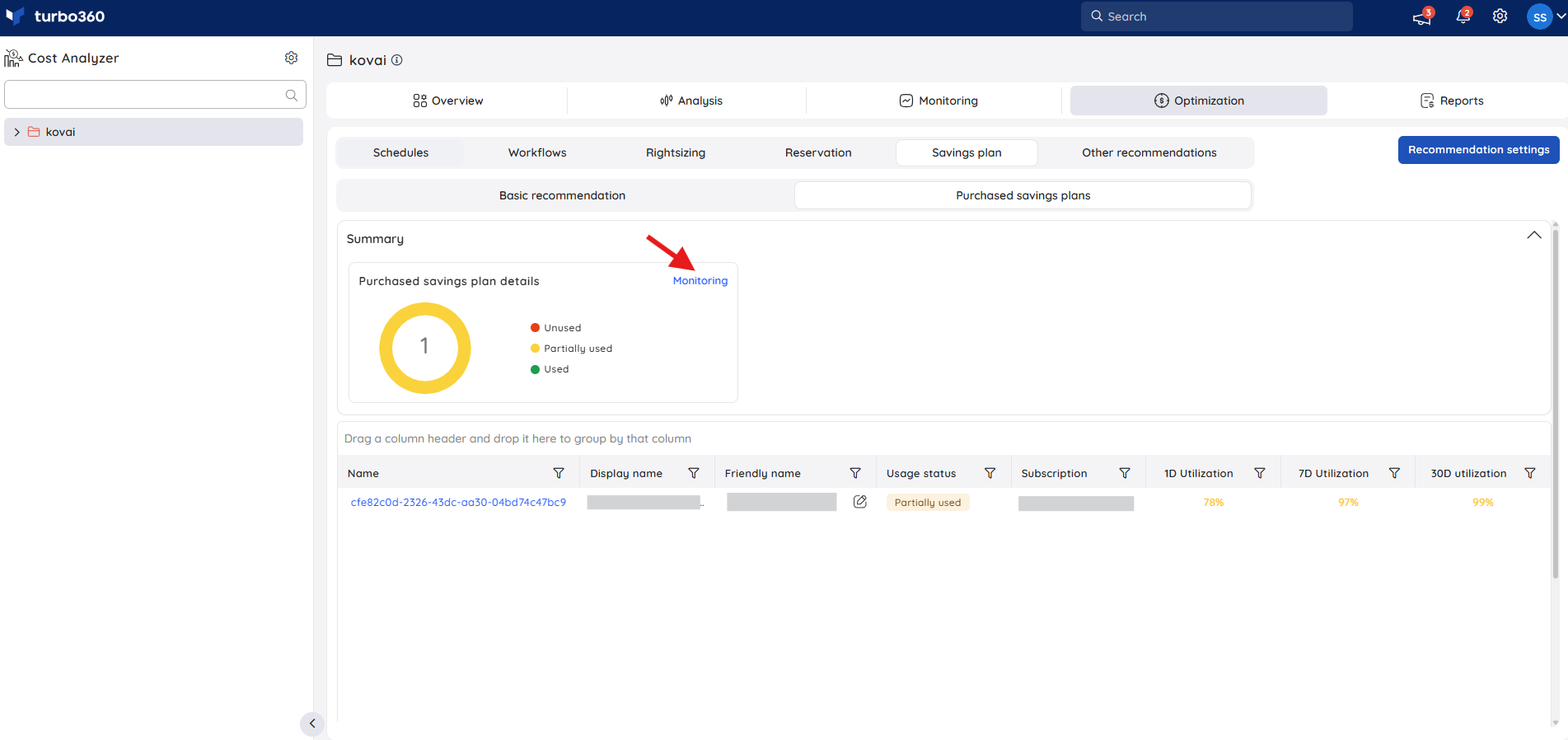
- Within the Summary card, select the Monitoring option.
- Navigate to the Utilization monitoring tab and turn on the Utilization monitoring toggle.
- Select a utilization interval to define how frequently usage is evaluated for alerting.
- Set a utilization threshold — alerts are triggered if actual usage drops below this percentage.
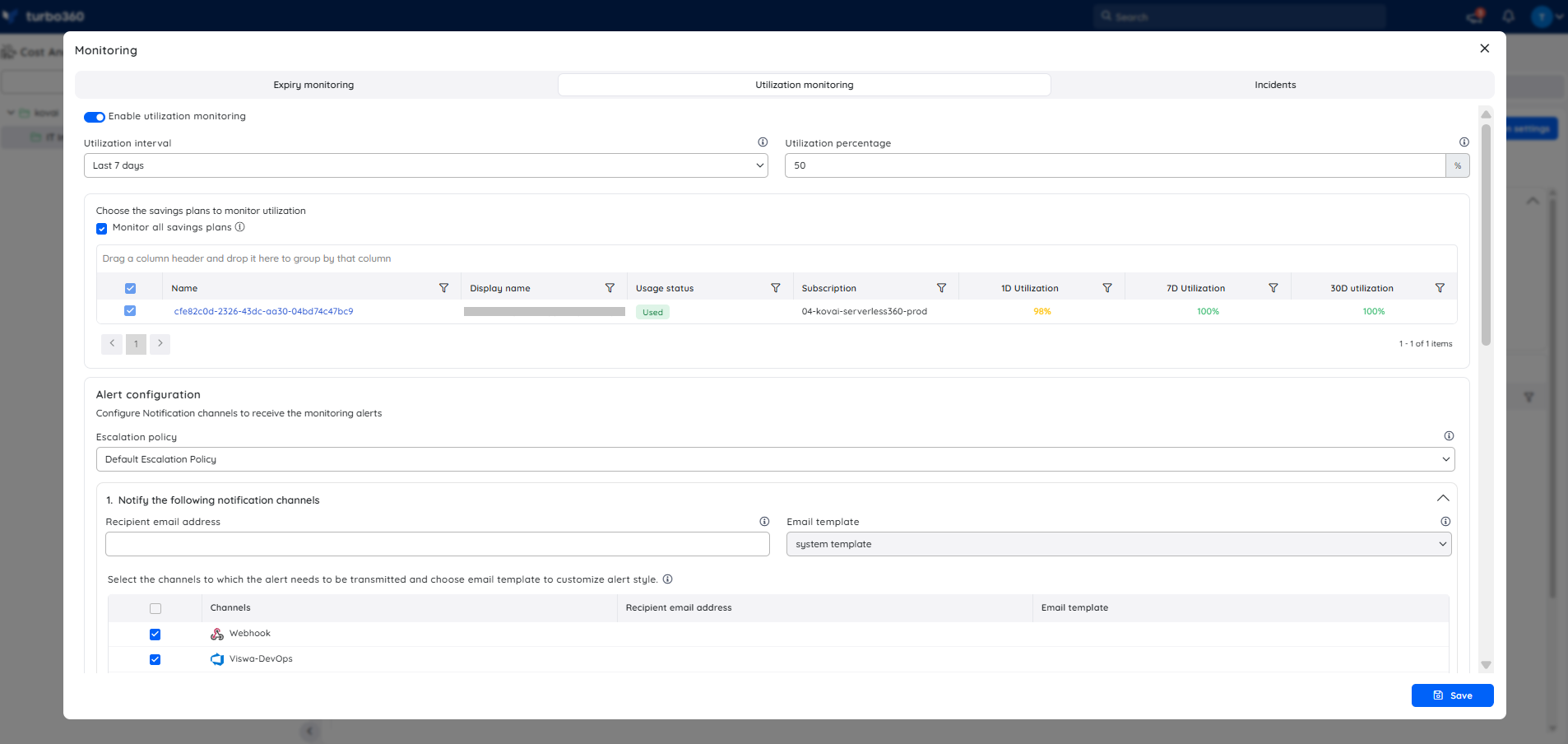
- To monitor all current and future savings plans, select the Monitor all savings plans checkbox. Alternatively, choose specific plans to monitor.
- Configure an escalation policy and select the notification services to be used.
- Click Save to apply your changes.
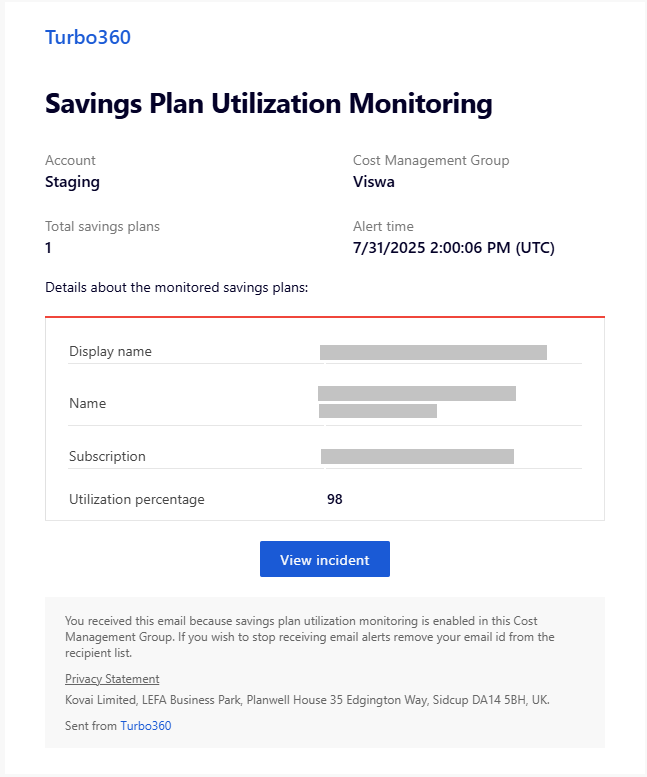
Below is an example of a savings plan utilization alert received via Turbo360 mail, detailing the savings plan information, including the utilization percentage for the relevant savings plan:
Configuration
| Option | Type | Required | Description |
|---|---|---|---|
| Expiry notification window | Number (days) | Yes, when expiry monitoring is enabled | Number of days before expiry that an alert is triggered. |
| Utilization interval | Selection | Yes, when utilization monitoring is enabled | Frequency at which usage is evaluated for alerting. |
| Utilization threshold | Percentage | Yes, when utilization monitoring is enabled | Usage percentage below which an alert is triggered. |
| Monitor all savings plans | Toggle | No | Applies monitoring to all current and future savings plans instead of a specific selection. |
Example scenario
A cost administrator enables Purchased savings plan recommendations on the Production cost management group, then configures expiry monitoring with a notification window and utilization monitoring with a defined threshold, checked at a set interval. As plans approach expiry or usage drops below the threshold, Turbo360 sends alerts through the configured escalation policy, giving the team time to renew, replace, or reallocate the plan before the commitment is wasted.
Troubleshooting
Purchased savings plans aren't visible in Cost Analyzer
Cause: The service principal doesn't have Savings Plan Reader access, or advanced recommendations aren't enabled on the cost management group.
Fix: Assign Savings Plan Reader access to the service principal and enable advanced recommendations in the cost management group's Recommendation Settings.Expiry alerts aren't received
Cause: Expiry monitoring is disabled, or no escalation policy or notification channel is configured.
Fix: Turn on the Expiry monitoring toggle and confirm an escalation policy with valid notification services is selected.Utilization alerts aren't triggering
Cause: Utilization monitoring is disabled, the threshold is set lower than actual usage, or the plan isn't included in the monitored selection.
Fix: Turn on Utilization monitoring, review the threshold value, and confirm the plan is selected or Monitor all savings plans is enabled.
FAQs
What's the difference between Basic recommendations and Purchased savings plans?
Basic recommendations show Azure Advisor's suggestions for new savings plans, while Purchased savings plans lists commitments you already own and their utilization.Can I monitor multiple savings plans with one configuration?
Yes. Select Monitor all savings plans to apply expiry and utilization monitoring to all current and future plans instead of configuring each one individually.Who can manage a purchased savings plan?
Subscription owners at the time of purchase can view, manage, and delegate permissions for the associated savings plan.
Related articles
Was this article helpful?