

Scheduler extensibility points
- 05 Aug 2026
- 4 Minutes to read
- Print
- DarkLight
- Download PDF
Scheduler extensibility points
- Updated on 05 Aug 2026
- 4 Minutes to read
- Print
- DarkLight
- Download PDF
Article summary
Did you find this summary helpful?
Thank you for your feedback!
Overview
The Turbo360 scheduler includes extensibility points that let you call your own code during a schedule run — without writing code directly in the scheduler. These extensibility points are called Actions.
Actions are available at two levels:
Schedule level — the action fires before or after the entire schedule run.
Resource level — the action fires before or after an individual resource operation within the schedule.
Business value
Extensibility points let you coordinate the scheduler with external systems — monitoring tools, runbooks, and custom scripts — without modifying the schedule configuration itself. This keeps automation workflows consistent and reduces manual intervention during planned resource operations.
How it works
The Turbo360 scheduler integrates with extensibility points by calling an HTTP endpoint that you provide. This means you can connect the scheduler to a Logic App, an Azure Function, or any HTTP-accessible service — keeping your custom code under your control while the scheduler handles the trigger.
For example, Turbo360 can call a Logic App, which in turn triggers an Azure Automation Runbook — allowing multi-step automation chains without custom code in the scheduler itself.
Each action is configured independently at either the schedule or resource level. You specify a before action, an after action, or both. Before actions run prior to the schedule or resource operation; after actions run once it completes.
Prerequisites
A Turbo360 schedule must already be configured before adding extensibility points.
You must have an HTTP endpoint ready to receive calls from the scheduler — a Logic App, Azure Function, or equivalent.
Steps
Use the following steps to add and configure extensibility points in the Turbo360 scheduler. You can configure actions at the schedule level or the resource level — navigate to your schedule in Cost Analyzer to get started.
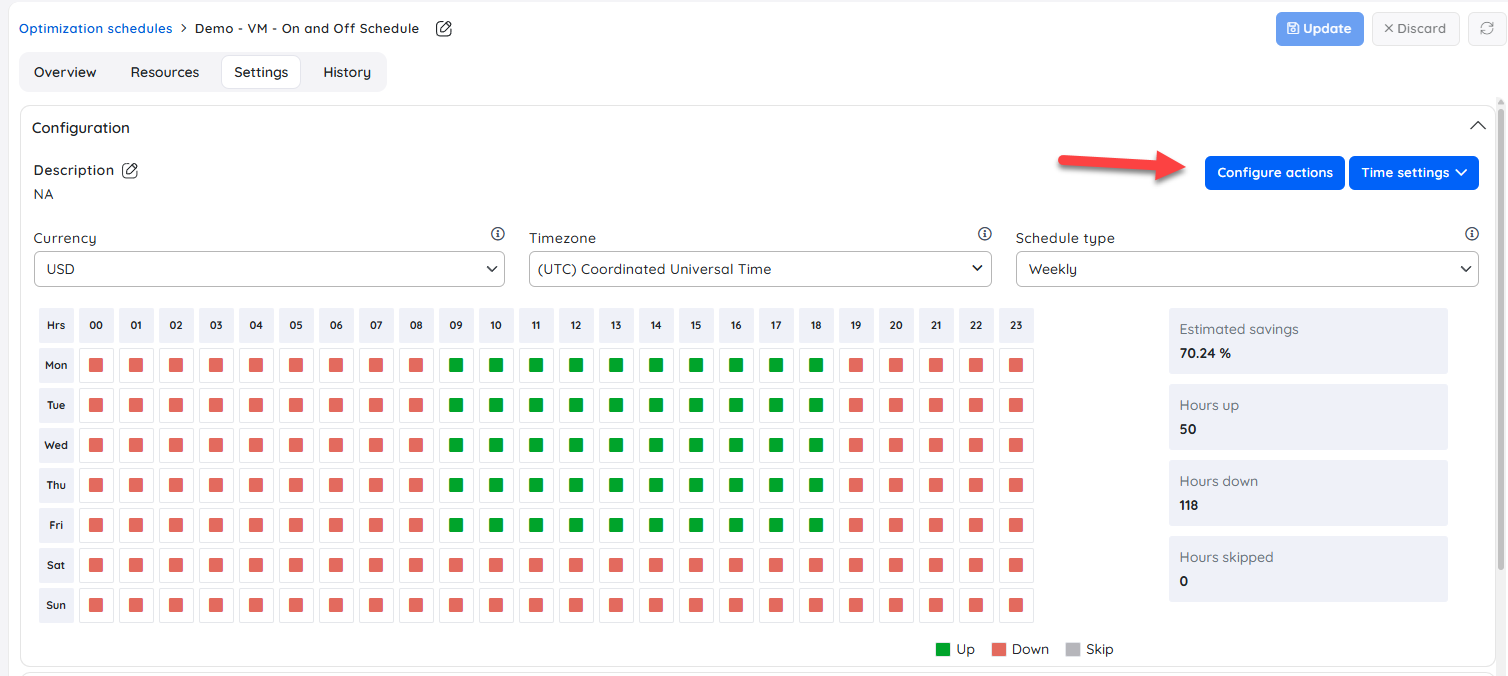
Add an action at the schedule level
Adding an action at the schedule level lets you trigger an external endpoint before or after the entire schedule run — useful for pausing monitoring groups or triggering post-run notifications.
Select the Configure Actions button on the schedule, as shown below.
Add an action at the resource level
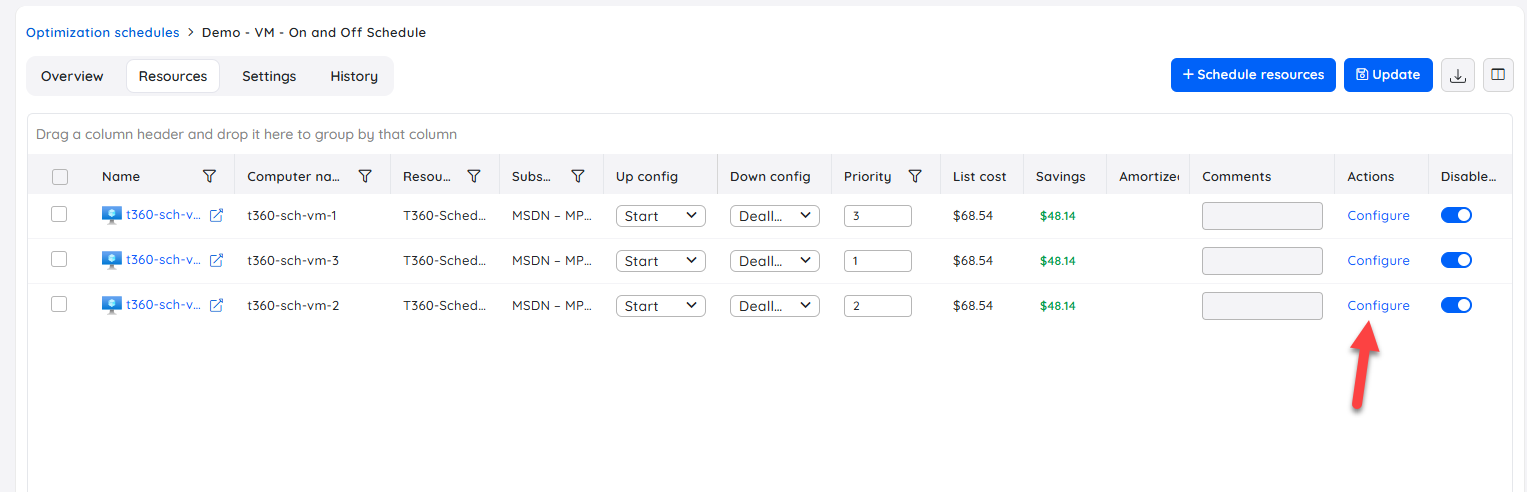
Adding an action at the resource level lets you trigger an external endpoint before or after an individual resource operation — useful for running a PowerShell script to safely shut down services before a VM is stopped, or logging an event after it starts.
Open the resource list within the schedule and click the Configure link next to the target resource.
Configure the action
Configuring an action sets the HTTP endpoint the scheduler calls and controls when the call fires relative to the schedule or resource operation.
On the configuration form, enable the before action, the after action, or both using the radio button, then provide the connection details for your HTTP endpoint.
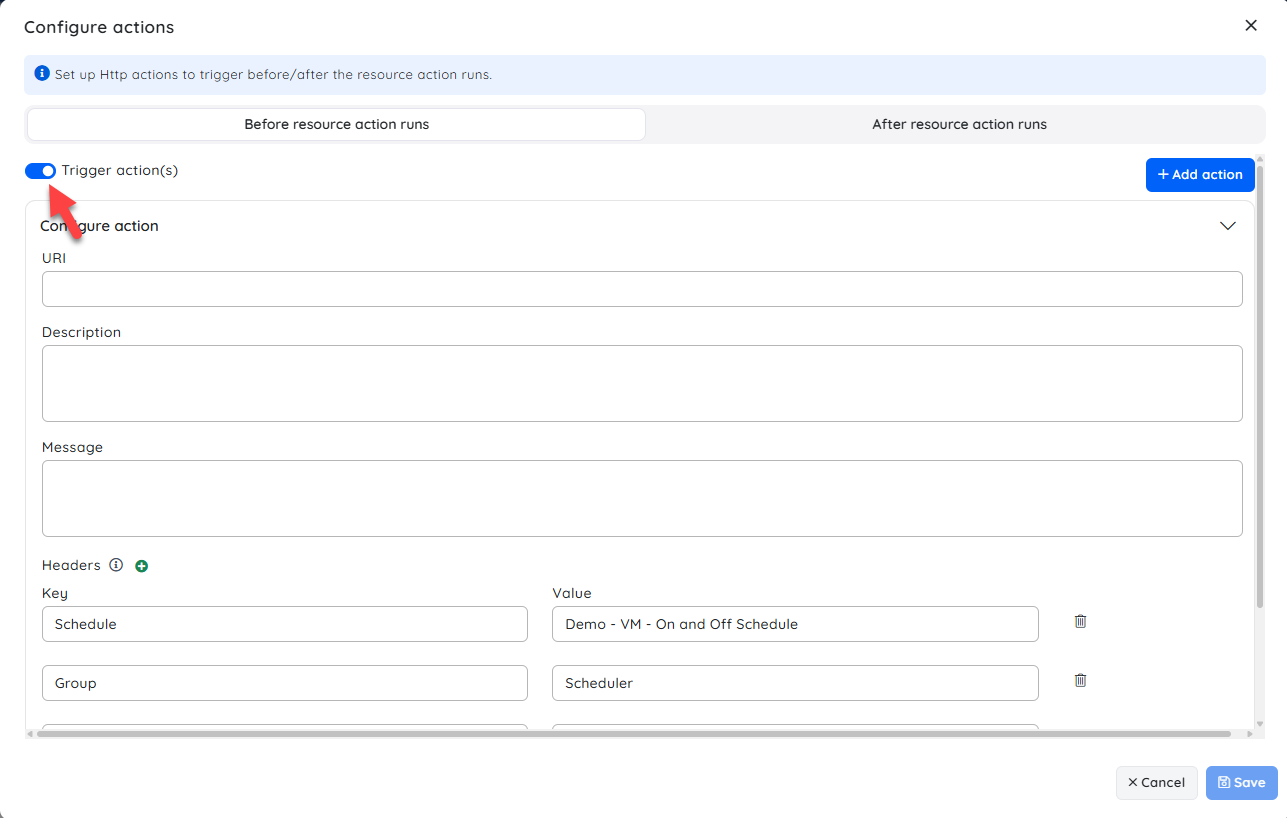
You can add a description to the action — for example, to identify which Logic App the scheduler is calling.
You can include additional HTTP headers or a message body to pass context to the endpoint.
Example scenario
The following scenario illustrates how schedule-level and resource-level actions work together in a single scheduled VM shutdown and restart operation:
Before the schedule runs — a schedule-level before action calls a Logic App that disables a monitoring group, preventing false alerts while VMs are shut down.
Before each VM is stopped — a resource-level before action runs a PowerShell command to safely stop services on the VM before the scheduler issues the shutdown command.
After each VM starts — a resource-level after action runs a PowerShell command to log a startup event to the Windows event log.
After the schedule completes — a schedule-level after action re-enables the monitoring group.
Troubleshooting
Action does not appear to fire during a schedule run
Cause: The action may not be enabled — the radio button must be toggled on before saving the configuration.
Fix: Open the action configuration form and confirm the before or after toggle is active. Save the configuration and re-run the schedule.HTTP endpoint returns an error and the schedule run is affected
Cause: The endpoint URL is unreachable, or the Logic App or Azure Function returned a non-2xx response.
Fix: Verify the endpoint URL is correct and publicly accessible from Turbo360. Check the Logic App or Azure Function run history for error details.Configure link is not visible at the resource level
Cause: The resource may not yet be added to the schedule, or the resource list has not fully loaded.
Fix: Confirm the resource appears in the schedule's resource list. Refresh the page and retry.Action fires but the HTTP endpoint receives no message body or headers
Cause: The message body and additional HTTP headers fields were left blank in the action configuration.
Fix: Open the action configuration form and populate the message body and header fields as required by your endpoint.
Related articles
The following starter kit Logic App templates are available to help you set up common extensibility scenarios. Copy the JSON template from the relevant article and deploy it to your Azure Logic App, then connect the endpoint to the Turbo360 scheduler.
Schedule level examples
Resource level examples
Was this article helpful?