

Scheduling an automated task
- 05 Aug 2026
- 2 Minutes to read
- Print
- DarkLight
- Download PDF
Scheduling an automated task
- Updated on 05 Aug 2026
- 2 Minutes to read
- Print
- DarkLight
- Download PDF
Article summary
Did you find this summary helpful?
Thank you for your feedback!
Overview
Automated tasks in Turbo360 can be triggered manually on demand or scheduled to run automatically at a defined time and frequency. This article covers both options — running a task immediately and configuring a recurring schedule with recurrence and termination rules.
Navigate to the Automated tasks tab in any Business Application to access configured tasks.
Business value
Scheduling automated tasks eliminates the need for manual intervention during routine remediation operations. By defining a recurring schedule, you ensure that time-sensitive operations — such as clearing dead-lettered messages or resetting queue state — execute reliably without requiring an engineer to be present.
How it works
Each automated task configuration includes an optional scheduling section. When scheduling is disabled, the task runs only when manually triggered. When scheduling is enabled, Turbo360 evaluates the schedule on each recurrence interval and executes the task automatically.
The schedule is defined by four properties: the timezone, the start date and time, the recurrence frequency, and the termination condition. All four work together to determine when and how many times the task runs.
Required permissions
To run or schedule automated tasks, your role must have the Automated Task feature permission enabled in Business Applications.
| Permission level | What it allows |
|---|---|
| Read | View configured tasks and task history |
| Manage | Create, edit, delete, and schedule automated tasks |
| Run and cancel automated task | Manually trigger or cancel a task run (included in Manage) |
Resource-level permissions are also required for the Azure resource type the task targets. Configure both permission levels in Settings > User management > Roles.
.png)
Steps
Use the following steps to run a task manually or configure a schedule for an existing automated task. Open the Automated tasks tab in the relevant Business Application to get started.
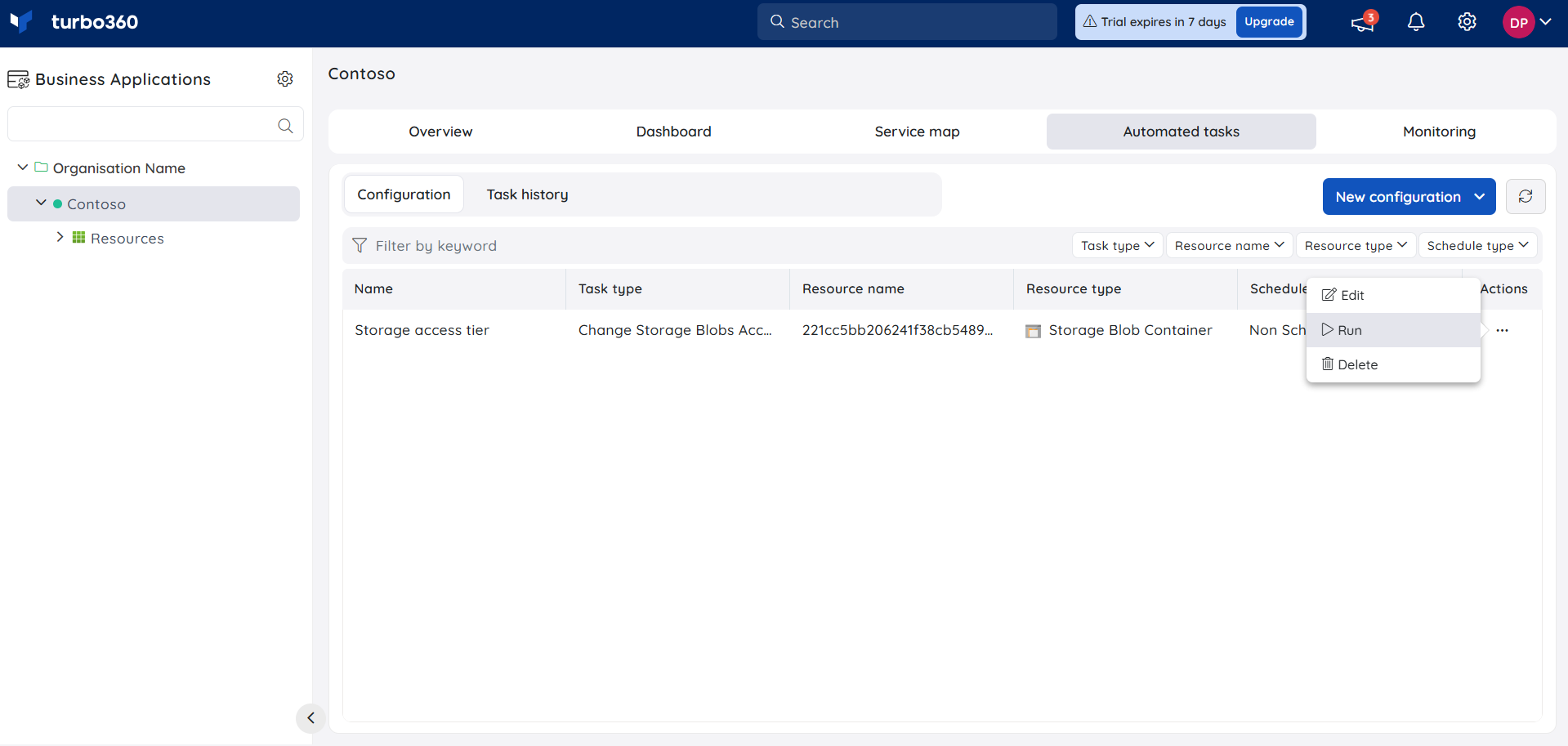
Run a task manually
Running a task manually lets you execute the configured operation immediately, outside of any defined schedule.
- Click the Actions menu next to the task in the list.
- Select Run.
Define a schedule
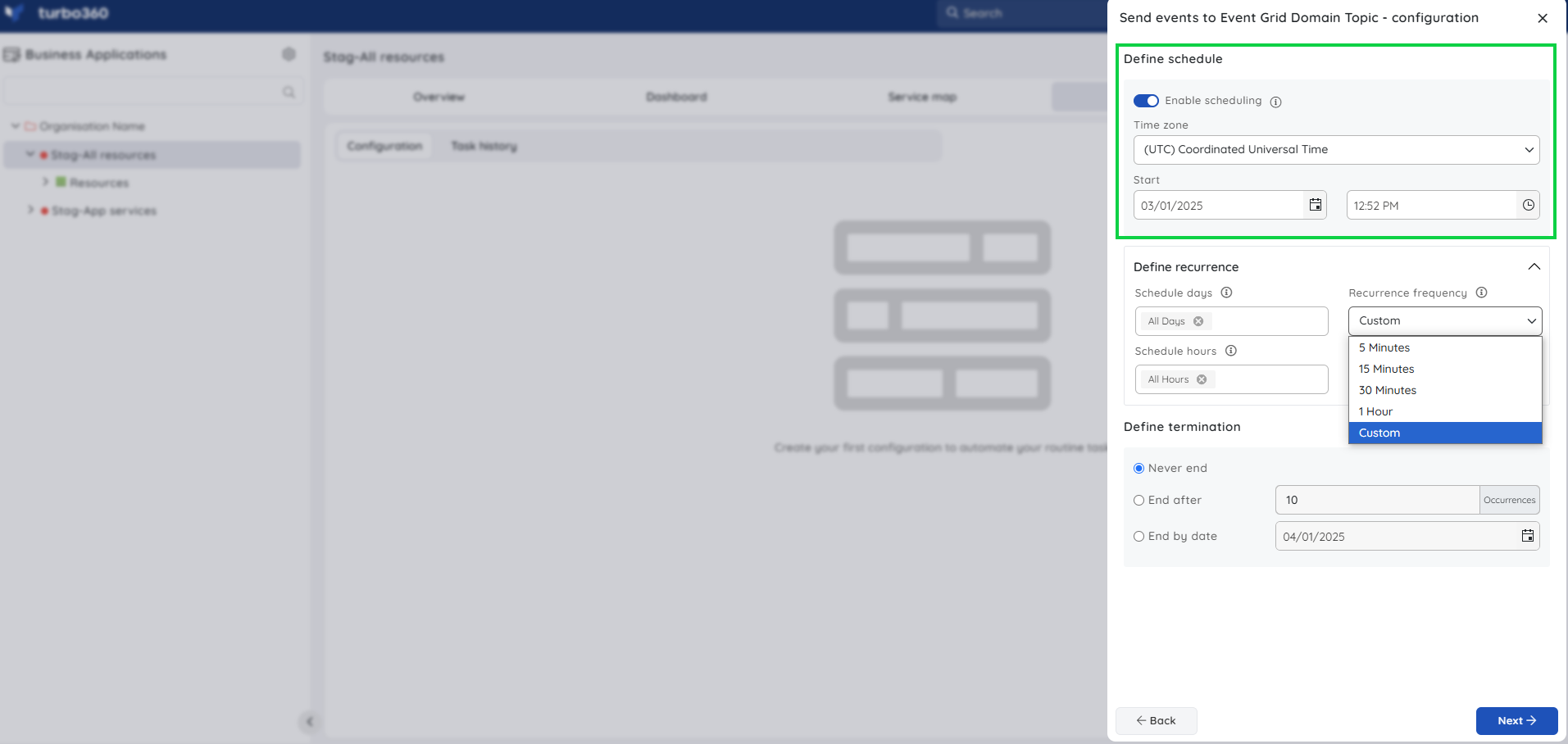
Defining a schedule configures the task to run automatically at a specified time and timezone, serving as the anchor point for all recurrence rules.
- Open the task configuration.
- Turn on Enable scheduling.
- Select the Timezone in which the task should run.
- Set the Start date and Start time.
Define recurrence
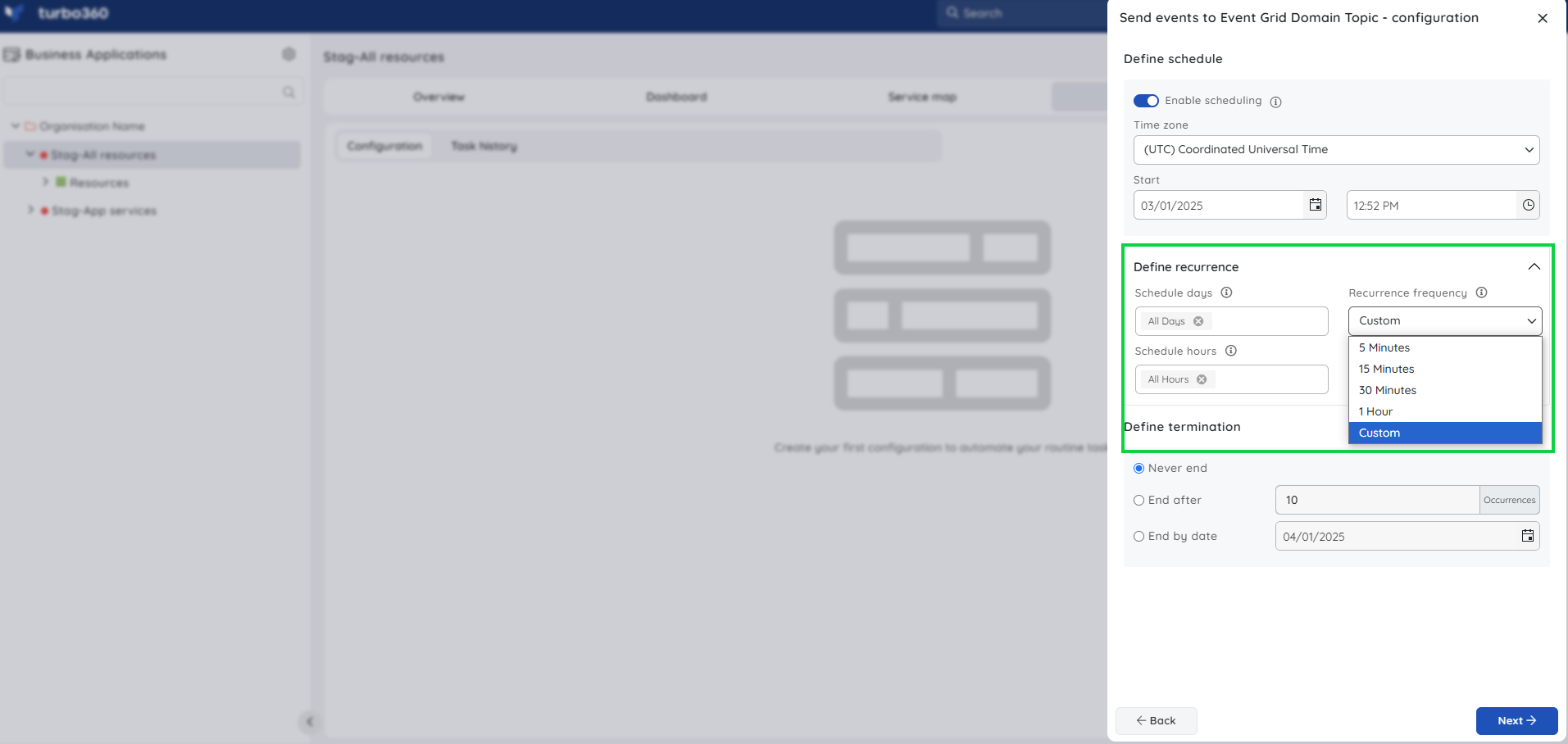
Defining recurrence sets how frequently the task repeats after the start time, allowing continuous automated execution without manual re-triggering.
- After setting the start date and time, configure the recurrence frequency.
- Choose one of the preset intervals: 5 minutes, 15 minutes, 30 minutes, or 1 hour.
- To restrict execution to specific hours only, select Custom and define the allowed hours.
Define termination
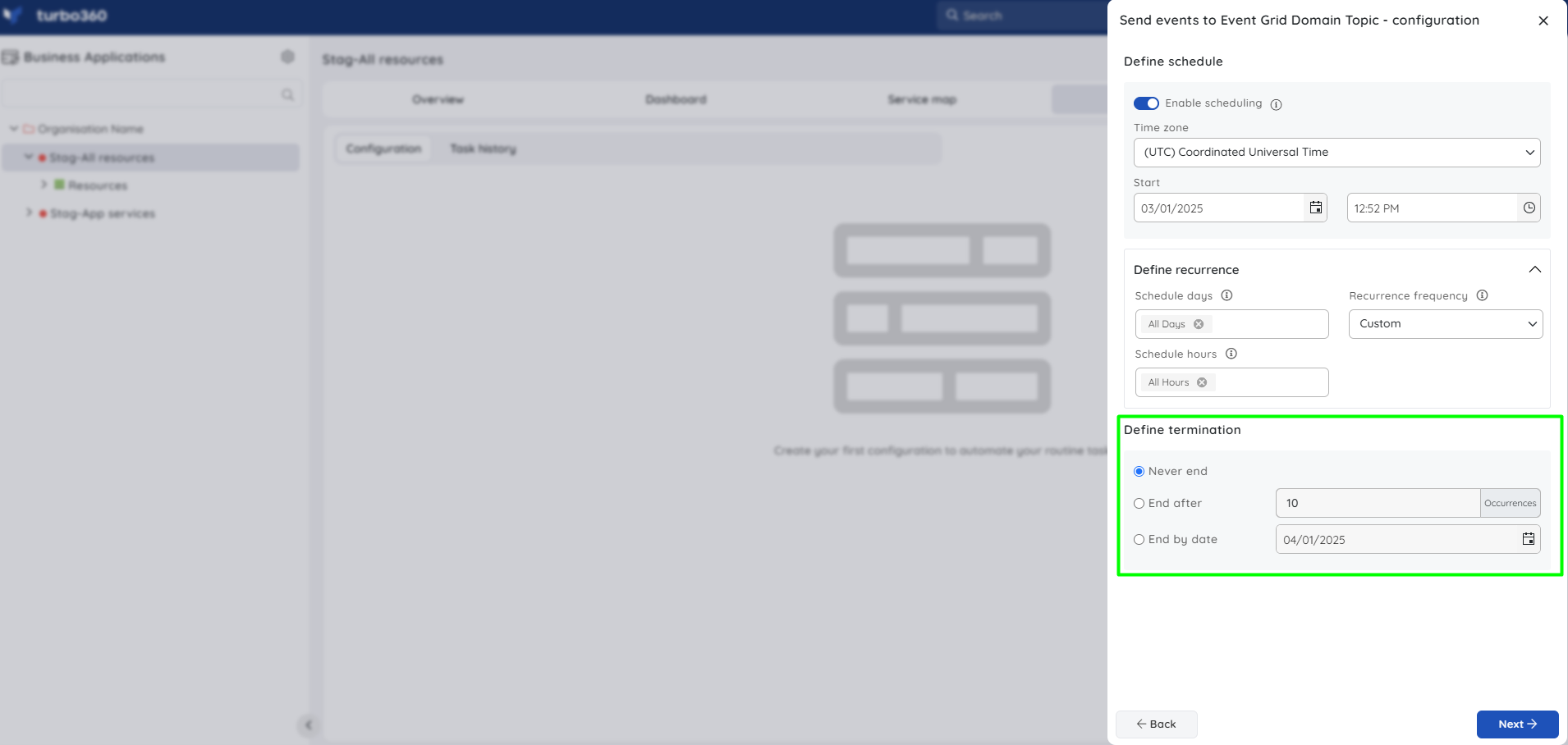
Defining a termination condition sets when the scheduled task stops running, preventing indefinite execution when the remediation window has a known end point.
- By default, termination is set to Never end.
- To stop after a set number of runs, select End after and specify the occurrence count.
- To stop on a specific date, select End by and choose the date.
Related articles
Was this article helpful?