

Service Bus Queue
- 05 Aug 2026
- 7 Minutes to read
- Print
- DarkLight
- Download PDF
Service Bus Queue
- Updated on 05 Aug 2026
- 7 Minutes to read
- Print
- DarkLight
- Download PDF
Article summary
Did you find this summary helpful?
Thank you for your feedback!
Overview
Azure Service Bus is a cloud messaging service that connects applications, devices, and services running in the cloud or across devices, acting as a messaging backbone between them. You can associate a Service Bus Queue with a Turbo360 Business Application to view, process, and manage its messages.
Business value
Turbo360 gives you visibility into Service Bus Queue messages that the Azure portal doesn't expose by default — letting your team query, filter, repair, and resubmit messages directly, reducing the need for custom tooling during incident response.
How it works
Turbo360 lets you query messages in the Active-end or Dead-Letter queue, in Peek or Deferred state, using message count and sequence number to control where retrieval starts. Retrieved messages can be filtered by System and Custom properties, and by Dead-letter reason (including system-provided and custom error reasons). Filtering supports both JSON and text formats.
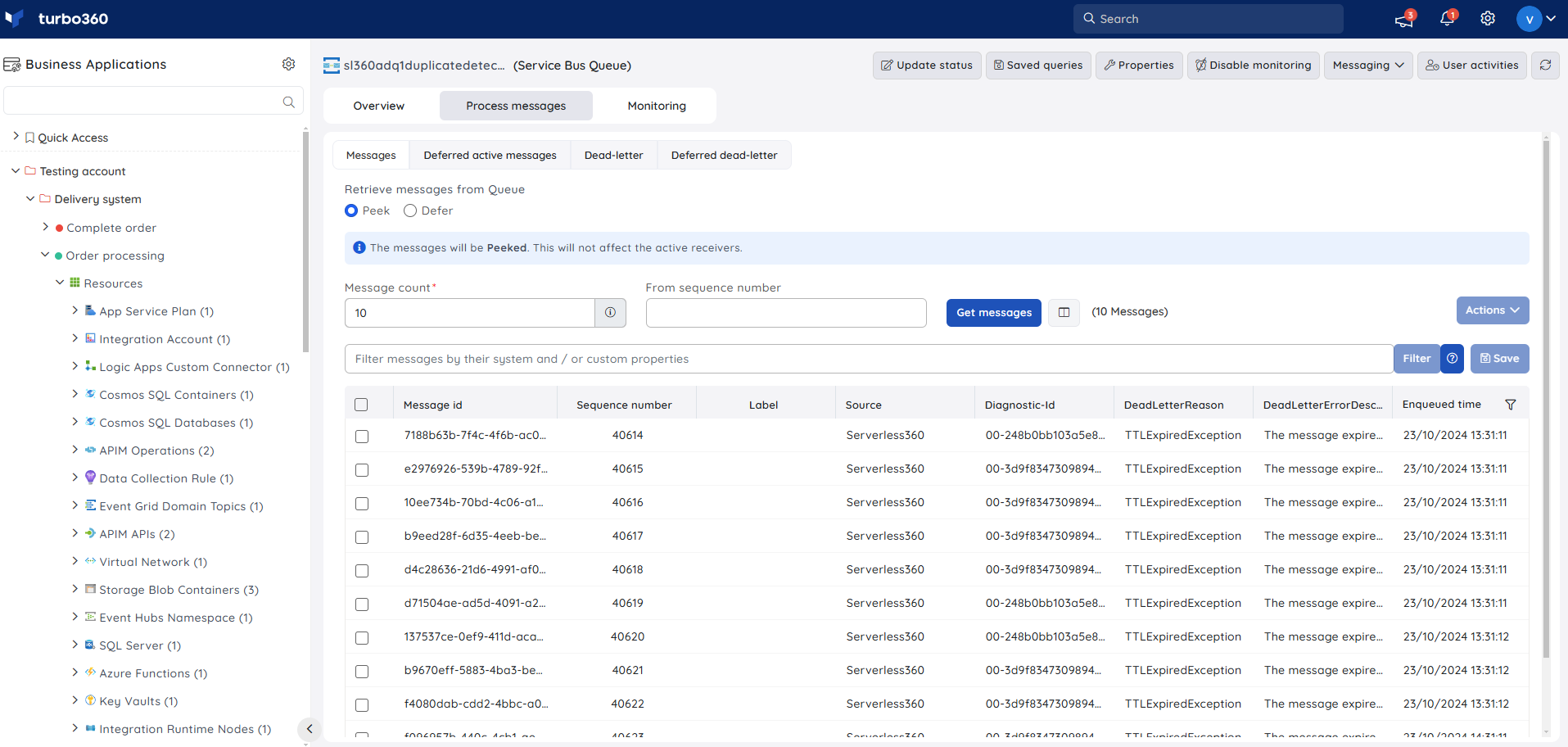
Deferred messages can be accessed anytime from the Deferred Active Messages and Deferred Dead-Letter tabs.
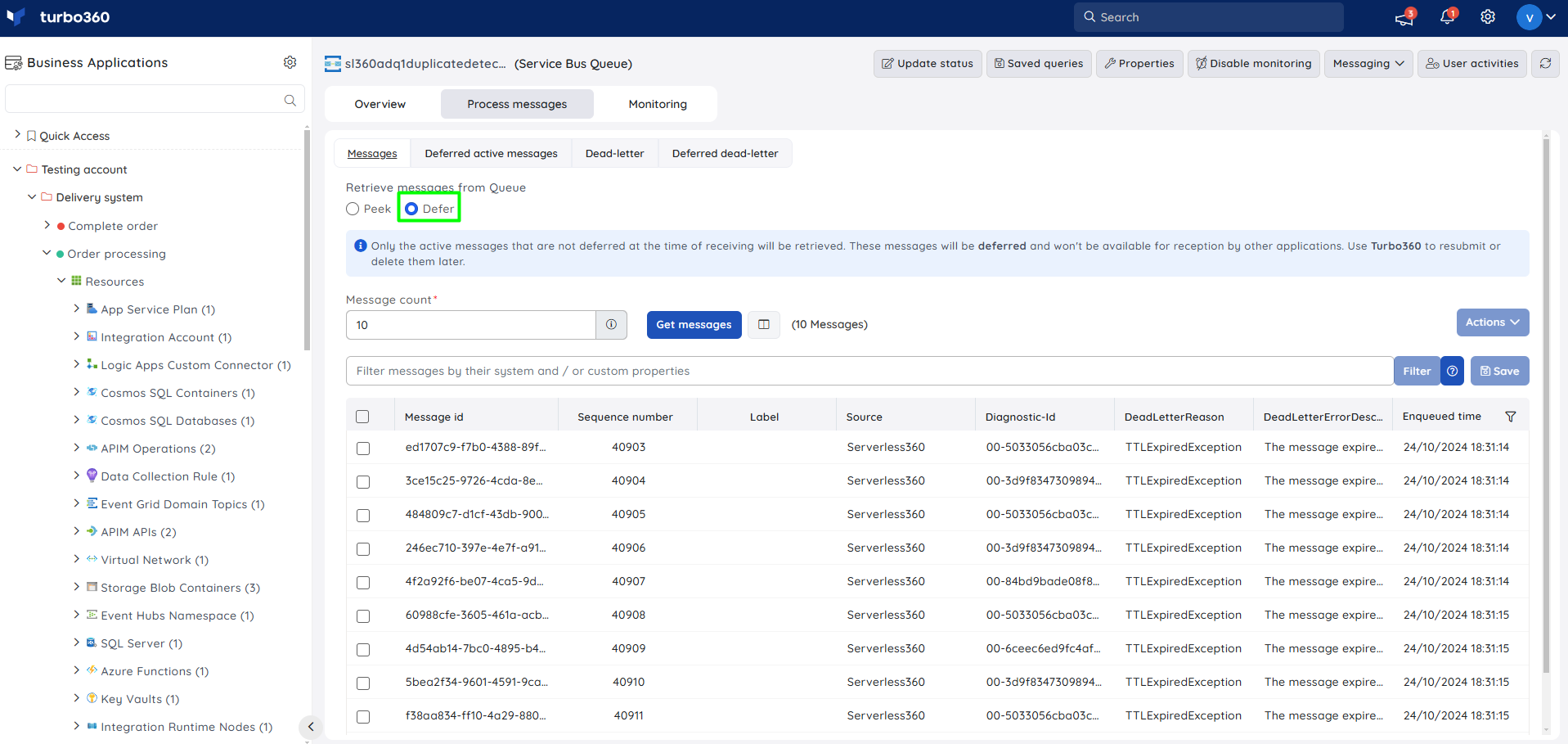
| Peek mode | Defer mode |
|---|---|
| Messages are peeked; active receivers of the active-end queue are unaffected. | Messages are deferred; active receivers of the active-end queue are affected. |
| Delivery count is not increased. | Delivery count is increased. |
| Delete operation is not available. | Delete operation is available. |
You can also run out-of-the-box queries on retrieved messages using system or custom properties.
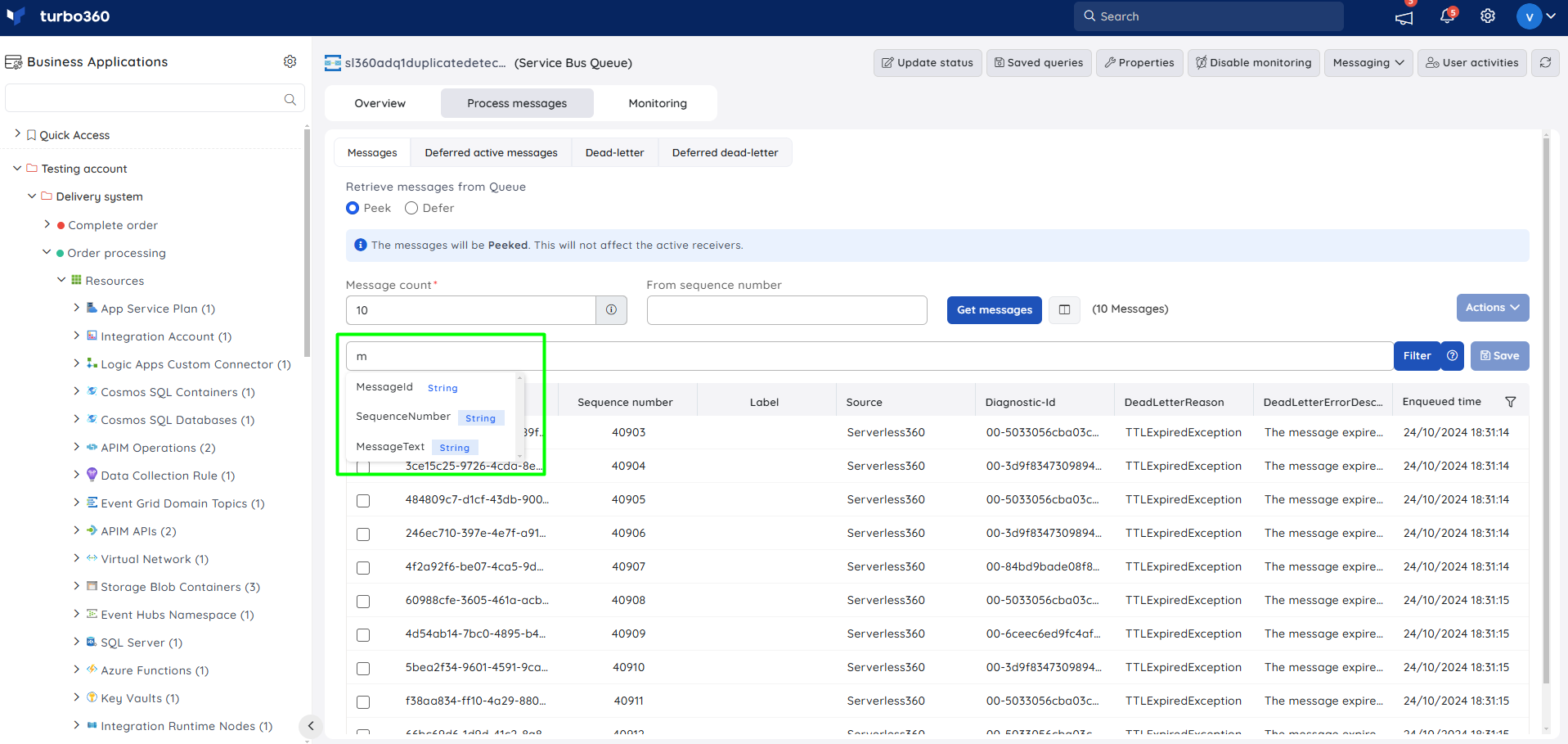
Points to remember:
- To access a deferred message in the Azure portal, you need its sequence number. Turbo360 gives you access to all deferred-state messages without needing the sequence number.
- Messages larger than 100 MB are retrieved in batches of 50 for optimal performance.
The options under the Actions button (Save, Resubmit, Repair & Resubmit) are disabled for messages larger than 1 MB. Messages larger than 10 MB can't access context menu options other than resubmit and properties.
Permissions
| Permission | Description |
|---|---|
| Read | View, query, and filter messages in the active-end and dead-letter queue. |
| Manage | Update queue status and perform bulk status changes, in addition to all Read capabilities. |
| Reprocess | Resubmit messages from the active-end or dead-letter queue to the same queue, a different queue, a topic, or an API endpoint. |
| Repair & Reprocess | Repair message content (individually, or in bulk using Excel or JSON) and resubmit it. |
| Upload | Upload messages from an Excel workbook or process messages from stored JSON files into the queue. |
| Purge | Backup and delete messages from the active-end or dead-letter queue. |
Operations
Manage Service Bus Queue messages directly from Turbo360 to avoid switching to the Azure portal during message troubleshooting, replay, or cleanup.
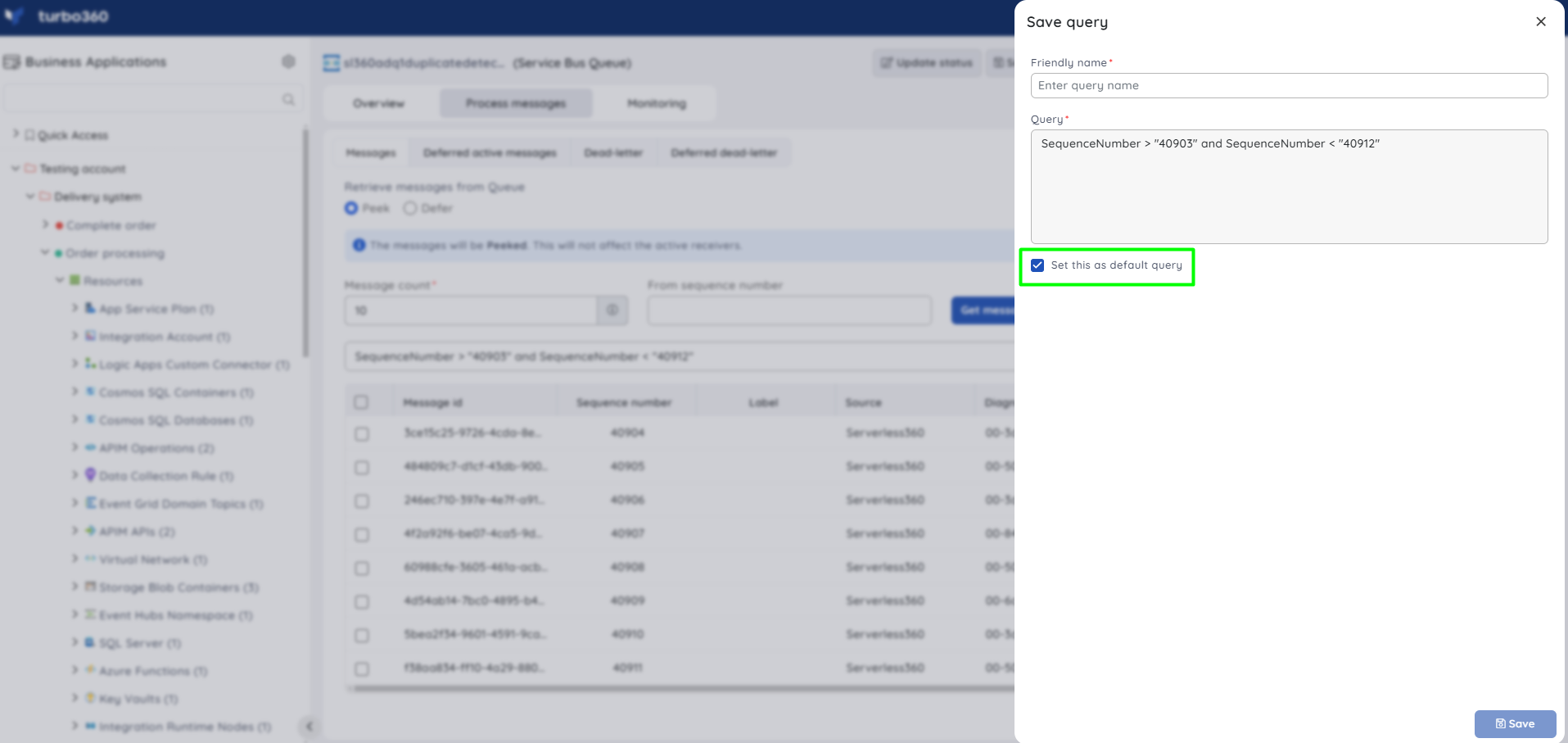
Save a query filter
- Save — saves the current filter query for reuse. Use this when you run the same message query regularly and want to avoid re-entering it.
- Default query — sets a query to display automatically when retrieving messages in any mode.
Click Save next to the Filter option, or access saved queries from Saved queries at the top of the screen.
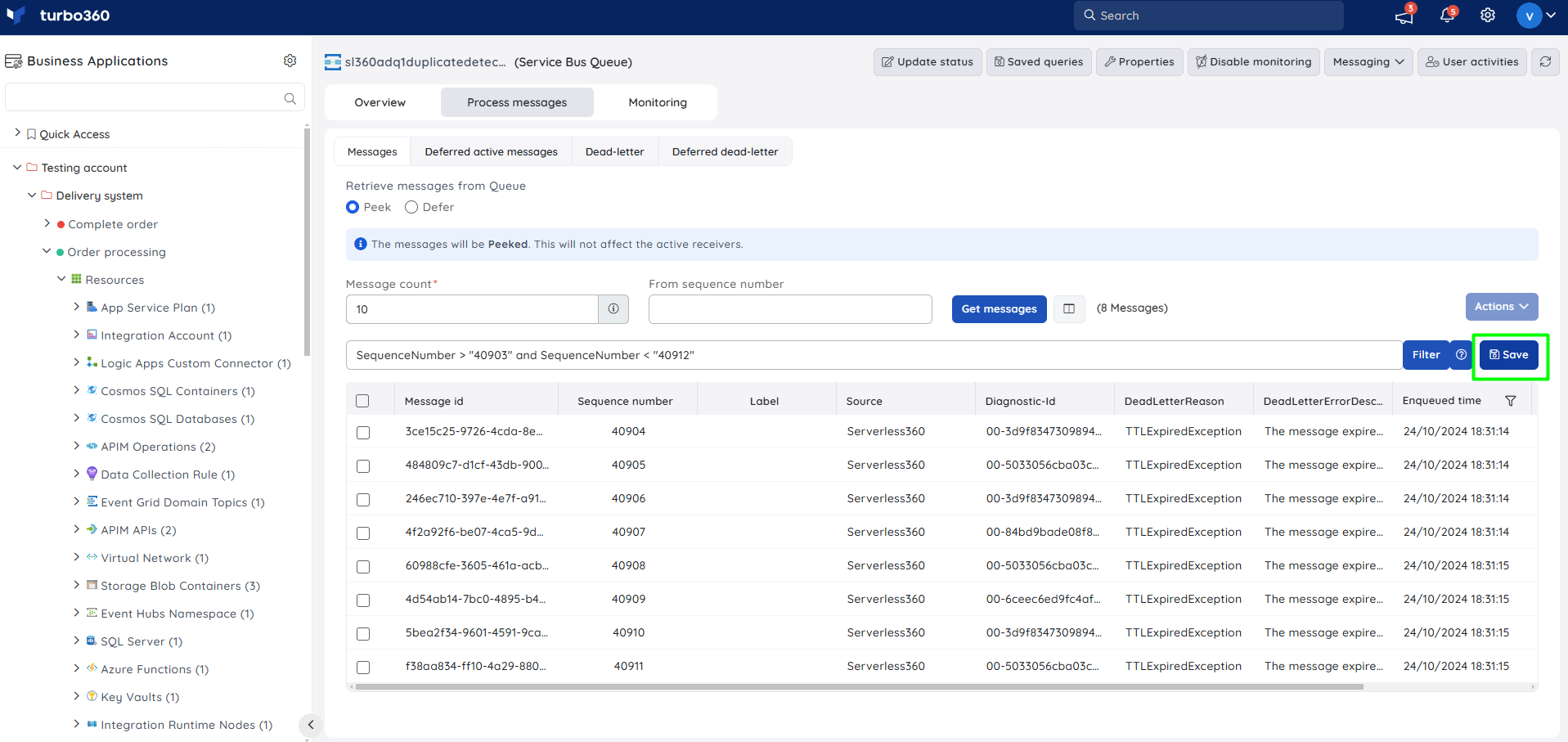
Update status
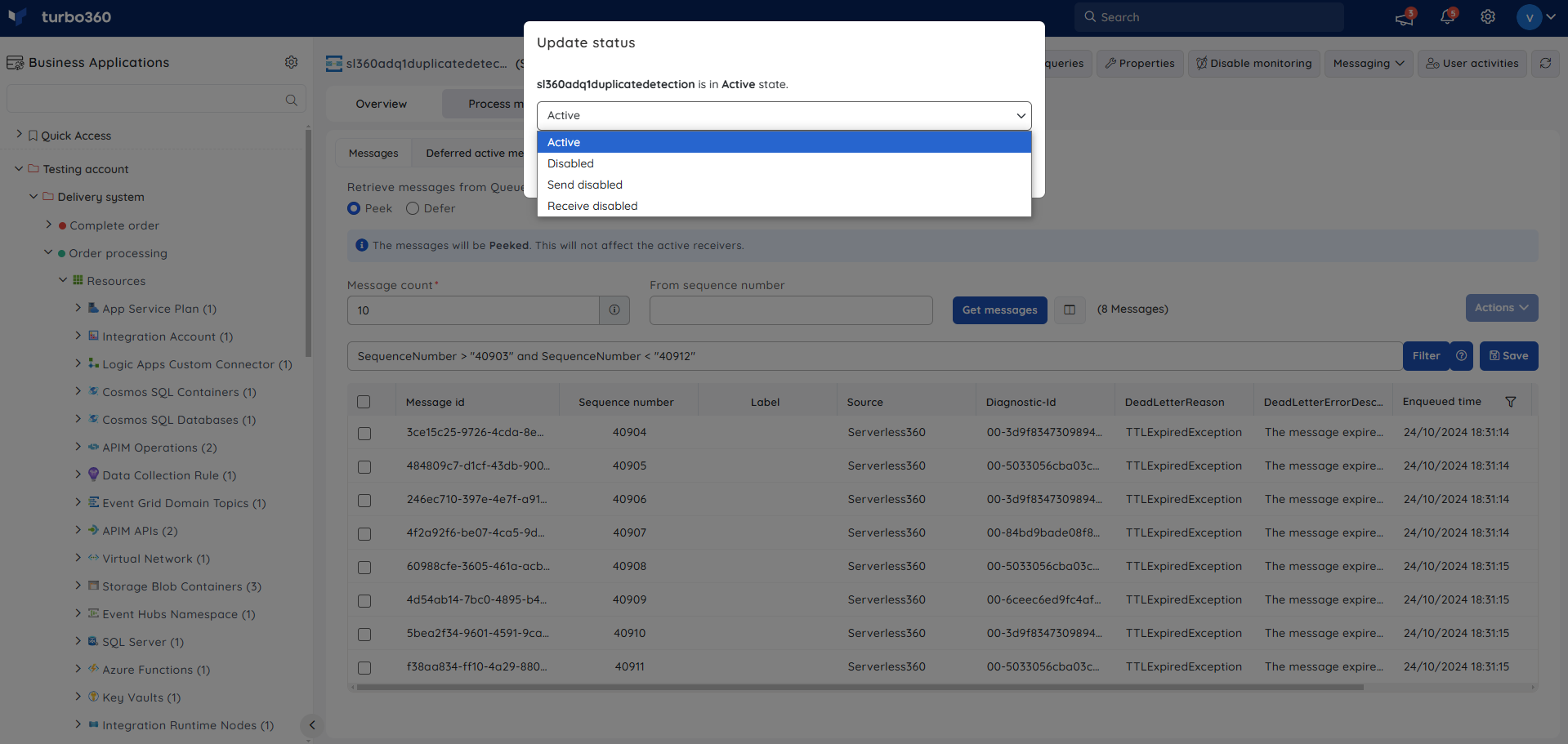
- Update status — changes the status of the Service Bus Queue resource. Use this when you need to enable or disable the queue without going to the Azure portal.
- Click Update status and select an option from the available list.
Resubmit and repair messages
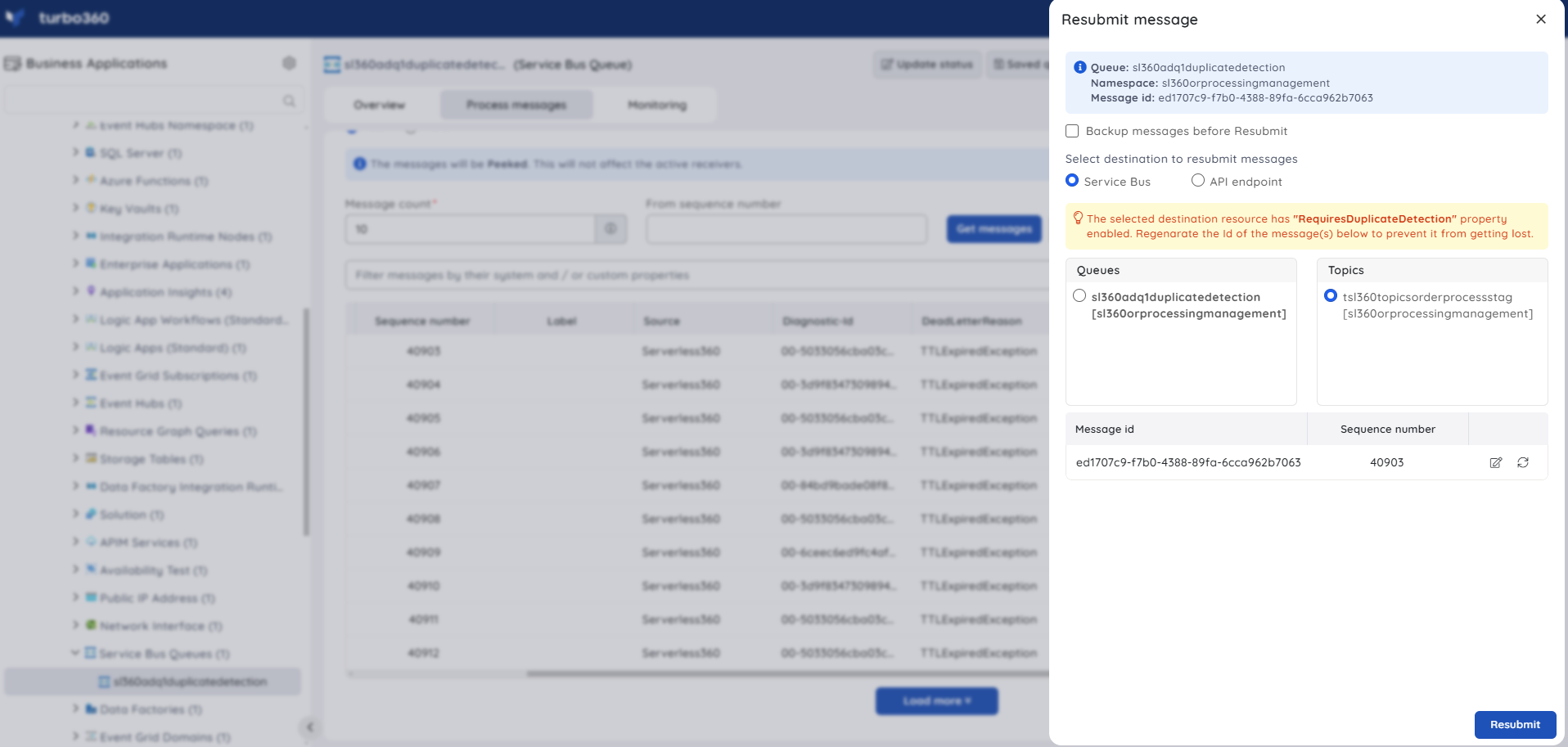
- Resubmit — sends a single message or a bulk of messages from the active-end or dead-letter queue back to the same queue, a different queue, a topic, or an API endpoint. Use this when a message needs to be replayed after a transient failure.
- Repair and Resubmit — repairs message content before resubmitting, individually or in bulk using an Excel sheet or JSON file. Use this when the message content itself caused the failure and needs correction before replay.
Avoid duplicate message loss
Sending messages with the same message ID to a Service Bus resource with duplicate detection enabled causes the duplicates to be ignored. Turbo360 lets you regenerate the message ID manually or automatically while resubmitting.
Repairing an individual queue message:
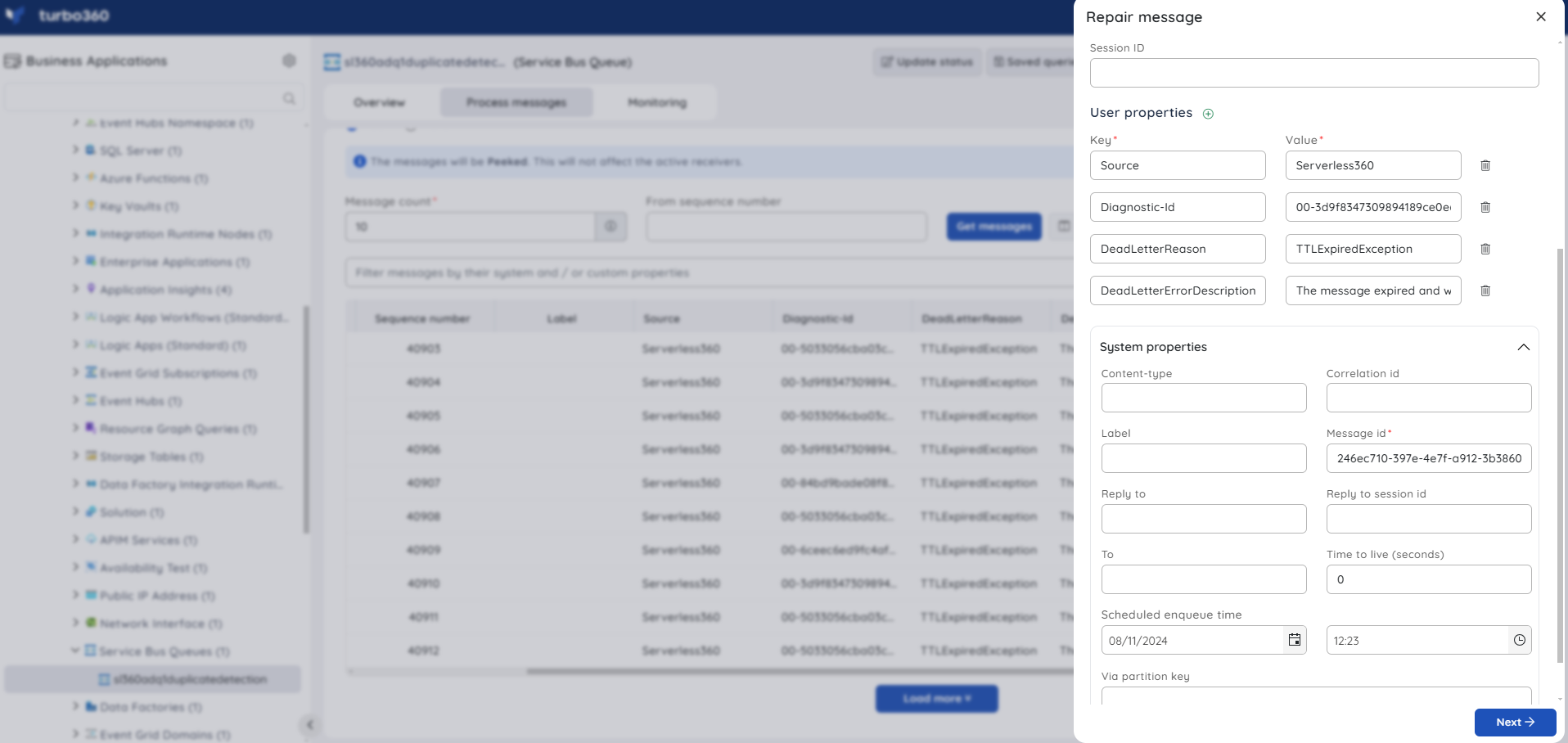
Select the appropriate option from the Actions menu to repair and resubmit using Excel sheets or JSON files. Modify the downloaded file and upload it using the same blade.
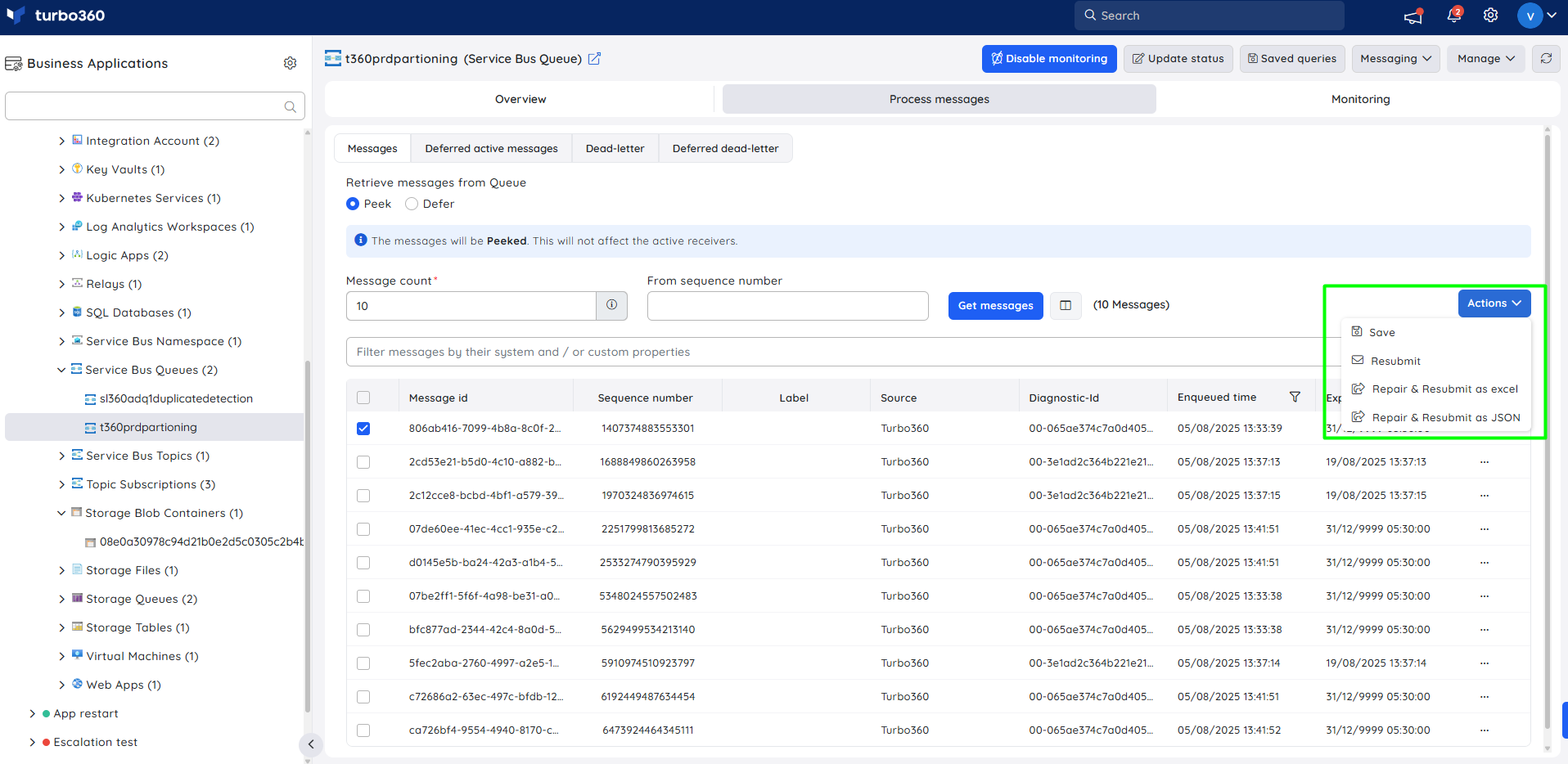
Handling queue messages with Excel and JSON:
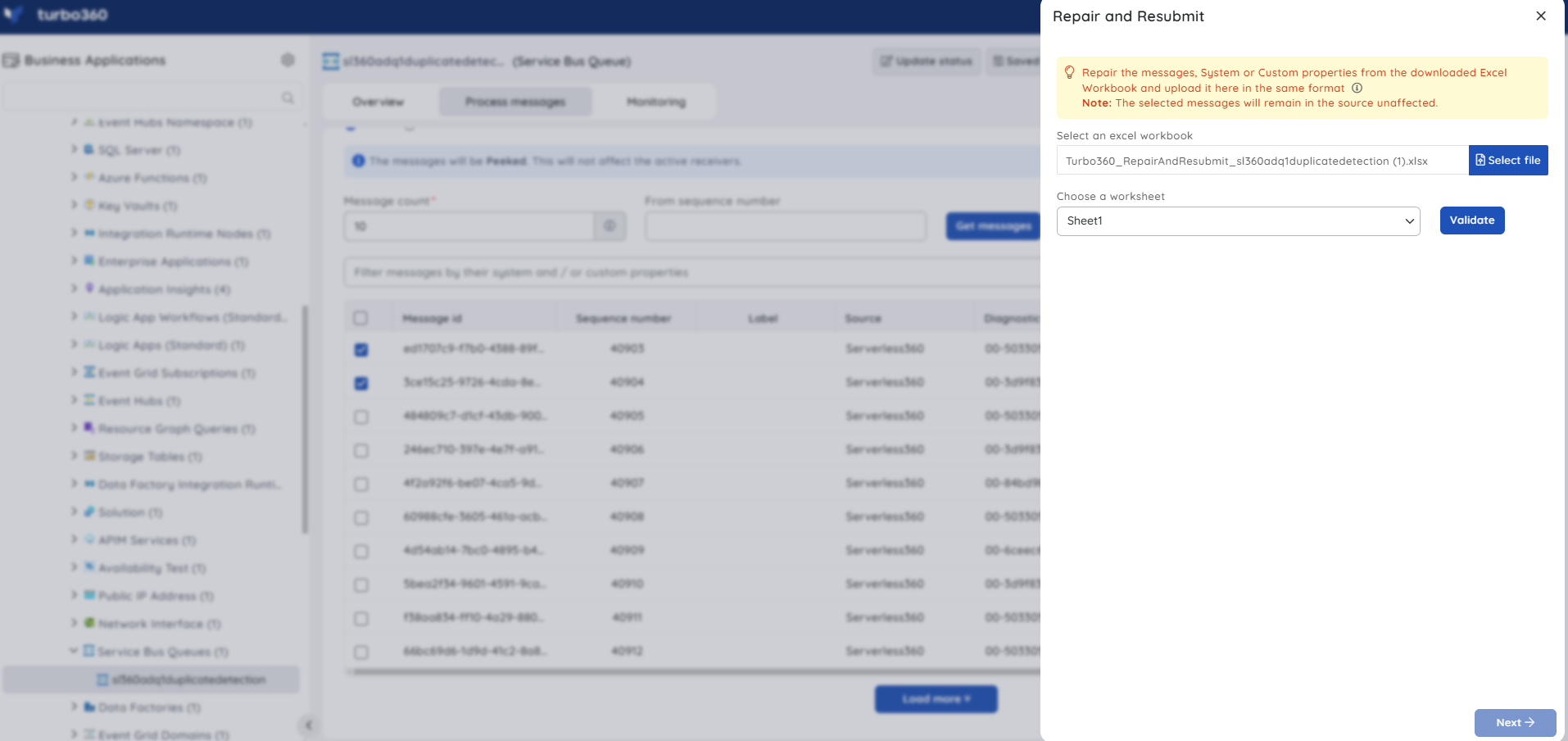
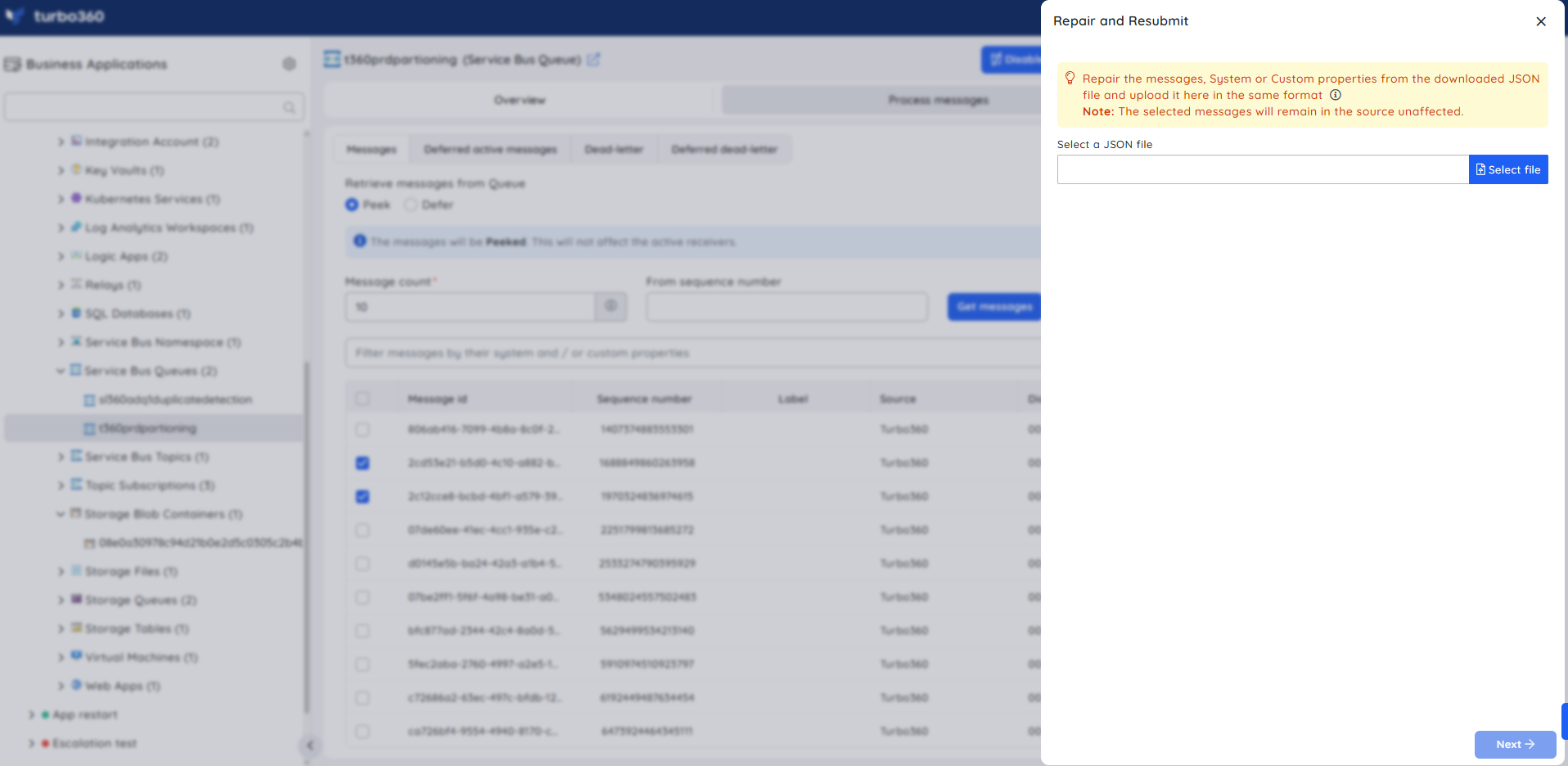
Export and upload messages
- Export — saves selected messages as a single JSON file for portability or reuse across environments. Use this when you need to back up or migrate messages between queues.
- Upload from Excel — uploads messages stored in an Excel workbook directly to the queue.
- Process from stored JSON — uploads JSON files stored in a storage container to the queue.
Choose the desired messages and click Actions -> Save to export as JSON.
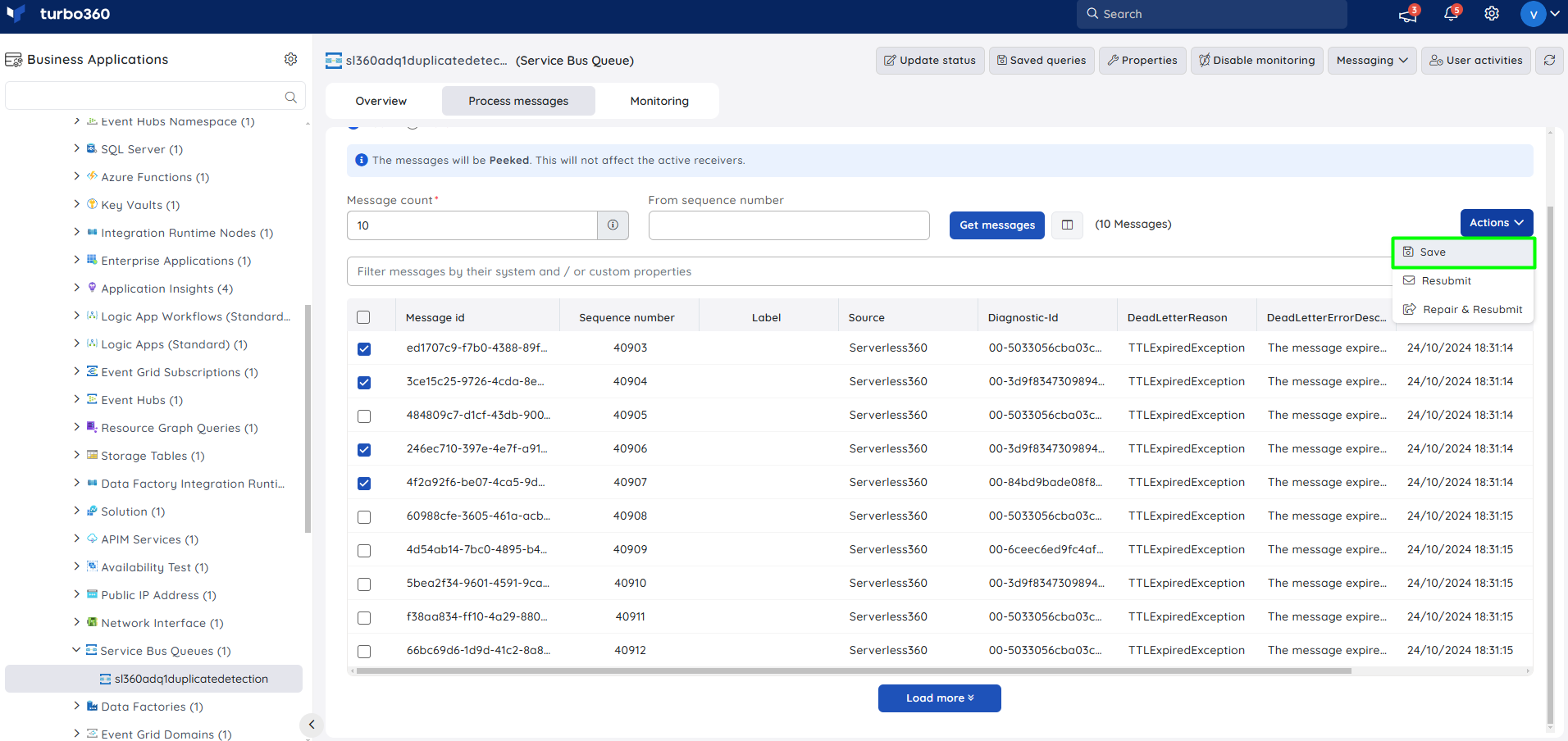
To upload from Excel:
- Select the Excel workbook from your local device and validate the relevant worksheet.
- Click Next to upload the messages to the queue.
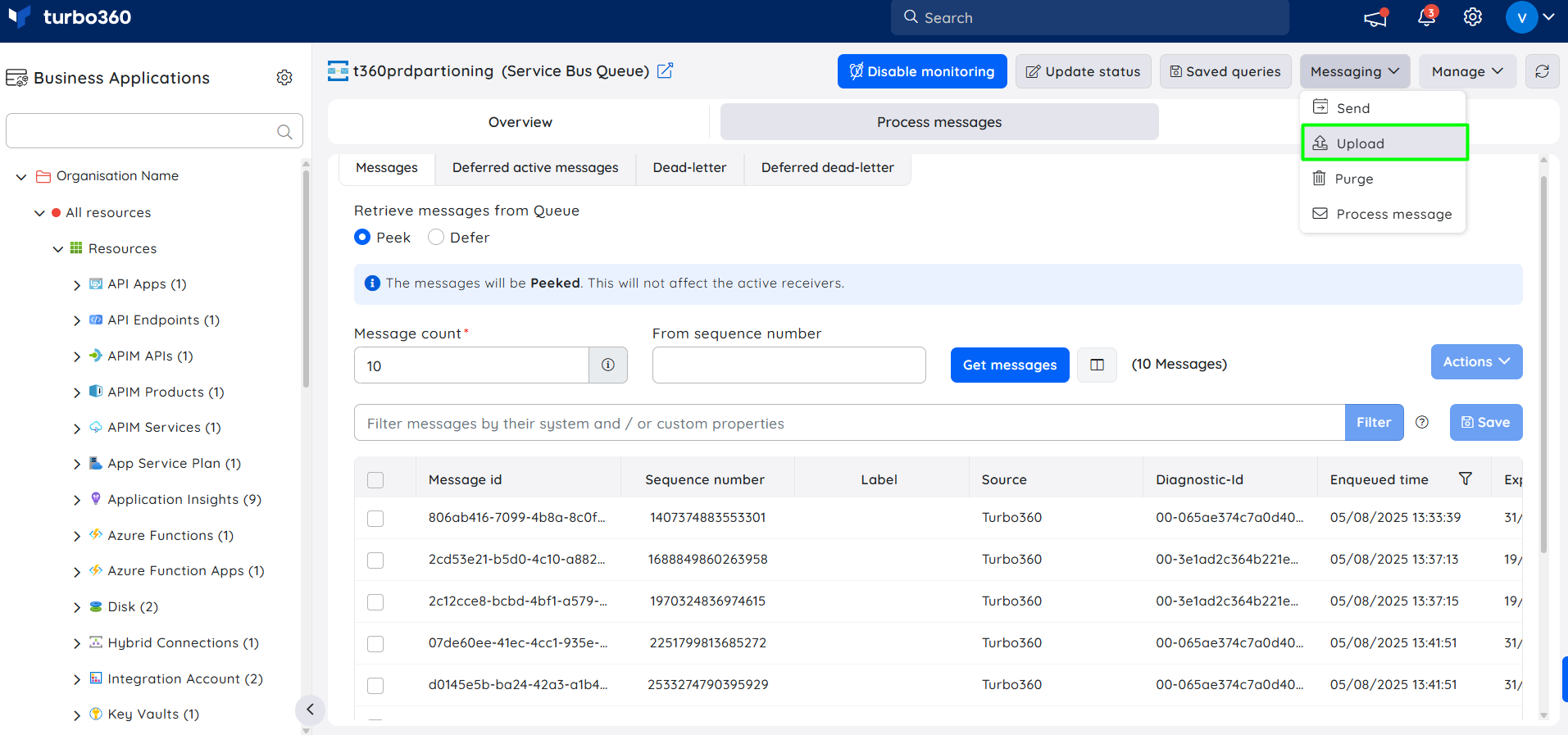
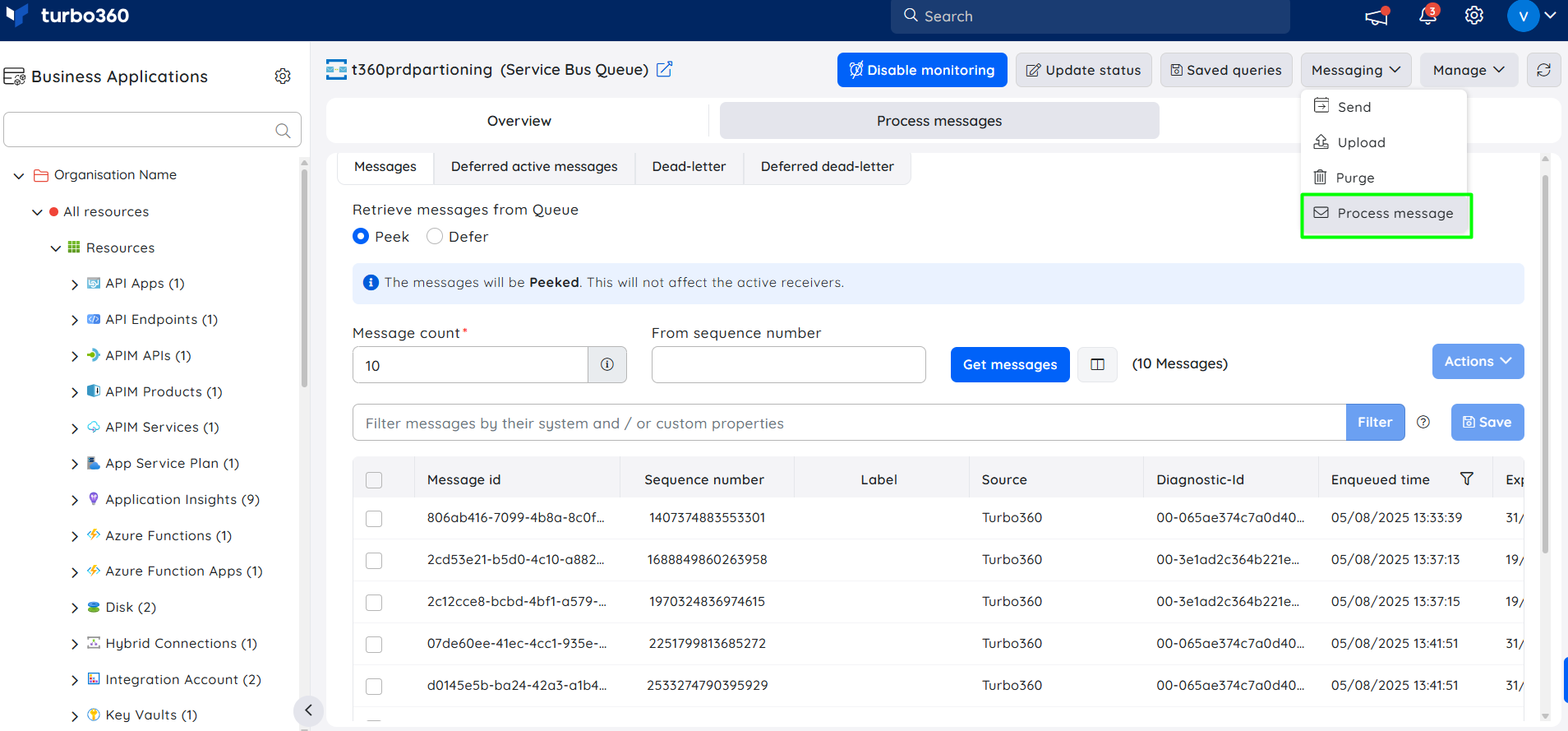
To process stored JSON files:
- From the Messaging menu, click Process Message.
- Choose the storage blob container associated with the Business Application.
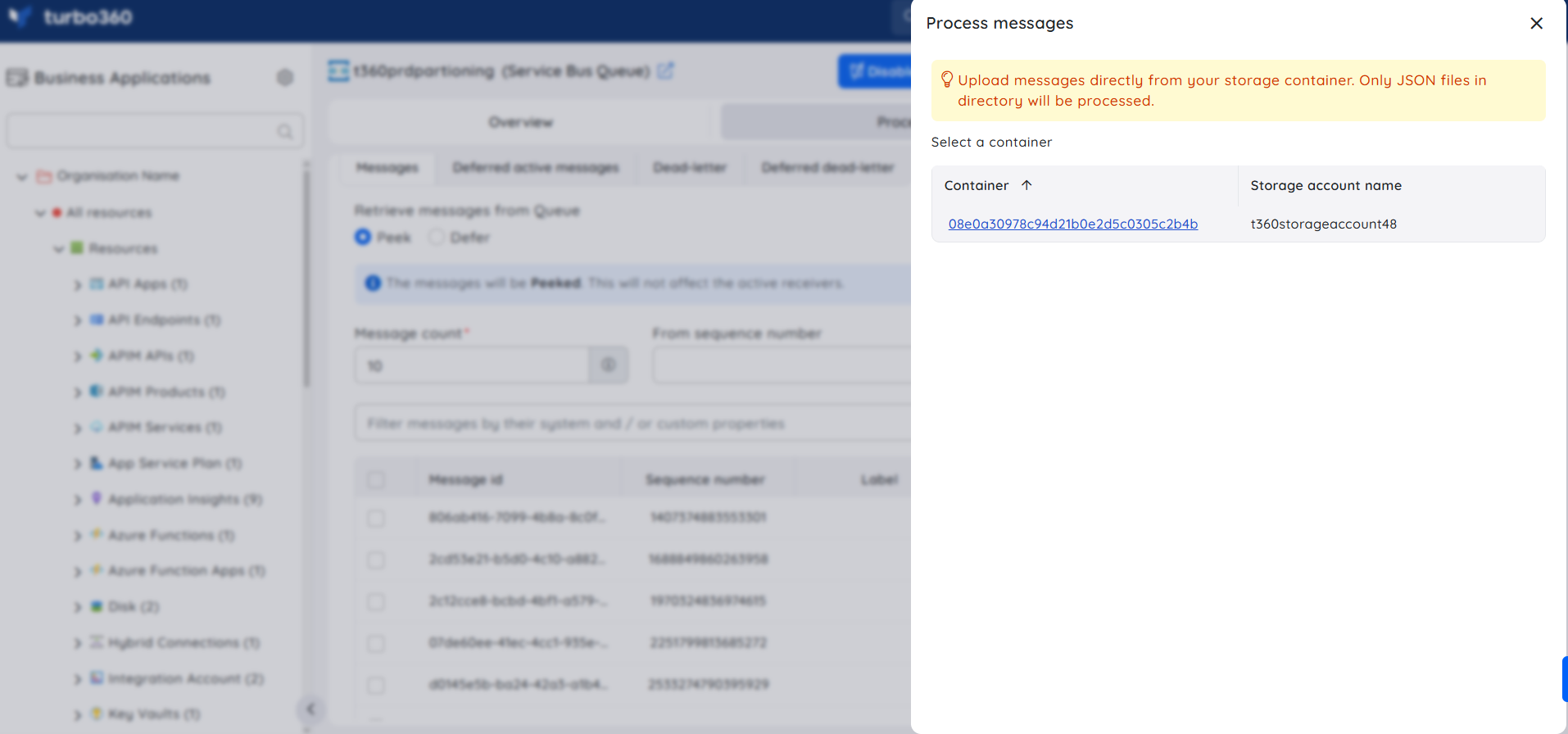
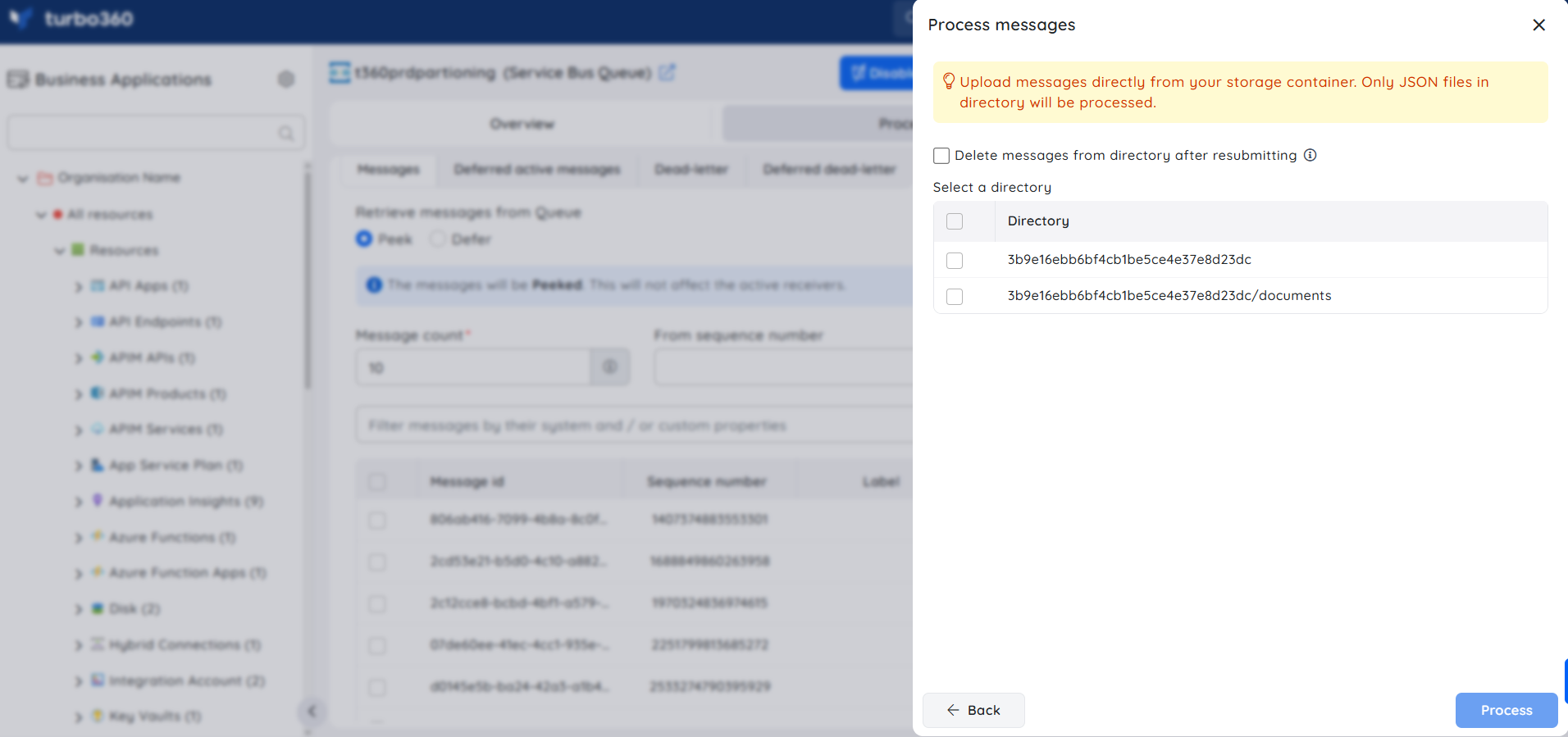
- Locate and select the directory containing the relevant JSON files.
- Click Process to begin uploading the messages.
Backup and delete messages
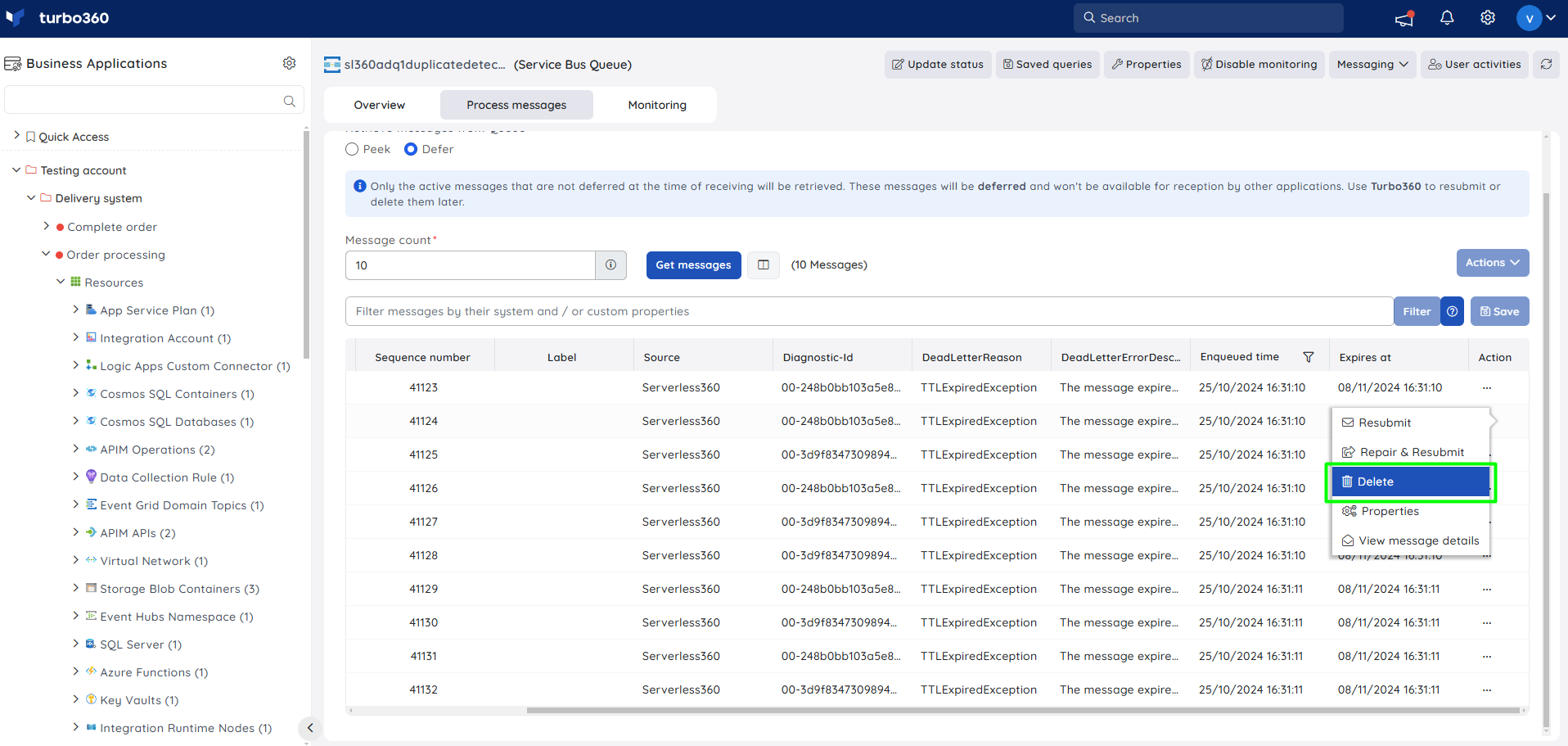
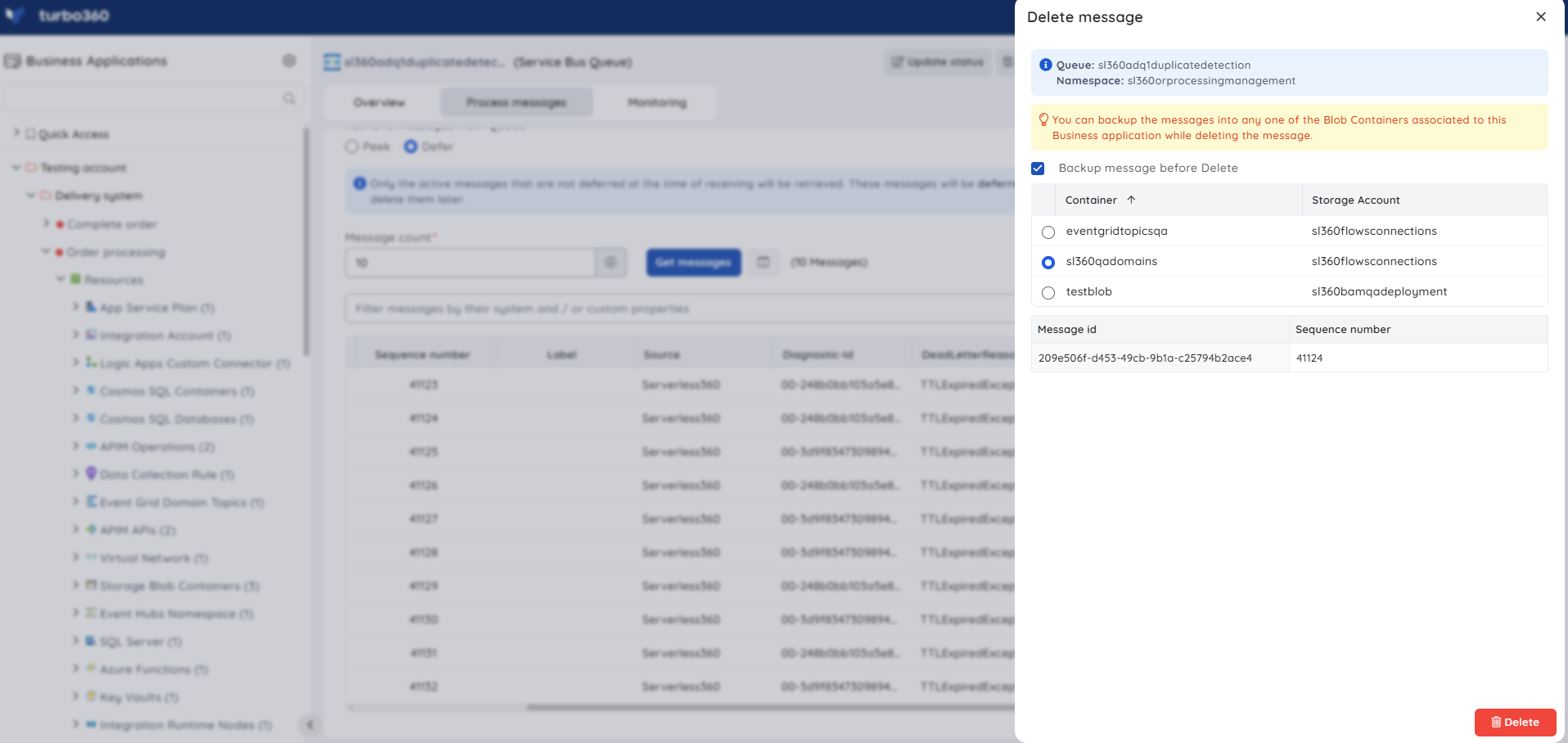
- Delete — removes messages from the active-end or dead-letter queue when retrieving in defer mode. Use this when stale or unneeded dead-letter messages need to be cleared.
- Backup — saves messages safely to an associated Storage Blob container before processing them. Use this when you want a safety net before deleting or modifying messages.
Inline task
- Send messages — quickly sends messages to the queue using message count, Session ID/Partition Key, message body, user properties, and an optional saved configuration name. Use this when you need to test or replay messages immediately.
- Purge messages — quickly purges messages from the active-end or dead-letter queue, using message count, queue type, enqueue time, and user properties. Use this when you need to clear queue backlog without a full automated task setup.
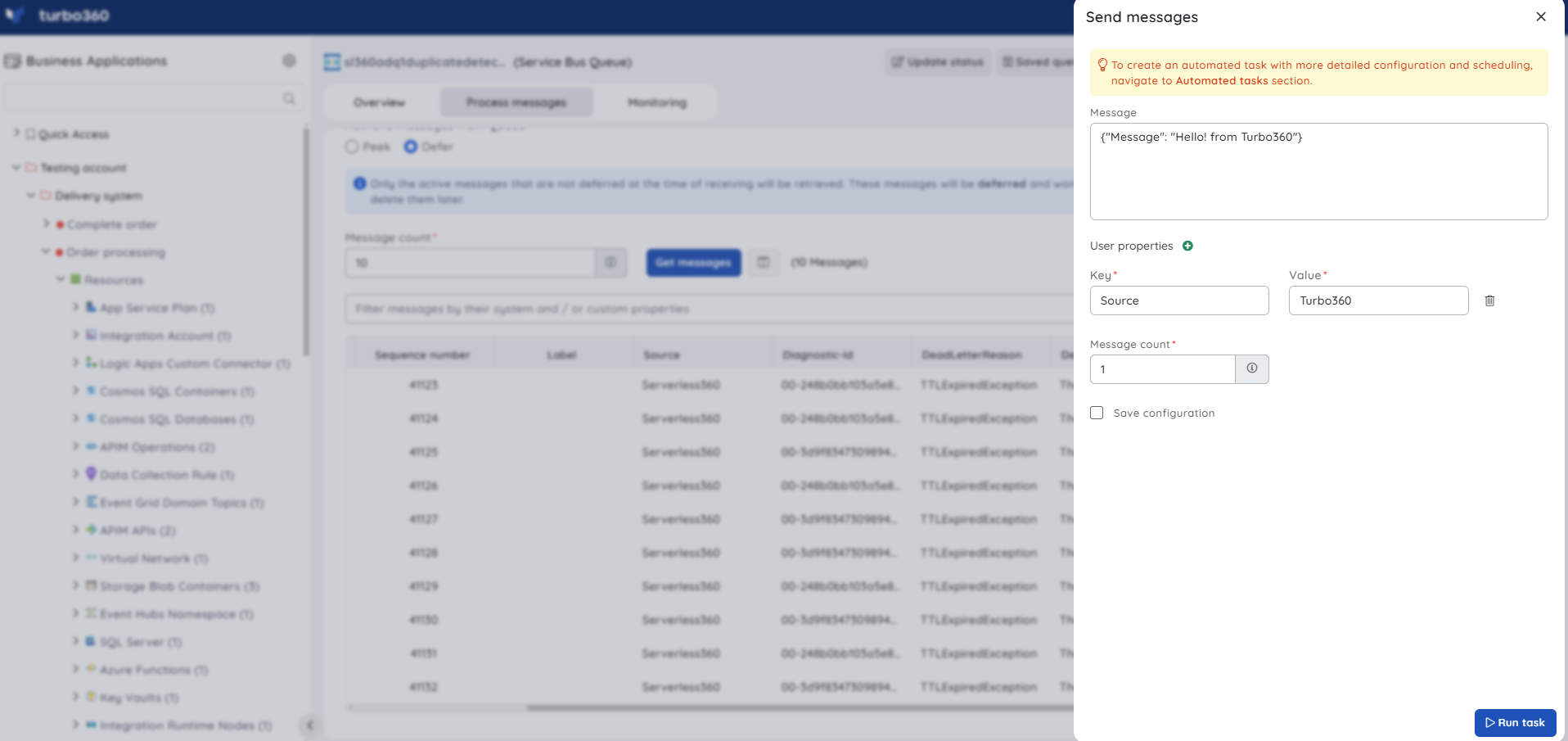
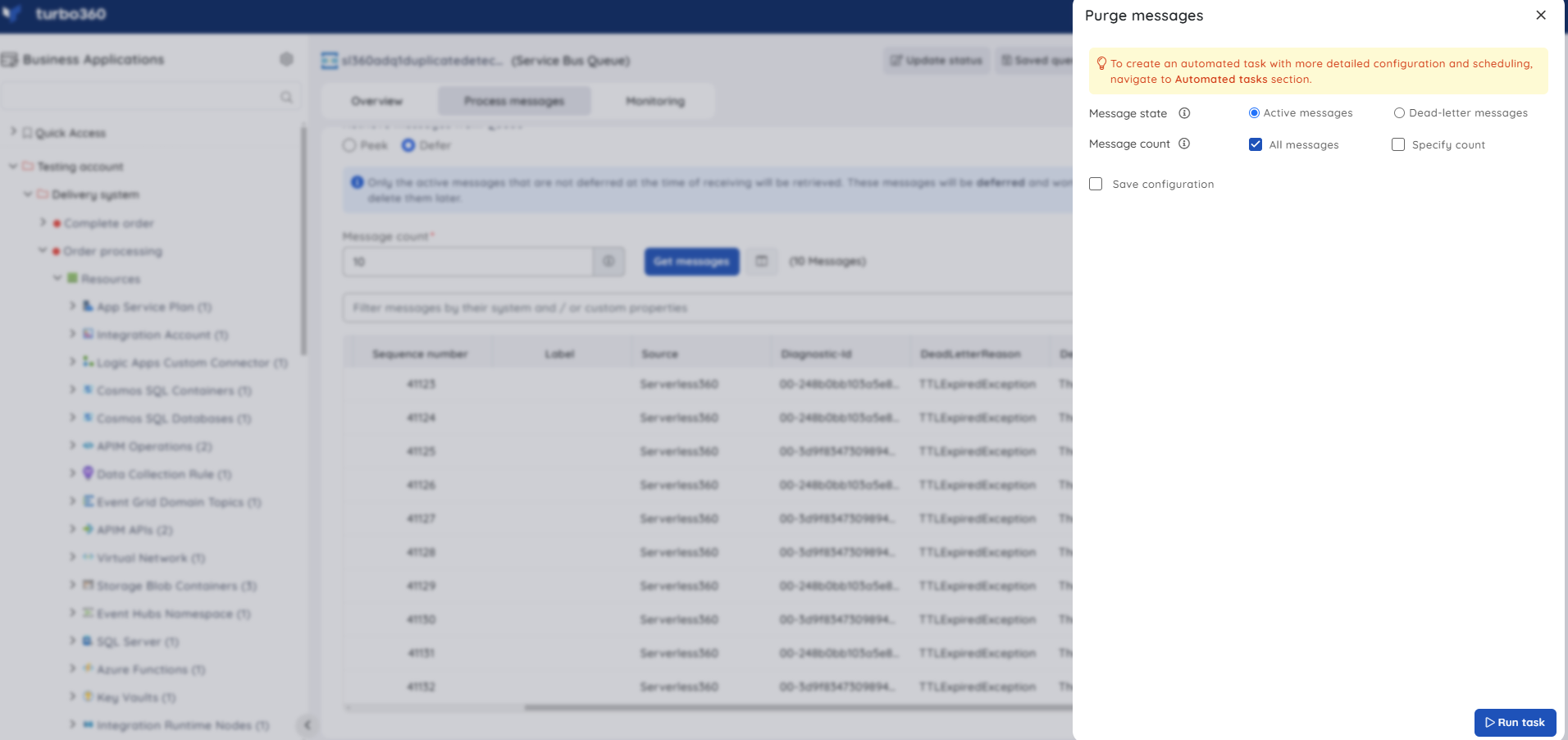
Task status can be viewed from Automated Tasks -> Task history.
Navigate to the Automated Tasks section in Turbo360 to create a task with a more detailed configuration, schedule tasks to run at a specific time, or automate the task to run on the specified hours, days, and more.
Automated task
- Automated task — sends or processes large volumes of active and dead-lettered messages without manual intervention. Use this when message volume is too high to manage manually, or you need consistent, scheduled processing.
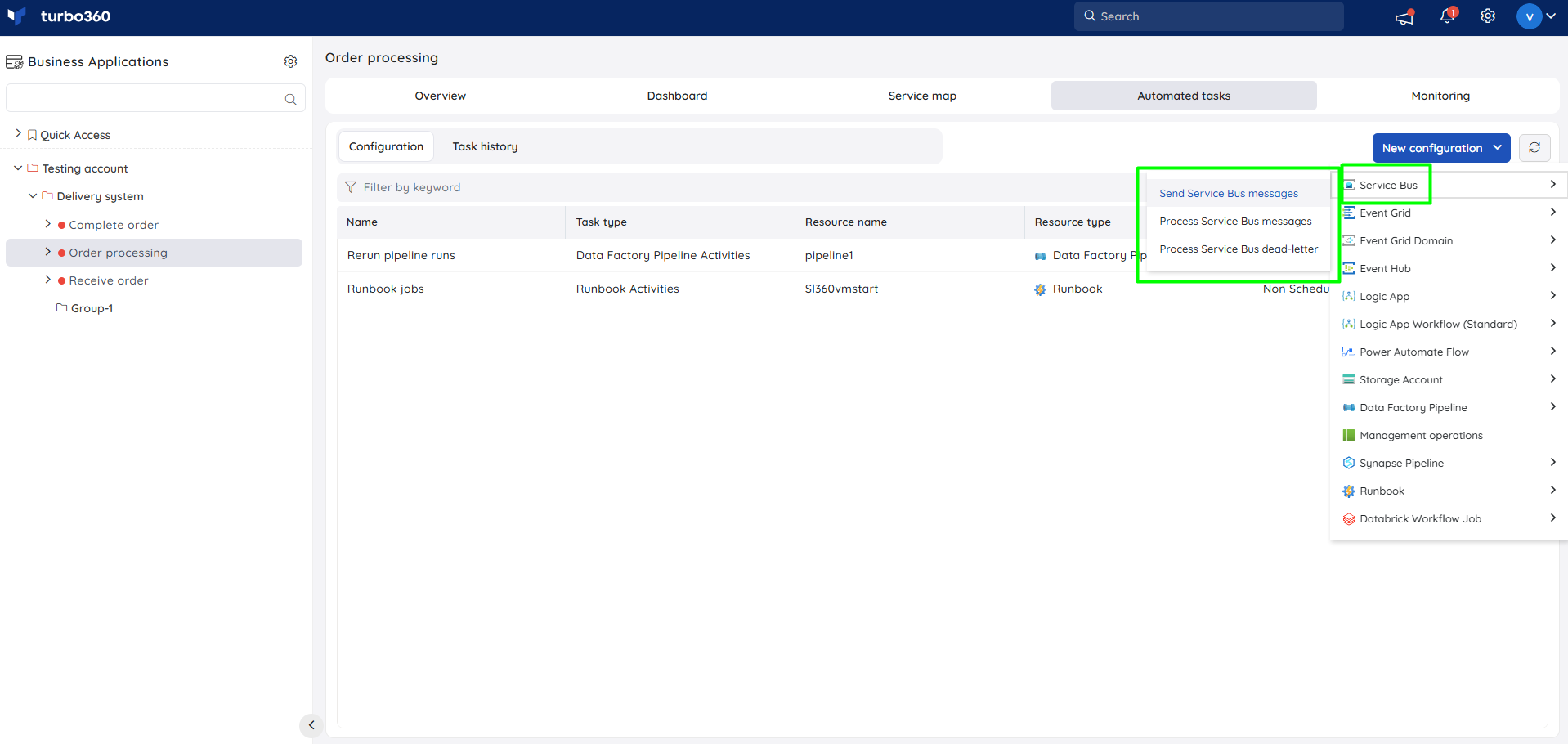
Bulk operations
- Bulk status update — updates the status of multiple Service Bus Queue resources at once. Use this when applying the same status change across several queues, such as during planned maintenance.
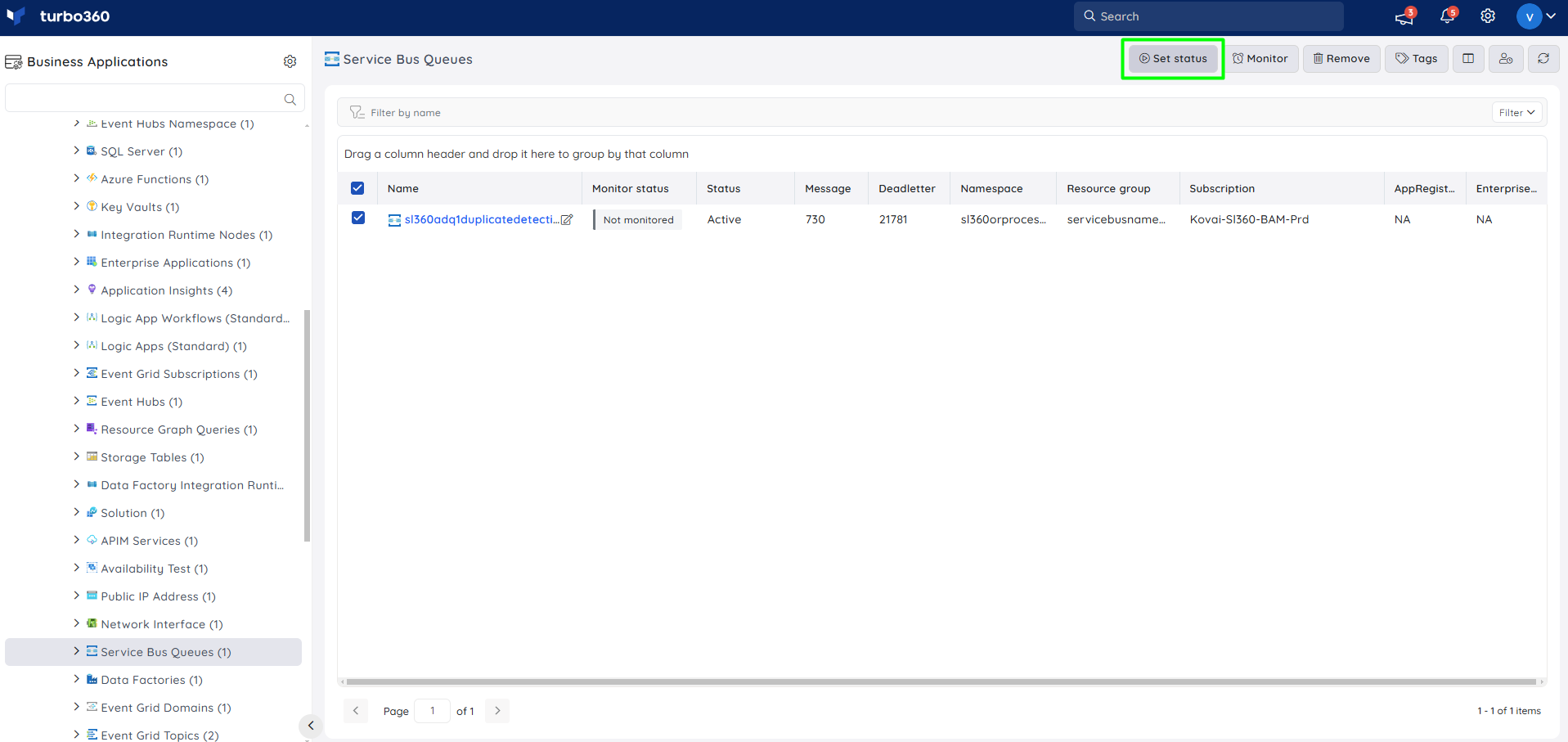
Resource dashboard
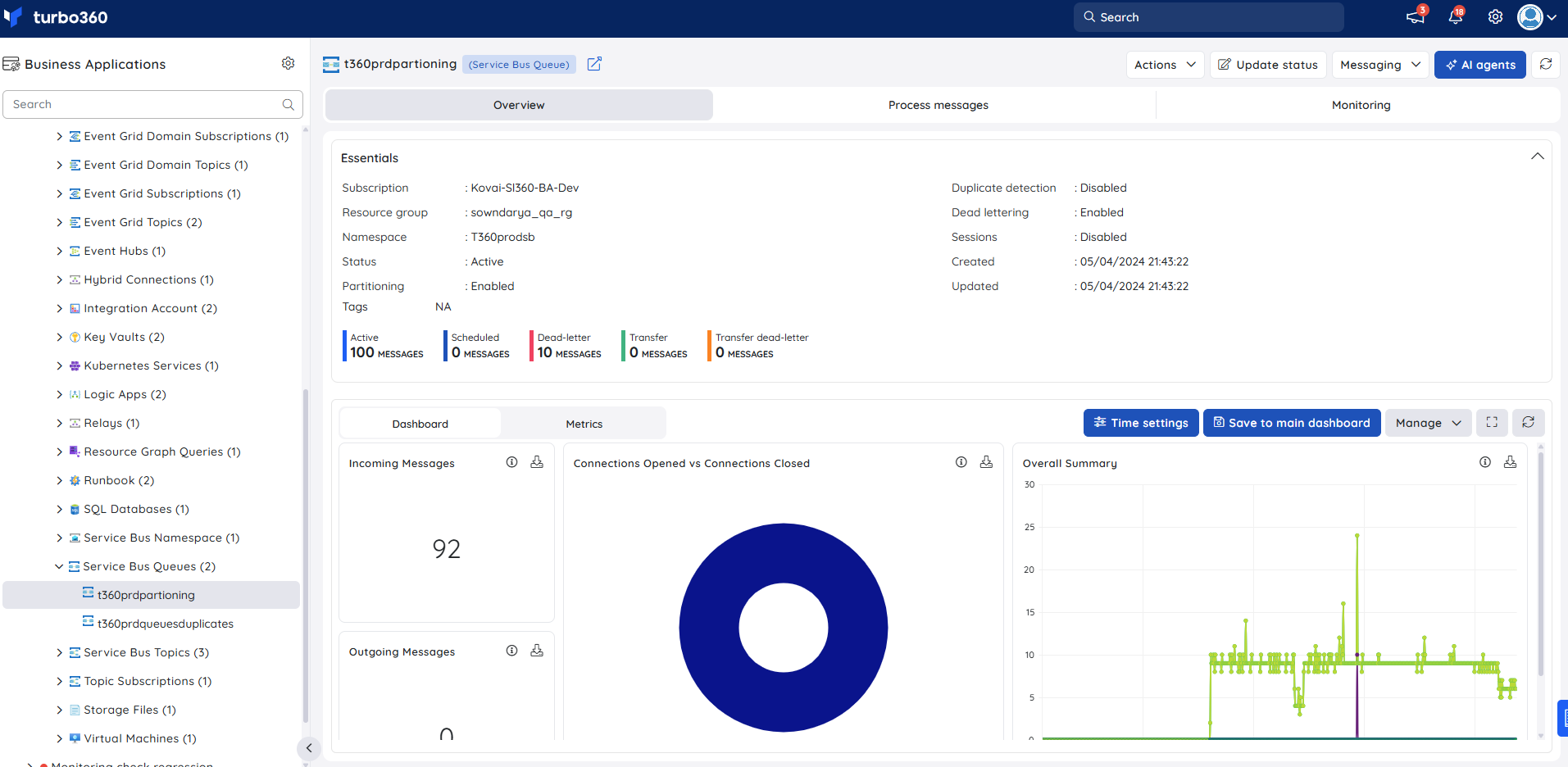
The dashboard gives you real-time visibility into message throughput and connection activity for the queue, helping you spot abnormal traffic patterns without querying messages directly.
| Widget | What it shows |
|---|---|
| Incoming Messages | Volume of messages entering the queue over time. |
| Outgoing Messages | Volume of messages leaving the queue over time. |
| Connections Opened vs Connections Closed | Connection churn for the queue, useful for spotting connection leaks or instability. |
| Overall Summary | High-level summary of queue activity. |
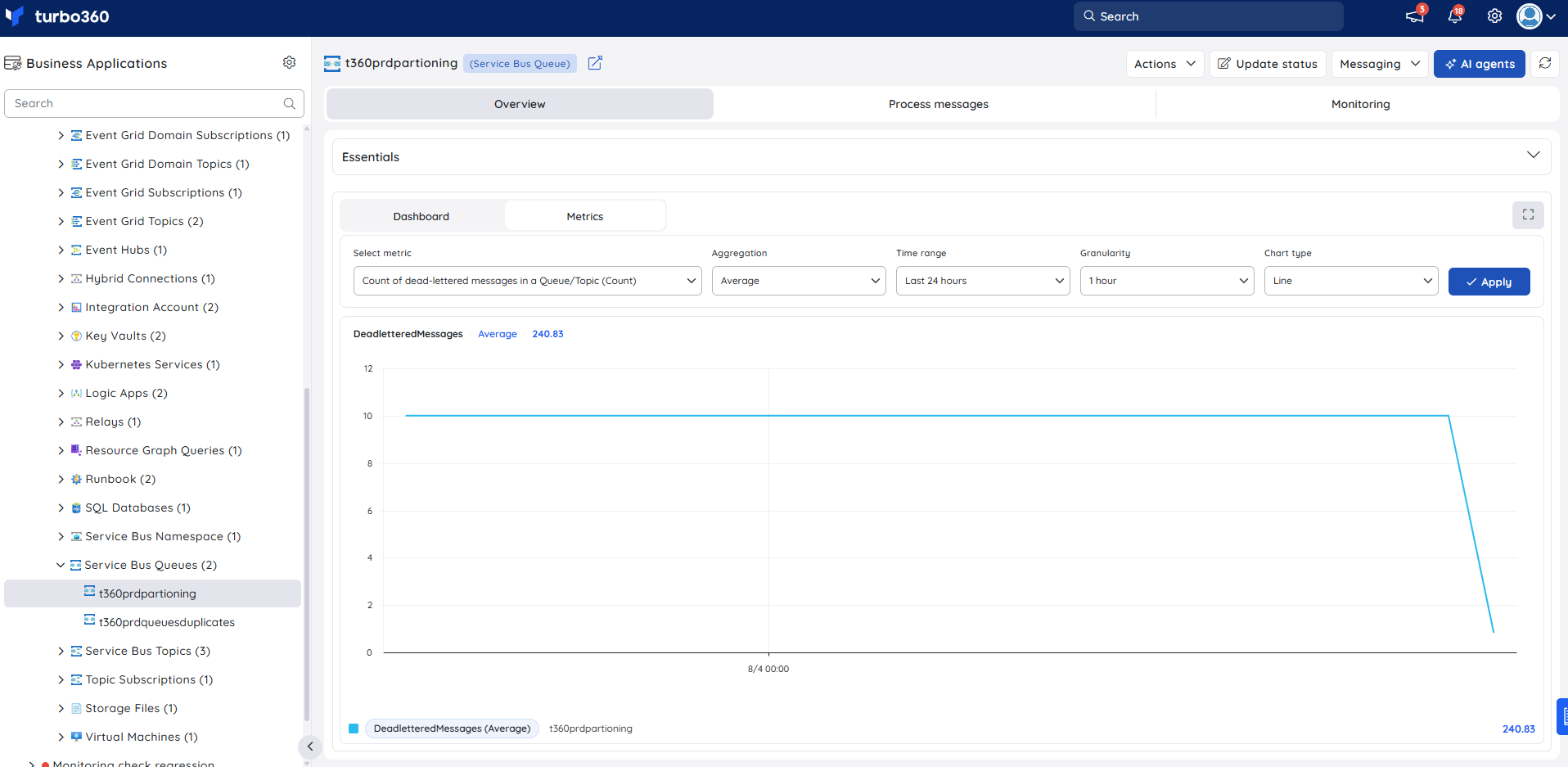
Metrics
The Metrics tab surfaces message throughput and connection activity data for Service Bus Queue, giving you visibility into queue traffic trends over time. Use the Metrics tab to identify sustained spikes in incoming messages that may indicate backlog buildup, and to confirm that throughput returns to normal after dead-letter recovery or message purge operations.
You can add, remove, or reconfigure widgets to focus on the metrics most relevant to your support scenario.
Monitoring
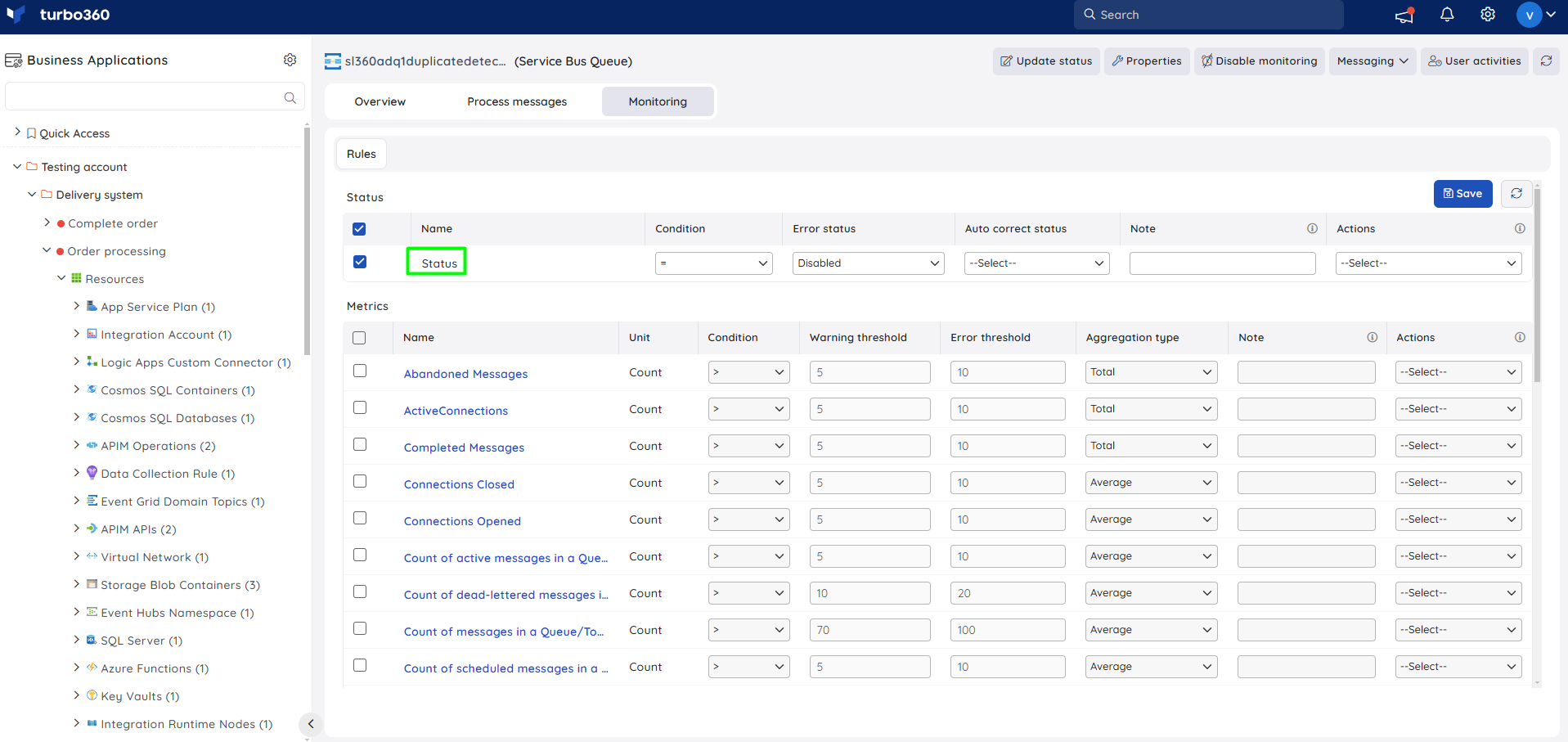
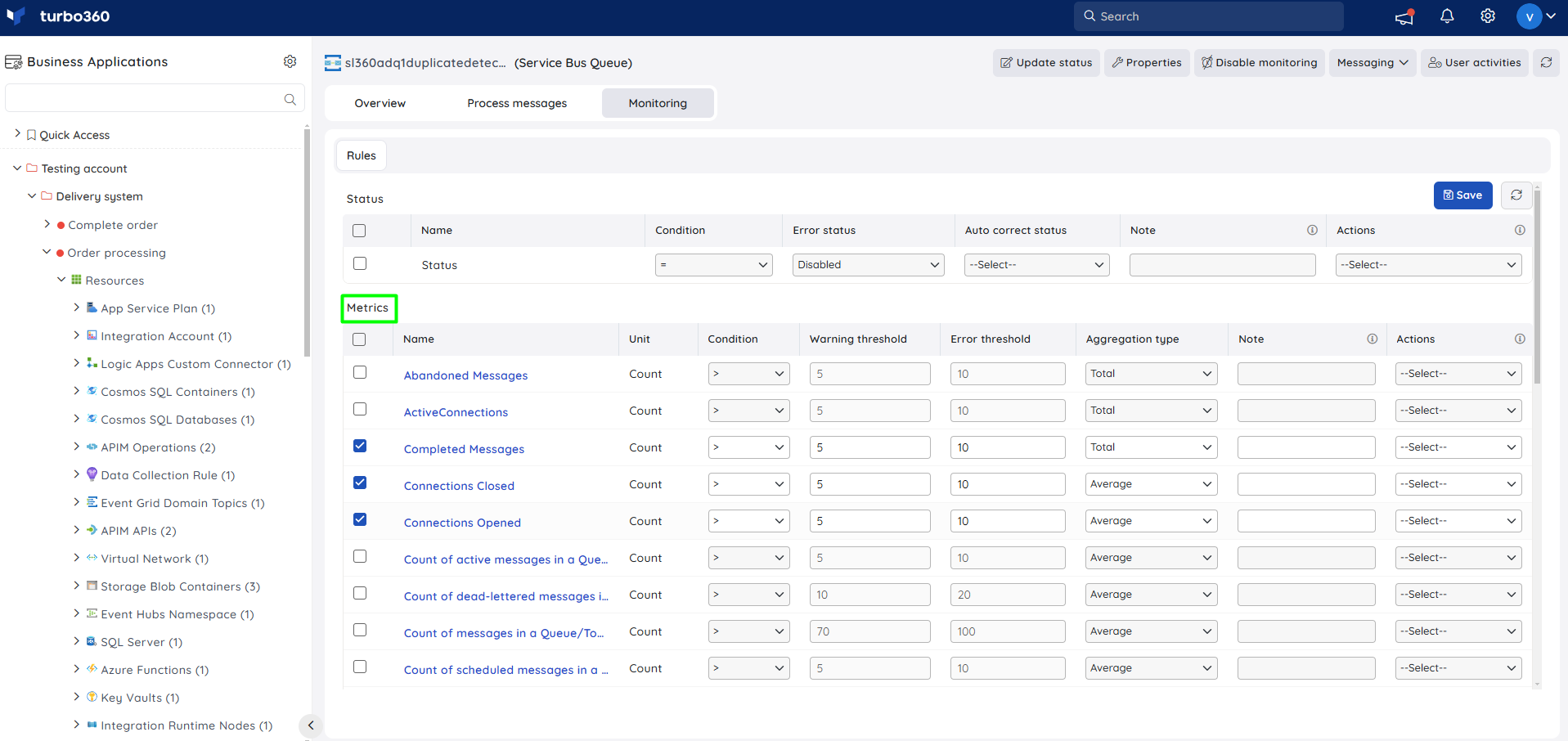
Service Bus Queue supports state and metric monitoring rules, configured from Service Bus Queue -> Monitoring.
Monitoring rules are saved for the Service Bus Queue, and the monitoring state for the metrics updates after every monitoring cycle.
State monitoring
Tracks the queue's status against a configured threshold. Use this when you need to be alerted if the queue becomes unavailable or enters an unexpected state.
- Configure the state rule under Status with the desired threshold.
- Click Save.
Metric monitoring
Tracks queue metrics — such as message count or throughput — against a configured threshold, violating the rule when the metric meets the configured value. Use this when you need early warning of queue backlog or unusual traffic before it impacts downstream consumers.
- Select the necessary monitoring metrics and configure the threshold values.
- Click Save.
Troubleshooting
Resubmitted message creates a duplicate instead of replacing the original
Cause: Duplicate detection is enabled on the Service Bus resource, and the resubmitted message reused the original message ID.
Fix: Regenerate the message ID automatically or manually before resubmitting.Actions button options are disabled for selected messages
Cause: One or more selected messages exceed the 1 MB size limit for Save, Resubmit, and Repair & Resubmit.
Fix: Deselect oversized messages, or process them individually using the available context menu options.Deferred message can't be located
Cause: The message sequence number wasn't provided, or the message isn't actually in deferred state.
Fix: Use the Deferred Active Messages or Deferred Dead-Letter tab to browse deferred messages without needing the sequence number.Metric monitoring rule not reflecting the latest state
Cause: The monitoring state only updates after a full monitoring cycle completes.
Fix: Wait for the next monitoring cycle, or verify the threshold configuration matches the intended metric.
Related articles
Was this article helpful?