

Configuring Service Bus automated tasks
- 05 Aug 2026
- 6 Minutes to read
- Print
- DarkLight
- Download PDF
Configuring Service Bus automated tasks
- Updated on 05 Aug 2026
- 6 Minutes to read
- Print
- DarkLight
- Download PDF
Article summary
Did you find this summary helpful?
Thank you for your feedback!
Overview
Turbo360 supports three types of automated tasks for Service Bus resources: sending messages to a Queue or Topic, processing active messages, and processing dead-lettered messages. You can configure these tasks within a Business Application to automate message flow management without accessing the Azure portal directly.
Business value
Service Bus automated tasks reduce the manual overhead of maintaining healthy message pipelines. When dead-letters accumulate, messages need to be load-tested, or a queue requires cleanup, you can run or schedule a task in Turbo360 rather than scripting one-off operations against Azure — ensuring consistent, auditable remediation across your integration estate.
How it works
Each Service Bus automated task targets a specific Queue, Topic, or Topic Subscription and defines the operation type, message scope, and optional filters. Turbo360 executes the task either manually on demand or on a defined schedule, then records the result in task history.
The three task types serve different operational scenarios:
- Send Service Bus messages — inject test or load messages into a Queue or Topic. Use this when testing integrations or simulating load.
- Process Service Bus messages — resubmit, resubmit-and-delete, or delete active messages in a Queue or Topic Subscription. Use this when recovering from backlog or correcting misrouted messages.
- Process Service Bus dead-letter — apply the same resubmit, resubmit-and-delete, or delete operations against the dead-letter sub-queue. Use this when recovering failed messages after an application resumes.
Steps
Use the following steps to configure each type of Service Bus automated task. Navigate to the Automated tasks tab in the relevant Business Application to get started.
Configure a Send Service Bus messages task
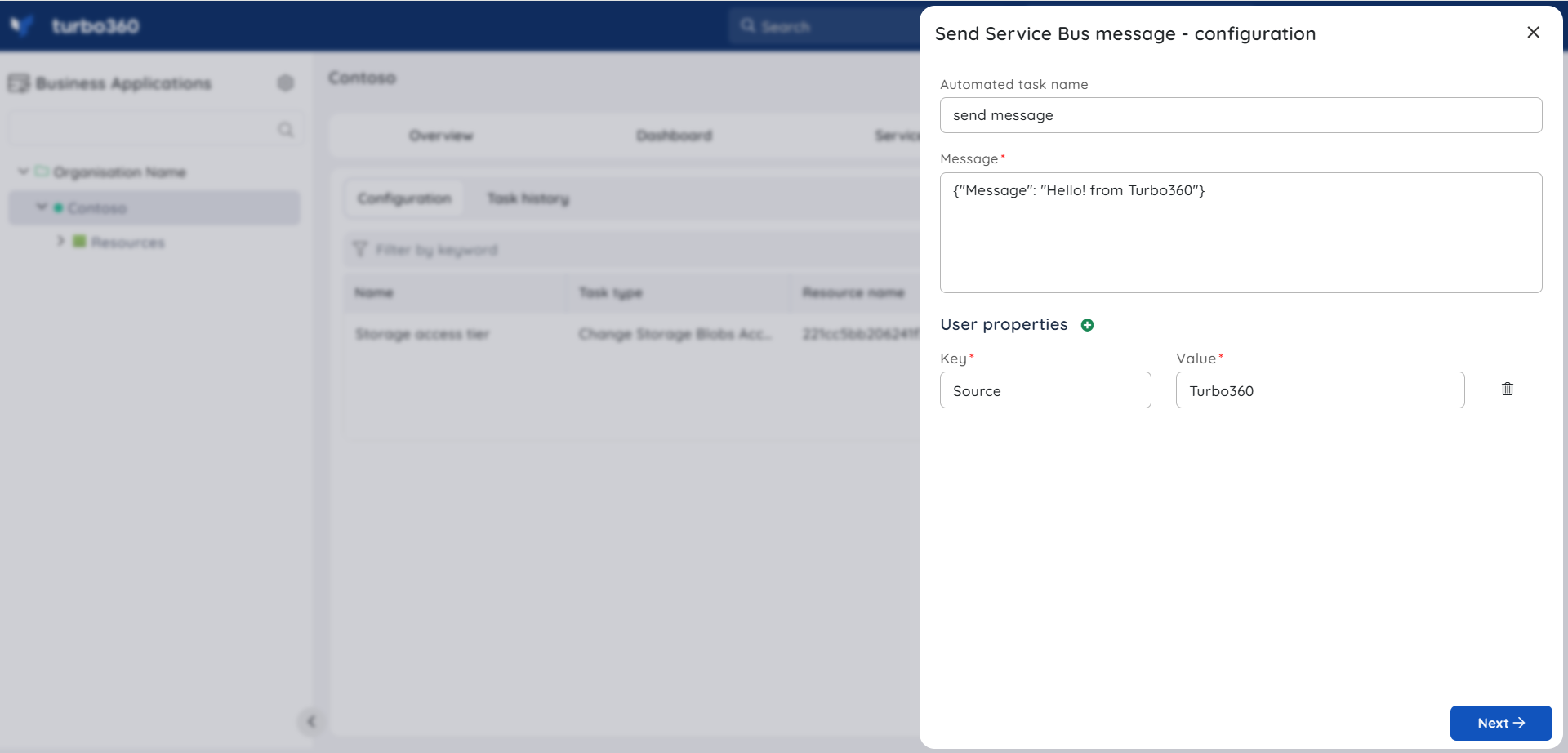
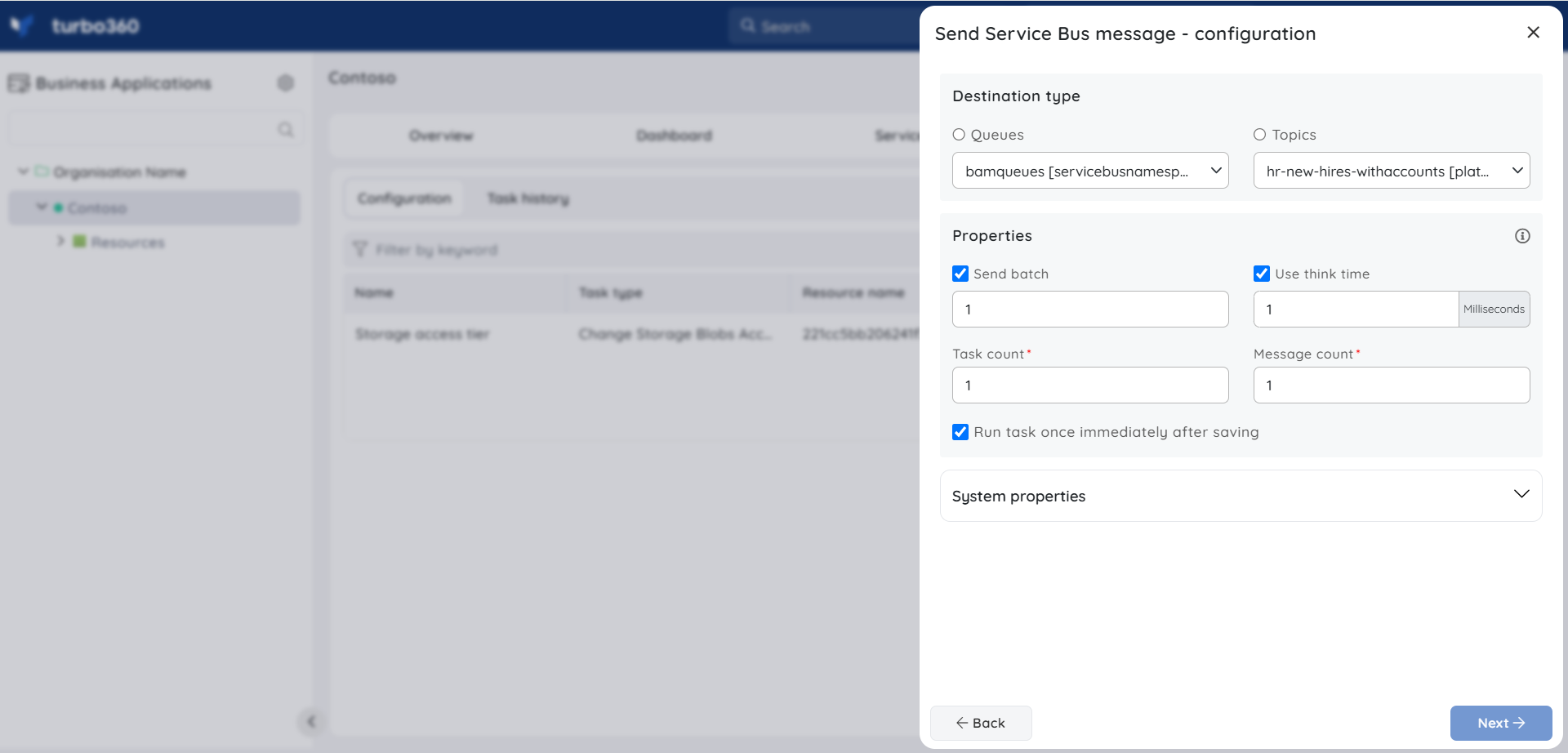
Configuring a send task lets you inject a defined number of messages into a Service Bus Queue or Topic for testing or load simulation purposes.
- Select New automated task and choose Send Service Bus Messages as the task type.
- Select the target Service Bus namespace and the destination Queue or Topic.
- Set the Message count — the total number of messages to send (maximum 10,000).
- Set the Task count to run delivery in parallel (maximum 10). For example, a message count of 100 with a task count of 2 sends 50 messages per parallel task.
- Set the Batch count to send messages in batches (maximum batch size of 10).
- Optionally, set a Think time to introduce a delay between each message or batch.
- Configure the message body and any custom properties.
- Select Save.
Configure a Process Service Bus messages task
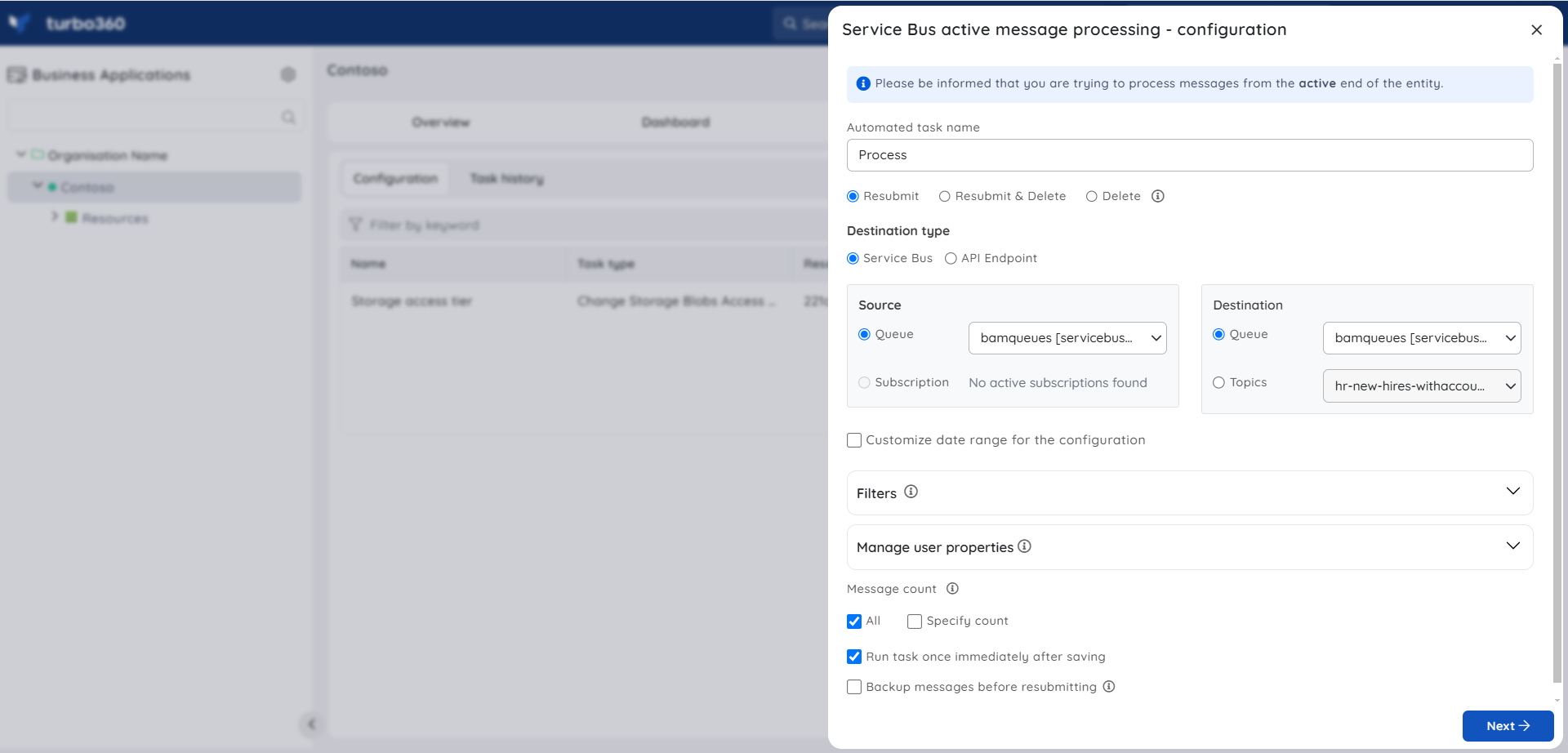
Configuring a process task lets you resubmit, resubmit-and-delete, or delete active messages from a Queue or Topic Subscription to recover from backlogs or correct misrouted messages.
- Select New automated task and choose Process Service Bus Messages as the task type.
- Select the source Queue or Topic Subscription.
- Choose the operation type: Resubmit messages, Resubmit and Delete messages, or Delete messages.
- For resubmit operations, select the destination Queue or Topic.
- Set filters as needed:
- Message count — limit the number of messages to process.
- Message Enqueued date range or Message Enqueued time span — Enable Customize date range for the configuration and specify the range or span to restrict processing to messages enqueued within that window.
- System and User Properties — specify property key-value pairs to process only messages with matching properties.
- Configure notifications in the Advanced settings section (see Notifications below).
- Select Save.
Filtering is not supported in Resubmit-and-Delete and Delete message tasks for Partitioning-enabled resources.
Configure a Process Service Bus dead-letter task
Configuring a dead-letter task lets you recover or purge messages that have been moved to the dead-letter sub-queue, restoring message flow after application failures.
- Select New automated task and choose Process Service Bus Dead-Letter as the task type.
- Select the source Queue or Topic Subscription.
- Choose the operation type: Resubmit messages, Resubmit and Delete messages, or Delete messages.
- For resubmit operations, select the destination Queue or Topic.
- Set filters as needed, including the Dead-letter reason field to restrict processing to messages dead-lettered for a specific reason.
- Configure notifications in the Advanced settings section.
- Select Save.
Configuration
| Option | Type | Description | Allowed values |
|---|---|---|---|
| Message count (send) | Integer | Total messages to send | 1–10,000 |
| Task count | Integer | Parallel task threads for send operations | 1–10 |
| Batch count | Integer | Messages per batch for send operations | 1–10 |
| Think time | Duration | Delay between each message or batch | Any valid duration |
| Message count (process) | Integer | Number of active or dead-letter messages to process | Any positive integer |
| Message Enqueued date range | Date range | Process only messages enqueued within this range | Requires Customize date range enabled |
| Message Enqueued time span | Time span | Process only messages enqueued within this time span | Requires Customize date range enabled |
| Dead-letter reason | String | Restrict dead-letter processing to a specific reason | Any valid dead-letter reason string |
Alert configuration
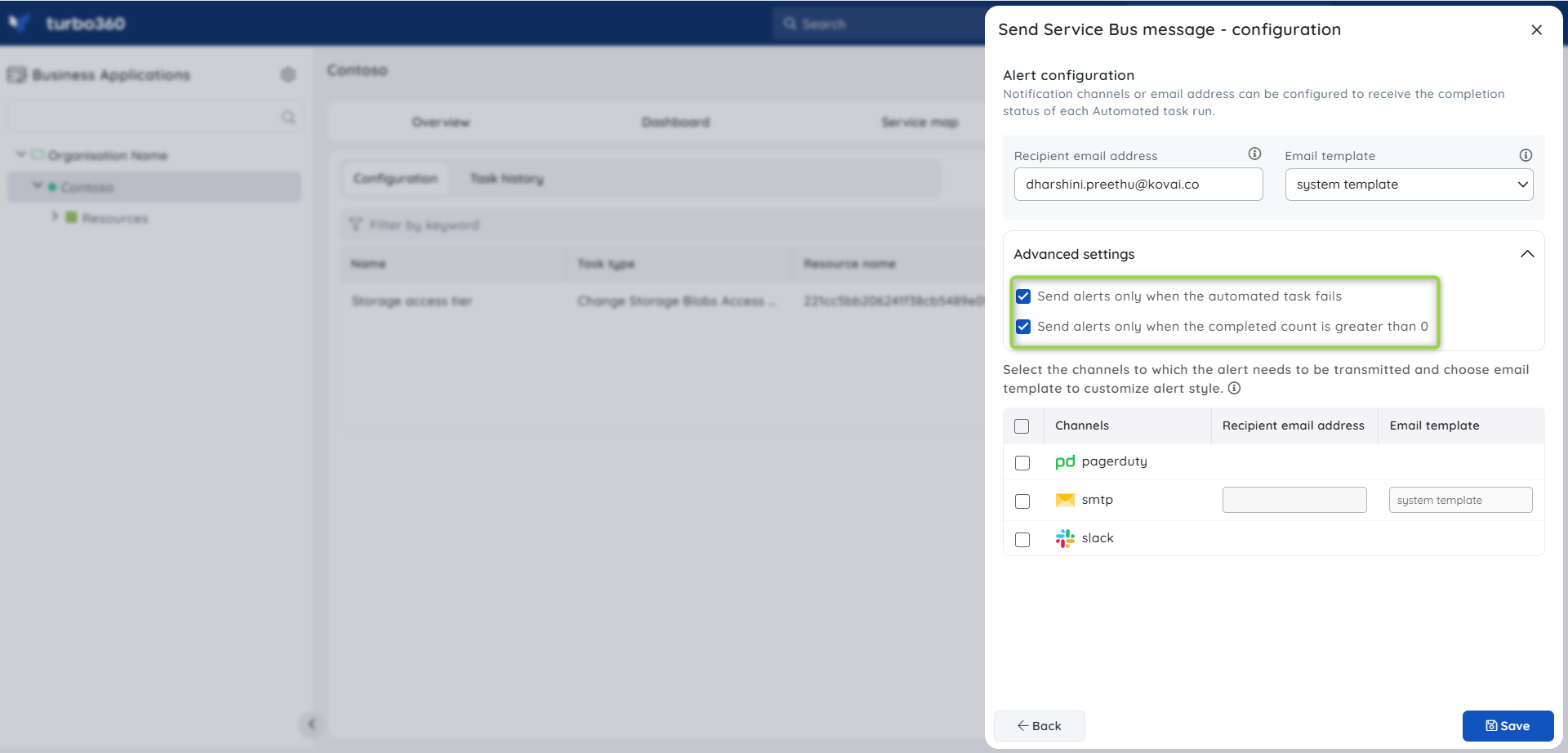
The notification section at the end of each task configuration lets you define where task completion alerts are sent.
- Specify one or more notification channels (configured in Notification Management) and email addresses to receive alerts.
- Under Advanced settings, enable either or both of the following conditions:
- Send alerts only when the automated task fails — receive notifications only on task failure.
- Send alerts only when the completed count is greater than 0 — receive notifications only when at least one message was processed.
- When both options are enabled, notifications are sent if the task fails or the completion count exceeds zero.
Key capabilities
When processing messages, Turbo360 provides the following additional capabilities:
- Message backup — messages are backed up to an associated Storage Blob Container during processing. The backup path is available in the Details section of task history.
- Duplicate detection handling — message IDs are auto-regenerated when resubmitting to a resource with Duplicate detection enabled, preventing message loss.
- API Endpoint resubmission — messages can be resubmitted directly to an API Endpoint as an alternative destination.
- User-defined property editing — during resubmit or resubmit-and-delete operations, you can add new user-defined properties or edit and delete existing message properties before resubmission.
Troubleshooting
Task fails with a permissions error
Cause: The role used to run the task is missing the required resource permission for the target Service Bus resource.
Fix: Navigate to Settings > User management > Roles, edit the role, and enable the required Read, Reprocess, or Purge permission for the relevant Service Bus Queue, Topic, or Topic Subscription.Filtering has no effect on Resubmit-and-Delete or Delete tasks
Cause: Filtering is not supported for these operation types on partitioning-enabled resources.
Fix: Disable partitioning on the resource if filtering is required, or switch to a Resubmit-only task type where filtering is supported.Messages are not appearing in the destination after resubmission
Cause: The destination Queue or Topic may be at capacity, paused, or the task may lack Upload permission.
Fix: Verify the destination resource is active and accepting messages. Confirm the role has Upload permission for the destination resource.Task history shows a completion count of 0 but no error
Cause: The applied filters (message count, date range, or properties) did not match any messages in the source resource at execution time.
Fix: Review the filter configuration and verify that matching messages exist in the source resource before re-running the task.Notifications are not received after task completion
Cause: The notification channel or email address is not correctly configured, or the Advanced settings conditions were not met.
Fix: Verify the notification channel is active in Settings > Notification channels. Check whether the alert conditions (failure only or count > 0) match the actual task outcome.
Related articles
Was this article helpful?