

Service Bus Topic
- 05 Aug 2026
- 4 Minutes to read
- Print
- DarkLight
- Download PDF
Service Bus Topic
- Updated on 05 Aug 2026
- 4 Minutes to read
- Print
- DarkLight
- Download PDF
Article summary
Did you find this summary helpful?
Thank you for your feedback!
Overview
A queue allows a message to be processed by a single consumer. Service Bus Topics and subscriptions provide a one-to-many form of communication using a publish/subscribe pattern instead, which is useful for scaling to large numbers of recipients. You can associate a Service Bus Topic with a Turbo360 Business Application to manage and send its messages.
Business value
Managing Service Bus Topic messages and status from Turbo360 lets your team test publish/subscribe flows and recover from delivery issues without switching to the Azure portal.
How it works
A Service Bus Topic distributes published messages to all of its subscriptions, rather than a single consumer. Turbo360 surfaces the topic's status, message upload, and automation capabilities directly within the Business Application it's associated with.
Permissions
| Permission | Description |
|---|---|
| Read | View the Service Bus Topic resource, its dashboard, and monitoring configuration. |
| Manage | Update topic status, including bulk status changes, in addition to all Read capabilities. |
| Upload | Upload messages from an Excel workbook to the topic. |
Operations
Manage Service Bus Topic status and messages directly from Turbo360 to avoid switching to the Azure portal during testing or incident response.
Update status
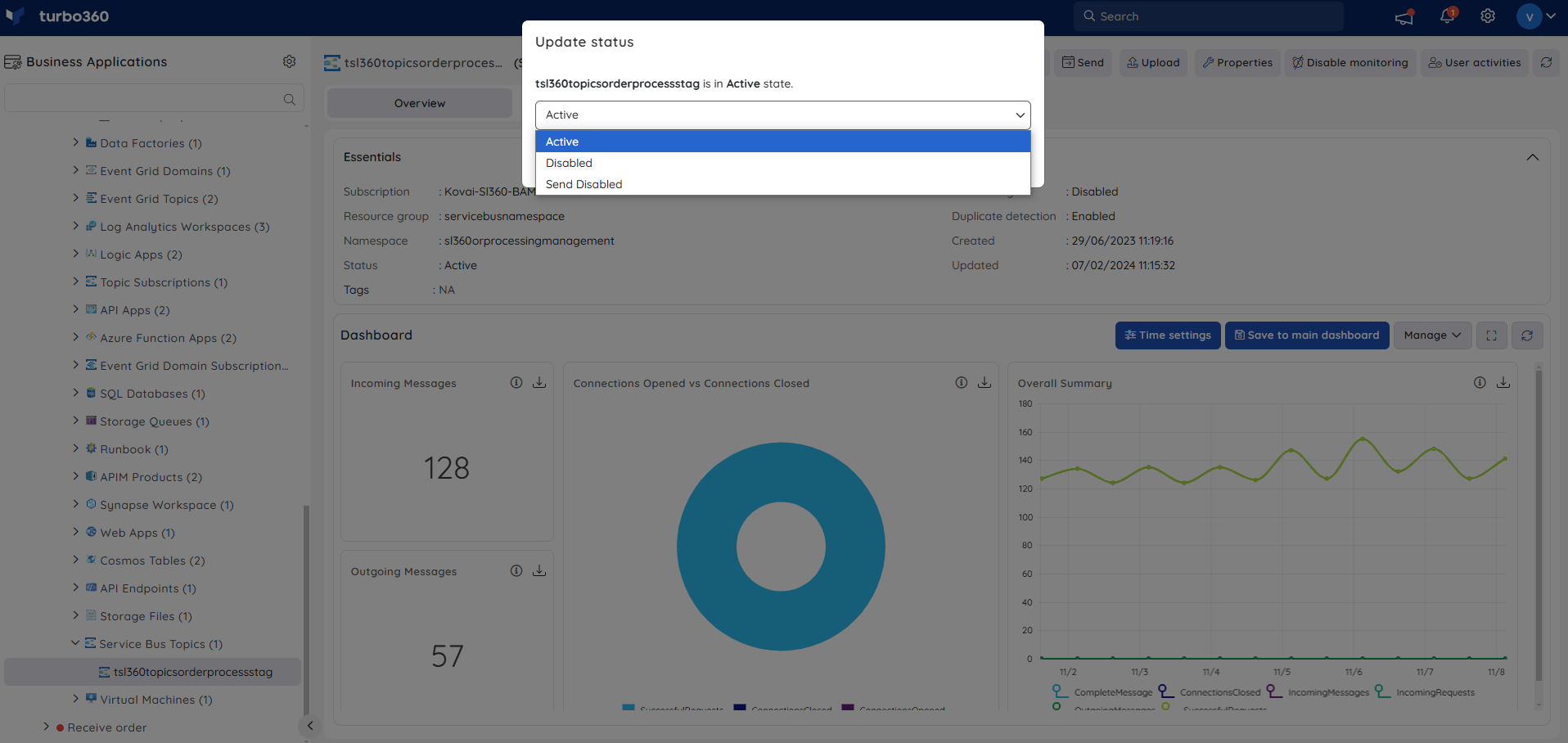
- Update status — changes the status of the Service Bus Topic resource. Use this when you need to enable or disable the topic without going to the Azure portal.
- Click Update status and select an option from the available list.
Upload messages
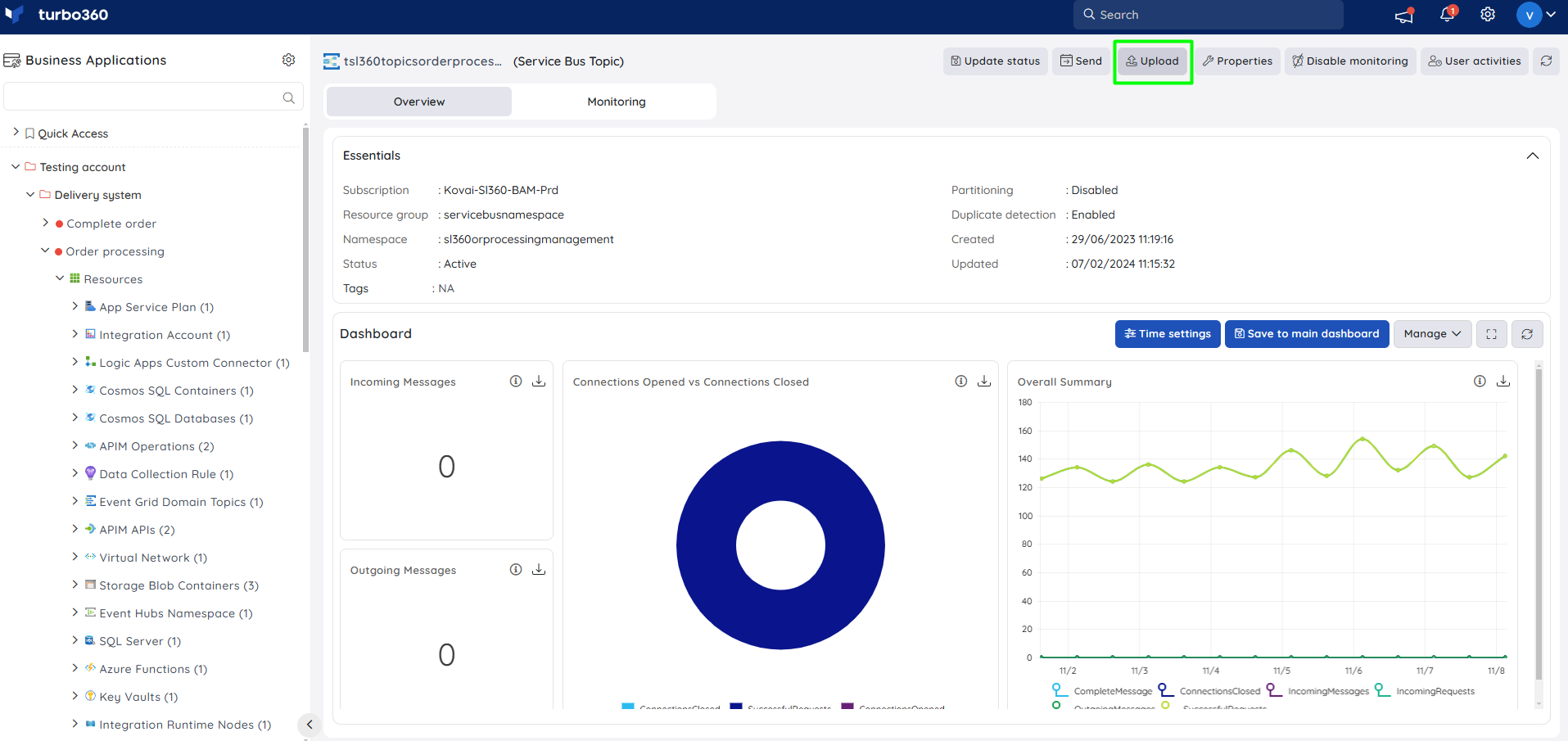
- Upload — uploads messages from an Excel workbook directly to the associated Service Bus Topic. Use this when you need to publish a batch of pre-prepared messages.
Inline task
- Send messages — quickly sends messages to the topic using message count, Session ID, message body, user properties, and an optional saved configuration name. Use this when you need to test or replay messages immediately, without setting up a full automated task.
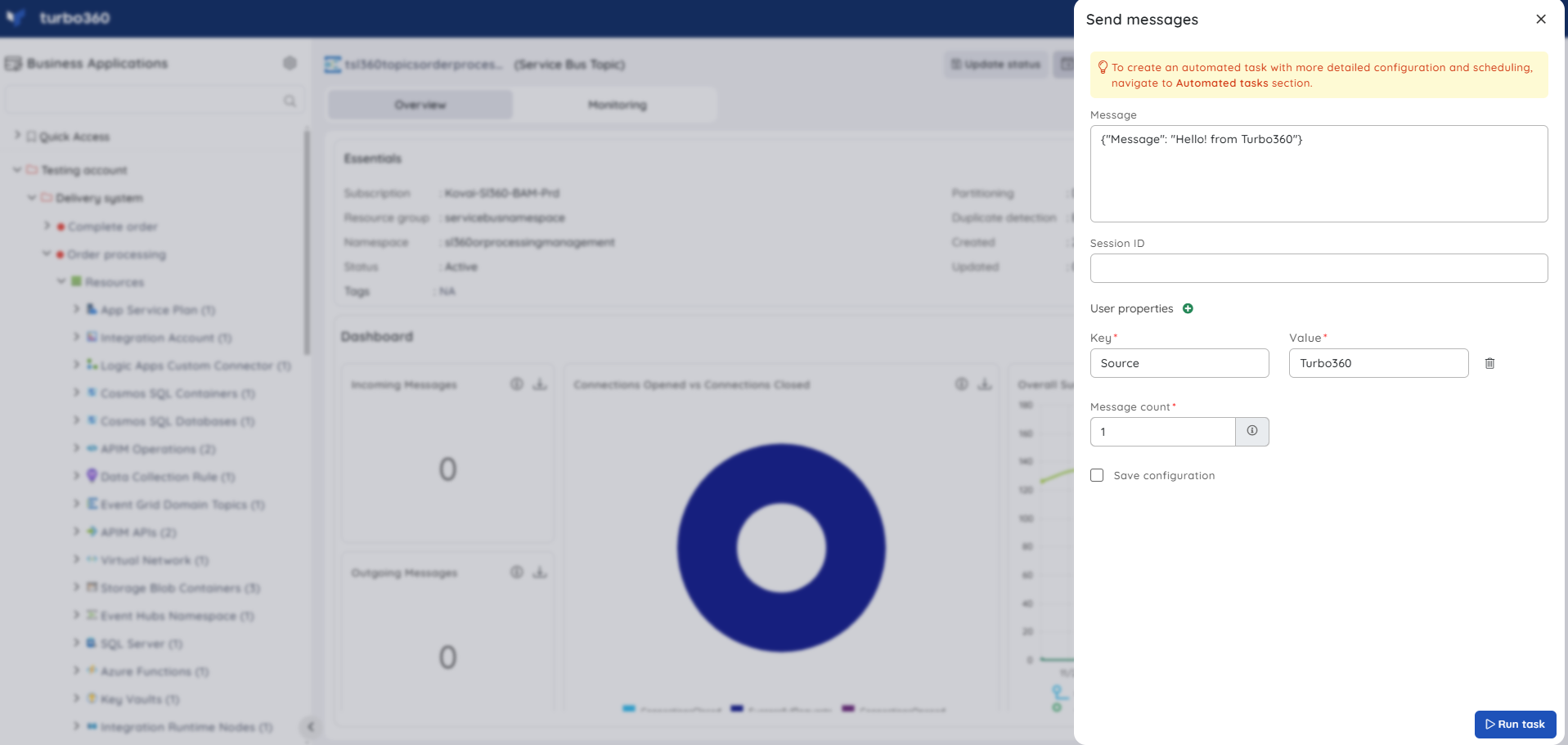
Task status can be viewed from Automated Tasks -> Task history.
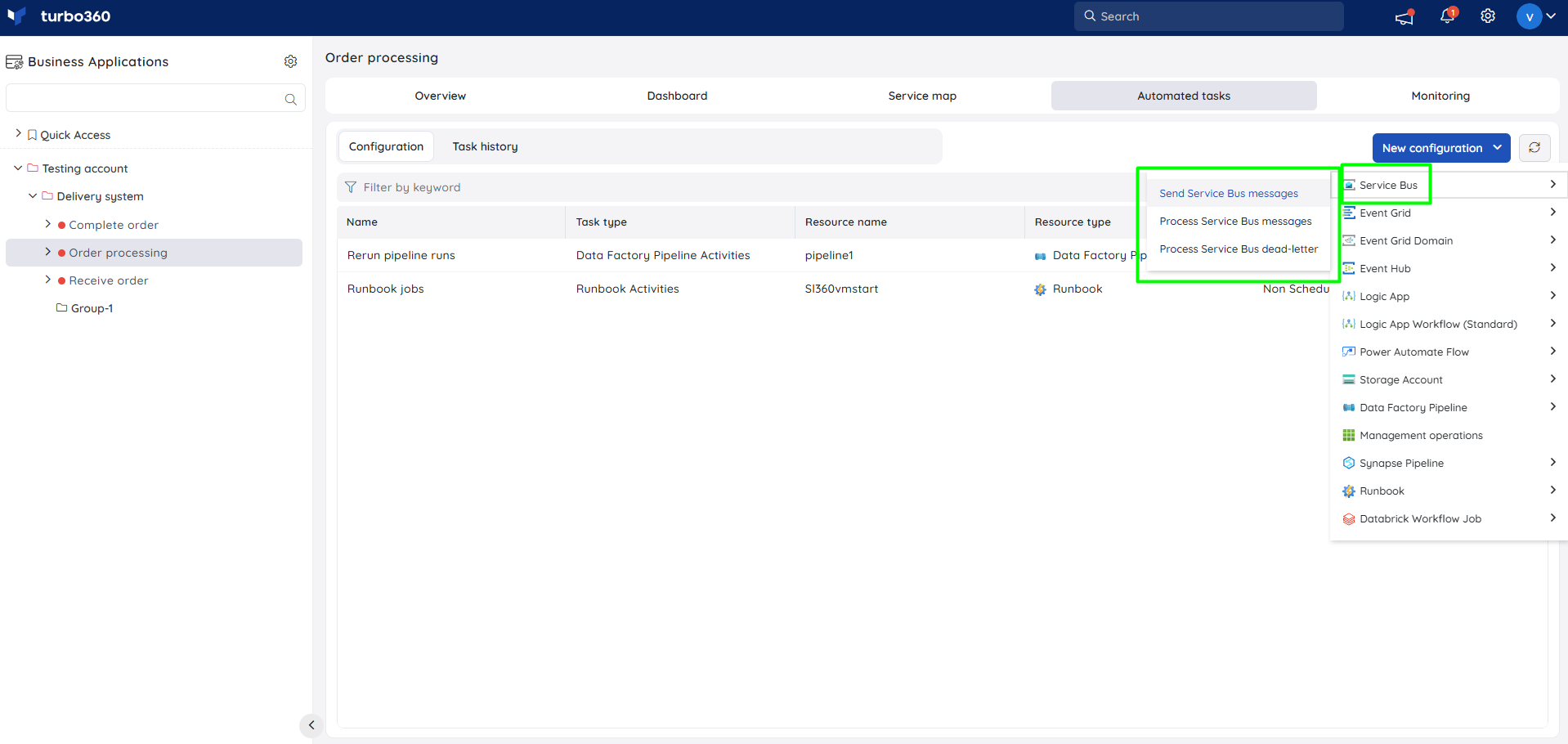
Navigate to the Automated Tasks section in Turbo360 to create a task with a more detailed configuration, schedule tasks to run at a specific time, or automate the task to run on the specified hours, days, and more.
Automated task
- Automated task — sends hundreds or thousands of messages to the topic on a defined schedule, without manual intervention. Use this when load-testing a topic or running recurring publish workflows.
Bulk operations
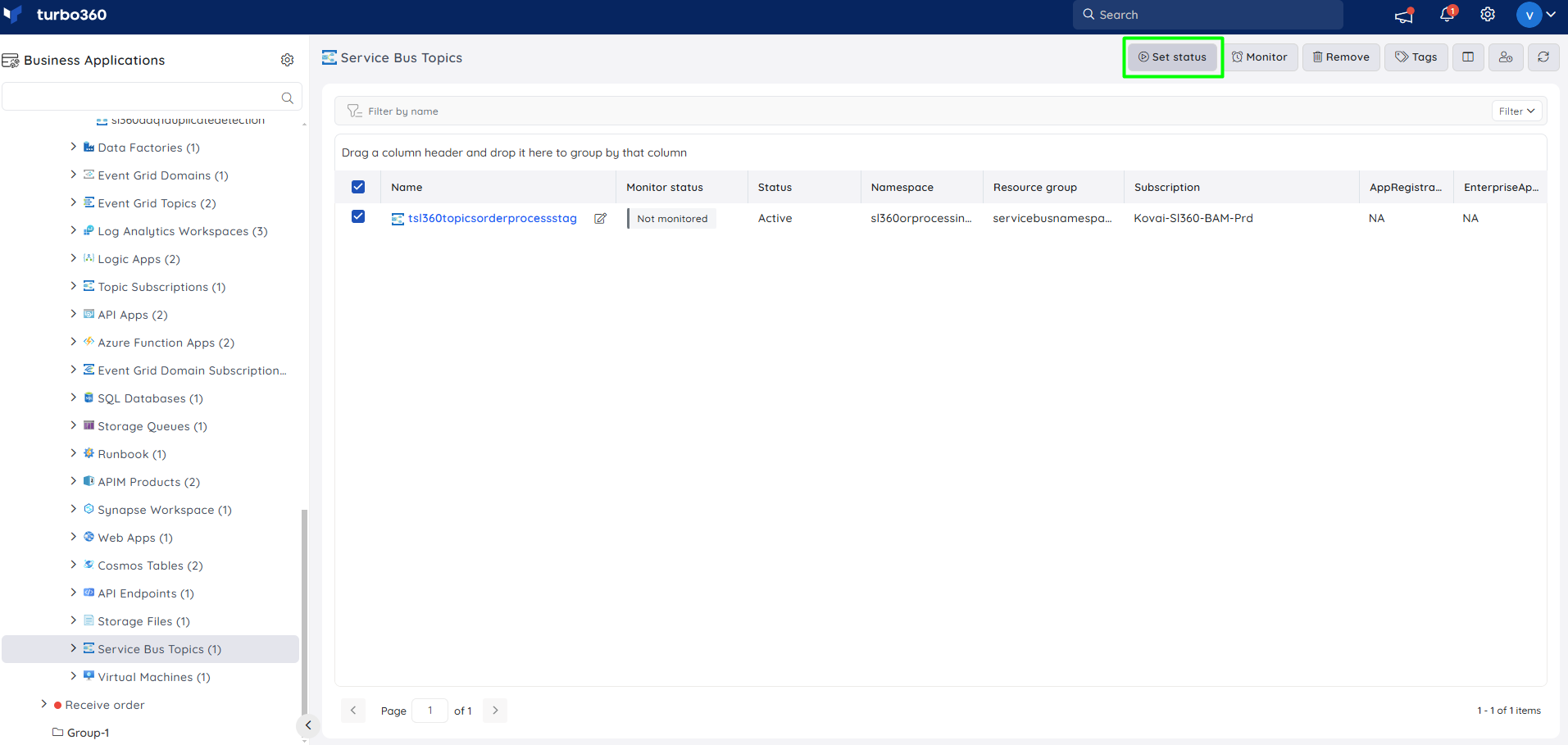
- Bulk status update — updates the status of multiple Service Bus Topic resources at once. Use this when applying the same status change across several topics, such as during planned maintenance.
Resource dashboard
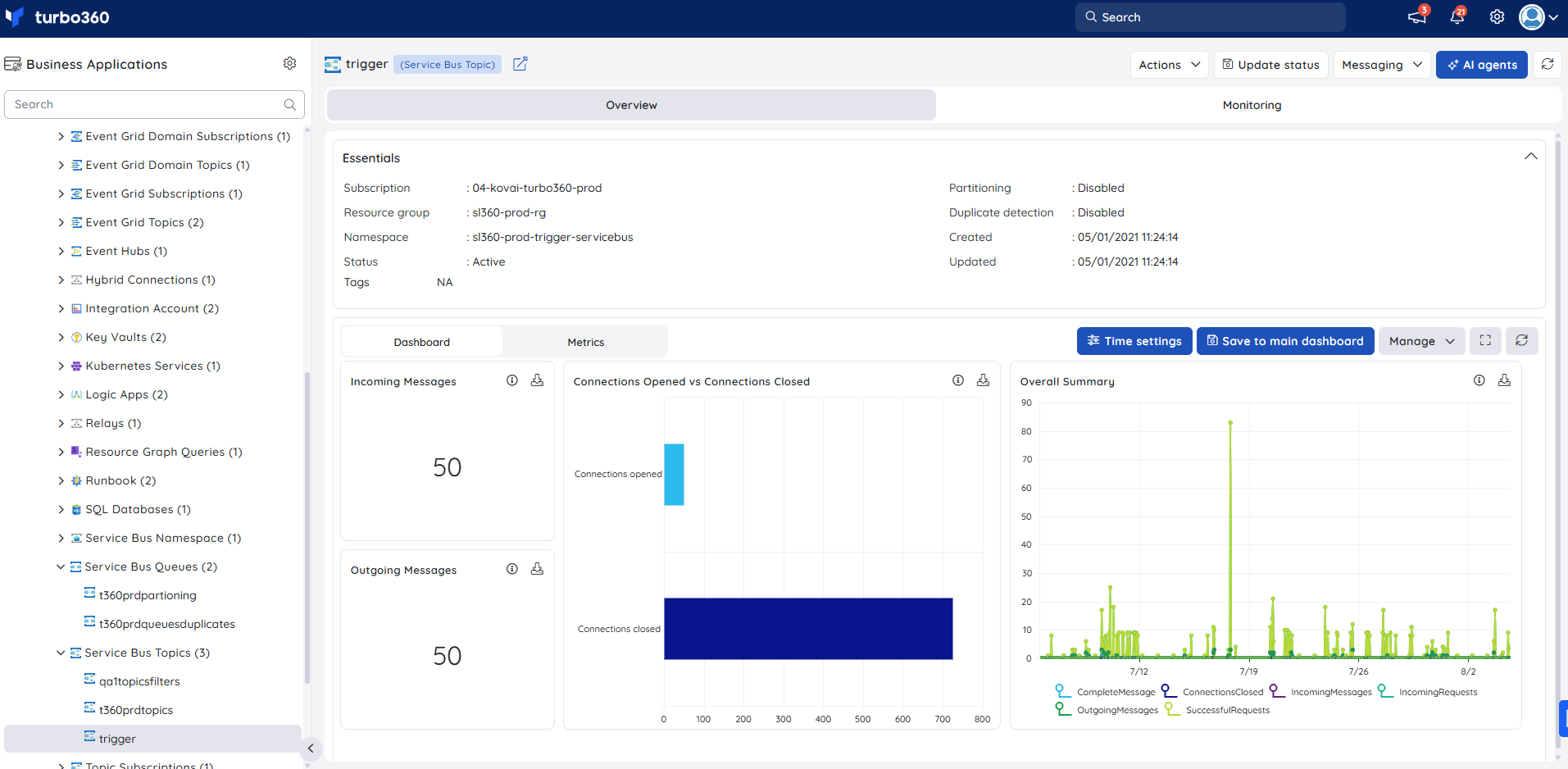
The dashboard gives you real-time visibility into message throughput and connection activity for the topic, helping you spot abnormal traffic patterns affecting subscribers.
| Widget | What it shows |
|---|---|
| Incoming Messages | Volume of messages published to the topic over time. |
| Outgoing Messages | Volume of messages delivered to subscriptions over time. |
| Connections Opened vs Connections Closed | Connection churn for the topic, useful for spotting connection leaks or instability. |
| Overall Summary | High-level summary of topic activity. |
Metrics
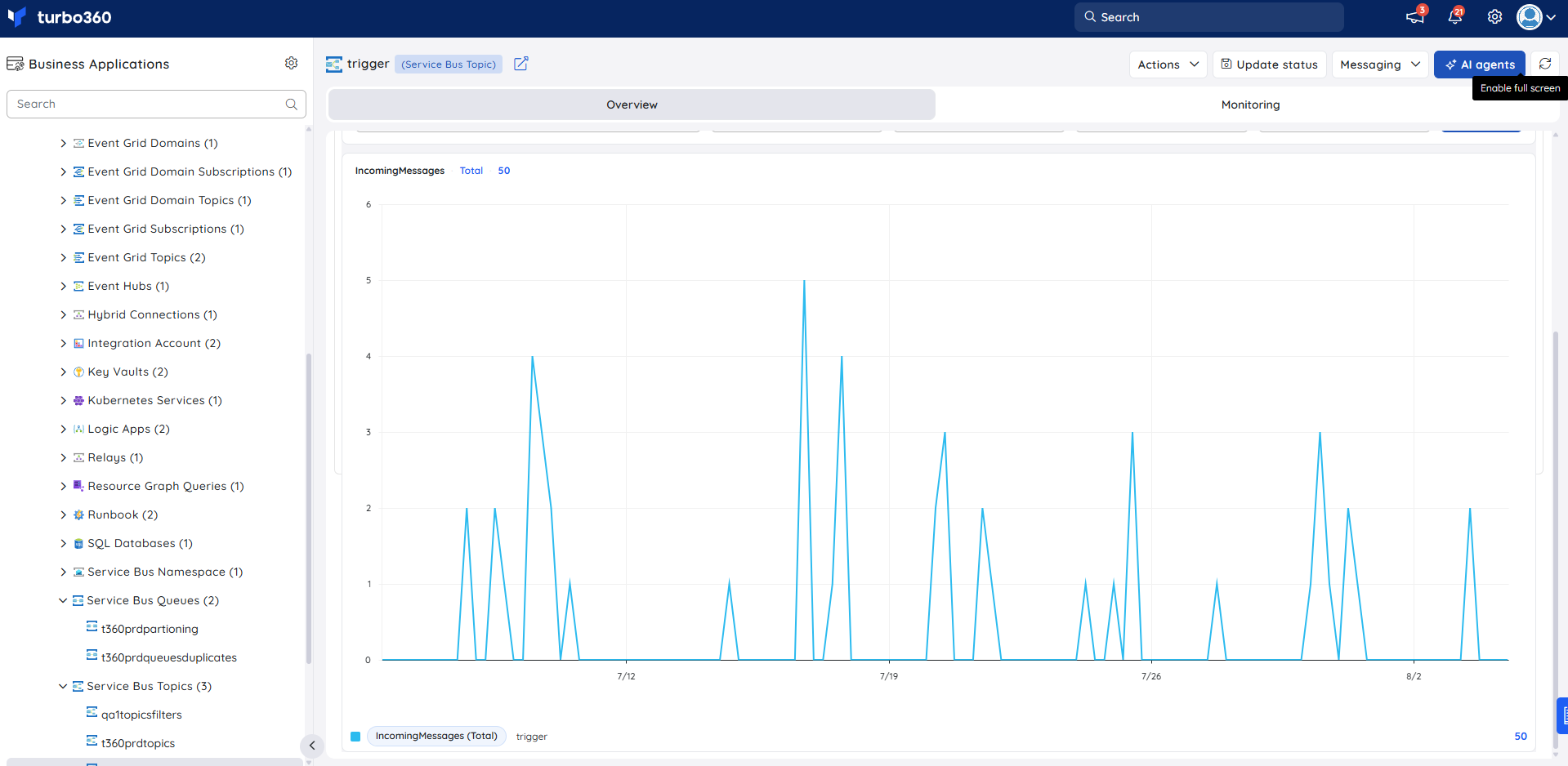
The Metrics tab surfaces message throughput and connection activity data for Service Bus Topic, giving you visibility into publish/subscribe traffic patterns over time. Use the Metrics tab to detect unusual spikes in outgoing message delivery that may indicate subscriber processing issues, or to confirm that traffic returns to baseline after topic status changes or connection disruptions.
You can add, remove, or reconfigure widgets to focus on the metrics most relevant to your support scenario.
Monitoring
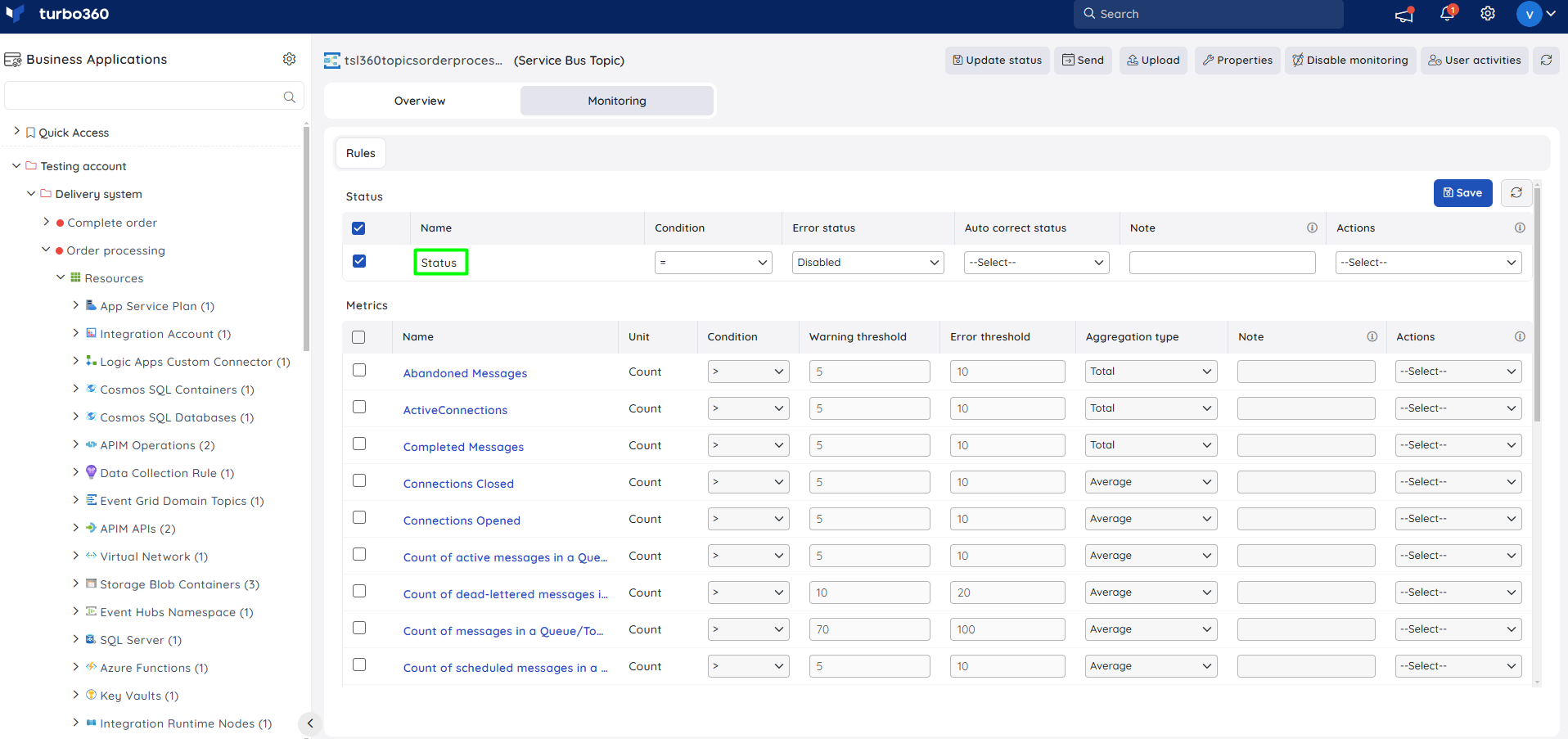
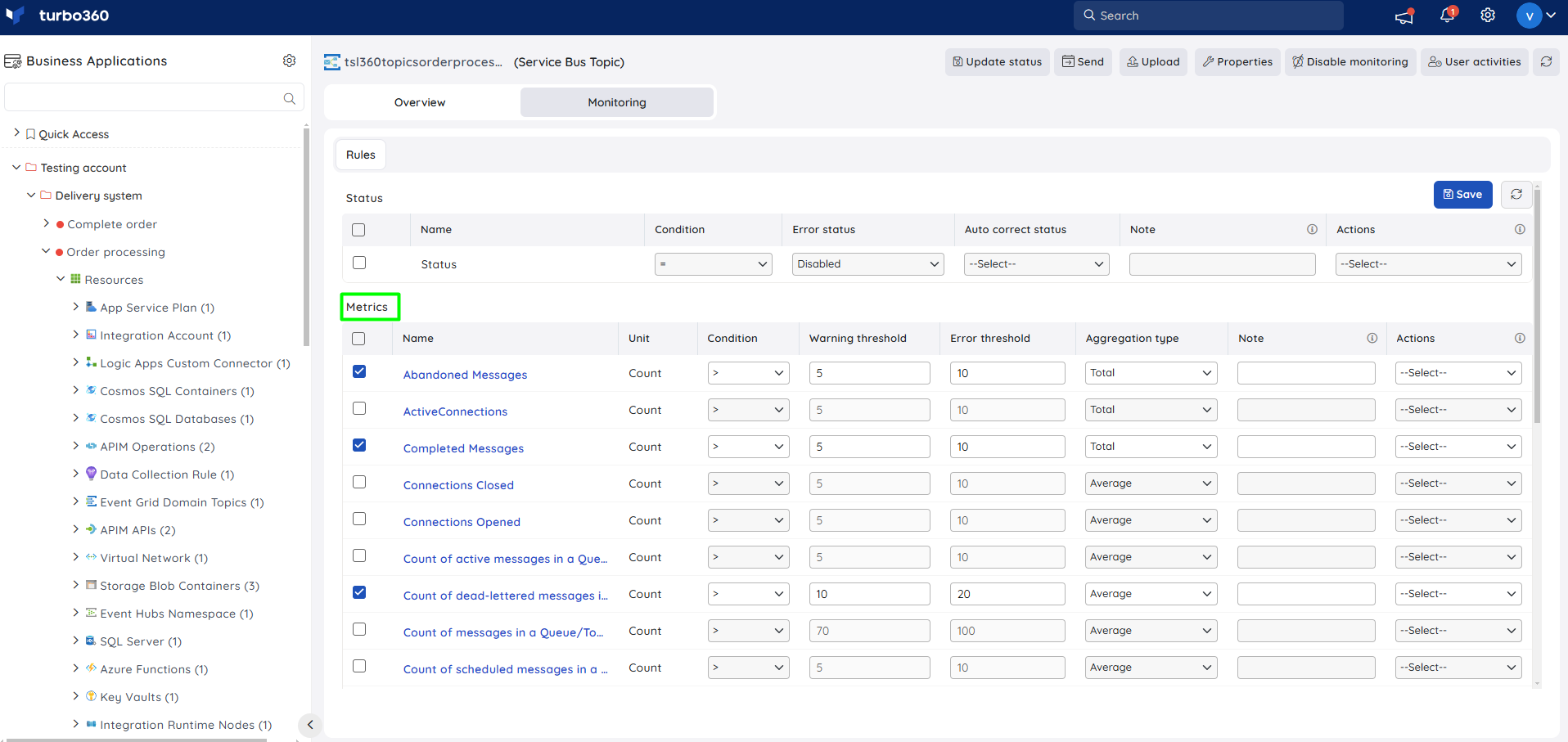
Service Bus Topic supports state and metric monitoring rules, configured from Service Bus Topic -> Monitoring.
Monitoring rules are saved for the Service Bus Topic, and the monitoring state for the metrics updates after every monitoring cycle.
State monitoring
Tracks the topic's status against a configured threshold. Use this when you need to be alerted if the topic becomes unavailable or enters an unexpected state.
- Configure the state rule under Status with the desired threshold.
- Click Save.
Metric monitoring
Tracks topic metrics — such as message count or throughput — against a configured threshold, violating the rule when the metric meets the configured value. Use this when you need early warning of publish backlog or unusual traffic before it affects subscribers.
- Select the necessary monitoring metrics and configure the threshold values.
- Click Save.
Troubleshooting
Uploaded messages don't reach subscribers
Cause: The Excel workbook content doesn't match the expected message format, or the topic has no active subscriptions configured.
Fix: Validate the worksheet format before uploading, and confirm at least one subscription exists on the topic.Bulk status update doesn't apply to all selected topics
Cause: One or more selected Service Bus Topic resources may already be in the target status or are unreachable.
Fix: Re-run the bulk operation on the remaining topics individually to identify which one failed.Metric monitoring rule not reflecting the latest state
Cause: The monitoring state only updates after a full monitoring cycle completes.
Fix: Wait for the next monitoring cycle, or verify the threshold configuration matches the intended metric.
Related articles
Was this article helpful?