

Service Bus Topic Subscription
- 05 Aug 2026
- 5 Minutes to read
- Print
- DarkLight
- Download PDF
Service Bus Topic Subscription
- Updated on 05 Aug 2026
- 5 Minutes to read
- Print
- DarkLight
- Download PDF
Article summary
Did you find this summary helpful?
Thank you for your feedback!
Overview
Azure Service Bus is a cloud messaging service that connects applications, devices, or services running in the cloud to one another. Topics and Subscriptions provide a one-to-many publish/subscribe pattern — in contrast to queues, where a single consumer processes each message — making them useful for scaling to large numbers of recipients.
Business value
Managing Service Bus Topic Subscription messages from Turbo360 gives you visibility the Azure portal lacks, letting you query, filter, and recover dead-lettered messages directly, reducing the time to detect and resolve subscription-level message failures.
How it works
- Once a Service Bus Topic Subscription is associated with a Business Application, you can query messages in the Active-end or Dead-Letter queue, in Peek or Deferred state, filter them by system or custom properties, and process them — all from Turbo360 instead of switching to Azure tools.
- Peek mode retrieves messages without affecting active receivers and without increasing delivery count or enabling delete; Defer mode affects active receivers, increases delivery count, and allows delete. Deferred messages are accessible from the Deferred Active Messages and Deferred Dead-Letter tabs without needing to know their sequence number.
- Messages larger than 100 MB are retrieved in batches of 50 for optimal performance. The Actions options (Save, Resubmit, Repair & Resubmit) are disabled for messages over 1 MB, and messages over 10 MB lose access to context menu options other than Resubmit and Properties.
Permissions
Access to Service Bus Topic Subscription actions is controlled through RBAC when adding a role to a Business Application.
| Permission | Description |
|---|---|
| Read | View messages, filters, dashboard, and monitoring configuration. |
| Manage | Update status, manage filters, save query filters, and configure monitoring rules. |
| Reprocess | Resubmit messages, individually or in bulk. |
| Repair & Reprocess | Modify message content or properties and resubmit. |
| Manage Filter | Add, edit, or remove SQL and Correlation filters under Rules management. |
| Purge | Delete messages from the active-end or dead-letter queue, and purge via inline or automated tasks. |
Operations
Turbo360 lets you query, filter, and process Service Bus Topic Subscription messages directly, without switching to the Azure portal.
View and filter messages
- Retrieve messages — query messages in Active-end or Dead-Letter queues, in Peek or Deferred state, by message count and sequence number. Use this when you need visibility into subscription messages that the Azure portal doesn't surface.
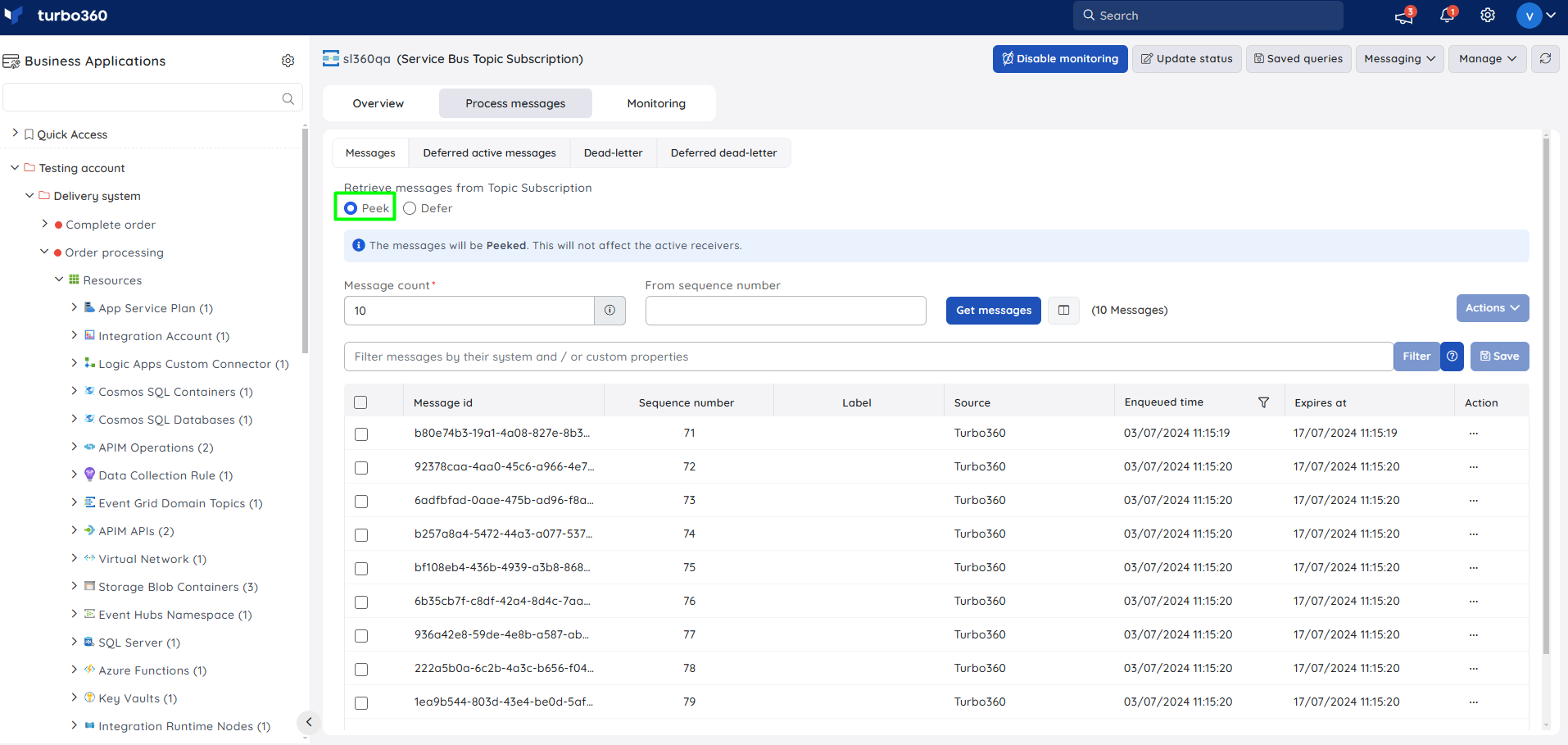
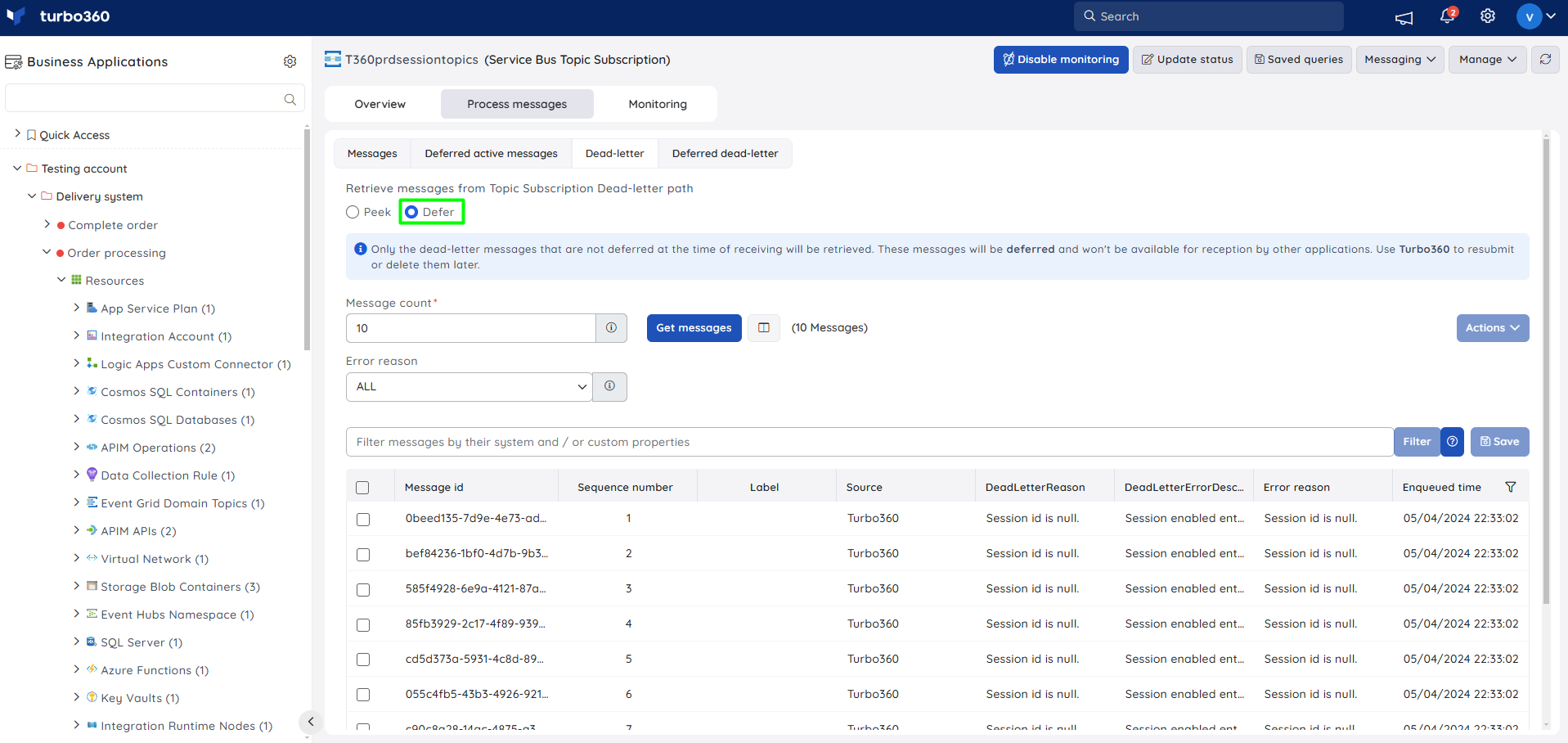
| Peek mode | Defer mode |
|---|---|
| Messages are peeked; active receivers in the active-end queue are unaffected. | Messages are deferred; active receivers in the active-end queue are affected. |
| Delivery count is not increased. | Delivery count is increased. |
| Cannot perform delete. | Can perform delete. |
- Filter messages — query retrieved messages by system or custom properties, dead-letter reason, or Enqueued time using AND/OR operators.
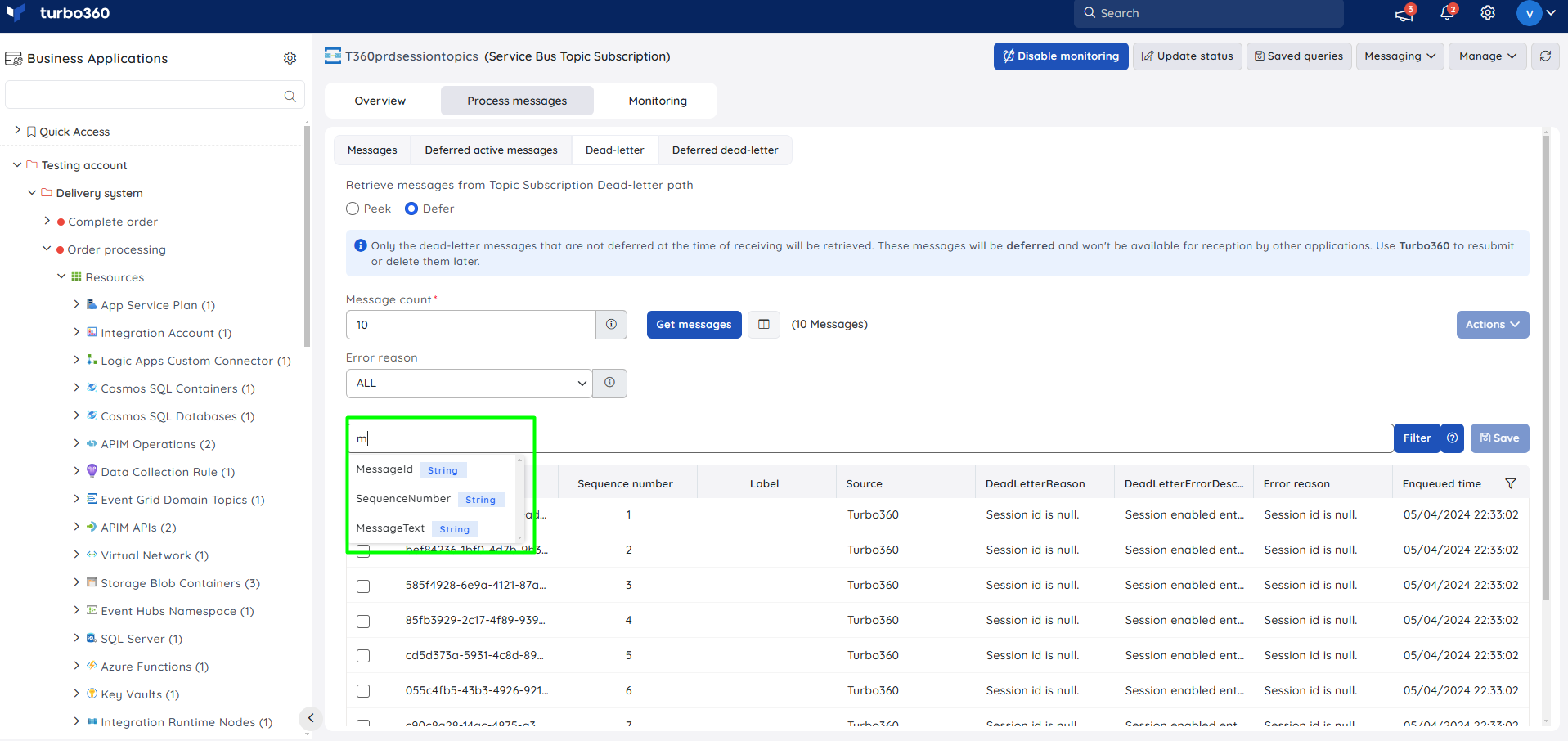
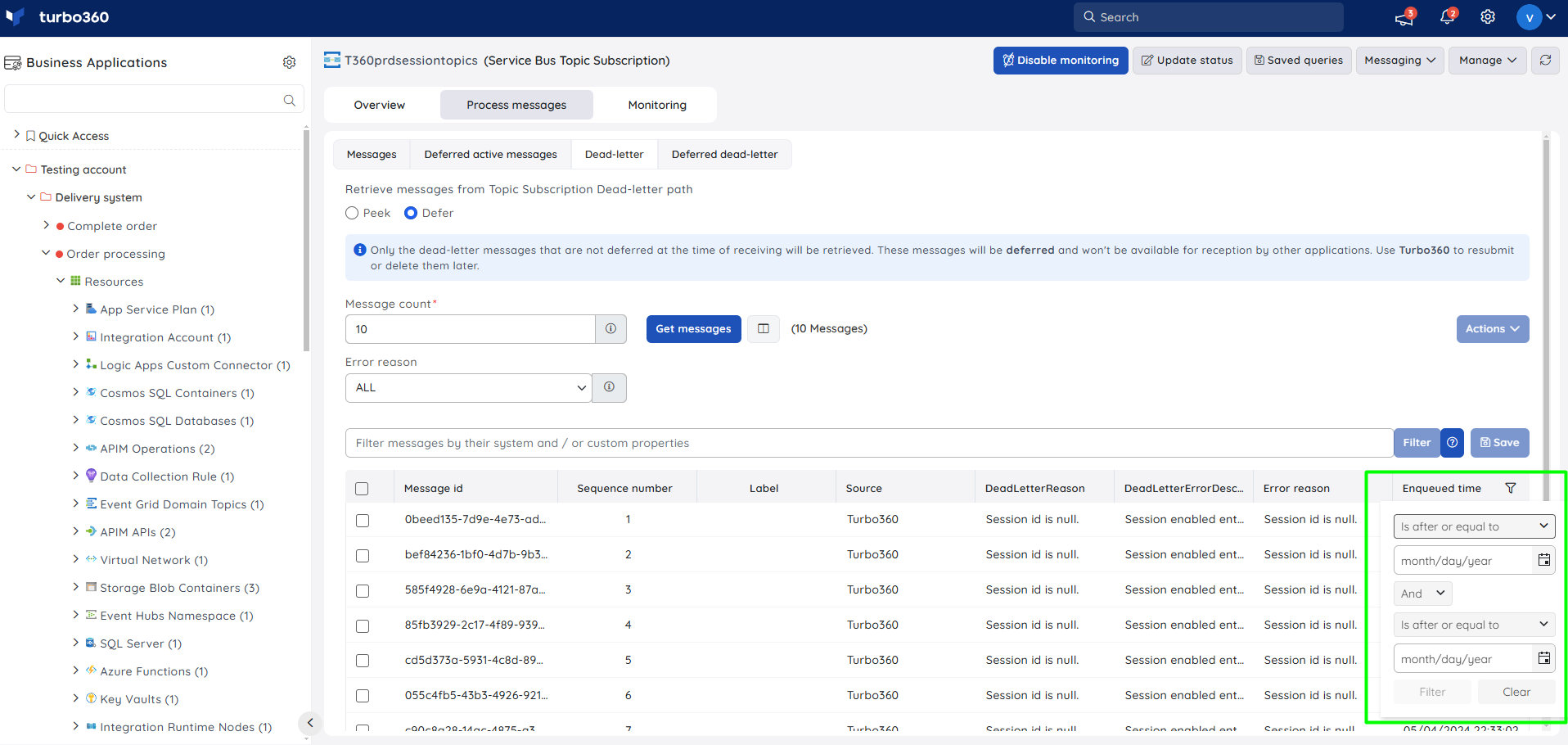
Points to remember:
- Turbo360 gives access to all deferred messages without needing to know their sequence number.
- Messages larger than 100 MB are retrieved in batches of 50 for optimal performance.
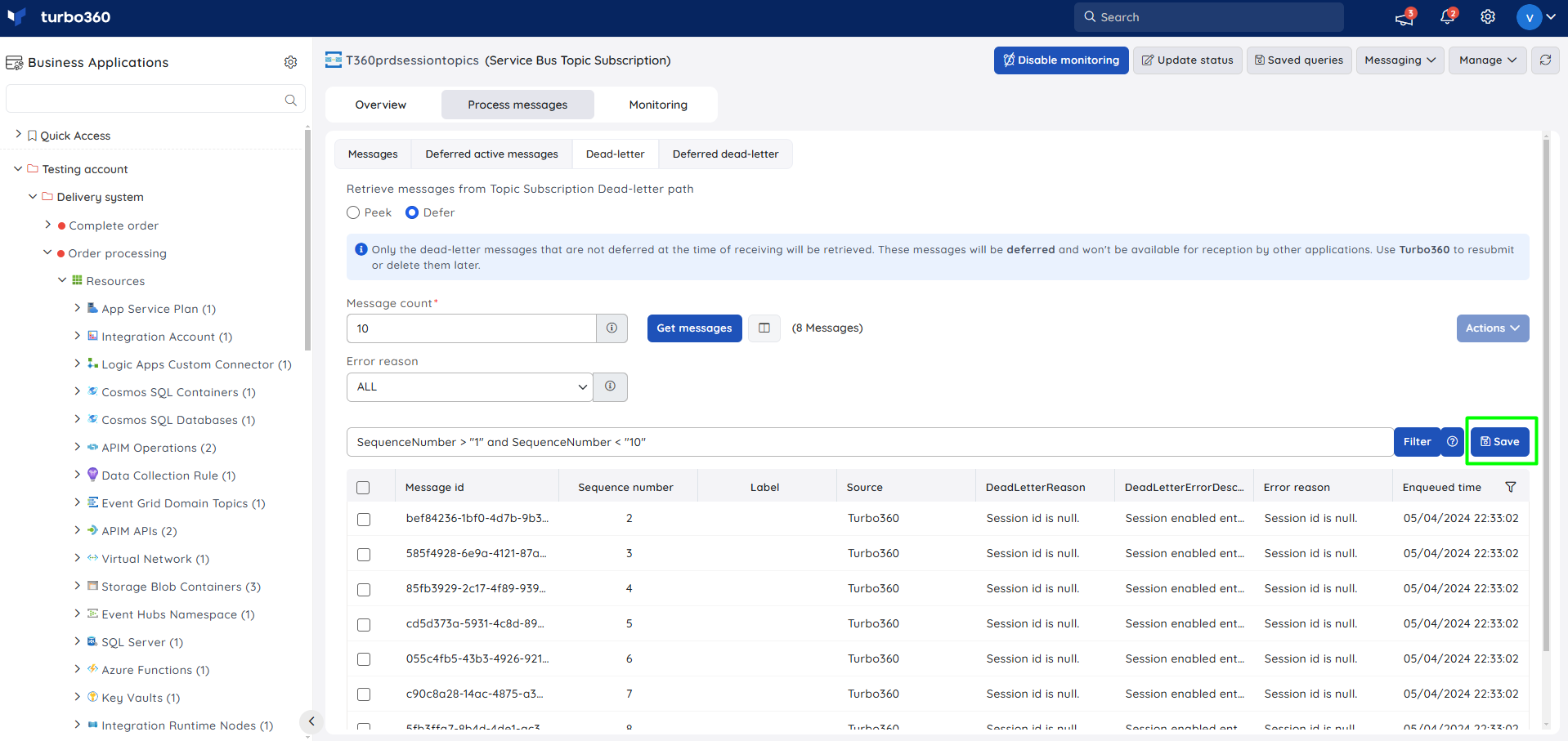
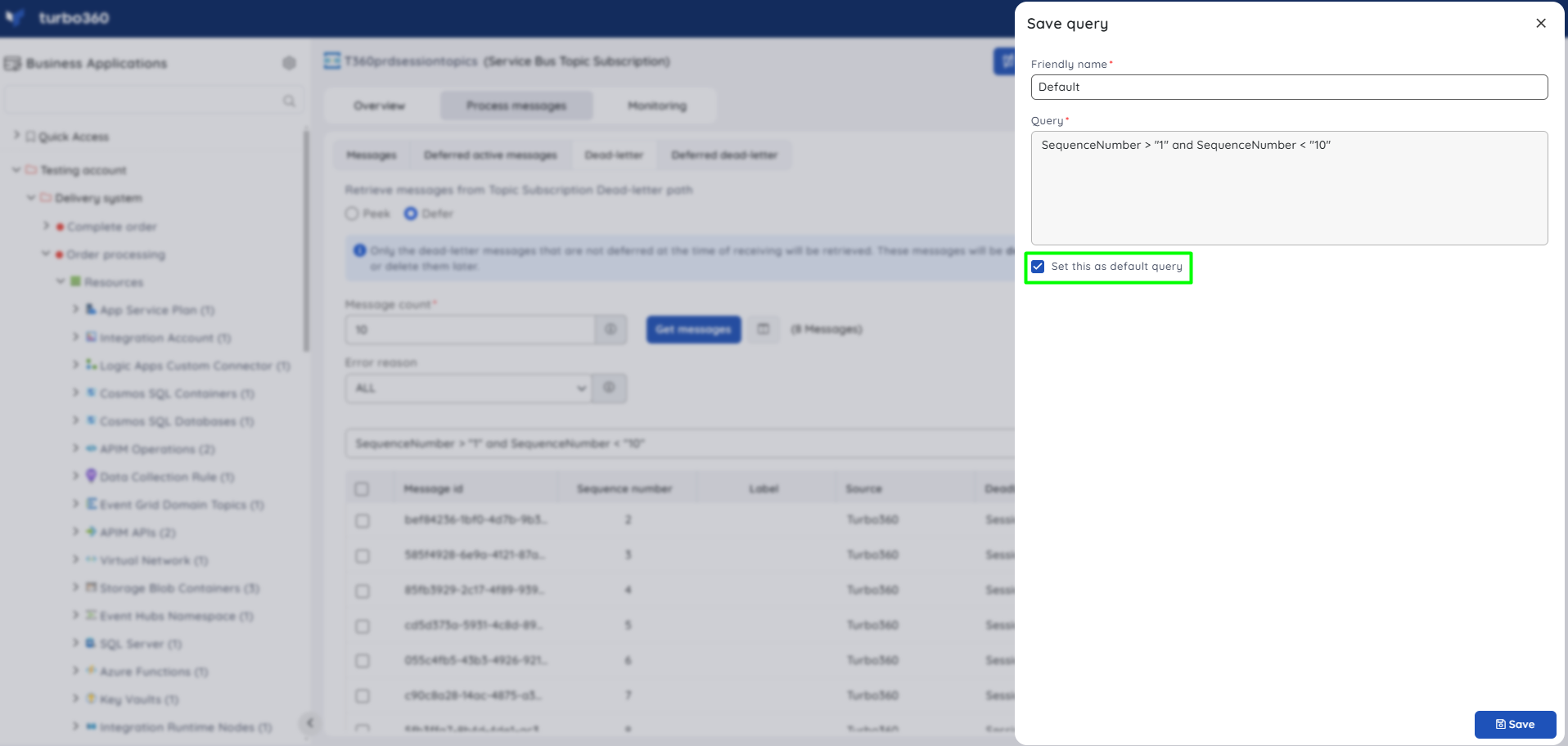
- Save a query filter — save a filter using the Save button next to Filter, and access it later from Saved queries. A default query can also be defined to pre-populate the Filter option.
Update status
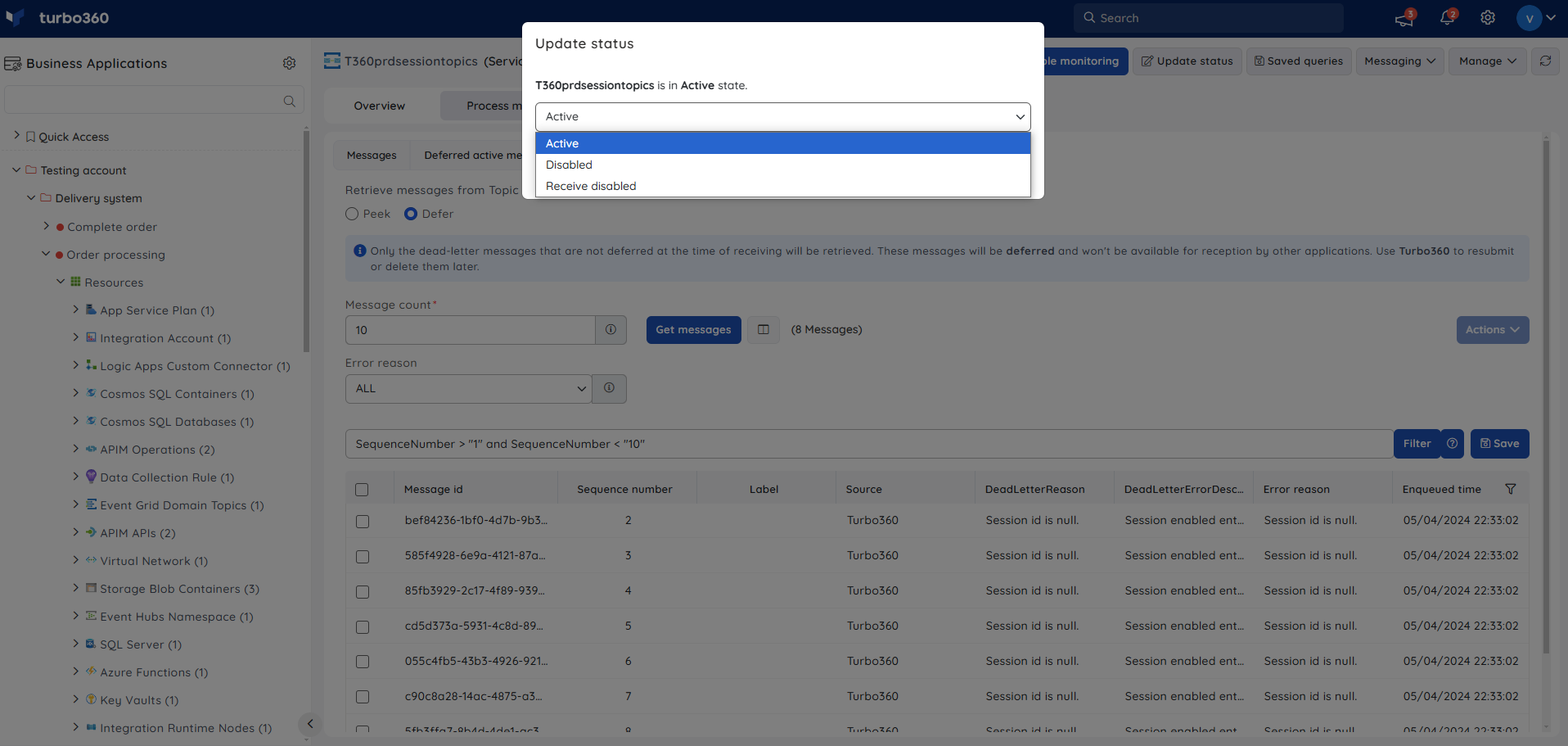
- Update status — change the status of the Topic Subscription by selecting from the available options.
Bulk operations
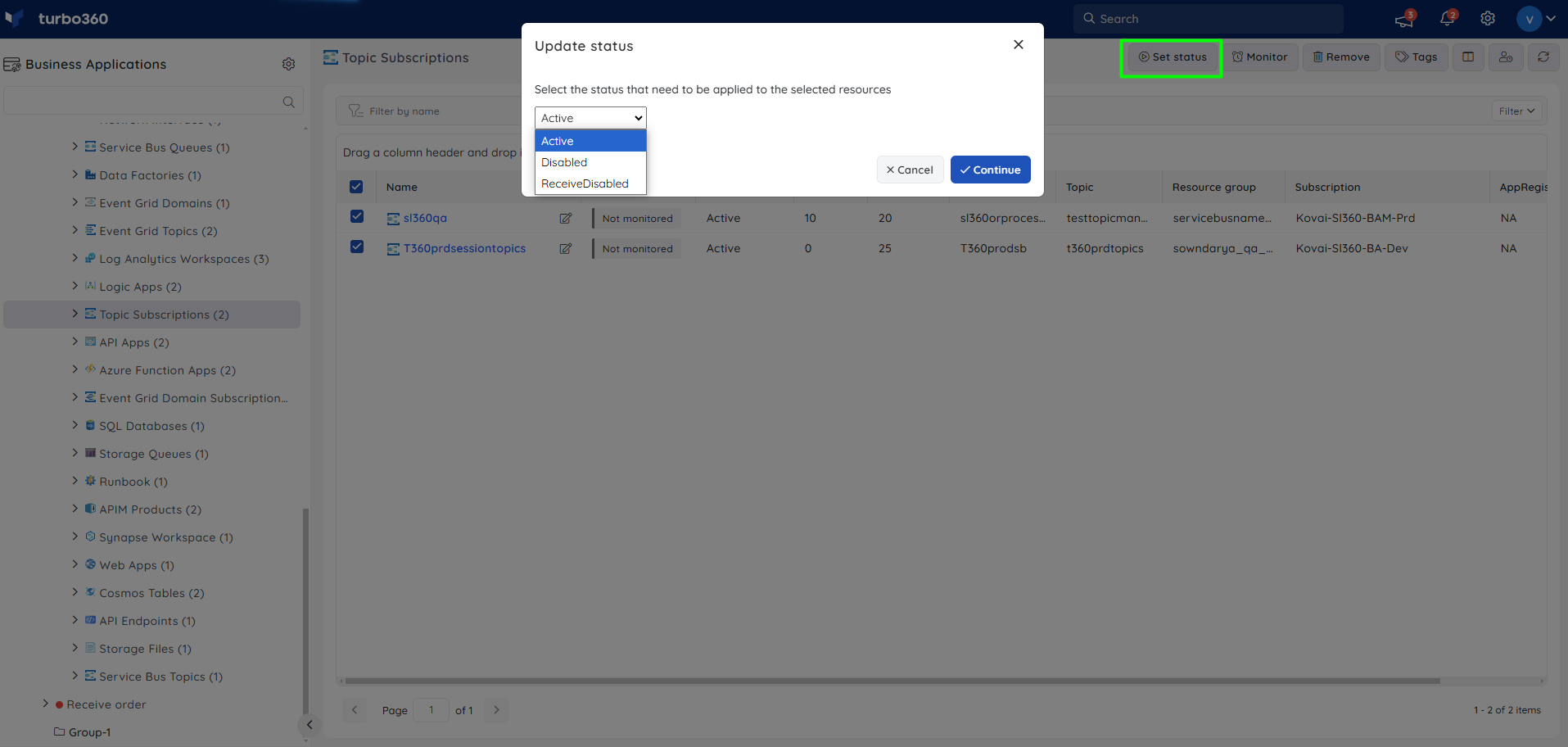
- Bulk status update — update the status of multiple Topic Subscriptions at once from the resource section.
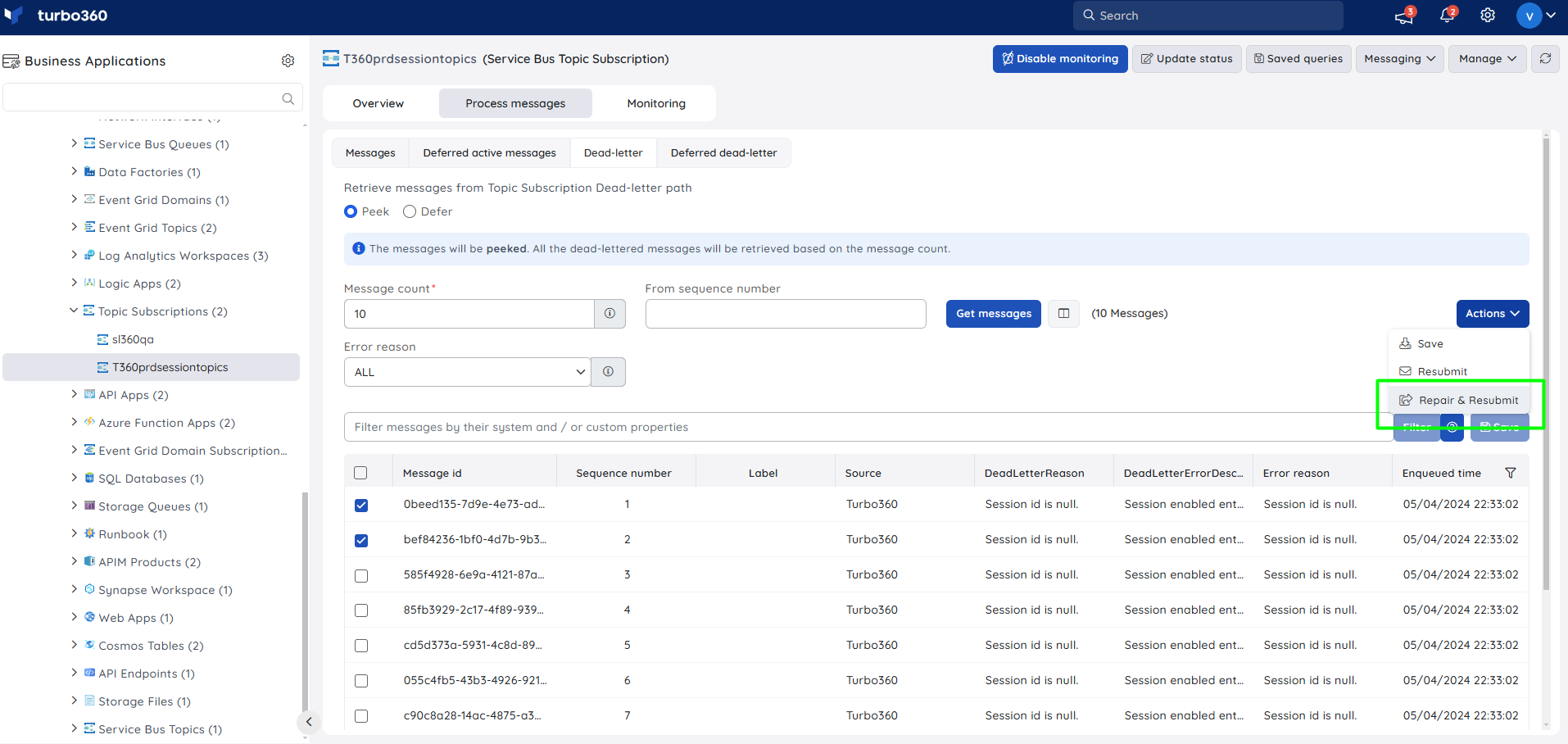
- Bulk Repair & Resubmit — repair and resubmit multiple selected messages via Actions -> Repair & Resubmit.
Rules management
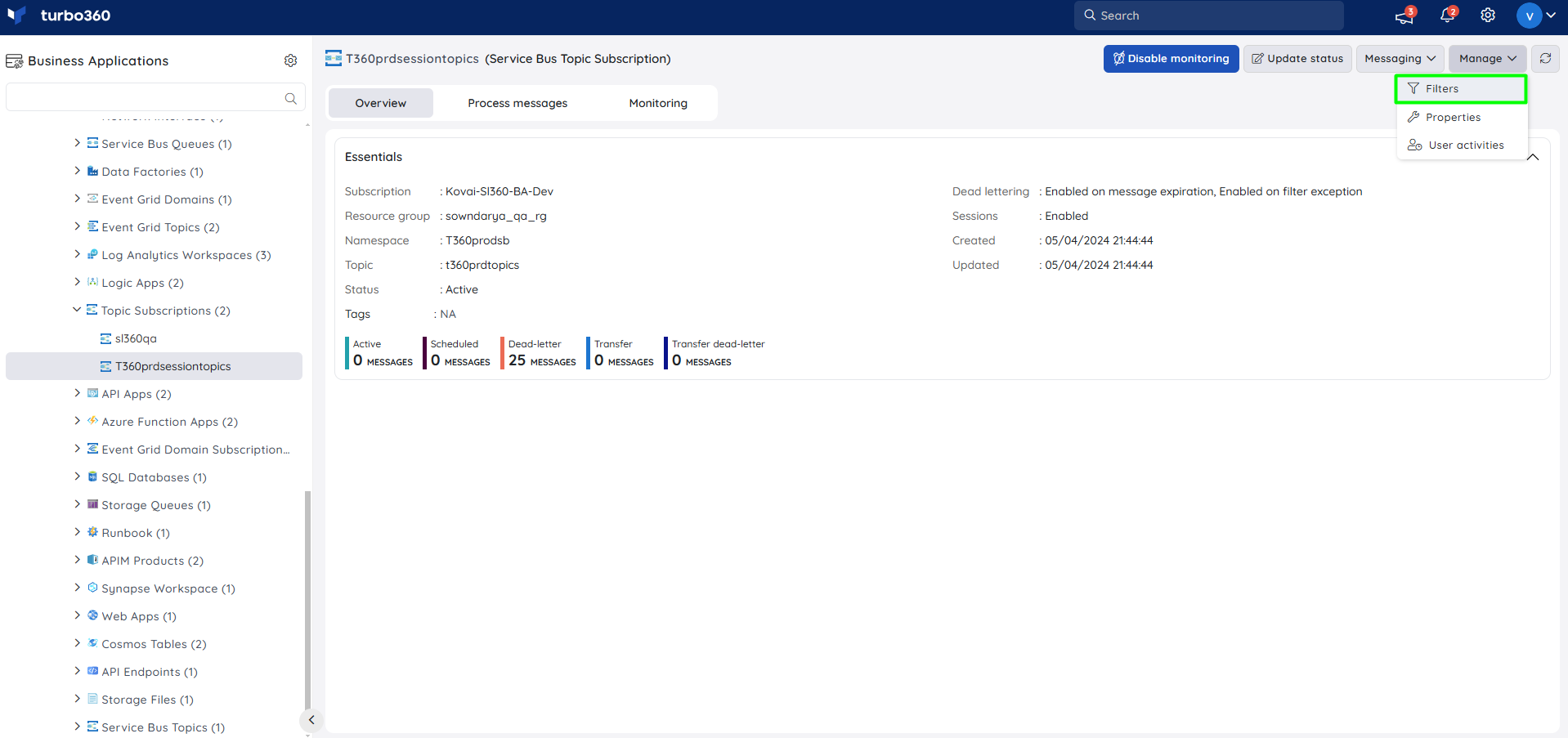
- Manage filters — add filters under Manage -> Filters to control which messages from the Topic reach the Subscription. Use this when only a subset of Topic messages should be delivered to a given Subscription.
- SQL Filter — a SQL-like conditional expression checked against user-defined and system properties of incoming messages.
- Correlation Filter — a list of conditions checked against one or more user and system properties of an incoming message.
For example, to receive only messages with BookingId between 1 and 100 and set customer to Known:
Filter: BookingId >= 1 and BookingId <= 100
Action: SET Customer = 'Known'
Process messages
Turbo360 supports Resubmit, Repair & Resubmit, Save, Delete, Backup, viewing message details/properties/dead-letter reason, and automated tasks for processing messages.
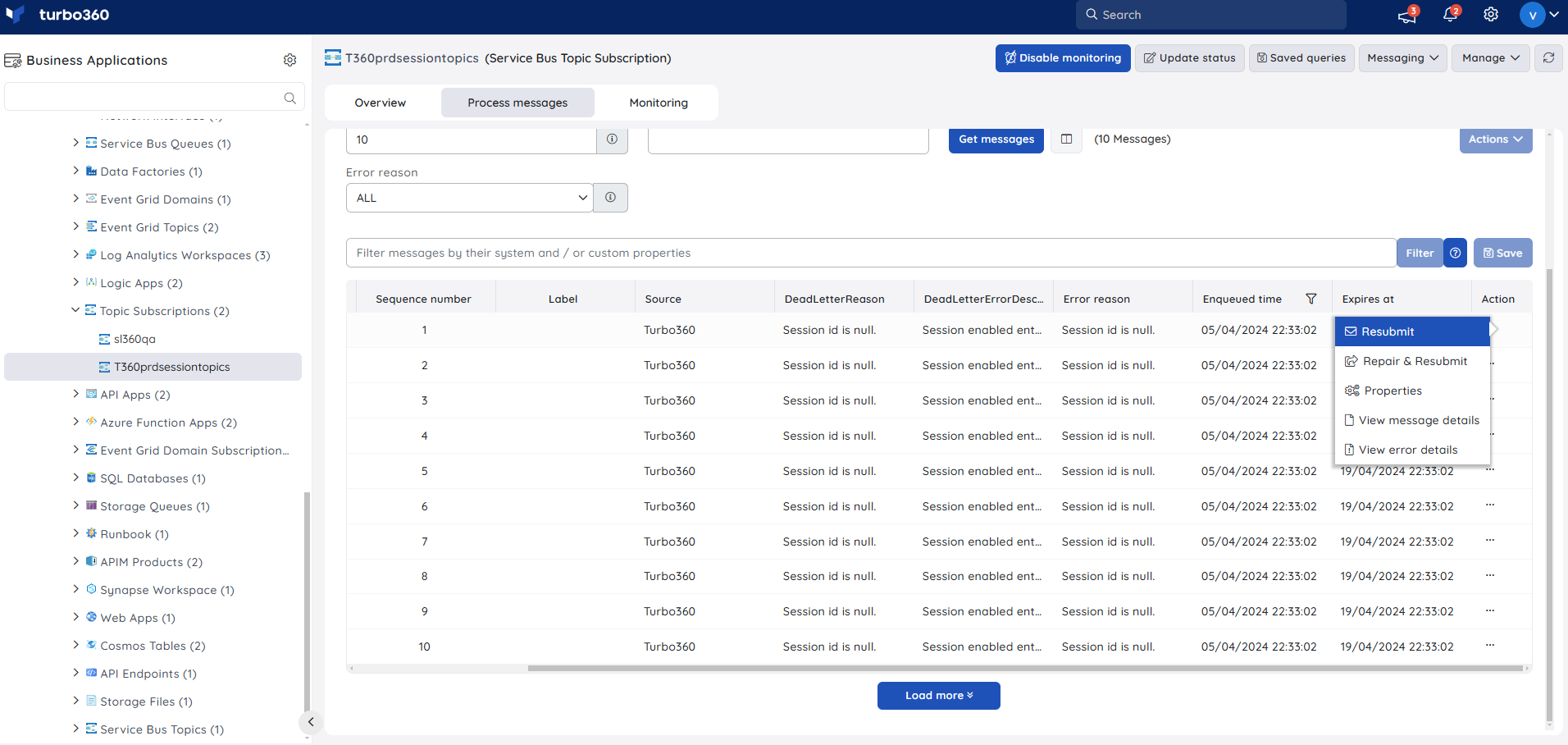
- Resubmit — resubmit a single message or a bulk selection from active-end or dead-letter back to the same topic, a different topic, a queue, or an API endpoint.
Avoid duplicate message loss
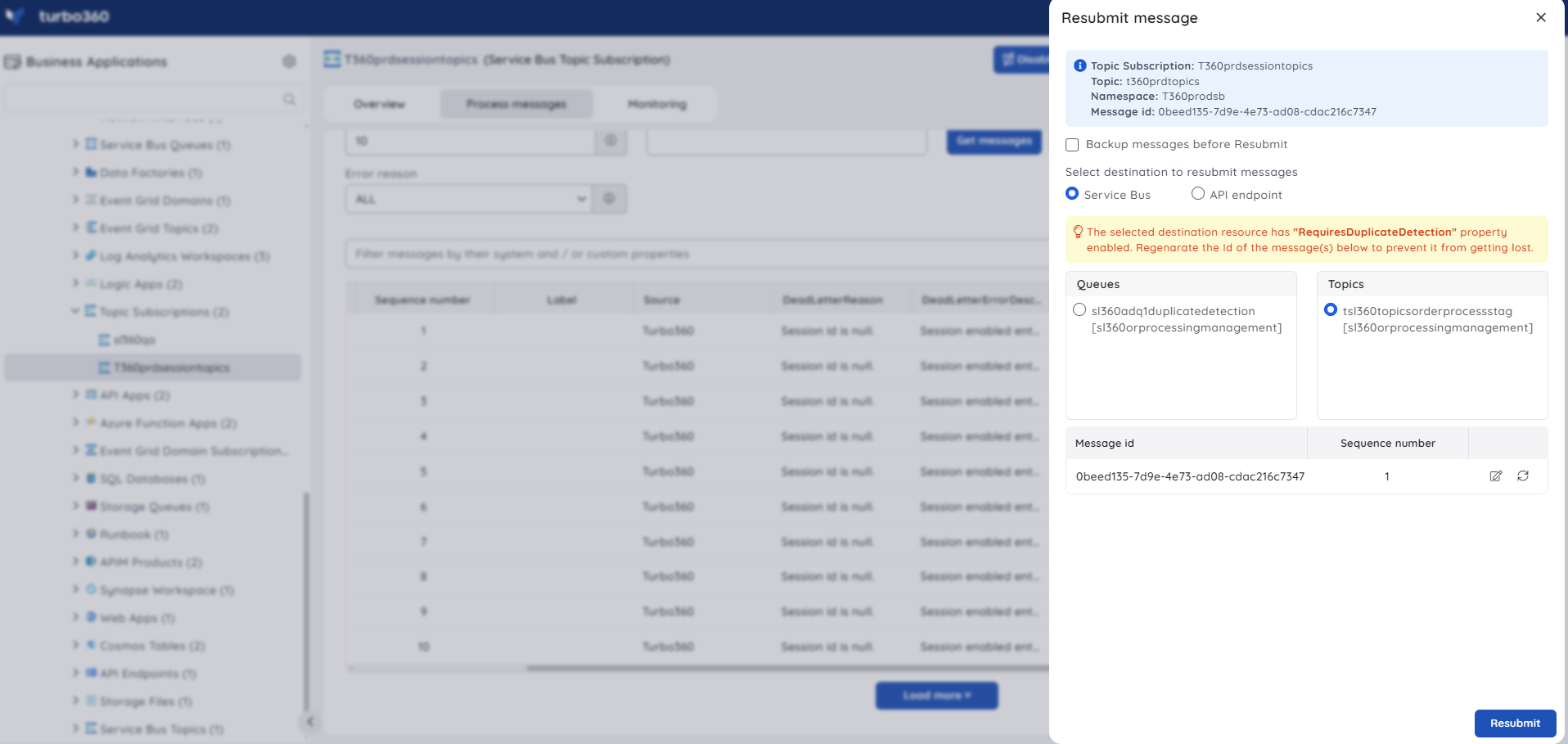
Sending messages with the same message ID to a Service Bus resource with duplicate detection enabled results in duplicates being ignored. Turbo360 lets you regenerate the message ID manually or automatically while resubmitting.
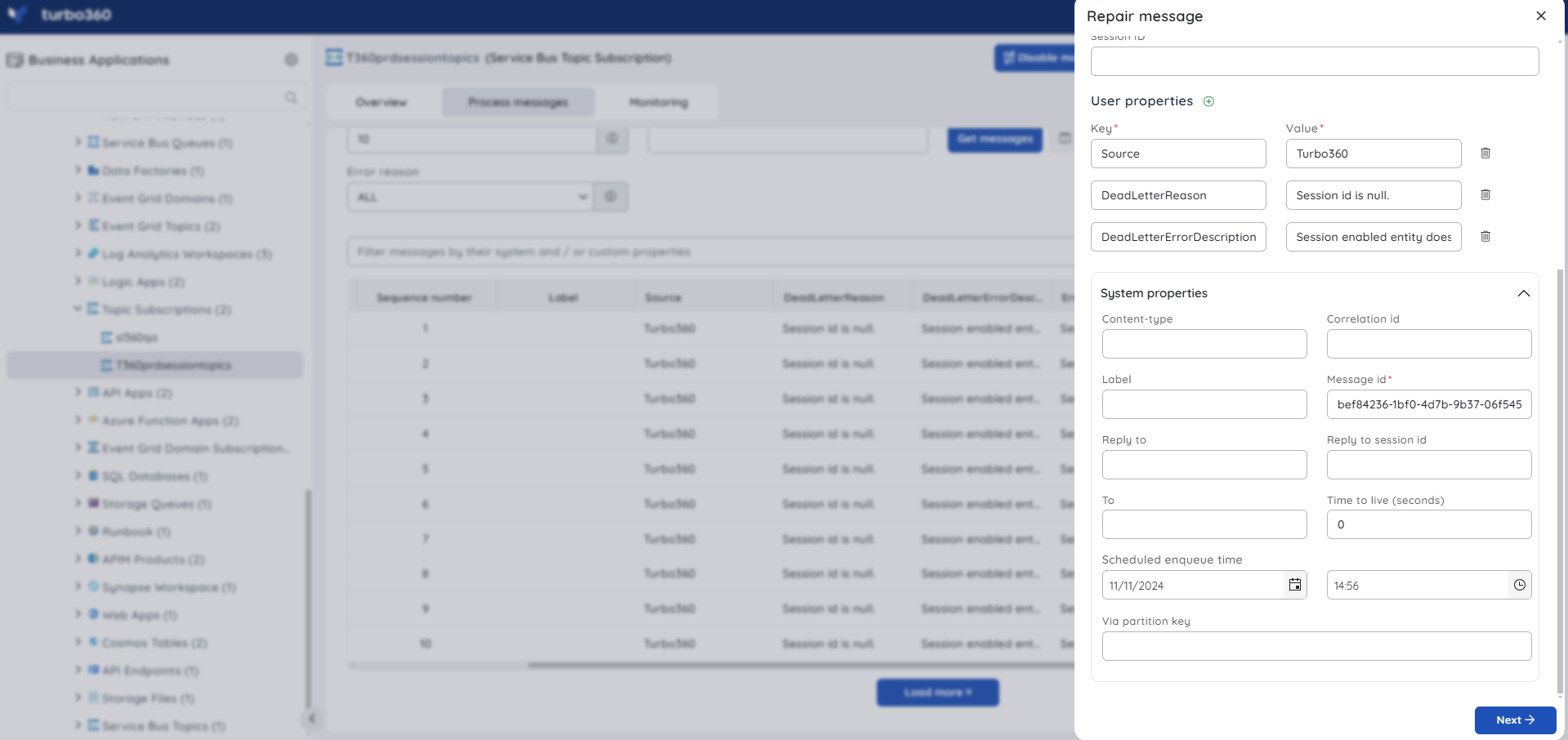
- Repair and Resubmit — repair a message inline or in bulk via Excel sheet before resubmitting.
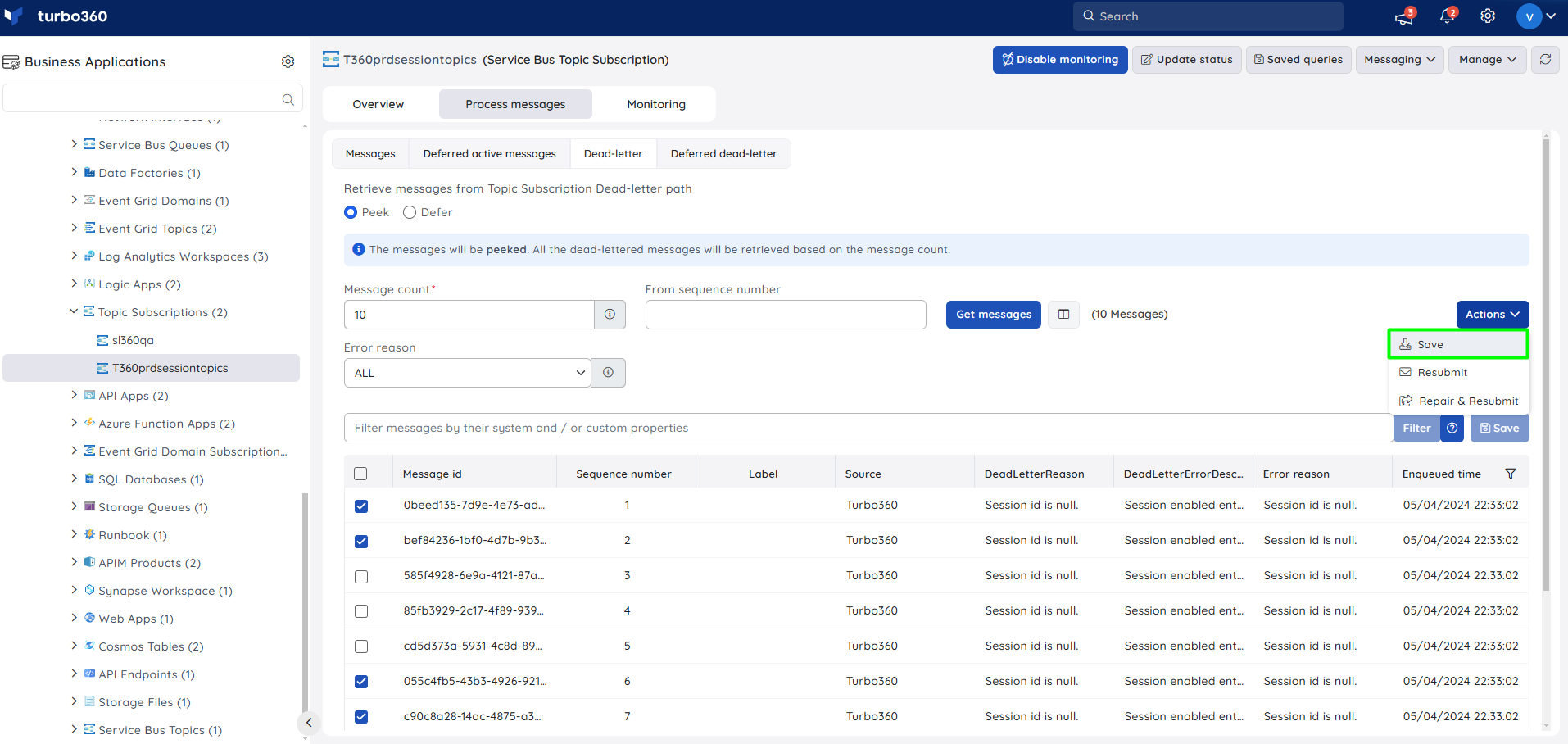
- Save messages — download selected messages as a compressed (zipped) folder via Actions -> Save.
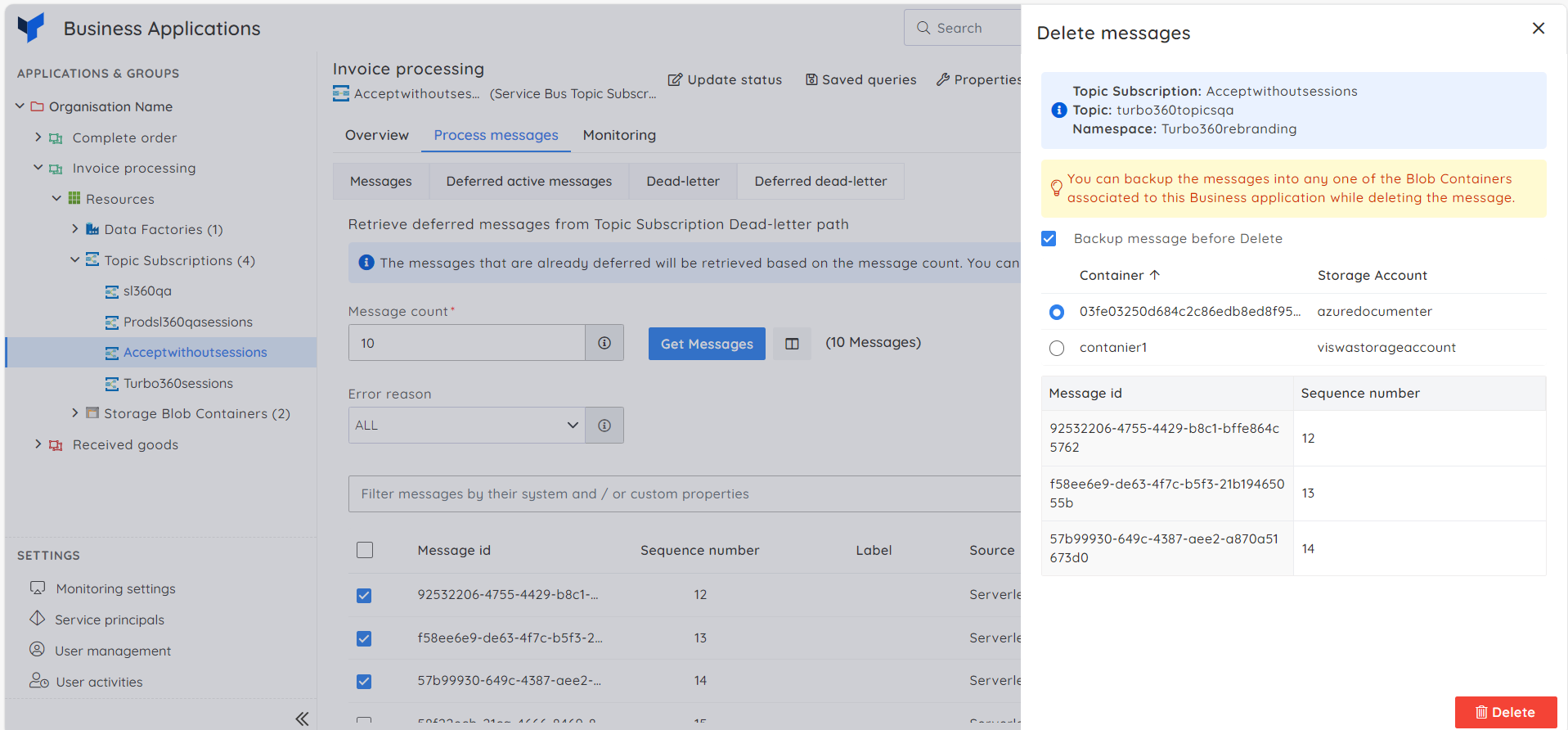
- Backup and Delete — delete messages from active-end or dead-letter, optionally backing them up to an associated Storage Blob Container first.
Inline task to purge messages
- Inline task — quickly purge messages from the subscription by specifying message count, queue type (Active-end or Dead-Letter), and Enqueued At time.
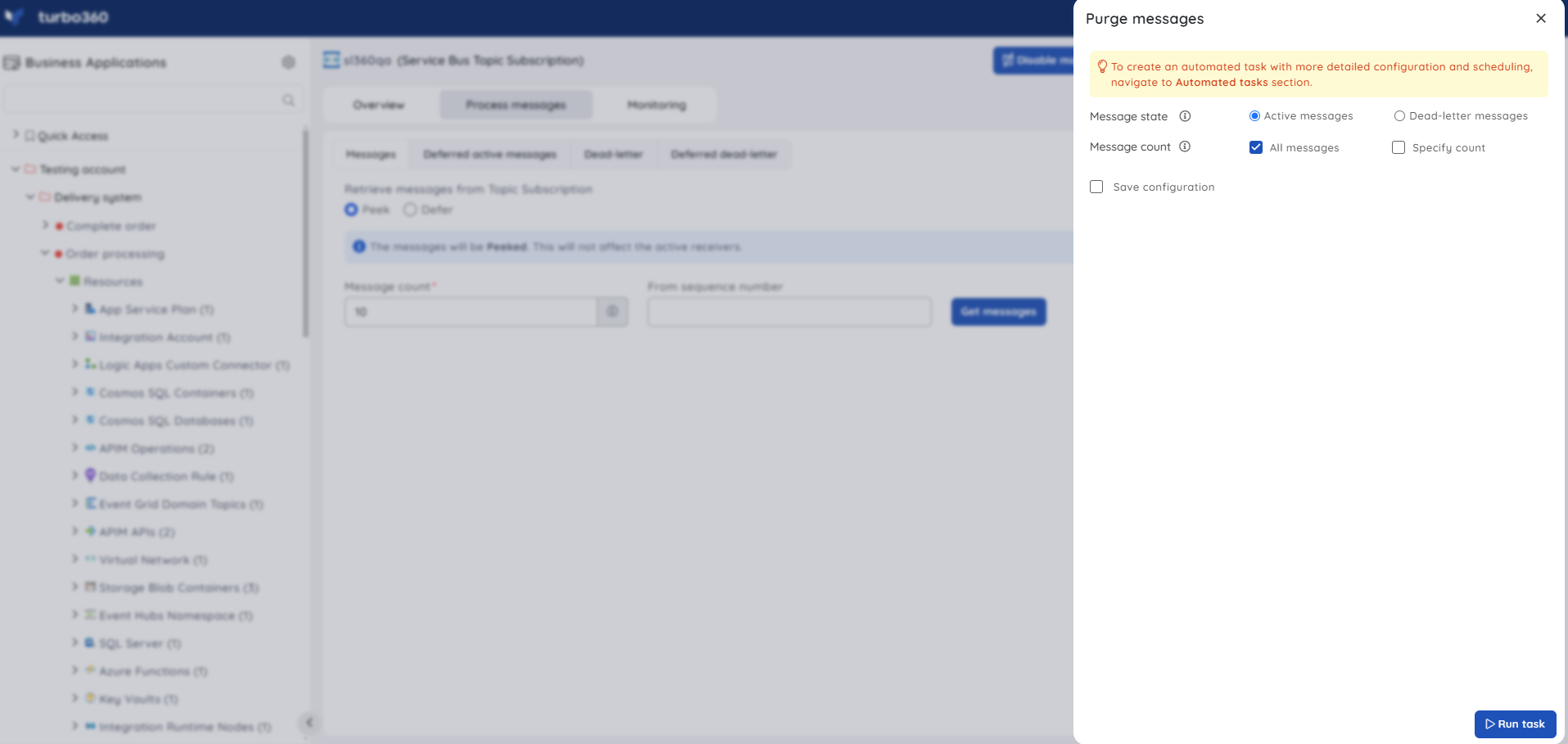
Task status can be viewed under Automated Tasks -> Task history.
Use the Automated Tasks section for more detailed configuration, scheduling, or recurring automation.
The Automated Task feature schedules active and dead-lettered messages to be processed to a Queue or Topic — useful when multiple Topic Subscriptions need different schedules.
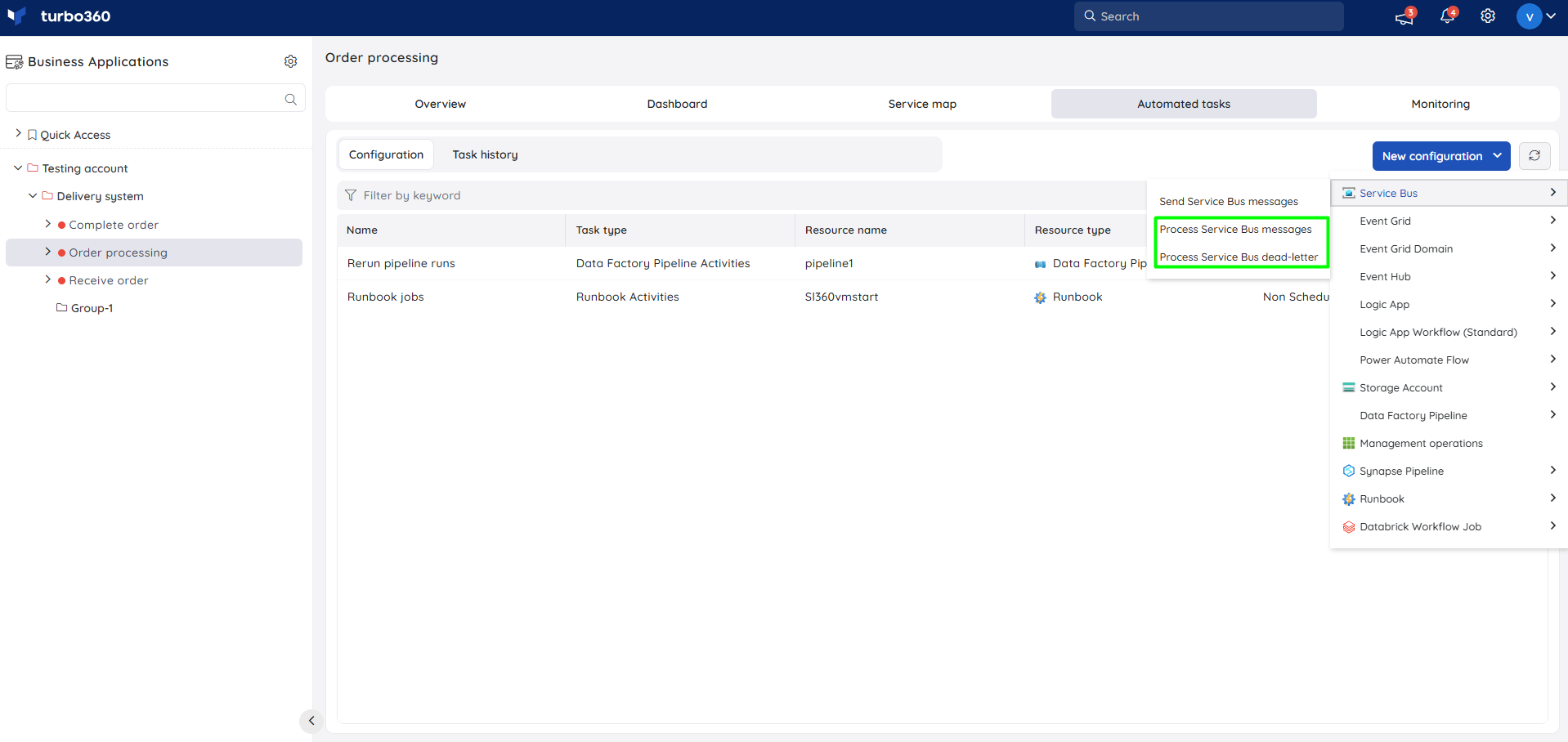
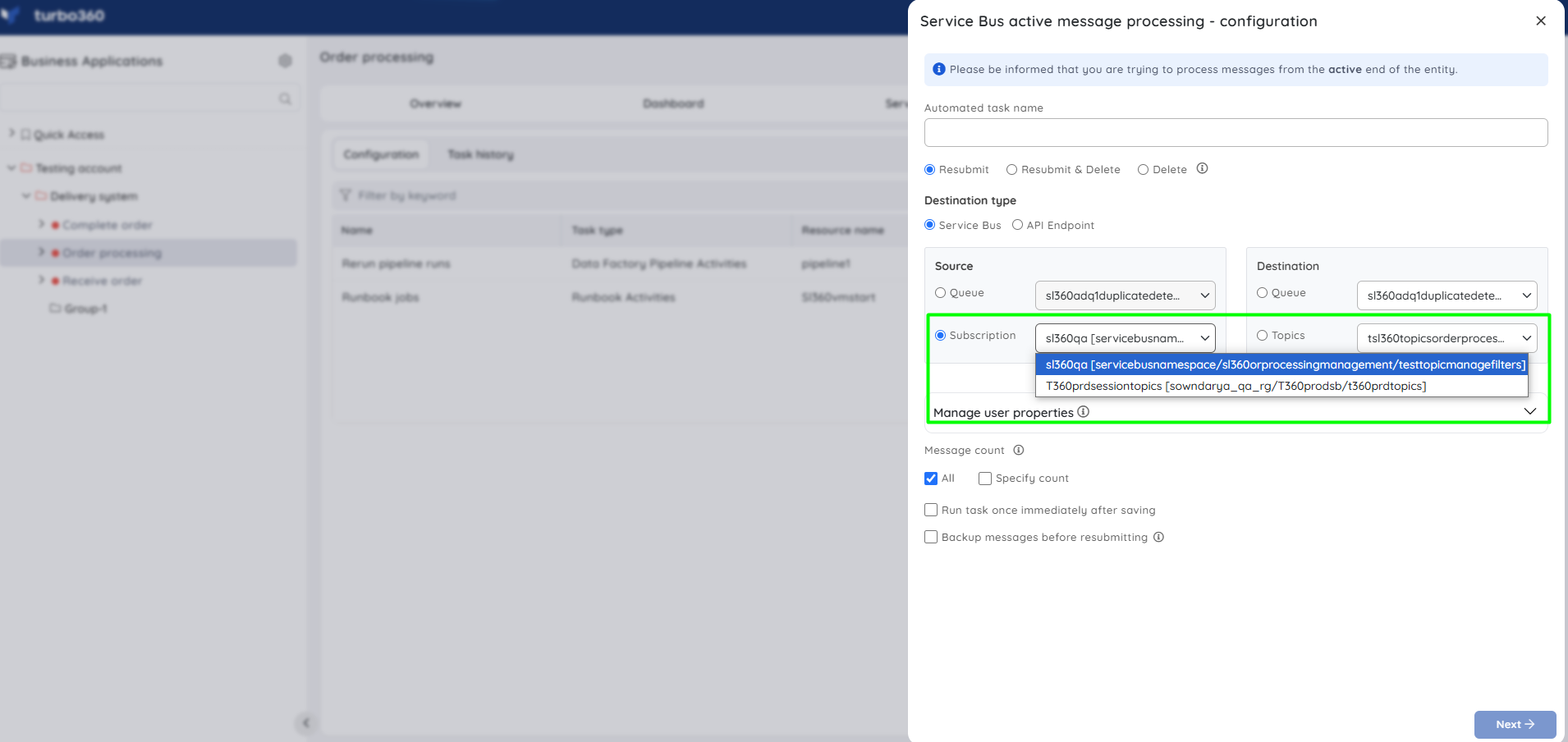
Monitoring
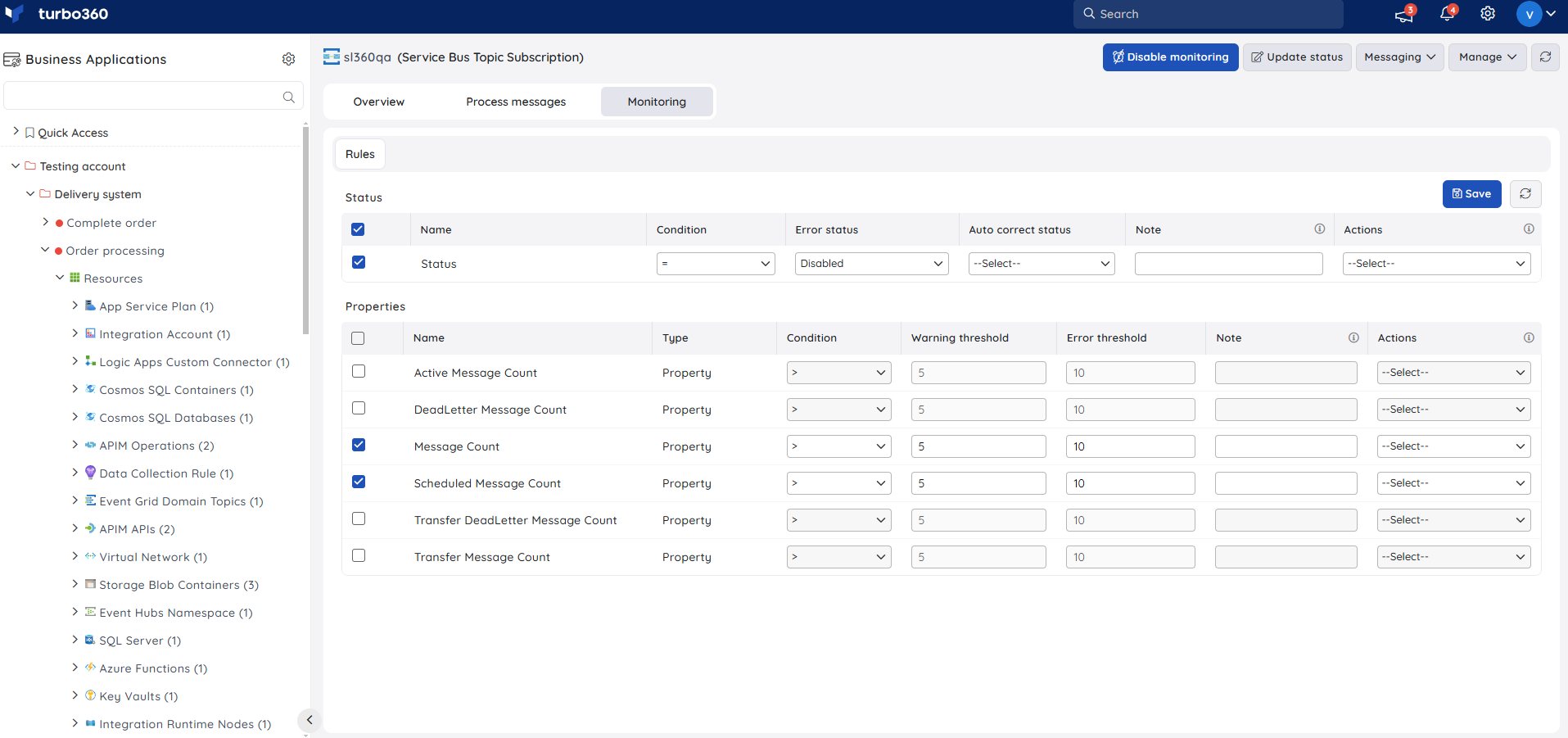
Service Bus Topic Subscription supports property and status monitoring rules, configured under Service Bus Topic Subscription -> Monitoring.
Monitoring rules are saved per resource, and the monitoring state is reflected after every monitoring cycle.
Property and status monitoring
Tracks the properties and current status of the Topic Subscription. Use this when you need to be alerted if a configured property or status crosses the desired threshold.
- Navigate to Service Bus Topic Subscription -> Monitoring.
- Configure the properties and current status with the desired threshold.
- Click Save.
Troubleshooting
- Repair & Resubmit or Save options are disabled for a selected message
Cause: The selected message exceeds 1 MB, or for messages over 10 MB, an unsupported context menu option was attempted.
Fix: Use Resubmit or Properties for messages over 10 MB; for 1–10 MB messages, only Resubmit-class actions remain available. - A resubmitted message appears as a duplicate
Cause: Duplicate detection is enabled on the destination and the resubmitted message reused the original message ID.
Fix: Regenerate the message ID manually or automatically before resubmitting. - Filter does not route expected messages into the Subscription
Cause: The SQL or Correlation filter under Manage -> Filters doesn't match the incoming message properties.
Fix: Review the filter condition and the message's system and custom properties, then adjust the filter. - Deferred messages cannot be found
Cause: The Deferred Active Messages or Deferred Dead-Letter tab was not checked, or the sequence number was used to search instead of relying on Turbo360's deferred access.
Fix: Use the Deferred Active Messages or Deferred Dead-Letter tabs directly rather than searching by sequence number.
Related articles
Was this article helpful?