

Service principal setup
- 05 Aug 2026
- 7 Minutes to read
- Print
- DarkLight
- Download PDF
Service principal setup
- Updated on 05 Aug 2026
- 7 Minutes to read
- Print
- DarkLight
- Download PDF
Article summary
Did you find this summary helpful?
Thank you for your feedback!
Overview
Service principal setup is the first step in getting started with Business Applications in Turbo360. A service principal is an application identity registered in Microsoft Entra ID that Turbo360 uses to authenticate and manage Azure resources on your behalf.
Within the Business Applications module, service principals control which Azure subscriptions and resource groups Turbo360 can access, and which Business Application groups those resources are associated with. You can add service principals for Azure resource management, Power Automate flow management, or both.
Business value
Managing service principals within Business Applications lets you define precise access boundaries for each subscription and resource group. Scope automation rules reduce ongoing maintenance by automatically applying access policies when new subscriptions are added, keeping your Business Applications aligned with your Azure environment without manual intervention.
Prerequisites
- A service principal must be created in Microsoft Entra ID and assigned the Contributor role on the target Azure subscription before you can add it to Turbo360. See What is a service principal? for setup instructions.
- At least one Business Application group must exist before you can configure scope access during service principal setup.
Required permissions
You must have the Account owner role in Turbo360 to add, update, or remove service principals.
Dependencies
- Microsoft Entra ID app registration with Contributor role assigned on the target subscription
- Business Application groups configured in Turbo360
How it works
Service principals in Business Applications are configured through a multi-step wizard that validates credentials, defines subscription scope, and maps access to Business Application groups. Two service principal types are supported:
- Manage Azure Resources — authenticates using Tenant ID, Subscription ID, Client ID, and Client Secret. Grants Turbo360 access to Azure resources within the defined subscription scope.
- Manage Power Automate Flows — authenticates using service principal credentials plus an OAuth authorization code flow. Grants Turbo360 access to Power Automate environments.
Scope automation runs daily at 12:00 AM UTC and automatically applies access policies to new subscriptions that match configured rules.
Steps
Use the following steps to add, update, remove, and configure scope automation for service principals in Business Applications. Navigate to Business Applications > Service principals to get started.
Add a service principal — Manage Azure Resources
Adding a Manage Azure Resources service principal connects Turbo360 to your Azure subscription and defines which resource groups and Business Application groups it can access.
- Navigate to Service principals and click Add.
- Select Manage Azure Resources.
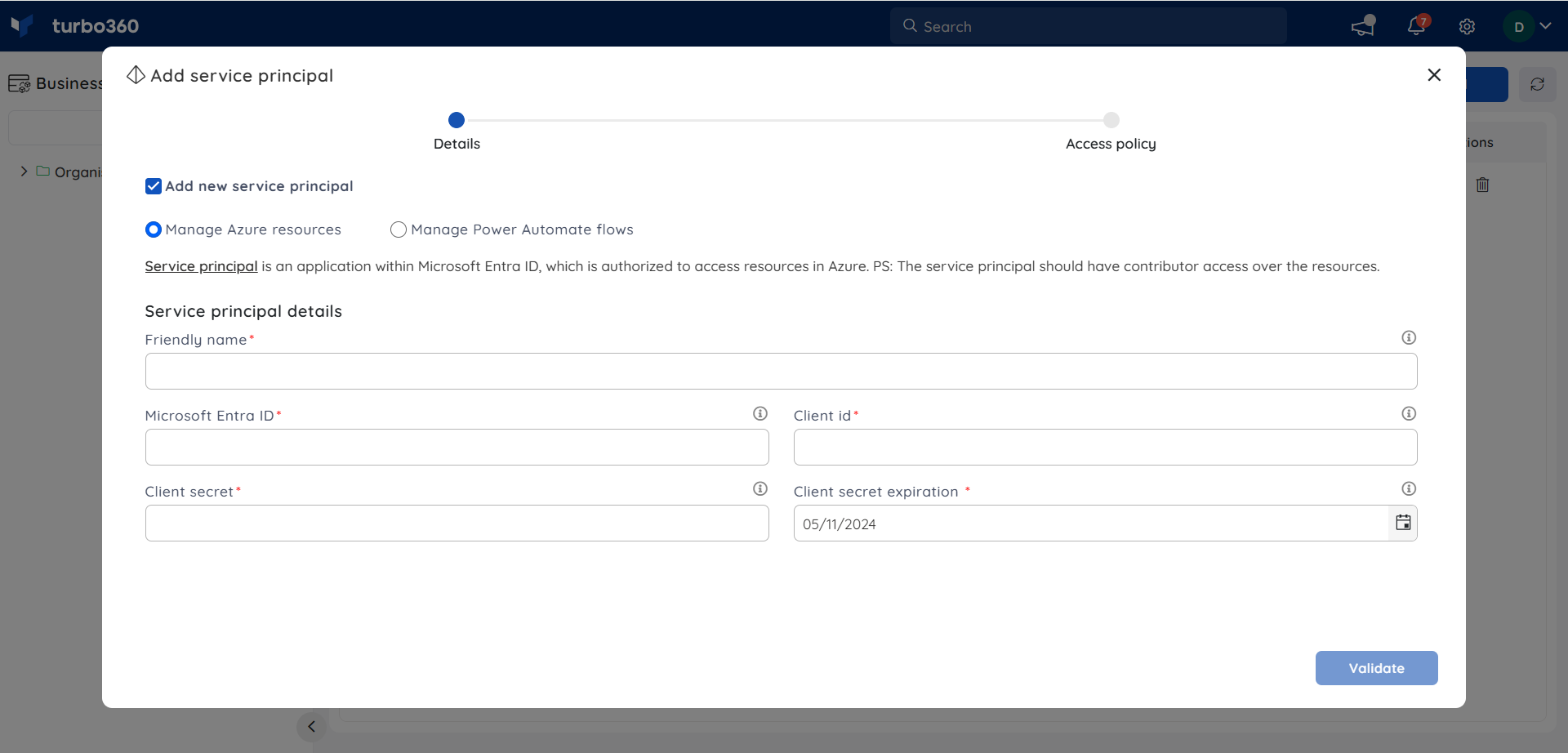
- Enter a unique name for the service principal.
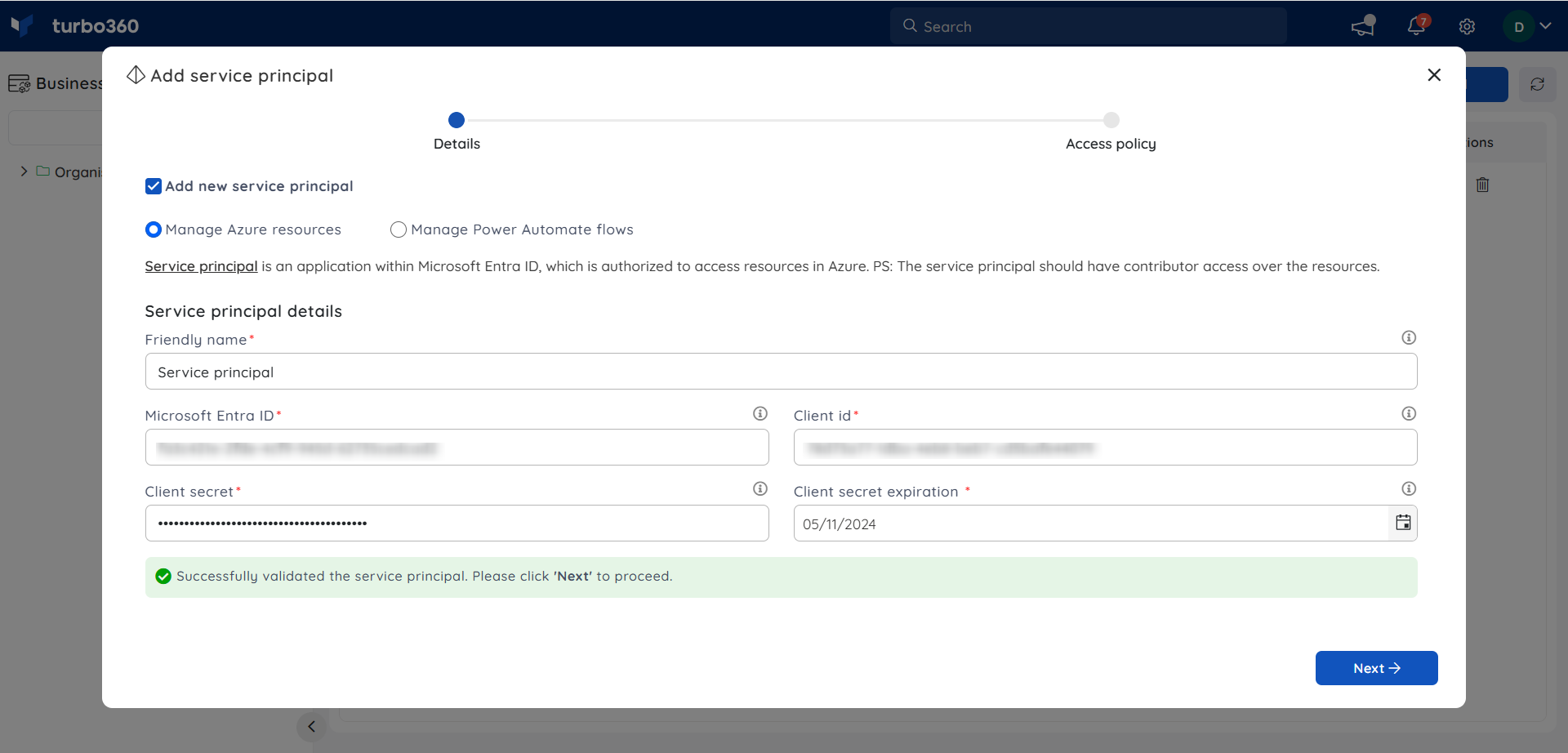
- Enter the service principal credentials: Tenant ID, Subscription ID, Client ID, and Client Secret.
- Set the Client secret expiry date to match the expiry configured in the Azure portal. Turbo360 will notify you 7 days before expiration.
- Click Validate to verify the credentials, then click Next.
- Configure the access policy for the service principal. You have two options:
- Check the box next to a subscription to grant full access to all resource groups within it.
- Check the subscription box and apply a resource group filter to restrict access to specific resource groups only.
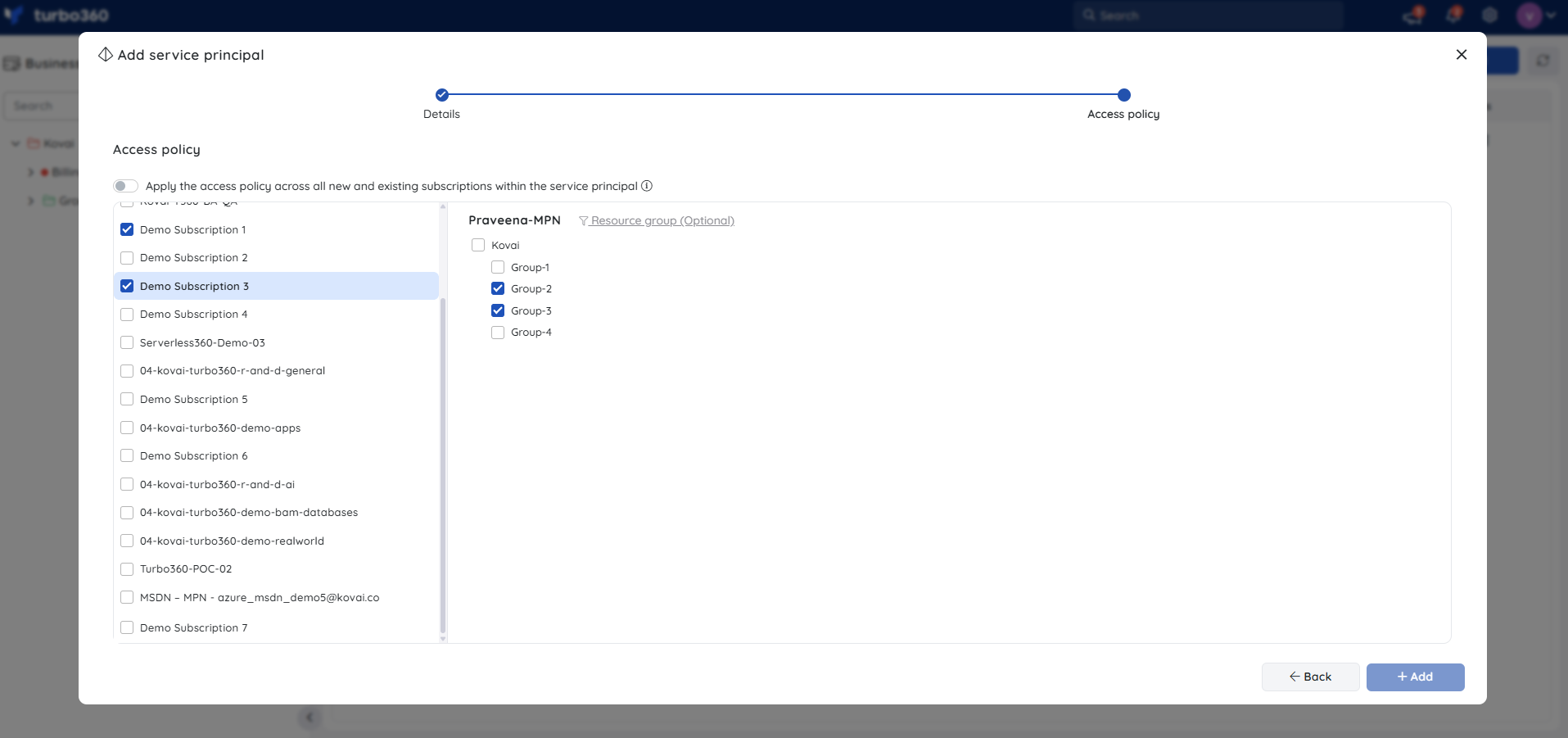
- Select the Business Application groups that this service principal should have access to. You can configure each subscription individually or use bulk selection to assign multiple subscriptions to the same groups at once.
To assign multiple subscriptions simultaneously, enable the checkboxes next to the required subscriptions and click Bulk Selection.
.png)
- Click Add to complete the setup.
Users are limited to managing resources and operations within the Business Application groups associated with their service principal.
Add a service principal — Manage Power Automate Flows
Adding a Manage Power Automate Flows service principal connects Turbo360 to your Power Automate environments using an OAuth authorization code flow, enabling flow management within Business Applications.
- Navigate to Service principals and click Add.
- Select Manage Power Automate Flows.
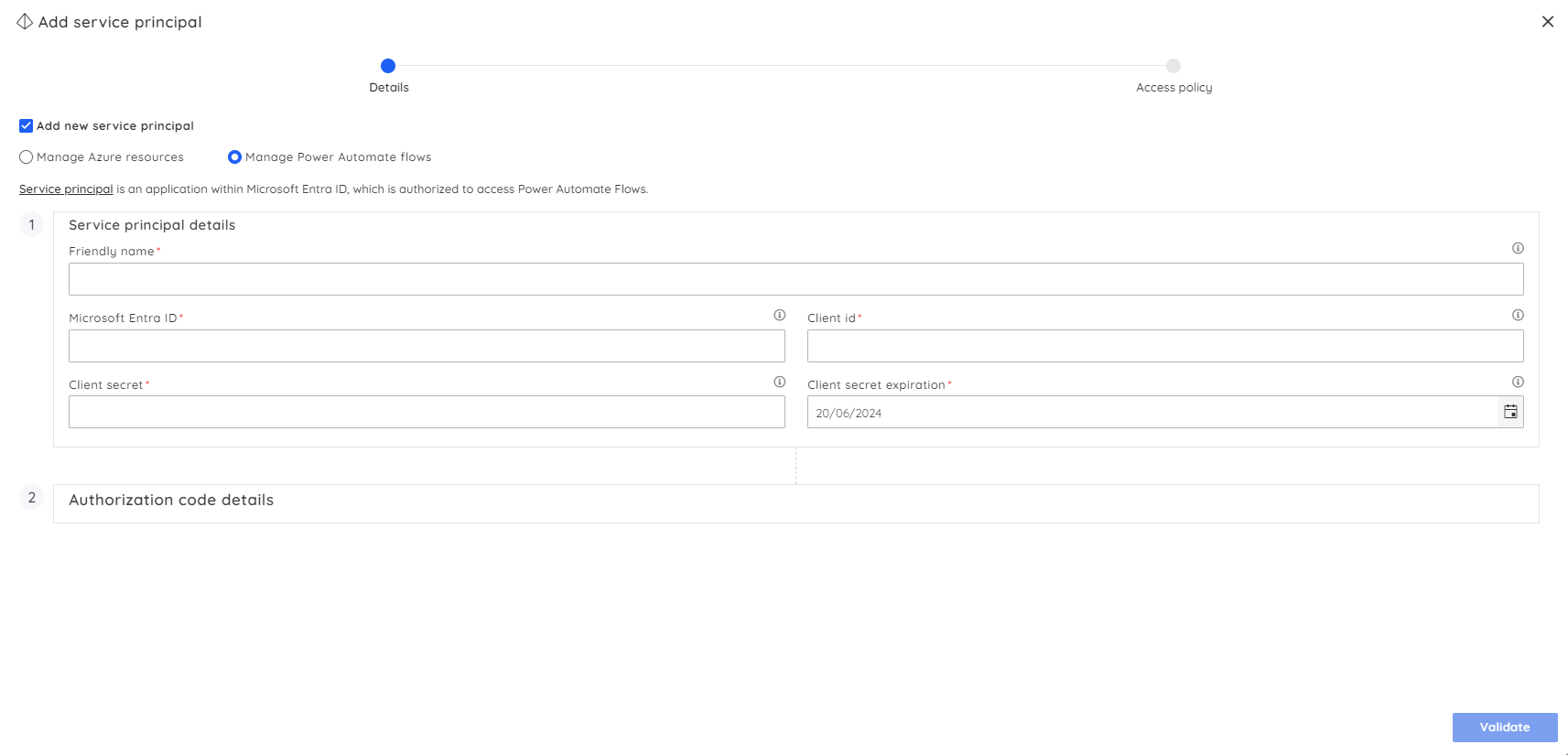
- Enter the service principal credentials and click Validate.
- After successful validation, navigate to the URL provided on screen.
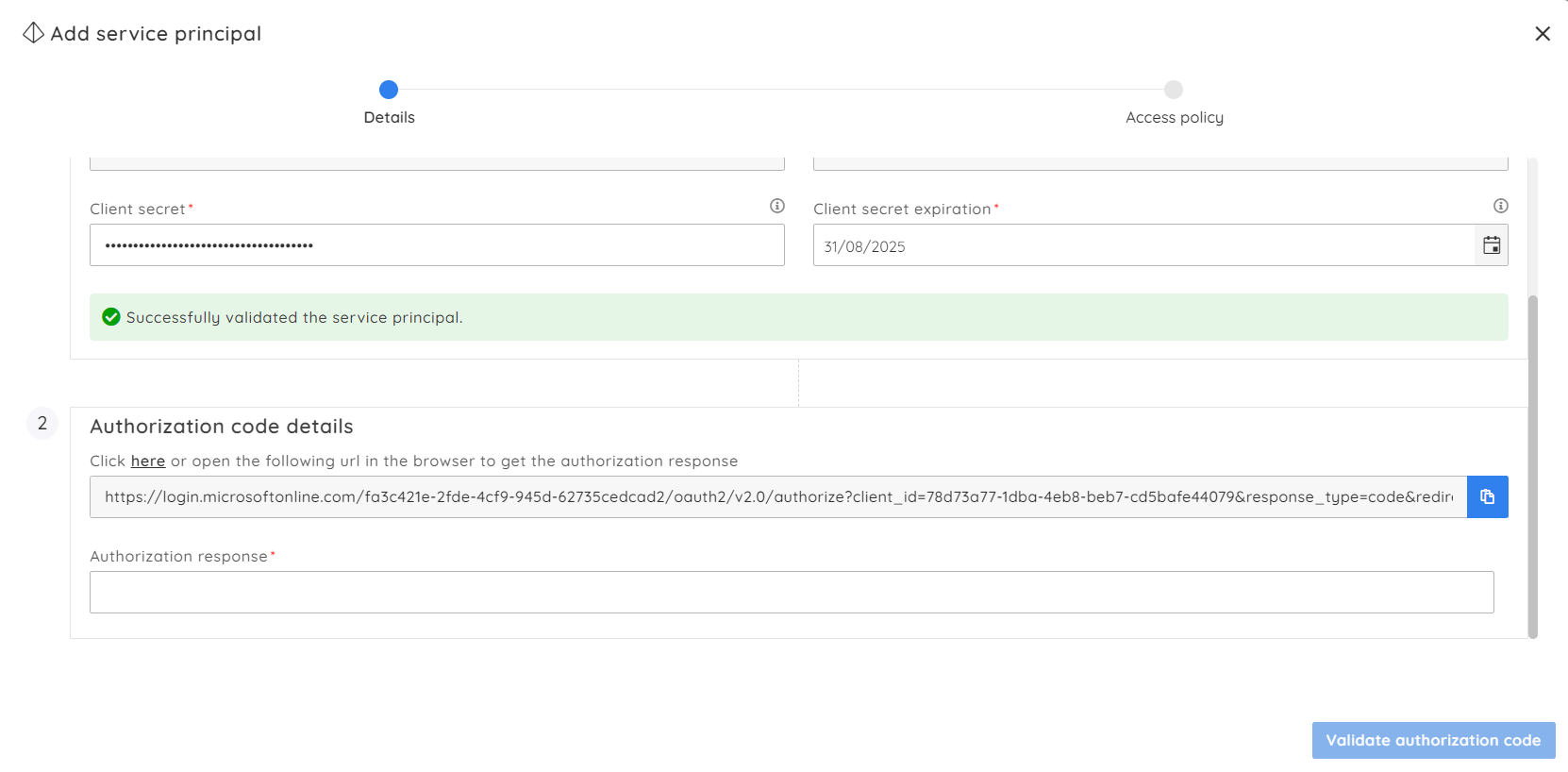
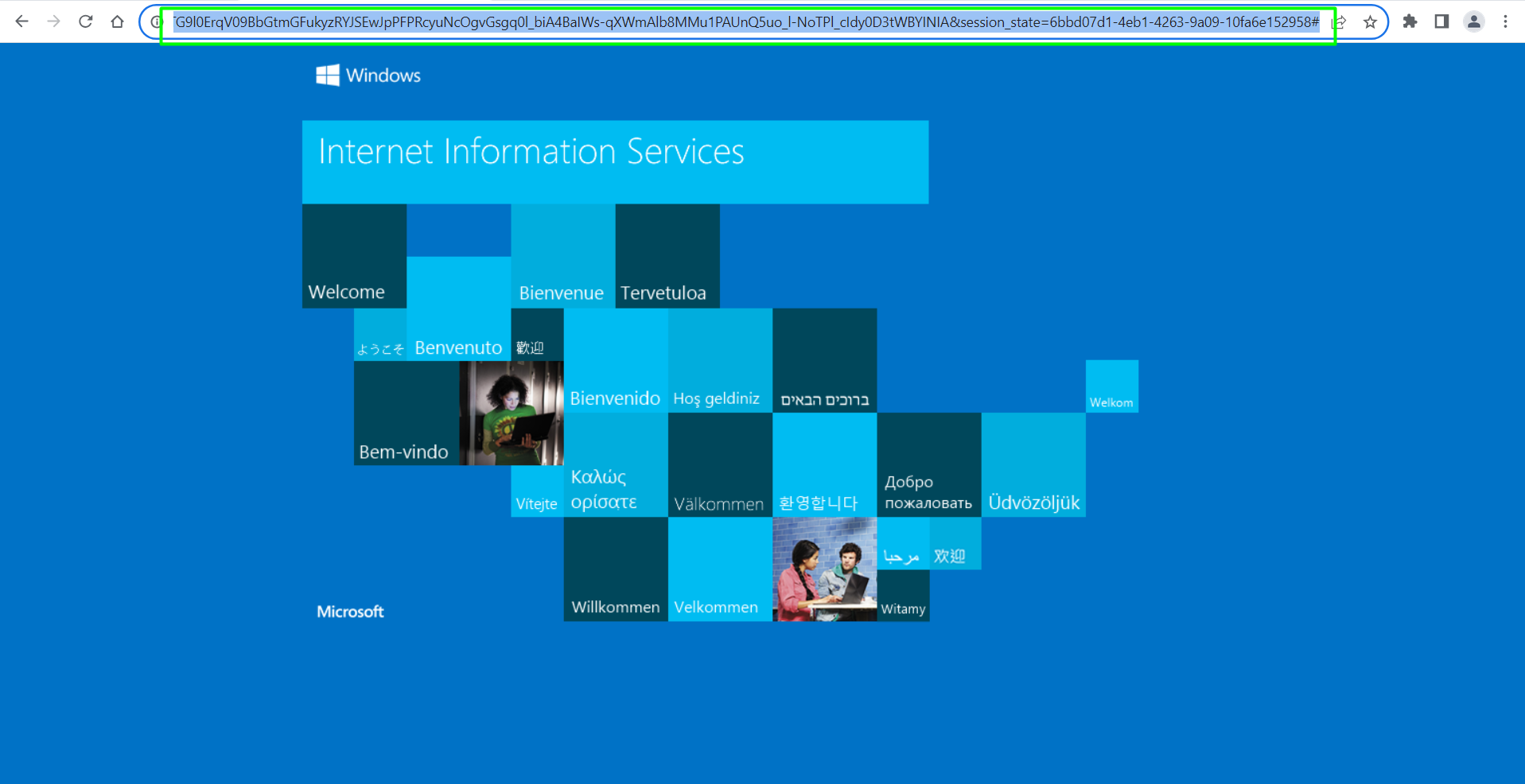
- Copy the authorization response from the browser.
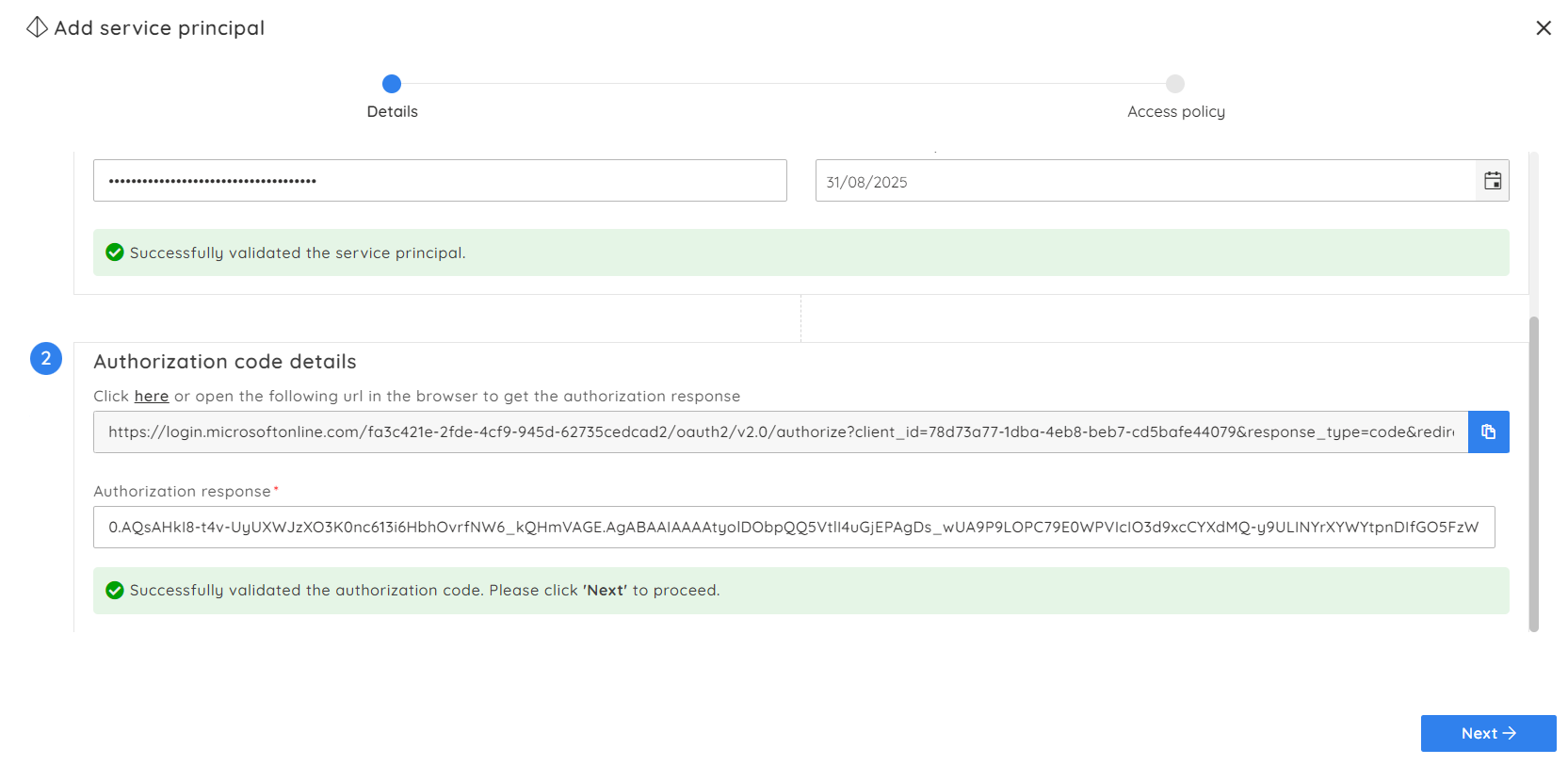
- Click Validate authorization code, paste the response, then click Next after successful validation.
- Select the Power Automate environments and the corresponding Business Application groups.
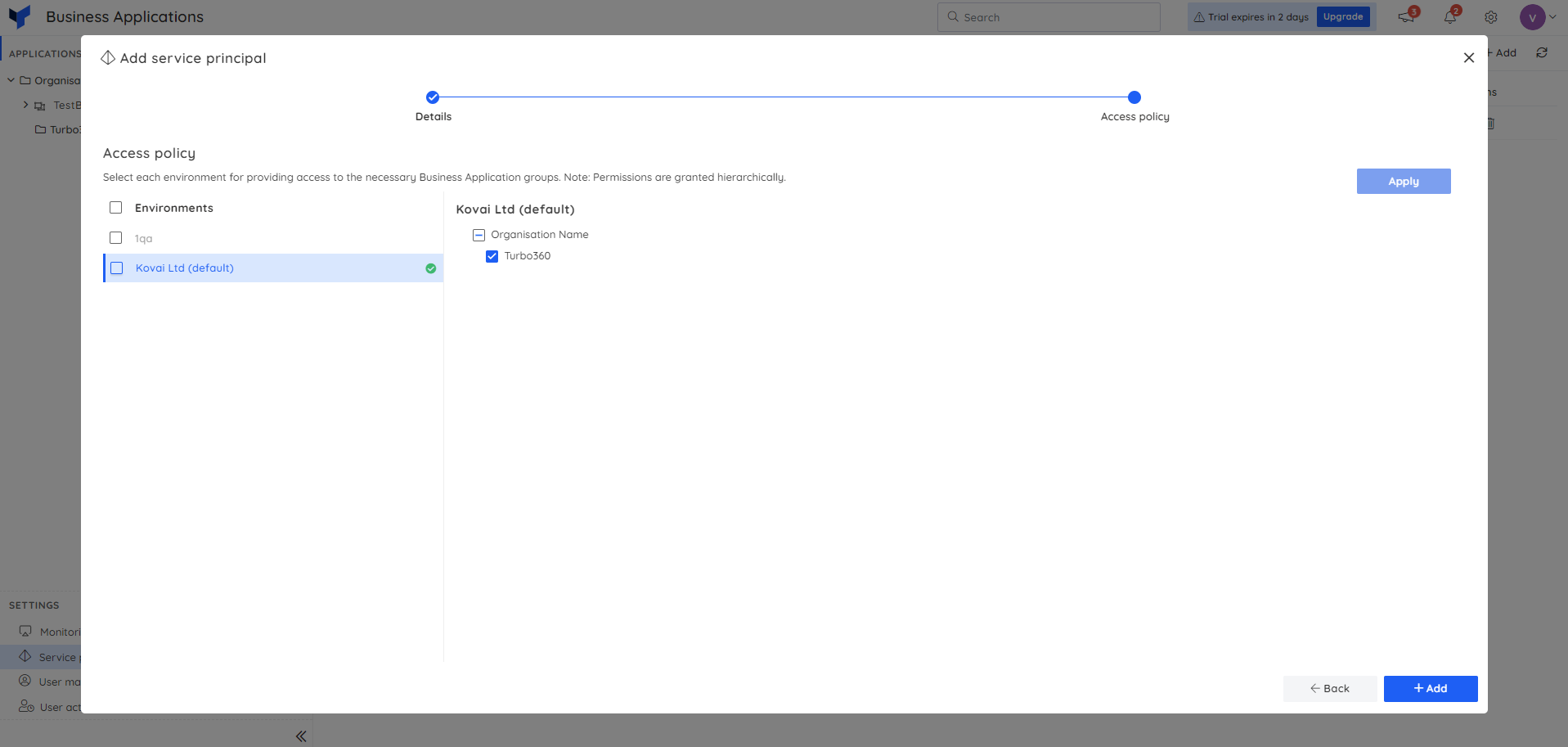
- Click Add to complete the setup.
Use an existing service principal
Any service principal added at the global level (via General Settings) can be reused in the Business Applications module without re-entering credentials. Select the existing service principal during the add flow and configure its scope and group access.
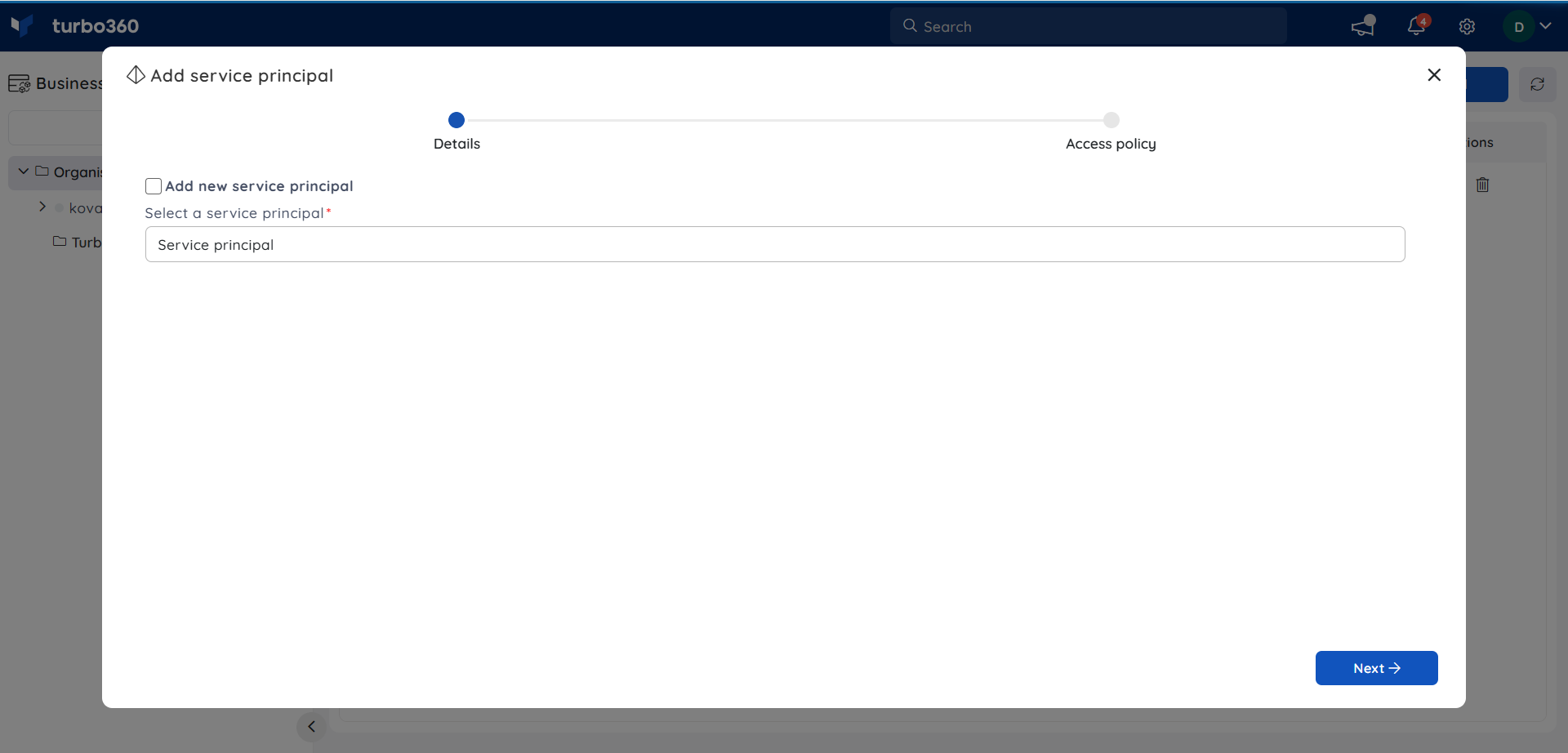
See Service principal management for instructions on managing service principals in General Settings.
Update a service principal
Updating a service principal lets you rotate an expired or expiring client secret and adjust subscription scope without removing and re-adding the service principal.
- In the Service principals section, click the Edit icon next to the service principal.
- Update the Client Secret value and/or the Client secret expiry date, then click Validate.
- Click Next.
- Adjust the subscription scope if required.
- Update the access policy and click Update.
.png)
Remove a service principal
Removing a service principal permanently revokes Turbo360's access to the associated subscriptions and resource groups and removes all related resources from Business Applications.
- In the Service principals section, click the Delete icon next to the service principal.
- Click Remove in the confirmation dialog.
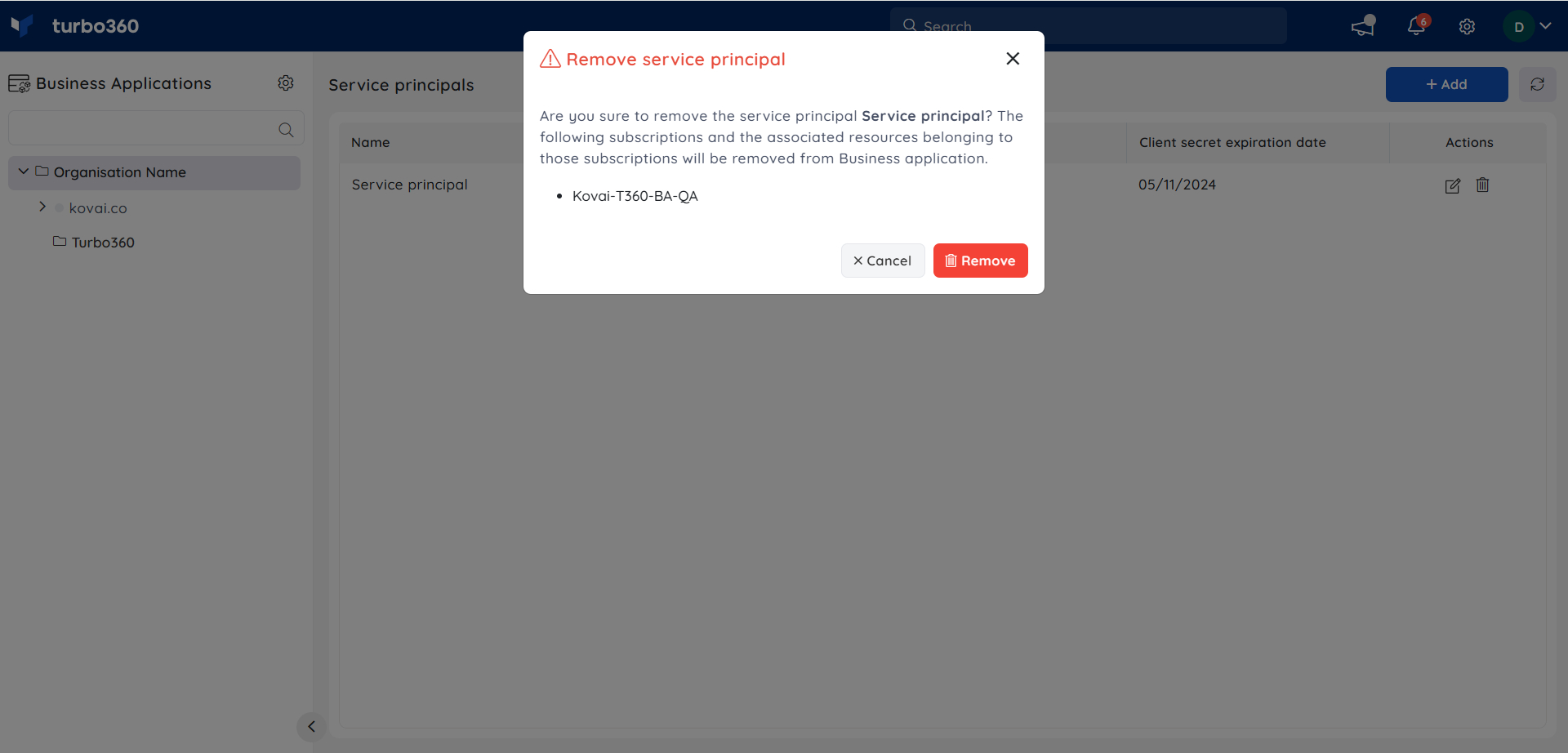
Removing a service principal removes all resources associated with it from Turbo360. This action cannot be undone.
Configure scope automation
Scope automation reduces manual access policy maintenance by automatically applying configured rules when a service principal gains access to a new subscription.
- In the Service principals section, click Add or the Edit icon on an existing service principal.
- Validate credentials and proceed to the access policy screen.
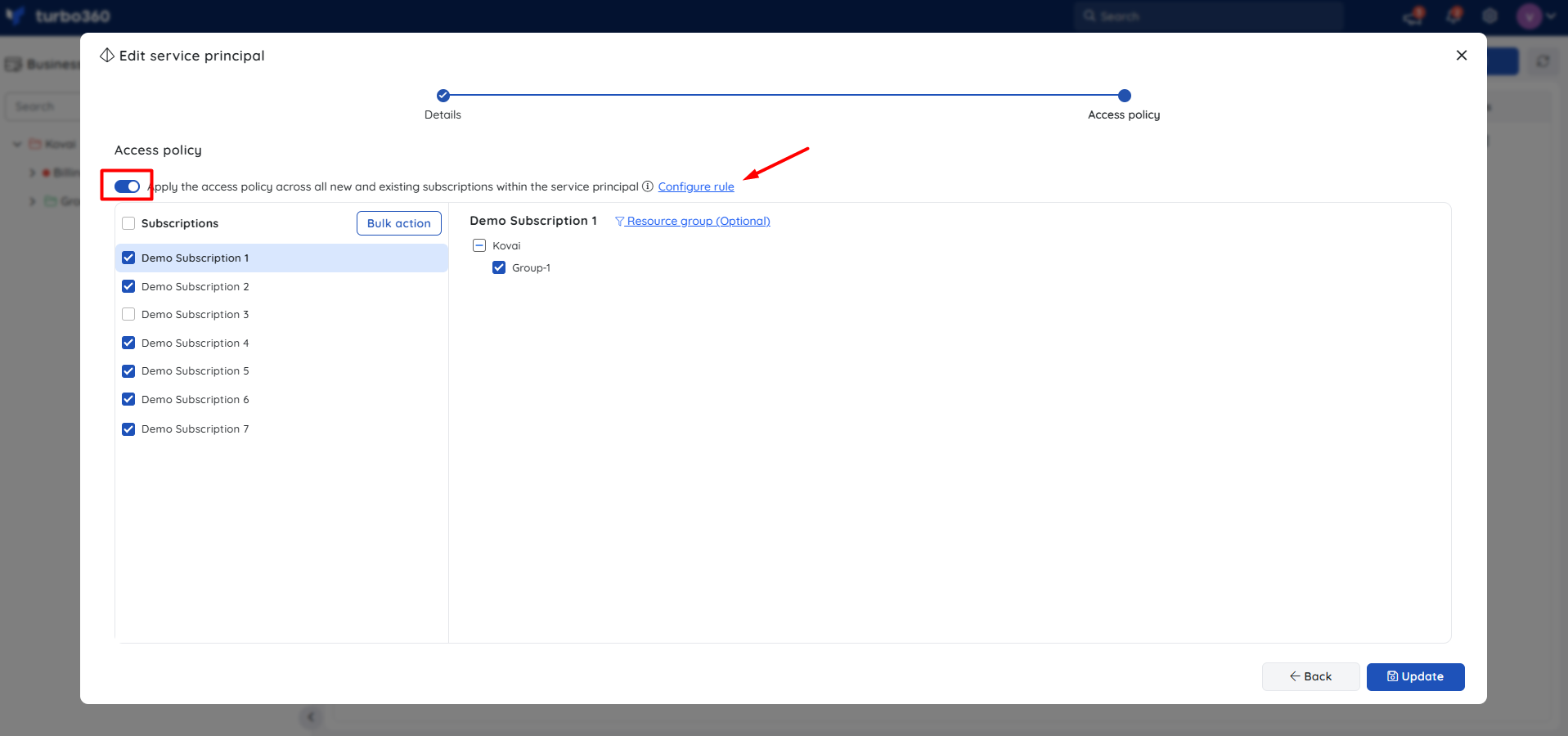
- Enable the toggle Apply the access policy across all new and existing subscriptions within the service principal to automatically grant root-level access to any newly added subscriptions.
- To define a conditional rule, click Configure rule > Add rule.
- Define a condition based on subscription name and configure the scope to grant access to the matching Business Application groups.
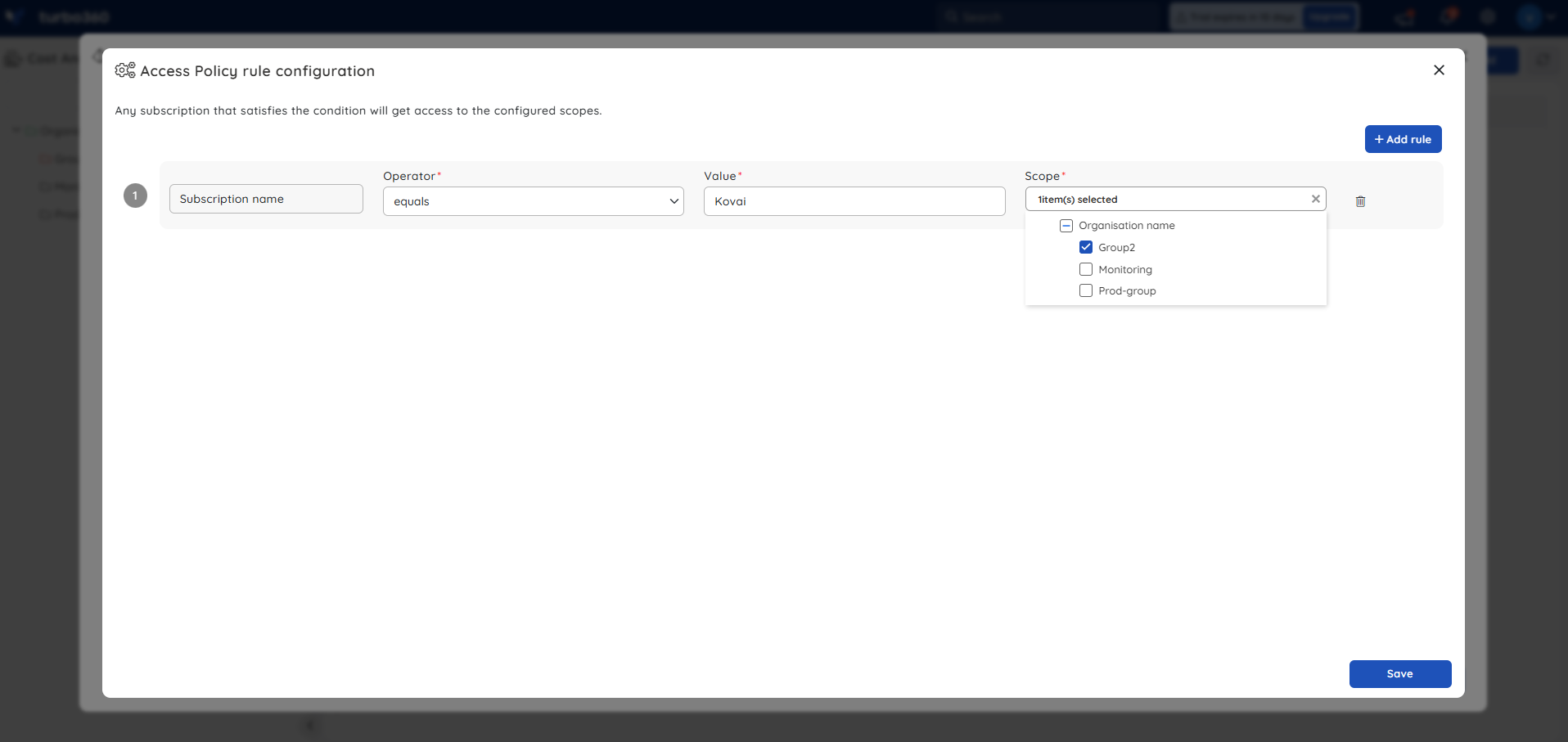
- Click Save to close the rule configuration panel.
- Click Update to apply the automation rules.
Example scenario
A team adds a service principal named Turbo360-BA-Prod with Contributor access to two Azure subscriptions: Sub-EastUS and Sub-WestEU. For Sub-EastUS, they grant full access to all resource groups. For Sub-WestEU, they apply a resource group filter to restrict scope to production resources only. They enable the scope automation toggle so any new subscription added to this service principal automatically inherits root-level access. The service principal is mapped to the Production Apps Business Application group, making all associated resources immediately visible in Turbo360.
Permission behavior
- Account owner — can add, update, and remove service principals; configure scope and automation rules.
- Other users — can view and manage resources only within the Business Application groups mapped to their service principal. Operations are confined to the defined group level.
Troubleshooting
Credential validation fails during service principal setup
Cause: One or more credential values (Tenant ID, Client ID, Client Secret, Subscription ID) were entered incorrectly, or the Contributor role has not yet been assigned on the subscription.
Fix: Verify all credential values against the Azure portal. Confirm the Contributor role assignment is visible under Access control (IAM) on the target subscription, then retry validation.Client secret expiry notification not appearing
Cause: The expiry date entered in Turbo360 does not match the expiry date set in the Azure portal, or the date was not set during service principal creation.
Fix: Edit the service principal, set the expiry date to match the Azure portal value, and save. Turbo360 sends notifications 7 days before the configured expiry date.Scope automation does not apply to a new subscription
Cause: The new subscription name does not match the condition defined in the automation rule, or the daily automation job has not yet run.
Fix: Verify the rule condition against the subscription name. The job runs at 12:00 AM UTC — check the following day or manually update the access policy in the interim.Business Application groups are not visible in the scope selection step
Cause: No Business Application groups have been created yet.
Fix: Create at least one Business Application group before adding a service principal. Return to service principal setup once groups are available.Removing a service principal causes resources to disappear from Business Applications
Cause: Expected behavior — removing a service principal removes all associated resources from Turbo360.
Fix: If removal was unintentional, re-add the service principal and reconfigure its scope and group access to restore visibility.
Related articles
Was this article helpful?