

Setting up anomaly detection
- 05 Aug 2026
- 4 Minutes to read
- Print
- DarkLight
- Download PDF
Setting up anomaly detection
- Updated on 05 Aug 2026
- 4 Minutes to read
- Print
- DarkLight
- Download PDF
Article summary
Did you find this summary helpful?
Thank you for your feedback!
Overview
This tutorial walks you through setting up anomaly detection for Azure cost data in Cost Analyzer. By the end, you will have anomaly detection configured with a sensitivity threshold and notification channels, so your team receives an alert the moment an unusual cost spike is detected.
Business value
Anomaly detection removes the need to manually scan cost reports for unexpected spikes. By flagging only statistically significant cost changes, it lets your team react to genuine cost risks faster — without being buried in noise from normal day-to-day fluctuations.
Prerequisites
- Cost Analyzer is connected to at least one Azure subscription with imported cost data.
- At least one cost management group exists. See Managing cost groups.
- At least 30 days of cost import history is available for the group. Anomaly detection uses a rolling 30-day window to establish its baseline; accuracy improves with more history.
Required permissions
The Monitoring toggle must be enabled for the role before users can access anomaly detection. An administrator must enable it in role management.
| Role | Access |
|---|---|
| Account owner, Owner, Contributor | Full access — can view and configure anomaly detection |
| Custom role with Monitoring: Read | Can view anomaly detection status and alert history; cannot configure |
| Custom role with Monitoring: Manage | Can enable/disable anomaly detection and modify the threshold multiplier or notification channels |
.png)
How it works
Anomaly detection runs at the cost management group level, evaluating subscription costs daily using statistical analysis rather than fixed dollar thresholds. It uses the last 30 days of daily cost data to calculate the standard deviation of daily cost changes. When today's cost change exceeds the standard deviation multiplied by a configurable threshold multiplier, an anomaly is flagged, an alert fires through your configured notification channels, and an incident is logged.
Lower threshold multiplier values increase sensitivity and surface more alerts. Higher values reduce sensitivity and flag only larger spikes. The recommended starting point is a multiplier of 1 — observe the anomalies flagged over time and tune the value to match your team's tolerance for noise versus coverage.
Because the baseline recalculates daily from a rolling window, a single spike doesn't trigger repeated alerts in the days that follow — only the day the spike actually occurs is flagged.
Steps
This tutorial covers enabling anomaly detection, setting the threshold multiplier, and configuring notification channels. Navigate to Cost Analyzer and open the cost management group you want to monitor.
Enable anomaly detection
Anomaly detection is enabled by default when a cost management group is created. This step confirms it is active and configured correctly for your group.
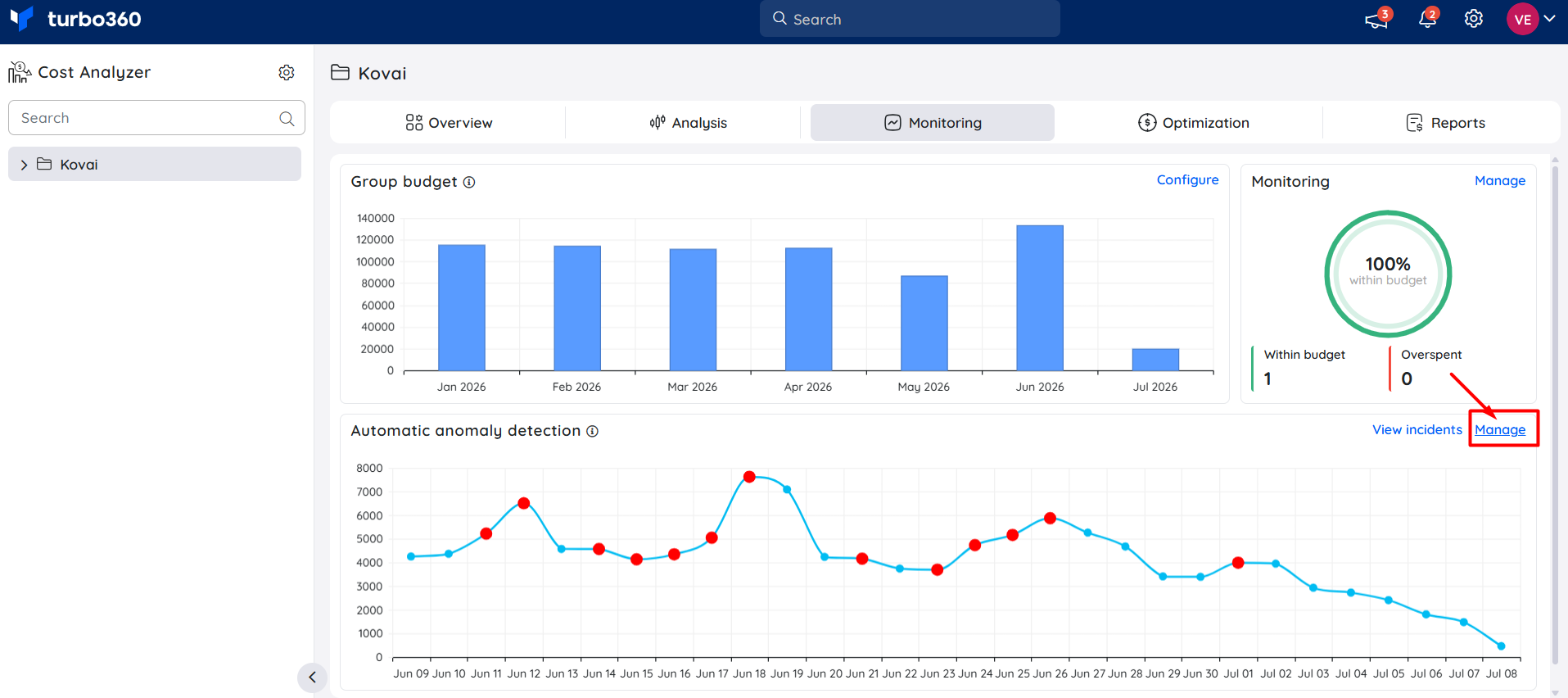
- Navigate to the cost management group and open the Monitoring tab.
- In the Automatic anomaly detection widget, click Manage.
- Confirm the Anomaly detection toggle is enabled.
Set the threshold multiplier
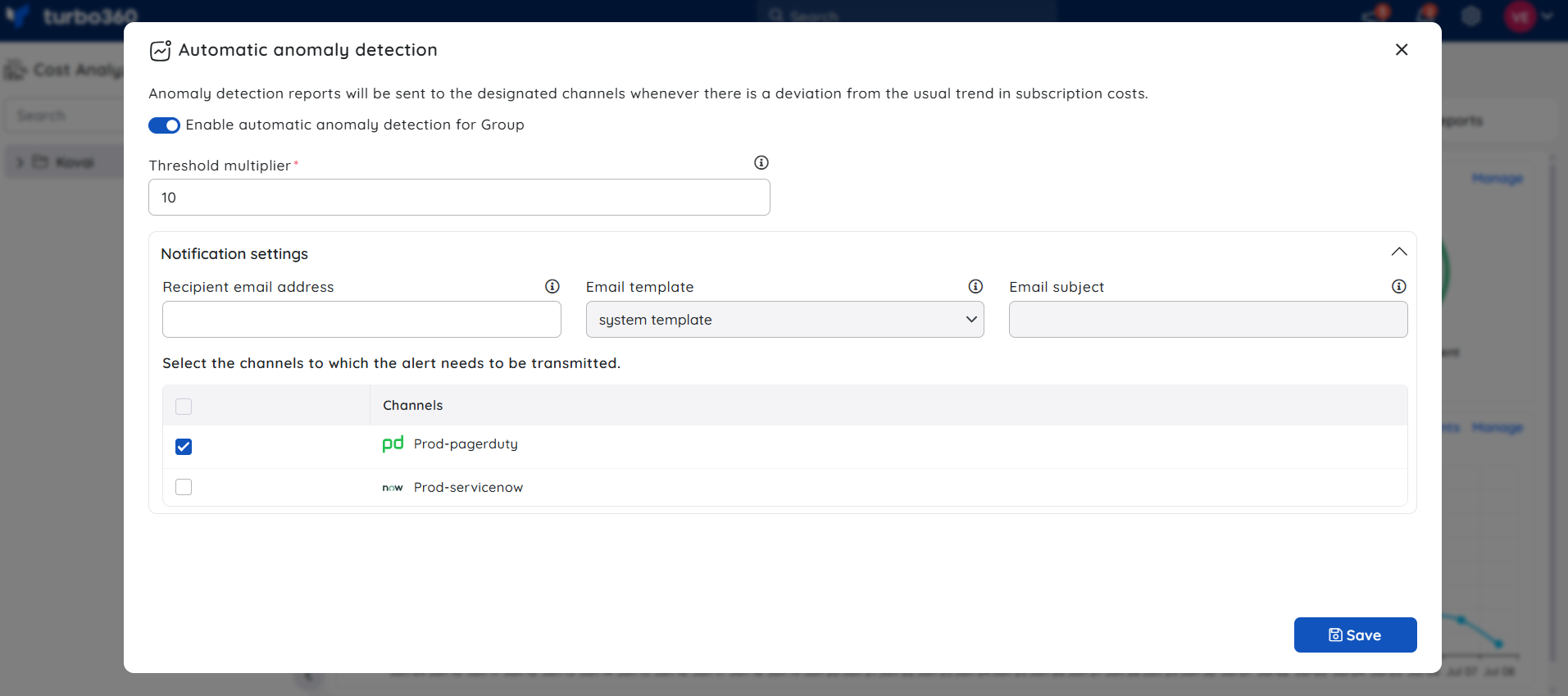
The threshold multiplier controls how large a daily cost change must be before it is flagged. Start at 1 and adjust based on the volume and relevance of alerts you observe.
- In the Automatic anomaly detection configuration, set a Threshold multiplier value between 0.1 and 10.
- Lower values (1.0–1.5) — more sensitive; flags smaller deviations, useful for early warning.
- Balanced (2.0) — flags meaningful spikes while filtering out routine fluctuations.
- Higher values (2.5–3.0+) — less sensitive; only flags large, obvious spikes.
- Click Save.
Configure notification channels
Notification channels determine where anomaly alerts are delivered when a spike is detected.
- In the Automatic anomaly detection configuration, choose the notification channels to receive alerts on.
- Click Save.
When an anomaly is detected, Turbo360 sends a cost anomaly report to your configured channels. The report identifies the spike date, overall cost variation, and potential root cause resources. It also includes a link that opens the cost analysis view for the affected group directly.
Example scenario
Contoso's FinOps team enables anomaly detection on their Contoso Production cost management group. They set the threshold multiplier to 1 to start and select email as the notification channel. Three days after setup, the team receives a cost anomaly report. A Logic App's daily run cost jumped from $12 to $340 overnight due to a misconfigured retry loop. They click the link in the report, navigate to AI Agents > Cost spike troubleshooter, and confirm the root cause before correcting the retry configuration.
Troubleshooting
No anomalies are flagged despite visible cost spikes
Cause: The threshold multiplier is set too high, requiring a very large deviation before an alert fires.
Fix: Lower the threshold multiplier to increase sensitivity. Start from a value of 1 and adjust based on observed behavior.Too many anomaly alerts are being triggered
Cause: The threshold multiplier is set too low, flagging normal day-to-day fluctuations as anomalies.
Fix: Raise the threshold multiplier to reduce sensitivity.Anomaly alerts are not arriving on the expected notification channel
Cause: The notification channel selection was not saved, or the channel is not configured correctly.
Fix: Reopen the anomaly detection configuration, confirm the correct channels are selected, and click Save.Anomaly detection is not visible in the Monitoring tab
Cause: The Monitoring feature permission has not been enabled for the user's role.
Fix: Ask an administrator to enable the Monitoring toggle in role management for the cost group.Anomaly detection accuracy seems poor immediately after setup
Cause: The 30-day rolling baseline requires sufficient cost history to distinguish signal from noise. A group with fewer than 30 days of data will have a less stable baseline.
Fix: Allow more import cycles to accumulate before fine-tuning the threshold multiplier.
Related articles
Was this article helpful?