

Start/stop virtual machines workflow
- 09 Aug 2026
- 6 Minutes to read
- Print
- DarkLight
- Download PDF
Start/stop virtual machines workflow
- Updated on 09 Aug 2026
- 6 Minutes to read
- Print
- DarkLight
- Download PDF
Article summary
Did you find this summary helpful?
Thank you for your feedback!
Overview
The Start/stop virtual machines workflow runs as a recurring background job that manages a set of virtual machines automatically — either by shutting them down when they meet configured metric thresholds, or by powering them on and off on a defined schedule.
Business value
Automatically powering virtual machines on and off — by usage metrics or by a fixed schedule — reduces Azure compute spend without requiring manual monitoring or shutdown effort from your team.
Prerequisites
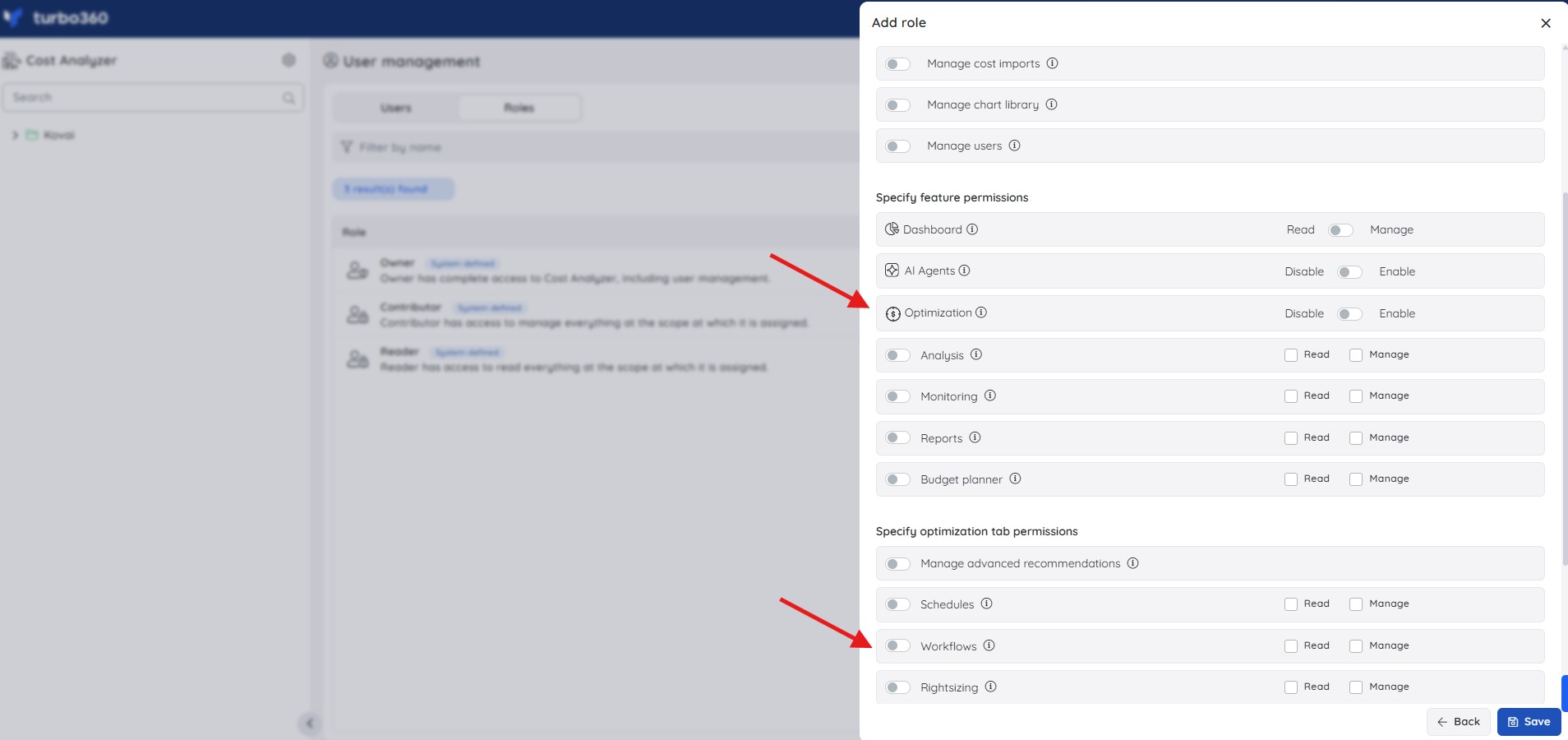
Required permissions
| Role | Permission level | Access |
|---|---|---|
| Account owner, Owner, Contributor | — | Full access to Workflows |
| Custom role | Optimization feature enabled + Workflows: Read | View workflows |
| Custom role | Optimization feature enabled + Workflows: Manage | Full access to Workflows (create, update, delete, run) |
How it works
The workflow evaluates your targeted virtual machines using one of two trigger types you configure:
- Shut down by metrics — VMs are shut down when they drop below a configured utilization threshold (e.g. CPU) during the active window you define.
- Power on/off schedule — VMs are stopped at a configured power-off time and started at a configured power-on time, on the days you schedule.
Regardless of trigger type:
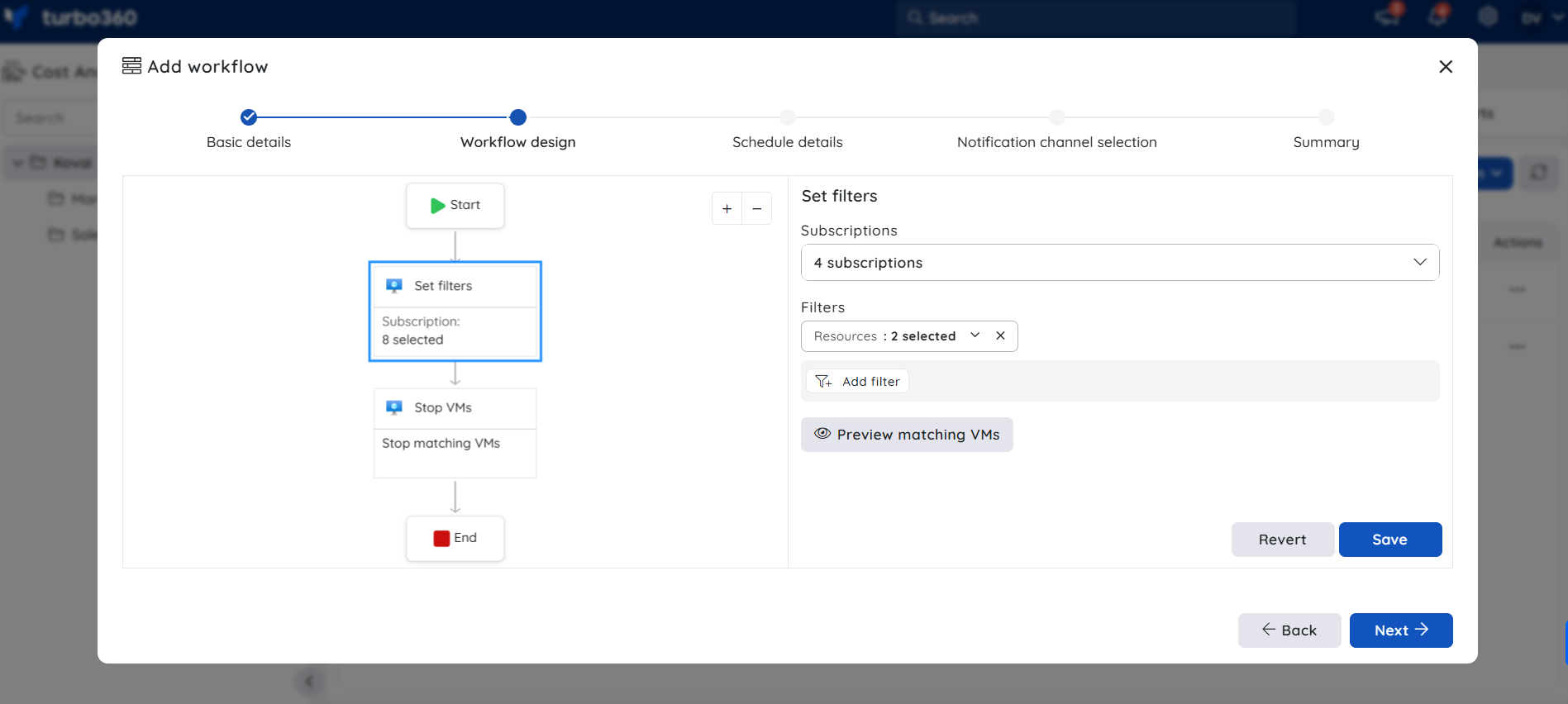
- Machine targeting — target all VMs in a resource group, VMs matching specific tags, or individually selected machines.
With Shut down by metrics, restarting machines afterward (e.g. the next morning) requires a separate Turbo360 Schedule — this trigger type only handles shutdown. With Power on/off schedule, both shutdown and restart are handled automatically by the workflow itself, based on the power-off and power-on times you configure.
Steps
Use the following steps to create and run a Start/stop virtual machines workflow. Navigate to Optimization > Workflows within a Cost Management group to get started.
Create a workflow
Creating a workflow defines the machine targeting, trigger type, active window or schedule, and notification settings that control automatic VM power management.
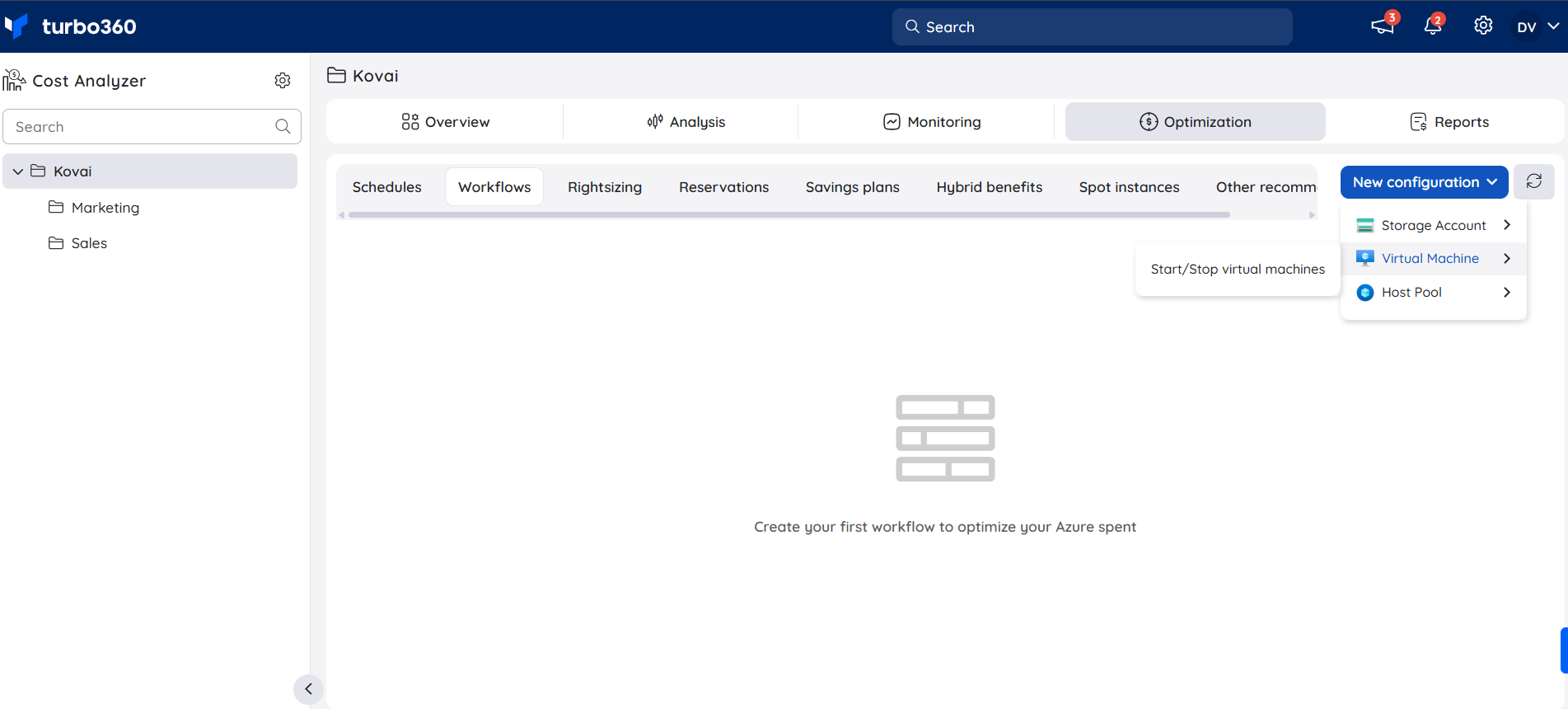
- Configure the filters for machine identification — target all machines in a resource group, machines matching specific tags, or specific machines.
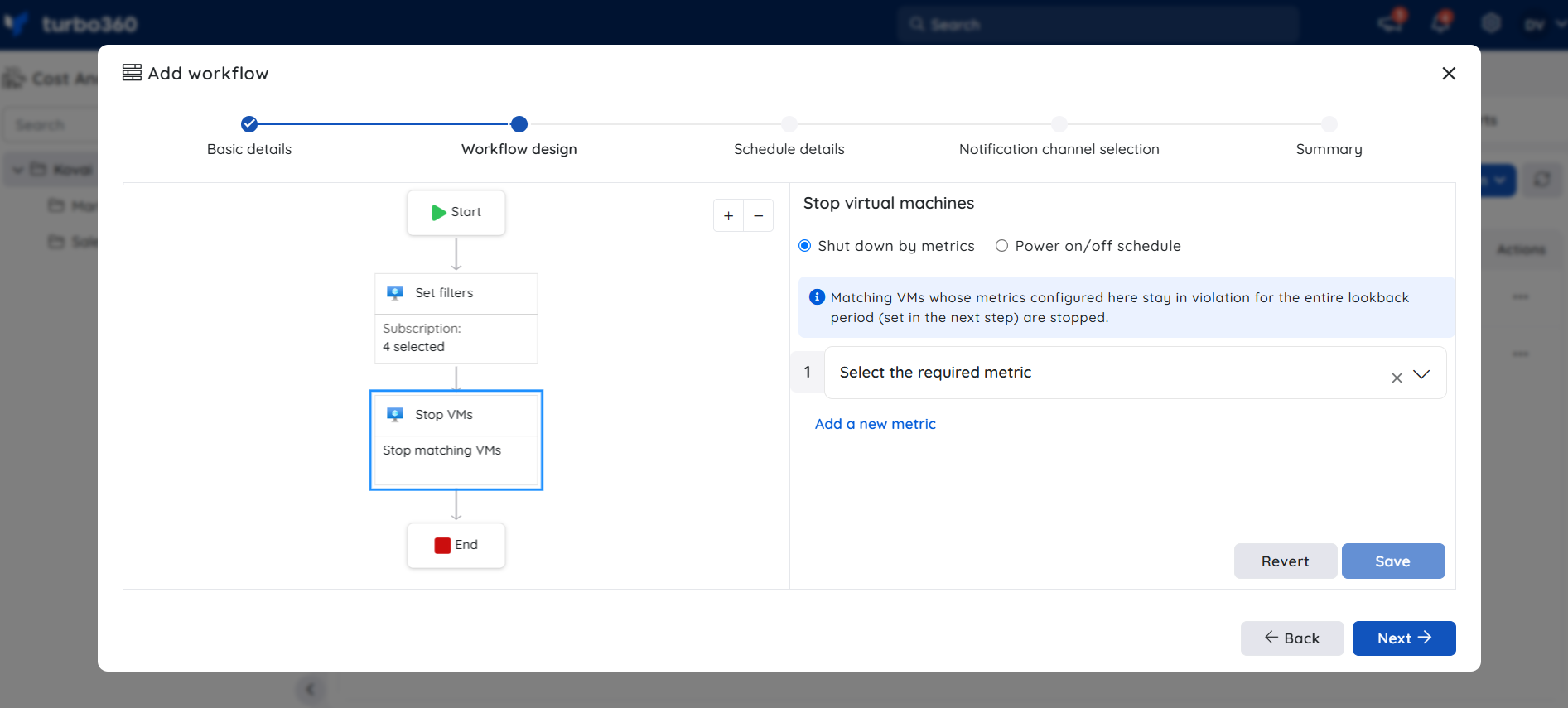
Choose the trigger type for the workflow: Shut down by metrics or Power on/off schedule.
- For Shut down by metrics, set the metric filters that determine when a machine meets the criteria to power down.
- For Power on/off schedule, set the Power off time and Power on time. Matching VMs are stopped at the power-off time and started at the power-on time on the scheduled days.
.png)
Configure when the job runs.
- For Shut down by metrics, configure the active window and recurrence.
.png)
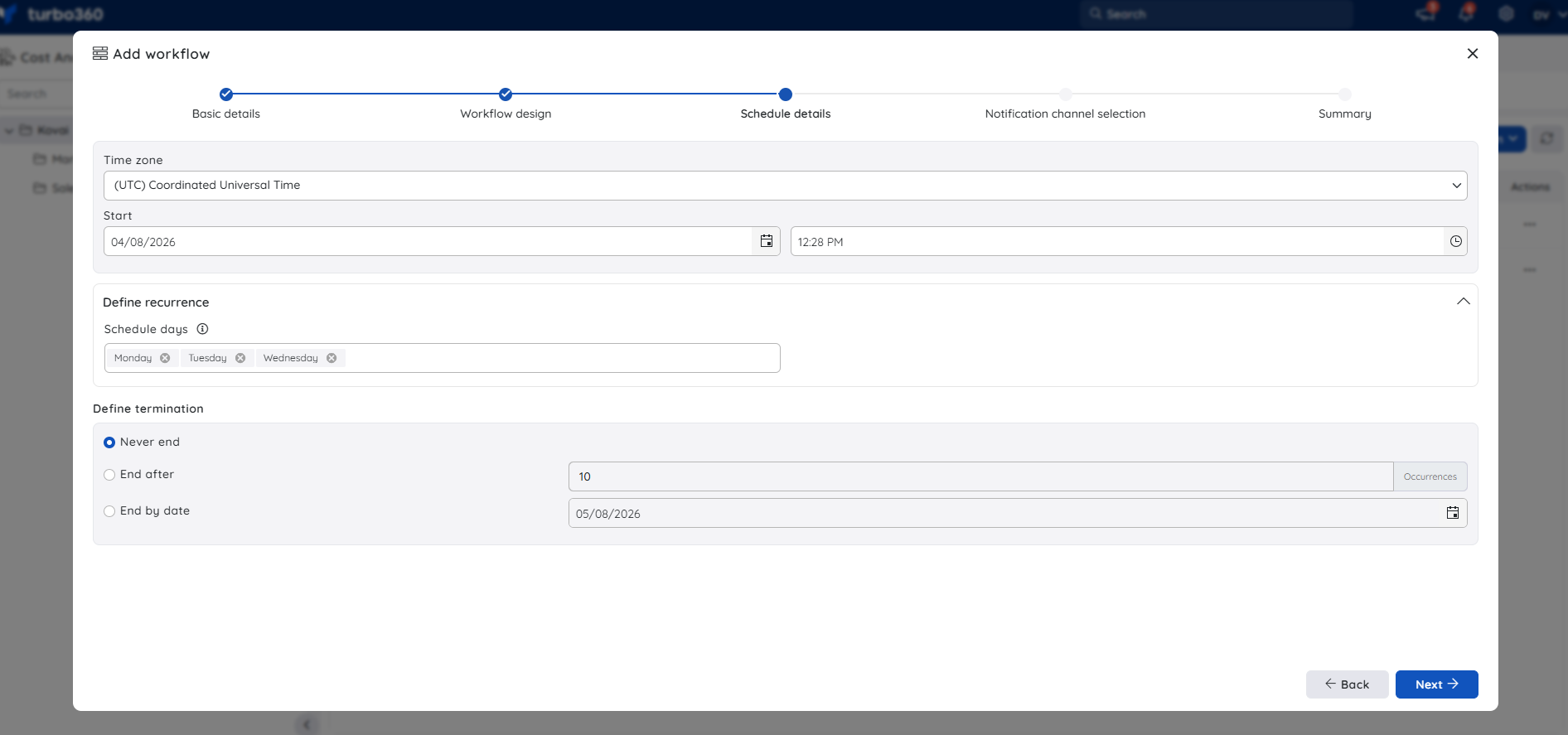
- For Power on/off schedule, configure the time zone, start date and time, schedule days, and termination (Never end, End after a number of occurrences, or End by date).
- Choose how you want to receive notifications for this job.
.png)
Run a workflow on demand
Running a workflow on demand lets you immediately trigger the configured action without waiting for the next scheduled execution or metric evaluation.
- Go to Optimization > Workflows in a Cost group.
- Click the Actions menu next to the workflow.
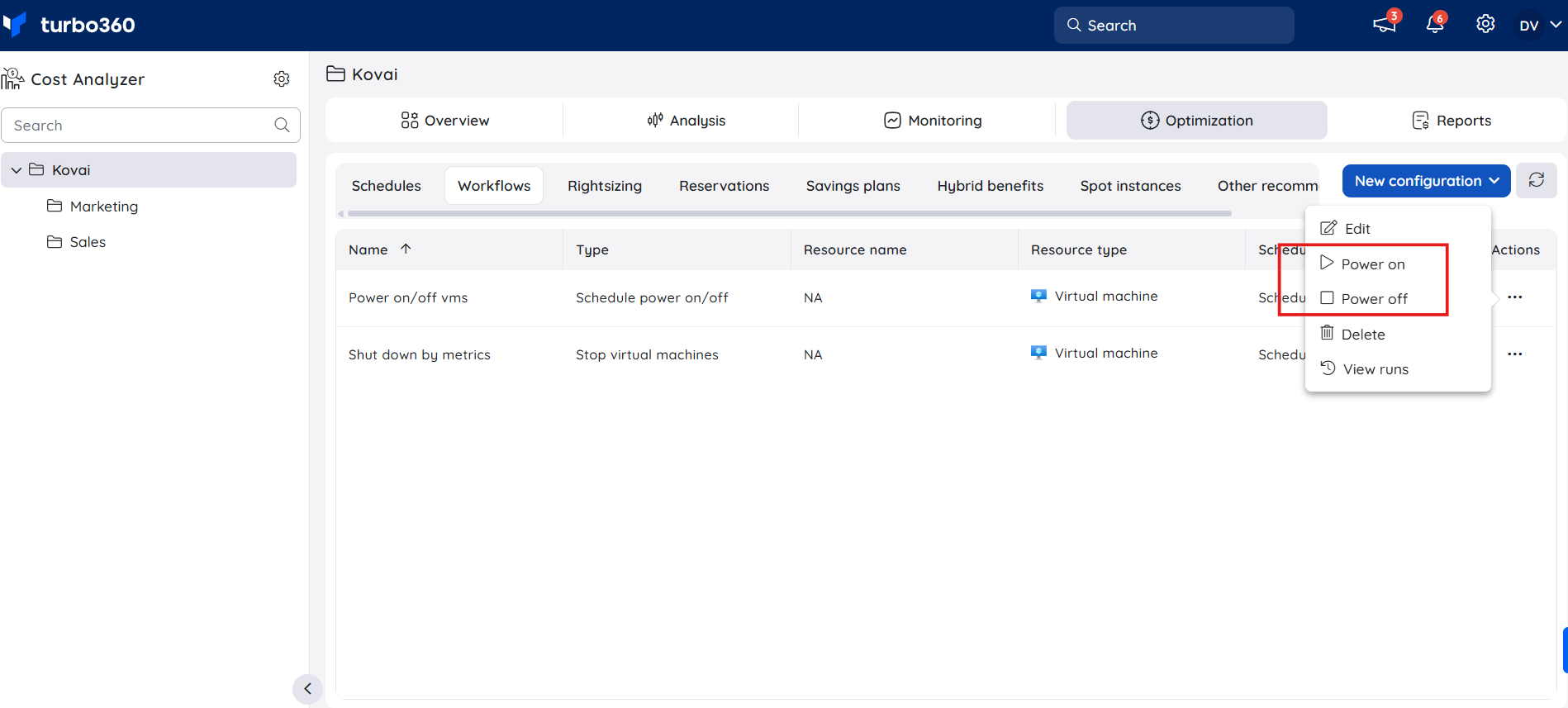
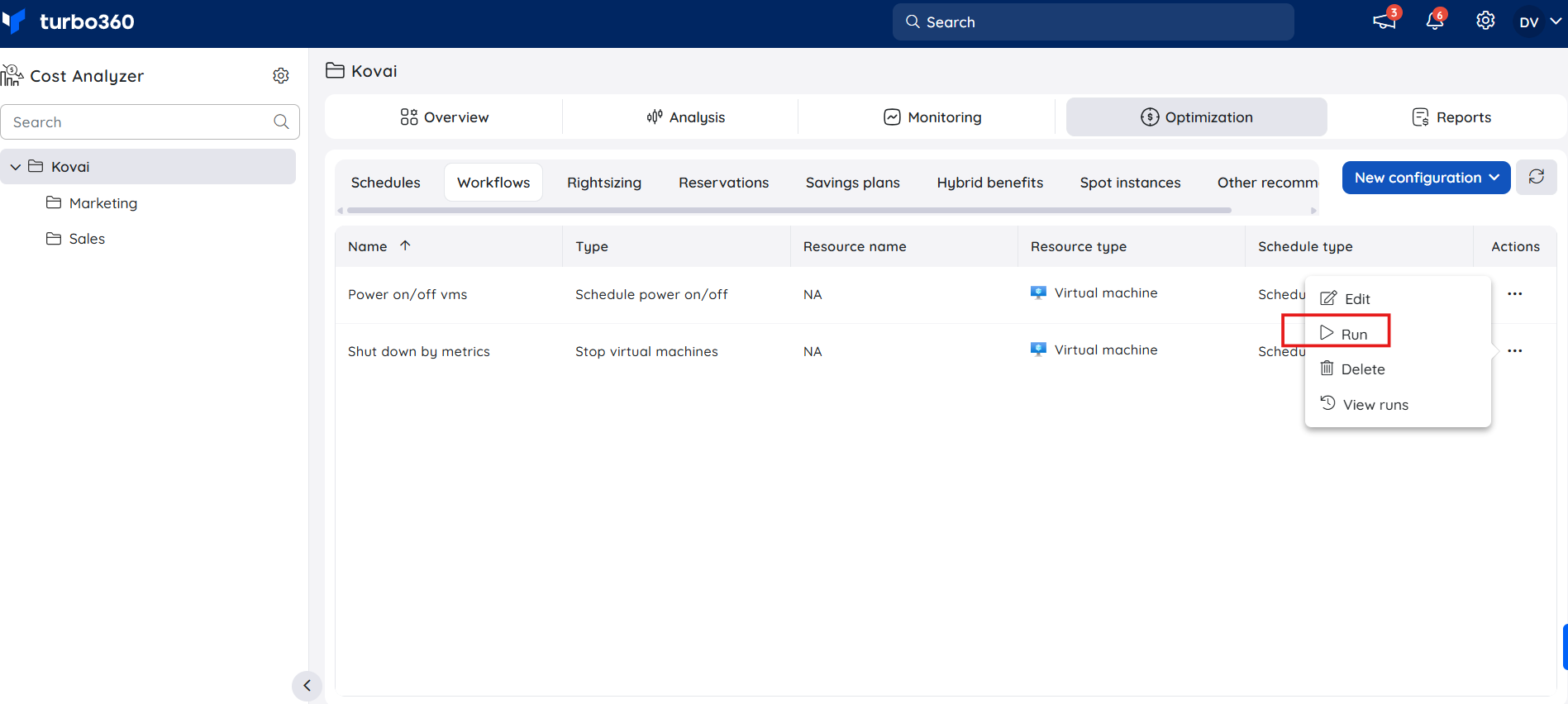
- Select one of the following:
- Run — triggers the workflow's configured evaluation immediately.
- Power on — powers on the target VMs immediately, independent of the schedule.
- Power off — powers off the target VMs immediately, independent of the schedule.
 {height="" width=""}
 {height="" width=""}
Example scenario
A customer has several non-production virtual machines that are occasionally used outside business hours but are generally shut down in the evening. Their workflow is configured as follows using Shut down by metrics:
- The job is active from 6 PM to 6 AM every day.
- It targets all VMs within a specific resource group.
- Any VM that drops below 10% CPU utilization during the active window is shut down.
- The job runs on a recurring basis every 30 minutes.
- Each run looks back at VM usage over the last hour.
To restart these VMs in the morning, the customer uses a standard Turbo360 Schedule to power them back on.
A second customer wants specific development VMs running only during business hours. Their workflow is configured as follows using Power on/off schedule:
- Power off time is set to
19:00and power on time to08:00. - The schedule runs on All Days.
- Termination is set to Never end, so the schedule continues indefinitely.
The workflow automatically stops the targeted VMs each evening and starts them again each morning, with no separate Schedule required.
Limitations
- When using Shut down by metrics, the workflow only powers VMs down — it does not restart them. Use a Turbo360 Schedule, or switch to the Power on/off schedule trigger type, to bring VMs back up.
- Shutdown evaluation under Shut down by metrics only occurs during the active window you configure — VMs are not evaluated (and won't be shut down) outside that window.
- The lookback period for usage data under Shut down by metrics is fixed to what you configure at setup; a VM that briefly exceeds the utilization threshold within that window may still be shut down even if its current usage is higher.
- Under Power on/off schedule, VMs are powered on and off strictly according to the configured times and schedule days — there is no metric-based condition for this trigger type.
Troubleshooting
A virtual machine isn't shutting down even though it meets the criteria
Cause: The Service Principal used by Turbo360 doesn't have sufficient Azure-level access (e.g. Contributor) on the target subscription or resource group.
Fix: Grant the required Azure role to the Service Principal, then wait for the next recurrence.A virtual machine shuts down unexpectedly
Cause: The job evaluates average utilization over the configured lookback window, not just the current value — a brief dip below the threshold during that window can still trigger shutdown.
Fix: Review the lookback window and utilization threshold in the workflow's metric filter configuration and adjust if the window is too permissive.Notifications for workflow runs aren't being received
Cause: The notification channel wasn't configured, or the wrong channel/recipient was selected during setup.
Fix: Reopen the workflow configuration and confirm the correct notification channel is selected under the notification step.A virtual machine doesn't restart automatically after being shut down
Cause: If the workflow uses the Shut down by metrics trigger, this is expected — that trigger type only handles shutdown.
Fix: Create a separate Turbo360 Schedule, or reconfigure the workflow to use the Power on/off schedule trigger, to power the VM back on at the required time. If the workflow already uses Power on/off schedule, verify the power-on time and scheduled days are configured correctly.The workflow shuts down machines I didn't intend to target
Cause: The resource group, tag, or machine-level filter configured in the workflow is broader than intended.
Fix: Review and narrow the filter configuration in the machine identification step.
FAQs
Does the Start/stop virtual machines workflow restart VMs automatically after shutdown?
Depends on the trigger type. With Power on/off schedule, yes — VMs are automatically powered back on at the configured time. With Shut down by metrics, no — that trigger type only handles shutdown; create a separate Turbo360 Schedule to restart VMs.Can I target specific virtual machines instead of an entire resource group?
Yes. You can filter by resource group, by tag, or select specific machines individually when configuring the workflow.How often does the job check whether a VM meets the shutdown criteria?
On the recurrence interval you configure — for example, every 30 minutes — and it evaluates usage over the lookback window you set. This applies to the Shut down by metrics trigger type only.Can I power a VM on or off immediately without waiting for the schedule or metric evaluation?
Yes. Use the Actions menu next to the workflow and select Power on or Power off to trigger it on demand.
Related articles
Was this article helpful?