

Storage account workflow
- 05 Aug 2026
- 4 Minutes to read
- Print
- DarkLight
- Download PDF
Storage account workflow
- Updated on 05 Aug 2026
- 4 Minutes to read
- Print
- DarkLight
- Download PDF
Article summary
Did you find this summary helpful?
Thank you for your feedback!
Overview
A Workflow is a background task that runs on a predefined configuration to optimize Azure cost. You can trigger a workflow manually or schedule it to run at specific hours of the day.
The Storage account workflow automates file purging and blob access tier changes for storage accounts, removing outdated data and moving infrequently accessed blobs to lower-cost tiers. This enforces data lifecycle policies consistently and reduces manual effort.
Business value
Automating storage cleanup and tiering reduces manual maintenance work and keeps storage costs down by removing outdated data and shifting cold data to lower-cost tiers on a consistent, recurring basis.
Prerequisites
Required permissions
| Role | Permission level | Access |
|---|---|---|
| Account owner, Owner, Contributor | — | Full access to Workflows |
| Custom role | Optimization feature enabled + Workflows: Read | View workflows |
| Custom role | Optimization feature enabled + Workflows: Manage | Full access to Workflows (create, update, delete, run) |
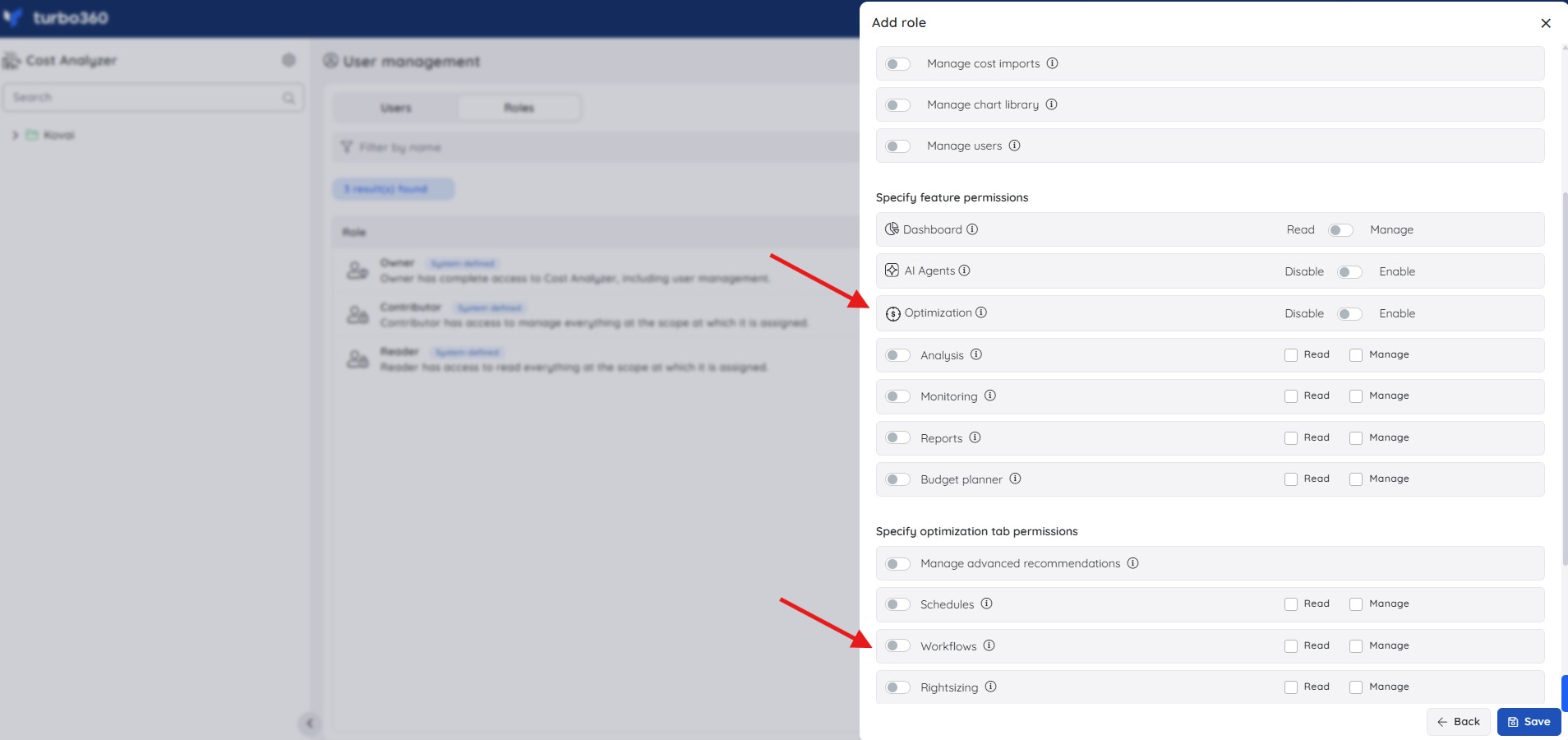
The Service Principal used by Turbo360 requires Azure-level access on the target subscription or storage account to execute purge and access-tier-change actions.
How it works
The Workflow feature in Cost Analyzer offers three task types for storage accounts:
- Purge blobs from storage blob container — streamlines the automated deletion of blobs from a storage container, following the specified configuration.
- Change access tier of blobs in Storage blob container — automates changing the access tier of blobs as per the provided workflow configuration.
- Purge files from Storage file share — streamlines the automated deletion of files from a storage file share, following the specified configuration.
Setting up a workflow for these tasks automates clearing storage data from storage services and optimizes the storage size of blob data. The workflow runs according to the time zone and configuration you set.
Steps
Use the following steps to create and run a storage account workflow. Navigate to Optimization > Workflows within a Cost group to get started.
Create a workflow
Creating a workflow defines the task type, resource target, scheduling, and notification settings for automated storage management.
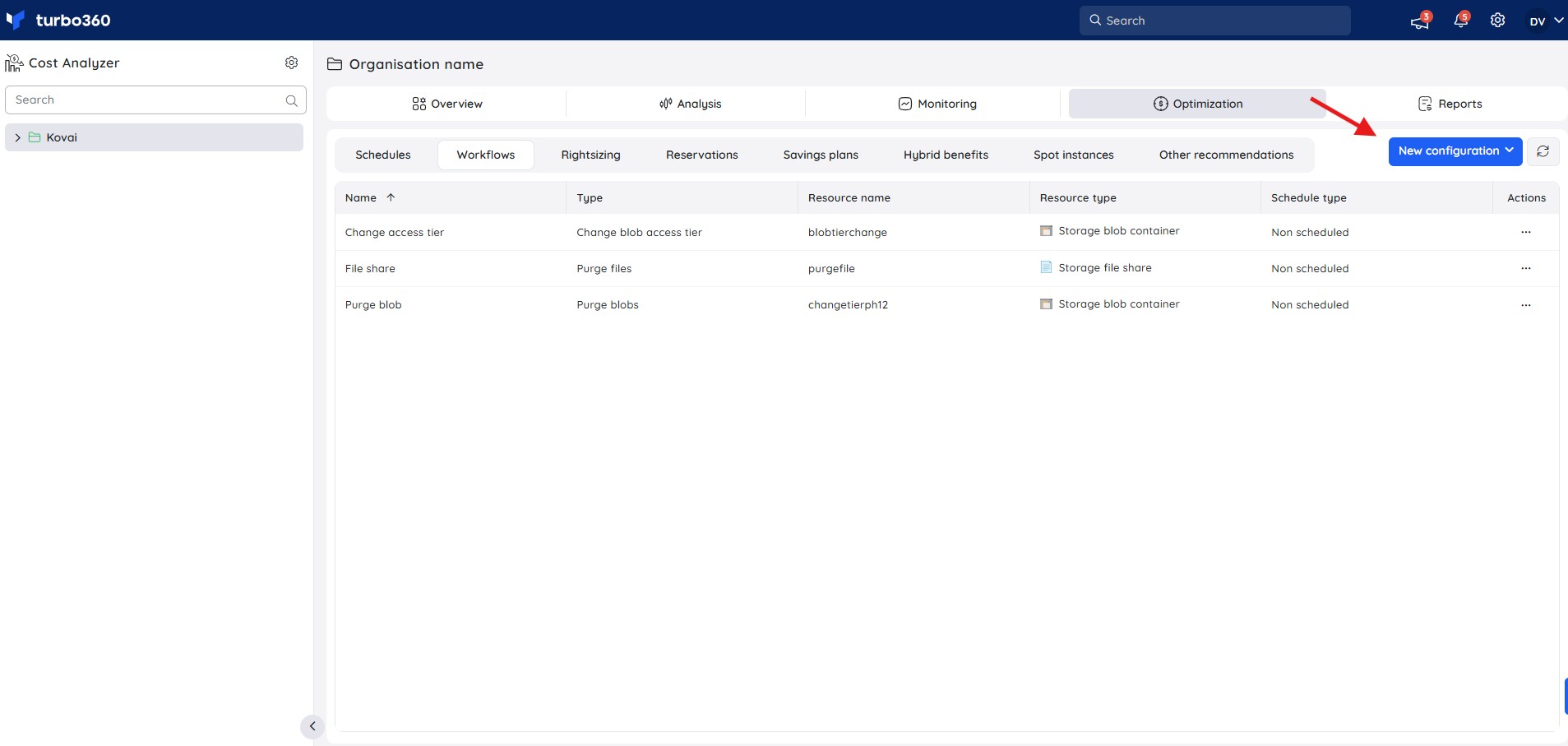
- Go to Optimization > Workflows in a Cost group.
- Click the New configuration dropdown and select the required task type — Purge blobs from storage blob container, Change access tier of blobs in Storage blob container, or Purge files from Storage file share.
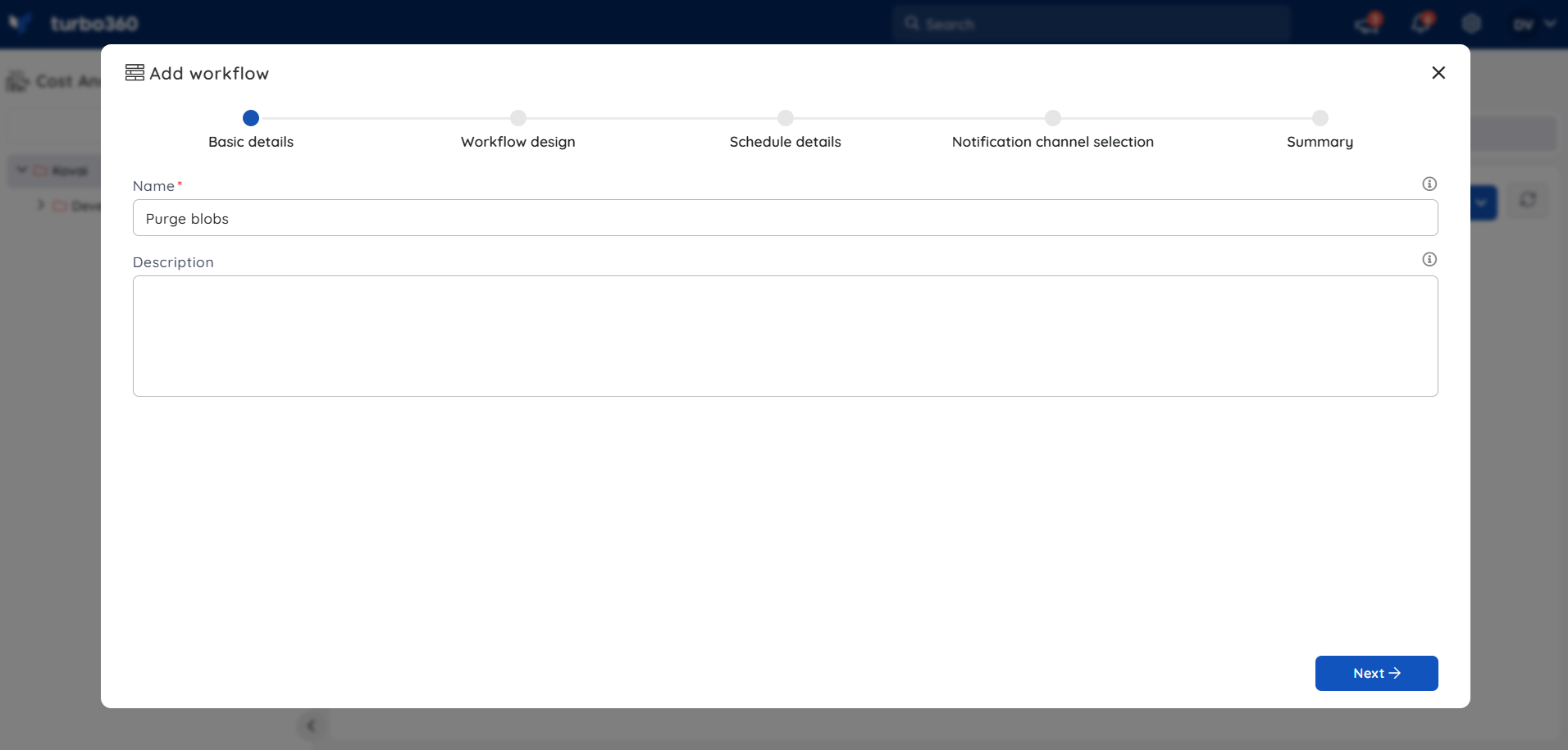
- Enter the name of the workflow and click Next.
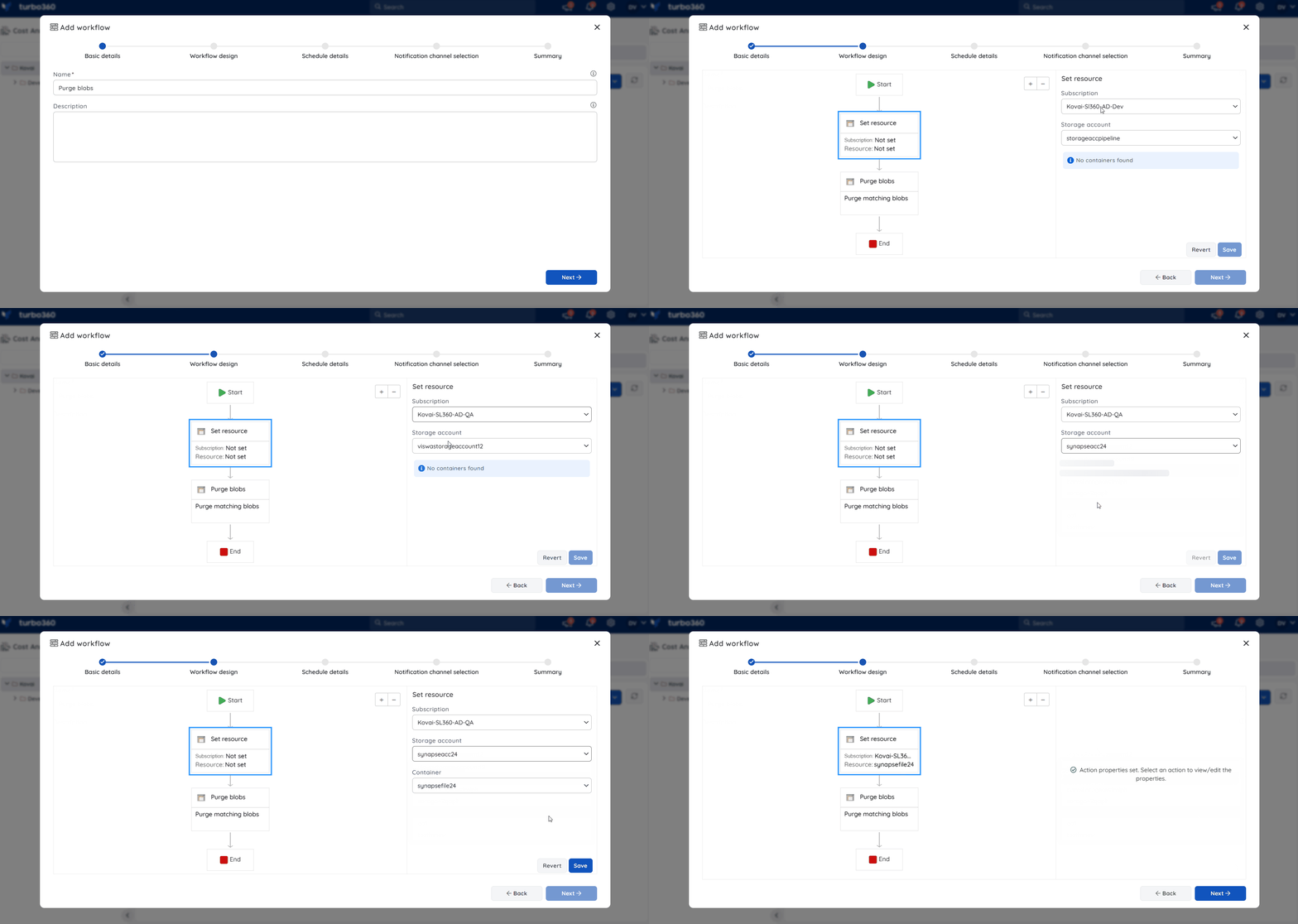
- Select the subscription, storage account, and the respective blob container or file share that requires processing.
- Define the configuration that determines when the action runs.
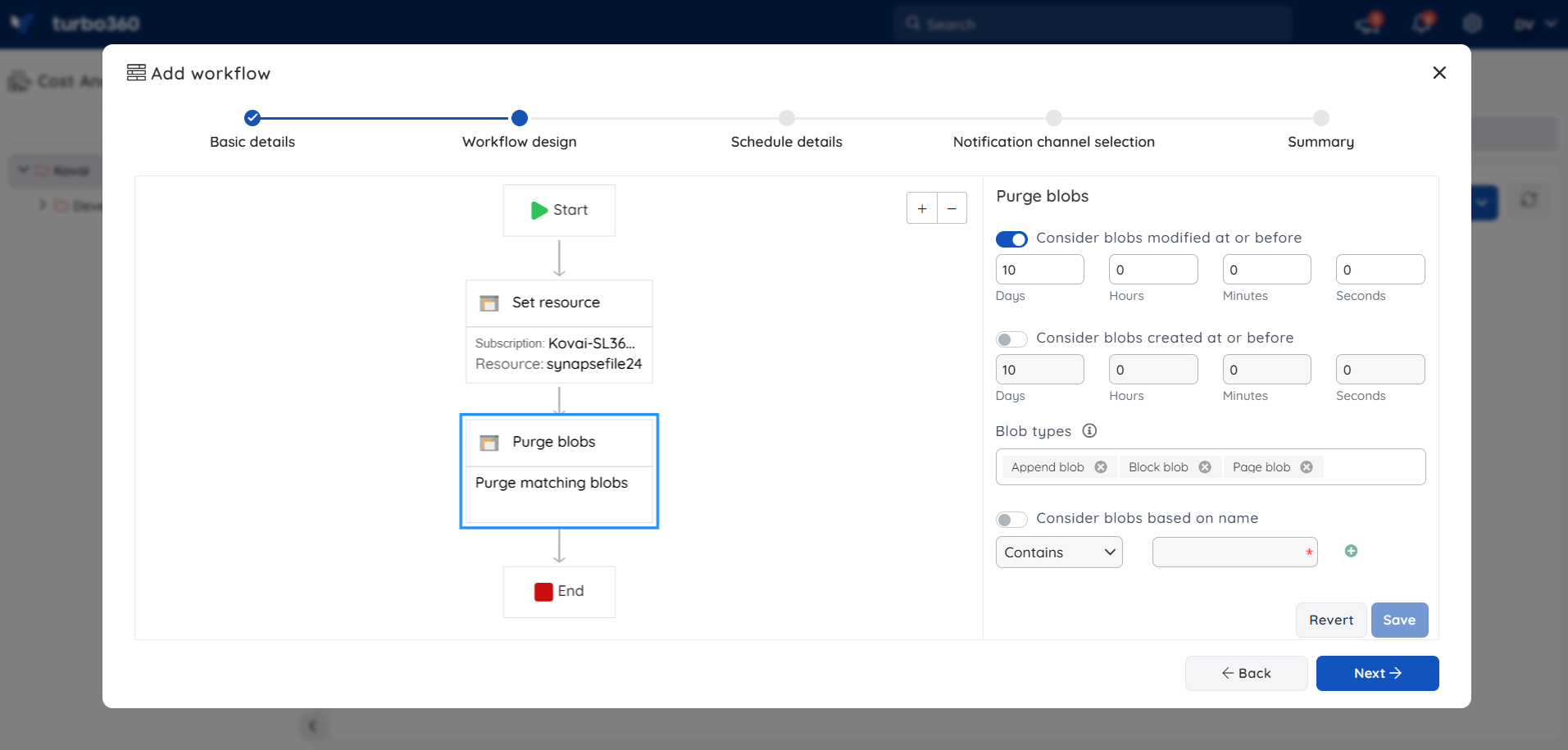
- Control the timing and frequency of the workflow execution.
.png)
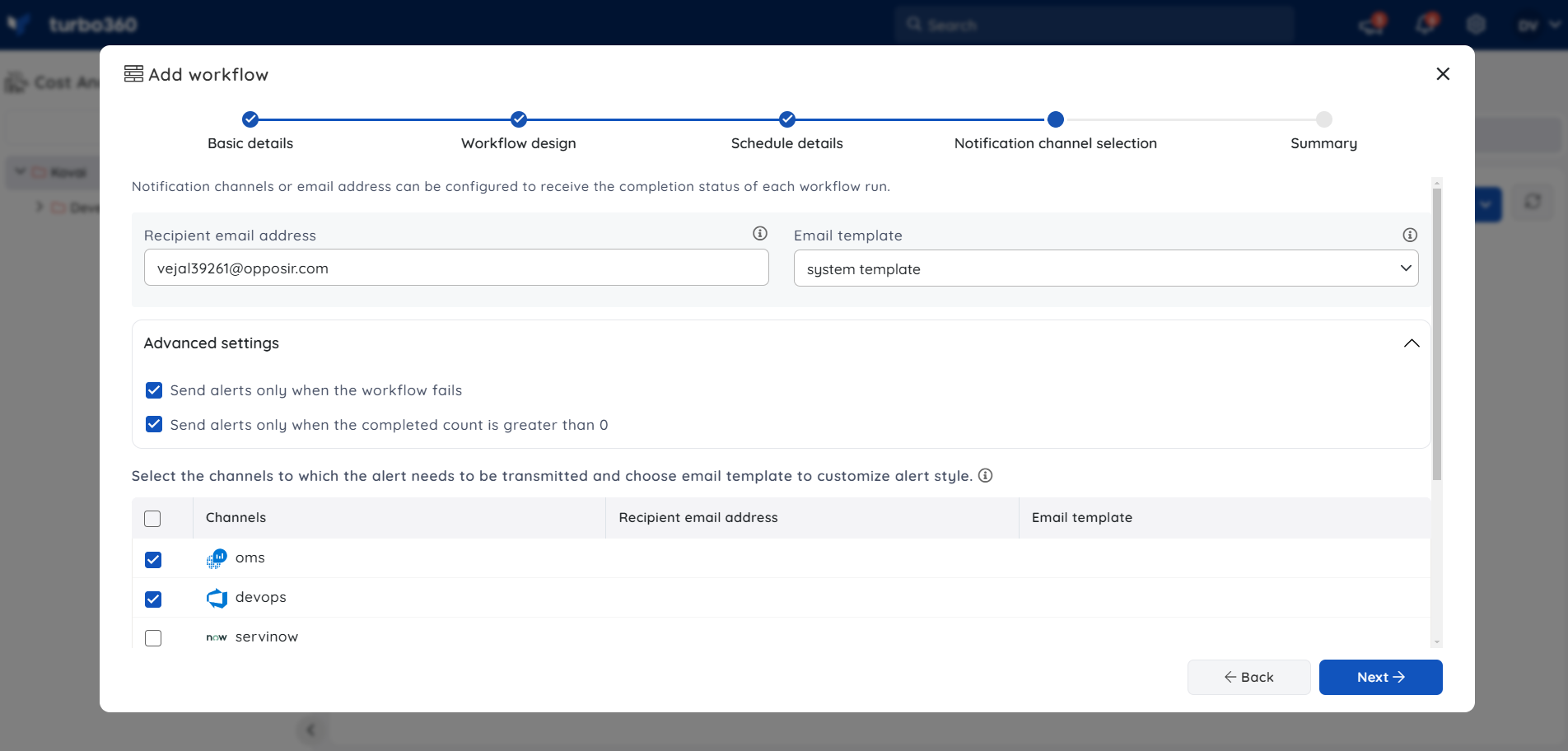
- Choose the notification channels to receive alerts on workflow executions. Under Advanced settings, check one or both options to authorize notifications for specific situations.
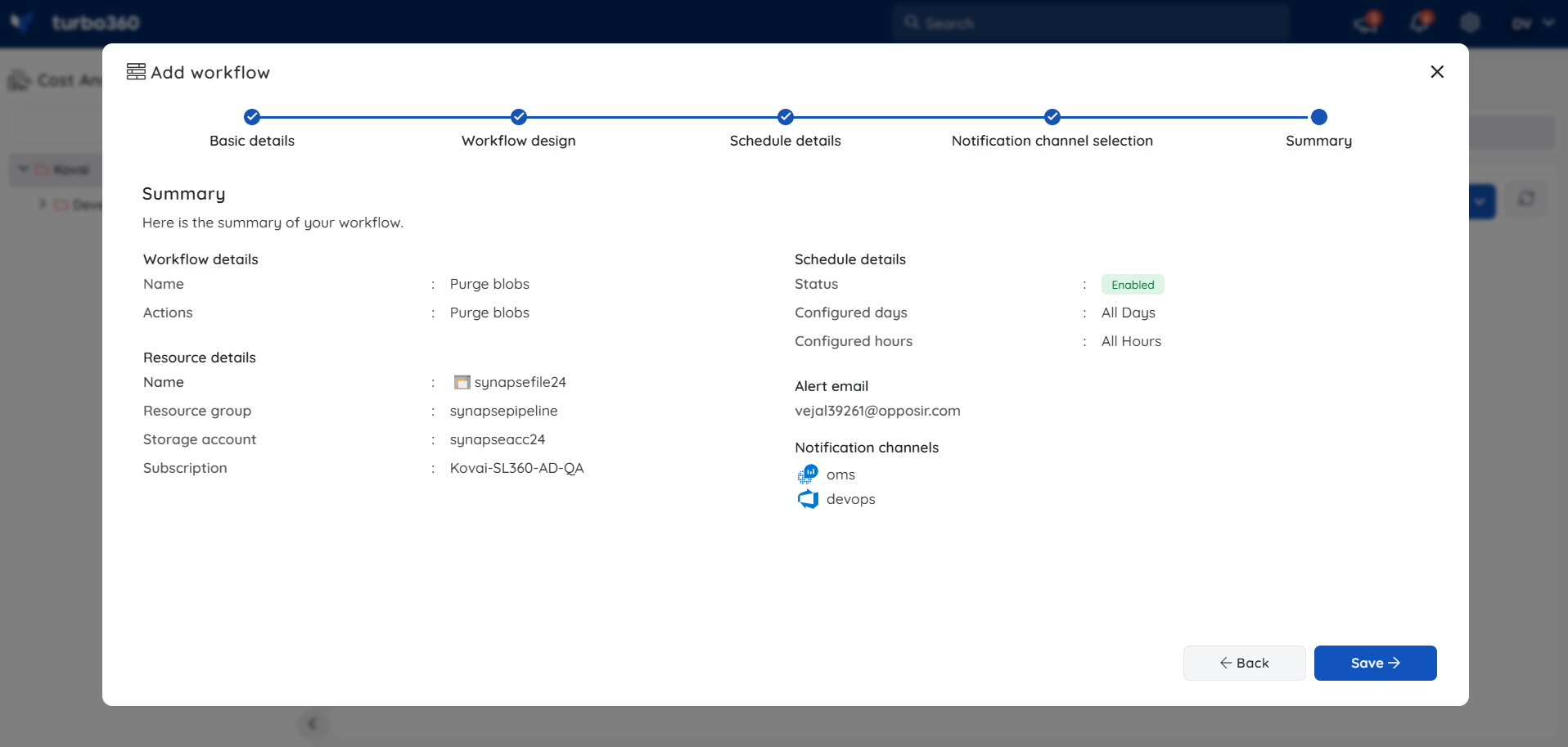
- Review the workflow configuration summary and click Save to complete setup.
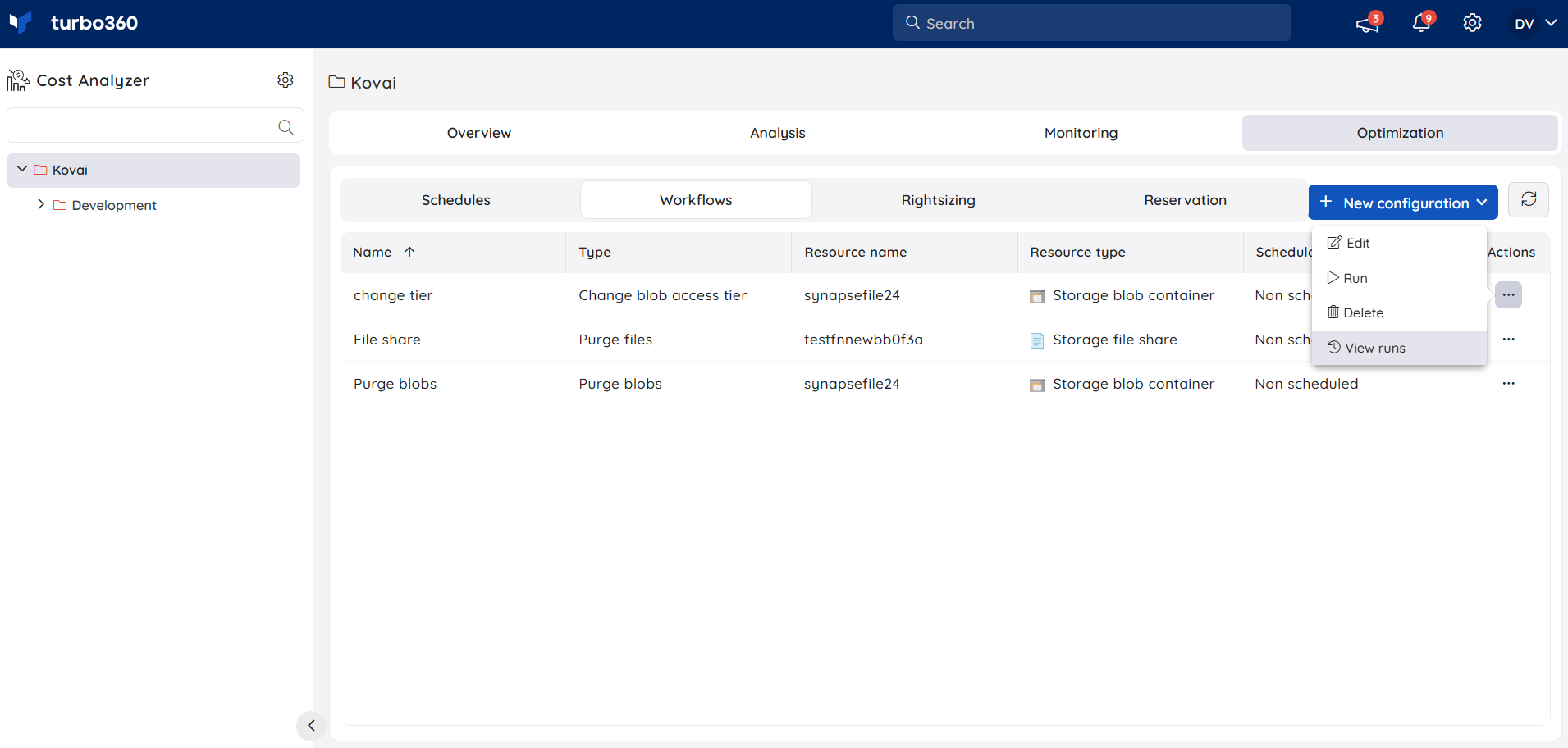
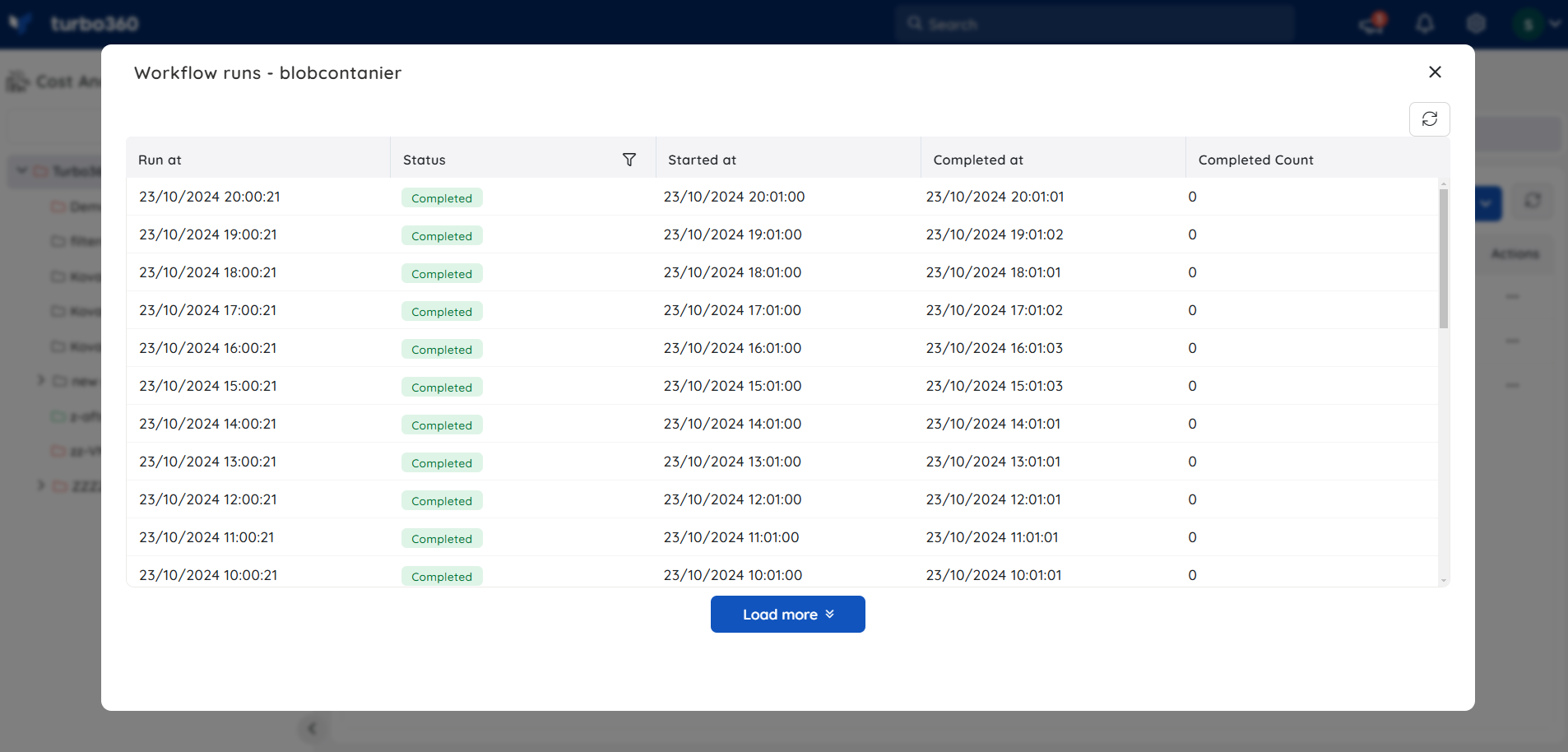
The View Runs section shows both processed runs and scheduled runs awaiting processing.
Run a workflow on demand
Running a workflow on demand lets you trigger storage cleanup or tiering immediately without waiting for the next scheduled execution.
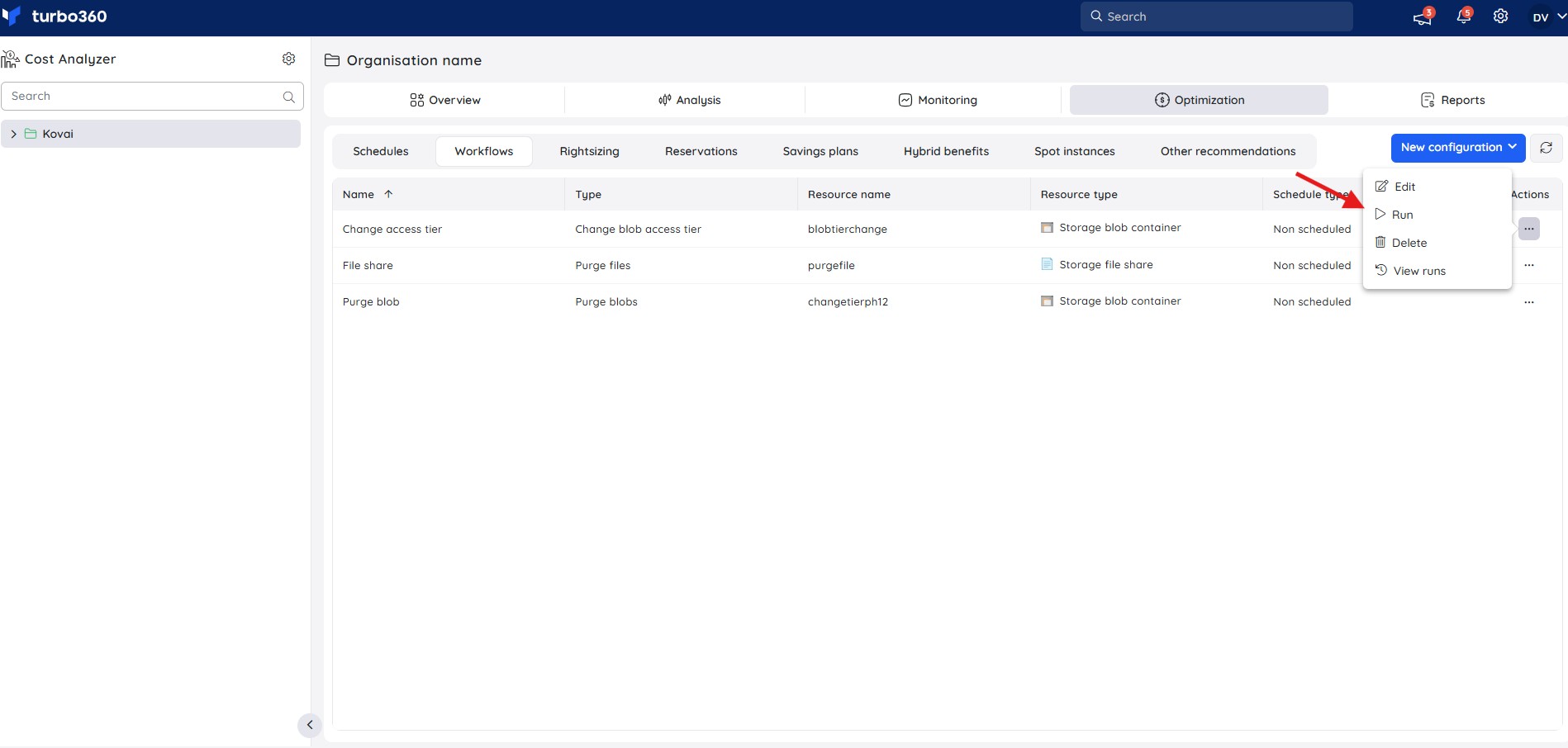
- Go to Optimization > Workflows in a Cost group.
- Click the Actions menu next to the workflow.
- Select Run.
Example scenario
A team manages a storage account used by a development environment. Blobs accumulate daily from build artifacts and test outputs, inflating storage costs. They create a Purge blobs from storage blob container workflow that runs nightly at midnight, targeting the build artifacts container and deleting blobs older than 7 days. Storage costs drop as outdated files are automatically removed on a recurring basis without manual cleanup.
Troubleshooting
The workflow runs but no blobs are purged or tiers changed
Cause: The configured condition doesn't match any blobs in the target container — for example, the age or filter criteria are too restrictive.
Fix: Review the condition settings in the workflow configuration and confirm they match the expected blob population.The workflow fails to execute on schedule
Cause: The Service Principal used by Turbo360 lacks the required Azure-level access on the target storage account.
Fix: Grant the required Azure role to the Service Principal on the storage account or subscription, then trigger the workflow manually to verify access.Notifications for workflow runs aren't being received
Cause: The notification channel wasn't configured, or the wrong channel was selected during setup.
Fix: Reopen the workflow configuration and confirm the correct notification channel is selected under Advanced settings.The View Runs section shows no completed runs
Cause: The workflow hasn't triggered yet, or the schedule is set to a future time.
Fix: Check the scheduling settings and confirm the timing is correct, or trigger the workflow manually to confirm it runs successfully.The access tier of blobs didn't change as expected
Cause: The target blobs are already in the configured tier, or the filter condition excluded them.
Fix: Verify the access tier configuration and confirm the blob population in the target container meets the filter criteria.
FAQs
Can a single workflow perform more than one task type (e.g. purge blobs and change access tier together)?
No. Each workflow is created for a single task type — Purge blobs from storage blob container, Change access tier of blobs in Storage blob container, or Purge files from Storage file share — selected from the New configuration dropdown at creation.Can I run a scheduled workflow immediately instead of waiting for its next scheduled time?
Yes. Click the Actions menu next to the workflow and select Run to trigger it on demand, independent of its schedule.Where can I check whether a workflow has run and what happened?
Open the View Runs section for the workflow. It shows both completed runs and scheduled runs still awaiting processing.
Related articles
Was this article helpful?