

Storage Queue
- 05 Aug 2026
- 4 Minutes to read
- Print
- DarkLight
- Download PDF
Storage Queue
- Updated on 05 Aug 2026
- 4 Minutes to read
- Print
- DarkLight
- Download PDF
Article summary
Did you find this summary helpful?
Thank you for your feedback!
Overview
Storage Queue is a service for storing over 80 GB of messages, accessible from anywhere via authenticated HTTP or HTTPS calls. It delivers asynchronous messaging between decoupled application components so they can scale independently. A single message can be up to 64 KB, and a queue can contain millions of messages up to the storage account's capacity limit.
Business value
Managing Storage Queue messages from Turbo360 closes a real gap in the Azure portal — which offers only enqueue, dequeue, and view via Storage Explorer — letting you update, resubmit, download, and upload messages directly, reducing the time spent on manual or custom-code message processing.
How it works
Once a Storage Queue is associated with a Business Application, you can retrieve, update, resubmit, repair, and delete its messages directly from Turbo360. Each retrieval increases the message's dequeue count by one; retrieval is read-only and does not remove the message from the queue.
Permissions
Access to Storage Queue actions is controlled through RBAC when adding a role to a Business Application.
| Permission | Description |
|---|---|
| Read | View messages, properties, and monitoring configuration. |
| Manage | Update message content and configure monitoring rules. |
| Reprocess | Resubmit messages, individually or in bulk. |
| Repair & Reprocess | Modify message content, visibility timeout, or time to live, and resubmit. |
| Purge | Delete messages, individually, in bulk, or via inline and automated tasks. |
Operations
Turbo360 lets you retrieve, update, resubmit, repair, and delete Storage Queue messages directly, closing gaps left by the Azure portal and Storage Explorer.
Retrieve messages
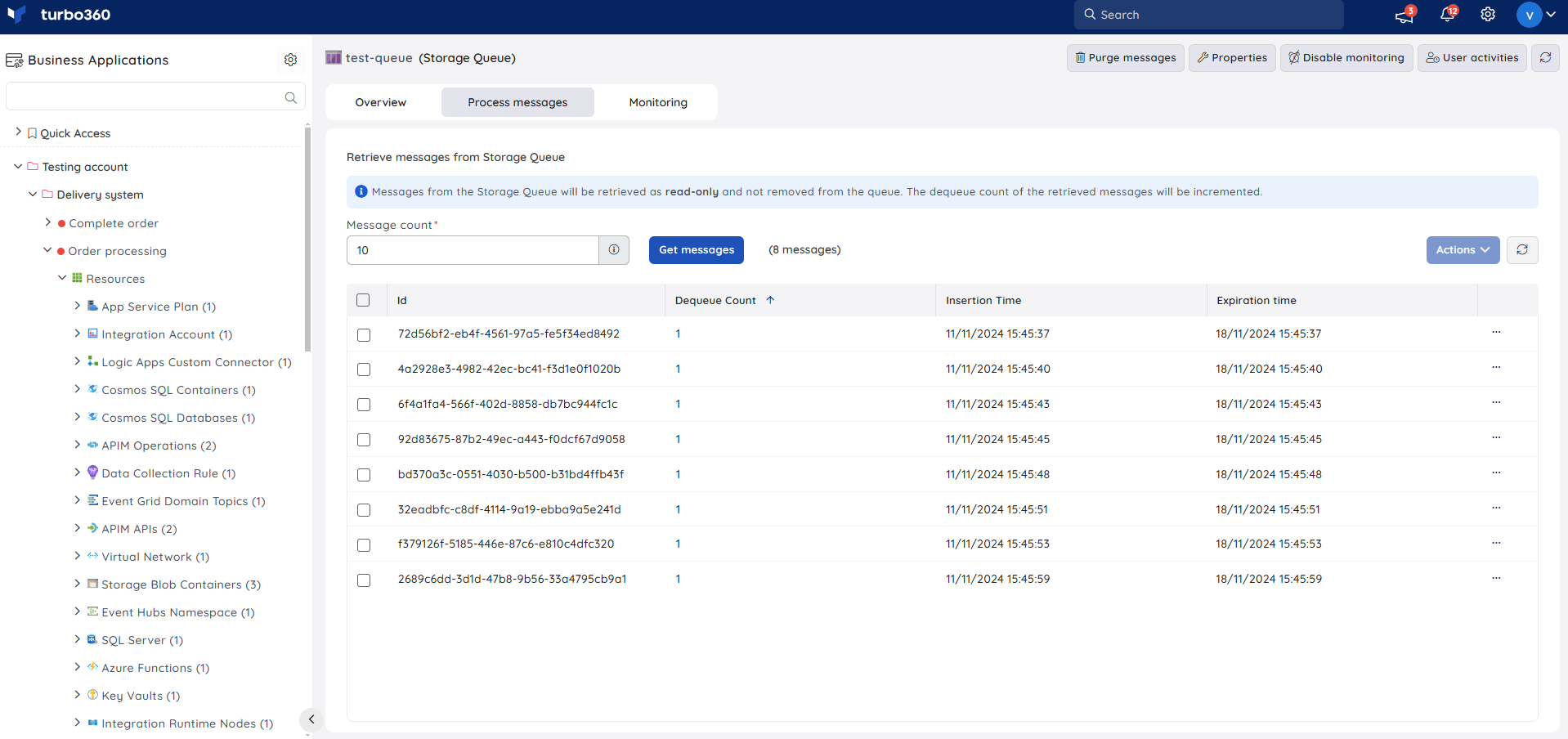
- Retrieve — view messages from the Storage Queue in read-only mode, along with message content and properties. Use this when you need visibility into queue contents without removing anything. Each retrieval increases the dequeue count by one.
Update message
- Update — modify the content of a message in the queue. Use this when a message's content needs correcting without removing it from the queue.
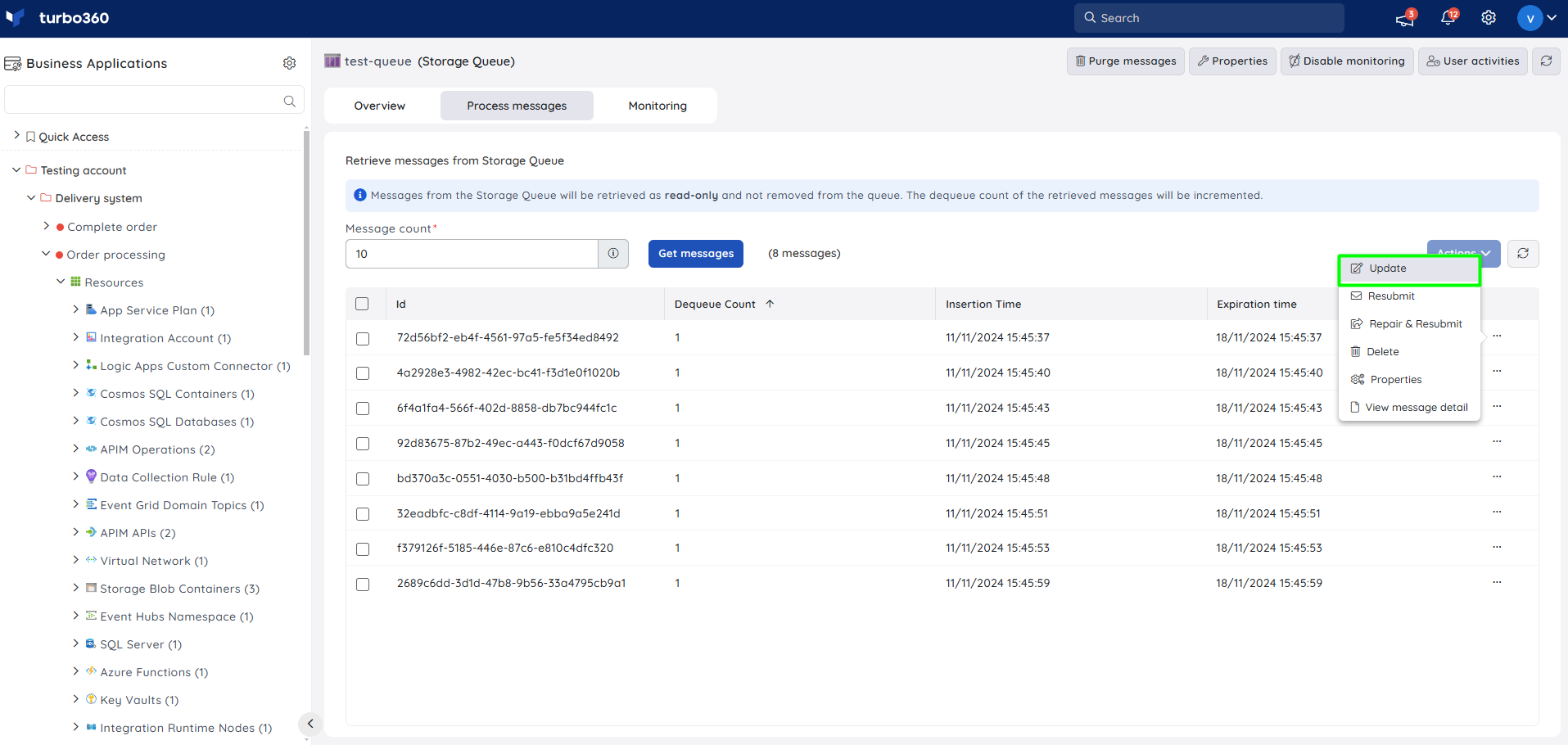
The Update message action does not remove the message from the queue — it retains the message with the modified content.
Resubmit messages
- Resubmit — submit a new message with the same content into a destination Storage Queue, chosen from a list of available queues. Use this when a received message needs to be redelivered. This operation can be performed on one or more messages and removes the original message from the source queue.
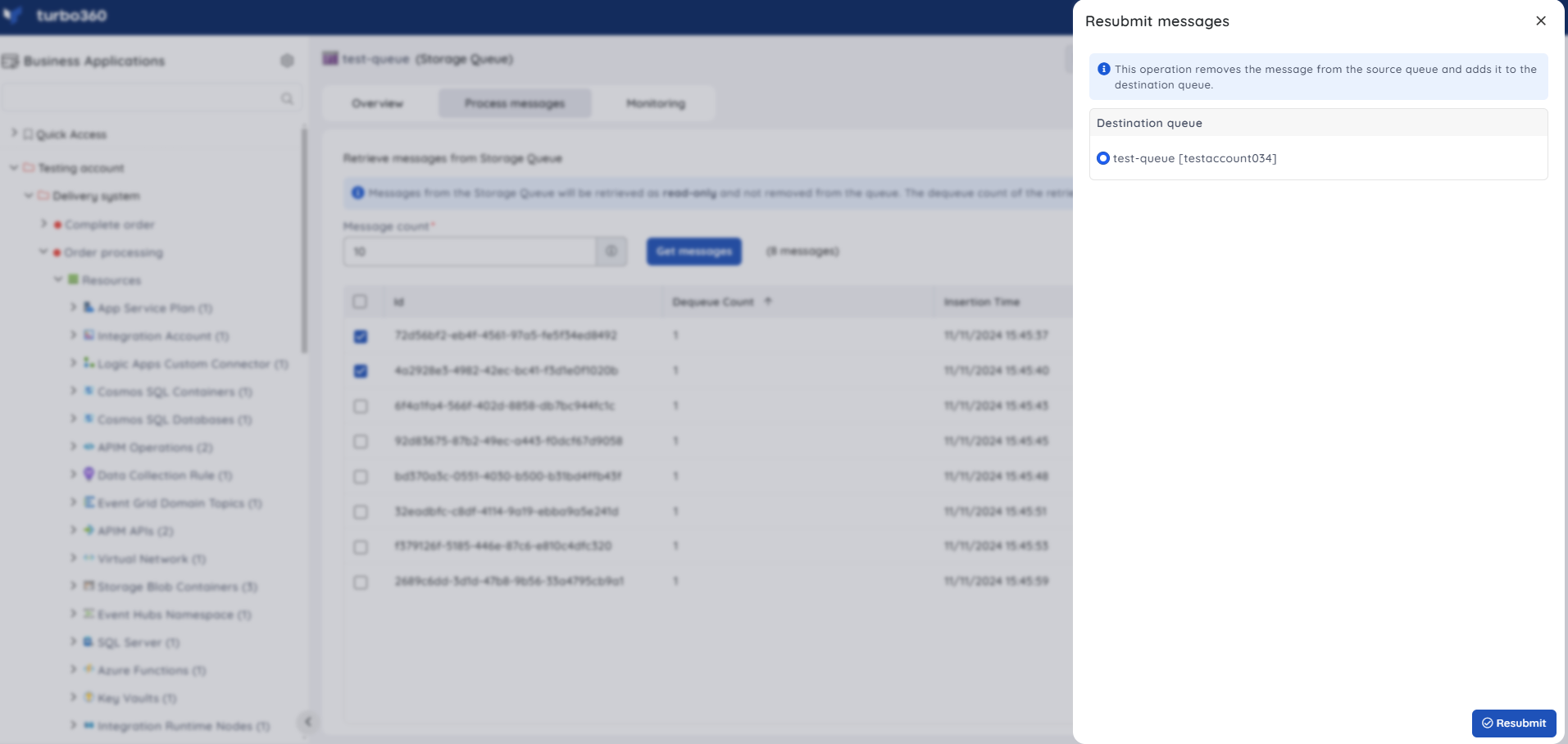
Resubmit removes the original messages being resubmitted from the source Storage Queue.
Bulk operations
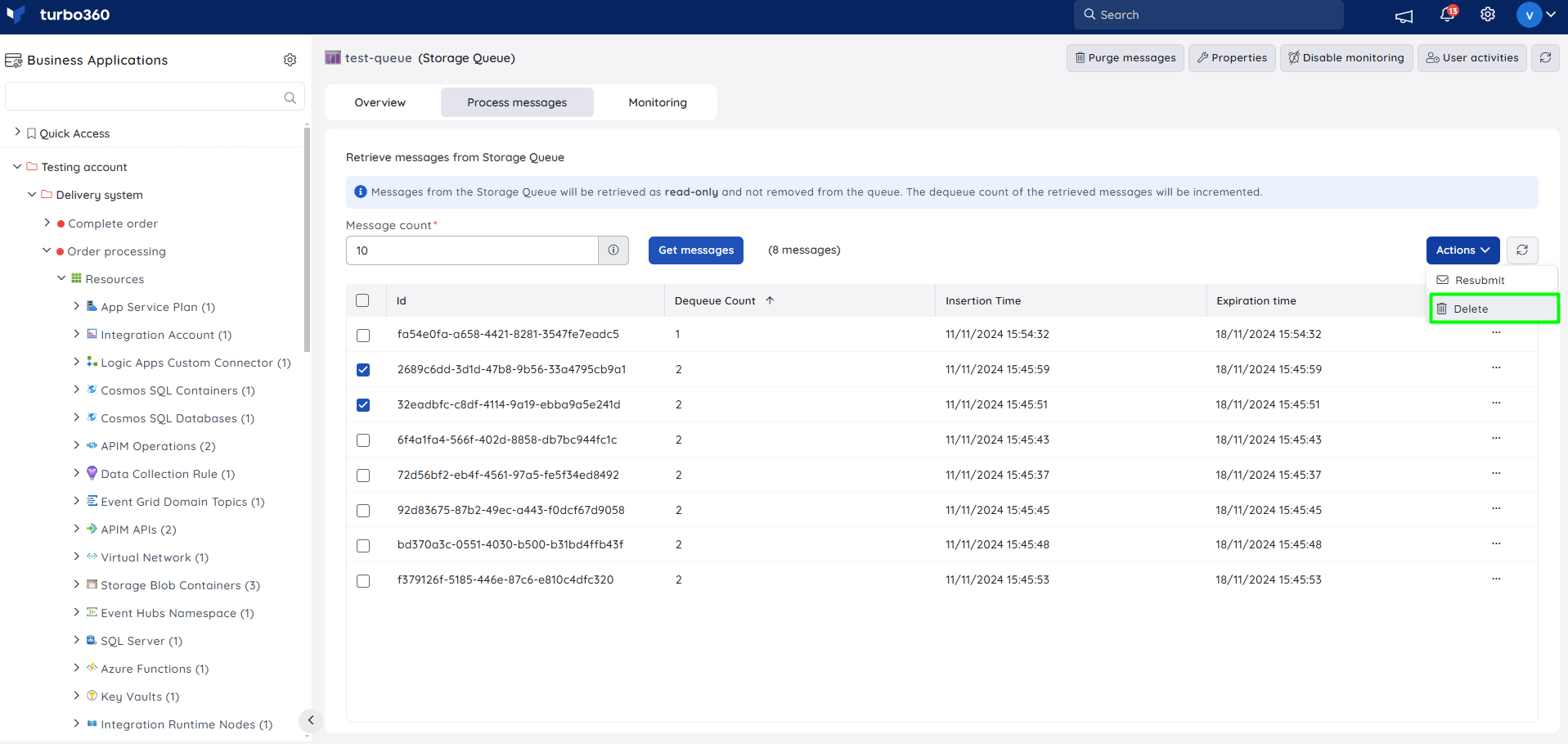
- Bulk Resubmit — resubmit multiple selected messages at once via Actions -> Resubmit.
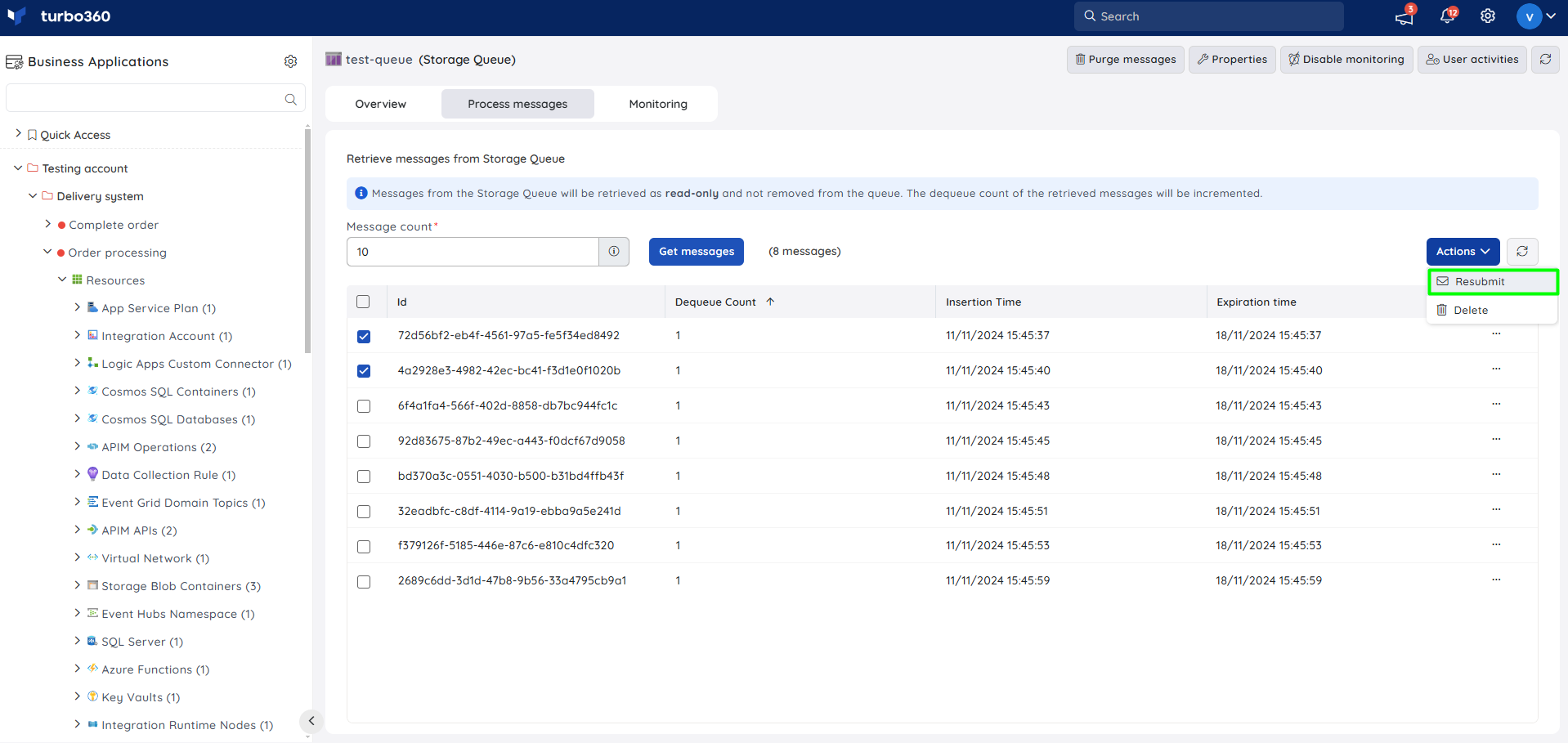
- Bulk Delete — delete multiple selected messages at once.
Repair and Resubmit message
- Repair and Resubmit — submit a new message with updated content, visibility timeout, and time to live into a destination Storage Queue chosen from a list of available queues. Use this when a message needs correcting before redelivery. This removes the message from the source queue.
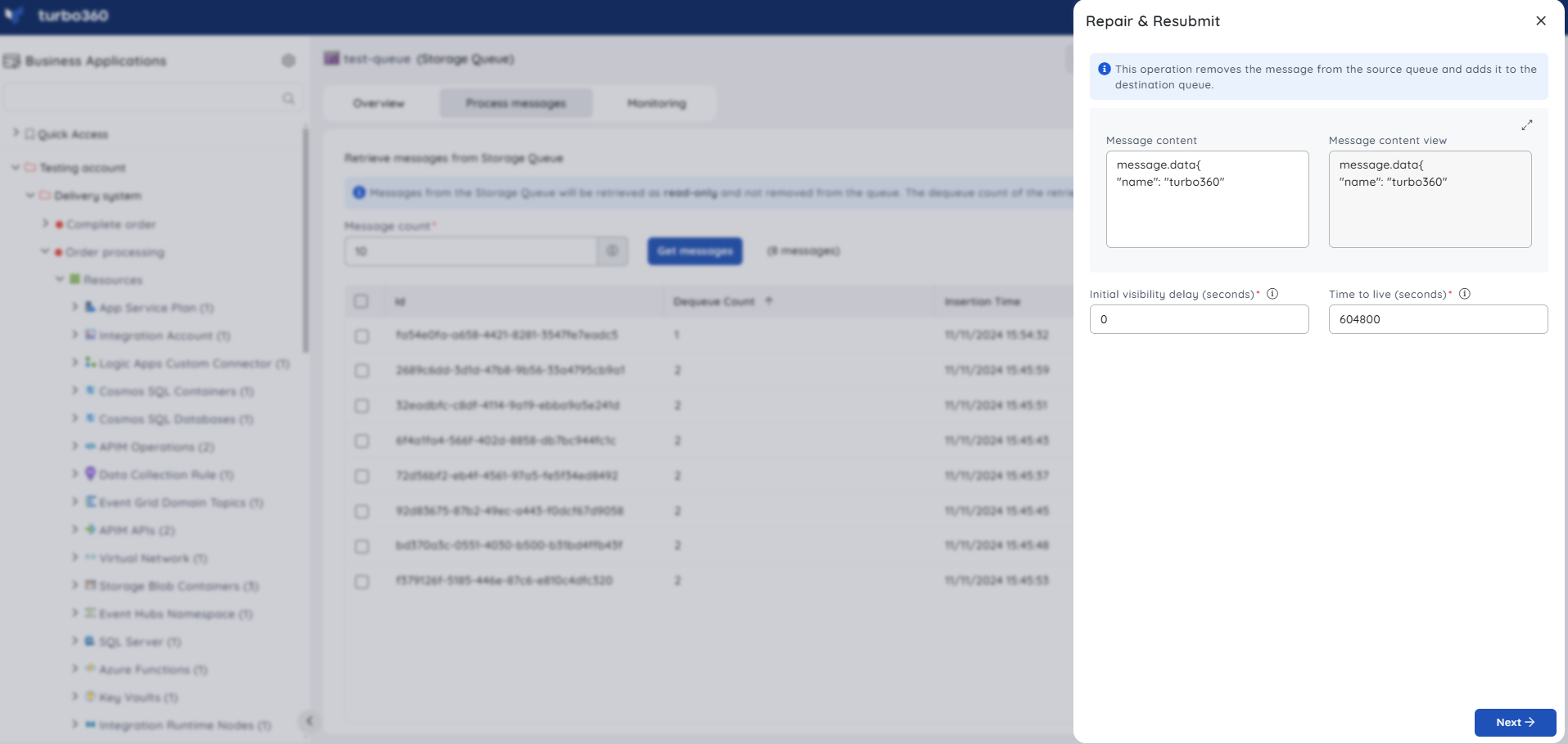
Repair and Resubmit removes the original messages being resubmitted from the source Storage Queue.
Delete messages
- Delete — remove one or more retrieved messages from the queue. Use this when messages are no longer needed.
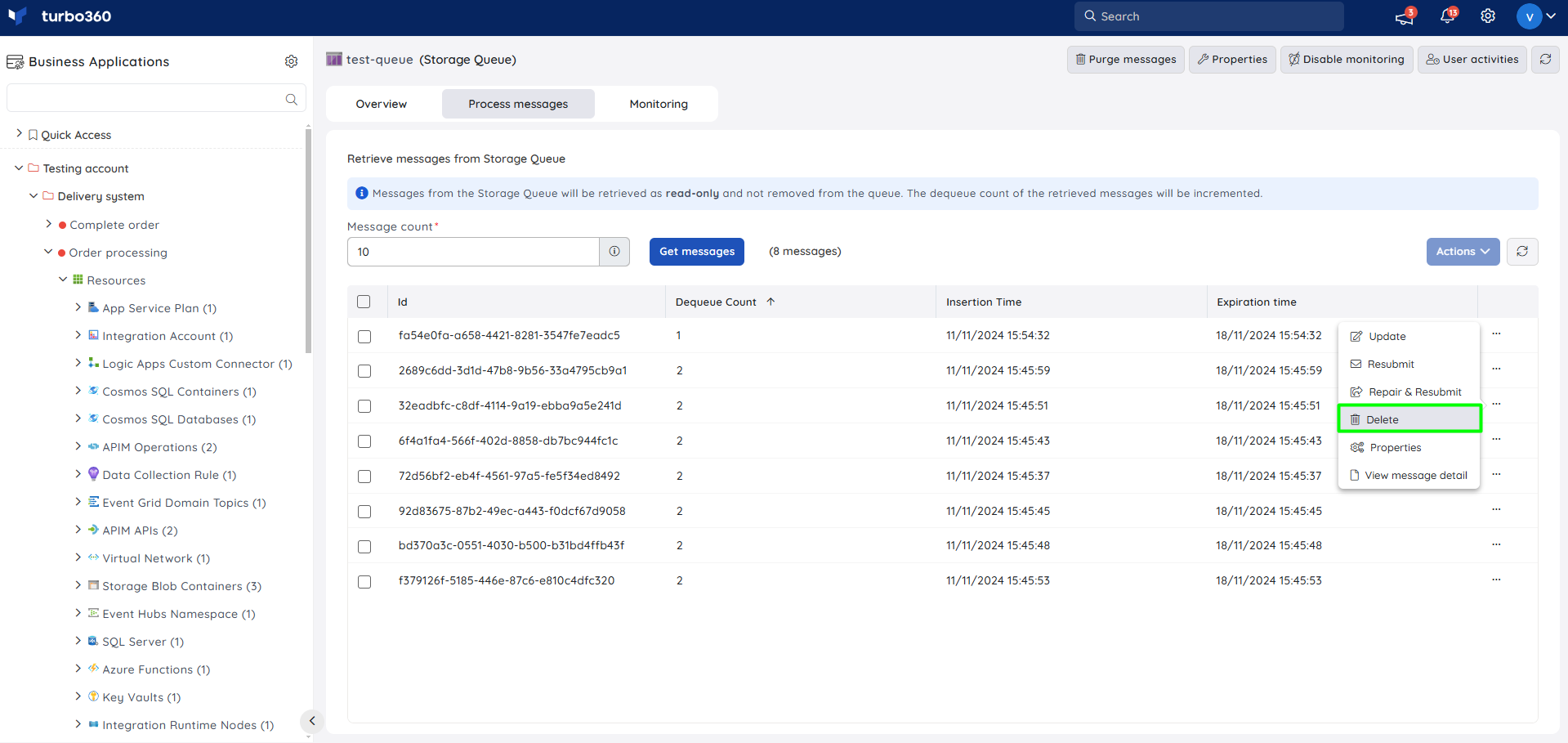
Delete can also be automated via the Automated Tasks section.
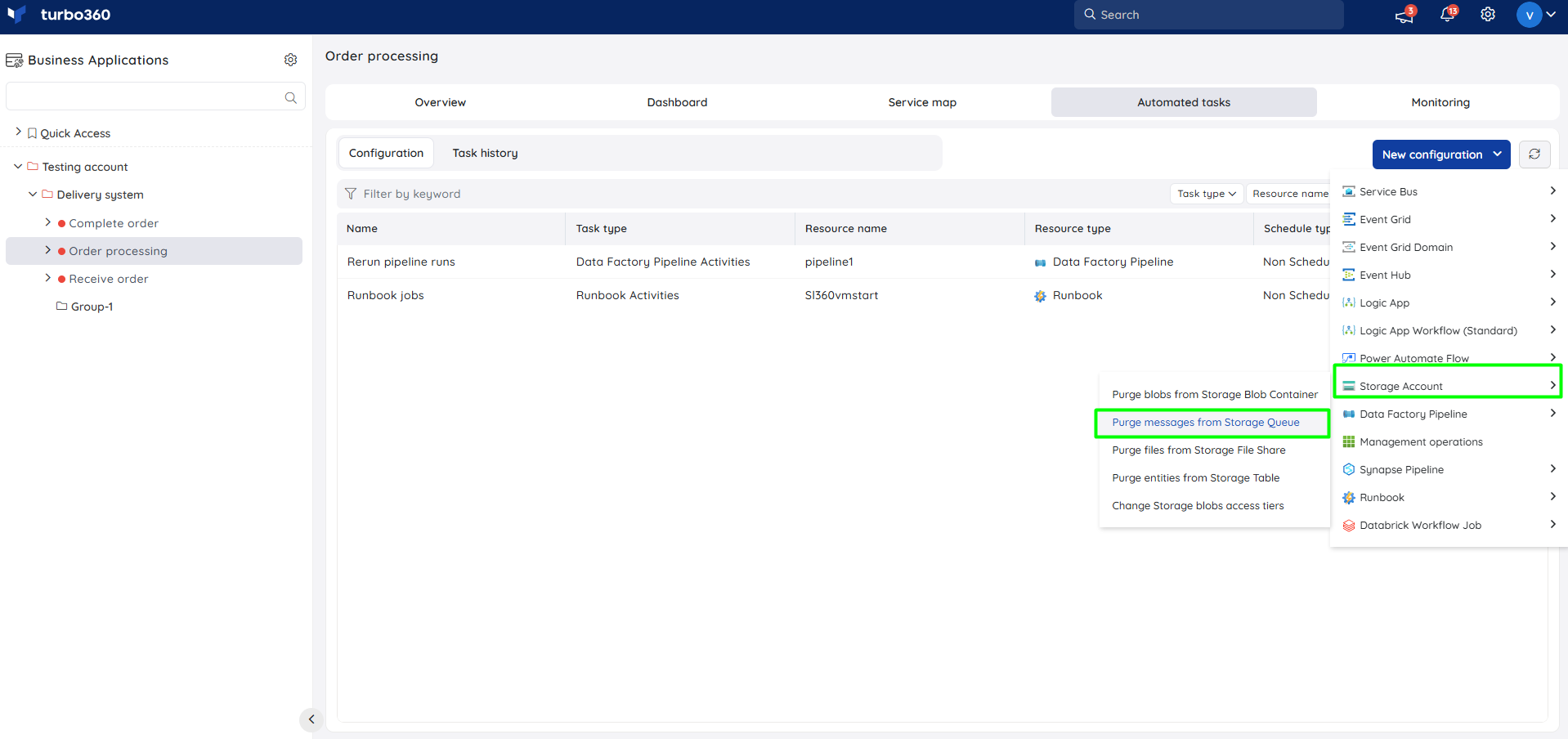
Inline task to purge messages
- Inline task — quickly purge messages from the queue by specifying message count (all or a specified number), Message Enqueued At time, and an optional configuration name (if Save configuration is enabled).
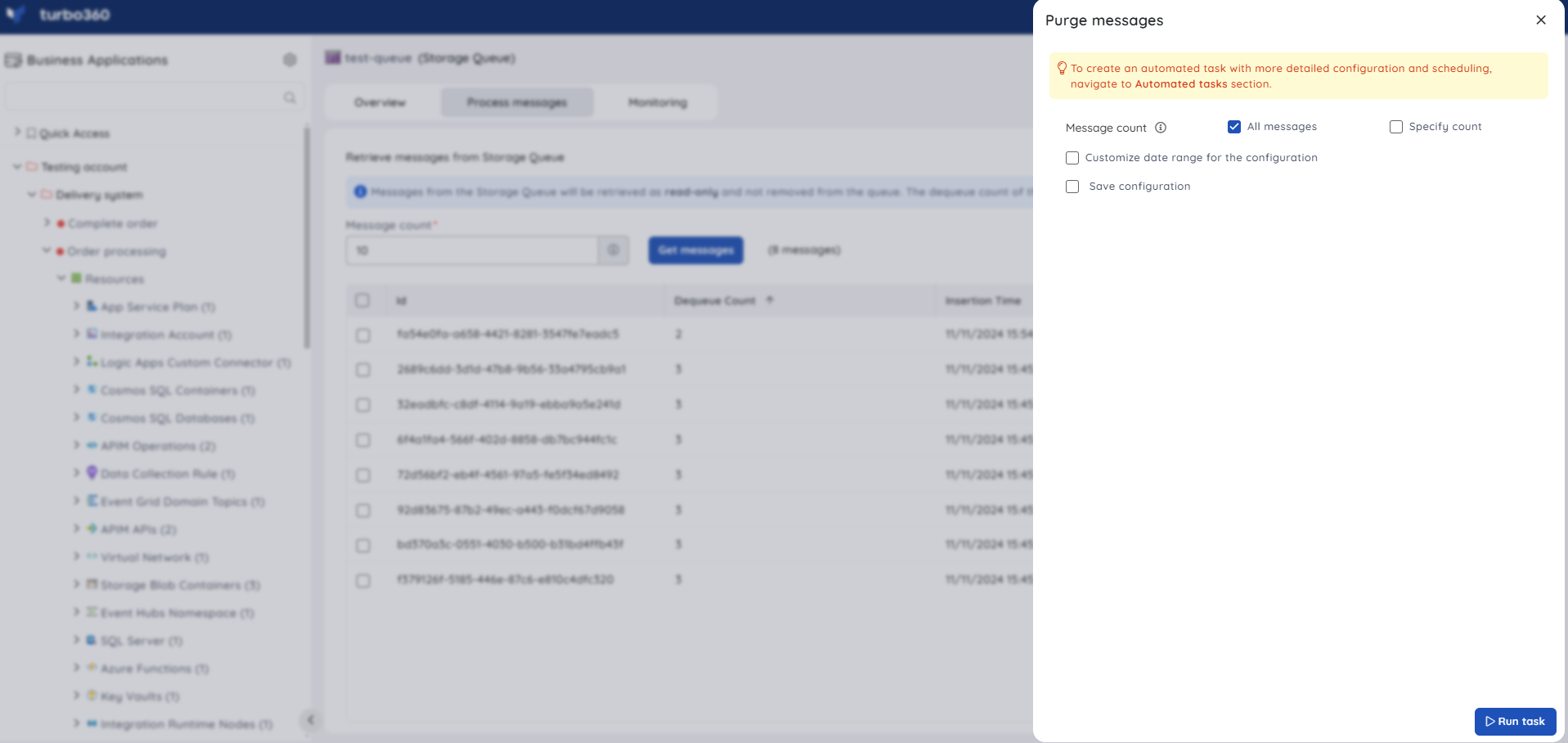
Task status can be viewed under Automated Tasks -> Task history.
- Users can use this feature to quickly create a task that runs immediately.
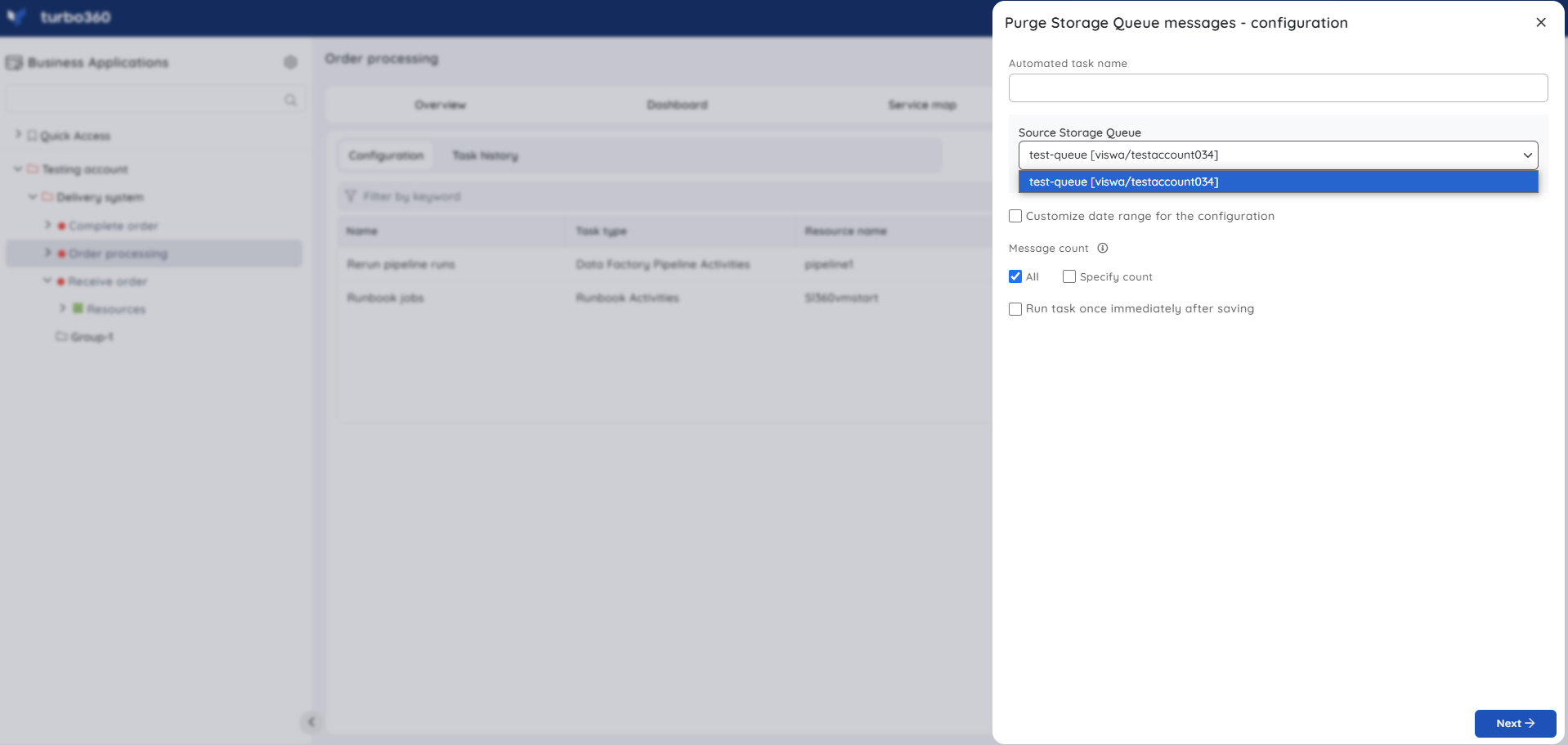
- Navigate to the Automated Tasks section in Turbo360 to create a task with a more detailed configuration, schedule tasks to run at a specific time, or automate the task to run on the specified hours, days, and more.
The Automated Task feature overcomes the time-consuming process of manually purging Storage Queue messages in large applications.
Monitoring
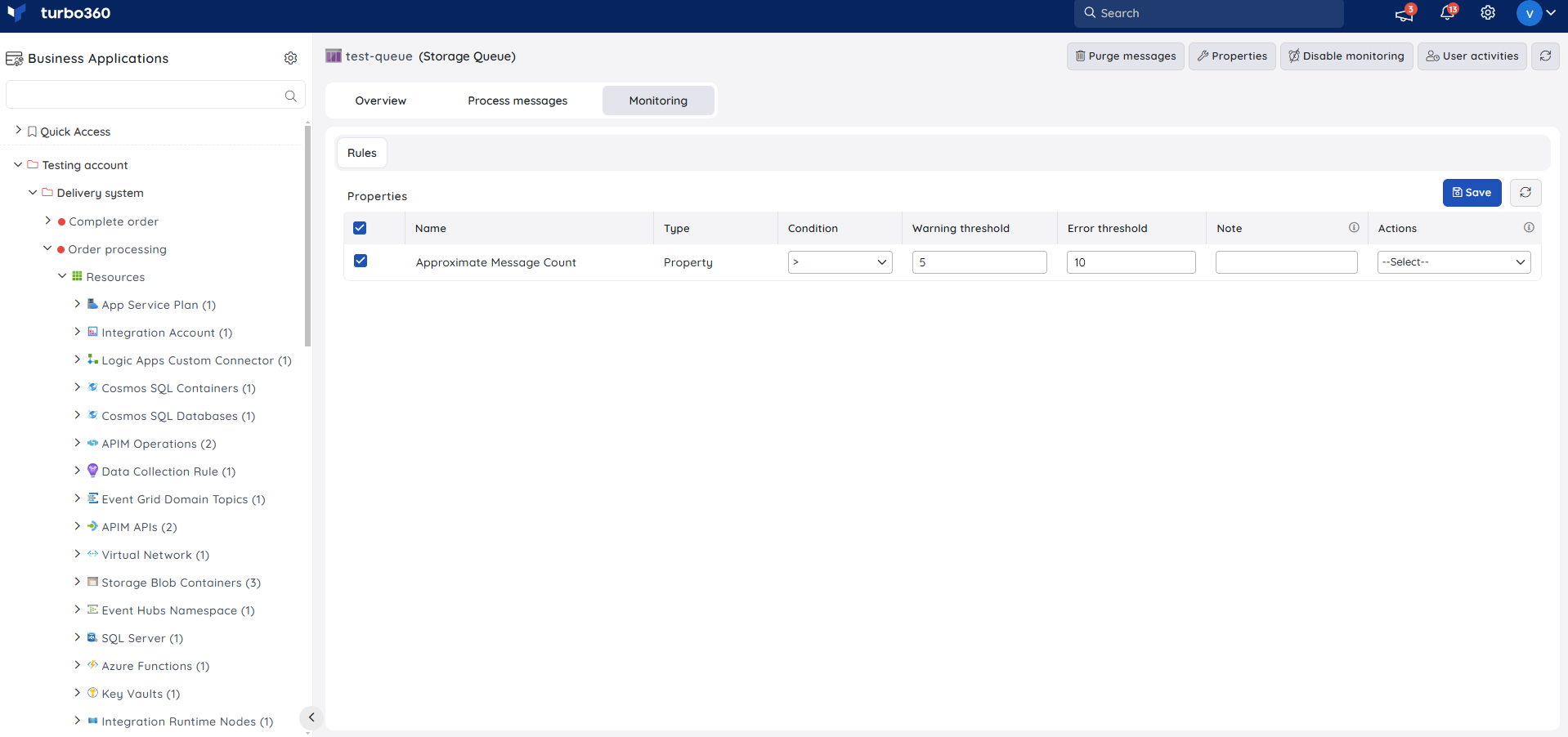
Storage Queue supports message count monitoring, configured under Storage Queue -> Monitoring.
Message count monitoring
Tracks the total message count of the queue against a defined threshold. Use this when you need to be alerted if the queue is accumulating messages faster than they're being processed.
- Navigate to Storage Queue -> Monitoring.
- Configure the threshold for message count.
- Click Save.
Troubleshooting
- Resubmit or Repair & Resubmit option is unavailable
Cause: The role applied to the Business Application lacks the Reprocess or Repair & Reprocess permission.
Fix: Confirm the role has the relevant permission, then retry. - A resubmitted message appears to be missing from the source queue
Cause: This is expected — Resubmit and Repair & Resubmit both remove the original message from the source queue as part of the operation.
Fix: Check the destination queue specified during resubmission; the message should appear there instead. - Update message action unexpectedly removes the message
Cause: A different action (such as Delete) may have been triggered instead of Update.
Fix: Confirm Update was selected — Update retains the message with modified content and does not remove it. - Message count monitoring rule doesn't trigger despite a growing backlog
Cause: The configured threshold is higher than the current backlog, or the rule was saved before the first monitoring cycle completed.
Fix: Review and lower the threshold if appropriate, and allow one full monitoring cycle to pass before re-checking.
Related articles
Was this article helpful?