

Task history
- 05 Aug 2026
- 2 Minutes to read
- Print
- DarkLight
- Download PDF
Task history
- Updated on 05 Aug 2026
- 2 Minutes to read
- Print
- DarkLight
- Download PDF
Article summary
Did you find this summary helpful?
Thank you for your feedback!
Overview
The Task history tab gives you a consolidated record of every automated task execution in your Business Application. You can access it by navigating to the Automated tasks section and selecting the Task history tab next to the Configuration tab.
Business value
Task history lets you audit automated task outcomes without switching to Azure. You can quickly confirm whether a task completed successfully, identify failures, and drill into timing details — all from a single view.
How it works
Each row in the Task history list represents one task execution. The list includes the following columns:
| Column | Description |
|---|---|
| Configuration name | The current name of the configuration that triggered the task. If the configuration was renamed after the task ran, the updated name appears here. Clicking the name opens the latest version of that configuration — equivalent to selecting Edit from the Actions menu on the Configuration tab. |
| Task type | The type of the configuration, specific to the resource it is associated with. |
| Azure Resource name | The name of the Azure resource associated with the Business Application that the automated task is configured for. |
| Task status | The current execution status of the automated task. See the status reference below. |
| Completed date and time | The date and time the task reached a terminal state. Applies to Cancelled, Completed, and Failed tasks only. |
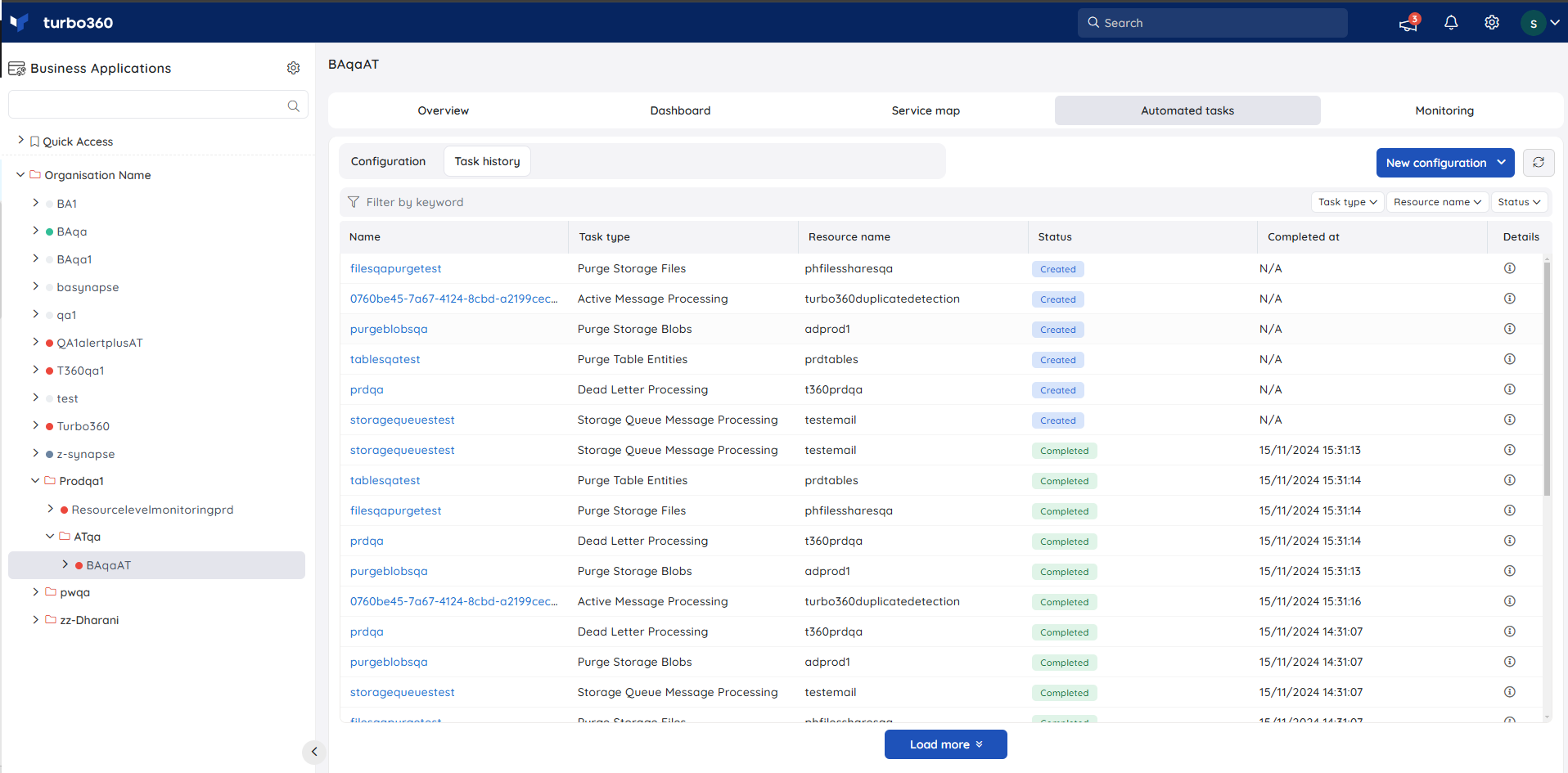
Task status reference
The Task status column reflects the current state of the execution:
| Status | Meaning |
|---|---|
| Created | The task has been scheduled and is waiting to run. |
| Running | The task is actively executing. |
| Cancellation Requested | A cancellation has been requested; the task has not yet stopped. |
| Cancelled | The task was cancelled before it could complete. |
| Completed | The task finished successfully. |
| Failed | The task encountered an error and did not complete. |
Completed date and time is shown as Not Applicable for tasks created through the scheduling of manage operations.
Task details
Selecting the Details option on a task row surfaces additional timing and diagnostic information depending on the task's status:
- Created status — shows Expected to Run At, the scheduled execution time.
- Completed, Cancelled, or Failed status — shows Started At, the time the task began executing.
- Failed status — also shows Failure reason, explaining why the task did not complete.
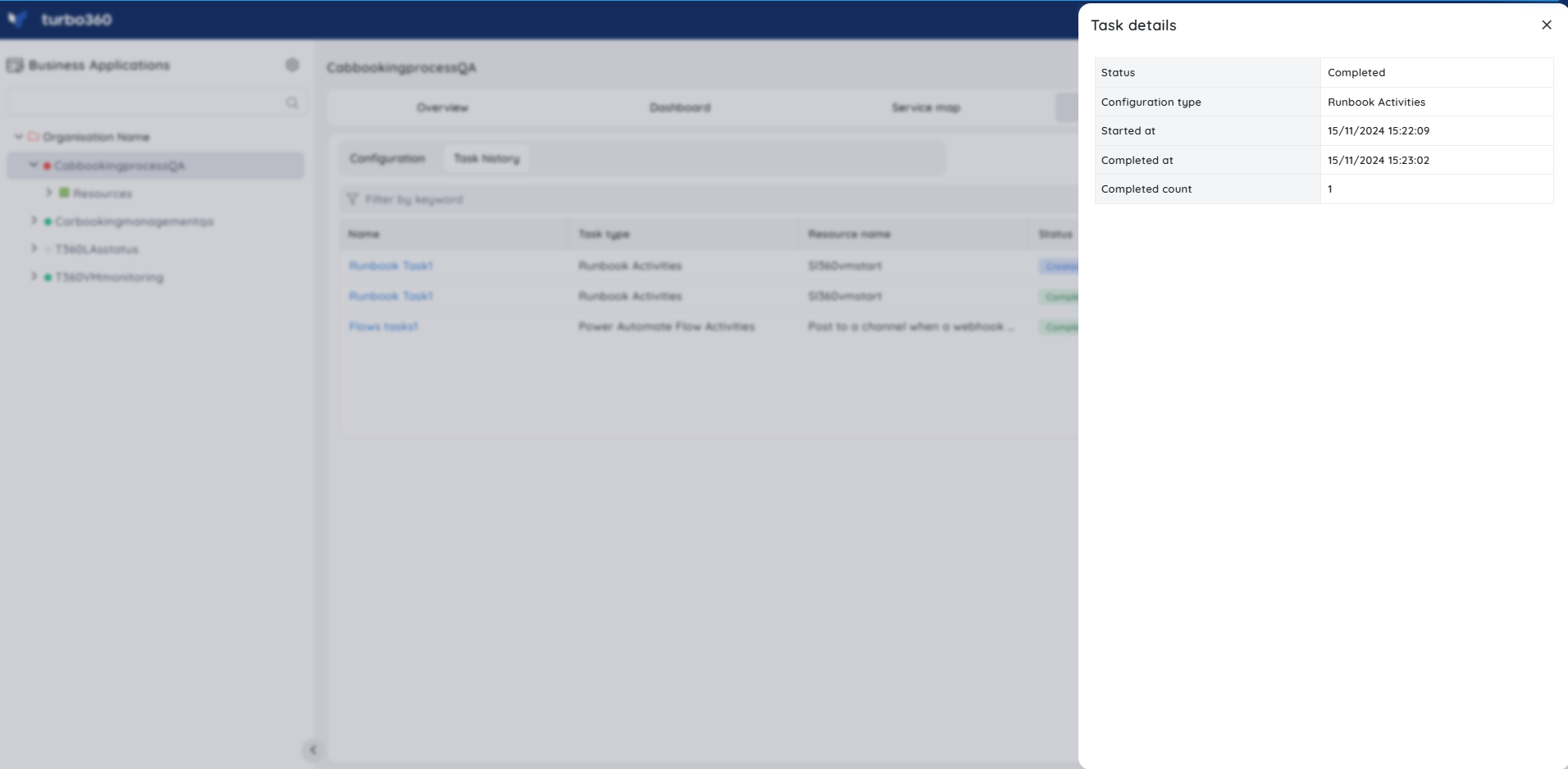
A task with a Running status can be cancelled at any time. Open the Details option and select Cancel.
Related articles
Was this article helpful?