

Virtual Network Gateway
- 05 Aug 2026
- 2 Minutes to read
- Print
- DarkLight
- Download PDF
Virtual Network Gateway
- Updated on 05 Aug 2026
- 2 Minutes to read
- Print
- DarkLight
- Download PDF
Article summary
Did you find this summary helpful?
Thank you for your feedback!
Overview
Virtual Network Gateway is an Azure service that establishes secure, reliable connections between on-premises and virtual networks. Azure offers two gateway types: a VPN gateway, which securely connects on-premises and virtual networks over the public internet via an encrypted private network, and an ExpressRoute gateway, which works with Azure ExpressRoute to provide private, high-speed, low-latency connectivity — useful for large data loads requiring dependable, consistent connections.
Business value
Monitoring Virtual Network Gateway connections and metrics from Turbo360 helps you spot connectivity degradation across Site-to-Site, Vnet-to-Vnet, and ExpressRoute links before it disrupts dependent applications.
How it works
VPN gateways fall into three categories: a Site-to-Site gateway connects an on-premises network to a virtual network through a VPN tunnel, requiring an on-premises VPN device with an external IP address; a Point-to-Site gateway lets remote users or clients connect securely to a virtual network; and a Vnet-to-Vnet gateway connects multiple virtual networks to each other.
Permissions
Access to Virtual Network Gateway actions is controlled through RBAC when adding a role to a Business Application.
| Permission | Description |
|---|---|
| Read | View dashboard and monitoring configuration. |
| Manage | Configure monitoring rules. |
Resource dashboard
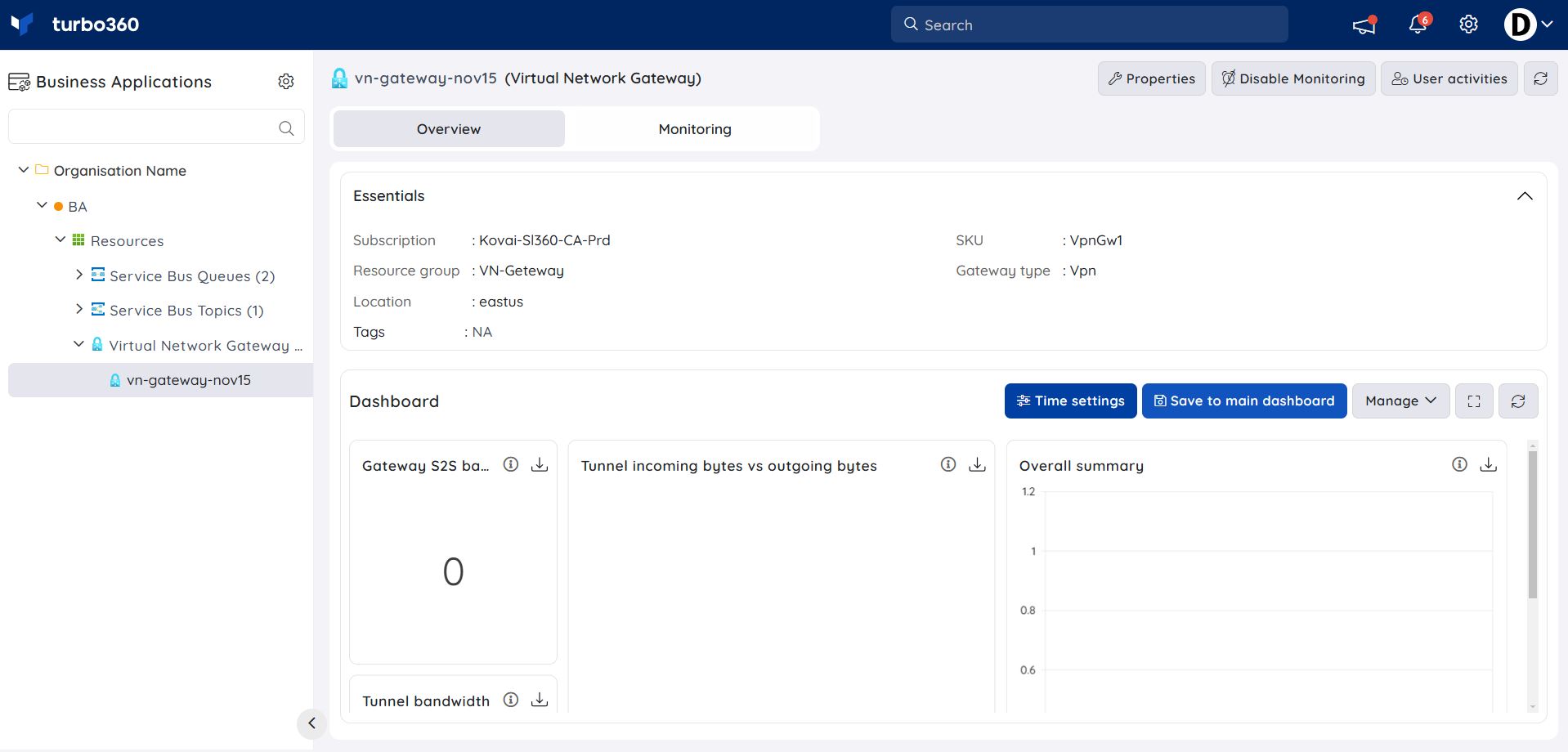
The dashboard surfaces gateway bandwidth and tunnel traffic so you can assess connectivity health at a glance.
| Widget | What it shows |
|---|---|
| Gateway S2S bandwidth | Bandwidth used by Site-to-Site connections through the gateway. |
| Tunnel bandwidth | Bandwidth used across the gateway's tunnels. |
| Tunnel incoming bytes vs outgoing bytes | Compares inbound tunnel traffic against outbound traffic. |
| Overall summary | At-a-glance summary of gateway activity. |
Metrics
The Metrics tab surfaces gateway bandwidth and tunnel traffic data for Virtual Network Gateway, giving you visibility into connectivity performance trends over time. Use the Metrics tab to detect sustained drops in Site-to-Site bandwidth or tunnel throughput that may indicate connectivity degradation before they affect dependent application workloads.
You can add, remove, or reconfigure widgets to focus on the metrics most relevant to your support scenario.
Monitoring
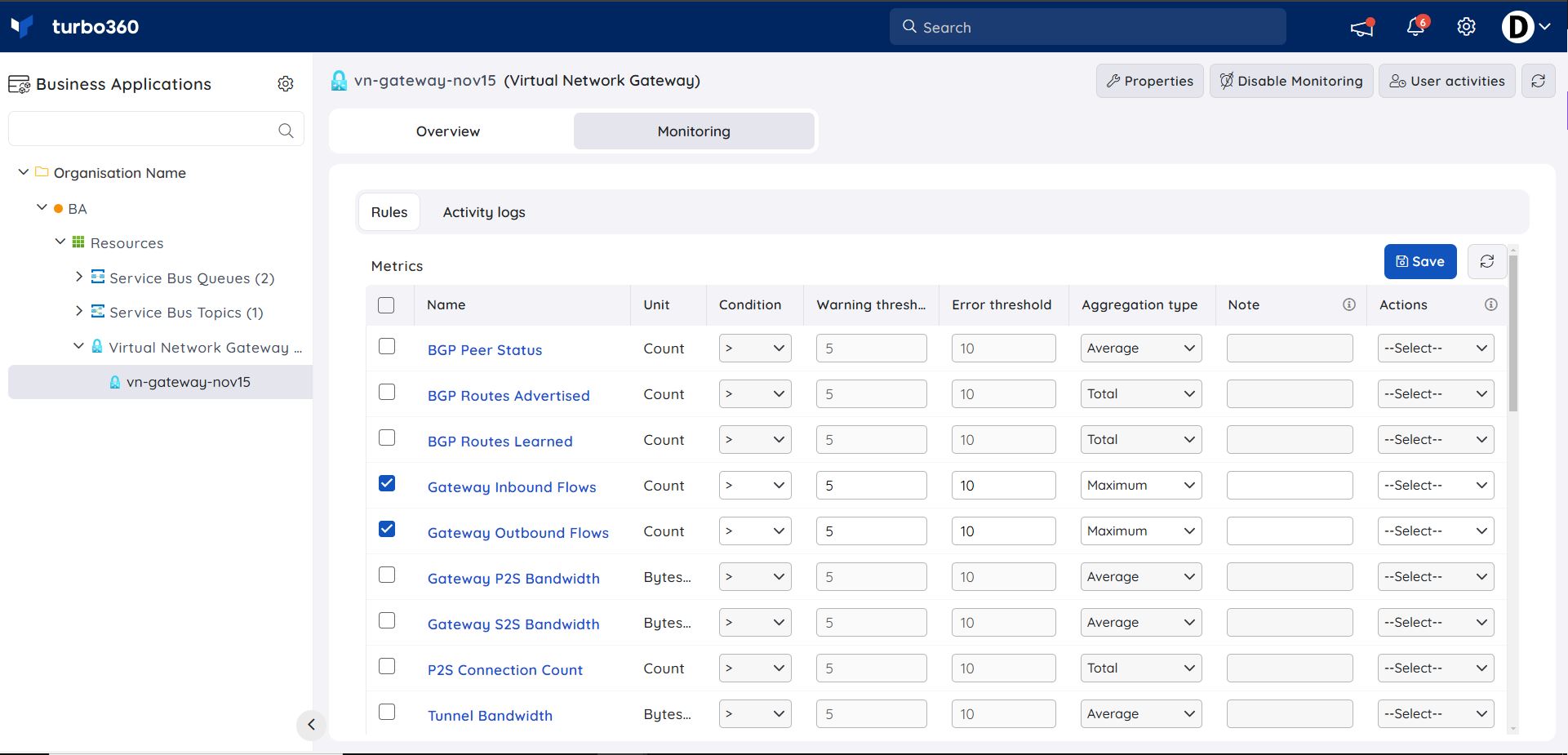
Virtual Network Gateway supports connection and metric monitoring rules, configured under Virtual Network Gateway -> Monitoring.
Connection monitoring
Turbo360 supports monitoring for Vnet-to-Vnet, Site-to-Site, and ExpressRoute connection types. Use this when you need to be alerted if a specific connection type degrades or drops.
- Navigate to Virtual Network Gateway -> Monitoring.
- Configure the available connections with the desired threshold values.
- Click Save.
The Connection monitoring rule is saved for the Virtual Network Gateway, and the monitoring state is reflected after every monitoring cycle.
Metric monitoring
Tracks Virtual Network Gateway metrics to determine the gateway's health state.
- Navigate to Virtual Network Gateway -> Monitoring.
- Configure the threshold value for the metrics of the Virtual Network Gateway.
- Click Save.
The Metrics monitoring rule is saved for the Virtual Network Gateway, and the monitoring state is reflected after every monitoring cycle.
Troubleshooting
- Connection monitoring rule doesn't trigger despite a known outage
Cause: The affected connection type (Vnet-to-Vnet, Site-to-Site, or ExpressRoute) wasn't included when the rule was configured.
Fix: Confirm the relevant connection type is selected in the Connection monitoring rule. - Metric monitoring rule shows no data
Cause: The gateway has not completed its first monitoring cycle since being associated with the Business Application.
Fix: Wait for the next monitoring cycle, then check again. - Dashboard widgets show no data
Cause: The resource has not completed its first monitoring cycle since being added to the Business Application.
Fix: Wait for the next monitoring cycle, then refresh the dashboard.
Related articles
Was this article helpful?