

Web Job
- 05 Aug 2026
- 1 Minute to read
- Print
- DarkLight
- Download PDF
Web Job
- Updated on 05 Aug 2026
- 1 Minute to read
- Print
- DarkLight
- Download PDF
Article summary
Did you find this summary helpful?
Thank you for your feedback!
Overview
WebJob is an Azure App Service feature that runs a program or script in the same environment as a web app, API app, or mobile app — often performing operations critical to the smooth running of the app it's associated with.
Business value
Managing WebJob status from Turbo360 lets you respond to issues with the background processes a web app depends on, without switching to the Azure portal.
How it works
Once a WebJob is associated with a Business Application, its status and monitoring become directly manageable from Turbo360, and any operation performed is reflected in the Azure portal.
Permissions
Access to WebJob actions is controlled through RBAC when adding a role to a Business Application.
| Permission | Description |
|---|---|
| Read | View monitoring configuration. |
| Manage | Start, Stop, and Restart the WebJob, and configure monitoring rules. |
Operations
Turbo360 lets you control WebJob status directly, without switching to the Azure portal.
Start, Stop, and Restart
- Start — bring a stopped WebJob online.
- Stop — shut down a running WebJob.
- Restart — stop and start the WebJob in sequence.
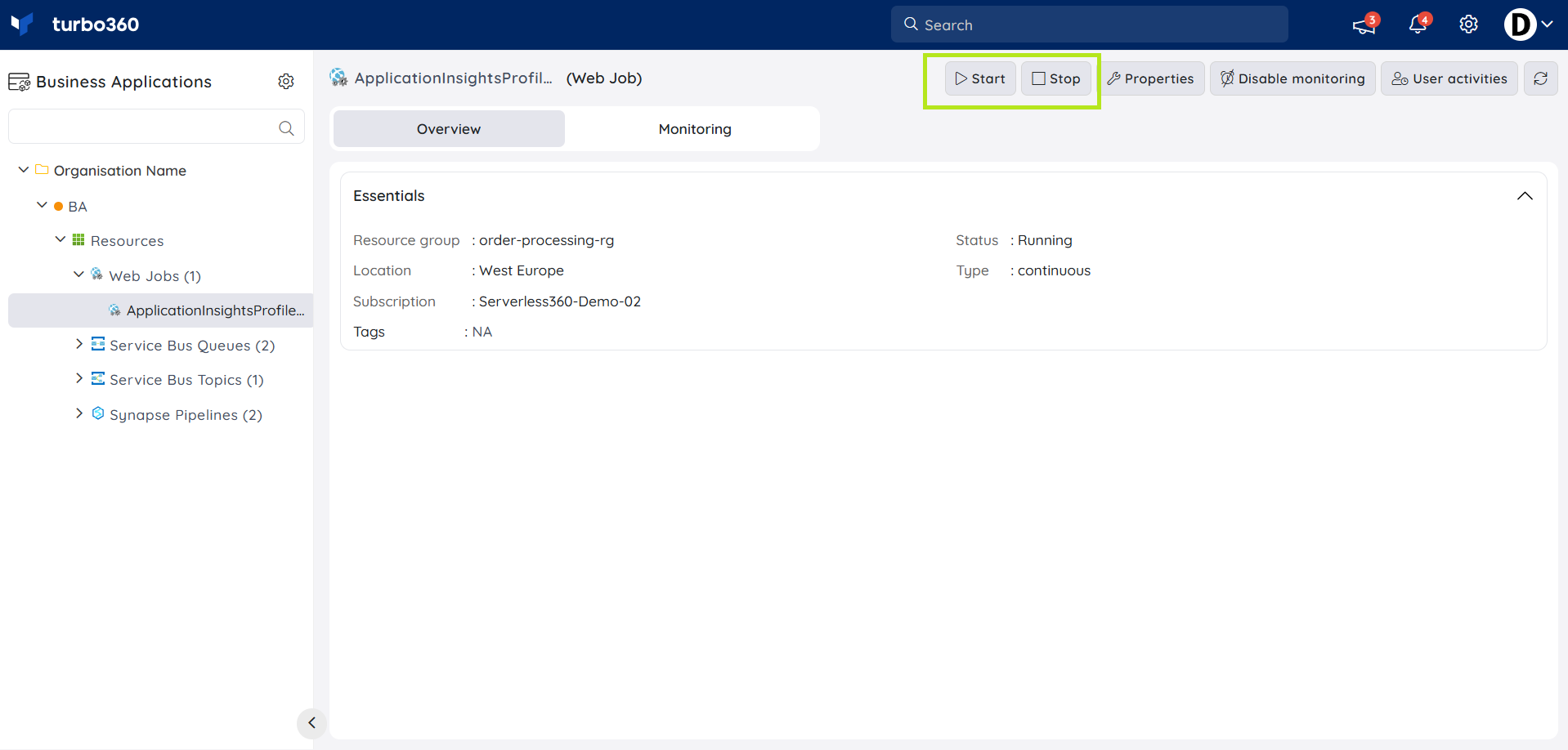
Bulk operations
- Bulk Start/Stop/Restart — perform the same operation on multiple selected WebJobs from the Web Job resource section. Use this when several WebJobs need the same status change together, such as during planned maintenance.
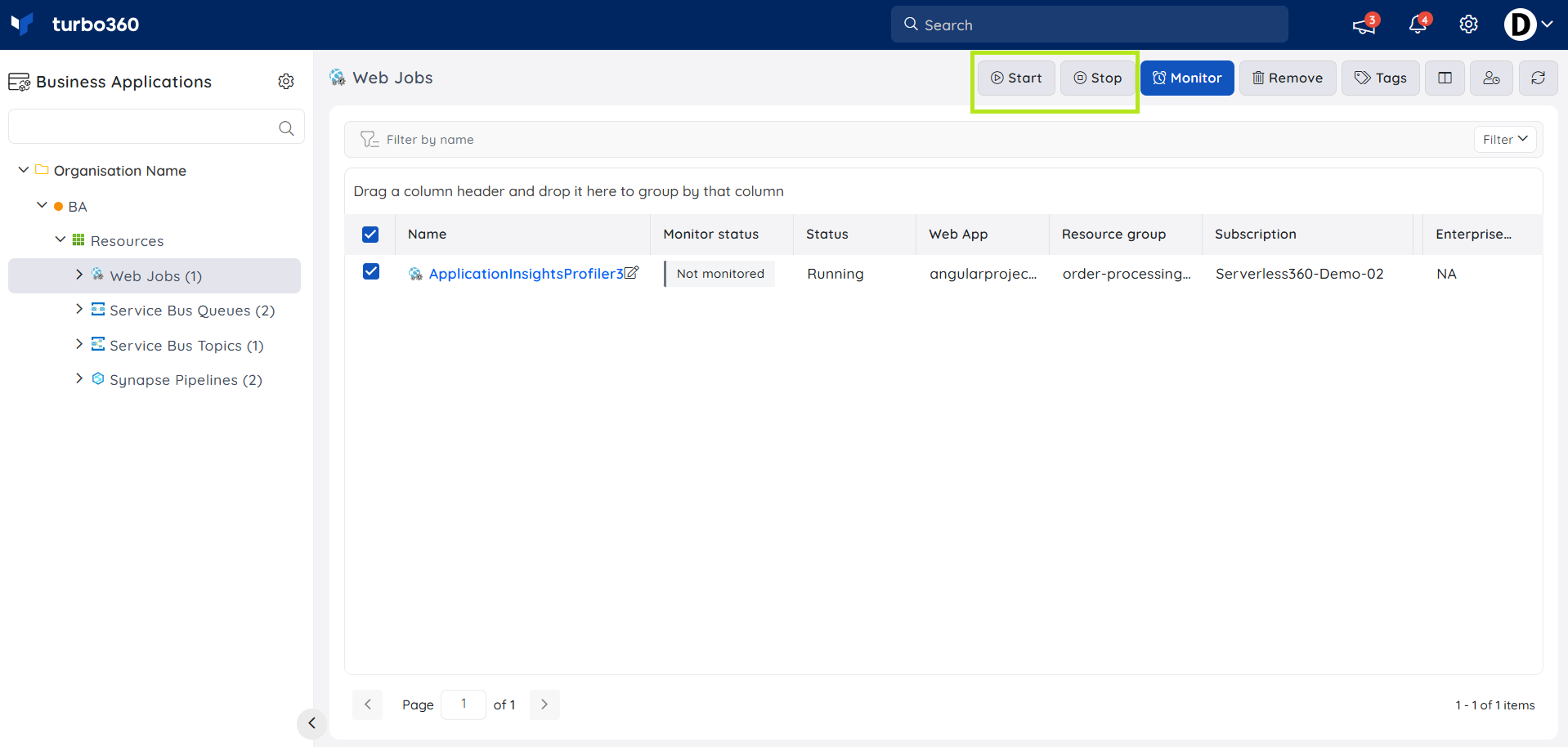
Monitoring
WebJob supports monitoring rules configured under the resource's Monitoring section.
Configuring monitoring rules
Tracks the WebJob's health against configured threshold values. Use this when you need to be alerted if the WebJob is not behaving as expected.
- Navigate to the Monitoring section of the resource.
- Specify the monitoring threshold values needed.
- Click Save.
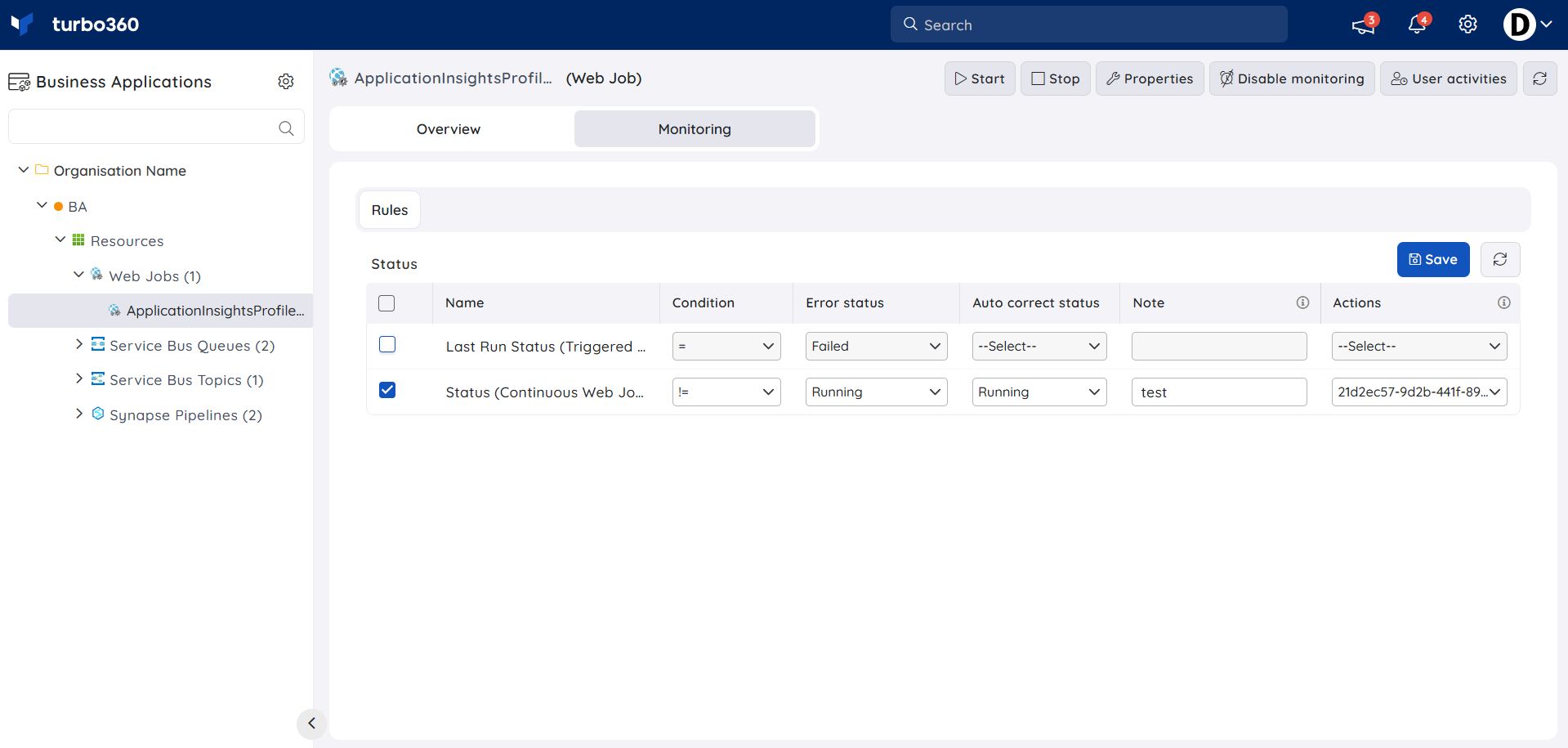
Troubleshooting
- Start, Stop, or Restart operation fails
Cause: The WebJob is in a transitional state, or the role lacks the Manage permission.
Fix: Wait for the current state transition to complete, or confirm the role has Manage access, then retry. - Monitoring rule shows no data
Cause: The WebJob has not completed its first monitoring cycle since being associated with the Business Application.
Fix: Wait for the next monitoring cycle, then check again. - Bulk operation doesn't apply to all selected WebJobs
Cause: One or more selected WebJobs were already in the target state or in a transitional state at the time of the bulk action.
Fix: Re-check the status of each WebJob and retry the bulk operation on those still pending.
Related articles
Was this article helpful?