

What is an automated task?
- 05 Aug 2026
- 3 Minutes to read
- Print
- DarkLight
- Download PDF
What is an automated task?
- Updated on 05 Aug 2026
- 3 Minutes to read
- Print
- DarkLight
- Download PDF
Article summary
Did you find this summary helpful?
Thank you for your feedback!
Overview
An automated task is a background process that runs against an Azure resource according to a predefined configuration. Automated tasks are created within a Business Application and can be triggered manually at any time or scheduled to run on a recurring basis.
Automated tasks allow you to automate remediation operations — such as resubmitting failed Logic App runs, resubmitting dead-lettered messages, purging queues, or enabling and disabling resources — without requiring manual intervention in the Azure portal.
Business value
Automated tasks reduce the operational overhead of managing Azure integration resources by automating repetitive remediation actions. When a downstream failure causes messages to accumulate or a resource to enter an unhealthy state, an automated task can resolve the condition automatically — reducing mean time to recovery and eliminating the need for on-call engineers to intervene manually.
How it works
Automated tasks are available from two entry points in Business Applications, depending on the resource type and the operation being performed.
Automated tasks tab — the primary configuration surface for creating, scheduling, and managing tasks across supported resource types. Use this for recurring or scheduled operations such as resubmitting Service Bus dead-letters, purging queues, or sending test messages.
Inline resource actions — for certain resource types, task-equivalent operations are surfaced directly on the resource view inside a Business Application. For example, the Resubmit failed runs button appears on a Logic App resource view and triggers a resubmission operation without navigating to the Automated tasks tab. These inline actions are scoped to the resource you are currently viewing and execute immediately.
When running an inline task, you can enable Save configuration to persist the task configuration — including the configuration name — to the Automated tasks section. Once saved, the configuration appears in the Automated tasks tab and can be scheduled or managed like any other automated task. If Save configuration is not enabled, the inline task runs once and is not retained.
Both entry points execute the same underlying operation — the difference is where you initiate it and what permission controls the action.
Tasks triggered from the Automated tasks tab can also be scheduled. Define a start time, timezone, recurrence frequency, and termination condition so the task runs automatically on the configured interval.
When a task completes, Turbo360 records the outcome in the task history, including execution details, completion counts, and any backup paths for processed messages.
Required permissions
The permission required depends on which entry point you use.
Automated tasks tab
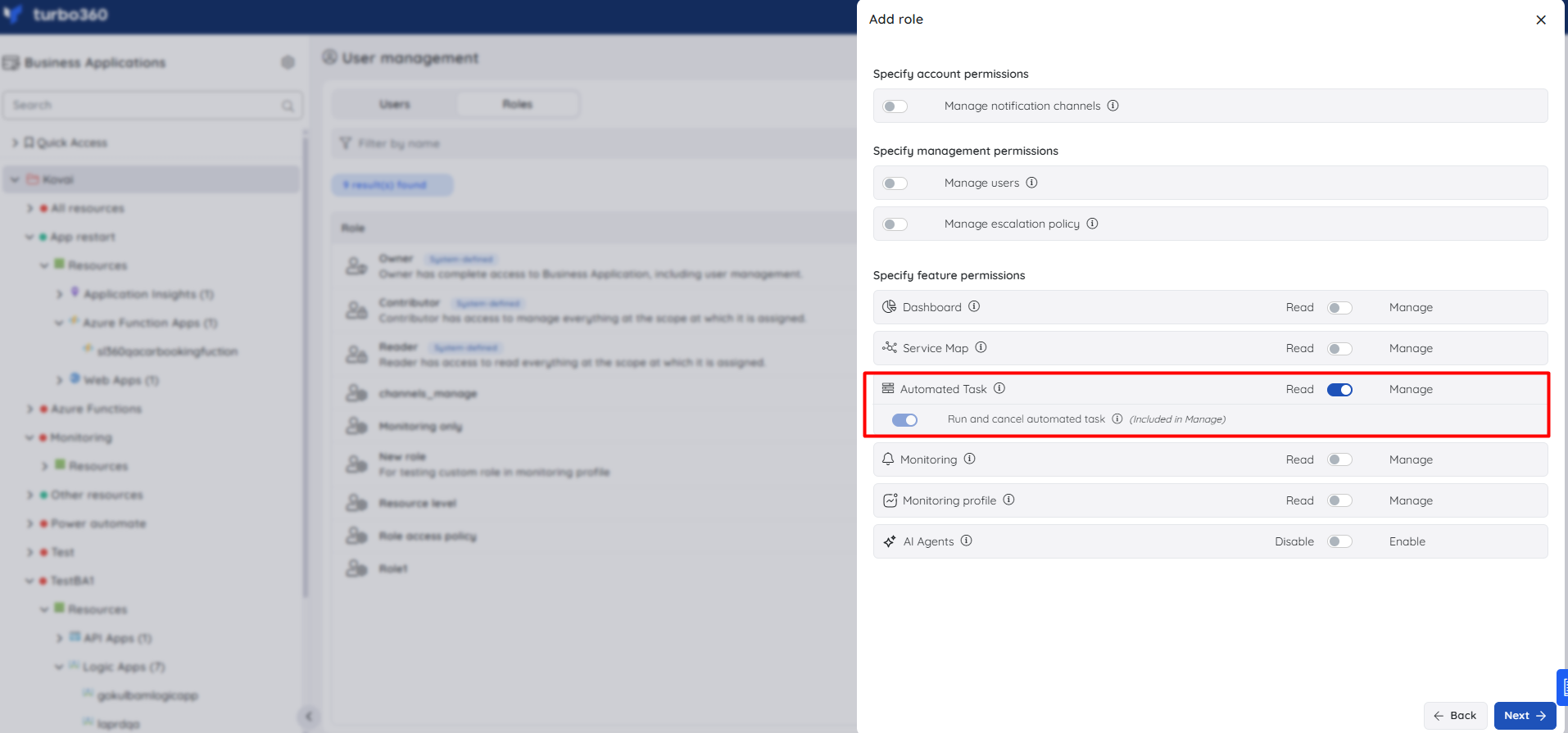
To create and manage tasks from the Automated tasks tab, your role must have the Automated Task feature permission enabled in Business Applications.
| Permission level | What it allows |
|---|---|
| Read | View configured automated tasks and task history |
| Manage | Create, edit, delete, and configure automated tasks |
| Run and cancel automated task | Manually trigger or cancel a task run (included in Manage) |
In addition, the resource-level permission for the target Azure resource type must also be enabled. For example, a task that resubmits Service Bus messages requires the Service Bus Queue or Service Bus Topic Subscription resource permission for your role.
Inline resource actions
Inline task actions — such as Resubmit failed runs on a Logic App resource — require only the resource-level permission for that specific resource type. The Automated Task feature permission is not required.
For example, to use Resubmit failed runs on a Logic App, your role must have the Logic App → Reprocess resource permission enabled. No Automated Task feature permission is needed.
Configure both feature permissions and resource permissions when creating or editing a role in Settings > User management > Roles.
Supported resources
Turbo360 supports automated tasks on the following Azure resource types:
- Event Grid
- Event Grid Domain
- Event Hub
- Logic App
- Logic App Workflow (Standard)
- Service Bus
- Storage Account
- Data Factory Pipeline
- Power Automate Flow
In addition, automated tasks support Enable and Disable operations on resource types such as APIM Product and Azure Function App.
Related articles
Was this article helpful?